
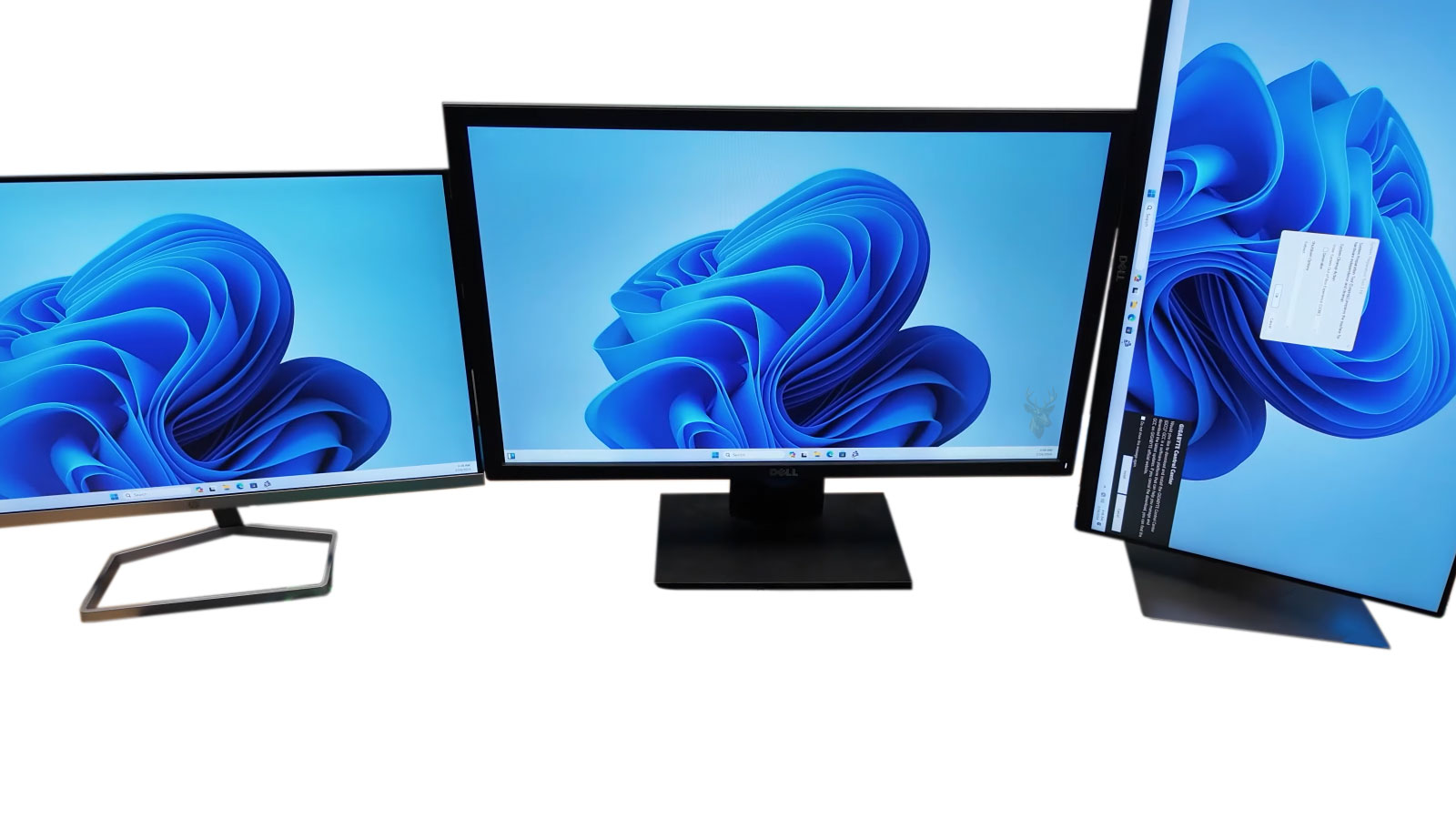
A Window Can Be Open Even When the Remote Technician Cannot See It
Remote support software allows a technician to view and control a computer through an internet connection. In most sessions, the remote screen closely matches what the person sitting in front of the computer sees. Multiple-monitor systems can make that comparison less reliable.
An application, warning message, confirmation box, or sign-in prompt may open on a second monitor that is not currently visible in the remote-support window. The program may appear frozen because it is waiting for a response to a dialog located somewhere else on the extended desktop.
The same problem can occur after a monitor is disconnected. Windows may continue remembering the old screen position, causing an application to reopen outside the boundaries of the remaining display.
Windows Treats Multiple Displays as One Larger Desktop
When displays are configured in extended mode, Windows combines them into one large working area. Each monitor occupies a specific position inside that area, such as left, right, above, or below the primary screen.
Applications can be moved between these display regions and may remember their last position. Remote-support software must either show the entire combined desktop or allow the technician to switch between individual monitors.
| Display Configuration | Remote-Support Effect |
|---|---|
| Single monitor | Most windows appear within one visible desktop area. |
| Extended monitors | Applications can open on different screens. |
| Duplicated displays | Both monitors normally show the same content. |
| Disconnected second monitor | Some windows may retain an off-screen position. |
| Docking station with several displays | The screen arrangement may change when the laptop is docked or removed. |
The Remote Session May Initially Show Only the Primary Monitor
Some remote-support programs open by displaying only the primary monitor. Additional displays may be available through a toolbar, monitor selector, or view menu, but they are not always shown automatically.
If the user says that a window is visible locally but the technician cannot see it, the session may be focused on a different display rather than experiencing a software failure.
- The mouse pointer appears to move beyond the edge of the visible screen.
- An application appears on the taskbar but not on the displayed monitor.
- The user sees a message that is missing from the remote view.
- A program stops responding immediately after opening another dialog.
- The desktop background continues beyond the area shown remotely.
Modal Dialogs Can Make an Application Appear Frozen
A modal dialog is a message or prompt that must be answered before the main application can continue. Examples include confirmation boxes, password requests, file-save prompts, and warnings about unsaved work.
If that dialog opens on another monitor or outside the visible desktop, clicking the main application may do nothing. The software is not necessarily frozen; it may simply be waiting for the hidden dialog to be completed.
An application that stops accepting clicks may be waiting for a hidden prompt rather than experiencing a complete program failure.
Taskbar Indicators Can Confirm That a Hidden Window Exists
The Windows taskbar may show that an application is running even when its main window is not visible. Hovering over the application icon can sometimes display a thumbnail of the hidden window or reveal that several windows are open.
A flashing taskbar icon may indicate that a dialog requires attention. However, the thumbnail itself may not reveal which monitor contains the window.
| Taskbar Behavior | Possible Meaning |
|---|---|
| Application icon is active | The program is open even if its window is not visible. |
| Icon flashes repeatedly | A prompt or warning may require attention. |
| Several thumbnails appear | The program has multiple windows or dialogs open. |
| Thumbnail appears off-center or blank | The window may be positioned on another display. |
Keyboard Commands Can Move an Off-Screen Window
Windows includes keyboard commands that can move an active window between monitors or return it to the visible desktop. These commands are useful when the remote technician cannot reach the missing window with the mouse.
The correct window must be selected first. Moving the wrong application can create additional confusion, especially when several programs are open.
- Select the application from the taskbar or with the keyboard.
- Confirm that the intended window is active.
- Use the Windows monitor-movement shortcut when available.
- Move the window toward the primary display.
- Resize or maximize it after it becomes visible.
- Close the application normally so it can save the corrected position.
Changing the Display Mode Can Bring Windows Back Into View
Temporarily switching from extended displays to a single-screen configuration can force Windows to move open applications onto the remaining active monitor. This can reveal dialogs that were positioned on a disconnected or hidden display.
The display arrangement should be recorded before changes are made. Returning the monitors to the wrong order can cause pointer movement, application placement, and screen orientation to behave differently afterward.
Monitor Numbering Does Not Always Match Physical Placement
Windows assigns numbers to displays, but monitor 1 is not always physically located on the left or used as the primary display. A technician should not assume the number identifies where the monitor sits on the desk.
The user may describe a screen as the left monitor while the remote-support program identifies it as display 2 or display 3. Using both physical descriptions and Windows display numbers helps prevent confusion.
- Identify which monitor contains the Start menu and taskbar.
- Confirm the physical left-to-right arrangement.
- Use the Windows Identify function when the user is present.
- Check whether any monitor is positioned above or below another.
- Determine whether the laptop’s built-in screen is also active.
Disconnected Monitors Can Leave Applications Outside the Visible Area
A computer may remember where an application was last closed. If that program was positioned on a monitor that is no longer connected, it may reopen at the same coordinates even though the display is unavailable.
This commonly occurs with laptops that move between a docking station and mobile use. An application used on an office monitor may later appear missing when the laptop is opened away from the dock.
| Situation | Possible Result |
|---|---|
| Laptop removed from a dock | Applications may reopen where external monitors previously existed. |
| HDMI monitor disconnected | A dialog may remain assigned to the old display position. |
| Monitor arrangement changed | Windows may open on an unexpected side of the desktop. |
| Remote session uses one display | Windows on other screens may not be immediately visible. |
Display Scaling Can Make a Window Difficult to Recognize
Monitors with different resolutions and scaling percentages can display the same application at different sizes. A window moved from a high-resolution display to a lower-resolution screen may appear unusually large, partially outside the desktop, or difficult to resize.
During remote support, automatic scaling can further change how the desktop appears. The technician may see a reduced or enlarged version that does not exactly match the local monitor.
The Mouse Pointer Can Reveal an Extended Desktop
If the pointer disappears when moved beyond one edge of the remote screen, it may have entered another monitor. The direction in which it disappears can provide a clue about the configured display arrangement.
However, a mismatched layout can cause the pointer to enter another screen only through a small section of the edge. This may make the movement appear inconsistent or make the second monitor difficult to reach.
A Careful Display Check Can Prevent Unnecessary Program Repairs
Hidden windows can resemble frozen applications, failed installers, missing prompts, and unresponsive remote sessions. Before closing programs or restarting the computer, the display arrangement should be checked.
Confirming the number of monitors, selecting each remote display, reviewing the taskbar, and moving off-screen windows can often restore access without changing the application itself.
Remote Tools May Offer Several Monitor Viewing Modes
Remote-support applications do not all handle multiple displays in the same way. Some show one monitor at a time, while others display every screen inside one large combined view.
A combined view can make it easier to locate hidden windows, but the text and controls may become very small. Viewing one monitor at a time provides more detail, although the technician must remember to check every available display.
| Viewing Mode | Primary Advantage | Possible Limitation |
|---|---|---|
| Single monitor | Provides a larger and clearer view of one screen. | Windows on other monitors remain hidden. |
| All monitors combined | Shows the entire extended desktop at once. | Text and controls may appear very small. |
| Automatic switching | May follow the active window or pointer. | The view can change unexpectedly. |
| Separate monitor windows | Allows each display to remain open independently. | Requires more space on the technician’s computer. |
A Hidden Confirmation Prompt Can Stop an Installation
Software installers often open additional windows for license agreements, destination folders, security approval, or restart confirmation. If one of these prompts appears on another monitor, the main installer may seem to stop progressing.
Closing the installer forcibly can leave files, services, or registry entries only partially installed. It is safer to check the taskbar and all connected displays before assuming the installation has failed.
- The progress bar stops at the same point.
- The installer remains active in the taskbar.
- The main window cannot be clicked.
- A taskbar icon flashes for attention.
- The user reports seeing a prompt on another monitor.
Administrative Prompts May Appear on a Different Display
Some software changes require administrative approval. A User Account Control prompt may appear on the primary monitor or on the display where the action was initiated.
Depending on the remote-support software and Windows security settings, the technician may not be able to view or control that protected screen. The person at the computer may need to approve the prompt locally.
A missing approval window may be on another monitor or on a protected desktop that the remote session cannot control.
The User and Technician May Be Looking at Different Screens
During a remote session, the user may describe an icon, message, or application that is visible locally while the technician is viewing another monitor. Both people can be reporting the screen accurately while referring to different displays.
Clear descriptions reduce confusion. The user can identify the monitor by physical position, screen number, wallpaper, open application, or whether it is the laptop display.
- Ask how many displays are connected.
- Identify the primary monitor.
- Confirm whether the laptop screen is open and active.
- Describe the physical position of each display.
- Match those positions with the monitor numbers in Windows.
- Switch the remote view to the screen containing the problem.
Full-Screen Applications Can Hide Access to Other Monitors
Games, presentations, video players, and specialized business software may open in full-screen mode. This can cover the taskbar and make it difficult to switch applications or identify hidden prompts.
Exiting full-screen mode or minimizing the application may reveal a message that was waiting behind it. The remote technician should avoid closing the program abruptly when unsaved work may be present.
Remote Resolution Changes Can Rearrange Open Windows
Some remote-support programs temporarily change the screen resolution to improve performance or fit the remote desktop inside the technician’s display. When the resolution changes, Windows may reposition open applications.
A window can become partially hidden, enlarged beyond the screen, or moved onto another monitor. Restoring the original resolution may not immediately return every application to its previous position.
| Resolution Change | Possible Result |
|---|---|
| Lower resolution | Large windows may extend beyond the visible desktop. |
| Higher resolution | Text and controls may become smaller. |
| Different aspect ratio | Window placement may shift or become compressed. |
| Remote session disconnects | The local display may return to a different arrangement. |
Different Scaling Levels Can Affect Pointer Accuracy
One monitor may use 100 percent scaling while another uses 125 or 150 percent. Remote-support software must translate pointer movement between these different display sizes.
In some sessions, the technician may click slightly away from the intended control or find that the pointer position changes after switching monitors. This can resemble an unresponsive application even though the problem is related to scaling.
Portrait Monitors Can Extend the Desktop Vertically
A monitor rotated into portrait orientation creates a taller display area. Windows may open a dialog near the top or bottom of that screen, outside the area currently shown by the remote-support window.
The remote technician should check not only the left and right sides of the desktop but also displays positioned above or below the primary monitor.
- A vertical monitor may contain windows far above or below the primary screen.
- The pointer may leave the visible desktop through only part of an edge.
- Application windows may open with unusual height or position.
- A combined remote view may include large empty areas.
- Monitor orientation can change after driver or docking problems.
Docking and Undocking Can Create Different Display Profiles
A laptop used with a docking station may have two or three external monitors at work and only its built-in display elsewhere. Windows can remember different arrangements for each connection state.
Applications that were closed on an external monitor may reopen off-screen after the laptop is undocked. When the dock is reconnected, monitor numbering and placement may also differ from the previous arrangement.
| Connection Change | Possible Display Behavior |
|---|---|
| Laptop is undocked | Windows may move some applications to the built-in display. |
| Dock is reconnected | Monitor order may be restored or reassigned. |
| Dock firmware changes | Displays may be detected differently. |
| One cable is missing | A previously available monitor may remain absent. |
A Display Driver Reset Can Change the Monitor Arrangement
If the graphics driver restarts, crashes, or is updated during a remote session, connected monitors may briefly disappear and return in a different order. Open windows can move to the primary display or become repositioned.
The remote session may also freeze temporarily while the display system resets. Reconnecting without first checking the new monitor arrangement can leave the technician viewing the wrong screen.
Remote Sessions Can Open on a Virtual Display
Some remote-access systems create a virtual display or use a separate remote desktop environment. Applications opened there may not appear on the physical monitors in the same way.
This can be useful for privacy or unattended access, but it may confuse a user who expects to see every action locally. The technician should confirm whether the session is sharing the physical desktop or operating inside a separate display environment.
A remote desktop can represent the physical monitors, a combined desktop, or a separate virtual screen depending on the software and connection method.
Applications May Save Their Own Window Positions
Windows manages the desktop layout, but many applications independently remember their last size and location. A program may repeatedly reopen off-screen even after other windows have returned to the primary monitor.
Moving the application back into view and closing it normally may update the saved position. If the problem continues, the application’s configuration files or display preferences may need to be reset.
- Bring the application onto the primary monitor.
- Resize it so the entire window fits within the screen.
- Close the program through its normal menu or close button.
- Reopen it and confirm the saved position.
- Repeat the test after disconnecting the secondary display.
- Review application-specific display settings if the position returns.
Screen Sharing Permissions Can Limit What Is Visible
Some operating systems and security tools allow screen-sharing access to certain applications or displays while restricting others. A technician may see the desktop but encounter blank windows, hidden prompts, or unavailable protected content.
These restrictions should not be mistaken for monitor failure. The user may need to grant screen-recording, accessibility, or administrative permission before the complete desktop can be viewed and controlled.
A Structured Monitor Check Saves Time During Remote Support
When a program appears missing or unresponsive, checking every display is usually faster than restarting applications immediately. The technician should confirm the monitor count, remote viewing mode, taskbar activity, display arrangement, scaling, and whether any disconnected screen remains remembered by Windows.
This process helps distinguish a hidden window from an application crash, installation failure, frozen remote session, or permission problem.
A Remote Session Should End With the Display Layout Restored
Temporary display changes may be useful during troubleshooting, but the computer should not be left with an unfamiliar arrangement. Monitor order, resolution, scaling, orientation, and primary-display selection should be returned to the user’s normal configuration whenever possible.
A technician should also confirm that commonly used applications reopen on the expected monitor before the session ends.
- Restore the original monitor arrangement.
- Return each display to its normal resolution.
- Confirm the preferred primary monitor.
- Reopen important applications and check their positions.
- Verify that the mouse moves naturally between screens.
Closing a Program Normally Can Save the Corrected Position
After an off-screen window is moved back onto a visible monitor, the application should be closed through its normal controls. Many programs save their last window position only during a proper shutdown.
Ending the program through Task Manager or forcing the computer to restart may prevent the corrected position from being stored.
Returning a window to the primary display is only part of the repair; the application must also save that new location.
Restarting Windows Can Consolidate Open Windows Onto Active Displays
A controlled Windows restart can help after monitor connections, display drivers, or scaling settings have changed. Applications that reopen may be reassigned to displays that are currently active.
Unsaved work should be protected before restarting. A restart should not be used as the first response when a hidden confirmation prompt may still be waiting for input.
| Action | When It May Help |
|---|---|
| Move and close the application normally | The program repeatedly reopens off-screen. |
| Switch temporarily to one display | A window remains assigned to a disconnected monitor. |
| Restart Windows | The display arrangement remains inconsistent after hardware changes. |
| Reset application preferences | Only one program continues saving an invalid position. |
Remote Support Software Should Be Updated Without Ignoring Compatibility
Remote-support programs receive updates that may improve multi-monitor switching, scaling, pointer accuracy, and compatibility with newer display drivers. An outdated client can sometimes show only part of the desktop or handle mixed-resolution displays incorrectly.
Updates should still be applied carefully in managed offices. A new version may require different permissions, restart background services, or behave differently with existing security policies.
Display Driver Problems Can Affect Both Local and Remote Views
If monitors disappear locally, flicker, duplicate unexpectedly, or change resolution without explanation, the problem may extend beyond the remote-support software. Graphics drivers, docking hardware, display cables, adapters, and monitor detection should be checked.
A remote tool can only show the displays that Windows detects. It cannot reliably provide access to a monitor that the operating system has lost.
- One monitor repeatedly disconnects.
- Display numbering changes after every restart.
- The desktop resolution resets unexpectedly.
- A dock detects only some connected monitors.
- The local user also sees flickering or blank screens.
Unattended Remote Access Requires a Predictable Screen Arrangement
When no person is present at the computer, the technician cannot ask which physical monitor contains a hidden message. A stable and documented monitor configuration becomes more important for unattended support.
Frequently serviced office computers may benefit from a consistent primary monitor, standard scaling settings, and a known method for switching between screens inside the remote-support software.
| Preparation | Remote-Support Benefit |
|---|---|
| Document the monitor arrangement | Helps identify where hidden windows are likely to appear. |
| Use consistent display numbering | Reduces confusion between repeated sessions. |
| Keep the remote client updated | Improves compatibility with current display settings. |
| Confirm unattended permissions | Prevents the session from stopping at approval prompts. |
Privacy Considerations Increase With Multiple Screens
A second or third monitor may contain email, financial records, customer information, or other material unrelated to the repair. Showing all monitors at once can expose more information than the technician needs.
The session should remain limited to the displays and applications necessary for the requested work. The user should be told when the technician needs to switch to another monitor.
Blank or Black Windows May Be Protected Content
Some video, security, financial, and rights-protected applications may appear black inside a remote session even though they display normally on the local monitor. This can result from content protection, hardware acceleration, or application security controls.
Moving the window to another monitor may not correct this behavior. The issue should be separated from ordinary off-screen window placement.
- Confirm that the local user can see the window.
- Check whether only one protected application appears blank.
- Determine whether the remote tool can capture the other displays.
- Review application and operating-system screen-sharing permissions.
- Avoid disabling security controls without a valid reason.
A Missing Window Can Be Confused With a Minimized Application
Not every absent application is off-screen. The window may be minimized, hidden behind another program, assigned to a different virtual desktop, or collapsed into the notification area.
Taskbar previews, keyboard switching, virtual-desktop controls, and notification-area icons should be checked before display settings are changed.
Virtual Desktops Add Another Layer of Hidden Windows
Windows virtual desktops allow separate groups of applications to occupy the same physical monitors. A program can be open on another virtual desktop even when every connected monitor has been checked.
The remote technician should review the active virtual desktop when an application appears in system activity but cannot be found on any monitor.
| Where the Window May Be | Useful Check |
|---|---|
| Another physical monitor | Switch displays in the remote-support toolbar. |
| Outside the active display boundaries | Use keyboard movement or single-display mode. |
| Another virtual desktop | Open the Windows task view. |
| Minimized or behind another program | Review taskbar previews and keyboard switching. |
| Notification area | Check hidden system-tray icons. |
Post-Session Testing Should Include Docked and Undocked Use
If the problem involves a laptop and docking station, the corrected window positions should be tested in both configurations. An application may work properly while docked but reopen outside the built-in screen after the laptop is removed.
Testing both conditions helps confirm that Windows and the applications can adapt to the changing monitor arrangement.
Professional Diagnosis May Be Needed When Displays Keep Rearranging
If monitor order, resolution, scaling, or application placement continues changing after every restart, the problem may involve the graphics driver, docking station, adapters, cables, monitor identification data, or damaged Windows display settings.
Repeatedly moving windows back into place may provide temporary relief without correcting the cause of the unstable arrangement.
Checking Every Screen Prevents Many Unnecessary Repairs
Multiple monitors can make an ordinary hidden window look like an application crash, failed installation, inaccessible prompt, or unresponsive remote session. The problem is often related to where Windows placed the application rather than whether the program is working.
A reliable remote-support process checks the monitor count, physical arrangement, remote viewing mode, taskbar activity, virtual desktops, scaling, and disconnected displays before closing applications or changing software. This approach protects unsaved work and helps restore the missing window with fewer unnecessary changes.











