
Understanding Embedded Storage in Modern Budget Laptops
Many entry-level laptops no longer use traditional hard drives or removable solid-state drives for primary storage. Instead, they rely on embedded MultiMediaCard (eMMC) storage, which is permanently soldered to the motherboard and designed to provide an affordable, compact storage solution.
Although eMMC storage performs many of the same basic functions as an SSD, its design, performance characteristics, upgrade options, and repair considerations are significantly different. Understanding these differences helps explain why some budget laptops present unique repair challenges when storage problems develop.
What Is eMMC Storage?
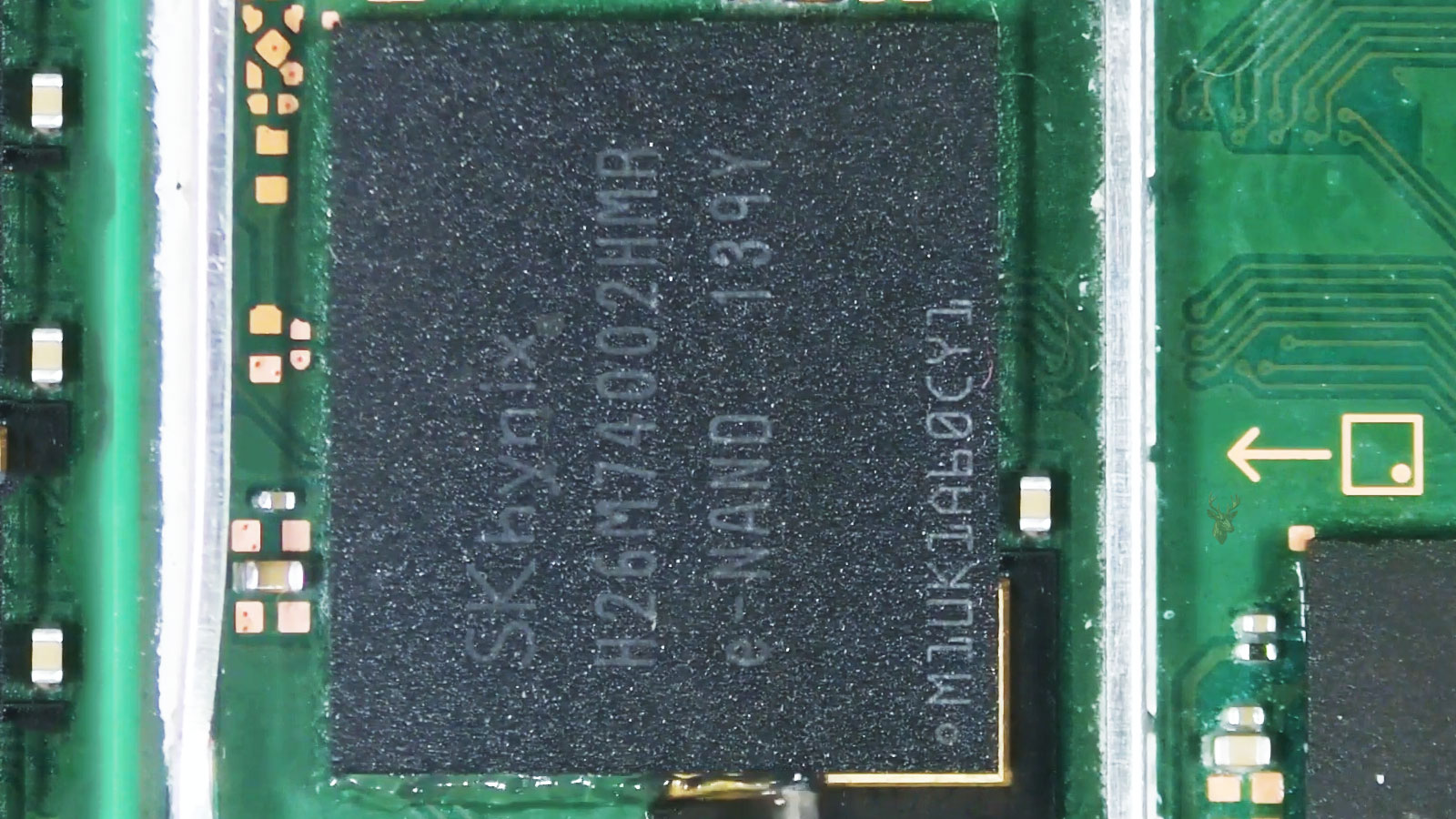
Embedded MultiMediaCard, commonly known as eMMC, combines NAND flash memory and a storage controller into a single integrated chip that is permanently mounted to the system board. Unlike a removable SSD, the storage device cannot normally be disconnected or replaced independently.
This integrated design reduces manufacturing costs while allowing thinner and more compact laptop designs.
eMMC and SSDs Use Similar Flash Memory
Both eMMC storage and solid-state drives use NAND flash memory to store information without moving mechanical parts. They also include controllers that manage wear leveling, error correction, bad block handling, and logical addressing.
However, the controller architecture, communication interface, performance capabilities, and serviceability differ considerably between the two technologies.
| Characteristic | eMMC Storage | Typical SSD |
|---|---|---|
| Installation | Soldered to motherboard. | Usually removable. |
| Replacement | Often requires board-level repair. | Typically replaceable. |
| Performance | Designed for basic workloads. | Higher overall performance. |
| Upgrade Options | Usually limited. | Often upgradeable. |
| Common Usage | Budget laptops and tablets. | Mainstream and high-performance computers. |
Why Manufacturers Use eMMC
eMMC allows manufacturers to reduce system cost, conserve internal space, lower power consumption, and simplify motherboard layouts. These advantages make it especially common in affordable notebooks intended for web browsing, office work, online learning, and general home use.
For users with modest computing requirements, eMMC often provides acceptable everyday performance while helping keep overall system prices lower.
Storage Capacity Is Often More Limited
Many laptops equipped with eMMC storage include capacities such as 32 GB, 64 GB, or 128 GB. While sufficient for lightweight operating systems and basic applications, available storage can become limited after operating system updates, software installation, and long-term everyday use.
Users may begin encountering low-storage warnings much sooner than on systems equipped with larger SSDs.
Limited Free Space Can Affect Performance
Operating systems require temporary working space for updates, virtual memory, browser caches, application data, and background maintenance tasks. When free storage becomes scarce, overall responsiveness may decline even if the storage hardware itself remains healthy.
This makes routine storage management particularly important on systems with smaller eMMC capacities.
Not Every Slow Laptop Has a Failing eMMC Chip
Slow startup, delayed program launches, or reduced responsiveness do not automatically indicate storage failure. Limited RAM, background software, insufficient free storage, operating system maintenance, or processor limitations can produce similar symptoms.
Accurate diagnosis requires evaluating the entire system rather than assuming the embedded storage is responsible.
Performance problems and hardware failures often produce similar symptoms. Proper diagnosis separates storage faults from normal limitations of entry-level hardware.
eMMC Storage Is Permanently Attached
Unlike most SATA and NVMe drives, eMMC storage is soldered directly to the motherboard using hundreds of tiny electrical connections beneath the integrated circuit package.
This permanent attachment improves manufacturing efficiency but significantly reduces repair and upgrade flexibility.
Replacing the Storage Is Not Usually a Simple Upgrade
With many conventional laptops, increasing storage capacity simply involves installing a larger SSD. Systems that rely entirely on soldered eMMC storage often do not provide that option.
Depending on the motherboard design, increasing storage may require replacing the entire system board or using any available expansion options supported by the manufacturer.
Some Budget Laptops Include Both eMMC and Expansion Options
Certain laptops use eMMC as the factory-installed operating system storage while also providing an empty M.2 slot or SATA connector for future upgrades. Others provide only the soldered storage with no internal expansion capability.
The available upgrade path depends entirely on the specific motherboard configuration.
Model Specifications Matter
Two laptops sold under the same product family may include different storage configurations depending on production date, region, processor model, or factory options.
One version may support an additional SSD while another identical-looking model may not include the necessary connector or mounting hardware.
The Controller Is Built Into the Storage Package
Unlike many removable SSDs that contain multiple memory chips alongside a dedicated controller, eMMC integrates both functions within a compact package. The controller manages logical addressing, wear leveling, bad block management, and communication with the motherboard.
If either the flash memory or controller develops a serious fault, the complete storage device may become unusable.
Everyday Wear Still Occurs
Like other flash storage technologies, eMMC memory gradually wears as information is repeatedly written and erased. Internal management techniques help distribute this wear across available memory cells to maximize service life.
Normal consumer workloads are often well within the intended operating range, but heavy continuous writing can accelerate flash wear over time.
Heavy Write Activity Can Shorten Flash Lifespan
Frequent operating system reinstalls, constant large downloads, continuous logging, virtual machines, or other write-intensive workloads place greater demands on flash memory than ordinary web browsing or office applications.
Although most home users never approach the endurance limits during normal use, flash wear remains a finite resource.
Symptoms May Develop Gradually
Many storage problems begin subtly. Applications may take longer to launch, updates may occasionally fail, or files may require additional time to open before more obvious symptoms appear.
These gradual changes may reflect several different hardware or software conditions, making proper diagnosis important before concluding that the eMMC chip itself is failing.
Unexpected Read Errors Can Affect System Stability
If the controller encounters increasing difficulty reading stored information, operating system files or application data may become temporarily inaccessible. This can contribute to startup problems, application crashes, or repeated error messages.
The exact symptoms depend on which portions of the storage are affected.
Write Problems Can Prevent System Updates
When new information cannot be written reliably, operating system updates, application installations, or document saves may fail. Some users first notice storage problems after updates repeatedly refuse to complete successfully.
Write failures should always be evaluated alongside available free space and other system conditions before hardware failure is assumed.
Startup Problems Can Have Multiple Causes
A laptop that no longer boots successfully may have storage-related problems, but firmware configuration, damaged operating system files, memory faults, motherboard failures, or power problems can produce similar behavior.
Storage diagnosis works best when the entire startup sequence is evaluated rather than focusing on a single symptom.
Some Systems Report Storage Errors During Boot
Certain firmware implementations display diagnostic messages if embedded storage cannot be initialized correctly. Other computers simply remain at a manufacturer logo, enter automatic repair repeatedly, or display operating system startup errors without identifying the underlying storage problem directly.
Repeated Automatic Repair May Point to Storage Trouble
A laptop that repeatedly enters automatic repair may have damaged operating system files, an incomplete update, or a problem reading information from the eMMC storage. The repair environment may start successfully but fail to complete because the same storage errors remain present.
Repeated repair attempts do not confirm hardware failure by themselves, but they can indicate that the system is unable to read or write critical startup data consistently.
A Reset May Fail Before Completion
Windows reset and recovery procedures require the computer to read installation files, create temporary data, and write a new operating system image to storage. If the eMMC device has unstable areas or insufficient free space, the reset may stop with an error or return the computer to its previous condition.
A failed reset can also result from corrupted recovery files, so the failure should be investigated before the embedded storage is condemned.
Operating System Installation May Stop Unexpectedly
During a clean installation, the setup program must create partitions, format the storage, copy files, and verify the newly written data. Problems at any of these stages may indicate a storage fault, but they can also result from damaged installation media, incompatible drivers, or firmware settings.
Consistent installation failures at different percentages often justify closer testing of the embedded storage and motherboard.
The Storage May Appear With the Wrong Capacity
Firmware or diagnostic tools may occasionally report an incorrect capacity when communication with the eMMC controller is unstable. A device expected to provide 64 GB may appear substantially smaller, show zero capacity, or disappear entirely.
Incorrect capacity reporting can indicate controller failure, damaged internal metadata, or a communication problem between the storage package and the motherboard.
A Missing Storage Device Prevents Normal Startup
If the firmware cannot detect the eMMC device, the laptop may report that no bootable device is available. Because the storage is soldered to the motherboard, it cannot be removed and reseated like a conventional SSD.
The absence of the device may involve the eMMC package itself, the motherboard power circuitry, damaged solder connections, firmware problems, or a broader system-board failure.
Intermittent Detection Is Especially Concerning
An eMMC device that appears during one startup and disappears during another may be developing an electrical, controller, or solder-related problem. The computer may boot normally when the storage initializes successfully and fail when it does not.
Intermittent storage should be treated cautiously because continued use may reduce the opportunity to copy important files before the device becomes completely inaccessible.
Freezing Can Occur During Storage Access
If the operating system requests information from an area that is difficult to read, the computer may pause while the storage controller retries the operation. This can appear as a frozen application, delayed response, or temporary system lockup.
Freezing caused by storage access may become more noticeable while opening files, installing updates, or starting applications.
Application Crashes May Follow Read Errors
Programs depend on stored executable files, libraries, settings, and user data. If any of this information becomes unreadable or corrupted, an application may close unexpectedly or refuse to launch.
Repeated crashes affecting unrelated programs can justify checking storage integrity along with memory, operating system files, and software compatibility.
Files May Become Corrupted Without Disappearing
A document, photograph, or application file may remain visible in its original folder while containing damaged or incomplete data. The file may no longer open, may display errors, or may contain unexpected content.
Visible file names do not guarantee that the underlying information remains readable.
Saved Files May Fail to Reopen
A user may save a file successfully and later discover that it cannot be opened. This can happen when the data was not written correctly, when file system structures became damaged, or when the application closed before the save completed.
Repeated problems affecting newly created files should be taken seriously, especially when they occur alongside startup errors or storage warnings.
Read-Only Behavior Can Be a Protective Response
Some flash storage devices enter a read-only condition when the controller determines that additional writing is unsafe. Existing files may remain accessible, but new files cannot be saved and updates cannot be installed.
This behavior may preserve remaining data temporarily, but it is not a reliable long-term operating state.
If embedded storage suddenly becomes read-only, important files should be copied immediately rather than assuming the condition will remain stable.
Low Storage Space Can Resemble Read-Only Failure
A nearly full eMMC device may prevent applications from saving information or stop system updates from completing. These symptoms can resemble a write failure even when the hardware remains functional.
Available capacity should always be checked before concluding that the storage controller has entered a protective mode.
File System Corruption Can Hide the Real Condition
The operating system organizes information using partitions, directories, allocation records, and other file system structures. Damage to these structures can make healthy storage appear inaccessible or cause folders and files to disappear.
File system corruption and physical flash failure can also occur together, making diagnosis and recovery more complicated.
Repair Utilities Can Add Additional Write Activity
File system repair tools may rewrite metadata, rebuild indexes, or modify damaged allocation records. These changes can be appropriate on stable storage, but they may increase risk when the underlying eMMC device is already failing.
When valuable data is involved, creating a recoverable copy should usually take priority over repeated repair attempts.
Health Reporting May Be Limited
Many conventional SSDs provide detailed SMART information about wear, media errors, spare capacity, and operating temperature. eMMC devices may expose less diagnostic information depending on the controller, system firmware, and utility being used.
A lack of visible health warnings does not guarantee that the embedded storage is operating normally.
Generic Drive Utilities May Not Recognize eMMC Correctly
Some storage-monitoring programs are designed primarily for SATA or NVMe drives. They may identify the eMMC device only as generic internal storage or fail to display meaningful health attributes.
Manufacturer diagnostics, firmware information, operating system logs, and direct behavior testing may provide more useful evidence.
Error Logs Can Reveal Storage-Related Patterns
Operating system logs may record timeouts, file system warnings, failed write operations, controller resets, or unexpected storage disconnections. A single event may not be conclusive, but repeated patterns can support a broader diagnosis.
Logs should be considered together with startup behavior, file integrity, installation failures, and whether the eMMC device remains consistently detected.
Surface Scans Have Practical Limitations
A scan may identify unreadable logical areas, but it does not provide direct access to the internal NAND condition or controller decisions. Flash storage performs its own translation and bad block management behind the scenes.
A successful scan also cannot guarantee that an intermittent failure will not return later.
Stress Testing Can Worsen an Unstable Device
Extended write tests, repeated full scans, and large benchmark workloads place additional demands on the eMMC controller and flash memory. These procedures may be inappropriate when the laptop already contains important data and shows signs of storage instability.
Testing should be selected according to the condition of the device and the importance of the stored information.
Data Recovery Is More Difficult Than With a Removable Drive
A removable SSD can often be connected to another computer or specialized recovery equipment without operating the original laptop. Soldered eMMC storage remains physically attached to the motherboard, so access may depend on the original board continuing to function.
This creates additional challenges when the laptop has both storage and motherboard problems.
A Working Motherboard May Still Allow File Copying
If the eMMC device remains detectable and the operating system can still read files, important data may be copied through normal software methods. An external boot environment may also provide access when the installed operating system no longer starts.
The safest method depends on how stable the storage remains and whether the system can operate without repeated interruptions.
Booting From External Media Can Help Separate Problems
Starting the laptop from a supported USB device may help determine whether the installed operating system is damaged or whether the eMMC storage itself is inaccessible. If the computer runs normally from external media but cannot read the internal storage, the problem is more likely to involve the embedded device or its file system.
Some budget laptops have firmware limitations that make external booting more difficult, so this test is not available on every model.
Imaging the Storage Can Preserve Its Current State
When the eMMC device remains readable but appears unstable, creating a sector-level image can preserve accessible information before repair attempts are made. Recovery can then continue from the image rather than repeatedly stressing the original storage.
Imaging software must be able to handle read errors and interruptions without repeatedly restarting the entire process.
Conventional Cloning Software May Stop at Errors
Standard cloning utilities often assume that the source storage is healthy. They may stop when unreadable areas are encountered or retry the same location many times.
Recovery-oriented imaging methods are generally better suited to unstable storage because they prioritize accessible areas and return to difficult sections later.
Board-Level Access May Be Required
If the motherboard cannot start or communicate with the eMMC package normally, recovery may require specialized board-level diagnosis. Power rails, clock signals, data lines, and the storage package itself may need to be evaluated.
This work is substantially more complex than connecting a removable drive to another computer.
Removing the eMMC Chip Is a Specialized Procedure
The storage package is attached through a ball grid array beneath the chip. Removing it requires controlled heat, appropriate equipment, board knowledge, and careful handling to avoid damaging the package or surrounding motherboard components.
Physical removal is generally considered only when less invasive recovery methods are no longer possible.
Raw Flash Data May Not Be Immediately Usable
Even if the eMMC package can be read directly, the extracted information may include controller-managed structures, partitions, encryption, or data organization that requires additional reconstruction.
Direct chip access does not automatically produce normal folders and files.
Encryption Can Limit Recovery Options
Some laptops automatically enable device encryption or BitLocker. If the storage contents are encrypted, a successful physical read still requires the correct recovery key or account credentials before user files can be accessed.
Encryption protects personal information, but it also makes preserving recovery keys essential.
Motherboard Replacement Does Not Transfer the Original Data
Because the eMMC storage is part of the motherboard, replacing the entire system board also replaces the original internal storage. The new board may restore the laptop to operation, but the user’s files remain on the damaged board.
Data recovery and computer repair may therefore need to be treated as separate objectives.
Replacing Only the eMMC Package Is Rarely Straightforward
Installing another eMMC chip may require compatible capacity, firmware support, correct hardware configuration, and reprogramming of system software. Some motherboards are not designed to accept a different package without additional factory information.
Even when replacement is technically possible, the labor may exceed the practical value of an entry-level laptop.
Repair Cost Must Be Compared With System Value
Budget laptops are often built around highly integrated motherboards. Replacing the board or performing advanced microsoldering may cost a significant portion of the price of another computer.
The decision may depend on the value of the stored data, availability of replacement parts, age of the laptop, and whether the system meets the user’s current needs.
A Storage Upgrade May Not Be Economically Practical
Users sometimes consider replacing a small eMMC package with a larger one. In many cases, the required board work, compatibility uncertainty, and operating system preparation make this less practical than purchasing a laptop designed with removable storage.
An available M.2 or SATA expansion connector offers a much safer upgrade path when the model supports one.
External Storage Helps With Capacity but Not Every Limitation
An external drive can provide space for documents, photographs, backups, and other large files. This can reduce pressure on a small internal eMMC device.
However, external storage does not repair a failing internal device, and the operating system may still require free space on the eMMC storage for updates and normal operation.
Memory Cards Are Not Always Suitable as Primary Storage
Some budget laptops include an SD or microSD card slot that can expand file-storage capacity. These cards are useful for documents and media, but performance, endurance, and reliability vary widely.
A removable memory card should not be treated as the only location for important files without a separate backup.
Cloud Storage Can Reduce Dependence on the Internal Device
Synchronizing important files with a cloud service can help protect them if the embedded storage fails. It can also reduce the amount of local capacity required for documents that do not need to remain available offline.
Synchronization is not identical to a complete backup, especially when deleted or corrupted files are automatically synchronized across devices.
Warning Signs Should Lead to Immediate Backup
- Repeated startup repair loops.
- Operating system resets that fail consistently.
- Files that become unreadable or corrupted.
- Applications that crash during ordinary storage access.
- Updates that fail despite sufficient free space.
- Internal storage that appears intermittently.
- Incorrect or zero storage capacity reported by firmware.
- A sudden read-only condition.
These symptoms do not all prove eMMC failure, but they justify protecting important information before further troubleshooting continues.
Preventive Storage Management Can Extend Useful Life
eMMC storage does not require traditional mechanical maintenance, but system habits can still influence how efficiently it operates. Maintaining adequate free space, limiting unnecessary write-heavy activity, and keeping current backups can reduce avoidable stress while improving everyday reliability.
These practices cannot stop normal flash wear, but they can help prevent software conditions from making a healthy device appear defective or from adding unnecessary workload to limited-capacity storage.
Free Space Should Be Monitored Regularly
Small-capacity eMMC devices can fill quickly with updates, temporary files, browser data, downloads, and application caches. Once available space becomes limited, the operating system may struggle to complete background tasks or install updates.
Removing unneeded files, moving large personal data to external storage, and uninstalling unused software can help maintain enough working space for normal operation.
Temporary Files Can Consume a Large Percentage of Capacity
On a 32 GB or 64 GB device, several gigabytes of temporary data can represent a significant portion of the total available storage. Update remnants, browser caches, error reports, and application installation files may accumulate without being obvious to the user.
Built-in storage cleanup tools can remove many of these files without affecting personal documents when used carefully.
Repeated Full Resets Add Significant Write Activity
Resetting or reinstalling the operating system rewrites large portions of the embedded storage. An occasional reinstall is not normally a concern, but repeated attempts on an unstable device can place additional stress on flash memory and may reduce recovery opportunities.
If resets continue failing, the cause should be investigated rather than repeating the same process indefinitely.
Updates Need Both Storage Space and Reliable Writes
Operating system updates often require more temporary space than the final installed files occupy. The computer may download packages, create backups, unpack installation data, and preserve rollback information before the update completes.
An update failure may therefore result from limited capacity even when the remaining free space appears close to the published minimum requirement.
A Clean Installation Does Not Repair Physical Wear
Reinstalling the operating system can correct damaged software, corrupted system files, and some partition problems. It cannot restore worn flash cells, repair a failing controller, or rebuild damaged solder connections beneath the eMMC package.
If the same errors return after a successful clean installation, further hardware evaluation may be necessary.
Cooling Still Matters for Embedded Storage
Although eMMC storage usually generates less heat than high-performance NVMe drives, it still operates inside the same enclosed motherboard environment as the processor, memory, and power circuitry.
Blocked vents, failed cooling fans, and prolonged high internal temperatures can affect the stability and lifespan of multiple board-mounted components.
Power Problems Can Resemble Storage Failure
Unstable motherboard power rails, damaged charging circuits, failing batteries, or intermittent adapters can interrupt storage operations and produce corrupted files or incomplete updates.
A complete diagnosis should confirm that the eMMC package receives stable power before the storage itself is considered defective.
Sudden Shutdowns Increase the Risk of Corruption
If power is lost while the operating system is writing file system metadata, updating applications, or changing system files, incomplete information may remain on the storage device.
Modern systems include recovery protections, but repeated abrupt shutdowns can still contribute to startup problems and damaged files.
A Healthy Battery Can Help Complete Critical Writes
On a laptop with a functioning battery, temporary loss of external power usually does not interrupt the computer immediately. This gives the operating system time to continue working or shut down normally.
A failed or disconnected battery removes that protection and makes adapter interruptions more likely to cause sudden shutdowns.
Firmware Problems Can Affect Storage Detection
System firmware initializes the embedded storage during startup and presents it to the operating system. Incorrect settings, corrupted firmware, or a failed update can prevent normal detection even when the eMMC hardware remains functional.
Firmware-related possibilities should be considered before motherboard replacement or chip-level repair is attempted.
Manufacturer Diagnostics May Provide Limited but Useful Information
Some laptops include built-in diagnostics that can test internal storage, memory, batteries, and other hardware. These tools may confirm that the eMMC device is detected and identify basic read failures.
A passing result does not rule out intermittent faults, but a repeated storage failure provides useful evidence during diagnosis.
Connection Repair Is More Complex Than Reseating a Drive
When a removable SSD develops poor contact, disconnecting and reinstalling the drive may restore a reliable connection. An eMMC package uses solder joints beneath the chip, so there is no accessible connector to clean or reseat.
Suspected connection problems require board-level inspection rather than ordinary drive removal.
Reflowing the Chip Is Not a Reliable General Repair
Applying uncontrolled heat to the motherboard in an attempt to restore eMMC connections can warp the board, damage nearby components, weaken solder joints, or destroy the storage package.
Proper ball grid array repair requires controlled equipment, accurate temperature profiles, and a confirmed reason for disturbing the original solder connections.
Heating a motherboard without a confirmed diagnosis can turn an intermittent storage problem into permanent board and data loss.
Replacing the Motherboard May Be the Most Practical Repair
For an inexpensive laptop with failed eMMC storage, a compatible replacement motherboard may be more practical than attempting chip-level replacement. The board must match the model, processor configuration, display type, port arrangement, and other hardware details.
This repair restores the computer with different internal storage and does not recover files from the original board.
A Replacement Computer May Offer Better Long-Term Value
When the system is several years old, has very limited storage, and cannot be upgraded, replacing it may provide better performance, serviceability, and storage capacity than investing in major motherboard work.
The value of the original data may still justify separate recovery efforts even when the laptop itself is not economically repairable.
Future Purchases Should Consider Storage Serviceability
Before purchasing a budget laptop, checking whether the storage is soldered or removable can help avoid future limitations. A computer with an accessible M.2 or SATA drive usually provides easier upgrades, replacement, and data access if the motherboard fails.
Storage capacity should also be evaluated according to expected updates, applications, and personal files rather than only the initial purchase price.
| Purchase Consideration | Why It Matters |
|---|---|
| Installed capacity | Determines how quickly normal updates and files consume available space. |
| Removable storage | Makes replacement, upgrading, and recovery easier. |
| Expansion slot | May allow an additional SSD to be installed later. |
| Memory capacity | Affects performance and reliance on storage-based virtual memory. |
| Recovery key access | May be required if device encryption is enabled. |
Backups Are Especially Important on Soldered Storage
Because the storage cannot be removed easily, failure of either the eMMC device or the motherboard can make ordinary file access impossible. A current backup avoids depending on complex board-level recovery after the computer stops working.
Important files should exist in at least one separate location that remains accessible if the laptop is lost, damaged, or unable to start.
Synchronization and Backup Serve Different Purposes
Cloud synchronization keeps files available across devices, but unwanted changes, deletions, or corruption may also synchronize. A backup preserves additional copies that can be restored independently.
Using both methods provides stronger protection than depending on either one alone.
Recovery Keys Should Be Stored Separately
If device encryption is active, access to recovered data may depend on a BitLocker or device-encryption recovery key. The key should be stored somewhere other than the laptop itself.
Without the correct key, physically readable storage can still remain inaccessible.
Early Symptoms Create the Best Opportunity for Recovery
When the laptop still starts and the eMMC device remains readable, copying important data is usually easier and less expensive than attempting recovery after complete failure.
Repeated freezes, corrupted files, disappearing storage, and failed writes should therefore be treated as warnings rather than inconveniences to postpone.
Frequently Asked Questions About eMMC Storage Failure
Is eMMC the same as an SSD?
No. Both use flash memory, but eMMC combines its controller and storage in a compact package soldered to the motherboard. Most conventional SSDs use faster interfaces and are designed to be removable.
Can eMMC storage be upgraded?
Usually not through ordinary replacement. Some laptops provide an additional M.2 or SATA connection, but the original eMMC package normally remains soldered to the motherboard.
Does a slow budget laptop mean the eMMC is failing?
Not necessarily. Limited RAM, low free space, background applications, processor limitations, and operating system maintenance can all cause slow performance.
Can files be recovered from failed eMMC storage?
Recovery may be possible if the device remains readable or the motherboard can be stabilized. Complete controller or flash failure can require specialized board-level or chip-level work, and success is not guaranteed.
Will replacing the motherboard recover my files?
No. Replacing the motherboard also replaces the soldered storage. The original files remain on the old board and require a separate recovery process.
Can formatting fix failing eMMC storage?
Formatting can correct some logical file system problems, but it cannot repair worn flash memory, a defective controller, unstable power, or damaged solder connections.
Why does my eMMC laptop keep running out of space?
Many eMMC laptops have small capacities. Operating system updates, temporary files, applications, and personal data can consume most of the available space quickly.
Should I keep using a laptop with intermittent storage detection?
Important files should be backed up immediately. Intermittent detection can worsen without warning and may eventually prevent the computer from starting or accessing the storage.
Planning Around the Limits of Embedded Storage
eMMC storage helps make small and affordable laptops possible by combining flash memory and its controller in a compact package mounted directly to the motherboard. For basic workloads, this design can provide years of useful service with low power consumption and no moving parts.
Its greatest limitations become clear when capacity runs low or the storage begins to fail. Because the device is soldered in place, ordinary replacement, upgrading, and data recovery are more complicated than they are with a removable SSD. Maintaining free space, recognizing early warning signs, preserving encryption keys, and keeping current backups can reduce the impact of these limitations and protect important files before embedded storage becomes inaccessible.











