
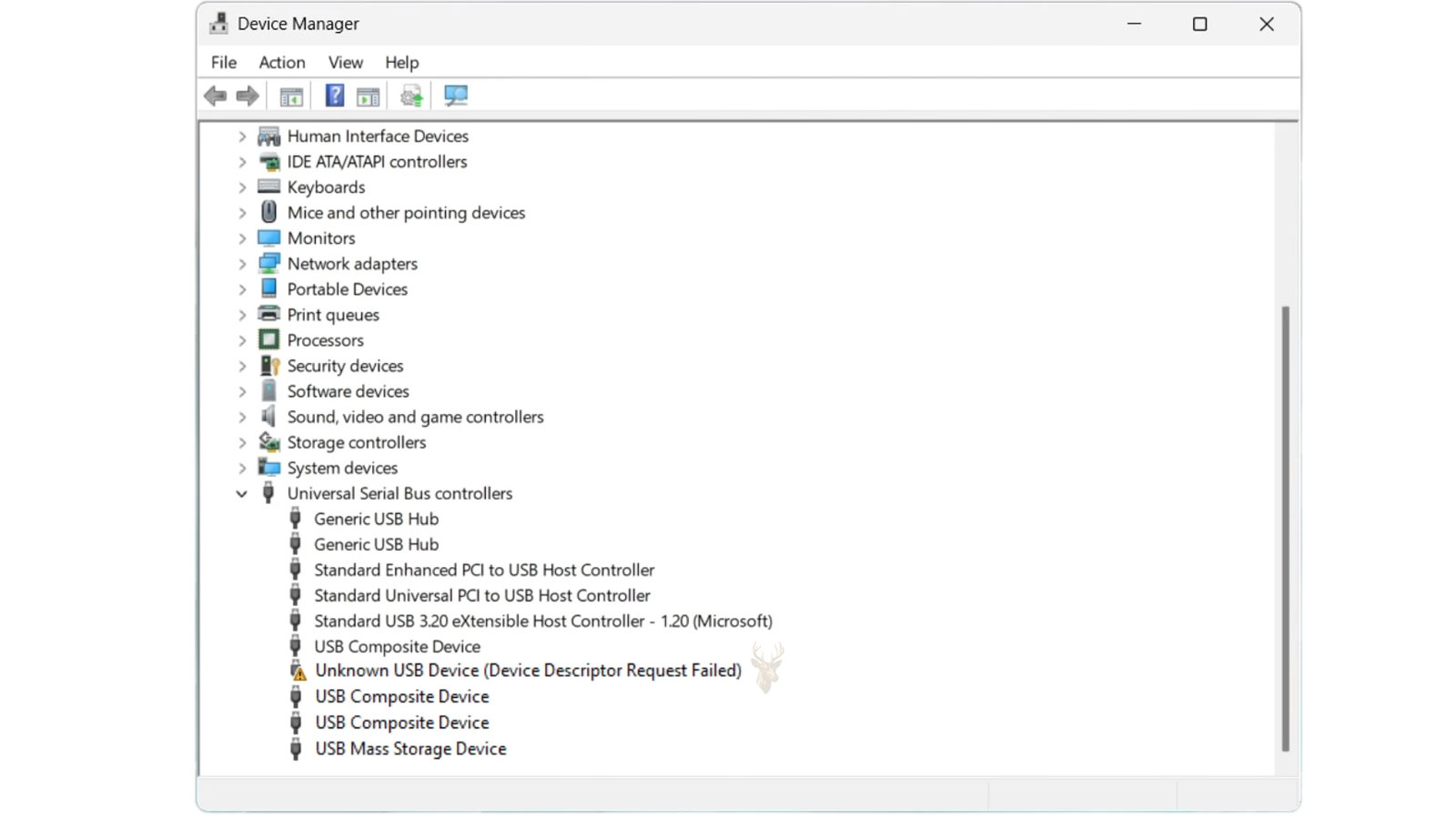
Understanding USB Device Descriptor Errors
Every time a USB device is connected to a computer, a brief exchange of information takes place before the operating system decides how to communicate with it. During this process, the computer requests identifying information that describes the connected hardware. If that exchange fails, the device may appear as unknown, remain unusable, or generate a device descriptor error.
Although the message often suggests a software problem, descriptor errors can originate from damaged cables, unstable power, corrupted firmware, defective USB controllers, failing hardware, or interrupted communication between the computer and the connected device.
What Is a USB Device Descriptor?
A USB device descriptor is a small collection of information stored within the connected hardware. It allows the computer to learn what the device is before loading the appropriate driver or enabling its functions.
The descriptor contains identifying information such as the manufacturer, product identification numbers, supported USB version, device class, communication characteristics, and other details required during the initial connection process.
The Computer Must Identify the Device Before It Can Use It
When a USB device is connected, electrical power reaches the hardware almost immediately. However, receiving power alone does not mean the computer understands what has been attached. The operating system must first communicate with the device and successfully read its descriptor.
If this identification step cannot be completed, the operating system may refuse to load a driver because it cannot determine which driver should be used.
Descriptor Errors Occur Early in the Connection Process
Unlike many hardware problems that appear after a device begins operating, descriptor failures usually happen during the first moments after connection. The communication stops before normal operation begins.
For this reason, the device may never appear with its proper name and instead remain listed as an unknown USB device.
Common Symptoms of Descriptor Problems
- The computer reports an unknown USB device.
- A device repeatedly connects and disconnects.
- The operating system reports a device descriptor request failure.
- The hardware receives power but never becomes usable.
- The device works on one computer but not another.
- The connected hardware disappears after a few seconds.
- Repeated connection sounds occur without successful detection.
Power and Communication Are Separate Functions
Many USB devices illuminate an indicator light or begin charging immediately after being connected. This often leads users to believe the connection is working correctly.
In reality, electrical power and digital communication are separate parts of the USB connection. A device may receive sufficient power while the data lines responsible for exchanging descriptor information fail completely.
Damaged Cables Can Interrupt Descriptor Requests
Some USB cables contain only charging conductors, while others include both power and data wiring. A damaged data conductor, loose connector, or poor-quality cable may allow the device to power on without permitting successful communication.
This can produce an unknown device message even though the hardware appears to receive normal electrical power.
| Observed Behavior | Possible Explanation |
|---|---|
| Device powers on but is not detected | Power is present, but data communication has failed. |
| Unknown USB device appears | The descriptor could not be read successfully. |
| Repeated connect and disconnect sounds | Communication begins but repeatedly fails. |
| Device works on another computer | The problem may involve the original computer, port, or cable. |
| No response from any computer | The device itself may have developed an internal fault. |
USB Ports Can Also Contribute to Detection Problems
Dust, bent contacts, worn connectors, physical damage, or contamination inside a USB port can interrupt communication long before the operating system finishes identifying the connected device.
Even a small interruption during the descriptor exchange may prevent the device from completing initialization.
USB Hubs Introduce Another Layer of Communication
When devices are connected through a USB hub, the computer communicates with both the hub and the attached hardware. If the hub experiences power instability, firmware problems, or communication faults, descriptor requests may fail before reaching the connected device.
Testing the device by connecting it directly to the computer helps determine whether the hub is contributing to the problem.
Power Fluctuations Can Interrupt Initialization
Some USB devices briefly draw more current while starting than they require during normal operation. If the available power becomes unstable during this stage, communication may stop before the descriptor exchange finishes.
This behavior can be more noticeable with portable drives, external enclosures, docking stations, and devices that contain multiple electronic components.
Firmware Plays an Important Role
The descriptor information is provided by firmware stored inside the USB device. If that firmware becomes corrupted or cannot initialize correctly, the computer may never receive valid identification data.
Firmware problems are less common than cable or connector issues, but they remain an important possibility when otherwise healthy hardware repeatedly fails identification.
Different Devices Can Produce Similar Errors
Flash drives, printers, webcams, external hard drives, keyboards, mice, audio interfaces, scanners, adapters, and many other USB devices all follow the same basic identification process. As a result, descriptor errors can appear across many different types of hardware.
The common error message does not necessarily indicate that every affected device has failed for the same reason.
A USB device descriptor error means the computer could not successfully identify the connected hardware, preventing normal communication before the device has an opportunity to begin operating.
The Same Error Can Have Different Underlying Causes
Although the operating system may display a single error message, the failure may originate from the computer, the USB port, the cable, an intermediate hub, the device firmware, or the connected hardware itself. Successful diagnosis depends on determining where the communication process stops rather than assuming the device is permanently defective.
Testing Should Begin With the Simplest Connection Path
A descriptor error should first be tested with the device connected directly to the computer. Hubs, extension cables, docking stations, monitor ports, and adapters should be removed temporarily so the connection uses the fewest possible components.
This reduces the number of possible failure points and helps determine whether an intermediate accessory is interrupting the identification process.
A Different USB Port Can Reveal a Localized Problem
Testing another port helps determine whether the error follows the device or remains associated with one physical connector. A worn, contaminated, or electrically damaged port may fail to read descriptors even while other ports continue working normally.
Ports on different sides of a laptop or different sections of a desktop may also connect through separate internal controllers, making this comparison more useful than repeatedly testing the same location.
Known-Working Cables Provide an Important Comparison
Devices with detachable cables should be tested with a compatible cable known to support data transfer. A cable that charges a phone successfully may still have damaged or missing data conductors.
The replacement cable should also match the device’s speed, connector type, and power requirements. An unsuitable cable can introduce new symptoms and make the original problem more difficult to isolate.
Testing the Device on Another Computer Separates the Two Sides
If the same device produces a descriptor error on several computers using known-working ports and cables, the connected hardware becomes the primary suspect. If it works normally elsewhere, the original computer requires closer inspection.
This comparison is especially useful because it tests the device against a different USB controller, operating system configuration, power source, and driver environment.
| Test | What the Result Suggests |
|---|---|
| Device works in another port | The original port may be damaged or unstable. |
| Device works with another cable | The original cable likely has a data or connector fault. |
| Device works when connected directly | A hub, dock, adapter, or extension may be interfering. |
| Device fails on multiple computers | The device, its firmware, or its internal controller may be defective. |
| Several devices fail on one computer | The computer’s USB controller, power delivery, or software environment may be involved. |
Repeated Connection Sounds Indicate Incomplete Initialization
A device that repeatedly connects and disconnects may be starting the descriptor exchange without completing it. The operating system detects electrical activity, attempts communication, loses the connection, and begins again.
This pattern can result from a loose connector, unstable power, damaged cable, failing controller, or internal device fault.
Physical Movement Can Expose Intermittent Contacts
If the error changes when the cable or connector is moved, the problem is likely physical rather than purely software-related. Worn contacts, cracked solder joints, loose internal connectors, and damaged cable conductors can all produce intermittent detection.
Connectors should not be forced or repeatedly bent during testing because additional movement can worsen an already weak connection.
Port Inspection Can Reveal Visible Damage
A flashlight inspection may reveal bent contacts, compacted debris, corrosion, a broken plastic tongue, or a connector that has shifted inside the computer. These conditions can prevent the data contacts from meeting correctly.
Damage inside a USB-C port may be difficult to see because of the connector’s small size and internal contact arrangement. A port can appear normal externally while still having loose solder joints or damaged circuitry beneath it.
Cleaning Should Avoid Further Damage
Metal objects should not be inserted into an energized USB port. Improper cleaning can bend contacts, create a short circuit, or damage the plastic support structure inside the connector.
If debris cannot be removed safely from the surface, the computer should be powered down and the port inspected under suitable lighting and magnification.
Power Availability Should Be Considered
Some descriptor failures occur because the connected device cannot maintain stable operation during startup. Portable hard drives, optical drives, capture devices, and complex adapters may require more current than a weak port or unpowered hub can provide.
The device may begin initializing, reset when voltage drops, and then repeat the process continuously.
Powered Hubs Can Help With High-Demand Devices
A properly designed powered hub can provide additional current for devices that exceed the practical limits of a computer port or passive hub. However, the hub itself must be reliable and compatible with the device.
A low-quality or failing powered hub may introduce unstable voltage, communication errors, or electrical noise that creates the same symptoms it was intended to solve.
Laptops Can Limit USB Power Under Certain Conditions
Battery-saving settings, low battery charge, sleep transitions, and controller power management can reduce or interrupt power to USB ports. A device may work while the laptop is connected to its charger but fail when the computer operates on battery power.
Comparing behavior under both conditions can reveal whether power management contributes to the descriptor error.
Controller Resets Can Temporarily Restore Detection
A USB controller can enter an unstable state after a power event, failed device connection, docking change, or sleep transition. A complete shutdown and power reset may clear the condition temporarily.
If the error returns repeatedly, the controller state should not be treated as the only cause. The connected hardware, port, cable, and power conditions still require evaluation.
Operating System Records Help Identify the Failure Stage
Device management tools may show whether the computer detected a physical connection, assigned a temporary address, or stopped while requesting descriptor information. Error codes and status messages can help distinguish a recognition failure from a missing driver.
A descriptor error generally occurs before a normal device driver can load, so installing random drivers may not correct the underlying communication problem.
Removing the Failed Device Entry May Force a New Attempt
Deleting the unknown device entry and allowing the operating system to detect the hardware again can clear a temporary software state. This is most useful after changing the cable, port, or connection path.
If the same descriptor failure appears immediately after redetection, the result supports a continuing communication or hardware problem.
Chipset and USB Controller Drivers Can Affect Detection
The operating system relies on chipset and controller drivers to manage USB ports. Missing, corrupted, or incompatible drivers can prevent normal communication across one or more ports.
This possibility becomes more important when several unrelated USB devices fail on the same computer while continuing to work elsewhere.
Firmware Updates Can Correct Some Compatibility Problems
Computer firmware may include updates for USB controller behavior, docking compatibility, power management, and device initialization. Certain devices also receive firmware updates that correct descriptor or startup problems.
Firmware should be updated only with the correct package and a stable power source because an interrupted or incorrect update can create more serious failures.
Driver Reinstallation Has Practical Limits
Reinstalling a driver can help when the operating system recognizes the device correctly but cannot operate it. It is less likely to help when the computer cannot read enough descriptor information to identify the hardware in the first place.
When a USB device cannot provide valid identification information, troubleshooting should focus on the connection and initialization process before assuming that a normal device driver is missing.
Different Device Types Require Additional Checks
An external drive may require a working enclosure controller and stable startup current. A printer may depend on a detachable cable and internal USB interface board. A webcam or headset may contain firmware that initializes before the operating system can recognize its functions.
The same descriptor error can therefore lead to different physical checks depending on the type of connected hardware.
External Drive Enclosures Can Hide the Actual Failure
When a storage drive is connected through a USB enclosure, the computer first communicates with the enclosure’s controller rather than directly with the drive. A descriptor error may indicate failure of the bridge board, USB connector, cable, or power supply even when the storage drive itself remains readable.
Replacing the enclosure or testing the drive through another compatible interface can help separate the USB conversion hardware from the storage device.
Flash Drives May Fail at the Controller Level
A flash drive depends on an internal controller to identify itself, manage memory, and communicate through USB. If that controller cannot initialize, the drive may appear as an unknown device instead of showing a normal storage volume.
In this condition, file recovery may require specialized methods because the operating system never reaches the stage where it can access the stored data normally.
A Consistent Test Sequence Prevents Unnecessary Changes
Reliable diagnosis compares the device, cable, port, power source, and computer in a controlled order. Changing several variables at once can make it impossible to determine which action affected the result.
Documenting each test helps identify whether the descriptor error follows one component or appears only under a specific connection condition.
Repair Depends on Where Identification Fails
A USB descriptor error does not identify one universal repair. The correct solution depends on whether communication is failing at the cable, connector, port, hub, controller, firmware, or device level.
Replacing the connected hardware immediately may be unnecessary if the actual fault is a damaged cable or unstable computer port. The same caution applies to software changes when the device cannot complete its initial hardware identification.
Cable Replacement Is Often the Simplest Repair
When testing shows that the device works with another cable, the original cable should be removed from service. Intermittent cables can continue producing errors even after they appear to work temporarily.
The replacement should support both data transfer and the electrical requirements of the device. Connector shape alone does not confirm that two cables provide the same capabilities.
Damaged Ports May Require Physical Repair
A loose, bent, corroded, or broken USB port may need connector replacement or board-level repair. Repeatedly inserting devices into a damaged port can worsen the connection and may place stress on surrounding circuit-board traces.
On some computers, the port is mounted on a small replaceable daughterboard. On others, it is soldered directly to the motherboard and requires more specialized repair.
Loose Solder Joints Can Cause Intermittent Detection
A USB connector can appear intact while its solder joints have cracked beneath the board. Pressure from connecting and removing cables can temporarily restore contact, causing the device to alternate between normal recognition and descriptor failure.
Magnified inspection and electrical testing may be required when symptoms change with light pressure on the connector.
Hub and Dock Failures May Affect Several Devices
If multiple devices fail only when connected through the same hub or docking station, the intermediate hardware should be tested separately. Its controller, power adapter, internal firmware, or upstream cable may be responsible.
A failing dock can produce descriptor errors on several ports even while video output, charging, or network functions continue operating.
| Confirmed Failure Point | Typical Corrective Action |
|---|---|
| Data cable | Replace it with a compatible known-working cable. |
| Contaminated connector | Clean and inspect it using safe procedures. |
| Physically damaged port | Repair or replace the connector or port board. |
| Unstable hub or dock | Replace the accessory, power adapter, or upstream cable. |
| Corrupted device firmware | Apply a supported recovery or firmware procedure when available. |
| Failed internal controller | Repair or replace the affected device or circuit assembly. |
Firmware Recovery Is Not Available for Every Device
Some manufacturers provide utilities that can restore or update device firmware. Others offer no supported recovery method once the controller can no longer identify itself correctly.
Firmware procedures should match the exact model and hardware revision. Using an incorrect package can leave the device permanently unusable.
Unknown Devices Should Not Be Updated With Random Drivers
A descriptor failure occurs before the operating system has enough information to determine what the hardware is. Installing unrelated drivers from third-party sources does not repair a damaged connection or failed device controller.
Unverified driver packages can also introduce security risks, system instability, and additional device conflicts.
Data Storage Devices Require Special Caution
When the affected USB device contains important files, repeated connection attempts should be limited. A failing flash controller, enclosure board, cable, or power circuit may deteriorate further during continued testing.
The priority should be determining whether the descriptor failure belongs to the USB interface or to the storage media behind it.
The Storage Media May Still Be Intact
An external hard drive or solid-state drive may remain readable even when its USB enclosure cannot identify itself. Testing the drive through another compatible enclosure or direct interface can sometimes restore access without altering the stored data.
This approach is different from formatting, initializing, or repairing the file system. Those actions should not be performed merely because the USB bridge has failed.
Flash Drive Controller Failure Is More Complex
In a flash drive, the USB controller is usually integrated closely with the memory system. If the controller cannot provide a valid descriptor, ordinary recovery software may never see the storage area.
Specialized recovery may involve direct access to memory components and reconstruction of the controller’s data organization.
A descriptor error on a storage device does not automatically mean the files are gone, but it does mean the computer cannot communicate with the device normally.
Post-Repair Testing Should Recreate Normal Use
After the suspected fault is corrected, the device should be tested under the same conditions in which it is normally used. This includes the usual cable, port type, hub, dock, power source, and operating workload.
A device that works only during a brief connection test may still have an intermittent fault.
- The device should appear with its correct name.
- Connection and disconnection sounds should not repeat unexpectedly.
- The device should remain available after several minutes of use.
- Moving the cable normally should not interrupt detection.
- The device should reconnect correctly after restart or sleep.
- Data transfer should complete without repeated resets or errors.
Testing Several Ports Confirms the Scope of the Repair
If a computer originally failed to identify devices on more than one port, each affected location should be tested after repair. This helps confirm whether the problem involved one connector or a shared controller.
Different device types should also be used when practical because low-power peripherals and high-demand storage devices can expose different weaknesses.
Sleep and Restart Testing Can Reveal Controller Problems
Some USB errors disappear after a restart but return after sleep, docking changes, or extended use. The repaired system should therefore be tested through normal power transitions rather than only immediately after startup.
Consistent recognition after these transitions provides stronger evidence that the controller and power-management behavior are stable.
Preventive Care Protects USB Connections
USB connectors are designed for repeated use, but they can still be damaged by side pressure, contamination, poor-quality cables, and forced insertion. Careful handling reduces both physical wear and intermittent communication faults.
- Insert connectors in the correct orientation without forcing them.
- Avoid leaving heavy adapters hanging from a port.
- Replace loose or damaged cables promptly.
- Keep liquids and metal debris away from connectors.
- Use reliable powered hubs for demanding devices.
- Disconnect portable devices before moving a laptop.
Warning Signs Should Not Be Ignored
Occasional descriptor errors can become permanent when the underlying problem involves a weakening cable, loose port, failing controller, or unstable power source. Early symptoms may appear only during movement or after the device has been connected for some time.
- The connector feels unusually loose.
- The device works only when the cable is held at an angle.
- Several devices fail in the same port.
- The port becomes unusually warm.
- The device resets during file transfers.
- Detection failures become more frequent over time.
Professional Inspection May Be Needed
Professional testing is appropriate when the port is physically damaged, several devices fail across the same controller, liquid exposure is suspected, or important data is stored on hardware that no longer identifies correctly.
Board-level inspection can help determine whether the fault involves the connector, protection components, controller circuitry, power rail, or the connected device itself.
Frequently Asked Questions About USB Descriptor Errors
Why does a USB device receive power but remain unidentified?
The power conductors may be working while the data connection is damaged, interrupted, or unable to complete the descriptor exchange.
Can a bad cable cause a device descriptor error?
Yes. A damaged or charge-only cable can provide power while preventing the computer from receiving identification data.
Does reinstalling the device driver fix the error?
Not usually when the descriptor itself cannot be read. Driver installation becomes relevant only after the computer identifies the device successfully.
Why does the device work through one port but not another?
The failing port may have damaged contacts, unstable power, loose solder joints, or a problem with its internal controller path.
Can a USB hub create descriptor failures?
Yes. Hub controller faults, inadequate power, damaged upstream cables, and firmware problems can interrupt device identification.
Are files lost when an external drive shows a descriptor error?
Not necessarily. The enclosure or USB interface may have failed while the storage drive and its data remain intact.
Why does the error return after restarting the computer?
A restart may reset the USB controller temporarily, but it does not correct a damaged cable, unstable port, failing device, or recurring power problem.
Can liquid damage cause USB identification problems?
Yes. Corrosion near the port or controller circuitry can weaken power and data connections, producing intermittent or permanent descriptor failures.
Successful Identification Requires a Complete Connection
A USB device descriptor error appears when the computer detects a connection but cannot obtain the information needed to identify the hardware. The failure may involve a cable, port, hub, power source, controller, firmware, or internal device component.
Controlled testing helps determine which part of the connection prevents initialization. Once the failure point is identified, the repair can restore stable device recognition without unnecessary driver changes, formatting, or hardware replacement.











