
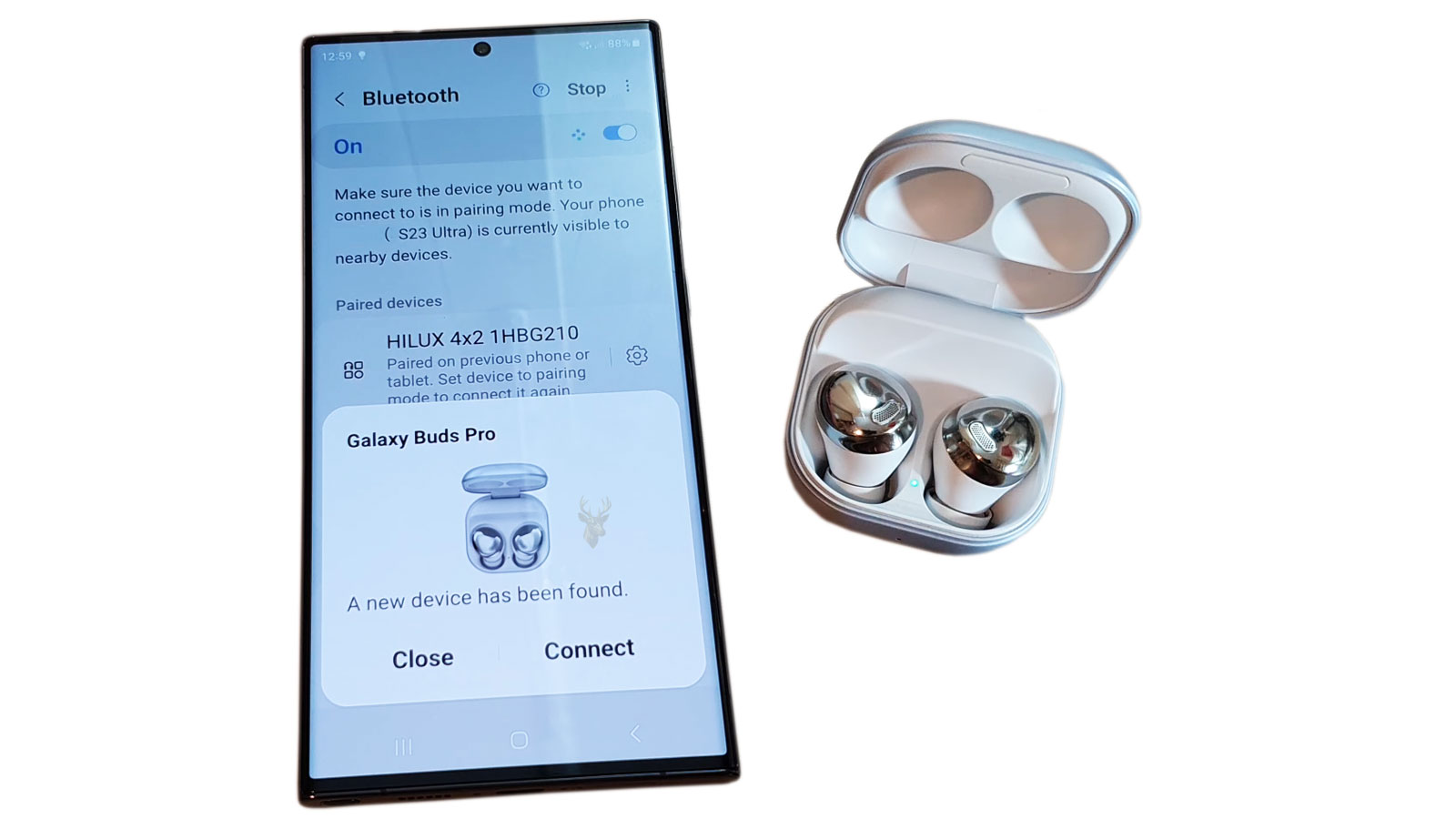
Understanding Bluetooth Devices That Pair but Do Not Stay Connected
Bluetooth allows computers to communicate wirelessly with keyboards, mice, headphones, speakers, printers, game controllers, smartphones, and many other devices without requiring a physical cable. Under normal conditions, pairing is completed once, after which the computer reconnects automatically whenever both devices are available.
When a Bluetooth device pairs successfully but repeatedly disconnects, fails to reconnect automatically, or loses communication after only a short period, the cause may involve wireless interference, power management, software configuration, outdated pairing information, battery condition, or hardware limitations.
Pairing and Connecting Are Different Processes
Pairing establishes a trusted relationship between two Bluetooth devices by exchanging identification and security information. Once paired, future connections normally occur automatically without repeating the pairing process.
A device that pairs successfully but disconnects afterward demonstrates that the initial pairing worked. The problem instead develops while maintaining or restoring the wireless connection.
Different Bluetooth Devices Behave Differently
Wireless keyboards exchange small amounts of data only while keys are pressed. Headphones continuously stream audio. A game controller communicates rapidly in both directions, while a printer may remain idle for long periods before receiving a print job.
Because each device uses Bluetooth differently, connection problems may affect one type of peripheral while every other Bluetooth device continues working normally.
Common Symptoms of Bluetooth Connection Problems
- The device disconnects after several minutes.
- Automatic reconnection never occurs.
- Audio stops briefly before reconnecting.
- The mouse or keyboard freezes temporarily.
- The computer repeatedly connects and disconnects.
- The device disappears from the Bluetooth list.
- Pairing succeeds but the device never becomes usable.
- Only one specific Bluetooth accessory is affected.
Distance Affects Bluetooth Stability
Bluetooth operates over relatively short distances. Walls, furniture, computer cases, metal shelving, and other physical barriers can reduce signal strength. As the signal weakens, intermittent disconnections become more likely.
Testing the device close to the computer helps determine whether range contributes to the instability.
Wireless Interference Can Interrupt Communication
Bluetooth shares portions of the 2.4 GHz radio spectrum with many other wireless technologies. Nearby Wi-Fi networks, cordless devices, wireless peripherals, and some electronic equipment can increase radio congestion under certain conditions.
Most Bluetooth devices compensate automatically, but severe interference may still produce delayed responses or repeated disconnects.
Battery Condition Influences Wireless Reliability
Many Bluetooth accessories reduce transmission power or become unstable as battery voltage decreases. Rechargeable batteries that no longer hold a full charge may operate briefly before disconnecting unexpectedly.
Replacing disposable batteries or fully charging rechargeable devices should be one of the first diagnostic steps.
Sleep and Power Saving Can Affect Bluetooth Devices
To conserve energy, both computers and Bluetooth accessories may enter low-power states during inactivity. Normally they resume communication automatically when needed.
Power management problems can prevent either device from restoring the connection properly after waking from sleep.
| Observed Behavior | Possible Cause |
|---|---|
| Disconnects after several minutes | Power management or battery condition. |
| Works only nearby | Weak signal or excessive distance. |
| Audio cuts in and out | Wireless interference or signal obstruction. |
| Pairs successfully but never reconnects | Corrupted pairing information or configuration issue. |
| Only one Bluetooth device disconnects | Problem specific to that peripheral. |
Previously Saved Pairing Information Can Become Corrupted
Computers store information about paired Bluetooth devices so future connections occur automatically. If those records become inconsistent after operating system updates, firmware changes, or interrupted pairing attempts, automatic reconnection may stop working correctly.
Removing the saved pairing and establishing a fresh connection often resolves this type of communication problem.
Software Updates Can Influence Bluetooth Behavior
Operating system updates frequently include changes to Bluetooth drivers, security components, wireless protocols, and hardware compatibility. While these updates improve reliability in most situations, they may also expose compatibility issues with older accessories.
If Bluetooth instability begins immediately after an update, the timing itself becomes an important diagnostic clue.
Firmware Inside Bluetooth Accessories Also Matters
Many wireless keyboards, headphones, docking stations, and other Bluetooth peripherals contain their own internal firmware. Compatibility improvements and bug fixes are sometimes delivered through firmware updates rather than computer software updates.
Outdated firmware may contribute to intermittent communication problems when used with newer operating system versions.
A successful Bluetooth pairing confirms that two devices recognize each other, but maintaining a stable wireless connection depends on signal quality, power management, software, and hardware continuing to work together.
Connection Problems May Affect Only One Computer
If the same Bluetooth accessory works reliably with another computer or mobile device, the accessory itself may not be the source of the problem. Likewise, if several Bluetooth peripherals disconnect on only one computer, attention should shift toward that computer’s Bluetooth hardware, software configuration, or wireless environment.
Comparing behavior across different devices often provides valuable information before more advanced troubleshooting begins.
Troubleshooting Should Begin With the Simplest Variables
Bluetooth problems can result from several overlapping causes, so diagnosis should begin with basic checks before settings, drivers, or hardware are changed. Charging the accessory, moving it closer to the computer, and confirming that it is not connected to another device can eliminate common causes quickly.
Testing one change at a time also makes it easier to identify which condition actually improves the connection.
The Accessory May Still Be Connected Somewhere Else
Many Bluetooth headphones, keyboards, speakers, and controllers remember several previously paired devices. Some reconnect automatically to the last device they used, even when a different computer is attempting to establish a connection.
Temporarily disabling Bluetooth on nearby phones, tablets, televisions, and other computers can reveal whether another device is taking control of the accessory.
Multipoint Bluetooth Can Create Confusing Symptoms
Some accessories support simultaneous connections to more than one device. This feature can be convenient, but audio, keyboard input, or control may switch between connected devices unexpectedly.
A device may appear to disconnect from one computer when it has actually transferred its active connection to another paired system.
Removing and Pairing Again Can Rebuild the Connection
Deleting the accessory from the computer’s Bluetooth device list removes the stored pairing record. The accessory should then be placed into pairing mode and connected again as though it were being used for the first time.
This process is most effective when the old record contains incorrect security information, outdated device details, or an incomplete pairing state.
The Accessory May Need Its Own Pairing History Cleared
Removing the device from the computer does not always erase the computer from the accessory’s internal memory. Headphones, speakers, keyboards, and controllers may retain several old pairings and eventually reach their storage limit.
Using the manufacturer’s reset procedure can clear those saved connections and allow a completely new pairing relationship to be created.
| Diagnostic Action | What It Helps Determine |
|---|---|
| Charge or replace the accessory battery | Whether low power is causing instability. |
| Move the device close to the computer | Whether distance or obstruction affects the signal. |
| Disable Bluetooth on nearby paired devices | Whether another device is taking the connection. |
| Remove and pair the accessory again | Whether stored pairing information is damaged. |
| Test the accessory on another system | Whether the problem follows the accessory. |
| Test another accessory on the same computer | Whether the computer’s Bluetooth system is affected broadly. |
Restarting Both Devices Can Clear a Temporary State
A computer restart can reset Bluetooth services, reload the wireless adapter, and clear temporary connection processes. Powering the accessory off completely can also reset its internal radio and connection state.
If the connection becomes stable only until the next sleep cycle or restart, the temporary improvement still provides useful information about when the problem returns.
Bluetooth Services Must Remain Available
The operating system uses background services to discover devices, store pairing information, manage audio profiles, and reconnect previously trusted accessories. If a required service stops responding, Bluetooth may remain visible while individual devices fail to connect reliably.
Restarting the computer may restore the service temporarily, but repeated service failures can indicate damaged system files, driver problems, or software conflicts.
Power Management Can Turn Off the Bluetooth Adapter
Portable computers are designed to reduce power consumption whenever possible. The operating system may place the Bluetooth adapter into a reduced-power state during inactivity, sleep, or battery operation.
If the adapter does not wake correctly, paired devices may disappear, reconnect slowly, or remain listed without responding.
The Accessory May Enter Sleep Too Aggressively
Wireless keyboards, mice, and controllers often enter their own sleep states to preserve battery life. A healthy device should wake quickly when a key is pressed, a button is used, or the mouse is moved.
Long wake delays, repeated button presses, or complete failure to reconnect can indicate weak batteries, accessory firmware problems, or an unstable pairing record.
Internal Bluetooth and Wi-Fi Hardware May Be Shared
Many laptops and compact computers use one wireless module for both Wi-Fi and Bluetooth. A problem with the shared card, antenna system, driver package, or internal connection may affect both technologies.
Bluetooth disconnections accompanied by weak Wi-Fi, disappearing wireless networks, or adapter errors suggest that the issue may extend beyond a single Bluetooth accessory.
Wi-Fi Activity Can Increase Radio Congestion
Heavy activity on a nearby 2.4 GHz Wi-Fi network can create more competition in the same frequency range used by Bluetooth. Large downloads, cloud backups, wireless video streaming, and busy office networks may make an already weak Bluetooth connection less stable.
Temporarily using a 5 GHz or 6 GHz Wi-Fi connection, when supported, can help determine whether local 2.4 GHz congestion is contributing to the problem.
USB 3 Connections Can Produce Local Interference
Some USB 3 devices, cables, hubs, and poorly shielded enclosures can generate radio noise near the 2.4 GHz frequency range. This interference may be strongest when a Bluetooth adapter or antenna is positioned close to the active USB connection.
Disconnecting nearby USB storage devices or moving an external Bluetooth adapter farther away with a short extension cable can help reveal this condition.
External Bluetooth Adapters Depend on USB Stability
A desktop computer may use a small USB Bluetooth adapter instead of built-in wireless hardware. Its performance depends on the USB port, driver, adapter quality, and physical placement.
An adapter connected behind a metal computer case may have a weaker signal than one positioned in a clear area away from dense cables and other electronics.
Metal Computer Cases Can Block the Signal
Desktop towers often place USB ports and internal antennas behind metal panels or beneath desks. The case itself can obstruct Bluetooth signals, particularly when the accessory is used on the opposite side of the computer.
Relocating an external adapter or attaching the correct external antennas can improve range and reduce intermittent disconnects.
Missing External Antennas Can Affect Bluetooth
Some desktop motherboards and wireless expansion cards use external antennas for both Wi-Fi and Bluetooth. The computer may still detect nearby devices without the antennas installed, but the usable range can become extremely limited.
Connections that work only within a few feet of the computer should be checked for missing, loose, or damaged antennas.
Driver Problems Can Affect Every Paired Device
The Bluetooth driver allows the operating system to control the wireless adapter and communicate with different device profiles. A damaged, incompatible, or incomplete driver installation can cause repeated disconnects across several accessories.
Problems affecting multiple unrelated Bluetooth devices are more likely to involve the computer’s adapter, driver, services, or radio environment than all of the accessories failing at once.
A Generic Driver May Provide Limited Functionality
After an operating system installation or major update, the computer may use a basic Bluetooth driver that supports general communication but lacks model-specific power management or stability improvements.
Installing the appropriate driver from the computer or wireless adapter manufacturer may restore features that are not handled correctly by the generic version.
Driver Reinstallation Can Rebuild the Adapter Configuration
Removing and reinstalling the Bluetooth adapter can clear damaged driver files or configuration records. The operating system may reinstall the existing driver automatically, or a manufacturer-provided package may be required.
Previously paired devices may need to be connected again after the Bluetooth configuration is rebuilt.
Firmware and BIOS Updates May Address Wireless Stability
Computer manufacturers sometimes release firmware or BIOS updates that improve power management, internal device communication, and compatibility with wireless modules. These updates may be relevant when Bluetooth failures occur after sleep, hibernation, or repeated restarts.
Firmware updates should be applied carefully because interrupting the process can create more serious startup problems.
Audio Devices Use Several Bluetooth Profiles
Bluetooth headphones and headsets may support separate profiles for high-quality stereo audio and two-way voice communication. Applications that activate the microphone can cause the connection to switch profiles.
This transition may be mistaken for a disconnection because sound quality changes, playback pauses briefly, or audio moves to another output device.
The Wrong Audio Output Can Resemble a Disconnect
A headset can remain connected while the operating system sends sound to built-in speakers, a monitor, or another audio device. The user may hear silence and assume that Bluetooth has failed.
Checking the active input and output devices helps distinguish a true wireless interruption from an audio-routing problem.
Applications Can Compete for the Same Headset
Communication software, games, browsers, media players, and recording programs may request different audio modes from the same Bluetooth headset. Switching between these modes can cause temporary pauses or unexpected changes in sound.
If the problem appears only when one application opens, joins a call, or activates a microphone, that application should be included in the diagnosis.
Bluetooth Keyboards May Be Affected Before Login
Some computers do not provide full Bluetooth support during early startup, firmware menus, recovery environments, or encrypted sign-in screens. A keyboard may work normally after the operating system loads but remain unavailable before that stage.
This limitation is different from a keyboard that disconnects repeatedly during ordinary use.
Game Controllers Can Expose Latency and Connection Problems Quickly
Controllers transmit frequent button, trigger, and motion updates, making brief wireless interruptions more noticeable than they may be with a keyboard or printer. Input delay, missed commands, and sudden reconnection messages can indicate signal instability.
Testing the controller through a compatible cable can help separate a Bluetooth problem from an issue inside the game, operating system, or controller itself.
When only one accessory fails, test that accessory elsewhere. When several accessories fail on one computer, investigate the computer’s Bluetooth hardware, driver, services, antennas, and wireless environment.
Hardware Problems Can Remain Intermittent
An internal wireless card can have a loose connection, damaged antenna lead, temperature-sensitive fault, or failing radio circuit without disappearing permanently. Movement, heat, sleep cycles, and changing signal conditions may alter the symptoms.
Software troubleshooting may provide temporary improvements even when the underlying problem is physical, making repeated testing important before the issue is considered resolved.
A Controlled Comparison Narrows the Cause
The most useful diagnosis compares the affected accessory with another computer and compares the affected computer with another Bluetooth accessory. These two tests help determine whether the failure follows the peripheral or remains with the computer.
Once that distinction is established, further troubleshooting can focus on the correct side of the wireless connection rather than changing unrelated settings.
Bluetooth Problems Should Be Tested Under Normal Use
A Bluetooth device may remain connected during a short test and still fail during ordinary use. Longer testing should include the same distance, applications, sleep cycles, and wireless activity present when the problem normally occurs.
Reproducing the original conditions is important because an intermittent problem may disappear when the accessory is moved closer, used only briefly, or tested while other wireless devices are inactive.
Sleep and Wake Testing Can Reveal Power Management Problems
If disconnections occur after the computer wakes from sleep, testing should include several complete sleep and wake cycles. The device should reconnect without requiring Bluetooth to be turned off and on or the accessory to be paired again.
A connection that fails only after sleep points more strongly toward power management, driver, firmware, or adapter wake-up behavior than ordinary radio interference.
Battery Operation and AC Power May Produce Different Results
Laptops may apply more aggressive power-saving behavior while running on battery. A Bluetooth adapter that remains stable when the charger is connected may disconnect more frequently when the computer operates on battery power.
Comparing both conditions can reveal whether energy-saving settings are contributing to the problem.
Physical Position Can Change Wireless Performance
The position of the computer, accessory, antennas, and nearby electronics can affect Bluetooth stability. Moving a desktop tower from beneath a metal desk, rotating a laptop, or placing an adapter away from a USB hub may change signal quality noticeably.
A connection that improves only after physical repositioning indicates that signal obstruction or local interference deserves further attention.
Crowded Workspaces Can Increase Connection Problems
Offices and home workspaces may contain wireless keyboards, mice, headsets, routers, phones, tablets, printers, cameras, and USB devices operating in a small area. Each additional source of radio activity can make a weak Bluetooth connection more difficult to maintain.
Reducing unnecessary wireless activity during testing helps determine whether the problem is caused by congestion rather than a defective accessory.
| Problem Pattern | Most Useful Test |
|---|---|
| Disconnects after sleep | Repeat sleep and wake cycles on battery and AC power. |
| Works only at close range | Inspect antenna placement and possible signal obstruction. |
| Fails during heavy Wi-Fi use | Test with reduced 2.4 GHz network activity. |
| Disconnects near USB equipment | Move or disconnect nearby USB 3 devices and hubs. |
| Fails only in one room | Compare behavior in a different wireless environment. |
| Returns after every restart | Investigate drivers, services, firmware, and hardware. |
Bluetooth Version Differences Can Affect Compatibility
Bluetooth standards have evolved over time, adding improvements in speed, energy use, range, and device support. Newer computers are generally backward compatible with older accessories, but some combinations may still behave poorly because of implementation differences.
An older accessory that disconnects only from newer systems may require a firmware update, compatibility adjustment, or replacement if the manufacturer no longer supports it.
Low Energy Devices Use Different Connection Behavior
Bluetooth Low Energy devices are designed to conserve power by communicating briefly and remaining idle much of the time. Their normal behavior may appear less continuously connected than headphones or speakers that maintain an active audio stream.
The important distinction is whether the device responds when needed. A low-energy sensor or accessory may appear inactive while still functioning normally.
Some Accessories Require Manufacturer Software
Certain keyboards, mice, headsets, and controllers rely on companion software for firmware updates, button assignments, audio settings, or device switching. Missing or damaged software can create symptoms that resemble a Bluetooth failure.
Testing basic operation without optional software can help determine whether the connection itself is unstable or the companion application is malfunctioning.
Companion Applications Can Also Introduce Conflicts
Utility software may monitor the accessory continuously, manage profiles, or install background services. An outdated or corrupted version can interfere with reconnection, power management, or device detection.
If instability begins after installing or updating a device utility, that software should be included in the troubleshooting process.
Resetting Network Settings Is a Broad Measure
Some operating systems provide a network reset that rebuilds wireless adapters and related settings. This can resolve deeply damaged configurations, but it may also remove saved Wi-Fi networks, virtual adapters, and custom network settings.
Because it affects more than Bluetooth, a network reset should usually follow simpler steps such as re-pairing, driver repair, and service checks.
System File Damage Can Affect Bluetooth Services
Bluetooth depends on operating system components that manage drivers, device discovery, security, audio, and background services. Damaged system files can cause repeated failures even when the hardware remains functional.
When Bluetooth problems occur alongside other service, driver, or update errors, the operating system may require broader repair rather than accessory-specific troubleshooting.
Hardware Replacement Should Follow Controlled Testing
Replacing a Bluetooth adapter may be appropriate when several accessories fail on the same computer, driver and software checks do not resolve the issue, and the problem persists in different wireless environments.
Testing with a compatible external Bluetooth adapter can provide a useful comparison before an internal wireless card is replaced.
An External Adapter Can Help Isolate the Internal Hardware
If an external USB Bluetooth adapter maintains stable connections while the built-in adapter continues disconnecting, the internal wireless hardware, antenna path, or driver package becomes more suspect.
Both adapters should not remain active simultaneously during comparison testing because duplicate Bluetooth radios can create confusion or additional conflicts.
Internal Antenna Leads Can Become Loose or Damaged
Laptop Wi-Fi and Bluetooth antennas are commonly routed through the display assembly and connected to a shared wireless card. Screen repairs, hinge damage, case separation, or previous disassembly can loosen or damage these small antenna leads.
The adapter may continue detecting nearby devices while losing the range required for dependable everyday use.
Liquid Damage Can Affect Wireless Circuits Gradually
Moisture exposure can corrode the wireless card, motherboard connections, antenna contacts, or nearby circuits. Bluetooth may become intermittent days or weeks after the original incident rather than failing immediately.
Repeated software changes are unlikely to correct a connection problem caused by corrosion or physical circuit damage.
Temperature Can Influence an Intermittent Adapter
A failing wireless card or poor internal connection may work when the computer is cool and disconnect after the system warms during extended use. Expansion from heat can change contact pressure or expose a temperature-sensitive electronic fault.
A problem that consistently appears after similar periods of operation should be tested with temperature and workload in mind.
A Stable Connection Should Survive Several Conditions
- Normal working distance from the computer.
- Several sleep and wake cycles.
- Operation on battery and AC power.
- Typical Wi-Fi and USB activity.
- Application changes and audio profile switching.
- A restart of both the computer and accessory.
- Extended use without repeated reconnection.
When Professional Diagnosis May Be Appropriate
Professional evaluation may be useful when several Bluetooth devices disconnect on the same computer, the internal adapter disappears intermittently, wireless range remains extremely short, or the problem began after liquid exposure, impact, display repair, or internal service.
Testing can help determine whether the source is software, the shared wireless card, the antenna system, a USB adapter, motherboard communication, or the Bluetooth accessory itself.
Reliable Bluetooth troubleshooting depends on identifying whether the failure follows the accessory, remains with the computer, or appears only under specific power, distance, and wireless conditions.
Frequently Asked Questions About Unstable Bluetooth Connections
Why does my Bluetooth device pair but disconnect immediately?
The device may be connecting to another saved system, using damaged pairing information, operating with a weak battery, or encountering a driver or compatibility problem after pairing completes.
Why does Bluetooth stop working after the computer sleeps?
The Bluetooth adapter or accessory may fail to wake correctly from a low-power state. Driver, firmware, and power management problems are common possibilities.
Can Wi-Fi interfere with Bluetooth?
Yes. Bluetooth and 2.4 GHz Wi-Fi share nearby radio frequencies. Heavy wireless congestion can make a weak Bluetooth connection less stable.
Why do my Bluetooth headphones disconnect only during calls?
Call software activates the microphone and may switch the headset to a different Bluetooth audio profile. Profile changes, application conflicts, or audio-routing problems can interrupt sound temporarily.
Should I remove and pair the device again?
Re-pairing is appropriate when saved connection information may be damaged or outdated. The accessory’s own pairing history may also need to be cleared.
Can a missing desktop antenna affect Bluetooth?
Yes. Some desktop wireless cards use external antennas for both Wi-Fi and Bluetooth. Without them, nearby devices may connect while normal operating range becomes very limited.
Why does only one Bluetooth accessory disconnect?
The problem may involve that accessory’s battery, firmware, pairing memory, compatibility, or internal hardware rather than the computer’s entire Bluetooth system.
When should the Bluetooth adapter be replaced?
Replacement becomes more reasonable when multiple accessories fail on the same computer, software repairs do not help, and comparison testing confirms that another Bluetooth adapter works reliably.
Stable Bluetooth Requires Both Sides of the Connection to Work Properly
A Bluetooth device that pairs but does not stay connected may be affected by weak batteries, old pairing records, power management, wireless interference, audio profile changes, driver problems, damaged antennas, or failing hardware. The successful pairing process proves only that the devices recognized each other at that moment.
Reliable diagnosis compares the accessory on another system, tests other Bluetooth devices on the same computer, and recreates the conditions under which the disconnection occurs. This method helps identify whether the problem belongs to the peripheral, the computer, or the surrounding wireless environment.











