
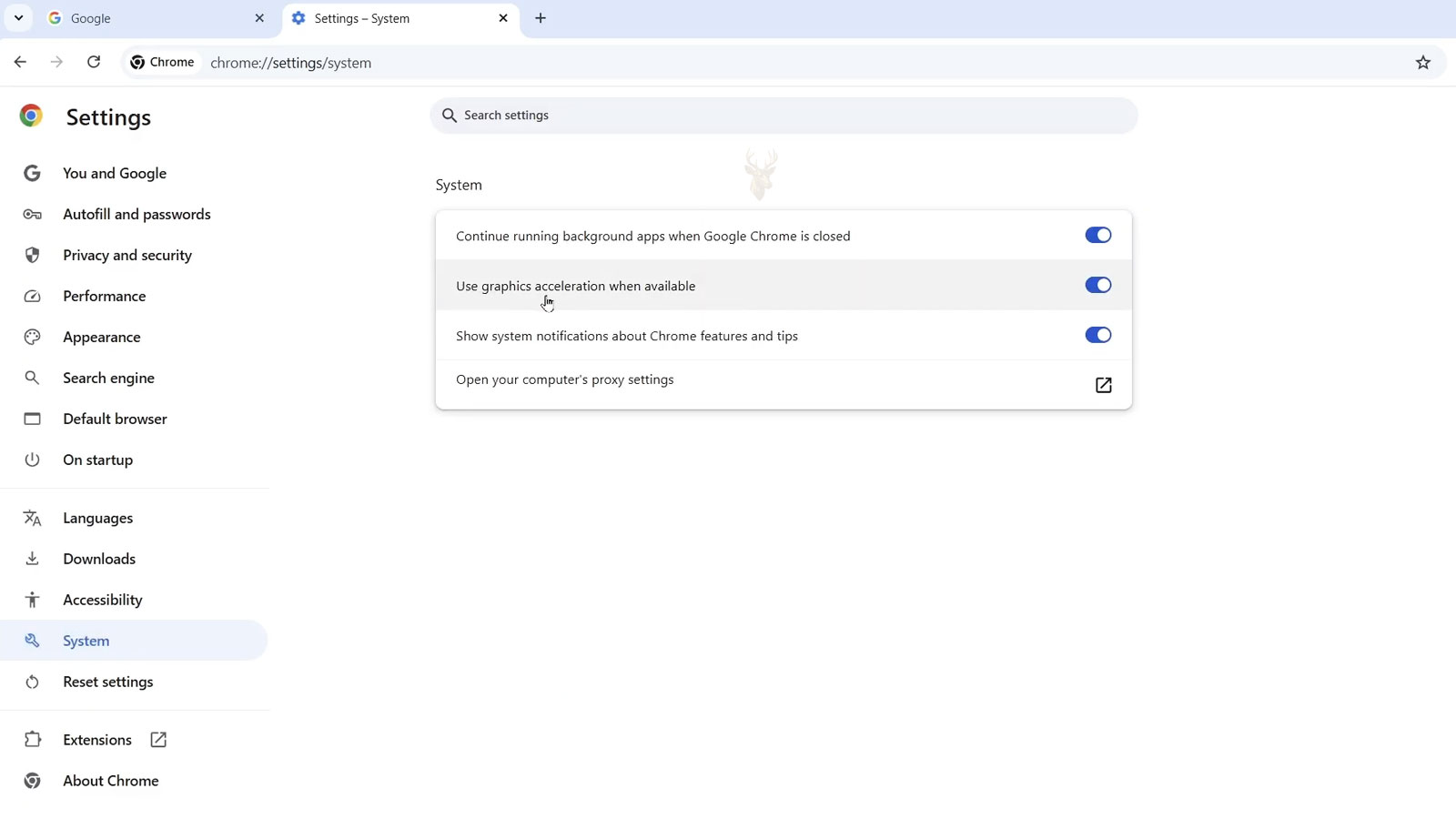
How Browser Hardware Acceleration Affects What Appears on the Screen
Modern web browsers do much more than display text and simple images. They play high-resolution video, animate complex pages, render interactive graphics, run browser-based applications, and manage several visual elements at the same time. To handle this workload efficiently, browsers often use hardware acceleration.
Hardware acceleration allows the browser to assign certain visual tasks to the computer’s graphics processing unit instead of relying entirely on the central processor. This can improve smoothness and reduce CPU usage, but it also creates another layer where display problems can develop.
What Browser Hardware Acceleration Does
Without hardware acceleration, many browser operations are processed primarily by the CPU. With acceleration enabled, compatible tasks can be transferred to the GPU, which is designed to process visual information efficiently.
- Rendering page animations and transitions.
- Scaling images and video.
- Compositing multiple page layers.
- Decoding certain video formats.
- Displaying WebGL and browser-based 3D graphics.
- Reducing the CPU workload during visual activity.
The browser does not transfer every task to the graphics processor. It decides which operations can benefit from acceleration based on the browser version, operating system, graphics hardware, and installed driver.
Why Hardware Acceleration Is Usually Enabled
Most current browsers enable graphics acceleration by default because it generally improves responsiveness. Scrolling can appear smoother, video playback may require less CPU power, and visually complex websites can render more efficiently.
On laptops, reduced CPU activity may also limit heat and power consumption during video playback. The benefit depends on the graphics hardware and whether the browser can use it correctly.
Display Problems Can Begin When Several Components Interact Poorly
Browser acceleration depends on cooperation between the browser, operating system, graphics driver, GPU, display connection, and monitor. A problem in any one of these areas can appear only while accelerated browser content is being displayed.
This is why a computer may look normal on the desktop and inside ordinary programs but show flickering, black areas, distorted video, or sudden crashes inside a web browser.
Common Symptoms Associated With Browser Graphics Acceleration
- The browser window flickers while scrolling.
- Online video appears black while audio continues.
- Sections of a webpage turn white, black, or transparent.
- Text temporarily disappears or becomes distorted.
- Video playback shows blocks, tearing, or unusual colors.
- The browser crashes when opening graphics-heavy pages.
- The display flashes when entering or leaving full-screen video.
- Menus or tabs leave visual trails behind them.
- The browser becomes stable after hardware acceleration is disabled.
A Black Video Window Does Not Always Mean the Video Failed
When online video produces sound but no picture, the internet connection and media stream may still be functioning. The failure may occur while the browser attempts to decode or display the video through the GPU.
The surrounding webpage may remain visible while only the video area turns black. This pattern helps separate a rendering problem from a complete browser or network failure.
Screen Flickering May Appear Only Inside the Browser
Browser flickering can affect the entire window, a video frame, a menu, or only the portion of the page being scrolled. The computer’s desktop and other applications may remain stable because they use different rendering paths.
A problem limited to one browser does not immediately prove that the graphics hardware is healthy. Different browsers may use the same GPU through different software components and may not trigger the same fault.
Visual Artifacts Can Resemble a Failing Graphics Card
Blocks, lines, flashing shapes, incorrect colors, and corrupted page sections can resemble GPU hardware failure. However, browser-specific artifacts may also result from a damaged driver, browser bug, unsupported graphics feature, or corrupted graphics cache.
The location and consistency of the corruption matter. Artifacts that appear throughout startup screens, the operating system, games, and multiple applications raise greater concern about hardware than artifacts confined to one browser.
| Observed Behavior | Possible Area to Investigate |
|---|---|
| Video is black but audio plays | Video decoding, browser acceleration, or graphics driver. |
| Only one browser flickers | Browser settings, extensions, or browser-specific rendering. |
| All applications show artifacts | Graphics driver, GPU, video memory, cable, or display. |
| Problem begins after a driver update | Driver compatibility or incomplete installation. |
| Problem stops when acceleration is disabled | Accelerated rendering path or GPU-related software. |
Graphics Drivers Translate Browser Requests for the GPU
The browser does not communicate with the graphics processor independently. It relies on the operating system and graphics driver to convert software requests into instructions the GPU can process.
If the driver is outdated, damaged, incomplete, or incompatible with a browser update, accelerated content may render incorrectly even though basic desktop output still works.
Browser and Driver Updates Do Not Always Arrive Together
Browsers update frequently, and graphics drivers follow separate release schedules. A new browser version may begin using a rendering feature differently before the installed driver has been updated to handle it reliably.
The reverse can also happen. A new graphics driver may introduce a problem that affects a previously stable browser. The date when the symptom began can help identify which update deserves attention.
Integrated and Dedicated Graphics Can Behave Differently
Many laptops and some desktops contain both integrated graphics and a dedicated GPU. The operating system may select one processor for the browser and another for games or demanding applications.
A browser problem may therefore involve only one graphics processor. Changing power modes, connecting an external monitor, or launching certain applications can cause the browser to switch GPUs and expose different symptoms.
External Monitors Can Change the Rendering Path
Connecting a monitor through HDMI, DisplayPort, USB-C, or a docking station can change which GPU controls the display. It can also introduce scaling, refresh-rate, color, and driver interactions that are not present on the built-in screen.
A browser may work normally on the laptop display but flicker on an external monitor, or the opposite may occur. Testing each display separately can reveal whether the problem depends on the output path.
Different Refresh Rates Can Expose Visual Instability
Systems using multiple monitors may operate at different refresh rates. One display might run at 60 Hz while another uses 75 Hz, 120 Hz, 144 Hz, or a variable refresh technology.
Browser video, animated pages, and full-screen transitions may reveal driver or synchronization problems that remain unnoticed during static desktop use.
Display Scaling Can Affect Browser Rendering
High-resolution screens often use scaling so text and controls remain readable. When two monitors use different scaling percentages, the browser may need to redraw its window as it moves between them.
Blurred text, flashing content, misplaced menus, or temporarily blank regions may appear during this transition when the browser, graphics driver, and operating system do not coordinate correctly.
A browser display problem may look like a failed screen or graphics card even when the fault exists only in the accelerated path shared by the browser, driver, and GPU.
Video Decoding Is Separate From Ordinary Page Rendering
Browsers may use dedicated GPU circuits to decode compressed video formats. This can reduce CPU usage significantly, especially with high-resolution or high-frame-rate content.
A problem with hardware video decoding may affect streaming video while ordinary websites remain completely stable. Lower-resolution video may work while higher-resolution playback fails because it uses a different codec or places a greater load on the decoder.
Different Video Formats May Produce Different Results
Streaming services and websites may deliver video using different codecs depending on the browser, graphics hardware, operating system, and available bandwidth. The GPU may support some formats directly while others are processed through software.
If one website plays correctly while another shows black video or corruption, the difference may involve the video format rather than the display panel or internet connection.
Protected Video Content Adds Another Layer
Some streaming services use protected playback systems that interact with the browser, graphics driver, operating system, and display connection. Problems in this chain may produce a black screen, playback error, or reduced video quality.
Protected content may fail while ordinary online videos continue playing because the requirements are not identical.
Browser Extensions Can Interfere With Displayed Content
Extensions can modify webpages, filter advertisements, change colors, capture video, manage tabs, or add overlays. These changes occur inside the browser and can interact poorly with accelerated rendering.
A display problem that appears only after a specific extension is installed may not involve the graphics driver at all. Testing the browser with extensions disabled helps separate page modification from GPU rendering.
Browser Themes and Accessibility Tools Can Affect Appearance
Dark-mode extensions, contrast tools, screen readers, color filters, and custom browser themes can alter how pages are drawn. Text may disappear against a modified background, images may invert incorrectly, or page sections may appear blank.
These symptoms can resemble graphics corruption even though the underlying page is being intentionally modified by software.
The Browser Graphics Cache Can Become Damaged
Browsers store temporary files to improve performance. Some cached data relates to images, shaders, video, and graphics processing. If this information becomes corrupted, the same page may repeatedly display incorrectly.
Clearing ordinary browsing data does not always remove every graphics-related cache. A browser reset or profile test may be needed when basic cache clearing produces no change.
A Damaged Browser Profile Can Preserve the Problem
A browser profile contains preferences, extensions, saved sessions, site data, and many configuration records. When the profile becomes damaged, reinstalling the browser may not help if the same profile is restored afterward.
Testing with a new temporary profile can reveal whether the problem belongs to the browser installation or the user’s stored configuration.
Troubleshooting Should Separate Browser Problems From Systemwide Display Problems
The first step is to determine whether the visual problem appears only inside one browser, inside every browser, or throughout the entire computer. This distinction helps narrow the issue before drivers, hardware, or display settings are changed.
If the desktop, startup screen, games, and other applications remain stable, the browser configuration becomes more suspect. If corruption appears everywhere, the graphics driver, GPU, display cable, monitor, or another system component deserves greater attention.
Testing a Second Browser Provides a Useful Comparison
Different browsers may use different rendering engines, video decoders, graphics libraries, and default settings. A page that flickers in one browser may remain stable in another even on the same computer.
If the problem occurs in only one browser, the cause may involve that browser’s profile, extensions, graphics cache, or rendering configuration rather than the entire graphics system.
Private Browsing Can Reduce Profile-Related Variables
Private or incognito browsing usually starts without the same stored session data and may limit the operation of some extensions. This makes it useful for testing whether cookies, cached content, or profile modifications contribute to the display problem.
A page that works normally in a private window but fails in the regular profile suggests that saved browser data or an extension may be involved.
Disabling Extensions Helps Identify Page Modification Conflicts
Extensions should be disabled in groups or one at a time while the affected page is tested again. Ad blockers, screen capture tools, dark-mode utilities, antivirus browser add-ons, and video download extensions are especially relevant because they interact directly with displayed content.
If the problem stops after an extension is disabled, the extension may need to be updated, reconfigured, removed, or replaced.
Turning Hardware Acceleration Off Is a Diagnostic Test
Most browsers include a setting that allows hardware acceleration to be disabled. After the setting is changed, the browser usually must be closed completely and reopened before the new rendering path is used.
If the display problem disappears, the result indicates that the accelerated path is involved. It does not automatically prove that the graphics processor is failing.
Disabling hardware acceleration can reveal where the problem occurs, but it should be treated as a diagnostic result rather than immediate proof of defective graphics hardware.
Why Disabling Acceleration Can Improve Stability
With acceleration disabled, more rendering work is processed through software and the CPU. This bypasses some GPU features, driver functions, video decoding paths, and graphics caches that may be contributing to the failure.
The browser may become stable because the problematic path is no longer being used, even though the underlying driver, firmware, or hardware issue remains present.
Performance May Change After Acceleration Is Disabled
Pages with complex animations, high-resolution video, browser games, and WebGL content may use more CPU power or feel less smooth without hardware acceleration. Laptops may also run warmer or consume battery power more quickly during demanding browser activity.
For basic browsing, the difference may be small. The practical effect depends on the processor, graphics hardware, screen resolution, and type of content being viewed.
| Test Result | What It Suggests |
|---|---|
| Problem disappears with acceleration disabled | The accelerated rendering or decoding path is involved. |
| Problem remains unchanged | The cause may involve the page, extension, display, or broader system. |
| Only one browser improves | Browser-specific settings, profile data, or rendering behavior may be responsible. |
| Every browser improves | The graphics driver or shared GPU function becomes more suspect. |
| Artifacts continue outside browsers | Systemwide graphics or display hardware should be investigated. |
The Browser Must Be Restarted Completely
Closing the visible browser window may not stop every browser process. Background applications, extensions, update services, and saved-session features can keep parts of the browser running.
A complete restart of the browser or the computer ensures that the acceleration setting and related graphics processes are reloaded cleanly.
Clearing Cached Data Can Correct Repeated Page Corruption
Cached images, scripts, styles, video segments, and graphics resources can become inconsistent after interrupted updates, browser crashes, or storage errors. A damaged cache may cause the same page section to render incorrectly each time it is opened.
Clearing cached browser data forces the website to provide fresh files. Saved passwords and bookmarks should not be removed unless that broader reset is specifically intended.
A New Browser Profile Can Test Stored Configuration
Creating a separate browser profile provides a clean set of preferences, extensions, and cached data without immediately deleting the existing profile. The same website or video can then be tested under a fresh configuration.
If the new profile remains stable, the old profile likely contains a setting, extension, or damaged record associated with the problem.
Reinstalling the Browser May Not Remove the User Profile
Browser uninstallers often leave bookmarks, preferences, extensions, and profile folders behind so the user does not lose personal data. Reinstalling the application may therefore restore the same damaged profile and reproduce the same display problem.
A clean profile test is usually more informative than repeatedly uninstalling and reinstalling the browser without changing its stored data.
Browser Updates Can Correct Rendering Bugs
Browser developers regularly release fixes for video playback, WebGL, graphics acceleration, memory use, and compatibility with graphics drivers. A display issue caused by a known software bug may disappear after the browser is updated.
Updates should be followed by a complete browser restart so the new rendering components are actually loaded.
Graphics Driver Updates Should Be Chosen Carefully
A newer graphics driver may correct browser flickering, video decoding errors, or crashes. However, the newest available driver is not always the best choice for every computer, particularly laptops with customized graphics switching and power management.
Drivers supplied by the computer manufacturer may include model-specific adjustments that are absent from a general graphics vendor package.
A Driver Update Can Also Introduce the Problem
If browser display problems begin immediately after a graphics driver update, the new version may be incompatible with the browser, operating system, or hardware configuration. Rolling back to the previous stable driver can provide an important comparison.
The timing should be documented before additional updates make the original cause more difficult to identify.
Incomplete Driver Installation Can Leave Mixed Components
Graphics packages contain several components, including the display driver, video decoder support, control software, and background services. An interrupted or failed installation can leave mismatched files from different versions.
A clean driver installation may be needed when ordinary updating does not correct the problem or when driver errors appear in multiple applications.
Integrated Graphics Drivers May Require Separate Attention
On systems with both integrated and dedicated graphics, updating only the dedicated GPU driver may not affect the browser if the browser is actually running on the integrated processor.
Both graphics devices should be identified before drivers are changed so the correct rendering path is addressed.
Changing the Preferred GPU Can Help Isolate the Failure
Some operating systems and graphics control panels allow an application to be assigned to integrated graphics, dedicated graphics, or automatic selection. Temporarily assigning the browser to a different GPU can reveal whether the issue follows one graphics processor.
A browser that fails only on one GPU may indicate a driver, hardware, power, or compatibility problem associated with that processor.
External Displays Should Be Tested One at a Time
Multiple displays add variables such as separate refresh rates, scaling levels, color formats, cables, adapters, and docking hardware. Testing the browser on one display at a time simplifies the comparison.
If the problem appears only through one monitor or connection, the browser may be exposing a display-path issue rather than creating the problem by itself.
Changing the Cable or Port Can Eliminate Display-Path Variables
A marginal HDMI, DisplayPort, or USB-C connection may remain stable during static desktop use but reveal corruption during full-screen video, high refresh rates, or rapid visual changes.
Testing a different cable, display port, or direct connection can separate browser rendering problems from signal integrity problems between the computer and monitor.
Docking Stations Can Add Graphics and Driver Complexity
Some docks pass video directly from the computer’s GPU, while others use additional display hardware and software. Browser flickering that occurs only through a docking station may involve dock firmware, USB bandwidth, display drivers, or the dock’s power supply.
Connecting the monitor directly to the computer provides a valuable comparison.
Refresh Rate Changes Can Stabilize Testing
High refresh rates and variable refresh technologies increase the demands placed on the display connection and graphics driver. Temporarily testing at a standard refresh rate can reveal whether the instability is linked to timing or synchronization.
A lower refresh rate should be used as a controlled comparison rather than assumed to be the permanent solution.
HDR and Advanced Color Can Affect Browser Video
High dynamic range and advanced color modes change how brightness, color depth, and protected video are handled. A browser may display washed-out colors, black video, flashing, or incorrect contrast when HDR support is incomplete or inconsistent.
Temporarily disabling HDR can help determine whether advanced color processing contributes to the issue.
Screen Recording and Overlay Software Can Interfere
Screen recorders, game overlays, video conferencing tools, remote support software, and performance monitors may capture or modify the browser’s rendered output. Their hooks into the graphics system can create flickering, black content, or crashes.
Closing these programs during testing helps determine whether another application is interfering with the browser’s graphics surface.
Remote Sessions May Use a Different Rendering Method
Remote desktop and remote support sessions may replace or limit hardware acceleration because the image must be compressed and transmitted over a network. Video can appear black, choppy, or incomplete only during the remote session.
The browser should be tested directly at the computer whenever possible before a remote-session limitation is mistaken for a local display failure.
Specific Websites Can Trigger Unique Rendering Problems
A single website may use a particular video codec, animation framework, protected playback system, or WebGL feature that exposes a browser or driver weakness. Other websites may remain unaffected because they do not use the same technology.
Testing several unrelated websites helps determine whether the failure is content-specific or affects browser graphics more broadly.
Lower Video Quality Can Change the Decoding Method
Reducing streaming resolution may lower GPU decoding demands or cause the service to deliver a different video format. If lower-quality playback works while higher resolutions fail, the problem may involve hardware decoding, video memory, bandwidth, or codec support.
This comparison is useful, but it does not identify the cause by itself.
Full-Screen Mode Can Use a Different Presentation Path
When video enters full-screen mode, the browser may change how frames are scaled, synchronized, and presented to the display. A problem that appears only in full-screen mode may involve refresh rate, overlays, HDR, graphics drivers, or protected playback.
Comparing windowed and full-screen playback helps isolate the point where the visual failure begins.
WebGL Problems May Affect Maps, Design Tools, and Browser Games
WebGL allows websites to use the GPU for interactive two-dimensional and three-dimensional graphics. Online maps, design platforms, product viewers, educational tools, and browser games may depend on it.
If these pages crash, remain blank, or display corrupted shapes while ordinary websites work, the WebGL rendering path may be involved.
Browser Status Pages Can Reveal Disabled Graphics Features
Many browsers include internal diagnostic pages that report whether graphics acceleration, video decoding, compositing, and WebGL are active or disabled. These pages may also list driver workarounds and detected graphics problems.
The information can help confirm which features the browser is actually using rather than relying only on the visible settings.
Driver Blocklists May Disable Features Automatically
Browser developers may disable certain accelerated features on hardware and driver combinations known to be unstable. The hardware acceleration setting can remain enabled while individual functions are forced into software mode.
This automatic protection explains why two computers with the same browser setting may use different rendering methods.
Repeated Browser Crashes Can Leave Graphics Processes Unstable
Browsers separate tabs, extensions, and GPU activity into multiple processes. A graphics process may crash and restart without closing the entire browser, producing temporary black pages, flashing, or missing content.
Frequent graphics-process crashes point toward the browser, driver, GPU, or another application interacting with accelerated rendering.
Memory Pressure Can Affect Complex Browser Rendering
Large numbers of tabs, high-resolution video, web applications, and graphics-heavy pages can consume substantial system memory and graphics memory. When resources become limited, pages may reload, freeze, turn blank, or crash.
Closing unused tabs and applications provides a simple comparison before the problem is attributed entirely to hardware acceleration.
Graphics Memory Problems Can Appear Under Browser Load
Dedicated graphics cards use video memory, while integrated graphics borrow part of system memory. Browser video, multiple high-resolution displays, and WebGL content can increase graphics memory use.
Artifacts or crashes that appear under several types of GPU load may indicate a broader graphics problem rather than a browser-only configuration issue.
A Controlled Test Prevents Unnecessary Changes
The most useful troubleshooting process changes one condition at a time. Testing another browser, disabling extensions, switching acceleration, updating or rolling back the correct driver, and simplifying the display arrangement provide clearer results than changing several settings together.
Each result should be compared under the same webpage, video, monitor, and operating conditions so the actual improvement can be identified.
Longer Testing Helps Confirm Whether the Problem Is Truly Resolved
A browser may appear stable during a short test and fail again after extended video playback, repeated tab switching, full-screen transitions, or heavier graphics activity. The same webpage or media source should be used long enough to reproduce the original symptoms.
Testing under realistic conditions is important because a temporary improvement after restarting the browser or computer does not always mean the underlying cause has been corrected.
The Problem Should Be Compared Before and After Each Change
Browser graphics problems can be influenced by several settings at once. Disabling acceleration, updating a driver, changing the monitor connection, and removing extensions simultaneously may stop the symptom without revealing which change actually mattered.
A controlled comparison makes future troubleshooting easier and prevents unnecessary permanent changes.
Restarting the Computer Can Reset the Graphics Driver
A complete restart reloads the graphics driver, browser processes, display services, and hardware state. This can temporarily clear a graphics process that stopped responding or a display configuration that did not initialize correctly.
If the problem returns after similar periods of use, sleep cycles, or full-screen playback, the repeated pattern becomes more useful than the temporary recovery.
Sleep and Wake Cycles Can Trigger Browser Display Failures
When a computer wakes from sleep, the operating system must restore the graphics processor, display outputs, monitor information, and running applications. A browser window that was open before sleep may not redraw correctly if one part of this process fails.
Black tabs, flickering video, blank windows, or distorted menus that appear only after waking suggest a graphics driver, power management, docking, or display reinitialization problem.
Changing Power Modes May Alter GPU Behavior
Laptops may use different graphics performance and power settings depending on whether they are connected to a charger. The browser may switch between integrated and dedicated graphics or apply more aggressive power saving while running on battery.
Comparing browser behavior on battery and AC power can reveal whether graphics switching or power management contributes to the failure.
Overheating Can Affect Graphics Stability
High-resolution video, browser games, WebGL applications, and multiple displays can increase GPU activity. A cooling problem may cause the graphics processor to reduce performance, reset, or produce visual errors after the computer becomes warm.
Symptoms that appear only after extended use or under combined browser and system load should be compared with temperature and fan behavior.
A Graphics Driver Reset May Affect the Entire Screen Briefly
When the operating system detects that the graphics processor or driver has stopped responding, it may attempt to restart the driver without shutting down the computer. The screen can flash, turn black momentarily, or cause browser windows to redraw.
Repeated driver resets indicate a broader stability problem that may involve the driver, GPU, power delivery, temperature, memory, or another application using the graphics system.
| When the Problem Appears | Likely Area to Compare |
|---|---|
| Only after waking from sleep | Power management, graphics driver, dock, or display detection. |
| Only on battery power | GPU switching or reduced-power graphics settings. |
| After extended video playback | Temperature, decoder stability, or graphics memory use. |
| When entering full screen | Refresh rate, overlays, HDR, or presentation mode. |
| When moving between monitors | Scaling, refresh rate, GPU routing, or display driver. |
| During several graphics-heavy applications | GPU load, memory pressure, heat, or hardware stability. |
System Memory Errors Can Affect Integrated Graphics
Integrated graphics commonly use part of the computer’s main memory instead of dedicated video memory. Unstable RAM can therefore produce browser artifacts, crashes, or black content when graphics activity increases.
If browser problems occur alongside application crashes, corrupted files, startup errors, or other unpredictable behavior, memory testing may be appropriate.
Storage Problems Can Damage Browser and Driver Files
Browsers continually read and write cached content, profile data, shader information, and temporary files. Storage errors can corrupt these records or damage installed browser and driver components.
Repeated profile corruption, failed updates, or files that become damaged again after repair may justify checking the health of the storage device.
Malware and Unwanted Software Can Modify Browser Rendering
Unwanted browser extensions, injected advertisements, search modifications, and malicious software can alter webpage content or interfere with browser processes. These changes may cause blank areas, unusual overlays, crashes, or excessive graphics and memory use.
A browser problem accompanied by unexpected redirects, new toolbars, altered search settings, or unfamiliar extensions should not be treated only as a hardware acceleration issue.
Security Software Can Interact With Browser Graphics
Some security programs inspect encrypted traffic, add browser extensions, isolate browser processes, or place overlays around protected windows. These features can conflict with video playback, protected content, or accelerated rendering.
Security protection should not be removed casually, but its browser modules and recent updates may need to be included in a controlled diagnosis.
Protected Content May Behave Differently During Screen Sharing
Some video services intentionally prevent protected content from appearing in screenshots, screen recordings, or remote sessions. The viewer may see a black video area while the original computer continues playing the content normally.
This behavior is not always a browser failure. Testing directly at the computer helps distinguish content protection from a local display problem.
Hardware Acceleration May Affect Video Conferencing
Browser-based meetings use video decoding, camera processing, background effects, screen sharing, and animated interfaces. These tasks can place sustained demand on the graphics processor.
Freezing video, black shared screens, flickering backgrounds, or browser crashes during meetings may involve graphics acceleration, camera drivers, overlays, memory pressure, or network conditions.
Virtual Backgrounds Increase Graphics Work
Background blur and replacement effects require the browser or conferencing application to analyze video frames continuously. On some systems, these effects use the GPU and can expose driver or performance problems that do not appear during ordinary browsing.
Disabling background effects provides a useful comparison when video conferencing triggers the display issue.
Browser Games Can Reveal Problems More Quickly
Browser games may use WebGL, high frame rates, complex shaders, and continuous GPU activity. A graphics problem that is barely noticeable during scrolling or video playback may become obvious under this heavier load.
Crashes, flashing polygons, missing textures, or severe slowdown in browser games should be compared with other GPU-intensive applications.
High-Resolution Displays Increase Rendering Demand
A browser running across a 4K or ultrawide display must process more pixels than the same browser on a lower-resolution screen. Multiple high-resolution monitors increase that workload further.
A marginal driver, older integrated GPU, or limited graphics memory may remain stable at lower resolutions but struggle with accelerated content across larger displays.
Reducing Variables Can Make the Diagnosis Clearer
- Test one browser with extensions disabled.
- Use one monitor at a standard refresh rate.
- Disconnect the docking station when possible.
- Close screen recorders and overlay programs.
- Compare hardware acceleration on and off.
- Test the correct integrated or dedicated graphics driver.
- Use the same webpage or video during every comparison.
- Restart fully after changing graphics settings or drivers.
When Disabling Hardware Acceleration Is a Practical Workaround
Leaving acceleration disabled may be reasonable when the browser becomes reliable, ordinary browsing performance remains acceptable, and no systemwide graphics problems are present. This can be especially practical on older hardware or unsupported graphics configurations.
The workaround should still be documented because future browser or driver updates may correct the original compatibility issue.
When the Workaround Should Not End the Investigation
Further diagnosis is appropriate when artifacts also appear outside the browser, the graphics driver resets repeatedly, the computer crashes under GPU load, or the problem continues worsening over time.
Disabling one browser feature should not be used to overlook signs of failing graphics hardware, unstable memory, overheating, damaged display connections, or broader operating system corruption.
Professional Evaluation May Be Appropriate
Professional diagnosis may be useful when browser display problems affect several browsers, occur on multiple monitors, persist after clean driver installation, or appear together with crashes, artifacts, overheating, or graphics driver resets.
Testing can help separate a browser profile issue from a graphics driver problem, failing GPU, unstable memory, docking conflict, damaged cable, display fault, or operating system condition.
The most reliable diagnosis determines whether the problem follows one browser, one graphics processor, one display path, or the entire computer.
Frequently Asked Questions About Browser Hardware Acceleration
Should browser hardware acceleration always be enabled?
It is generally useful because it improves video, animation, and graphics performance. However, disabling it may improve stability on systems with driver, compatibility, or hardware problems.
Does disabling hardware acceleration damage the computer?
No. It changes which processor handles certain browser tasks. The CPU may perform more work, and demanding pages may feel less smooth, but the setting itself does not damage the computer.
Why does online video turn black while the sound continues?
The video stream may still be playing while the browser fails to decode or present the picture correctly. Hardware acceleration, protected content, graphics drivers, overlays, and remote-session limitations are possible causes.
Can a browser cause the whole screen to flicker?
Yes. An accelerated browser process can trigger a graphics driver reset or display synchronization problem that briefly affects the entire screen, even though the original workload began inside the browser.
Why does the problem happen in only one browser?
Browsers use different rendering engines, profiles, extensions, graphics settings, and video-decoding methods. A browser-specific bug or configuration can affect one browser while another remains stable.
Should the graphics driver be updated?
An appropriate driver update may correct browser graphics problems. The correct driver for the computer model and active GPU should be selected, and a rollback may be more useful when the problem began after a recent update.
Can browser extensions create visual problems?
Yes. Extensions that modify pages, block content, apply color changes, capture video, or add overlays can interfere with rendering and make a graphics problem appear browser-related.
When should a failing GPU be suspected?
Concern increases when artifacts, crashes, or black screens appear in several applications, during startup, under other graphics workloads, or after the computer becomes warm. Browser-only symptoms are not enough by themselves to confirm GPU failure.
Browser Display Problems Require More Than One Comparison
Hardware acceleration can improve browser performance by using the GPU for video, compositing, animation, and interactive graphics. When the browser, graphics driver, operating system, display path, or GPU does not handle that work correctly, the result may be flickering, black video, missing page sections, artifacts, or crashes.
The clearest diagnosis compares browsers, profiles, extensions, acceleration settings, graphics processors, monitors, and driver versions under the same conditions. This approach helps determine whether the problem is a browser configuration issue, a graphics compatibility problem, or an early sign of a broader hardware failure.











