
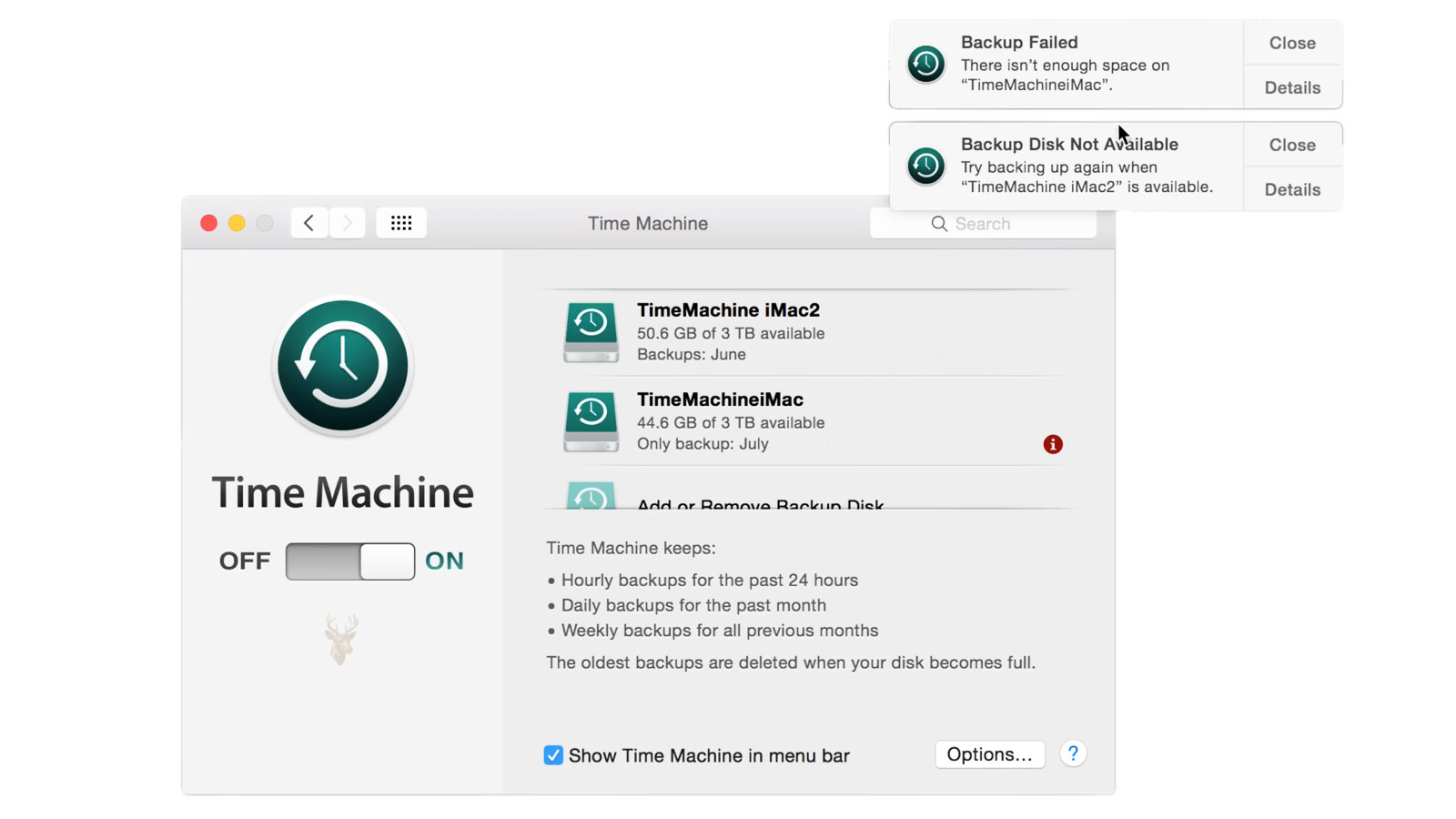
Understanding Mac Time Machine Backup Failures
Time Machine is Apple’s built-in backup system for macOS, designed to protect documents, photos, applications, settings, and system information by creating regular backups automatically. Under normal conditions, these backups occur in the background with minimal user interaction, allowing files to be restored after accidental deletion, hardware failure, or software problems.
When Time Machine begins reporting errors, remains stuck during preparation, cannot locate the backup destination, or repeatedly fails to complete scheduled backups, the issue may involve the storage device, file system, network connection, permissions, available space, or the backup database itself.
How Time Machine Creates Backups
Rather than copying every file during each backup, Time Machine first performs a complete backup and then records changes made afterward. This incremental approach reduces the amount of data that must be transferred during future backup sessions while preserving earlier versions of files.
As files change over time, Time Machine maintains multiple recovery points that allow individual documents or an entire Mac to be restored to an earlier state.
Backups Depend on Several Components Working Together
A successful backup requires more than an available external drive. The operating system, storage device, file system, permissions, network connection when applicable, and backup database must all communicate correctly throughout the process.
A problem affecting any one of these components can interrupt the backup before it finishes successfully.
Common Signs of Time Machine Problems
- Backups never finish.
- Preparation continues for an unusually long time.
- The backup disk cannot be found.
- The same error appears during every backup attempt.
- Time Machine reports that verification failed.
- The backup drive disconnects unexpectedly.
- The backup history becomes incomplete.
- Automatic backups stop occurring.
Preparation Is an Important Stage
Before copying files, Time Machine examines changes that have occurred since the previous backup. It determines which files require updating, identifies deleted content, evaluates metadata, and prepares the backup database for new information.
Large numbers of modified files, extensive application updates, or storage problems can cause this preparation stage to take significantly longer than usual.
The First Backup Requires More Time
An initial backup copies nearly the entire contents of the Mac, making it much larger than later incremental backups. Depending on the amount of stored data and the speed of the backup device, the first backup may require many hours to complete.
Later backups usually finish much faster because only changed information is processed.
External Drives Are Common Backup Destinations
Many Mac users connect a USB, Thunderbolt, or other external storage device dedicated exclusively to Time Machine. The operating system recognizes the designated backup destination and writes backup data automatically whenever the drive becomes available.
If the drive disconnects, loses power, or develops file system errors, scheduled backups may stop immediately.
Network Backups Introduce Additional Variables
Some users store Time Machine backups on network-attached storage devices or shared backup destinations. In these environments, wireless signal quality, network interruptions, authentication problems, and storage availability become additional factors that influence backup reliability.
A backup that functions perfectly over a wired connection may experience delays or interruptions when performed across an unstable wireless network.
| Observed Behavior | Possible Explanation |
|---|---|
| Preparation never finishes | Large file changes, indexing delays, or storage problems. |
| Backup destination unavailable | Disconnected drive or network access problem. |
| Backup stops unexpectedly | Communication or storage interruption. |
| Verification reports errors | Possible backup database or file system issue. |
| Automatic backups stop | Configuration, permission, or destination availability problem. |
Available Storage Space Matters
Although Time Machine automatically removes the oldest backups when additional space is required, unusually large backups or storage devices approaching capacity may still encounter delays or management problems. Limited free space also makes backup maintenance operations more demanding.
Maintaining adequate available storage allows Time Machine to rotate backup history more efficiently.
File System Health Affects Backup Reliability
The backup destination depends on a healthy file system capable of storing large amounts of data consistently. Directory damage, allocation problems, or hardware-related storage errors may interrupt backup operations before they complete.
When file system inconsistencies develop, Time Machine may report verification failures, incomplete backups, or repeated errors during scheduled backup attempts.
Permissions Can Prevent Certain Files From Being Processed
Time Machine requires appropriate access to the files it is backing up as well as to the backup destination itself. Permission conflicts, ownership changes, or damaged security information can interfere with normal backup operations.
Although isolated permission problems may affect only specific files, more widespread permission issues can interrupt larger portions of the backup process.
Encryption Adds Another Layer of Protection
Many backup destinations are encrypted to protect personal information if the storage device is lost or stolen. Encryption improves security but also depends on successful authentication and consistent communication with the storage device.
If encryption settings become inconsistent or authentication fails, Time Machine may be unable to continue writing new backup data.
A Time Machine failure does not necessarily indicate that the backup drive has failed. Problems can originate from the Mac, the storage device, the network connection, permissions, or the backup database itself.
Backup Failures Often Develop Gradually
Many Time Machine problems begin with occasional delays, unusually long preparation times, or isolated verification warnings before progressing to complete backup failures. Recognizing these early symptoms allows storage or configuration problems to be investigated before backup protection is interrupted entirely.
Routine monitoring of backup status helps ensure that recent recovery points remain available if they are ever needed.
Troubleshooting Should Begin With the Backup Destination
When Time Machine reports a failure, the backup destination should be checked before system settings are changed. A disconnected cable, sleeping network device, unavailable shared folder, or external drive that has lost power can prevent a backup from starting or cause it to stop unexpectedly.
Confirming that the destination appears normally in macOS helps separate a basic connection problem from a failure occurring inside the backup process.
A Backup Drive Should Mount Consistently
An external drive that appears and disappears intermittently cannot provide dependable backup storage. Loose cables, damaged connectors, insufficient power, failing adapters, and worn drive ports can all interrupt communication.
If the drive disconnects during an active backup, Time Machine may leave the current session incomplete and require additional verification during the next attempt.
Testing Another Cable Can Expose an Intermittent Connection
Detachable cables should be replaced temporarily with a compatible known-working cable. A cable may provide enough power for the drive to appear while still producing data errors during sustained transfers.
Backup operations place continuous demand on the connection, so weaknesses that remain unnoticed during brief file access may become visible when large amounts of data are copied.
Direct Connections Reduce Possible Failure Points
External backup drives should be tested directly through the Mac whenever practical. USB hubs, docking stations, monitor ports, extension cables, and multiport adapters introduce additional controllers and power requirements.
If the backup succeeds when the drive is connected directly, the intermediate accessory or its power supply may be contributing to the failure.
| Test Result | What It May Indicate |
|---|---|
| Drive works with another cable | The original cable may be damaged or unstable. |
| Backup completes through a direct connection | A hub, dock, or adapter may be interfering. |
| Drive disconnects on more than one Mac | The enclosure, drive, cable, or power supply may be failing. |
| Other drives work on the same Mac port | The problem is more likely associated with the backup device. |
| Several drives fail on one port | The Mac port or controller path may require inspection. |
Disk Utility Can Reveal File System Problems
Disk Utility can examine the backup destination for structural inconsistencies. First Aid checks the partition map, file system records, directory information, and related storage structures.
A successful First Aid result does not guarantee that the physical drive is healthy, but reported errors can confirm that the destination requires attention before additional backups are trusted.
Repair Attempts Should Not Replace Important Backup Data
If the backup drive contains the only remaining copies of older files, repair or reformatting should be approached carefully. File system changes can alter existing backup history and may make some recovery points inaccessible.
Important files should be copied or recovered from the destination before destructive procedures are considered.
Drive Health Can Deteriorate Before Complete Failure
A mechanical hard drive may begin producing slow transfers, clicking sounds, repeated disconnections, or read errors before it stops working entirely. Solid-state storage may develop controller faults, unstable recognition, or sudden read-only behavior.
Time Machine failures that become more frequent over time can be an early warning that the backup destination is no longer reliable.
Unusual Noise Should Be Taken Seriously
Repeated clicking, grinding, beeping, or spin-up attempts from an external hard drive can indicate a mechanical or power-related problem. Continuing a large backup operation may place additional stress on the device.
A drive producing abnormal sounds should be disconnected and evaluated before more data is written to it.
Available Space Should Be Checked on Both Devices
The backup destination needs enough capacity for new data and maintenance operations. The Mac also requires working space for temporary files, local snapshots, indexing, application updates, and normal system activity.
A Mac with almost no free internal storage may experience slow preparation, failed updates, and other problems that affect backup performance indirectly.
Large Recent Changes Can Extend Backup Time
Installing a major macOS update, moving a large photo library, adding a virtual machine, reorganizing thousands of files, or restoring data from another source can cause the next backup to be much larger than usual.
A long backup is not automatically a failed backup. Progress, drive activity, transferred data, and error messages should be considered together before the process is interrupted.
Virtual Machines Can Create Very Large Incremental Backups
A virtual machine may be stored as one or several large files that change whenever the virtual system is used. Even a small change inside the virtual machine can cause Time Machine to process a large amount of data.
Excluding replaceable virtual machine files or using a separate backup method for them may reduce repeated backup delays, depending on the importance of that data.
Photo and Media Libraries Can Delay Preparation
Large photo, audio, and video libraries contain extensive metadata and many files that may change during imports, editing, synchronization, or library maintenance. Time Machine must evaluate those changes before copying the required information.
Preparation may take longer after a major import or library repair even when the backup system is operating normally.
Stuck Preparation Requires Careful Interpretation
The message indicating that Time Machine is preparing a backup can remain visible while macOS compares files, evaluates snapshots, and reviews previous backup information. On a Mac with extensive recent changes, this stage may continue for a considerable period.
It becomes more suspicious when preparation continues without drive activity, produces repeated errors, or never progresses after several attempts under otherwise stable conditions.
Spotlight Indexing Can Compete for Storage Resources
After a macOS update, drive replacement, migration, or large file transfer, Spotlight may rebuild its search index. This process can increase storage activity and make Time Machine preparation appear slower.
Allowing indexing and other system maintenance to finish may improve backup performance without requiring changes to the backup configuration.
Local Snapshots Can Affect Available Space
When the normal backup destination is unavailable, macOS may retain local snapshots on the internal drive. These snapshots provide temporary recovery options and are usually managed automatically.
Unusual snapshot behavior, limited internal space, or a long period without access to the backup destination can complicate the next backup session.
Restarting Can Clear Temporary Backup Processes
A restart can stop a stalled service, release a locked file, remount the backup destination, and reset temporary communication problems. This can be useful when one backup attempt has stopped responding without producing a clear hardware error.
If the problem returns after every restart, the underlying storage, network, permission, or database issue still requires diagnosis.
Time Machine Settings Should Be Confirmed
The correct backup destination should remain selected, and automatic backups should be enabled when scheduled operation is expected. A drive replacement, macOS migration, network change, or account modification can leave Time Machine pointing to an unavailable destination.
Reviewing the settings confirms whether the Mac is attempting to use the intended disk or network location.
Exclusions Can Explain Missing Backup Content
Time Machine allows folders and storage locations to be excluded from backups. A folder added to the exclusion list will not appear in future recovery points even when the backup completes successfully.
Unexpectedly missing files should therefore be checked against the current exclusion settings before corruption is assumed.
Some Files Are Not Intended for Normal Time Machine Backup
Temporary system files, caches, certain cloud-managed items, and data excluded by applications may not be preserved in the same way as ordinary documents. A completed backup is not necessarily a byte-for-byte copy of every file present on the Mac.
Important cloud documents should also be confirmed as fully downloaded when local backup protection is required.
Cloud-Optimized Files May Not Be Stored Locally
Storage optimization can leave some files represented by placeholders while their full contents remain in cloud storage. Time Machine cannot back up data that is not currently stored on the Mac in complete form.
Files considered essential should be verified as available offline rather than assumed to exist inside every local backup.
A successful Time Machine status does not remove the need to verify that the files considered important are actually included, accessible, and stored in complete form.
Network Destinations Require Stable Access
A network backup can fail even when ordinary web browsing and email continue working. Time Machine transfers large amounts of data and may remain connected for hours, making it more sensitive to wireless interruptions, router restarts, and storage sleep settings.
Testing over Ethernet or closer to the wireless access point can help determine whether connection quality contributes to the failure.
Authentication Problems Can Block Network Backups
A changed password, removed account, altered shared-folder permission, or expired stored credential can prevent the Mac from accessing the backup destination. The network device may remain visible while Time Machine cannot write to it.
Reconnecting to the shared destination with the correct account can confirm whether authentication is responsible.
Network Storage Must Support the Required Backup Method
Not every shared drive or basic network storage device provides reliable support for Time Machine. Compatibility depends on the network protocol, file-sharing configuration, storage firmware, permissions, and the way the backup image is maintained.
A destination that permits ordinary file storage may still be unsuitable for dependable Time Machine backups.
Router and Storage Updates Can Change Backup Behavior
Firmware updates, security changes, protocol adjustments, or replaced network equipment can affect access to an existing Time Machine destination. A backup that worked for years may stop after the surrounding network configuration changes.
Reviewing recent changes can help identify whether the failure began after an update or equipment replacement.
Backup Verification Errors Should Not Be Ignored
Verification checks whether the backup structure remains internally consistent. A failed verification may indicate damaged backup records, interrupted network writes, file system problems, or storage errors.
Repeated verification failures reduce confidence that the existing backup history can be restored successfully when needed.
A New Backup May Be Required After Database Damage
When the existing backup structure is too damaged to continue safely, Time Machine may require a new full backup. This creates a fresh backup history rather than extending the damaged one.
Older recovery points should not be erased until their importance has been evaluated and any needed files have been copied elsewhere.
Starting Over Removes Historical Recovery Points
Erasing a Time Machine drive or deleting its backup image removes the ability to restore older versions stored only in that history. A new backup protects the Mac from that point forward but does not recreate previous recovery dates.
This tradeoff should be understood before the existing backup set is reformatted or discarded.
A Second Backup Destination Can Preserve Protection
When the existing destination is questionable, a new backup can be created on another reliable drive while the older backup remains untouched. This preserves current protection without immediately destroying historical data.
Once the new backup has completed and been verified, the older destination can be examined with less risk.
Backup Completion Should Be Verified Manually
The menu bar status or system settings should show the date and time of the most recent successful backup. A connected drive alone does not confirm that recent data has been protected.
Opening Time Machine and checking several folders provides a better indication that recovery points are present and browsable.
Test Restores Confirm More Than Backup Status
A small noncritical file can be restored to verify that Time Machine can read its history and return usable data. This tests the restoration process rather than relying only on a message stating that the backup completed.
Regular test restores are especially valuable for business documents, creative projects, family photographs, and other information that would be difficult to replace.
Maintaining a Reliable Backup Routine
A Time Machine backup is most valuable when it completes regularly without requiring constant attention. Periodically checking the backup history, available storage space, and the condition of the backup destination helps identify developing problems before recovery is needed.
Waiting until a Mac fails before confirming that backups are working can leave important documents, photos, and application data without a usable recovery point.
External Backup Drives Have Limited Service Life
Mechanical hard drives contain moving components that wear with use, while solid-state drives have a finite number of write cycles. Although many backup devices operate reliably for years, none should be expected to last indefinitely.
Aging backup hardware should be monitored for unusual noise, slower performance, connection instability, and increasing file system errors that may indicate the beginning of hardware deterioration.
Portable Backup Drives Require Careful Handling
External drives used for Time Machine are often transported between locations. Mechanical shock, dropped enclosures, strained cables, liquid exposure, and connector damage can interrupt future backups or make existing backup history difficult to access.
Disconnecting the drive safely before moving it and storing it where it will not be subjected to impact helps preserve both the hardware and its stored backup data.
One Backup Is Better Than None, but Multiple Backups Offer Greater Protection
Time Machine protects against many common problems, but no single backup destination eliminates every possible risk. Theft, fire, flooding, electrical damage, accidental deletion, or failure of the backup drive itself can affect both the Mac and its only backup.
Maintaining an additional backup in another physical location or through another trusted backup method improves resilience against events that affect a single storage device.
| Recommended Practice | Benefit |
|---|---|
| Verify backup completion regularly | Confirms recent recovery points exist. |
| Check the backup drive periodically | Detects storage problems before failure. |
| Keep sufficient free storage space | Allows backups to complete normally. |
| Test restoring sample files | Confirms backups are actually usable. |
| Maintain an additional backup | Protects against backup drive failure. |
| Replace unreliable backup hardware | Reduces the risk of future backup interruptions. |
Laptop Power Settings Can Affect Scheduled Backups
Portable Macs spend much of their time sleeping, disconnected from external drives, or operating on battery power. Long periods away from the normal backup destination can delay scheduled backups until the drive becomes available again.
Connecting the backup drive regularly allows Time Machine to maintain current recovery points rather than attempting unusually large incremental backups after extended delays.
Software Updates Can Temporarily Change Backup Behavior
Major macOS updates frequently modify thousands of system files, applications, and security components. The first backup after such an update often processes substantially more data than an ordinary incremental backup.
This increase in backup size is expected and should not automatically be interpreted as evidence that Time Machine has become corrupted.
Monitoring Backup History Provides Useful Information
Reviewing the dates of previous backups helps identify patterns that might otherwise go unnoticed. Backups that become progressively farther apart, repeatedly stop at similar percentages, or begin failing after a specific system change can provide valuable diagnostic clues.
Recognizing these trends early often makes troubleshooting easier than responding after weeks or months without a successful backup.
Business Users May Need Additional Backup Strategies
Organizations that rely on continuous access to business records, customer information, creative projects, or financial data often supplement Time Machine with additional backup systems designed for version control, centralized management, or off-site protection.
Using multiple backup methods reduces dependence on a single storage device and provides greater flexibility during recovery.
Warning Signs That Deserve Immediate Attention
- Repeated verification failures.
- The backup drive disconnects unexpectedly.
- Preparation remains stalled for unusually long periods on every attempt.
- The backup destination repeatedly disappears from macOS.
- Unusual sounds come from the external backup drive.
- Recent backups no longer appear in the Time Machine history.
- The backup destination reports file system errors repeatedly.
- Restore testing produces incomplete or unreadable files.
When Professional Assistance May Be Appropriate
Professional evaluation may be appropriate when the backup drive develops hardware symptoms, the backup database becomes severely damaged, multiple backup attempts fail after normal troubleshooting, or important files exist only within an inaccessible Time Machine backup.
Specialized diagnosis can help determine whether the problem involves the storage hardware, the backup structure, the network destination, macOS configuration, or another component affecting the backup process.
A backup is only valuable if it can be restored successfully. Verifying both the backup process and occasional file recovery provides greater confidence than relying solely on successful completion messages.
Frequently Asked Questions About Time Machine Backup Failures
Why does Time Machine remain on “Preparing Backup” for so long?
Preparation includes scanning recent file changes, evaluating snapshots, and comparing the current system with previous backups. Large updates, extensive file modifications, or storage problems can significantly increase this stage.
Can I disconnect the backup drive while Time Machine is running?
Disconnecting the drive during an active backup can interrupt the backup process and may require verification before future backups continue. It is best to wait until the backup has finished.
Does a successful backup guarantee every file is protected?
Not necessarily. Files excluded from backup, cloud-only items, or data unavailable during the backup may not be included. Periodic restore testing helps confirm that important files are recoverable.
Why does Time Machine suddenly require a new backup?
Severe backup database corruption, storage problems, or structural inconsistencies may prevent the existing backup history from being extended safely, requiring a new backup set.
Can a failing external drive cause backup errors?
Yes. Mechanical wear, connection instability, controller problems, or file system damage on the backup drive can interrupt backup operations or produce repeated verification failures.
Should I erase the backup drive immediately after a verification error?
Not until the importance of the existing backup history has been evaluated. Older recovery points may still contain valuable files that should be copied before destructive changes are made.
How often should I test restoring files?
Occasional test restores of noncritical files help confirm that the backup history remains usable and that the recovery process functions as expected.
Can Wi-Fi problems interrupt a network Time Machine backup?
Yes. Wireless interference, unstable signals, router restarts, or authentication problems can interrupt long backup sessions even when normal internet browsing appears unaffected.
Reliable Backups Depend on More Than Storage Space
Time Machine backup failures can result from storage hardware, file system damage, network interruptions, permissions, backup database corruption, or communication problems with the backup destination. Because several components work together during every backup, successful troubleshooting depends on identifying where the process begins to fail rather than assuming the backup drive alone is responsible.
Regular verification, occasional restore testing, dependable backup hardware, and consistent monitoring help ensure that Time Machine remains ready when files need to be recovered after accidental deletion, software failure, or hardware replacement.











