
Remote Support Begins With Controlled Permission
Remote support allows a technician to examine a computer without physically transporting the device to a repair location. The connection can provide access to the desktop, system settings, applications, error messages, and other information needed to investigate a software or configuration problem. Because this access may reveal private files and account information, the session must begin with clear permission from the person using the computer.
Modern remote assistance tools commonly use temporary access codes, confirmation prompts, and adjustable permissions to control how a connection is established. These safeguards help ensure that access is granted intentionally instead of remaining available without the computer user’s knowledge.
Understanding these controls helps users participate in remote support confidently while recognizing what the technician can and cannot do during the session.
A Temporary Code Identifies One Support Session
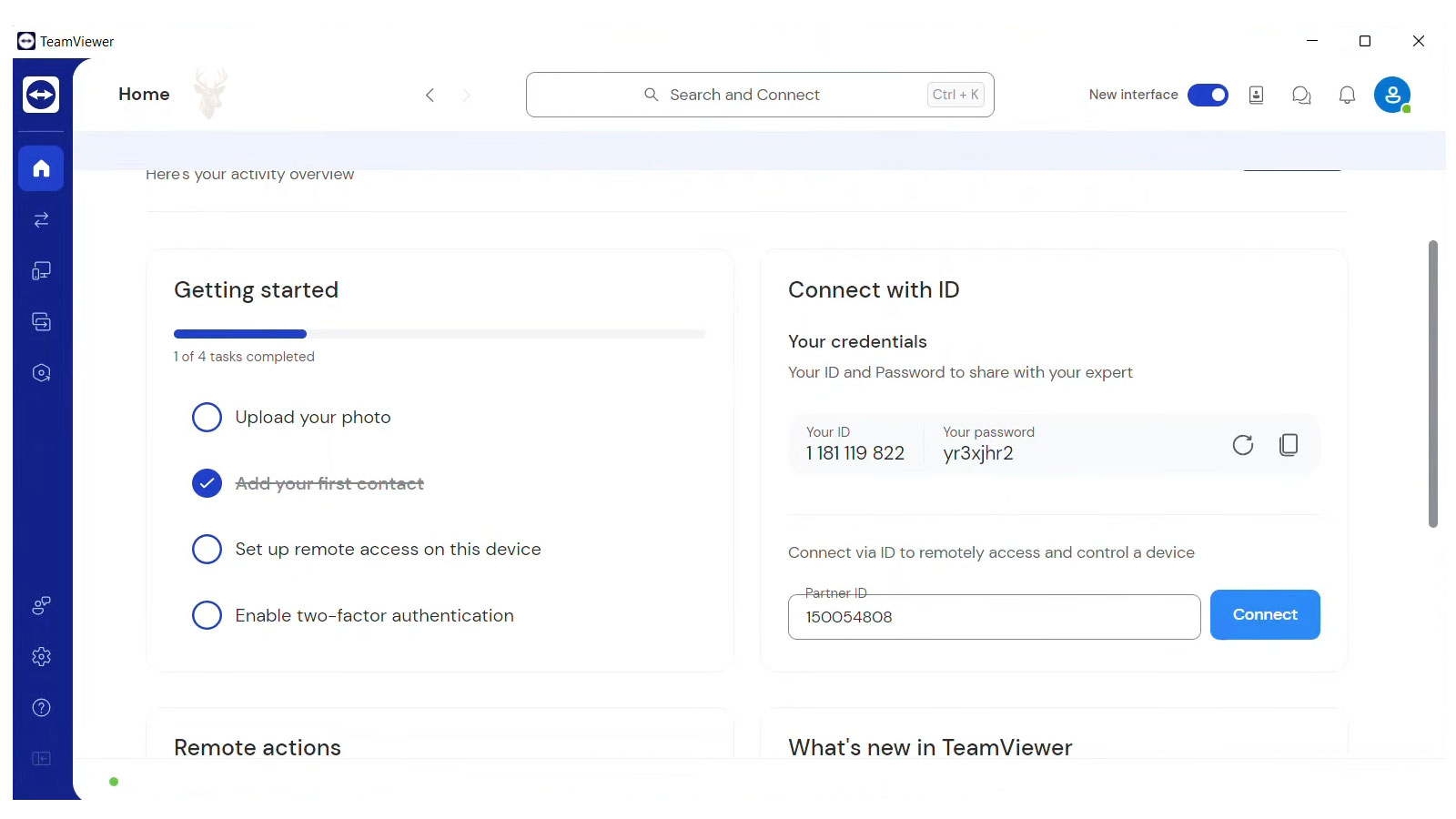
Many remote support programs generate a temporary number, password, or combination of characters when assistance is requested. The user provides this information to the technician so the support application can match both participants and begin the connection process.
The code is typically valid for a limited period or for one active session. Once the connection ends, the same information may no longer permit access. A future support session usually requires a newly generated code.
This temporary design reduces the risk created by permanent credentials that could continue granting access long after the original support request has been completed.
Sharing a Code Does Not Always Complete the Connection
Entering the correct session code may identify the technician, but many remote assistance tools still require the computer user to approve the connection locally. A message may appear asking whether screen viewing, keyboard control, mouse control, file transfer, or administrative access should be allowed.
This additional confirmation creates a second layer of permission. The technician may know the temporary code, but access does not begin until the user accepts the request presented on the computer.
Users should read these prompts carefully rather than approving every option automatically.
Screen Viewing and Computer Control Are Separate Capabilities
Remote support software may distinguish between allowing someone to view the screen and allowing that person to control the computer. Screen-viewing permission lets the technician observe error messages, settings, and application behavior while the local user continues operating the keyboard and mouse.
Remote-control permission goes further by allowing the technician to move the pointer, enter text, open settings, and perform troubleshooting steps directly. This can make diagnosis more efficient, but it also provides broader access to the active desktop.
Separating these permissions allows assistance to begin with limited access and expand only when additional control is necessary.
File Transfer Requires Its Own Consideration
Some remote support tools include a file-transfer feature that allows diagnostic reports, software installers, configuration files, or documents to move between the technician’s system and the customer’s computer. This function is separate from ordinary screen sharing because it directly exchanges stored data.
A technician may use file transfer to deliver a trusted repair utility or collect a log needed for further analysis. However, the feature should be enabled only when it serves a clear support purpose.
Users should understand what is being transferred, where the file will be stored, and why it is needed before granting permission.
Administrative Prompts May Still Require Local Approval
Even after remote control has been granted, the operating system may restrict access to protected settings. Installing software, changing security options, managing user accounts, or modifying system-level configurations can produce an administrative confirmation prompt.
Depending on the remote support program and the way it was started, the technician may be unable to interact with that protected prompt. The computer user may need to approve it directly or enter an administrator password locally.
This behavior does not necessarily indicate that the remote connection has failed. It reflects an additional security boundary created by the operating system.
Attended Support Keeps the User Present During the Session
Temporary access codes are commonly associated with attended remote support. In this type of session, the user remains at the computer, starts the support application, provides the code, approves the connection, and observes the work being performed.
The user can answer questions, reproduce the original problem, provide passwords privately when required, and interrupt the session if anything unexpected appears. This direct participation helps the technician understand the reported symptoms while keeping the customer involved in each important decision.
Attended access is especially appropriate for one-time troubleshooting and computers that should not remain remotely accessible after the service is finished.
Unattended Access Uses a Different Permission Model
Some business systems and regularly maintained computers are configured for unattended access. This arrangement allows an authorized technician or administrator to connect without someone being present to generate a new temporary code each time.
Unattended access can be useful for scheduled maintenance, server administration, overnight updates, and continuing support agreements. However, it relies on persistent credentials, approved user accounts, device registration, or centrally managed security policies.
Because this access remains available beyond a single session, it should be configured deliberately and reviewed periodically rather than enabled as a convenience without a continuing operational need.
Common Remote Permission Types
| Permission | What It Allows |
|---|---|
| Screen viewing | Allows the technician to observe the active desktop. |
| Keyboard and mouse control | Allows direct interaction with programs and settings. |
| File transfer | Allows approved files to move between connected computers. |
| Clipboard sharing | Allows copied text or other supported content to pass between systems. |
| Administrative access | Allows work involving protected system settings when properly authorized. |
| Unattended connection | Allows future access without a person approving each individual session. |
Remote assistance is most secure and understandable when every connection begins with deliberate authorization. Temporary codes, confirmation prompts, and separate permission controls allow users to decide when access begins and how much control is provided. These safeguards do not interfere with legitimate support. Instead, they create a clear boundary between ordinary screen sharing and the broader capabilities that may be required during a complete remote troubleshooting session.
Session Visibility Helps the User Understand What Is Happening
During attended remote support, the computer user can usually watch the technician move through menus, open diagnostic tools, review settings, and test the reported problem. This visibility is important because remote access should not feel hidden or unexplained. The user should be able to see what areas of the system are being examined and ask questions whenever a step is unclear.
Some remote assistance programs display a persistent banner, session window, colored border, or notification while the connection remains active. These visual indicators confirm that another person is currently connected and help prevent the session from continuing unnoticed.
A clearly visible connection status also makes it easier for the user to identify when remote control has paused, resumed, or ended.
The Local User Can Usually Interrupt Remote Control
Granting keyboard and mouse access does not normally remove control from the person sitting at the computer. In most attended sessions, the local user can still move the pointer, type, close a window, or stop the connection if necessary.
This shared-control model allows the technician and user to work together. The technician may navigate through settings while the user demonstrates a problem, enters private information, or takes control when an action requires personal approval.
If the user becomes uncomfortable or sees an unexpected action, the session can generally be paused or disconnected immediately from the local computer.
Private Information Should Be Closed Before the Session Begins
Remote support may expose whatever is visible on the desktop, including open email, browser tabs, documents, account notifications, and recently accessed files. Before connecting, users should close material that is unrelated to the technical problem and should not be viewed during troubleshooting.
This preparation does not suggest that the technician intends to inspect personal information. It simply reduces unnecessary exposure by limiting the active workspace to the applications and settings relevant to the support request.
A clean desktop and clearly defined troubleshooting area also help the technician focus on the reported issue more efficiently.
Passwords Should Remain Under the User’s Control
Some troubleshooting procedures require access to an administrator account, email account, licensed application, network service, or encrypted storage location. When a password is needed, the safest approach is often for the user to enter it directly rather than reading it aloud or sending it through a message.
Many remote support tools can temporarily block remote keyboard viewing or pause screen transmission while the local user enters sensitive information. Even when this feature is unavailable, the technician can release control and allow the user to complete the sign-in step privately.
Maintaining control of passwords helps preserve account security while still allowing the necessary troubleshooting work to continue.
Clipboard Sharing Can Expose More Than Typed Text
Clipboard synchronization allows copied material to move between the local and remote computers. This feature can save time when transferring a command, web address, license key, or short diagnostic result, but it may also expose information that was copied before the session began.
Passwords, account numbers, private messages, and other sensitive content can remain temporarily stored in the clipboard without being visible on the screen. Clearing copied information before remote support begins reduces the chance of unrelated data being transferred accidentally.
Clipboard sharing should remain enabled only when it serves a practical purpose during the session.
Remote Restart Features Help Continue Troubleshooting
Many computer problems require a restart after software installation, configuration changes, driver adjustments, or system repairs. Some remote support programs can reconnect automatically after the computer restarts, allowing the technician to continue without asking the user to generate another code.
This capability is usually limited to the active support session and depends on how the remote software was launched. The user may see a message asking whether reconnection after restart should be permitted.
Approving this option can make troubleshooting more efficient, but the user should understand whether the authorization applies only to the current restart or creates continuing access beyond the session.
Connection Quality Affects Remote Control Responsiveness
Remote support depends on stable internet access at both locations. A weak wireless signal, congested network, limited upload speed, or intermittent connection can cause delayed pointer movement, reduced image quality, frozen screen updates, or unexpected disconnections.
These symptoms do not always indicate a problem with the computer being repaired. They may reflect the condition of the network carrying the remote session.
Reducing unnecessary streaming, large downloads, and other heavy network activity can improve responsiveness while troubleshooting is underway.
Session Records Can Support Accountability
Business-oriented remote support platforms may maintain records showing when a connection began, when it ended, which technician participated, and which computer received assistance. Some systems can also record chat messages, file transfers, or permission changes associated with the session.
These records help organizations document support activity, review access history, and confirm that connections occurred within an approved service process.
Session logging does not replace proper authorization, but it provides an additional record of how remote access was used.
Unexpected Remote Requests Should Be Treated Carefully
A legitimate remote support session should begin because the computer user requested assistance or knowingly agreed to a scheduled connection. Unsolicited callers, alarming pop-up messages, and unexpected emails that pressure someone to install remote access software should be approached cautiously.
Temporary access codes should be shared only with the technician or support provider the user intended to contact. A code should not be posted publicly, sent to an unknown person, or provided to someone who initiated contact without a verified reason.
If the identity of the requester is uncertain, the connection should not be approved until the organization or technician has been verified through a known contact method.
Permission Decisions During an Attended Session
| Session Request | What the User Should Confirm |
|---|---|
| View the desktop | Confirm that unrelated private windows have been closed. |
| Control the keyboard and mouse | Confirm that direct interaction is necessary for troubleshooting. |
| Transfer a file | Confirm the filename, purpose, and destination. |
| Reconnect after restart | Confirm whether the permission applies only to the active session. |
| Use clipboard synchronization | Clear sensitive copied information before enabling the feature. |
| Enter protected settings | Confirm that the requested change relates to the reported problem. |
A well-managed remote support session keeps the user informed, preserves local control, and limits access to the functions required for the repair. Visibility indicators, interrupt controls, private password entry, selective file transfer, and clear approval prompts allow technical work to proceed without treating remote access as unrestricted permission. These boundaries make the session easier to understand while protecting information that is unrelated to the computer problem being addressed.
Ending the Session Properly Is Part of Secure Remote Support
Remote support does not end simply because the visible troubleshooting work appears complete. The connection should be closed deliberately, temporary permissions should expire, and the user should understand whether any remote access software remains installed on the computer.
A clear ending helps distinguish a completed one-time support session from an ongoing access arrangement. It also gives the user an opportunity to confirm that the original problem has been tested and that no additional work is continuing in the background.
Closing the session carefully is therefore just as important as approving the initial connection.
Temporary Session Codes Should Expire After Use
One-time support codes are designed to reduce continuing exposure after assistance has been completed. Once the remote session ends, the code should no longer provide access to the same computer.
If additional support is needed later, the user normally starts a new session and receives a different code. This separation prevents an old code from functioning as a permanent password and creates a distinct authorization event for every connection.
Users should avoid saving temporary session codes under the assumption that the same information will be required for future appointments.
The Remote Support Program May Close or Remain Installed
Some remote assistance programs operate as temporary applications that close completely when the support session ends. Others remain installed so they can be used again during a future appointment. The presence of the program does not always mean that unattended access remains active.
The important distinction is whether the software can accept future connections without a new code or local approval. A program may remain on the computer while still requiring the user to launch it and authorize every new session.
Users should ask whether the application is temporary, reusable, or configured for continuing access before deciding whether it should remain installed.
Unattended Access Should Be Removed When It Is No Longer Needed
Persistent remote access may be appropriate for managed business systems, servers, or computers covered by an ongoing maintenance agreement. It is less appropriate when it remains enabled after a one-time repair with no continuing support purpose.
When unattended access is no longer required, the associated device registration, saved credentials, background service, or authorized support account should be removed according to the remote platform’s configuration.
Removing unnecessary access reduces the number of services capable of reaching the computer and keeps the system aligned with its current support needs.
Visible Testing Confirms Whether the Original Problem Was Corrected
Before disconnecting, the user and technician should test the function that originally prompted the support request. This may involve reopening a program, testing a printer, confirming internet access, repeating a sign-in process, checking an error message, or restarting the computer.
Testing while the connection remains active allows the technician to observe whether the symptom has changed and address any remaining issue without requiring an entirely new session.
A support session should conclude with a practical result rather than ending immediately after a setting has been changed.
Some Problems Cannot Be Resolved Through Remote Access
Remote support is well suited for software errors, configuration problems, account settings, update failures, browser concerns, printer setup, and many operating system issues. It cannot physically inspect damaged connectors, replace failed components, test internal voltages, reseat memory, or examine a computer that cannot start far enough to establish a connection.
If testing suggests a failing storage device, damaged display, unstable power supply, overheating component, liquid exposure, or another physical condition, in-person service may be required.
Recognizing this limitation prevents remote access from being extended unnecessarily when the problem has moved beyond what software-level troubleshooting can verify.
A Connection Should Stop Immediately if the Request Becomes Suspicious
During legitimate support, each action should relate to the reported computer problem. Requests involving unrelated financial accounts, gift cards, cryptocurrency, wire transfers, or access to private banking information are not normal computer troubleshooting procedures.
The session should also be ended if the connected person refuses to explain an action, attempts to disable security protections without a clear reason, or moves into personal files unrelated to the repair.
Disconnecting the session locally, closing the support application, and contacting a trusted provider through a known telephone number are appropriate responses whenever the identity or purpose of the remote connection becomes uncertain.
Business Remote Support Requires Defined Access Policies
Organizations that use remote support regularly benefit from documented rules governing who may connect, which computers may be accessed, how permissions are assigned, and how activity is recorded. These policies help prevent informal access practices from developing across different departments and technicians.
Business environments may also use individual technician accounts, multifactor authentication, device approval lists, connection logs, role-based permissions, and scheduled access windows. These controls make it easier to limit each technician to the systems and functions required for assigned work.
Structured access management becomes increasingly important as the number of supported computers and authorized technicians grows.
Post-Session Review Helps Preserve User Confidence
After the connection closes, the technician should summarize what was examined, what changes were made, and whether additional monitoring or follow-up is recommended. This explanation gives the user a record of the work performed and reduces uncertainty about unfamiliar settings or software that may now appear on the computer.
If files were transferred, applications installed, or startup settings modified, those actions should be identified clearly. The user should also know whether the computer needs another restart, whether a temporary file can be removed, or whether a later appointment is expected.
Clear communication turns remote support into a transparent technical process rather than an unexplained series of changes made from another location.
Closing Checks for a Remote Support Session
| Closing Check | Reason |
|---|---|
| Test the original problem | Confirms whether the troubleshooting produced a practical result. |
| End the visible connection | Stops active keyboard, mouse, and screen access. |
| Confirm code expiration | Prevents reuse of temporary session credentials. |
| Review installed software | Clarifies whether the support program remains on the computer. |
| Remove unnecessary unattended access | Eliminates persistent permissions that no longer serve a purpose. |
| Summarize completed work | Helps the user understand the changes and any remaining recommendations. |
Temporary access codes and permission controls allow remote support to remain useful without turning a one-time repair into unrestricted continuing access. The strongest sessions begin with intentional approval, limit capabilities to the work being performed, keep the user informed, and end with a clear disconnection. When remote software, session credentials, file-transfer permissions, and unattended access settings are handled carefully, remote assistance can provide efficient troubleshooting while preserving the user’s control over the computer and the information stored on it.











