
How Windows Uses Stop Errors to Protect the Computer From Further Damage
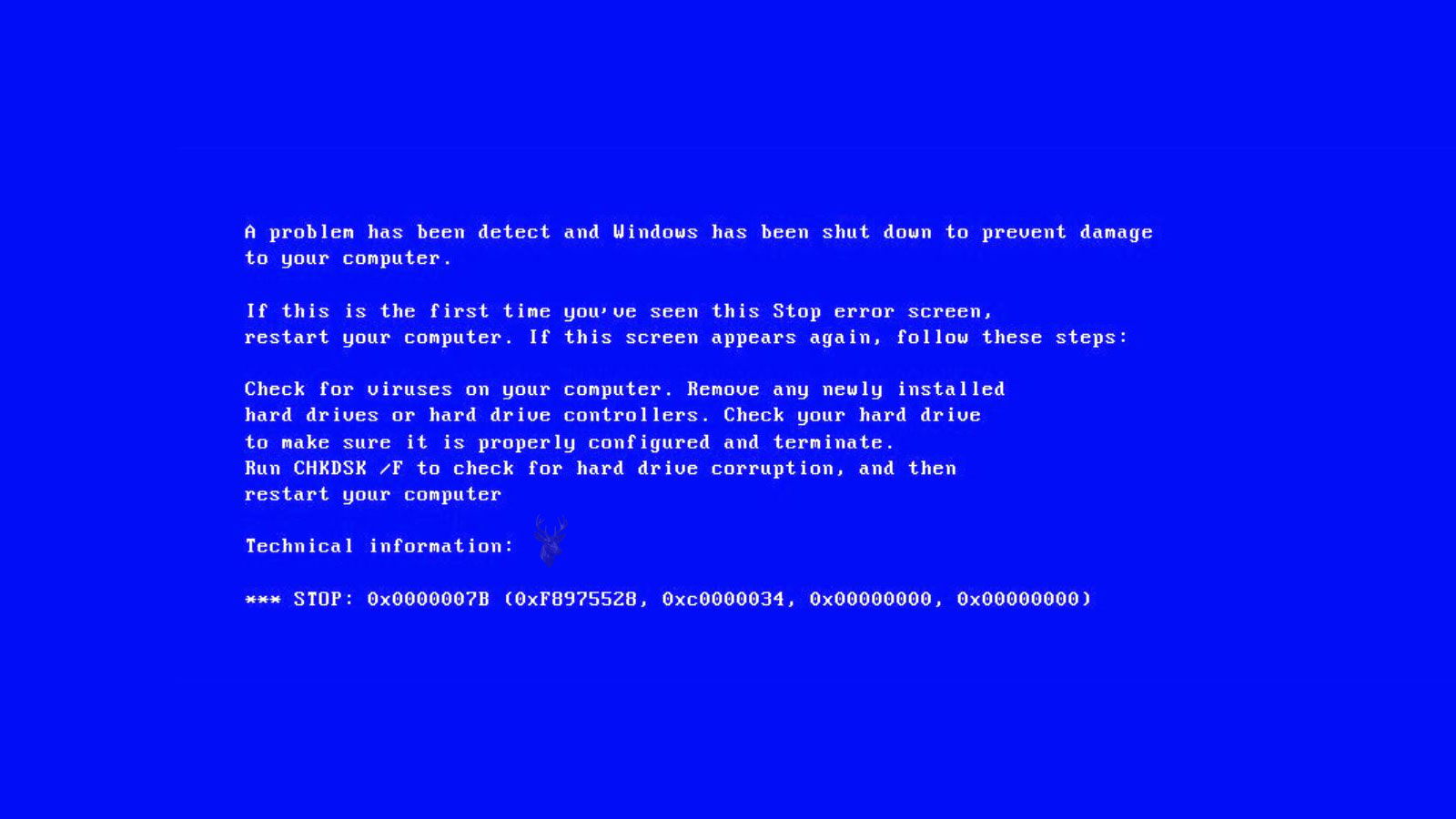
A blue screen error, commonly called a Blue Screen of Death (BSOD), appears when Windows encounters a condition serious enough that it cannot continue operating safely. Rather than allowing corrupted information to spread through memory or storage, the operating system stops immediately and displays diagnostic information before restarting or waiting for user action.
Although the blue screen itself may seem alarming, it is often a protective response rather than the original problem. The underlying cause may involve hardware, drivers, storage devices, memory, overheating, Windows components, or another condition that prevented the operating system from continuing normally.
The information displayed on the screen provides clues about what Windows detected, but interpreting those details requires considering the overall behavior of the computer rather than relying on the stop code alone.
A Blue Screen Is a Symptom Rather Than the Actual Failure
Many different problems can produce the same visible blue screen. A damaged memory module, unstable graphics driver, failing storage device, overheating processor, incompatible hardware, or corrupted Windows component may all trigger similar stop errors even though the underlying faults are unrelated.
For that reason, replacing hardware based only on the stop code is rarely the most reliable approach. The timing of the crash, recent hardware changes, software updates, and other symptoms usually provide additional information that is equally important.
| Observed Behavior | Possible Direction |
|---|---|
| Blue screen appears during startup | Drivers, Windows files, storage, or startup hardware may be involved. |
| Blue screen occurs while gaming | Graphics hardware, memory, heat, or power should be considered. |
| Crash begins after installing hardware | Compatibility, drivers, firmware, or the new component may require attention. |
| System crashes only occasionally | An intermittent hardware or software problem may be developing. |
| Blue screen repeats with different stop codes | The underlying cause may be broader than the reported code. |
The stop screen is therefore the beginning of the diagnostic process rather than its conclusion.
Windows Stops to Protect Active Data
When Windows detects that continuing operation could damage system memory, corrupt files, or create unpredictable behavior, it intentionally halts the operating system. This controlled shutdown is designed to reduce the chance of additional corruption even though unsaved work may still be lost.
The blue screen does not necessarily indicate permanent hardware damage. In many cases, Windows is preventing a temporary fault from creating more widespread problems.
- Corrupted memory information is detected.
- A critical system component stops responding.
- A driver performs an invalid operation.
- Hardware communication becomes unreliable.
- Windows determines that normal operation can no longer continue safely.
The Stop Code Is Only One Diagnostic Clue
Each blue screen includes a stop code intended to describe the condition that caused Windows to halt. While these codes are useful, they often describe the point where Windows detected the problem rather than identifying the exact component that failed.
For example, two computers displaying the same stop code may require completely different repairs because one has defective memory while the other has a damaged driver or unstable storage device.
| Diagnostic Information | What It Can Suggest |
|---|---|
| Stop code | The operating condition that caused Windows to halt. |
| Recent hardware changes | Possible compatibility or installation issues. |
| Update history | Driver or operating-system changes. |
| Repeated crash pattern | Specific workloads or hardware conditions. |
| Additional symptoms | Heat, storage, memory, or power problems beyond the stop code itself. |
Viewing the stop code together with the computer’s overall behavior generally produces a more accurate diagnosis than focusing on the code by itself.
Memory Problems Frequently Trigger Blue Screen Errors
Windows continuously stores active information in system memory. If that information becomes corrupted because of defective memory hardware, unstable firmware settings, or communication errors, the operating system may detect invalid data and stop immediately.
Memory-related crashes often appear unpredictable because the damaged information changes depending on which applications and drivers are active at the time.
- Blue screens begin after a memory upgrade.
- Different stop codes appear on different days.
- Crashes occur during demanding applications.
- Random application failures accompany the crashes.
- System stability improves after memory testing or replacement.
Memory faults can imitate many unrelated software problems because nearly every active Windows process depends on reliable memory operation.
Storage Problems Can Lead to Stop Errors
Windows depends on the storage drive for operating-system files, virtual memory, applications, and user documents. If important information cannot be read correctly, becomes corrupted, or disappears unexpectedly, the operating system may stop to prevent additional damage.
Mechanical hard drives, solid-state drives, damaged cables, unstable controllers, and corrupted file systems can all contribute to storage-related crashes.
| Storage Behavior | Possible Direction |
|---|---|
| Blue screens occur during startup | Windows system files or storage hardware may be affected. |
| Crashes happen while opening large files | The drive may struggle to retrieve information. |
| Computer becomes unusually slow before crashing | Storage communication may already be deteriorating. |
| Drive disappears occasionally | Hardware, cable, or controller instability may exist. |
| Errors increase over time | The storage device may be progressively failing. |
Because important files may still be stored on the affected drive, recurring storage-related crashes deserve prompt attention before access becomes more difficult.
Drivers Operate Between Windows and Hardware
Device drivers translate operating-system instructions into commands that individual hardware components can understand. If a driver performs an invalid operation, accesses memory incorrectly, or communicates unreliably with hardware, Windows may stop immediately to prevent further instability.
Graphics adapters, wireless networking, storage controllers, printers, audio devices, USB hardware, and security software all depend on drivers that must remain compatible with the operating system.
- Crashes begin after installing a new driver.
- A hardware upgrade introduces blue screens.
- Only one specific activity consistently causes crashes.
- Safe Mode remains stable.
- Removing the recent driver restores normal operation.
Drivers are frequently involved in stop errors, but they should always be evaluated together with the condition of the hardware they control.
Overheating Can Trigger System Protection
Processors and graphics hardware generate considerable heat while operating. If cooling becomes insufficient, unstable operation may develop before Windows eventually encounters a condition that results in a stop error.
Dust accumulation, failed cooling fans, dried thermal compound, restricted airflow, and demanding workloads may all contribute to crashes that appear only after the computer has been running for some time.
| Temperature Pattern | Possible Concern |
|---|---|
| Blue screens occur during gaming | Graphics or processor temperatures may be increasing excessively. |
| Crashes appear after prolonged use | Heat buildup may affect stability. |
| Fans become unusually loud | The cooling system may be operating near its limits. |
| System becomes stable after cooling | Thermal conditions deserve further investigation. |
| High temperatures accompany performance loss | Thermal protection mechanisms may already be active. |
Heat-related crashes often become more frequent over time as cooling efficiency gradually decreases.
Graphics Hardware Can Produce Stop Errors Under Load
Graphics cards and integrated graphics systems process the desktop, video, games, design applications, and other visual workloads. A defective graphics processor, unstable video memory, damaged driver, inadequate cooling, or insufficient electrical power can cause Windows to stop when the display hardware no longer responds correctly.
Graphics-related blue screens often appear during gaming, video editing, three-dimensional rendering, or other tasks that place greater demand on the graphics system. The computer may operate normally during light use and crash only after the hardware becomes warmer or consumes more power.
| Graphics-Related Pattern | Possible Direction |
|---|---|
| Blue screen occurs during games | Graphics hardware, temperature, drivers, or power may be unstable. |
| Visual artifacts appear before the crash | Video memory or graphics processing may be failing. |
| Crash begins after a graphics-driver update | The new driver may be incompatible or damaged. |
| System remains stable with basic graphics | The installed graphics driver or dedicated card may be involved. |
| Computer crashes after a graphics-card upgrade | Compatibility, installation, or power requirements should be reviewed. |
Graphics symptoms should be evaluated together with cooling, electrical capacity, and the condition of the motherboard connection.
Power Instability Can Cause Unpredictable Crashes
Every component inside the computer depends on stable electrical power. A failing power supply, damaged connector, unstable adapter, overloaded circuit, or defective motherboard voltage regulator can interrupt normal operation and produce a blue screen before the system restarts or shuts down.
Power-related crashes may appear only during demanding activity because the processor and graphics hardware require more electricity at those moments. The resulting stop code may point toward memory, graphics, or another component even though the underlying problem is unstable power delivery.
- Crashes occur under heavy processor or graphics load.
- The computer restarts shortly after the blue screen.
- Several devices disconnect before the crash.
- The problem begins after installing higher-power hardware.
- Electrical noises, odors, or damaged connectors are present.
Because electrical instability can affect many components at once, testing is usually more reliable than assuming the stop code identifies the failed part directly.
Motherboard Faults Can Affect Several Systems at Once
The motherboard connects the processor, memory, storage, graphics hardware, USB controllers, and power circuits. Damage to the board can therefore create blue screen errors that appear to involve several unrelated components.
Failed voltage regulation, damaged expansion slots, unstable memory channels, cracked solder joints, liquid exposure, and deteriorating controller circuitry can all produce intermittent crashes. The exact stop code may change depending on which communication path fails first.
| Motherboard-Related Behavior | Possible Concern |
|---|---|
| Different stop codes appear repeatedly | A shared hardware or communication problem may exist. |
| Several onboard devices fail together | Motherboard controller circuitry may be unstable. |
| Crashes change when the computer warms | Thermal expansion may affect a damaged connection. |
| Memory tests fail in one slot but not another | The motherboard memory channel or slot may be defective. |
| Blue screens follow liquid or surge damage | Board-level circuitry may have been affected. |
A motherboard problem is usually considered after simpler causes such as drivers, memory modules, cables, and storage devices have been evaluated.
Windows Updates Can Introduce or Reveal Instability
Windows updates replace system files, modify drivers, apply security changes, and adjust how the operating system communicates with hardware. A damaged or incomplete update can cause stop errors, particularly when the computer restarts and begins using the new components.
An update may also reveal a problem that already existed. A failing storage drive or unstable memory module may operate unnoticed until the update process places greater demand on the system and encounters damaged data.
- Blue screens begin immediately after an update.
- The crash occurs while Windows is completing installation.
- Automatic repair starts after the update fails.
- Safe Mode remains accessible while normal startup crashes.
- Restoring an earlier driver or update changes the behavior.
The timing of the update is useful evidence, but hardware health should still be considered before concluding that Windows alone is responsible.
New Hardware Can Create Compatibility Problems
A blue screen that begins after installing memory, a graphics card, storage device, expansion card, or peripheral should be evaluated in relation to that change. The component may be incompatible, defective, improperly seated, underpowered, or dependent on a different firmware or driver version.
The new hardware does not always need to be faulty. Its installation may have disturbed a nearby cable, changed firmware settings, or increased power and cooling requirements beyond what the system previously needed.
| Recent Change | Possible Issue |
|---|---|
| Memory upgrade | Compatibility, seating, timing, voltage, or module failure. |
| Graphics-card replacement | Drivers, power, heat, slot connection, or card failure. |
| New storage device | Cloning, controller mode, cable, firmware, or drive instability. |
| Expansion-card installation | Driver conflict, slot issue, or shared motherboard resources. |
| New USB accessory | Driver, controller, cable, or power problem. |
Returning the computer temporarily to its previous configuration can help determine whether the recent change is connected to the crashes.
Antivirus and Security Software Operate Deep Inside Windows
Security programs monitor files, memory, network activity, and system processes at a low level. A damaged installation, incompatible filter driver, or conflict between multiple security products can contribute to stop errors.
These programs are not always the original cause. A security scan may trigger a crash because it accesses a damaged file or failing area of the storage drive that ordinary use had not reached.
- Blue screens begin after installing new security software.
- Two antivirus programs are active at the same time.
- Crashes occur during full system scans.
- Safe Mode remains stable because security drivers are not fully loaded.
- Removing damaged security software changes the crash pattern.
Security software should be evaluated in relation to the system logs, storage health, and the timing of the crashes rather than assumed to be responsible by itself.
Malware Can Damage Drivers and System Files
Malicious software can alter Windows components, replace drivers, interfere with security systems, and create unstable background processes. These changes may eventually produce blue screen errors if critical parts of the operating system can no longer function reliably.
Malware-related crashes may appear together with browser redirection, unfamiliar programs, disabled security tools, unusual network activity, or system files that repeatedly become damaged.
- Unknown startup programs appear.
- Security software becomes disabled unexpectedly.
- Browser behavior changes without permission.
- System files are repeatedly repaired or replaced.
- Crashes occur together with other signs of infection.
A blue screen alone does not prove malware is present, but infection becomes more likely when several of these symptoms appear together.
Corrupted Windows Files Can Prevent Stable Operation
Windows depends on thousands of system files that must remain complete and consistent. Unexpected shutdowns, failed updates, storage errors, malware, and interrupted software installations can damage these files and cause stop errors during startup or normal use.
Repairing system files may restore stability when the underlying storage and memory remain healthy. If corruption returns repeatedly, another cause such as a failing drive or unstable memory should be investigated.
| Windows Behavior | Possible Direction |
|---|---|
| Blue screen follows an interrupted update | System files may be incomplete or inconsistent. |
| Repair tools find repeated corruption | Storage or memory instability may be damaging files again. |
| Safe Mode starts but normal Windows does not | A driver, service, or damaged operating-system component may be involved. |
| Crash occurs before login | Critical startup files or drivers may be affected. |
| Reinstallation restores stability temporarily | An unresolved hardware problem may still remain. |
Software repair is most effective after the condition of the storage device and system memory has been considered.
Crash Dumps Can Preserve Diagnostic Information
When Windows encounters a stop error, it may save a memory dump containing information about the system state at the time of the crash. These files can help identify drivers, modules, and operating conditions that were active when Windows stopped.
A crash dump is not always created. Storage failure, immediate power loss, incorrect settings, insufficient disk space, or a complete hardware lockup can prevent Windows from saving the file successfully.
| Crash-Dump Result | Possible Meaning |
|---|---|
| Dump identifies one driver repeatedly | That driver or the hardware it controls deserves attention. |
| Different modules appear in each dump | Memory, storage, power, or broader hardware instability may exist. |
| No dump file is created | The crash may have interrupted storage access or power too quickly. |
| Dump points to a Windows component | The component may be the detection point rather than the original cause. |
| Dump analysis changes after hardware testing | The failure may be sensitive to configuration or workload. |
Crash-dump analysis is most useful when combined with the stop code, operating history, recent changes, and hardware test results.
The Pattern of the Crashes Matters More Than One Isolated Event
A single blue screen may result from a temporary software conflict or unusual operating condition. Repeated crashes are more useful diagnostically because they often reveal a consistent connection to startup, gaming, file access, sleep, connected devices, or specific applications.
Recording the stop code, time, workload, temperature, recent changes, and any preceding symptoms can make recurring patterns easier to identify.
- The same stop code appears during one activity.
- Different codes appear under every workload.
- Crashes begin only after the computer warms up.
- Blue screens follow sleep or hibernation.
- A particular device or application consistently triggers the failure.
The pattern surrounding the crash often provides stronger evidence than the color of the screen or the wording of one error message alone.
Automatic Restarts Can Hide the Blue Screen
Windows may be configured to restart automatically after a serious system error. When this happens, the blue screen can appear only briefly or remain invisible long enough that the user notices only an unexpected restart.
This behavior can make the problem resemble a power failure, overheating shutdown, or ordinary reboot. Disabling automatic restart temporarily may allow the stop code and other diagnostic information to remain visible long enough to be recorded.
| Observed Behavior | Possible Interpretation |
|---|---|
| Computer restarts without warning | A blue screen may have occurred too quickly to read. |
| Restart happens after the Windows logo | A startup driver or system component may be failing. |
| System returns to Windows normally afterward | The fault may be intermittent rather than permanent. |
| Restart repeats continuously | The computer may be trapped in a crash-and-restart cycle. |
| No stop information is visible | Automatic restart or immediate power loss may be hiding the error. |
Recording the exact stop code is useful, but the restart pattern and the activity occurring beforehand remain equally important.
Safe Mode Can Help Separate Drivers From Broader Failures
Safe Mode starts Windows with a reduced collection of drivers, services, and startup programs. If the computer remains stable in this simplified environment, a normal-startup driver, application, or service becomes a stronger possibility.
Safe Mode does not prove that the hardware is healthy. The reduced workload may simply avoid the condition that triggers a failing component, such as heavy graphics use, extensive memory demand, or intensive storage activity.
- Normal startup crashes but Safe Mode remains stable.
- The graphics driver is not fully loaded in Safe Mode.
- Third-party services are temporarily excluded.
- Startup applications do not run normally.
- Hardware testing may still be required despite improved stability.
Startup Repair Cannot Correct Every Blue Screen
Windows recovery tools can repair certain boot files, restore damaged startup information, and undo some incomplete changes. They may help when a blue screen prevents the operating system from reaching the login screen.
These tools cannot repair defective memory, a failing storage device, unstable electrical power, overheating hardware, or damaged motherboard circuitry. Repeated automatic repair attempts may therefore continue without resolving the original fault.
| Repair Result | Possible Meaning |
|---|---|
| Windows starts after repair | Boot files or recent system changes may have been involved. |
| Repair loop continues | The underlying cause may remain unresolved. |
| Repair reports storage errors | The drive or file system should be evaluated carefully. |
| Repair fails with changing messages | Memory, storage, or broader hardware instability may exist. |
| System crashes again shortly afterward | The repair may have corrected symptoms without removing the cause. |
Memory Testing Can Reveal Intermittent Errors
Memory faults can be difficult to identify because the computer may operate normally until a damaged area is used. Diagnostic tests attempt to write and read different patterns throughout available memory to detect inconsistencies.
A single successful test does not guarantee that the memory is completely reliable. Some errors appear only after the modules become warm, when several slots are populated, or when the system is operating at higher speeds.
- Run more than one testing pass when instability is intermittent.
- Test modules individually when appropriate.
- Compare behavior across different motherboard slots.
- Review firmware memory speed and voltage settings.
- Consider compatibility as well as outright module failure.
Memory tests are useful, but their results should be compared with the crash pattern and the computer’s complete configuration.
Storage Testing Should Consider the Value of the Data
Storage diagnostics can report health information, communication errors, and unreadable areas when the drive remains accessible. These results may help explain blue screens involving system files, startup, or virtual memory.
However, extensive scans can place additional stress on a mechanically failing hard drive. When the device contains the only copy of important information, recovering or copying the data may take priority over completing every available diagnostic test.
| Storage Condition | Practical Consideration |
|---|---|
| Drive is healthy and stable | Routine diagnostics can help eliminate storage as a cause. |
| Drive clicks or disappears | Repeated testing may increase risk. |
| Important files are not backed up | Data preservation may be the first priority. |
| File corruption returns repeatedly | Hardware or communication instability may remain. |
| Drive passes one quick test | Intermittent faults may still require further investigation. |
The absence of an immediate storage warning does not eliminate every possible drive, cable, controller, or power problem.
Diagnostic Tools Have Important Limitations
Software tests can identify many faults, but they operate through the same computer that may already be unstable. A system that freezes, loses storage access, overheats, or restarts unexpectedly may interrupt testing before a reliable result is produced.
Some components also fail only under conditions that a basic diagnostic does not reproduce. A graphics card may pass a light test and crash during a demanding game, while a power supply may appear normal until several components draw more power simultaneously.
- A passed test does not always prove complete reliability.
- An interrupted test may provide little useful information.
- Intermittent faults can be difficult to reproduce.
- Different tools may test different portions of the same component.
- Physical inspection and known-working parts may still be necessary.
Repeated Blue Screens Can Damage Unsaved Work
When Windows stops unexpectedly, applications do not have an opportunity to save open documents or complete file operations normally. Unsaved work may be lost, and files being written at the moment of the crash may remain incomplete.
Recurring crashes can also interrupt updates, backups, installations, and synchronization. Although the blue screen is intended to protect the system from continuing in an unstable state, repeated interruptions still create practical risks for active data.
- Save active work more frequently.
- Maintain current backups of important files.
- Avoid major updates while the computer is unstable.
- Verify copied files before relying on them.
- Address recurring crashes before normal use continues extensively.
Important Files Should Be Protected Before Repairs Begin
Blue screen errors do not automatically mean that personal files have been lost. In many cases, the storage device remains accessible while another component or driver prevents stable operation.
Before reinstalling Windows, replacing storage hardware, resetting the computer, or performing extensive repair attempts, the importance of the existing data should be considered. A repair that restores the operating system is not necessarily the same as preserving the user’s original files.
When possible, valuable information should be copied to another reliable location and verified before major changes are made.
Recurring Crash Patterns Provide the Strongest Clues
A single blue screen may never return, but repeated crashes usually reveal a pattern over time. They may appear only during startup, gaming, file transfers, sleep, updates, or use of a particular device.
Recording the stop code, date, workload, temperature, connected hardware, and any recent changes can help distinguish random software behavior from a consistent hardware or driver condition.
| Recurring Pattern | Areas Worth Investigating |
|---|---|
| Crashes during startup | Drivers, Windows files, storage, memory, and recent updates. |
| Crashes under heavy load | Graphics, processor, heat, memory, and power. |
| Crashes after sleep | Drivers, firmware, power management, and connected devices. |
| Crashes while opening files | Storage health, file corruption, memory, and applications. |
| Different codes appear randomly | Memory, motherboard, storage, power, or broad instability. |
The circumstances surrounding each crash often provide more useful evidence than one isolated stop code.
Looking Beyond the Stop Code
A blue screen error can originate from drivers, memory, storage, graphics hardware, overheating, electrical instability, Windows corruption, malware, or motherboard faults. Because the same code may appear for different reasons, diagnosis should follow the computer’s complete operating history rather than one message alone.
Readers experiencing lockups before or between crashes may also find Common Causes of a Computer Freezing or Not Responding useful. Freezing and blue screen errors can share underlying causes even though Windows responds differently to each condition.
What Repeated Stop Errors Are Telling the System
Windows displays a blue screen when it reaches a condition from which normal operation cannot continue safely. The visible error is therefore a protective response to a deeper software or hardware problem rather than the failure itself.
Careful observation, appropriate testing, protection of important files, and comparison of recurring crash patterns provide a more dependable path toward identifying the cause. This approach reduces unnecessary replacement of working parts and helps separate temporary software conflicts from developing hardware failure.
Understanding what happened before the crash, which components were under load, and whether the behavior repeats under the same conditions makes blue screen diagnosis more accurate and less dependent on guesswork.











