
What a System Lockup Can Reveal About Software, Storage, Memory, and Hardware Stability
A computer freeze occurs when the system stops responding normally to keyboard input, mouse movement, applications, or operating-system commands. The screen may remain visible while nothing changes, the mouse pointer may stop moving, or one program may display a message stating that it is not responding.
Not every freeze has the same cause. A single application can become unresponsive while the rest of Windows continues operating, or the entire computer can lock completely and require a forced shutdown. These two conditions may look similar at first but often point toward different areas of the system.
Temporary software delays, insufficient memory, failing storage hardware, damaged drivers, overheating, malware, and unstable electrical components can all interrupt normal operation. Identifying what the computer was doing immediately before the freeze is often more useful than treating every lockup as an identical problem.
One Frozen Program Is Different From a Frozen Computer
An application may stop responding because it is processing a large task, waiting for a file, communicating with another service, or encountering damaged program data. Windows may continue functioning even though the affected program appears frozen.
A complete system lockup is more serious. Keyboard shortcuts may stop working, the mouse pointer may remain motionless, audio may repeat continuously, and the computer may not respond until electrical power is interrupted.
| Observed Behavior | Possible Direction |
|---|---|
| One application reports “Not Responding” | The problem may be limited to that program or the file it is using. |
| Mouse still moves and other programs open | Windows remains active while one process is delayed. |
| Entire screen and pointer stop moving | The operating system or hardware may have become unstable. |
| Audio repeats in a short loop | The computer may have stopped processing while the last sound continues. |
| Computer restarts without warning | The condition may involve power, overheating, drivers, or hardware failure. |
Separating an application problem from a full system lockup helps determine whether attention should begin with one program or with the computer as a whole.
A Busy Computer May Appear Frozen Temporarily
A computer can become extremely slow without being completely locked. Large software installations, antivirus scans, Windows updates, file indexing, data synchronization, and background maintenance may consume enough processor, memory, or storage activity to delay visible responses.
During these periods, windows may turn white, the mouse pointer may display a waiting symbol, and applications may take longer than expected to respond. The system may recover after the demanding task finishes.
- A major Windows update is being installed.
- Antivirus software is scanning the entire drive.
- Large files are being copied or compressed.
- Cloud synchronization is processing many changes.
- Several programs are starting at the same time.
Repeated or unusually long delays still deserve investigation, especially when the computer previously handled the same tasks without difficulty.
Insufficient Memory Can Make Windows Unresponsive
System memory provides temporary working space for Windows and active applications. When available memory becomes limited, the operating system may move more information between memory and the storage drive, reducing performance significantly.
A computer with too many open browser tabs, large documents, editing programs, virtual machines, or background services may pause repeatedly while attempting to manage limited resources. The system may eventually recover, but the delays can resemble complete freezing.
| Memory-Related Behavior | Possible Explanation |
|---|---|
| Freezing occurs with many programs open | Available memory may be nearly exhausted. |
| Browser becomes slow with many tabs | Each tab may consume additional memory. |
| Storage activity remains constant | Windows may be using the drive as temporary memory. |
| Performance improves after programs close | The system may have been overloaded rather than defective. |
| Computer freezes during large projects | The workload may exceed the installed memory capacity. |
Limited memory and defective memory can both cause instability, but they are different conditions. One involves insufficient capacity, while the other involves unreliable hardware.
Defective Memory Can Cause Complete Lockups
Damaged or unstable memory can corrupt information while Windows and applications are using it. The result may include freezing, blue screen errors, application crashes, failed installations, or files that become damaged unexpectedly.
Memory problems may occur consistently or only under specific conditions. A computer might operate normally during light use and freeze when more memory is required by gaming, design software, video editing, or multiple open applications.
- Freezing begins after a memory upgrade.
- The computer locks during memory-intensive tasks.
- Blue screen errors appear with changing messages.
- Applications close without a clear pattern.
- The system becomes stable after one module is removed.
Loose modules, incompatible memory, incorrect firmware settings, and defective motherboard slots can produce symptoms similar to a failed memory module.
Storage Delays Can Stop the Entire System Temporarily
Windows continuously reads and writes information on the storage drive. If a hard drive or solid-state drive responds slowly, disconnects intermittently, or encounters damaged areas, the operating system may pause while waiting for the requested information.
These pauses may affect one application or the entire computer. Opening folders, starting programs, saving documents, or loading Windows can take much longer than normal before the system becomes responsive again.
| Storage-Related Symptom | Possible Direction |
|---|---|
| Computer freezes while opening files | The drive may be struggling to read particular data. |
| System pauses during startup | Windows may be waiting for storage responses. |
| File transfers stop temporarily | The drive, cable, or controller may be unstable. |
| Hard drive makes repeated clicking sounds | Mechanical failure may be developing. |
| Drive activity remains at maximum | The storage device may be overloaded or responding slowly. |
A storage-related freeze should be taken seriously when important files have not been backed up. Continued operation can become less reliable if the drive is physically failing.
Mechanical Hard Drives Often Slow Before Complete Failure
Traditional hard drives contain moving platters and read-write heads. As mechanical wear develops, the drive may require repeated attempts to retrieve information from damaged or difficult areas.
Windows may appear frozen during these repeated attempts because the requested file or system component cannot be delivered promptly. The computer may recover after several seconds or minutes, only to freeze again when the same area is accessed later.
- Folders take increasingly longer to open.
- Startup becomes slower over several weeks or months.
- Programs freeze while loading saved files.
- Clicking, scraping, or repeated spin-up sounds appear.
- The drive occasionally disappears from the system.
Repeated testing and continued file access may place additional stress on a mechanically failing drive, particularly when it contains the only copy of valuable information.
Solid-State Drives Can Also Cause Freezing
Solid-state drives contain no moving parts, but they still depend on memory chips, controller electronics, firmware, stable power, and reliable communication with the motherboard. A failing SSD may freeze without producing any mechanical warning sound.
The drive may stop responding temporarily, become read-only, disappear after the computer warms up, or prevent Windows from completing normal startup and shutdown operations.
| SSD Behavior | Possible Concern |
|---|---|
| Computer freezes during file writes | The controller or memory cells may be unstable. |
| Drive disappears until restart | Firmware, power, heat, or hardware failure may be involved. |
| Files become read-only unexpectedly | The drive may be entering a protective failure state. |
| Windows pauses without drive noise | Electronic storage failure can occur silently. |
| Freezing begins after SSD installation | Compatibility, firmware, cable, or cloning issues should be considered. |
The absence of moving parts does not make a solid-state drive immune to faults that can interrupt the entire computer.
Overheating Can Reduce Stability Before Shutdown Occurs
Computer components are designed to operate within specific temperature ranges. When cooling becomes inadequate, the processor or graphics hardware may reduce performance in an attempt to control heat. If temperatures continue increasing, the system may freeze, restart, or shut down.
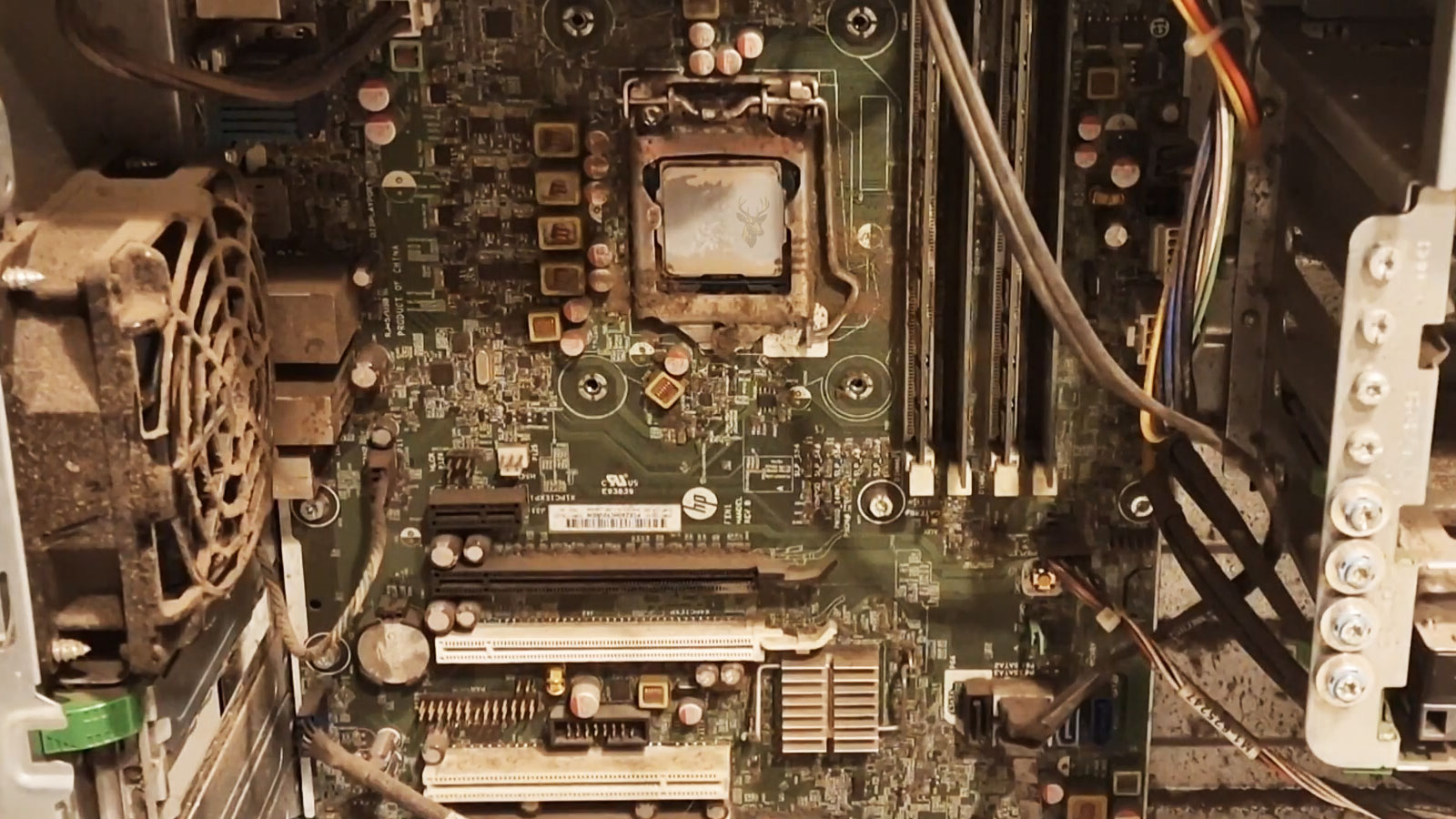
Dust buildup, blocked ventilation, failed fans, dried thermal compound, and restricted airflow can all contribute to overheating. The freeze may appear only after the computer has been operating for some time or during demanding workloads.
- The computer freezes during games or video processing.
- Fans become unusually loud before the lockup.
- The case or keyboard area feels excessively hot.
- Stability returns after the computer cools.
- Freezing becomes more common in a warm room.
Temperature-related instability can resemble memory, graphics, software, or power problems, making the timing of the freeze an important clue.
Damaged Drivers Can Interrupt Normal System Operation
Drivers allow Windows to communicate with graphics hardware, storage controllers, network adapters, audio devices, printers, and other components. When a driver becomes damaged, incompatible, or unstable, the affected hardware may stop responding and cause an application or the entire operating system to freeze.
A driver-related freeze often begins after new hardware is installed, Windows applies an update, or device software is replaced. The system may remain stable until the affected component is used, making the connection between the driver and the lockup easier to overlook.
| Freeze Pattern | Possible Driver Direction |
|---|---|
| Computer freezes when a game begins | The graphics or audio driver may become unstable under load. |
| System locks when connecting to Wi-Fi | The wireless adapter driver may be involved. |
| Freezing starts after installing a printer | The printer driver or related software may be incompatible. |
| Computer becomes stable in Safe Mode | A driver or startup service used during normal operation may be responsible. |
| Problem begins after a device update | The newer driver may be damaged or unsuitable for the hardware. |
Removing, replacing, or restoring an earlier driver can help when the timing of the freeze clearly follows a hardware or software change.
Windows Updates May Temporarily Affect Stability
Windows updates replace system files, install security corrections, modify drivers, and change operating-system components. Most updates complete without difficulty, but an interrupted installation or compatibility problem can cause freezing during startup or normal use.
The computer may appear unresponsive while an update is still processing in the background. In other situations, the freeze begins only after the system restarts and attempts to use newly installed files or drivers.
- The computer freezes while displaying an update message.
- Lockups begin immediately after a Windows restart.
- Applications stop responding after a system component changes.
- Startup remains unusually slow while update work continues.
- Safe Mode operates more reliably than a normal startup.
The timing of the update is an important clue, but it should not be assumed to be the cause without considering storage health, drivers, and other hardware conditions that may have appeared at the same time.
Too Many Startup Programs Can Overload the Computer
Applications often configure themselves to launch automatically when Windows starts. Cloud-storage utilities, communication programs, update services, printer software, security tools, and hardware control applications may all begin operating at approximately the same time.
A large number of startup programs can consume processor time, memory, storage activity, and network resources before the user begins working. The computer may appear frozen while these programs compete for limited resources.
| Startup Behavior | Possible Explanation |
|---|---|
| Desktop appears but remains unresponsive | Background applications may still be loading. |
| Storage activity stays high after login | Startup programs may be reading and writing large amounts of data. |
| Computer improves several minutes later | The initial workload may eventually finish. |
| Freezing decreases after disabling one program | That application or service may be contributing to the problem. |
| Older computer freezes during every login | The available hardware may no longer handle the startup workload efficiently. |
Reducing unnecessary startup activity can improve responsiveness, although persistent lockups may still indicate an underlying hardware or operating-system fault.
Malware Can Consume Resources or Damage Windows
Malicious software can interfere with normal computer operation by consuming processor time, using large amounts of memory, modifying system files, redirecting network activity, or launching unwanted background processes.
Some malware causes obvious advertisements or browser redirection, while other infections operate quietly. Freezing may occur because the malicious program is overloading the system or because Windows components have been altered.
- Unknown programs appear during startup.
- Browser pages redirect without permission.
- Processor or storage activity remains high while the computer is idle.
- Security software becomes disabled unexpectedly.
- Freezing occurs together with pop-ups or unfamiliar notifications.
These symptoms can also result from legitimate software problems, so malware should be investigated as one possibility rather than assumed from freezing alone.
Browser Problems May Be Limited to One Website or Extension
Web browsers operate complex scripts, video, advertisements, extensions, and multiple isolated processes. A demanding webpage or unstable browser extension can make the browser appear frozen while Windows continues operating normally.
Large numbers of open tabs can also consume substantial memory. The browser may become increasingly slow, stop responding while switching tabs, or cause the entire computer to pause if system resources become exhausted.
| Browser Behavior | Possible Direction |
|---|---|
| Only one webpage freezes | The page content or script may be responsible. |
| Browser improves when extensions are disabled | An extension may be unstable or incompatible. |
| Freezing occurs with many tabs open | Memory usage may be excessive. |
| Video playback causes lockups | Graphics acceleration, drivers, or browser decoding may be involved. |
| Every browser freezes | The cause may extend beyond one application. |
Comparing behavior across different websites and applications helps determine whether the problem is limited to the browser or affects the whole computer.
Graphics Instability Can Freeze the Screen
The graphics system is responsible for producing the visible desktop, video, games, and other on-screen content. A defective graphics card, unstable integrated graphics, damaged driver, insufficient power, or excessive heat can interrupt display processing and make the computer appear completely frozen.
In some cases the image stops changing while sound continues. The screen may display lines, blocks, unusual colors, or distorted shapes immediately before the lockup. Other failures produce a black screen or restart without visible warning.
- Freezing occurs during games or graphics-intensive software.
- Visual artifacts appear before the system locks.
- The display driver reports that it stopped responding.
- The computer becomes stable when using basic graphics settings.
- Lockups begin after a graphics card or driver change.
Graphics-related freezing should be evaluated together with temperature, driver condition, power delivery, and the stability of the rest of the computer.
Power-Supply Problems Can Create Intermittent Lockups
A computer depends on stable power for the processor, memory, storage devices, graphics hardware, and motherboard. A failing or overloaded power supply may produce unstable voltage that causes freezing before the system eventually restarts or shuts down.
Power-related lockups often appear during demanding workloads because the computer requires more electricity at those moments. Gaming, rendering, file compression, and other intensive tasks may reveal instability that remains hidden during light use.
| Power-Related Pattern | Possible Concern |
|---|---|
| Computer freezes under heavy load | The power supply may be operating near or beyond its stable capacity. |
| Lockup is followed by an automatic restart | Power delivery or motherboard regulation may have become unstable. |
| Problem begins after a graphics upgrade | The new hardware may require more power. |
| Several devices disconnect together | A shared electrical or motherboard problem may be present. |
| Electrical noises or odors accompany freezing | The computer should be powered down and inspected. |
Power problems can resemble memory, graphics, or software faults, making testing more dependable than replacing components based only on symptoms.
USB Devices Can Cause Unexpected Freezing
External drives, printers, webcams, wireless adapters, docking stations, and other USB devices communicate with Windows through shared controllers and drivers. A defective device, damaged cable, unstable power requirement, or incompatible driver can interrupt normal operation.
The computer may freeze immediately when the device is connected, while files are being transferred, or when Windows attempts to load the related driver. A damaged USB port can also create intermittent contact or electrical instability.
- Freezing starts when one particular device is connected.
- The computer locks during external-drive transfers.
- A USB device repeatedly connects and disconnects.
- The problem disappears after nonessential devices are removed.
- A port or connector shows visible physical damage.
Testing the computer with only essential accessories connected can help identify whether an external device is contributing to the lockups.
The Timing of the Freeze Is an Important Diagnostic Clue
The activity occurring immediately before a freeze can help identify which part of the computer was under stress. A lockup during startup suggests a different group of possible causes from one that occurs only during gaming, file transfers, web browsing, or periods of inactivity.
Recording the time, application, workload, temperature, connected devices, and any sounds or messages can reveal patterns that are difficult to recognize when each incident is considered separately.
| When the Freeze Occurs | Areas Worth Investigating |
|---|---|
| During Windows startup | Drivers, updates, storage, startup services, and operating-system files. |
| During gaming or rendering | Graphics hardware, heat, memory, power, and drivers. |
| While opening or saving files | Storage health, cables, file corruption, and application behavior. |
| When connecting a device | USB hardware, ports, drivers, and external power. |
| At random during light use | Memory, motherboard, power, background software, or intermittent hardware. |
A consistent pattern often provides more useful evidence than the fact that the computer froze by itself.
Forced Shutdowns Should Be Used Only When Necessary
When a computer becomes completely unresponsive, holding the power button may be the only practical way to turn it off. Although this restores control of the system, it bypasses the normal Windows shutdown process and interrupts any files that are still being written to storage.
A single forced shutdown rarely causes serious problems by itself, but repeated interruptions can increase the likelihood of file-system inconsistencies, incomplete software updates, and document corruption if programs were actively saving information at the time.
- Use a forced shutdown only after the system stops responding completely.
- Wait briefly before assuming Windows cannot recover.
- Avoid repeatedly cycling the power during startup.
- Save important work frequently whenever freezing becomes more common.
- Investigate recurring lockups instead of relying on repeated restarts.
System Logs Can Help but Do Not Always Explain the Freeze
Windows records many operating events, warnings, and hardware messages that can assist with diagnosis. These records sometimes identify driver failures, storage errors, unexpected shutdowns, or application crashes that occurred before the computer became unresponsive.
However, not every freeze generates a useful log entry. A complete hardware lockup may stop Windows before meaningful information can be written, leaving little evidence beyond the fact that the computer was not shut down normally.
| Diagnostic Information | Possible Value |
|---|---|
| Application errors | May identify software that stopped responding. |
| Storage warnings | May suggest communication or drive problems. |
| Driver-related events | Can indicate hardware communication issues. |
| Unexpected shutdown records | Confirm that Windows did not close normally. |
| No useful log entries | A complete hardware lockup may have prevented logging. |
Diagnostic logs are valuable when available, but they represent only one part of the overall troubleshooting process.
Safe Mode Can Help Isolate Software Problems
If Windows can still reach its recovery environment, Safe Mode starts the operating system with a reduced collection of drivers and services. This simplified environment makes it easier to determine whether third-party software or drivers contribute to the freezing.
A computer that remains stable in Safe Mode but freezes during a normal startup may be affected by startup software, drivers, or Windows components that are not loaded in the simplified environment.
- Freezing disappears in Safe Mode.
- The computer remains stable with fewer drivers loaded.
- Only normal startup produces lockups.
- Third-party software becomes a stronger possibility.
- Hardware problems should still remain under consideration.
Safe Mode does not prove that the hardware is healthy, but it provides another useful comparison when evaluating software-related causes.
Reducing the Startup Workload Can Reveal Hidden Problems
Testing Windows with fewer startup programs and background services can help determine whether one application is contributing to repeated freezing. When unnecessary software is temporarily removed from the startup sequence, Windows has fewer processes competing for processor time, memory, storage access, and network resources.
If stability improves after reducing the startup workload, attention can shift toward identifying which program, service, or driver was responsible rather than assuming that the operating system itself has become damaged.
Protect Important Files Before the Problem Becomes Worse
A computer that freezes occasionally may continue operating for weeks or months, but the underlying condition can also become progressively less stable. If important documents, photographs, business records, or other valuable information exist only on that computer, creating current backups should become a priority.
Freezing alone does not prove that storage hardware has failed, but repeated lockups involving a deteriorating drive can eventually make information more difficult to access if the condition continues to worsen.
| Recommended Action | Reason |
|---|---|
| Create a current backup | Protect important files before additional failures occur. |
| Record when freezing happens | Recurring patterns improve diagnostic accuracy. |
| Watch for unusual noises | Mechanical problems may accompany storage failures. |
| Avoid unnecessary forced restarts | Reduce repeated interruption of active file operations. |
| Address recurring freezes promptly | Early diagnosis may prevent additional hardware stress. |
Recurring Patterns Often Reveal the Real Cause
A single lockup can result from an unusual combination of circumstances, but recurring freezes frequently follow recognizable patterns. The computer may freeze only after warming up, while opening large files, during graphics-intensive work, after connecting a particular USB device, or shortly after Windows starts.
Looking for these patterns often provides more useful information than focusing only on the final moment when the computer stopped responding. The sequence leading up to the freeze may point toward memory, storage, graphics hardware, software, or another specific area of the system.
- Freezing always occurs after several hours of use.
- Only one application consistently causes lockups.
- The problem appears after connecting a specific device.
- Windows freezes during startup but not after recovery.
- Heavy workloads trigger the problem more often than light tasks.
Freezing Does Not Always Mean the Computer Is Failing Permanently
Some lockups result from temporary software conflicts, overloaded system resources, or interrupted updates that can be corrected without replacing hardware. Others originate from memory faults, storage failures, overheating, unstable electrical power, or motherboard problems that require more extensive investigation.
Distinguishing between these possibilities requires considering how often the freezes occur, what the computer was doing beforehand, whether error messages appear, and whether other symptoms accompany the lockups.
Readers experiencing freezes together with startup problems may also find our article When a Computer Turns On but Displays No Picture useful. Startup failures and system freezes can sometimes share underlying hardware causes even though the visible symptoms differ.
Understanding What the Freeze Is Trying to Tell You
A computer that freezes is not necessarily experiencing one specific fault. Software conflicts, damaged drivers, insufficient memory, storage delays, overheating, electrical instability, and hardware failures can all interrupt normal operation in different ways while producing similar visible symptoms.
Observing when the freeze occurs, identifying recurring patterns, and evaluating the complete operating environment provide a stronger foundation for diagnosis than replacing parts based on assumptions alone. Careful troubleshooting reduces unnecessary repairs while helping distinguish temporary software issues from developing hardware failures.
Understanding the conditions surrounding each lockup also makes it easier to protect important files, improve long-term reliability, and restore dependable everyday performance before the problem becomes more difficult to resolve.











