
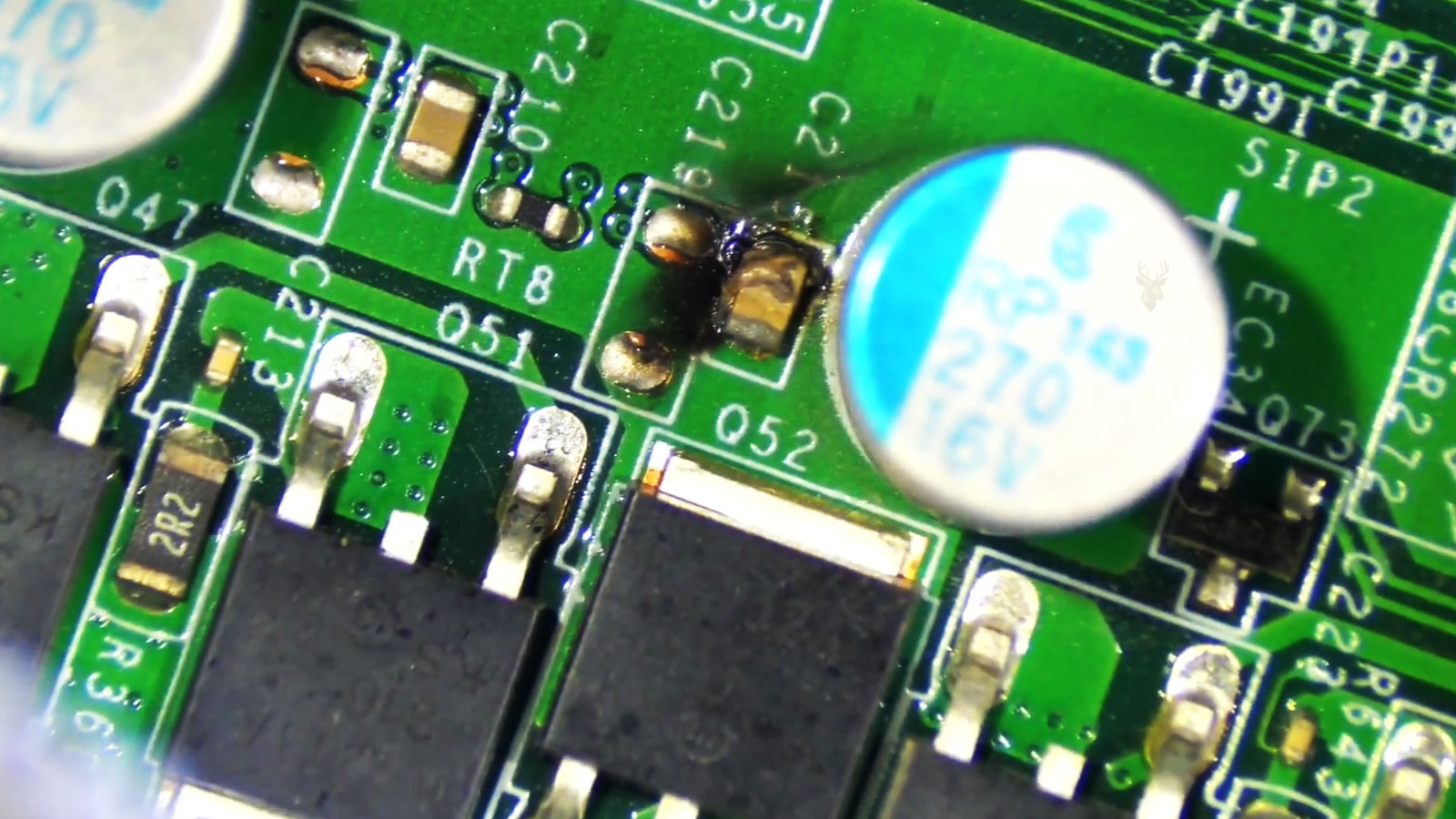
Why Lights and Spinning Fans Do Not Confirm a Successful Startup
A computer may appear to turn on normally while showing no image on the monitor. Power lights may illuminate, cooling fans may spin, and internal components may produce familiar sounds, yet the screen remains black or reports that no signal is available.
This condition can be misleading because visible electrical activity does not prove that the computer has completed its startup process. Fans and lights may receive power even when the processor, memory, graphics hardware, motherboard, or firmware cannot initialize correctly.
The problem may also exist outside the computer. A defective monitor, disconnected video cable, incorrect input selection, damaged adapter, or unstable power connection can prevent an otherwise functional system from displaying a picture.
No Display and No Power Are Different Conditions
A computer with no power usually shows no lights, fan movement, or startup sounds. A no-display condition is different because at least part of the system receives electricity and attempts to operate.
Separating these two conditions helps narrow the diagnostic path. A system that remains completely inactive may require power-supply, battery, charging, switch, or motherboard testing. A system that powers on without an image requires additional attention to video output and hardware initialization.
| Observed Behavior | Possible Direction |
|---|---|
| No lights, fans, or sound | The computer may not be receiving or distributing power. |
| Lights and fans operate but no image appears | The display path or startup sequence may have failed. |
| Monitor displays “No Signal” | The monitor is operating but is not receiving usable video. |
| Screen is illuminated but completely black | The display receives power, but no visible image is being produced. |
| Image appears briefly and disappears | Video output, monitor electronics, backlighting, or hardware stability may be involved. |
The exact behavior of the monitor often provides the first useful clue.
The Monitor Should Be Checked Before the Computer Is Opened
A monitor can fail independently of the computer. Its power cable may be loose, the electrical outlet may not be working, or the internal display electronics may have developed a fault.
Most monitors display an internal message, logo, menu, or input label even when no computer is connected. If the monitor cannot display its own menu, the problem may be limited to the display rather than the computer.
- Confirm that the monitor power light is illuminated.
- Open the monitor’s built-in settings menu.
- Check whether the brightness has been reduced completely.
- Test the monitor with another electrical outlet.
- Connect another known-working device when practical.
Testing the monitor separately prevents unnecessary computer disassembly when the display itself is responsible.
An Incorrect Input Selection Can Produce a Black Screen
Many monitors include several video inputs, such as HDMI, DisplayPort, DVI, or VGA. If the monitor is set to an input that is not connected to the computer, it may display a black screen or a no-signal message.
The selected input may change after a power interruption, monitor reset, cable replacement, or connection of another device. Automatic input detection does not always switch correctly, especially when adapters or docking stations are involved.
| Connected Cable | Monitor Input That May Be Required |
|---|---|
| HDMI cable | HDMI 1, HDMI 2, or another labeled HDMI input |
| DisplayPort cable | DisplayPort or DP |
| DVI cable | DVI-D or DVI |
| VGA cable | VGA, PC, or Analog |
| USB-C video connection | USB-C, depending on monitor design |
Manually selecting the correct input can resolve a condition that otherwise appears to be a computer hardware failure.
Video Cables Can Loosen or Fail
The video cable carries the display signal from the computer to the monitor. If the cable becomes loose, damaged, or internally unstable, the monitor may receive no usable image even though both devices have power.
Cables may loosen after a desk is moved, a computer is serviced, or the monitor is repositioned. Internal wire damage can also develop near the connectors after repeated bending or tension.
- The picture appears when the cable is moved.
- The monitor alternates between an image and “No Signal.”
- Colored lines or visual distortion appear before the image disappears.
- The connector does not remain securely seated.
- A replacement cable restores normal video output.
Reseating both ends of the cable and testing another known-working cable can help separate a connection problem from a computer hardware fault.
Adapters Add Another Possible Failure Point
Some computers and monitors use different connector types, requiring an adapter or converter. Common examples include DisplayPort-to-HDMI, HDMI-to-DVI, USB-C-to-HDMI, and digital-to-analog video adapters.
An adapter may fail even when the cable and monitor remain functional. Some adapters also support video in only one direction, meaning that reversing the connection does not produce an image.
| Adapter Issue | Possible Result |
|---|---|
| Adapter is internally damaged | No video signal reaches the monitor. |
| Signal direction is incorrect | The connected devices cannot communicate. |
| Adapter requires active conversion | A basic passive adapter may not function. |
| USB-C port lacks video support | The adapter connects physically but produces no picture. |
| Adapter cannot support the selected resolution | The screen may remain blank or become unstable. |
Removing unnecessary adapters during testing can simplify the display path and reveal whether the conversion hardware is responsible.
Desktop Computers May Have More Than One Video Connection Area
A desktop computer may provide video connections on the motherboard and on a separate graphics card. Connecting the monitor to the wrong area can result in no picture, particularly when the processor lacks integrated graphics or the motherboard video outputs have been disabled automatically.
Motherboard video ports are usually located near the USB, network, and audio connectors. Graphics-card outputs are generally positioned lower on the back of the case in the expansion-card area.
- A graphics card is installed, but the cable is connected to the motherboard.
- The processor does not include integrated graphics.
- Firmware settings disable onboard video when a graphics card is present.
- The monitor was reconnected to a different port after servicing.
- Only one group of video outputs is active during startup.
Identifying which graphics device the computer is designed to use is essential before assuming that a display component has failed.
A Graphics Card Can Become Loose
Dedicated graphics cards fit into expansion slots on the motherboard and are usually secured to the computer case with screws or retaining mechanisms. Movement, shipping, previous repair work, or an improperly secured card can weaken the connection.
A partially seated graphics card may receive enough power for its fans or lights to operate while still failing to communicate correctly with the motherboard. This can create the appearance that the card is functional even though no video signal is produced.
| Observed Condition | Possible Graphics Connection Problem |
|---|---|
| Problem begins after the computer is moved | The card may have shifted in its slot. |
| Graphics-card fans spin but no image appears | Power may be present while data communication has failed. |
| Display returns after the case is opened | Movement may temporarily restore contact. |
| Card is not secured to the case | Its weight may pull it away from the slot. |
| Visible gap remains near the slot | The card may not be fully seated. |
Before reseating internal components, the computer should be disconnected from electrical power and handled with appropriate precautions.
Graphics Cards May Require Separate Power Connections
Higher-performance graphics cards often require one or more power cables from the power supply in addition to the electricity provided through the motherboard slot. If these cables are loose, missing, or connected incorrectly, the card may not initialize.
Some computers display a warning message when graphics power is missing, while others produce no image at all. Card lighting and fan movement do not always confirm that every required power connection is functioning.
- Six-pin or eight-pin connector is not fully seated.
- A modular power-supply cable is disconnected at the power supply.
- An incorrect cable type has been used.
- The power supply cannot provide sufficient output.
- A connector shows discoloration or heat damage.
The graphics card, its power connections, and the overall capability of the power supply should be considered together.
Memory Problems Can Prevent Video Initialization
System memory is required early in the startup process. If a memory module is loose, damaged, incompatible, or installed in the wrong slot configuration, the computer may power on without reaching the stage at which a picture appears.
This can make a memory failure look like a graphics or monitor problem. The system may restart repeatedly, remain powered with no image, produce diagnostic beeps, or illuminate a motherboard warning light.
- No display appears after memory was upgraded.
- The computer starts after one module is removed.
- Diagnostic lights identify a memory fault.
- The system repeatedly turns on and off.
- Memory modules are not fully locked into their slots.
Because video initialization depends on successful memory testing, the absence of a picture does not automatically identify the graphics system as the cause.
Diagnostic Lights Can Identify the Failed Startup Stage
Many desktop motherboards include small diagnostic lights that remain illuminated when a particular part of the startup process fails. Common labels include CPU, DRAM, VGA, and BOOT. These indicators can help separate a graphics problem from a memory, processor, or storage fault.
The lights usually activate briefly during a normal startup sequence. A light that remains on may indicate that the motherboard could not complete testing for that component. The exact meaning depends on the motherboard manufacturer and model.
| Diagnostic Light | Possible Direction |
|---|---|
| CPU | The processor, socket, power connection, or motherboard may not be initializing. |
| DRAM | Memory may be loose, incompatible, damaged, or installed incorrectly. |
| VGA | The graphics card or integrated video system may not be detected. |
| BOOT | The computer may have completed video initialization but cannot find a startup device. |
| Several lights remain active | The motherboard may be experiencing a broader initialization or power problem. |
Diagnostic lights do not always identify the exact defective part, but they can reduce the number of unrelated components that must be tested.
Beep Codes Can Provide Similar Information
Some computers use audible beep patterns instead of visible diagnostic lights. These sounds are generated during the power-on self-test when the system encounters a hardware condition that prevents normal startup.
The number, length, and repetition of the beeps can indicate memory, graphics, processor, or motherboard problems. The codes are not universal, so the service documentation for the specific computer or motherboard should be consulted before interpreting them.
- Repeated short beeps may indicate memory or power problems.
- One long beep followed by shorter beeps may point toward graphics hardware.
- No beep at all may mean the computer lacks an internal speaker.
- A changed beep pattern after removing a component can provide a useful clue.
- Continuous beeping may indicate a component that is not seated correctly.
The absence of beep codes does not prove that the motherboard has passed its tests. Many modern systems do not include a speaker capable of producing them.
Processor Initialization Must Occur Before Video Appears
The processor is responsible for executing the earliest startup instructions. If it cannot initialize, the computer may still power fans and lights while producing no image.
Processor-related no-display conditions may involve a loose power connector, damaged socket pins, incorrect installation, overheating, incompatible firmware, or motherboard failure. The processor itself can fail, although surrounding components and connections are often investigated first.
| Observed Condition | Possible Processor-Related Cause |
|---|---|
| No picture after processor replacement | The processor may be incompatible or installed incorrectly. |
| CPU diagnostic light remains on | Processor power, socket, firmware, or motherboard should be checked. |
| Computer shuts off within seconds | Cooling installation or processor initialization may have failed. |
| Fans run at full speed continuously | The motherboard may not be completing normal control initialization. |
| No display after motherboard work | Socket pins or surrounding circuitry may have been damaged. |
Because processor and motherboard symptoms overlap, diagnosis usually requires more than observing fan movement or checking one warning light.
The Processor Power Cable Is Easy to Overlook
Desktop motherboards commonly use a separate four-pin, eight-pin, or combined processor power connector near the top of the board. This connection is different from the larger main motherboard power connector.
If the processor power cable is disconnected, partially seated, or damaged, the system may show lights and fan activity without completing startup. This often occurs after a power-supply replacement, case transfer, motherboard installation, or cable-management work.
- The large motherboard connector is attached, but the CPU power cable is missing.
- The connector appears seated but is not fully locked.
- A graphics-card power cable was mistakenly used in the wrong location.
- A modular power-supply cable is disconnected at the power supply.
- The connector shows heat damage or discoloration.
Power cables that look similar should not be interchanged unless they are specifically designed for the same purpose and power-supply model.
BIOS and UEFI Problems Can Interrupt Video Initialization
The BIOS or UEFI firmware prepares the hardware before the operating system begins loading. Corrupted settings, incomplete firmware updates, incompatible processors, and failed initialization can prevent the computer from reaching the point where video appears.
A no-display condition that begins immediately after a firmware update or major hardware change should be evaluated with that timing in mind. The hardware may still be functional while the firmware configuration no longer matches the installed components.
| Firmware Condition | Possible Result |
|---|---|
| Update interrupted | The motherboard may no longer complete startup. |
| Unsupported processor installed | The board may require a newer firmware version before video appears. |
| Incorrect graphics setting | The system may initialize a different video output. |
| Memory settings are unstable | The computer may fail before display initialization. |
| Firmware settings are corrupted | Startup behavior may become unpredictable. |
Resetting firmware settings can help in some cases, but it may also change boot, storage, and security options that need to be restored afterward.
Laptop No-Display Problems Require a Different Approach
A laptop combines the computer and display into one enclosure, but the internal screen remains only one part of the video system. The computer may be running while the built-in panel, backlight, display cable, hinge connection, or graphics circuitry has failed.
Connecting an external monitor can help determine whether the laptop is producing video. A normal image on the external display suggests that the operating system and graphics system are at least partially functional, directing attention toward the internal screen assembly.
- The external monitor works while the laptop screen remains black.
- The image appears only when the lid is moved.
- A very dim picture is visible under a bright light.
- The screen displays lines, flashing, or partial images.
- The laptop powers on but neither internal nor external video appears.
The result of external-display testing is useful, but it does not identify every possible fault by itself.
Backlight Failure Can Make an Image Difficult to See
An LCD panel requires a backlight to make the image visible. If the backlight or its power circuitry fails, the screen may appear completely black even though a faint image is still being produced.
Viewing the screen under a strong light at an angle may reveal a dim desktop, logo, or login screen. This indicates that video information is reaching the panel while the illumination system is not operating normally.
| Screen Behavior | Possible Direction |
|---|---|
| Faint image visible with flashlight | Backlight or backlight power may have failed. |
| Image appears briefly and becomes dark | Backlight protection circuitry may be shutting down. |
| Brightness changes when lid moves | Display cable or hinge-area wiring may be unstable. |
| External monitor works normally | The internal panel assembly becomes more suspect. |
| No faint image and no external display | The fault may occur earlier in the startup or graphics process. |
Backlight failure is different from a computer that never produces video, even though both conditions may present as a black screen.
The Laptop Display Cable Can Wear Near the Hinges
The internal display cable passes through or near the laptop hinges. Repeated opening and closing can place stress on the cable, connectors, and surrounding insulation.
A worn cable may produce an image only at certain lid angles, cause flickering, create colored lines, or interrupt the backlight. The condition may worsen gradually as movement continues.
- The image disappears when the lid is moved.
- Flickering occurs near particular hinge positions.
- Lines or color changes appear before the screen goes black.
- The webcam or wireless antennas also behave intermittently.
- Visible hinge damage is present near the cable path.
A damaged cable should be distinguished from a defective LCD panel because both can produce similar visual symptoms.
A Cracked Screen May Fail Without Obvious Exterior Damage
Not every damaged laptop screen shows a visible crack on the outer surface. Internal LCD layers can fracture from pressure, impact, or twisting while the front surface remains smooth.
The display may show black areas, colored lines, ink-like patterns, partial images, or no visible picture. An external monitor may continue working because the rest of the computer remains functional.
| Display Pattern | Possible Screen Condition |
|---|---|
| Black area with colored lines | Internal LCD layers may be cracked. |
| Ink-like spreading pattern | Liquid-crystal damage is likely. |
| Only part of the image is visible | The panel or internal connection may be damaged. |
| Image remains distorted on every startup | The fault may be physical rather than software-related. |
| External monitor displays normally | The built-in screen assembly is more likely involved. |
Docking Stations Can Interrupt the Display Path
Laptops used with docking stations may send video through USB-C, Thunderbolt, DisplayPort, HDMI, or proprietary dock connectors. The dock, its power adapter, cable, firmware, and internal video circuitry all become additional possible failure points.
A computer that shows no picture through the dock may display normally when the monitor is connected directly. Conversely, the dock may work while the laptop’s own video port is damaged.
- The dock is not receiving sufficient power.
- The USB-C cable supports data but not video.
- Dock firmware is unstable or outdated.
- The monitor is connected to an inactive dock output.
- The laptop is not fully seated in a mechanical dock.
Removing the docking station during testing simplifies the connection and helps determine whether the display problem belongs to the computer or the dock.
Multiple Monitors Can Create Confusing Display Behavior
Windows may continue sending the desktop to a monitor that is disconnected, powered off, or no longer positioned where the user expects it. This is especially common after moving a computer between a desk, television, projector, or docking station.
The primary display may also change after a driver update or hardware replacement. One screen can remain black while another contains the login window or desktop.
- The mouse pointer moves beyond the visible edge of the active screen.
- The login screen appears on another connected display.
- Only one output becomes active during startup.
- A television or projector remains selected as the primary screen.
- The desktop is extended to a monitor that is no longer present.
Testing with one monitor and one direct cable reduces uncertainty created by multi-display settings.
Windows May Start Even When the Screen Remains Black
In some cases, the computer completes its hardware startup and loads Windows, but no usable desktop appears. A graphics driver problem, failed update, damaged user profile, incorrect display mode, or stalled system process may leave the screen black.
Clues that Windows has loaded may include startup sounds, keyboard indicator response, network activity, login notifications, or the ability to access the computer remotely.
| Observed Behavior | Possible Software or Driver Direction |
|---|---|
| Manufacturer logo appears, then screen turns black | Windows or the graphics driver may fail after hardware startup. |
| Mouse pointer remains visible | The desktop shell or user session may not have loaded correctly. |
| Safe Mode displays normally | A driver, update, or startup program may be involved. |
| Screen fails after graphics-driver installation | The driver may be incompatible or corrupted. |
| External display works only after Windows loads | Firmware and operating-system display settings may differ. |
A black screen after Windows begins loading is different from a computer that never completes its initial hardware tests. Identifying the moment when the image disappears helps separate software problems from earlier hardware failures.
Safe Mode Can Help Separate Hardware From Software
If Windows reaches the point where recovery options remain accessible, Safe Mode may provide useful information about the source of a no-display condition. Safe Mode starts Windows with a reduced set of drivers and services, allowing certain software or graphics-driver problems to be isolated from normal startup.
A computer that displays normally in Safe Mode but not during a standard startup may indicate that the graphics driver, startup software, or another Windows component is contributing to the problem. This does not automatically eliminate hardware as a possibility, but it helps narrow the diagnostic path.
- Safe Mode displays normally.
- The problem begins after a graphics-driver update.
- The desktop appears only with basic display drivers.
- Windows starts but the normal desktop remains unavailable.
- The issue returns immediately after restarting normally.
Graphics Drivers Can Prevent a Normal Display
Windows relies on graphics drivers to communicate efficiently with the display hardware. A corrupted installation, incompatible update, or damaged driver files may prevent the desktop from appearing correctly even though the computer has completed its startup process.
Driver-related problems often develop after major Windows updates, graphics-card replacements, or installation of new display software. Restoring an earlier driver version or reinstalling the correct software may resolve the issue when hardware remains fully functional.
| Observed Behavior | Possible Driver-Related Cause |
|---|---|
| Black screen after Windows logo | Graphics driver may fail during initialization. |
| Safe Mode displays correctly | Basic drivers function while the installed driver does not. |
| Problem began after driver update | Compatibility or installation issue. |
| Display returns after reinstalling the driver | The previous installation may have been corrupted. |
| External monitor behaves differently | Driver configuration or display settings may be involved. |
Overheating Can Interrupt Video Output
Processors and graphics hardware generate significant heat during operation. If cooling becomes inadequate, the system may reduce performance, restart unexpectedly, freeze, or stop producing video output altogether.
Dust accumulation, failed cooling fans, dried thermal compound, restricted airflow, or excessive ambient temperature can all contribute to thermal instability. In some cases the display disappears only after the computer has been operating for several minutes, making the problem appear intermittent.
- The display disappears after extended use.
- Cooling fans operate at unusually high speed.
- The computer shuts down while gaming or rendering video.
- The system becomes very hot before losing the image.
- Video returns after the computer cools.
Power Instability Can Affect Video Hardware
Graphics hardware depends on stable electrical power. An unstable power supply, damaged graphics power connector, failing motherboard voltage regulation, or defective adapter can interrupt video output without causing an immediate complete shutdown.
The display may disappear during demanding workloads while fans continue spinning, creating the impression that only the monitor has failed. In reality, the graphics hardware may no longer be receiving stable operating power.
Electrical problems should always be evaluated alongside graphics hardware when display failures occur under load.
Motherboard Problems Can Prevent Video Initialization
The motherboard coordinates communication between the processor, memory, graphics hardware, storage devices, and other components. Damage to this circuitry can prevent the startup process from reaching the stage where a display becomes active.
Symptoms may resemble graphics failure even when the graphics card itself remains functional. Processor initialization, memory communication, firmware execution, and expansion-slot operation all depend on the motherboard functioning correctly.
| Motherboard Condition | Possible Display Symptom |
|---|---|
| Graphics slot communication failure | No image from the graphics card. |
| Firmware initialization problem | No manufacturer logo appears. |
| Voltage regulation fault | Intermittent startup or random display loss. |
| Damaged display circuitry | Integrated graphics stop functioning. |
| General motherboard instability | Several unrelated startup symptoms appear together. |
Minimal Hardware Testing Can Narrow the Search
When several possible causes exist, reducing the computer to its essential hardware can simplify diagnosis. Removing unnecessary expansion cards, disconnecting additional storage devices, and testing only the required components may reveal whether one accessory is preventing normal startup.
The exact testing procedure depends on the computer design, but simplifying the hardware configuration often reduces the number of possible failure points.
- Disconnect nonessential USB devices.
- Remove unnecessary expansion cards.
- Test with one memory module when appropriate.
- Disconnect secondary storage devices.
- Use one monitor and one direct video cable.
Important Files Should Be Considered Before Major Changes
If the computer contains valuable business records, personal photographs, research, or other irreplaceable information, protecting those files should remain an important part of the repair decision. Reinstalling Windows or replacing hardware without understanding the original problem may complicate later recovery if storage issues also exist.
A no-display condition does not necessarily indicate that stored files have been lost. In many situations the storage device remains intact while another component prevents normal operation.
Evaluating the condition of the storage device separately helps preserve recovery options whenever important information is involved.
Following the Display Path Step by Step
A computer that powers on without displaying an image can be affected by the monitor, video cable, adapter, graphics card, processor, memory, motherboard, firmware, operating system, or electrical power. Because many different faults create similar symptoms, the most effective approach is to evaluate the complete display path instead of assuming that the screen itself has failed.
Readers experiencing startup problems that involve storage detection may also find our article When a Computer Cannot Detect Its Hard Drive useful. Startup failures sometimes involve both display symptoms and storage-related issues, making it important to distinguish one condition from the other.
Looking Beyond the Black Screen
A black screen is only the visible symptom of a larger startup process that has been interrupted somewhere between the power button and the Windows desktop. Determining whether the interruption occurs at the monitor, graphics hardware, motherboard, firmware, operating system, or another stage is the key to accurate diagnosis.
Carefully observing startup behavior, testing the display path methodically, and considering all related hardware helps reduce unnecessary replacement of working components. The absence of a picture does not always point to the display itself, and recognizing that distinction often leads to a faster and more reliable repair.
Understanding how each stage of video initialization works makes it easier to interpret no-display symptoms, protect important data, and restore normal operation without relying on guesswork.











