
What a Missing Storage Device Can Reveal About the Computer’s Startup Process
A computer may power on normally, display the manufacturer logo, and allow access to the setup menu while still being unable to start Windows. In many of these situations, the system cannot locate the hard drive or solid-state drive that contains the operating system.
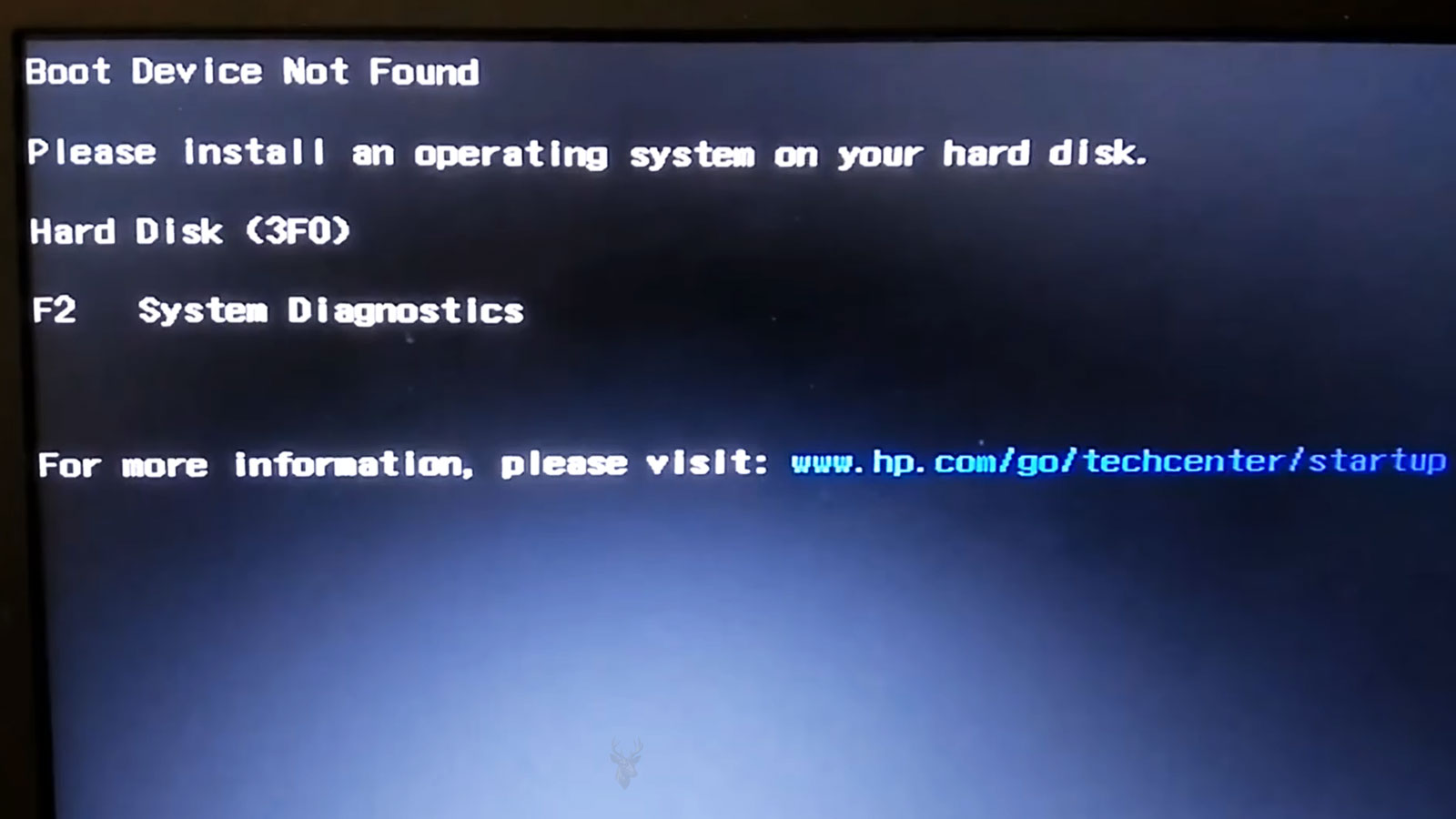
The message on the screen may report that no boot device is available, an operating system cannot be found, or a disk is missing. Some computers return directly to the BIOS or UEFI setup screen because no usable storage device appears in the startup list.
A missing drive does not automatically prove that the storage device has failed completely. Loose cables, damaged connectors, incorrect firmware settings, unstable electrical power, motherboard faults, and file-system problems can produce similar behavior. The first step is determining whether the computer can detect the physical device at all.
Detection and Booting Are Two Different Stages
Before Windows can start, the computer must first identify the storage hardware connected to the system. The BIOS or UEFI firmware performs this early detection before the operating system becomes involved.
A drive may be detected correctly but still fail to boot because the operating system, boot records, partition information, or file system has become damaged. In another case, the drive may not appear in the firmware at all, which points more strongly toward a connection, power, storage-hardware, or motherboard problem.
| Observed Condition | What It Usually Indicates |
|---|---|
| Drive appears in BIOS but Windows does not start | The hardware is detected, but the boot information or operating system may be damaged. |
| Drive does not appear in BIOS | Connection, power, hardware failure, or motherboard communication should be investigated. |
| Drive appears intermittently | The connection or storage device may be unstable. |
| Drive appears with an incorrect capacity | The device, firmware, adapter, or controller may not be communicating normally. |
| Computer reports no operating system | The drive may be detected while its startup information remains unusable. |
Separating physical detection from operating-system startup prevents two different problems from being treated as though they were identical.
The Startup Message Provides an Important Clue
The exact wording displayed during startup can help identify which stage has failed. A message reporting that no bootable device exists is different from a message stating that the drive itself is missing, although both may prevent Windows from loading.
- No boot device available
- Operating system not found
- Hard disk not installed
- Disk read error
- Insert boot media and restart
- Default boot device missing or boot failed
These messages are not always precise enough to identify the defective component, but they provide a useful starting point. The computer may be reporting that no physical device is visible, that the selected device contains no usable startup information, or that another device has been placed first in the boot order.
Loose Data Cables Are a Common Desktop Cause
Most desktop hard drives and many desktop solid-state drives communicate with the motherboard through a SATA data cable. A separate power cable supplies electricity from the power supply. If either connection becomes loose, the drive may disappear from the system.
SATA data connectors are relatively small and may loosen after the computer is transported, serviced, or exposed to repeated vibration. Some cables include locking clips, while others rely only on friction to remain seated.
- The drive disappears after the computer is moved.
- Detection returns after the case is opened or a cable is touched.
- The drive appears only during some startups.
- Windows freezes before the drive becomes unavailable.
- A recently installed component may have disturbed nearby cables.
Reseating a loose connection may restore communication, but a drive that repeatedly disappears should still be evaluated. The cable, connector, power source, or storage hardware may remain unstable even after temporary detection returns.
A Damaged SATA Cable Can Interrupt Communication
A cable does not need to be completely severed before it becomes unreliable. Sharp bends, damaged locking tabs, worn connectors, internal wire damage, or poor-quality construction can create intermittent communication between the motherboard and the drive.
The computer may detect the drive during one startup and lose it during another. Windows may freeze while reading files, report communication errors, or pause for an unusually long time while the firmware attempts to identify the device.
| Cable Condition | Possible Result |
|---|---|
| Connector not fully seated | The drive may not be detected. |
| Broken locking clip | The cable may loosen after movement. |
| Sharp bend near the connector | Internal conductors may become stressed. |
| Damaged connector housing | Electrical contact may become inconsistent. |
| Unstable replacement cable | Detection problems may continue despite appearing connected. |
Testing with another known-working cable can help separate a connection problem from a defective drive or motherboard port.
The Drive Must Also Receive Stable Power
A storage device cannot communicate with the motherboard unless it receives the correct electrical power. A loose power connector, damaged adapter, unstable power-supply output, or overloaded cable can prevent the drive from starting properly.
A mechanical hard drive may remain silent when no power is present. In other cases, it may attempt to spin, stop, and repeat the process. A solid-state drive contains no moving parts, making power loss less obvious from sound alone.
- The drive does not vibrate or spin when the computer starts.
- Several storage devices disappear at the same time.
- Detection changes after using another power connector.
- The computer restarts when the drive attempts to initialize.
- A power adapter or cable becomes unusually warm.
Power problems may involve the drive, the cable, the power supply, or the motherboard. Replacing the storage device without checking the electrical path may leave the original condition unresolved.
Laptop Storage Connections Use Different Designs
Laptop storage devices may connect directly to a motherboard socket, attach through a short ribbon cable, or fit into a removable drive caddy. Modern systems may use compact M.2 drives rather than traditional 2.5-inch SATA devices.
A drop, previous repair, damaged ribbon cable, loose mounting screw, or improperly seated drive can interrupt the connection. Because laptop connectors are often smaller and more delicate than desktop cables, unnecessary force can damage the socket or surrounding motherboard circuitry.
| Laptop Storage Design | Possible Connection Issue |
|---|---|
| 2.5-inch drive with ribbon cable | The cable or connector may become loose or damaged. |
| Drive inserted directly into motherboard | The device may not be fully seated. |
| M.2 solid-state drive | The drive may lift if the retaining screw is missing or loose. |
| Drive inside a caddy | The caddy may not align correctly with the internal connector. |
| Storage soldered to motherboard | Diagnosis may involve board-level circuitry rather than a removable device. |
The correct inspection method depends on the specific laptop design. A storage device should never be forced into a connector simply because it appears close to the correct position.
A Failing Drive May Disappear Intermittently
Storage failure does not always begin with complete loss of detection. A hard drive may appear during a cold startup, disappear after warming up, or remain visible long enough for Windows to begin loading before communication stops.
Mechanical wear, damaged controller electronics, unstable internal connections, degraded memory cells, or firmware problems can cause a drive to become unreliable before it stops appearing entirely.
- The drive appears after several restart attempts.
- Windows freezes while opening particular folders.
- File transfers stop unexpectedly.
- The system pauses for a long time during startup.
- The drive disappears after the computer has been running.
- Mechanical clicking or repeated spin-up sounds are present.
Intermittent detection should be treated seriously when important files remain on the device. Repeated startup attempts and extensive diagnostic scans may place additional stress on failing storage hardware.
Mechanical Hard Drives Can Fail Differently From Solid-State Drives
Traditional hard drives store information on rotating magnetic platters and rely on motors, read-write heads, and control electronics. Their failures may produce clicking, grinding, repeated spin attempts, slow access, or complete loss of detection.
Solid-state drives contain no moving mechanical parts, but they still depend on controller electronics, firmware, memory chips, and stable electrical power. An SSD may fail without producing any sound or visible warning.
| Storage Type | Possible Warning Behavior |
|---|---|
| Mechanical hard drive | Clicking, slow reads, repeated spin-up, or mechanical noise. |
| SATA solid-state drive | Freezing, sudden disappearance, read-only behavior, or no detection. |
| M.2 SATA drive | Intermittent detection, controller failure, or connector instability. |
| NVMe solid-state drive | Firmware errors, heat-related instability, or complete loss of detection. |
| External drive | USB cable, enclosure electronics, power, or internal storage failure. |
The absence of mechanical noise does not mean a solid-state drive remains healthy. Detection behavior, operating history, and the importance of the stored files should guide the next diagnostic step.
BIOS and UEFI Settings Can Change Drive Visibility
The BIOS or UEFI firmware controls how the motherboard identifies storage devices before Windows begins loading. Changes to these settings can alter whether a drive appears, which controller mode is used, and which device the computer attempts to start from first.
Settings may change after a firmware update, battery failure, motherboard reset, repair, or manual adjustment. A drive that worked previously may still be physically connected while no longer appearing in the expected startup location.
- Storage controller disabled in firmware.
- Boot mode changed between legacy and UEFI.
- Drive moved lower in the boot order.
- SATA controller mode changed unexpectedly.
- Firmware settings returned to factory defaults.
Reviewing firmware settings should be done carefully because changing unrelated options may create additional startup problems.
Boot Order Can Point to the Wrong Device
A computer may detect the correct drive but attempt to start from another device first. USB storage, an optical disc, a network connection, or an empty secondary drive may appear ahead of the Windows drive in the startup sequence.
This can happen after connecting external storage, replacing a drive, resetting firmware settings, or updating the motherboard. The system may then report that no operating system is available even though the original drive remains visible.
| Boot Condition | Possible Result |
|---|---|
| USB device listed first | The computer may attempt to start from removable storage. |
| Empty secondary drive selected | No usable operating system is found. |
| Windows Boot Manager missing from the list | UEFI startup information may not be recognized. |
| Network boot enabled before local storage | The computer may pause while searching for a network source. |
| Legacy boot selected for a UEFI installation | The drive may appear but remain unbootable. |
Correcting the boot order may restore startup when the drive and operating system remain otherwise healthy.
Controller Mode Changes Can Prevent Windows From Loading
Many systems allow the SATA controller to operate in modes such as AHCI, RAID, or legacy compatibility. Windows is usually configured around the mode that was active when the operating system was installed.
If the mode changes later, the drive may remain visible in firmware while Windows fails to load correctly. The result may include a blue screen, automatic repair loop, or message indicating that no usable startup device is available.
- Firmware reset changed AHCI to RAID.
- RAID mode was disabled after a motherboard update.
- Legacy compatibility was selected unexpectedly.
- A cloned drive was moved into a computer using a different controller mode.
- Windows lacks the driver required for the selected mode.
Changing controller modes without understanding the previous configuration can make startup more difficult, so the original setting should be identified whenever possible.
A Motherboard Port Can Fail Independently
Desktop motherboards often include several SATA ports. A drive may disappear because one port has become damaged while the storage device and cable remain functional.
Testing another compatible port can help determine whether the problem follows the drive or remains with the original motherboard connection. Some ports may also become disabled when certain expansion slots or M.2 sockets are in use, depending on the motherboard design.
| Test Result | Possible Interpretation |
|---|---|
| Drive appears on another SATA port | The original motherboard port may be defective or disabled. |
| Drive remains missing on every port | The drive, cable, power, or controller should be investigated. |
| Another drive also fails on the same port | The port or motherboard circuitry may be responsible. |
| Port stops working after M.2 installation | The motherboard may share communication lanes between connectors. |
| Detection changes after firmware settings are reset | The port may have been disabled through configuration. |
External Drive Enclosures Add Another Layer of Hardware
An external hard drive or solid-state drive includes more than the storage device itself. The USB cable, enclosure circuit board, power adapter, and internal connector can each fail independently.
A drive that is not detected through its enclosure may still be functional when connected through another compatible interface. Conversely, replacing the cable or enclosure will not help if the internal storage device has failed.
- USB cable becomes loose or damaged.
- External power adapter stops supplying stable voltage.
- Enclosure controller board fails.
- Internal connector separates from the drive.
- The storage device itself develops a fault.
Testing each layer separately helps avoid confusing enclosure failure with complete data loss.
A Detected Drive Can Still Contain Damaged Startup Information
When the BIOS or UEFI lists the drive correctly, the physical connection is at least functioning well enough for identification. Windows may still fail to start if the boot files, partition structure, or operating-system installation has become damaged.
This condition may follow an interrupted update, abrupt shutdown, malware infection, failed cloning process, or file-system corruption. The computer may display a recovery screen, automatic repair loop, or message stating that no operating system can be found.
| Drive Status | Possible Startup Problem |
|---|---|
| Detected with correct model and capacity | Boot files or Windows installation may be damaged. |
| Detected but no boot entry appears | UEFI startup records may be missing. |
| Detected after an interrupted update | System files may be incomplete. |
| Detected after cloning | Partition layout or boot configuration may be incorrect. |
| Detected but automatic repair repeats | Windows corruption or underlying storage instability may remain. |
Repairing startup information may restore access, but the health of the storage device should still be considered when corruption appears without a clear explanation.
Cloned Drives May Require Additional Startup Configuration
Cloning copies information from one storage device to another, but a successful copy does not always guarantee that the replacement drive will start immediately. Differences in partition style, firmware mode, controller settings, or drive size may affect bootability.
The computer may recognize the new drive while continuing to search for startup information on the old device. In other cases, the cloned partition may be present but not configured as the active or preferred boot source.
- The clone completed but Windows Boot Manager is missing.
- The new drive appears under storage but not in the boot list.
- Legacy and UEFI partition styles do not match.
- The old drive remains first in the boot order.
- The clone copied file errors from the original device.
Cloning preserves data and structure, but the final startup configuration still needs to match the computer’s firmware and controller design.
Firmware Updates Can Change Storage Behavior
Motherboard and computer manufacturers occasionally release firmware updates that change hardware compatibility, startup behavior, security settings, or device initialization. After an update, previously configured storage settings may return to defaults or behave differently.
A drive that disappears immediately after a firmware update may not have failed at the same moment. Boot mode, controller mode, port configuration, or security settings should also be reviewed.
- Boot mode returned to UEFI or legacy defaults.
- Storage controller mode changed.
- Secure Boot settings were modified.
- Drive priority was reset.
- Previously disabled ports were enabled or enabled ports were disabled.
Documenting original settings before major firmware changes can make recovery easier if startup behavior changes afterward.
Intermittent Detection Is More Concerning Than a Single Startup Error
A single no-boot message can result from a temporary setting or connection issue. A drive that repeatedly appears and disappears indicates a more persistent form of instability.
The cause may involve a failing storage device, damaged cable, loose connector, unstable power, overheating controller, defective motherboard port, or intermittent firmware communication. The changing behavior itself is an important diagnostic clue.
When valuable information remains on the drive, repeated restart attempts should be limited until the condition of the storage device is better understood.
Diagnostic Software Has Limits When the Drive Is Missing
Storage diagnostic programs can report useful information only when the computer can communicate with the drive. If the device does not appear in the BIOS, UEFI, operating system, or another compatible computer, ordinary software testing may not be possible.
A missing drive should not be declared healthy simply because no error report is available. The absence of test results may mean that communication has failed before the diagnostic program can begin.
| Diagnostic Situation | Practical Limitation |
|---|---|
| Drive is not detected in firmware | Operating-system tools cannot access the device. |
| Drive disconnects during testing | Results may remain incomplete or unreliable. |
| Drive reports incorrect information | Firmware or controller instability may affect the report. |
| Mechanical drive makes abnormal noises | Extended testing may increase stress on damaged hardware. |
| Important files are not backed up | Data preservation may take priority over complete diagnostics. |
The value of the stored information should influence how aggressively the device is tested. A drive containing replaceable software can be approached differently from one holding the only copy of important records or photographs.
Repeated Startup Attempts May Increase Risk
Restarting the computer repeatedly is a common reaction when a drive fails to appear. This may temporarily restore detection in some intermittent cases, but it does not correct the underlying fault.
A mechanical hard drive with worn internal components may attempt to initialize each time power is applied. Repeated spin-up cycles can place additional stress on the motor, heads, and platter surfaces. An unstable solid-state drive may also experience repeated controller resets without becoming more reliable.
- Limit unnecessary power cycles when abnormal drive noises are present.
- Avoid repeated automatic repair attempts on an unstable device.
- Do not initialize or format a drive simply because Windows cannot read it.
- Preserve the original condition when valuable files remain.
- Record the exact startup messages before making changes.
Formatting Does Not Repair Missing Hardware
Formatting creates or replaces a file system on a storage device that the computer can already access. It cannot correct a loose cable, failed controller, damaged motherboard port, unstable power connection, or drive that is not detected at the hardware level.
Windows may occasionally prompt the user to initialize or format a device whose partition information is damaged. Accepting that prompt can overwrite important structural information and reduce recovery options when files are still needed.
A drive should not be formatted until the user has confirmed that existing information is no longer required or has already been recovered successfully.
Replacing the Drive May Restore the Computer but Not the Files
Installing a new storage device can return a computer to service when the original drive has failed. The replacement provides a location for Windows, applications, and future files, but it does not automatically recover information from the failed device.
Repairing the computer and recovering the data are separate objectives. One may be completed even when the other remains difficult or impossible.
| Objective | Typical Requirement |
|---|---|
| Restore normal computer operation | Install a functional drive and operating system. |
| Recover personal files | Access or extract information from the original device. |
| Preserve software configuration | Use a valid image, clone, or complete backup. |
| Recover from physical failure | May require specialized data-recovery procedures. |
| Prevent future loss | Establish current and verified backups. |
The user should decide whether data recovery is important before the original drive is discarded, reformatted, or subjected to unnecessary repair attempts.
A Missing Drive Can Be a Motherboard Problem
When several known-working drives and cables fail to appear on the same computer, the motherboard storage controller or surrounding circuitry may be responsible. This possibility becomes more likely when other motherboard functions are also unstable.
Liquid exposure, electrical surges, damaged connectors, failed controller chips, cracked solder joints, and corrupted firmware can interrupt communication between the storage device and the rest of the system.
- Multiple drives remain undetected on the same port.
- Several SATA ports fail at the same time.
- M.2 devices disappear despite proper installation.
- Storage detection changes when the motherboard flexes or warms.
- Other onboard devices also behave intermittently.
Replacing the drive will not correct a failed motherboard controller. Testing with known-working components helps determine whether the problem follows the storage device or remains with the computer.
Important Data Should Influence Every Decision
When the missing drive contains the only copy of important files, restoring Windows should not automatically become the first priority. Reinstalling the operating system, initializing partitions, running aggressive repairs, or repeatedly powering a failing drive may reduce the chances of recovering the original information.
A cautious approach begins by identifying whether the drive is detected consistently, whether it produces abnormal sounds, and whether the information exists elsewhere. The safest next step depends on the type of failure and the value of the data.
Readers facing a storage device that has already begun failing may also find Can Data Be Recovered From a Failed Hard Drive? useful. It explains how mechanical, electronic, and logical failures can affect the possibility of retrieving files.
Following the Detection Path
A computer that cannot find its hard drive or solid-state drive may be experiencing a simple connection problem, an incorrect firmware setting, unstable electrical power, damaged startup information, a failed motherboard port, or complete storage-device failure. The same startup message can therefore represent several very different conditions.
The most useful distinction is whether the physical drive appears in the BIOS or UEFI. If it is visible there, attention can move toward boot configuration, Windows, partitions, and file-system integrity. If it remains absent, cables, power, connectors, ports, controller circuitry, and the device itself become more important.
Working through that detection path methodically helps prevent unnecessary formatting, repeated startup attempts, and replacement of parts that are still functional. It also keeps the condition of important files central to the repair decision instead of treating every missing-drive problem as a routine Windows failure.











