
What Repeated USB Failures Can Reveal About Ports, Cables, Power, Drivers, and Connected Hardware
USB connections are used for keyboards, mice, printers, external storage devices, webcams, wireless adapters, phones, scanners, audio equipment, and many other computer accessories. When one of these devices stops working, the cause may exist in the accessory, its cable, the USB port, Windows, or the computer’s internal hardware.
A device may fail to appear at all, connect and disconnect repeatedly, operate only in certain ports, or stop working during file transfers and other demanding activity. Some failures affect one accessory, while others interfere with every device connected to the same section of the computer.
The pattern of the failure is often the most useful clue. A problem that follows one device points in a different direction from a problem that remains with one particular USB port or affects several ports simultaneously.
The Device, Cable, and Port Form One Connection Path
A USB accessory depends on several parts working together. The device itself must operate correctly, the cable must carry both data and electrical power when required, and the computer port must maintain a stable physical and electronic connection.
A failure in any one of these areas can produce similar symptoms. For example, an external drive with a damaged cable may behave almost exactly like a working drive connected to a defective USB port.
| Observed Behavior | Possible Direction |
|---|---|
| One device fails in every port | The device, cable, or its software may be responsible. |
| Several devices fail in one port | The individual USB port may be damaged or disabled. |
| All USB devices disconnect together | Power, drivers, motherboard circuitry, or Windows may be involved. |
| Device works when the cable is moved | The cable or connector may have an intermittent physical fault. |
| Device works on another computer | The original computer’s port, drivers, or configuration should be investigated. |
Testing each part of the connection separately helps avoid replacing a functional accessory when the actual problem exists elsewhere.
Loose Connections Can Cause Repeated Disconnect Sounds
A USB plug should remain seated firmly enough to maintain continuous contact with the metal conductors inside the port. If the connector becomes loose, Windows may repeatedly detect the device, lose communication, and detect it again.
The user may hear the familiar USB connection and disconnection sounds several times even though the device has not been intentionally removed. External drives may disappear from File Explorer, printers may go offline, and keyboards or mice may stop responding momentarily.
- The device disconnects when the cable is touched.
- The plug feels unusually loose inside the port.
- Communication returns when the connector is held at an angle.
- The problem begins after the computer or accessory is moved.
- Windows repeatedly reports that the device has been connected and removed.
A loose connection may involve wear inside the port, damage to the plug, a bent connector, or a cable that no longer holds its position correctly.
USB Cables Can Fail Internally
A USB cable can look normal from the outside while containing broken or weakened conductors beneath its insulation. Repeated bending near either connector, pulling on the cable, crushing it under furniture, or tightly wrapping it for storage can gradually damage the internal wires.
Some cables also carry electrical power but do not include the data connections required for full device communication. This is common with inexpensive charging cables that can charge a phone while preventing the computer from recognizing it as a storage or data device.
| Cable Condition | Possible Result |
|---|---|
| Internal wire damage | The device may disconnect when the cable moves. |
| Loose connector housing | Electrical contact may become intermittent. |
| Charge-only cable | The device receives power but does not appear in Windows. |
| Excessively long cable | Signal quality or available power may decrease. |
| Damaged insulation | Reliability and electrical safety may be affected. |
Testing with a known-working cable of the correct type is one of the simplest ways to eliminate an unreliable connection from the diagnostic process.
Physical Damage Inside a USB Port May Not Be Immediately Obvious
USB ports contain small internal contacts that can bend, wear, become contaminated, or separate from the surrounding connector. The plastic insert inside a standard USB port may also crack or break after a device is inserted at an angle.
A damaged port may continue working intermittently, making the problem appear to involve Windows or the accessory. In more serious cases, bent metal contacts can touch one another and create an electrical short.
- The internal plastic section is cracked or missing.
- Metal contacts appear bent or displaced.
- The device plug no longer fits securely.
- The port moves when pressure is applied.
- The computer shuts down or restarts when a device is inserted.
A visibly damaged port should not continue to be used simply because it still works occasionally. Mechanical damage can worsen and may affect the connected accessory or surrounding motherboard circuitry.
Desktop Front USB Ports Depend on Internal Cables
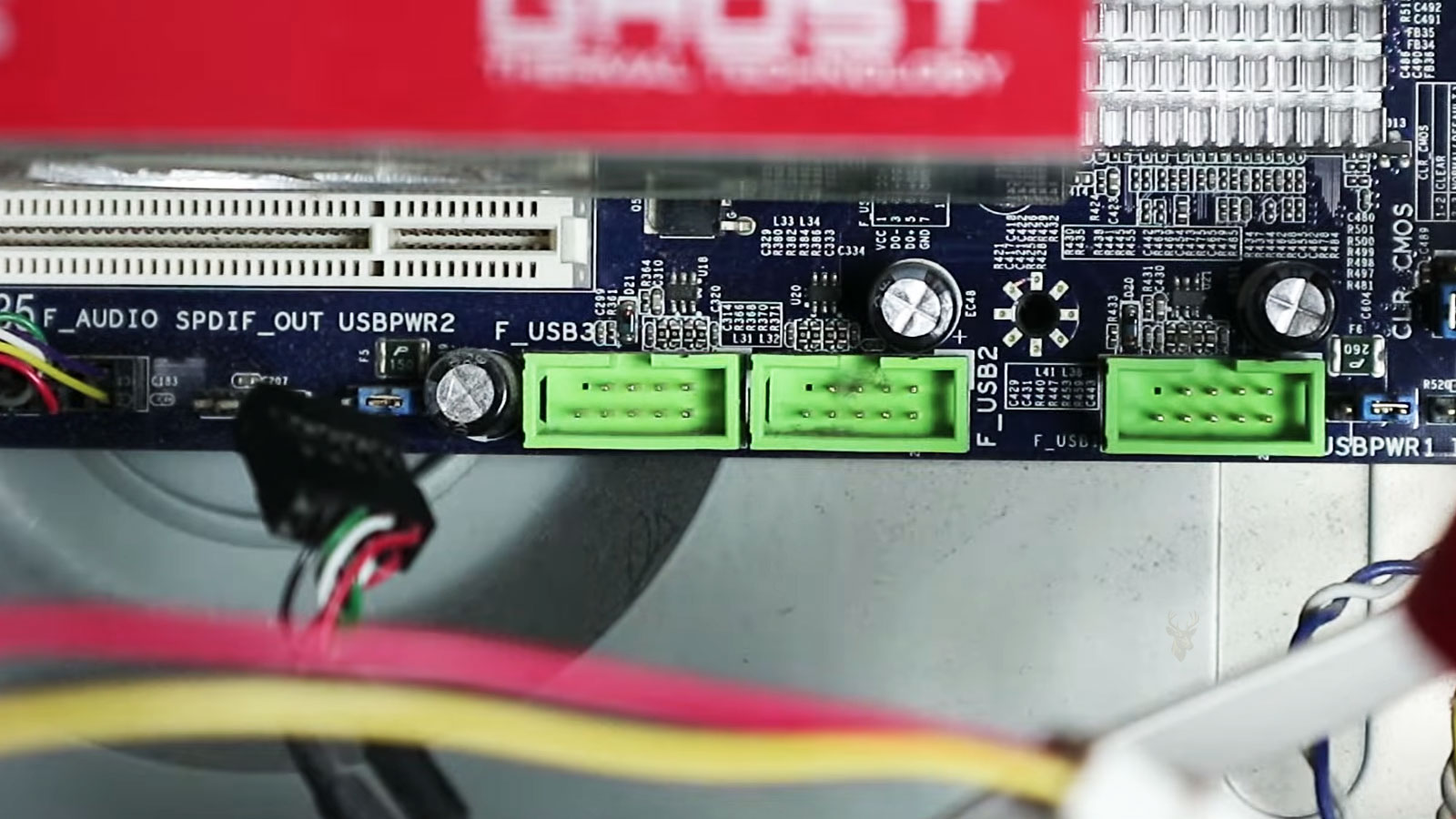
The USB ports on the front or top of a desktop case are usually connected to the motherboard through internal cables. These cables attach to small motherboard headers and can become loose during repair work, hardware upgrades, cleaning, or transportation.
If the front ports stop working while the rear motherboard ports continue operating normally, the problem may involve the front-panel cable, case connector, internal header, or physical front-port assembly rather than the entire USB system.
| Port Behavior | Possible Explanation |
|---|---|
| Rear ports work but front ports do not | The front-panel cable or case assembly may be disconnected or damaged. |
| One front port works and another does not | The individual connector may have a physical fault. |
| Front ports failed after internal service | The motherboard header cable may not have been reconnected. |
| Port power works but data does not | Some cable conductors or header connections may be damaged. |
| Front ports move inside the case | The mounting assembly may be loose or broken. |
Testing a device in both front and rear ports helps determine whether the problem affects one case assembly or the motherboard’s broader USB controller.
Laptop USB Ports Can Separate From the Motherboard
Laptop USB ports are often soldered directly to the motherboard or installed on a smaller side board connected by a ribbon cable. Repeated pressure from attached accessories can weaken the connector, solder joints, or surrounding circuit board.
A flash drive, wireless receiver, or cable left connected while the laptop is moved can act as a lever against the port. Even when the outside of the connector appears normal, the internal mounting points may have cracked or separated.
- The port moves inside the laptop enclosure.
- The device works only when upward or downward pressure is applied.
- The problem began after the laptop was bumped with a device connected.
- Nearby ports or audio connectors also behave intermittently.
- The laptop no longer recognizes any device in that particular port.
Continued movement of a loose connector can damage circuit traces and make a repair more extensive than replacing or resoldering the port alone.
Some USB Devices Require More Power Than One Port Can Supply
USB ports provide electrical power as well as data communication. Small devices such as keyboards and mice usually require very little power, while external hard drives, optical drives, audio equipment, and other accessories may need considerably more.
If the port cannot provide sufficient current, the accessory may fail to start, disconnect during use, or operate only when no other devices are attached nearby. This becomes more common with unpowered hubs and older USB ports.
| Power-Related Symptom | Possible Direction |
|---|---|
| External drive clicks or repeatedly restarts | The device may not be receiving stable power. |
| Several devices fail when connected together | The available USB power may be shared or overloaded. |
| Device works through a powered hub | The original port may not provide sufficient current. |
| Accessory works on a desktop but not a laptop | Power availability or port design may differ. |
| Device disconnects during demanding operation | Its power requirement may increase during use. |
A device that requires more power should be used with the correct external adapter or powered hub when the manufacturer provides that option.
Unpowered USB Hubs Share One Connection
A USB hub allows several accessories to use one computer port. An unpowered hub depends entirely on the electrical power available from that single connection, which must then be shared among every attached device.
Low-power accessories may operate normally, while external storage devices, webcams, and wireless adapters become unstable when used at the same time. Data traffic must also share the same upstream connection, which can affect performance during file transfers and other demanding activity.
- Devices work individually but fail when connected together.
- An external drive disconnects when another accessory is attached.
- Video or audio becomes unstable through the hub.
- The hub becomes unusually warm.
- Normal operation returns when devices connect directly to the computer.
A powered hub includes its own electrical adapter and may provide more stable operation for accessories with higher power requirements, although the hub itself can still fail.
External Storage Devices May Disconnect During File Transfers
External hard drives and solid-state drives place greater demands on the USB connection during sustained file transfers. A weak cable, insufficient power, damaged enclosure board, overheating controller, or failing internal drive may remain unnoticed until large amounts of information are being moved.
The transfer may stop, Windows may report that the destination is unavailable, or the entire device may disappear until it is disconnected and reattached. Repeated interruptions can corrupt files that were being written at the time.
| External Drive Behavior | Possible Concern |
|---|---|
| Disconnects only during large transfers | Power, heat, cable quality, or drive stability may be involved. |
| Clicks before disappearing | The mechanical drive may be failing or receiving insufficient power. |
| Works with another enclosure | The original enclosure electronics may be defective. |
| Works with another cable | The original USB cable may be unreliable. |
| Disconnects from several computers | The problem is more likely within the drive, cable, or enclosure. |
When an external drive contains the only copy of important files, repeated transfer attempts should be limited until the source of the instability is better understood.
Not Every USB Port Provides the Same Capabilities
USB ports may look similar while supporting different speeds, power levels, or features. Some USB-C connectors provide data and charging only, while others also support video output or higher-power charging standards.
An accessory may connect physically but fail to perform the expected function if the port does not support the required capability. This is especially common with USB-C docks, monitors, storage devices, and charging equipment.
- A USB-C monitor connects but displays no picture.
- A high-speed drive operates at a slower transfer rate.
- A laptop charges through one USB-C port but not another.
- A docking station works only with a specific port.
- A device requires a newer USB standard than the computer provides.
Connector shape alone does not confirm that two ports provide identical functions, speed, or electrical power.
Windows Must Recognize the Device Before It Can Be Used
When a USB device is connected, Windows identifies the hardware, selects a compatible driver, and prepares the device for use. If any part of this process fails, the accessory may receive power while remaining unavailable to applications or File Explorer.
The computer may display a notification stating that the device is not recognized, the driver could not be installed, or the connected hardware malfunctioned. In other cases, no message appears even though the accessory does not work.
| Windows Behavior | Possible Direction |
|---|---|
| Device receives power but does not appear | Driver installation, data communication, or device recognition may have failed. |
| Unknown USB device message appears | Windows cannot identify the connected hardware correctly. |
| Device appears briefly and disappears | The connection, driver, power, or device electronics may be unstable. |
| Accessory works after reconnecting | The original recognition process may have failed temporarily. |
| Device appears on another computer | The original system’s drivers or USB controller should be investigated. |
Recognition errors can originate from software, but they can also result from physical instability that prevents Windows from receiving complete device information.
Missing or Damaged Drivers Can Prevent Normal Operation
Many basic USB devices use drivers already included with Windows. More specialized equipment, such as printers, scanners, audio interfaces, wireless adapters, and certain storage devices, may require additional software from the manufacturer.
A damaged, outdated, or incompatible driver can prevent the device from working even when the port and cable remain functional. The problem may begin after a Windows update, hardware replacement, software removal, or incomplete installation.
- The device stopped working after Windows was updated.
- The accessory appears with limited functionality.
- Windows repeatedly attempts to install the same driver.
- The device works in one operating system but not another.
- Removing and reinstalling the correct driver restores operation.
Driver installation should match the exact device model and operating-system version whenever manufacturer-specific software is required.
Device Manager Can Show Recognition and Driver Problems
Device Manager displays hardware that Windows has detected and may show warning symbols when a device cannot start normally. An unknown device, disabled controller, or warning icon can help identify where recognition has failed.
The displayed error does not always reveal the exact cause. A driver warning may result from damaged software, but it can also appear when a cable, port, accessory, or controller is communicating unreliably.
| Device Manager Condition | Possible Meaning |
|---|---|
| Yellow warning symbol | The device or driver cannot start normally. |
| Unknown USB device | Windows cannot identify the hardware. |
| Device is disabled | Windows or the user has prevented it from operating. |
| Device repeatedly appears and disappears | The physical or electrical connection may be unstable. |
| USB controller is missing | Chipset drivers, firmware, or motherboard hardware may be involved. |
Device Manager is most useful when its information is compared with physical testing rather than treated as proof that the problem is purely software-related.
Power-Management Settings Can Turn Off USB Devices
Windows can reduce electrical use by placing idle USB devices and controllers into low-power states. This behavior is useful for extending laptop battery life, but some devices do not recover correctly when Windows attempts to reactivate them.
A keyboard, mouse, wireless adapter, or external drive may work normally after startup and then disappear after the computer has been idle or resumed from sleep.
- The device stops working after sleep or hibernation.
- Reconnecting the accessory restores operation.
- The problem occurs only after long periods of inactivity.
- A restart restores the device temporarily.
- Several devices on the same controller wake incorrectly.
Changing power-management settings may help when the timing clearly follows sleep or inactivity, but persistent disconnections during active use suggest a different cause.
USB Selective Suspend Can Affect Certain Accessories
USB selective suspend allows Windows to reduce power to individual USB devices without shutting down the entire controller. This feature can improve energy efficiency, especially on portable computers.
Some accessories, drivers, hubs, and older devices do not respond reliably after being placed into this suspended state. The device may remain unavailable until it is unplugged, reconnected, or the computer is restarted.
| Selective-Suspend Pattern | Possible Interpretation |
|---|---|
| Device fails only after inactivity | Power-saving behavior may be involved. |
| Device works immediately after restart | The controller may be resetting during startup. |
| Accessory disappears after sleep | It may not resume correctly from a low-power state. |
| Problem affects one older device | The device or driver may not support modern power management reliably. |
| Disabling suspend changes nothing | The problem likely exists elsewhere. |
Power-saving features should be evaluated as one possible explanation rather than disabled automatically for every USB problem.
Windows Updates Can Change USB Behavior
Operating-system updates may replace chipset drivers, USB controller software, security components, and power-management settings. Most changes improve reliability, but an incomplete or incompatible update can cause a device that previously worked to stop responding.
The timing of the failure is important. A USB problem that begins immediately after an update may involve a changed driver or setting, although hardware faults that appeared at the same time should not be ignored.
- Several USB devices stop working after a restart.
- One specialized accessory loses compatibility.
- The computer begins showing unknown-device errors.
- Sleep and wake behavior changes after an update.
- Restoring an earlier driver improves stability.
Comparing the update history with the first appearance of the problem can help identify whether the change is likely related.
Chipset Drivers Support the Computer’s USB Controllers
The motherboard chipset manages communication among the processor, storage devices, expansion hardware, and USB controllers. Missing or damaged chipset software can affect several ports at once, especially after Windows is reinstalled.
A fresh operating-system installation may provide basic USB support while leaving certain controller features, high-speed ports, or power-management functions unavailable until the correct motherboard or computer drivers are installed.
| Post-Installation Behavior | Possible Driver Need |
|---|---|
| USB 2.0 ports work but faster ports do not | Additional controller or chipset drivers may be missing. |
| Device Manager shows unknown controllers | Motherboard software may not be installed. |
| Ports operate at reduced speed | Windows may be using basic compatibility drivers. |
| Docking functions are incomplete | Computer-specific drivers may be required. |
| USB problems begin after reinstalling Windows | The full driver set should be reviewed. |
Drivers should come from the computer, motherboard, or device manufacturer when model-specific support is necessary.
BIOS and UEFI Settings Can Disable USB Functions
The BIOS or UEFI firmware controls hardware before Windows begins loading. Some systems include settings for legacy USB support, individual controllers, external ports, charging behavior, and security restrictions.
Firmware settings may change after a reset, update, battery failure, repair, or manual adjustment. A port may therefore remain physically functional while being disabled or restricted through configuration.
- USB support is disabled before the operating system loads.
- Legacy keyboard and mouse support is turned off.
- External ports are restricted for security purposes.
- Charging while powered off is disabled.
- Firmware settings returned to factory defaults.
Firmware changes should be made carefully because unrelated storage, startup, and security settings may also be affected.
USB Controller Problems May Affect Groups of Ports
USB ports are often organized into groups that share one internal controller or electrical path. A controller fault can therefore disable several ports while others continue operating normally.
This pattern can appear as a software problem, but the underlying cause may involve the motherboard chipset, controller circuitry, firmware, or electrical damage. Testing ports in different physical areas can reveal whether the failure follows one controller group.
| Port Pattern | Possible Direction |
|---|---|
| Several neighboring ports fail together | They may share one controller or power circuit. |
| Front ports fail while rear ports work | The front cable, header, or case assembly may be involved. |
| High-speed ports fail but basic ports remain functional | A separate controller or driver may have failed. |
| All ports stop after electrical damage | Motherboard circuitry may have been affected. |
| Ports return after a complete power reset | The controller may have entered an unstable state. |
A controller that repeatedly requires resetting should still be investigated even if temporary operation returns.
Some Devices Fail Only After Windows Loads
A USB keyboard or mouse may work in the BIOS or recovery environment and stop responding after Windows starts. This suggests that the basic hardware connection is functioning while an operating-system driver, service, security setting, or power-management feature changes the device’s behavior later.
The opposite pattern can also occur. A device may be unavailable during early startup but begin working after Windows loads the correct driver.
| When the Device Works | Possible Interpretation |
|---|---|
| Works in BIOS but not Windows | A Windows driver, service, or setting may be involved. |
| Works only after Windows loads | Firmware may lack support until the operating-system driver starts. |
| Works in Safe Mode | Third-party software or a normal-startup driver may be contributing. |
| Fails after login | User software, security tools, or startup programs may affect it. |
| Works until the computer sleeps | Power management or resume behavior may be responsible. |
Identifying the exact stage when the device stops working helps separate firmware, hardware, driver, and Windows-related causes.
Electrical Shorts Can Disable a USB Port or Controller
A damaged USB connector can allow metal contacts to touch one another or contact the outer shell incorrectly. When this happens, the computer may disable the affected port to protect the motherboard from excessive current or electrical damage.
The device may stop working immediately, Windows may display a power-surge warning, or several ports connected to the same controller may become unavailable. In more serious cases, the computer may shut down or restart when the accessory is inserted.
- The computer reports excessive power on a USB port.
- The system shuts down when a particular device is connected.
- Several ports stop working after one connector is damaged.
- The inside of the port contains bent metal contacts.
- Normal operation returns only after the computer is fully powered off.
A port that appears physically damaged should remain unused until it can be inspected. Continued connection attempts can place additional stress on the motherboard or the attached device.
Liquid and Contamination Can Interfere With USB Connections
Dust, corrosion, moisture, and residue can prevent the metal contacts inside a USB port from maintaining a stable connection. Liquid exposure can also create conductive paths between contacts and damage components beyond the connector itself.
A contaminated port may work intermittently, require pressure on the plug, or cause repeated connection and disconnection sounds. Corrosion may continue developing after the original spill has dried, especially when residue remains inside the connector or on the circuit board.
| Observed Condition | Possible Concern |
|---|---|
| Green or white residue inside the port | Corrosion may be affecting electrical contact. |
| Sticky material around the connector | Liquid residue or contamination may be present. |
| Device works only after repeated insertion | The contacts may be dirty, worn, or damaged. |
| Several nearby functions become unstable | Liquid may have reached surrounding circuitry. |
| Problem worsens over time after a spill | Corrosion may still be progressing. |
Sharp tools and excessive force should not be used inside a USB port because the contacts are small and easily damaged.
Powered Hubs Can Fail Even When Their Indicator Lights Remain On
A powered USB hub includes its own electrical adapter, but the presence of a power light does not confirm that the adapter, internal controller, or individual ports are operating correctly. The hub may provide partial power while failing to maintain reliable data communication.
One device may disconnect when another is added, transfer speeds may decrease unexpectedly, or all connected accessories may disappear at the same time. Testing the devices directly with the computer helps determine whether the hub is contributing to the problem.
- The hub becomes unusually warm.
- All attached devices disconnect together.
- Devices work normally when connected directly.
- The hub power adapter produces noise or excessive heat.
- Only certain hub ports remain functional.
A failing hub can resemble a motherboard or driver problem because it affects several accessories through one shared connection.
Repeated External-Drive Disconnections Can Put Files at Risk
When an external drive disconnects while information is being written, files may remain incomplete or become corrupted. The file system can also develop inconsistencies if the device disappears before Windows finishes updating its internal records.
A transfer that appears complete should still be verified when the connection has been unstable. Important information should not be considered safely copied until the destination files can be opened and confirmed.
| Drive Behavior | Possible Data Risk |
|---|---|
| Disconnects while saving a document | The current file may remain incomplete. |
| Transfer stops without an error message | Some files may not have copied successfully. |
| Windows requests a scan or repair | The file system may not have been closed properly. |
| Drive repeatedly appears and disappears | Ongoing writes may be interrupted several times. |
| Files open incorrectly after transfer | Corruption may have occurred during the unstable connection. |
Repeated copying attempts should be limited if the drive itself is failing, especially when it contains the only available copy of valuable information.
Safe Mode Can Help Identify Software Interference
Safe Mode starts Windows with a reduced set of drivers and background services. If a USB device works reliably in this environment but fails during a normal startup, third-party software, manufacturer utilities, security programs, or additional drivers may be affecting the connection.
This comparison is useful, but it does not prove that the hardware is healthy. Safe Mode may place less demand on the device or avoid a feature that normally exposes the underlying fault.
- The device works in Safe Mode but not during normal use.
- Disconnections begin after startup applications load.
- A third-party driver becomes a stronger possibility.
- Power-management behavior may differ in the reduced environment.
- Physical testing should still remain part of the diagnosis.
Testing With Only Essential Devices Can Simplify Diagnosis
When several USB accessories are connected, one defective device can make the entire situation difficult to interpret. Disconnecting nonessential equipment and testing one accessory at a time can reveal whether the problem follows a particular device, cable, hub, or group of ports.
A basic test may use only a keyboard and mouse connected directly to the computer. Other devices can then be added individually while the system is observed for repeated recognition errors or disconnections.
| Test Result | Possible Interpretation |
|---|---|
| System becomes stable with accessories removed | One device, hub, cable, or power demand may be contributing. |
| Problem returns after one device is added | That device or its connection should be investigated. |
| Every device fails in the same port | The individual port or controller path may be defective. |
| Failures continue with only basic devices | Drivers, Windows, firmware, power, or motherboard hardware may be involved. |
| Direct connections work but the hub does not | The hub or its power adapter becomes more suspect. |
Changing one condition at a time produces clearer evidence than replacing several devices or settings simultaneously.
Replacing a Port Is Different From Replacing the Motherboard
A physically damaged USB port may sometimes be replaced or resoldered without replacing the entire motherboard. The repair depends on whether the connector is installed on a separate board, attached through a cable, or soldered directly to the main circuit board.
Damage may extend beyond the visible connector. Torn circuit pads, broken traces, shorted protection components, and failed USB controller circuitry can make the repair more involved than installing a new port.
- A separate USB board may be replaceable as one assembly.
- A loose soldered connector may require board-level repair.
- Missing circuit pads may require trace reconstruction.
- Controller failure can affect several ports at once.
- Motherboard replacement may be considered when damage is extensive.
The outside appearance of the port does not always reveal how much internal damage has occurred.
Important Files Should Be Protected Before Instability Worsens
USB problems involving backup drives, flash drives, phones, or external storage can place important files at risk. A device that disconnects occasionally may become completely unavailable later if the cable, enclosure, connector, or internal storage continues deteriorating.
When the device remains accessible, important files should be copied carefully to another reliable location and verified. The unstable device should not remain the only place where the information exists.
Readers concerned about maintaining separate copies of important information may also find Protecting Important Files Before Data Loss Occurs useful. It explains why backups should be created and verified before hardware instability develops into complete loss of access.
Following the Failure From the Accessory Back to the Computer
A USB device that disconnects or stops working may be affected by its cable, connector, electrical requirements, driver, hub, Windows settings, firmware, controller, or motherboard circuitry. The same visible symptom can therefore originate from several different points along the connection path.
Testing the accessory on another computer, using a known-working cable, comparing several ports, removing hubs, and observing when the failure occurs can help identify which part of the path is unstable. A problem that follows the device is different from one that remains with a particular port or affects every accessory at once.
Working through those differences methodically helps protect stored information, prevents unnecessary replacement of working accessories, and reduces the chance that a physically damaged port or unstable controller will continue causing broader problems.











