
Understanding Why Everyday Computers Gradually Become Louder
Most computers operate quietly when they are new. After months or years of regular use, however, many desktop and laptop owners begin noticing sounds that were not present before. A cooling fan may become louder, air movement may become more noticeable, or entirely new noises may develop during startup or while demanding applications are running.
Not every sound indicates that something is wrong. Cooling fans naturally increase their speed as processors and graphics hardware produce more heat, and certain storage devices create normal operating sounds while reading and writing data. The important question is whether the noise reflects normal operation or a developing hardware condition.
Understanding where computer noise originates helps distinguish expected behavior from sounds that deserve closer attention. In many situations, the type of noise provides valuable clues about which component should be examined first.
Cooling Fans Are Usually the Primary Source
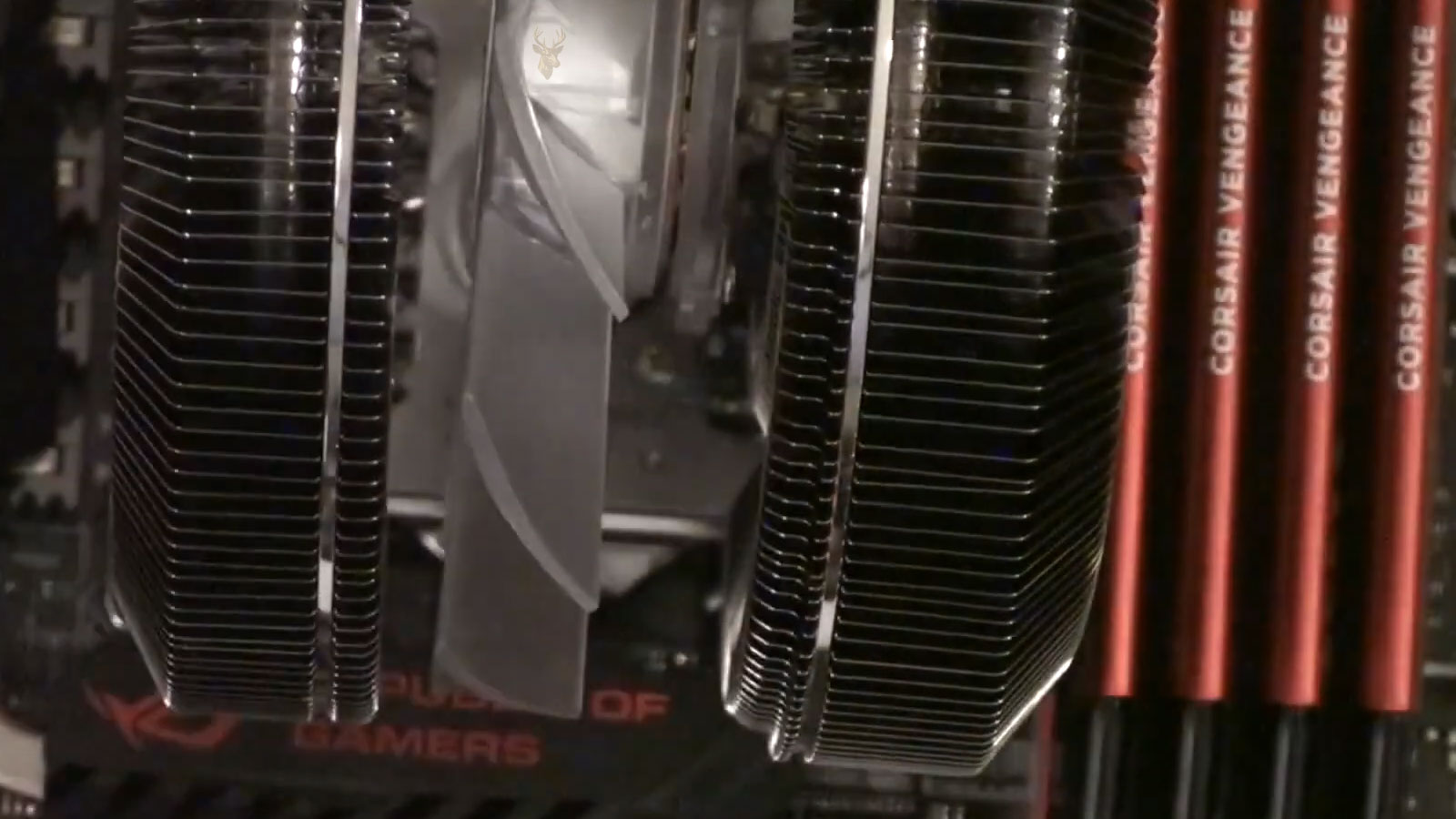
The majority of everyday computer noise comes from cooling fans. Desktop computers may contain separate fans for the processor, graphics card, power supply, and computer case, while laptops typically rely on one or two compact fans working together with heat pipes and radiators.
As temperatures increase, temperature sensors automatically instruct the fans to rotate faster. Higher fan speed moves more air through the cooling system, helping remove excess heat generated by the processor and other components.
- Processor cooling fans.
- Graphics card cooling fans.
- Power supply fans.
- Case ventilation fans.
- Laptop cooling fans.
Because fan speed changes continuously according to workload and temperature, hearing the computer become temporarily louder during demanding tasks is often completely normal.
Dust Gradually Changes Fan Behavior
Every cooling fan draws surrounding air into the computer. Along with that airflow come dust particles, fabric fibers, and other airborne debris. Over time, these materials accumulate inside the cooling system and reduce its ability to move heat efficiently.
When airflow becomes restricted, the cooling system compensates by increasing fan speed more frequently and for longer periods. The result is a computer that sounds noticeably louder even though the fan itself may still be operating normally.
This gradual increase in noise often develops so slowly that many users do not notice the change until comparing the computer with how it operated months or years earlier.
Not All Noises Sound the Same
Different sounds often point toward different components. While accurate diagnosis requires inspection and testing, recognizing the general character of a noise can provide useful clues about where it originates.
| Sound | Possible Source |
|---|---|
| Steady airflow | Normal cooling fan operation. |
| Grinding noise | Fan bearing wear. |
| Rattling vibration | Loose fan, cable, or mounting hardware. |
| Clicking from a desktop drive | Mechanical hard drive activity or developing hardware problem. |
| High-pitched whine | Electrical components under certain operating conditions. |
Although these examples provide general guidance, similar sounds may occasionally originate from different components depending on the computer’s design.
Workload Influences Fan Speed
A computer editing high-resolution video generates considerably more heat than one displaying a simple document. Likewise, modern games, engineering software, and other demanding applications place sustained workloads on the processor and graphics hardware, causing cooling fans to increase speed automatically.
This explains why the same computer may sound nearly silent while reading email yet become much louder only a few minutes after launching demanding software. The increase in noise is often a normal response to increased heat production rather than evidence of a malfunction.
Observing whether the noise appears only during heavy workloads or remains constant regardless of activity provides valuable information when evaluating the overall condition of the cooling system.
Age Affects Mechanical Components
Cooling fans contain bearings that support thousands of hours of continuous operation. As these bearings gradually wear, friction may increase and the fan can begin producing sounds that were not present when it was new. A slight hum may develop into a rattling or grinding noise as wear progresses.
Mechanical hard drives also contain moving parts that naturally experience wear over time. Although many drives operate reliably for years, changes in sound should never be ignored, especially when they are accompanied by slower performance, file access problems, or startup difficulties.
Loose Parts Can Create Rattling Sounds
Not every rattling sound comes from a worn fan. A loose cable, mounting screw, drive bracket, plastic panel, or other internal component may vibrate whenever the cooling system operates. The sound may appear only at certain fan speeds because the vibration becomes stronger within a specific range.
Desktop computers are especially likely to develop this type of noise because they contain larger panels, several fans, expansion cards, storage brackets, and multiple internal cables. Laptops can also produce vibration when a fan, heat sink, speaker, or section of the enclosure is no longer secured properly.
- The noise changes when the computer is moved slightly.
- Rattling appears only at certain fan speeds.
- A side panel vibrates during heavy workloads.
- The sound began after hardware was installed or serviced.
- Pressing gently on part of the enclosure changes the noise.
Loose components should be corrected before vibration causes additional wear or allows a cable to contact a moving fan.
Cables Can Touch Moving Fans
Inside a desktop computer, power and data cables often pass near cooling fans. If one of these cables shifts out of position, a fan blade may begin striking it repeatedly. The resulting sound can resemble rapid clicking, tapping, or buzzing.
This type of noise may appear immediately after the computer has been moved, upgraded, or opened for maintenance. It can also develop gradually if cable ties loosen or if vibration allows a wire to move closer to a fan.
A cable touching a fan should not be ignored. Besides producing noise, the contact may damage the cable insulation, slow the fan, or prevent proper airflow through the computer.
Mechanical Hard Drives Produce Their Own Sounds
Traditional hard drives contain spinning platters and moving read-and-write heads, so some mechanical sound is expected during operation. A light hum, soft movement, or brief clicking while files are being accessed can be normal depending on the drive model.
Concern increases when the sound changes noticeably or is accompanied by other symptoms. Repetitive clicking, grinding, repeated attempts to spin up, delayed file access, corrupted files, or difficulty starting Windows may indicate that the drive is no longer operating reliably.
Our article Common Signs of a Failing Hard Drive explains how unusual storage sounds can relate to mechanical wear, read errors, and developing drive failure.
Optical Drives Can Become Surprisingly Loud
Computers equipped with CD, DVD, or Blu-ray drives may become noisy whenever a disc spins at high speed. Slightly unbalanced, warped, scratched, or poorly manufactured discs can create vibration that makes the entire drive sound louder than expected.
A brief increase in sound while a disc is being read is often normal. Repeated grinding, failure to recognize discs, difficulty ejecting, or vibration severe enough to shake the computer may indicate wear inside the optical drive.
- High-speed spinning during software installation.
- Vibration caused by an unbalanced disc.
- Grinding from a worn loading mechanism.
- Repeated attempts to read a damaged disc.
- Clicking while the tray opens or closes.
Power Supplies Can Add Fan and Electrical Noise
Desktop power supplies contain internal cooling fans and electronic components that operate continuously while the computer is running. As the power supply ages, its fan may develop bearing noise similar to other cooling fans inside the system.
Some power supplies also produce a high-pitched electrical sound under certain workloads. This type of noise may be related to vibration within coils or other electrical components. A faint sound can occur without causing operational problems, but a new or unusually loud electrical noise should be observed carefully, particularly when accompanied by instability, burning odors, or unexpected shutdowns.
| Noise Pattern | Possible Source | Why It Matters |
|---|---|---|
| Loud airflow during heavy use | Cooling fan responding to heat | May be normal if temporary |
| Grinding that continues at all times | Worn fan bearing | Fan may eventually stop |
| Rapid tapping | Cable touching fan blade | Can damage cable or fan |
| Repeated hard-drive clicking | Mechanical storage problem | Important files may be at risk |
| High-pitched electrical whine | Power or graphics components | Observe for instability or change |
Software Can Make the Computer Sound Louder
A computer may become noisy even when no physical component has failed. Background software can keep the processor active, causing the cooling fans to operate faster for long periods. Antivirus scans, updates, indexing, synchronization, and unwanted programs may all create sustained activity without the user intentionally running a demanding application.
If fan noise remains high while the computer appears idle, reviewing processor activity can help determine whether software is creating the workload. The cooling system may be responding correctly to heat generated by a process running in the background.
- Windows updates.
- Antivirus scans.
- Search indexing.
- Cloud synchronization.
- Automatic backup software.
- Malware or unwanted background applications.
The Timing of the Noise Provides Useful Clues
When a noise occurs can be just as informative as how it sounds. A fan that becomes loud only during gaming suggests a different condition from one that grinds immediately after startup. Likewise, clicking heard only while opening files points toward a different component than a vibration that begins whenever the computer is moved.
Observing the timing, workload, temperature, and location of the sound helps narrow the list of possible causes before the computer is opened or parts are replaced.
- Notice whether the sound begins during startup, light use, or demanding workloads.
- Identify the area of the computer where the noise appears strongest.
- Check whether performance, temperature, or stability changes at the same time.
- Observe whether the noise disappears after the computer cools down.
- Record whether the sound is constant, intermittent, or gradually becoming louder.
When a Noisy Fan Needs Attention
A cooling fan that becomes temporarily louder during demanding work may be operating exactly as intended. Concern increases when the noise changes in character, remains constant during light use, or appears together with overheating, reduced airflow, freezing, restarting, or shutdowns.
Grinding, scraping, rattling, or repeated stopping and starting may indicate bearing wear, physical obstruction, or an electrical problem affecting the fan motor. A weakened fan may continue spinning while moving too little air to cool the computer properly.
- The fan produces grinding or scraping sounds.
- Airflow from the exhaust vent has become noticeably weaker.
- The computer becomes hot during ordinary tasks.
- The fan repeatedly starts and stops.
- The system shuts down or restarts after becoming warm.
- The sound has grown progressively louder over several weeks.
Addressing fan problems early can help prevent overheating from placing additional stress on the processor, graphics hardware, motherboard, and storage devices.
Cleaning Without Creating Additional Problems
Dust removal can reduce fan noise when restricted airflow is forcing the cooling system to work harder. The cleaning method should match the computer’s design, because blowing air through exterior vents does not always remove the compacted layer of dust that forms between a fan and radiator.
Excessive compressed air can also spin a fan beyond its intended speed or push debris farther inside the system. Desktop computers generally provide easier access to cooling components, while many laptops require partial disassembly before the fan and heat sink can be cleaned properly.
- Turn the computer off and disconnect electrical power.
- Prevent cooling fans from spinning freely during direct air cleaning.
- Remove dust from the computer rather than moving it to another internal location.
- Keep liquids and household cleaning products away from electronic components.
- Verify that cables and panels are secured before the computer is restarted.
Do Not Ignore Changes in Hard Drive Noise
Cooling fans may gradually become louder without creating an immediate risk to personal files. Mechanical hard-drive noises deserve a different level of caution because the drive may contain documents, photographs, financial records, and other information that cannot easily be replaced.
If new clicking, grinding, repeated spin-up attempts, or delayed file access appear together, protecting important files should take priority over continued troubleshooting. Repeatedly restarting or heavily testing a mechanically damaged drive may make its condition worse.
A current backup provides far more protection than waiting for a storage device to produce an unmistakable failure. When unusual drive sounds appear, the value of the stored information should guide the next step.
Quieting a Computer by Reducing Unnecessary Workload
If the cooling fans are responding to continuous processor activity, reducing unnecessary background workload may lower both temperature and noise. Closing unused applications, reviewing startup programs, and allowing updates or security scans to finish can help the computer return to a quieter operating state.
This type of noise is different from a mechanical fault. The fan itself may be completely healthy and simply responding to heat created by software. Observing processor activity before replacing cooling hardware can prevent an unnecessary repair.
| What You Observe | Reasonable First Check |
|---|---|
| Fan becomes loud during updates | Allow the update process to finish |
| Fan remains loud while the computer appears idle | Review background processor activity |
| Noise starts after installing software | Check new startup services and background processes |
| Fan becomes loud only during games | Review temperatures and cooling airflow |
| Grinding continues regardless of workload | Inspect the fan for wear or obstruction |
When Inspection Becomes the Better Choice
A sound that continues becoming louder, appears with overheating, or cannot be clearly identified may require internal inspection. Locating the source before replacing parts is important because several components can create similar noises inside a compact computer enclosure.
For laptops, information about cooling fans, internal airflow, and hardware-related noise is available through our Laptop Repair Services page. Desktop systems may require inspection of case fans, graphics cooling, storage mounts, cables, and the internal power supply.
The objective is not merely to make the computer quieter. The more important goal is determining whether the sound represents normal operation, reduced cooling efficiency, mechanical wear, or a component beginning to fail.
Listening Before a Small Change Becomes a Larger Problem
Computers naturally produce sound, and changes in workload often make cooling fans more noticeable. A temporary increase in airflow during demanding work is very different from grinding bearings, repeated hard-drive clicking, cable contact, or vibration from a loose component.
Paying attention to where the noise originates, when it occurs, and whether it appears together with heat or instability provides useful information before the computer is opened. These observations can separate harmless operating sounds from warning signs that deserve prompt attention.
A computer rarely becomes noisy without a reason. Identifying that reason early can restore quieter operation, improve cooling, protect stored information, and prevent a minor mechanical condition from developing into a more disruptive hardware failure.











