
Understanding Intermittent USB-C Charging on a MacBook
Modern MacBook models rely on USB-C or Thunderbolt ports for charging, data transfer, external displays, and accessories. Because these ports perform multiple functions, charging problems are not always caused by the battery or power adapter. A loose connection, damaged cable, worn port, or internal charging circuit can interrupt power delivery even when every component appears physically intact.
Intermittent charging is one of the most common symptoms. The MacBook may begin charging normally, stop unexpectedly, reconnect after the cable is moved, or repeatedly switch between charging and battery power. Determining the cause requires examining both the external charging equipment and the internal hardware responsible for USB-C power management.
How USB-C Charging Works
Unlike older charging systems that delivered a fixed voltage, USB-C Power Delivery allows the charger and MacBook to communicate before higher charging levels are supplied. During this process, both devices negotiate the appropriate voltage and current required by the computer.
If this communication is interrupted by a damaged cable, contaminated connector, faulty charger, or internal hardware issue, charging may never begin or may stop unexpectedly while the MacBook is in use.
Common Symptoms of Intermittent Charging
- The battery icon repeatedly switches between charging and battery mode.
- Charging begins only after reconnecting the cable.
- The connection drops when the cable is moved.
- The MacBook charges normally while powered off but not during use.
- The battery percentage increases very slowly.
- Charging works on one USB-C port but not another.
- A connected display or accessory disconnects when charging fails.
Not Every Charging Problem Is Caused by the Battery
Many users assume the battery has reached the end of its life whenever charging becomes unreliable. While battery wear can reduce runtime, it does not usually cause charging to stop only when the cable is touched or repositioned.
Mechanical connector problems, charging circuitry, damaged adapters, or software power management are often responsible for intermittent charging behavior.
USB-C Ports Experience Daily Wear
Charging connectors are inserted and removed hundreds or even thousands of times during a MacBook’s lifetime. Normal wear can gradually reduce the precision of the connector fit, allowing slight movement that interrupts electrical contact.
Frequent travel, constant docking, and daily charging cycles can accelerate connector wear compared to systems that remain mostly stationary.
Dust and Debris Can Prevent Proper Contact
Pocket lint, dust, fabric fibers, and other debris can accumulate inside a USB-C port over time. Even a small obstruction may keep the connector from seating completely.
An incomplete connection can interrupt the communication required for USB Power Delivery, leading to inconsistent charging behavior.
Damaged USB-C Cables Are a Common Cause
The charging cable experiences repeated bending near both connectors. Internal conductors may fracture while the outer insulation still appears undamaged.
A cable with an internal break may charge normally in one position but disconnect when it is moved slightly.
Not Every USB-C Cable Supports Full Charging
USB-C connectors look alike, but cables differ significantly in their capabilities. Some support only basic charging, while others are designed for higher power delivery, high-speed data, or Thunderbolt communication.
Using an unsuitable or low-quality cable can create charging problems even though the connector fits properly.
| Component | Possible Effect on Charging |
|---|---|
| USB-C cable | Internal wire damage or poor-quality construction can interrupt charging. |
| Power adapter | Incorrect wattage or internal faults may reduce charging performance. |
| USB-C port | Wear or contamination may prevent proper electrical contact. |
| Battery | Battery health can affect charging behavior but is not always the primary cause. |
| Logic board charging circuit | Hardware faults may interrupt power negotiation or battery charging. |
The Power Adapter Also Plays an Important Role
A defective USB-C power adapter may produce unstable output or fail to negotiate the correct charging profile. In some situations, the adapter functions normally with another device while failing only under the higher demands of a particular MacBook.
Testing with a compatible adapter of sufficient wattage can help determine whether the charger contributes to the problem.
Different MacBook Models Require Different Charging Power
Smaller MacBook models generally require less charging power than larger MacBook Pro systems. Using an adapter with insufficient output may allow the battery to charge slowly during light use but fail to keep up while the processor is under heavy workload.
Although lower-wattage adapters may still charge some models, performance and charging speed can be affected depending on system demand.
Battery Optimization Can Be Misinterpreted as a Fault
macOS includes battery management features that may intentionally pause charging under certain conditions to reduce long-term battery wear. Users sometimes mistake this normal behavior for a charging failure.
Unlike intermittent hardware faults, battery optimization generally follows predictable patterns and does not cause charging to repeatedly connect and disconnect.
Multiple USB-C Ports Share Internal Hardware
Many MacBook models include more than one USB-C or Thunderbolt port. Although each connector is physically separate, some internal charging and communication circuitry may be shared depending on the model.
If charging works consistently on one port but fails on another, the problem may be limited to the individual connector or its associated circuitry.
Heat Can Affect Charging Stability
High internal temperatures may influence charging speed and battery management. During demanding workloads, the MacBook may reduce charging current to help manage heat.
This protective behavior differs from a loose connection because it follows thermal conditions rather than cable movement.
Liquid Exposure Can Damage USB-C Ports
Even a small amount of liquid entering a USB-C connector can leave corrosion on the contacts or damage nearby charging components. The symptoms may not appear immediately and can worsen gradually as corrosion spreads.
Intermittent charging following liquid exposure should always be investigated carefully before additional damage develops.
When charging starts and stops unpredictably, the cause is often found in the connection between the charger and the MacBook rather than in the battery itself.
Software Can Also Influence Charging Behavior
Power management within macOS coordinates battery charging, USB-C communication, thermal protection, and hardware monitoring. Corrupted settings, firmware issues, or abnormal system behavior can occasionally affect charging performance.
For this reason, diagnosing intermittent charging should include both hardware inspection and software evaluation rather than focusing on only one possibility.
Diagnosis Begins With the Charging Equipment
Intermittent charging should be tested with the simplest possible setup. External displays, hubs, docks, storage devices, and other USB-C accessories should be disconnected so the MacBook can be evaluated with only a known-compatible charger and cable.
This helps separate a direct charging problem from a fault introduced by an accessory or docking station.
Testing With Another Cable Can Reveal Internal Damage
A replacement cable should support the charging power required by the MacBook. If charging becomes stable with another suitable cable, the original cable may have damaged conductors, weak connector contacts, or poor internal construction.
The cable should be tested without sharply bending or twisting it. Charging that changes when the cable is moved strongly suggests a mechanical connection problem.
A Known-Good Power Adapter Helps Isolate the Charger
Testing with another compatible power adapter can determine whether unstable output or failed power negotiation is coming from the charger. The replacement adapter should provide sufficient wattage for the MacBook model being tested.
A charger that works with a phone or smaller device is not automatically proven capable of charging a MacBook reliably.
Every Available USB-C Port Should Be Tested
If the MacBook has multiple USB-C or Thunderbolt ports, the same charger and cable should be tested in each one. A problem limited to one port may indicate contamination, wear, physical damage, or a fault in the circuitry connected to that port.
If every port behaves the same way, attention may shift toward the charger, cable, battery, firmware, or shared logic board circuits.
| Test Result | Possible Direction |
|---|---|
| Only one port fails | Individual port damage, debris, connector wear, or related board circuitry |
| All ports fail with one cable | Damaged or unsuitable charging cable |
| All ports fail with one adapter | Power adapter problem or insufficient wattage |
| Charging fails with several known-good chargers | MacBook battery, firmware, port, or logic board fault |
| Charging changes when the plug moves | Loose port, worn connector, damaged cable, or cracked solder connection |
The Port Should Be Inspected Under Good Lighting
A flashlight and magnification can reveal lint, corrosion, bent internal structures, or discoloration inside the USB-C port. The connector should appear centered and unobstructed.
Cleaning should be performed carefully with the MacBook shut down and disconnected. Metal tools should not be inserted into the port because they can damage contacts or create a short circuit.
A Loose-Fitting Plug Can Indicate Port Wear
A USB-C plug normally seats with a consistent amount of resistance. If it feels unusually loose, falls out easily, or moves much more than it does in another device, the port may be mechanically worn or damaged.
Wear can affect charging even when data transfer continues to work because different contacts are involved in power delivery and communication.
Charging Information in macOS Provides Useful Clues
System information can report whether a power adapter is detected, how much wattage is being recognized, and whether the battery is charging. These details help distinguish complete charger detection from a connection that never completes power negotiation.
If the adapter repeatedly appears and disappears from the system report, the connection may be unstable at the cable, port, charger, or logic board level.
Battery Health Should Be Reviewed Separately
Battery condition, cycle count, and service warnings can help determine whether the battery itself has deteriorated. A heavily worn battery may charge slowly, hold little capacity, or stop charging at unusual percentages.
However, battery wear does not explain a charger that disconnects whenever the plug is moved. More than one fault can also exist at the same time.
Charging While Powered Off Can Help Narrow the Problem
If the MacBook charges reliably while shut down but becomes unstable after macOS starts, software, thermal conditions, accessory load, or higher system power demand may be involved.
If charging remains intermittent while the computer is off, the problem is more likely to involve the charger, cable, port, battery connection, or hardware power circuit.
A Restart Can Clear Temporary Power Management Problems
Temporary communication faults can occasionally prevent the charger from being recognized correctly. Restarting the MacBook with accessories disconnected may restore normal charging if the problem was caused by a temporary system state.
A fault that returns repeatedly should not be dismissed as a one-time software issue.
Firmware and System Updates May Affect Power Management
Mac firmware and macOS updates can include changes related to USB-C communication, battery management, and charging behavior. A fully updated system is useful when eliminating known software causes.
Updates will not repair physical port damage, corrosion, or failed charging components.
Intel and Apple Silicon Models Are Reset Differently
Some older Intel-based MacBook models use specific power management reset procedures. Apple silicon models manage these functions differently and generally reset power-related states through a complete shutdown and restart process.
The procedure should match the exact MacBook model rather than following instructions intended for a different hardware generation.
USB-C Meters Can Show Whether Power Negotiation Occurs
A suitable USB-C power meter can display negotiated voltage, current, and approximate wattage between the charger and MacBook. This can help show whether the connection remains at a basic voltage, reaches a higher charging profile, or repeatedly disconnects.
The meter itself must support the required charging level and should not be used if it creates a loose or unstable connection.
Low Wattage Can Result From Several Different Conditions
- The battery may already be nearly full.
- The MacBook may be limiting charging because of temperature.
- The adapter may not provide enough power.
- The cable may not support the negotiated charging level.
- The system may be using most of the incoming power while under load.
- A port or charging circuit may be failing to negotiate correctly.
Wattage readings should therefore be interpreted together with battery percentage, system workload, temperature, and charger specifications.
Docks and Hubs Can Complicate Charging Diagnosis
Some USB-C docks accept power from an adapter and pass a reduced amount to the MacBook. The dock may reserve part of the available power for connected accessories, displays, and internal electronics.
If charging becomes stable when the adapter is connected directly to the MacBook, the dock, its cable, or its power-delivery capability may be responsible.
External Devices Can Increase the Power Demand
Bus-powered storage devices, external displays, audio interfaces, and other accessories can draw energy through the MacBook. A marginal charger may appear adequate until several devices are connected or the computer begins a demanding task.
Testing without accessories provides a clearer picture of the basic charging system.
Charging Port Assemblies Differ Between MacBook Models
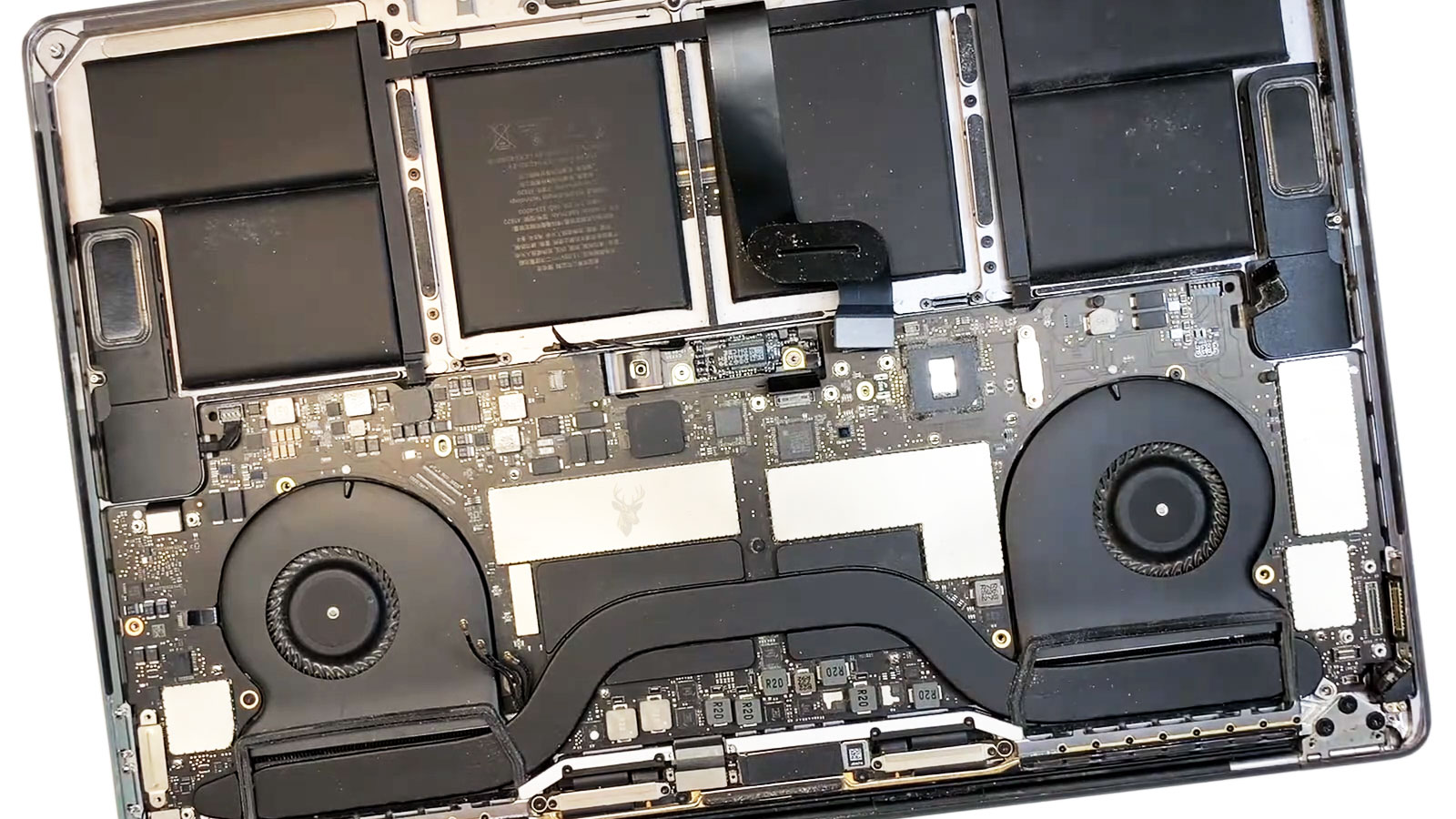
On some MacBook models, USB-C ports are mounted on a separate input-output board connected to the logic board by a cable. On others, the ports are soldered directly to the logic board or integrated into a larger assembly.
This design difference affects the difficulty, cost, and repair direction when one port fails.
A Replaceable Port Board Can Simplify Repair
If the failed USB-C ports are located on a separate board, replacing that assembly may restore charging without repairing the main logic board. The connecting cable and board socket must still be inspected for damage or corrosion.
A replacement board should match the exact MacBook model and configuration.
Soldered Ports Require Board-Level Work
A USB-C port soldered directly to the logic board may require microsoldering if its contacts, mounting points, or surrounding circuitry are damaged. Removing the connector without damaging nearby components and circuit-board pads requires controlled equipment and experience.
Replacing the entire logic board is not always necessary when the damage is limited and repairable.
Cracked Solder Connections Can Cause Movement-Sensitive Charging
Repeated cable pressure can weaken the solder joints holding a port to the board. Charging may stop when the plug moves because the connector shifts slightly against a cracked joint.
This fault may not be visible from the outside of the MacBook and can require internal inspection under magnification.
Internal Power Delivery Controllers Manage Each Connection
MacBook logic boards use controller circuits to detect connected devices, communicate with chargers, and select the correct power path. A failed controller can prevent charging through one or more ports even when the connector itself looks normal.
Diagnosis may involve checking voltage rails, communication lines, and whether the expected charging states are being established.
Input Protection Components Can Fail After Electrical Stress
USB-C charging circuits include protective components intended to limit damage from abnormal voltage, short circuits, and electrostatic discharge. A damaged protection component may block power or create an unstable connection.
Failures can occur after using a defective charger, damaged accessory, contaminated port, or poor-quality adapter.
Liquid Damage May Extend Beyond the Visible Port
Corrosion can travel beneath shields, around controller chips, and through small circuit-board connections. Cleaning only the outside of the port may not restore reliable charging when internal damage has already developed.
Liquid-exposed systems should be examined for residue and electrical damage before replacement parts are installed.
A Failed Battery Connection Can Resemble a Charging Fault
If the battery connector, battery management circuit, or internal battery cable is damaged, the MacBook may detect the charger but fail to charge the battery correctly. It may also shut down immediately when the adapter is disconnected.
This behavior differs from a charger that repeatedly disappears, but both conditions may be reported simply as intermittent charging.
Board-Level Diagnosis Should Follow a Logical Sequence
- Confirm the complaint with the original charger and cable.
- Test with known-compatible charging equipment.
- Compare every available USB-C port.
- Inspect the ports for wear, debris, and corrosion.
- Review charger detection and battery information in macOS.
- Disconnect docks and external accessories.
- Inspect internal port boards, cables, and logic board circuits when necessary.
This order reduces unnecessary disassembly and helps prevent a good battery or logic board from being replaced because of a defective cable.
Repair Decisions Depend on the Confirmed Failure
| Confirmed Problem | Likely Repair Direction |
|---|---|
| Damaged USB-C cable | Replace it with a cable rated for the required charging power. |
| Defective power adapter | Use a compatible adapter with sufficient output. |
| Debris inside the port | Clean the connector safely and inspect for contact damage. |
| Worn or damaged port | Replace the port board or perform connector-level repair. |
| Corrosion from liquid exposure | Clean and repair the affected board area before further charging. |
| Failed charging controller | Diagnose and repair the related logic board circuitry. |
| Degraded battery | Replace the battery after confirming the charging path is stable. |
Replacing Parts Without Testing Can Leave the Fault Unresolved
A new battery will not correct a loose USB-C port, and a new charger will not repair corrosion on the logic board. Because several components participate in charging, the failed stage should be identified before replacement begins.
Accurate diagnosis helps avoid unnecessary parts and reduces the chance that intermittent charging returns shortly after the repair.
Final Testing Should Confirm Stable Charging
After the charger, cable, port, battery, or internal charging circuit has been repaired, the MacBook should be tested under several operating conditions. A successful repair should remain stable while the computer is idle, under normal workload, and connected through every supported charging port.
Charging should not stop when the cable is touched gently, the screen angle changes, or the computer is moved slightly on a desk.
Testing Should Begin With a Direct Connection
The power adapter should first be connected directly to the MacBook without a dock, hub, extension, or external display in the charging path. This confirms that the basic charging system works before other accessories are reintroduced.
Once direct charging is stable, accessories can be connected one at a time to determine whether any device changes the behavior.
Every Charging Port Should Be Verified
MacBook models with multiple USB-C or Thunderbolt ports should be tested through each available connector. The adapter should be recognized consistently, and charging should continue without repeated connection sounds or battery icon changes.
A repair should not be considered complete if one port still behaves differently unless that separate fault has been clearly documented.
Light and Moderate Workloads Reveal Different Problems
A MacBook may charge normally while idle but stop gaining battery power during video editing, gaming, software development, or other demanding tasks. This can happen when the charger provides less power than the computer is consuming.
Testing under a moderate workload helps confirm that the adapter, cable, and charging circuit can maintain stable power when system demand increases.
Battery Percentage Should Increase Predictably
The battery may not charge at a constant speed, especially near full capacity or when optimized charging is active. However, the percentage should generally rise during ordinary use when a suitable adapter is connected.
A battery percentage that continues falling under a light workload may indicate insufficient adapter output, cable limitations, battery deterioration, or an unresolved charging circuit problem.
The Connection Should Remain Mechanically Secure
The USB-C plug should stay seated without excessive looseness. Normal cable movement should not interrupt charging, but forceful bending should never be used as a test because it can damage the port or logic board.
If charging changes with slight movement after repair, the connector, cable, or soldered mounting points require further inspection.
| Final Test | Expected Result |
|---|---|
| Direct charger connection | The adapter is detected immediately and charging remains stable. |
| Testing every USB-C port | Each supported port charges consistently. |
| Moderate workload | Charging continues without repeated disconnections. |
| Cable positioned normally | Minor movement does not interrupt power. |
| Sleep and restart testing | The charger is recognized after the MacBook resumes or restarts. |
| Accessory reconnection | Docks and peripherals do not create new charging instability. |
Proper Cable Handling Helps Prevent Port Damage
USB-C cables should be removed by holding the connector rather than pulling on the wire. Repeated tension near the plug can damage internal conductors and place unnecessary force on the MacBook port.
The cable should also have enough slack that ordinary movement of the computer does not pull sideways against the connector.
Sharp Bends Can Shorten Cable Life
A cable bent tightly near either connector may develop internal breaks over time. Charging cables should follow a gradual curve and should not be trapped beneath furniture, pressed against a wall, or wrapped tightly around the power adapter.
Using the Correct Charger Protects Charging Performance
A compatible adapter should provide enough output for the MacBook model and intended workload. Lower-powered chargers may be useful in limited situations, but they can charge slowly or fail to keep up during demanding use.
Unverified adapters and cables may also provide inconsistent power negotiation or inadequate electrical protection.
Ports Should Be Kept Free of Debris
Keeping the MacBook away from loose debris, food particles, and dusty storage areas can reduce contamination inside the charging ports. Protective cases and bags should also be checked for fabric fibers that may enter the connectors.
If a plug stops seating fully, the port should be inspected rather than forced.
Liquid Near the Ports Requires Immediate Attention
A MacBook exposed to liquid should be disconnected from charging power as soon as it can be done safely. Applying power while moisture remains inside the port or logic board can increase corrosion and electrical damage.
Charging should not resume until the affected area has been properly inspected.
Docks Should Match the MacBook’s Power Requirements
A dock may advertise USB-C charging while delivering less power than the connected adapter provides. Some of the available energy is used by the dock and its attached devices before the remainder reaches the MacBook.
For larger MacBook Pro models, the dock’s maximum pass-through output should be reviewed carefully.
Routine Observation Can Catch Problems Early
- Check whether the connector has become unusually loose.
- Watch for repeated charging and discharging notifications.
- Notice whether one port behaves differently from the others.
- Inspect cables for fraying, sharp bends, or damaged insulation.
- Pay attention to excessive heat near the adapter or connector.
- Investigate any signs of corrosion or liquid exposure.
Early diagnosis can prevent a worn cable or contaminated port from developing into a more expensive logic board repair.
Warning Signs Should Not Be Ignored
Some charging symptoms indicate that the MacBook should stop using the affected charger or port until it can be inspected. Continuing to reconnect an unstable cable may worsen contact damage or expose the computer to unreliable power.
- The connector or port becomes excessively hot.
- A burning smell appears while charging.
- The plug or port shows discoloration.
- Charging stops whenever the cable moves.
- The MacBook repeatedly reports that the power source is disconnected.
- Liquid or corrosion is visible near a USB-C port.
- The adapter makes unusual sounds or becomes abnormally hot.
A Swollen Battery Can Affect More Than Runtime
A swollen battery can press against the trackpad, keyboard, enclosure, or internal cables. Although swelling is not normally caused by the USB-C port, it can create unsafe operating conditions and should be addressed promptly.
A MacBook with visible case separation, a raised trackpad, or unusual internal pressure should not continue charging normally.
Repeated Connection Attempts Can Hide the Original Pattern
Constantly switching chargers, cables, ports, and docks without recording the results can make diagnosis more difficult. A controlled comparison is more useful than repeatedly reconnecting components at random.
Reliable charging diagnosis depends on changing one part of the power path at a time and observing exactly how the MacBook responds.
Frequently Asked Questions About MacBook USB-C Charging
Why does my MacBook charge only when the cable is held at an angle?
This commonly indicates a damaged cable, worn port, contamination inside the connector, or cracked solder connections beneath the port.
Can a MacBook charge through any USB-C port?
Many models support charging through every USB-C or Thunderbolt port, but the exact design depends on the model. A port that supports charging but fails consistently may have an individual hardware problem.
Why does the battery say it is not charging?
The adapter may provide insufficient power, the computer may be limiting charging because of temperature or battery optimization, or a hardware fault may be preventing normal charging.
Can a phone charger power a MacBook?
Some phone chargers may provide limited power, but they may charge very slowly or fail to keep up with the MacBook’s energy use. A charger rated appropriately for the model is preferable.
Does a loose USB-C port require logic board replacement?
Not always. Some models use a replaceable port board, while others may allow the connector to be repaired through board-level work.
Can debris inside the port stop charging?
Yes. Debris can prevent full insertion or interfere with the contacts required for USB-C power negotiation.
Why does charging work when the MacBook is turned off?
The computer uses less power while shut down. A weak charger, damaged cable, or marginal connection may supply enough power when the system is off but become inadequate during normal operation.
Can liquid damage cause intermittent charging weeks later?
Yes. Corrosion can develop gradually and affect the port, nearby controller circuits, or logic board connections after the original exposure.
Should the battery be replaced first?
The battery should be replaced only after testing confirms that it is the failed component. Cable, charger, port, and logic board problems can create similar symptoms.
Reliable Charging Requires the Entire Power Path to Work Together
USB-C charging on a MacBook depends on more than a power adapter. The cable, connector contacts, port assembly, power-delivery controllers, battery, and operating system all participate in delivering and managing power.
Intermittent charging often begins with a simple external issue such as a worn cable or debris inside a port, but it can also indicate corrosion, damaged solder joints, or a failed logic board circuit. Testing each part of the charging path in a controlled order helps identify the true cause.
A lasting repair restores stable charging through the correct ports, uses suitable power equipment, and confirms that normal movement, workloads, restarts, and connected accessories do not interrupt the connection.











