
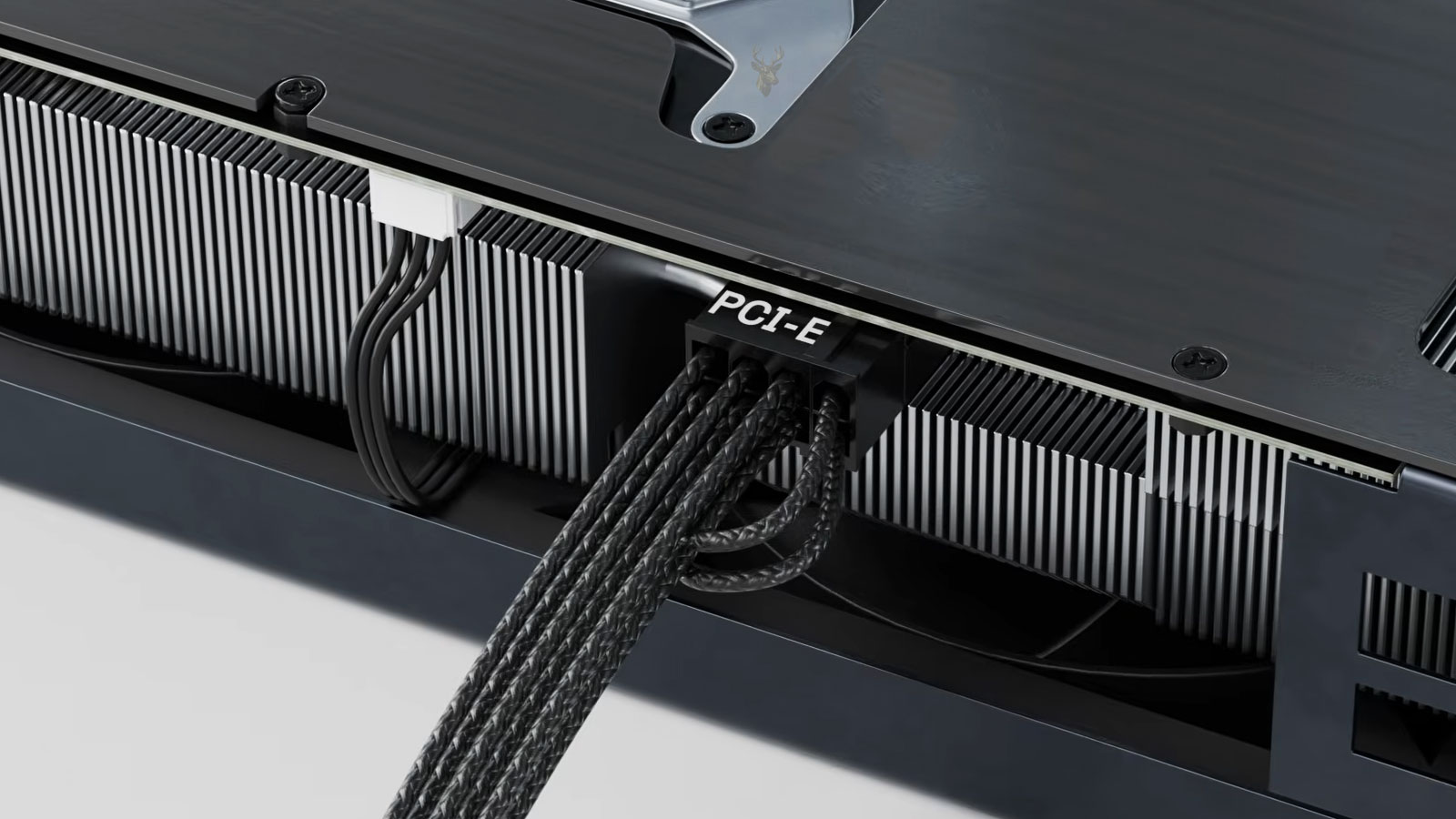
Graphics Cards Depend on Secure and Stable Power Connections
Modern gaming graphics cards can require a substantial amount of electrical power, especially while rendering complex scenes, running at high frame rates, or operating under sustained load. That power must travel through the motherboard slot, one or more dedicated cables from the power supply, or a combination of both.
When a GPU power connector is loose, partially inserted, damaged, contaminated, or connected with an unsuitable cable, electrical resistance can increase at the contact points. The connection may continue working for a time, but the added resistance can generate heat and gradually damage the plug, socket, cable insulation, or graphics card circuit board.
The PCI Express Slot Supplies Only Part of the Required Power
A graphics card receives some power through the PCI Express slot on the motherboard. Lower-power cards may operate entirely from that connection, but gaming GPUs commonly need additional power because the slot alone cannot provide enough energy for the processor, memory, cooling fans, lighting, and voltage-regulation circuits.
Dedicated GPU power connectors allow the power supply to deliver additional current directly to the graphics card. The number and type of connectors depend on the card’s design and maximum power requirement.
Common Graphics Card Power Connections
| Connector Type | Typical Use | Important Consideration |
|---|---|---|
| PCI Express motherboard slot | Supplies base power to every installed graphics card | The slot is not sufficient for many gaming GPUs. |
| 6-pin PCIe connector | Used on lower- and mid-power graphics cards | The connector must be fully inserted and latched. |
| 8-pin PCIe connector | Common on higher-power gaming graphics cards | It may appear similar to CPU power connectors but is wired differently. |
| Dual or triple 8-pin connectors | Used when a GPU requires multiple dedicated power inputs | Each connection must receive stable power without excessive cable loading. |
| Compact high-power connector | Used on some newer high-performance graphics cards | Incomplete insertion and sharp cable bending can create serious heat risks. |
A Connector Can Look Installed Without Being Fully Seated
GPU power plugs often require firm, even pressure before the locking tab engages. A connector may appear to be attached while a small gap remains between the plug and socket.
That gap can prevent some terminals from making full contact. The remaining contact points must then carry more current, which can create localized heating even though the computer starts and the graphics card initially appears functional.
The Retaining Latch Helps Maintain Contact Pressure
Most GPU power plugs include a locking tab that engages with the connector on the graphics card. This latch helps keep the plug from moving when cables are adjusted, the computer is transported, or heat causes slight expansion and contraction.
A damaged latch may allow the plug to loosen gradually. The cable can still remain in place visually while the electrical contacts no longer press together with the intended force.
Electrical Resistance Produces Heat at Weak Connections
Every electrical connection has some resistance, but a properly designed connector keeps that resistance low. Loose terminals, oxidation, contamination, reduced contact area, or damaged metal surfaces increase resistance.
As current passes through the weakened connection, energy is converted into heat. The amount of heat can rise rapidly during gaming because the GPU draws more current under load than it does while the computer is idle.
A connection may remain cool during ordinary desktop use and become dangerously hot only when the graphics card begins drawing sustained power.
Heat Can Further Weaken the Connector
Once a connector begins overheating, the plastic housing may soften or deform. This can reduce contact pressure, move terminals out of alignment, and increase resistance even more.
The process can become progressive: a weak connection creates heat, the heat damages the connector, and the damaged connector produces still more resistance and heat.
High GPU Load Makes Marginal Connections More Noticeable
A gaming computer may operate normally while browsing the web, watching videos, or sitting idle because the graphics card is drawing relatively little power. The problem may appear only after a game, benchmark, rendering task, or artificial intelligence workload increases the electrical demand.
- The game may close unexpectedly.
- The computer may restart or shut down.
- The display may go black while audio continues.
- The graphics driver may stop responding.
- Performance may fall suddenly.
- A burning odor may come from the computer case.
- The power connector may become discolored or distorted.
A Black Screen Does Not Always Mean the GPU Chip Has Failed
When a graphics card loses stable power, it may stop producing a video signal even though the rest of the computer remains on. Fans, case lights, and audio can continue while the monitor reports no signal.
This behavior can resemble a failed GPU processor, driver crash, overheating graphics chip, or defective power supply. The power connectors and cables should therefore be included in the diagnosis.
Sudden Restarts Can Result From Power Protection
A power supply or graphics card may shut down when voltage becomes unstable, current exceeds a protection threshold, or a short circuit develops. The computer may restart immediately, remain off until the power cable is disconnected, or start again only after the components cool.
Protection behavior can prevent more extensive damage, but repeated shutdowns should not be treated as normal gaming instability.
Discoloration Is an Early Warning Sign
Heat damage does not always begin with fully melted plastic. The connector may first become yellow, brown, glossy, brittle, or slightly warped around one terminal.
Metal contacts can also darken or lose their original finish. These changes may indicate that a specific pin has been operating at a higher temperature than the others.
A Burned Smell May Appear Before Visible Melting
Warm insulation, overheated plastic, damaged terminal coatings, or scorched circuit-board material can produce a sharp electrical odor. The smell may be strongest immediately after a demanding game or benchmark.
The computer should be shut down and disconnected from power if a burning odor is detected. Continuing to run the GPU can worsen the damage and increase the risk of a short circuit.
The Damage May Be Concentrated Around One Pin
GPU power connectors contain several terminals that share current. If one terminal is loose, pushed backward, bent, or contaminated, the load may no longer be distributed evenly.
One area of the connector can then overheat while the surrounding pins appear normal. This localized damage is why every individual terminal should be inspected rather than checking only the outside of the plug.
Terminals Can Move Backward Inside the Plastic Housing
The metal contacts inside a power plug are held in place by small retaining features. A terminal can move backward if the cable was assembled incorrectly, pulled forcefully, or repeatedly inserted and removed.
The plug may latch securely while the recessed terminal fails to reach the matching contact on the graphics card.
Cable Tension Can Slowly Pull a Connector Out of Position
Thick power cables can place sideways or upward pressure on a graphics card connector. A tightly bent cable, crowded side panel, or poor cable-management route may keep pulling against the plug after the case is closed.
Over time, this tension can loosen the connection, stress the socket solder joints, or prevent the plug from remaining fully seated.
Sharp Bends Near the Connector Can Create Uneven Pressure
A cable bent immediately after leaving the connector can press more heavily against one side of the plug. This is particularly important with compact high-power connectors that use many small terminals within a narrow housing.
The cable should leave the connector straight for an appropriate distance before gradually changing direction. The available clearance depends on the cable design, graphics card orientation, and computer case width.
The Side Panel Can Press Against the GPU Cable
Large graphics cards often sit close to the side panel in narrower cases. If the panel must be forced into place, it may push the cable sharply against the connector.
A closed case can therefore create a problem that is not present while the side panel is removed. Cable clearance should be checked before final assembly.
Not Every Modular Power Supply Cable Is Interchangeable
Modular power supply cables may use similar-looking connectors at the power supply end, but the internal pin arrangement can differ between manufacturers, product families, and even models from the same brand.
Using a modular cable that did not come with the power supply can place voltage on the wrong terminals and immediately damage the graphics card, cable, or power supply.
The GPU End and Power Supply End Serve Different Purposes
The connector attached to the graphics card follows the PCIe power arrangement expected by the GPU. The power supply end is proprietary on many modular units.
A cable should not be reversed or substituted merely because both ends physically fit into available sockets.
CPU Power Cables Must Not Be Used for Graphics Cards
Eight-pin CPU power connectors and eight-pin PCIe graphics connectors can appear similar, but their shapes, keying, and electrical pin assignments are different. Some cables divide into 4+4 sections for the CPU, while GPU cables commonly divide into 6+2 sections.
Forcing the wrong connector into a socket can damage the plug or apply incorrect voltage to the graphics card.
| Cable Marking or Shape | Intended Connection |
|---|---|
| PCIe or VGA | Graphics card power input |
| CPU or EPS | Motherboard processor power connector |
| 6+2-pin | Commonly used for 6-pin or 8-pin GPU power sockets |
| 4+4-pin | Commonly used for CPU power |
| Proprietary modular connector | Must match the exact power supply cable specification |
Split PCIe Cables Can Place Multiple Connectors on One Lead
Some power supply cables include two GPU connectors attached to the same cable. This arrangement is often called a daisy-chain or pigtail configuration.
Although the cable may be designed to support both plugs, a high-power graphics card can place a substantial load through the shared wires and power supply connection.
Separate Cables Can Improve Current Distribution
When a graphics card has two or three power sockets, using separate PCIe cables from the power supply can distribute current across additional wires and modular connections. This may reduce heat and voltage drop compared with placing the entire load on one split cable.
The correct arrangement depends on the graphics card requirements, power supply design, cable rating, and manufacturer instructions.
Cable Thickness and Construction Affect Power Delivery
Power cables are manufactured with conductors of specific sizes, insulation types, terminal materials, and current capabilities. Low-quality extension cables or adapters may use thinner wires, weak terminal crimps, or poor contact plating.
A cable can fit correctly while still creating excessive voltage drop or heat under sustained GPU load.
Extension Cables Add More Contact Points
Decorative sleeved extensions are commonly used to improve the appearance of gaming computers. Each extension adds another plug-and-socket connection between the power supply and graphics card.
Every additional contact point is another location where poor crimping, loose terminals, oxidation, or incomplete insertion can increase resistance.
Adapters Must Be Used Within Their Intended Limits
Some graphics cards include adapters that combine several traditional PCIe connectors into one compact high-power plug. The adapter depends on every input connector receiving stable power and being fully inserted.
Leaving one adapter branch disconnected, using unsuitable source cables, or sharply bending the output near the GPU can create instability and heat.
SATA and Peripheral Adapters Are Not Ideal for High GPU Loads
Adapters that convert SATA or older peripheral power connectors into GPU power may be included with some low-power cards or sold separately. These source connectors were not designed for the same sustained current as dedicated PCIe power cables.
Using them with a demanding gaming graphics card can overheat the adapter, source connector, or power supply wiring.
Power Supply Capacity Is More Than a Total Wattage Number
A power supply may advertise enough total wattage while lacking the appropriate cable arrangement, connector count, current capacity, or transient response for a particular graphics card.
The GPU does not draw power at a perfectly constant rate. Rapid changes in workload can produce brief demand spikes that place additional stress on the power supply and cable connections.
Transient Power Spikes Can Expose Weak Connections
A graphics card may briefly request much more power when moving from a light workload to a demanding scene. A healthy power system can respond without excessive voltage drop.
A marginal cable, overloaded connector, aging power supply, or weak terminal may cause a crash or shutdown during these rapid changes even when average power consumption appears acceptable.
An Undersized Power Supply Can Increase Instability
If the power supply operates near or beyond its practical capability, voltage regulation may become less stable and internal temperatures may rise. The GPU power cables can also be subjected to sustained high current.
Repeated crashes under load should prompt evaluation of both the power supply and the physical connector condition.
An Aging Power Supply May No Longer Perform Like It Did When New
Internal power supply components can degrade through heat, electrical stress, dust accumulation, and years of operation. A unit that once powered the graphics card reliably may begin producing unstable voltage or shutting down during load changes.
Replacing only a burned GPU cable without checking the power supply can leave the underlying cause unresolved.
Dust Can Hide Early Connector Damage
Dust around the graphics card can conceal discoloration, soften the appearance of melted plastic, and trap heat near power connectors. It may also contain residue that contributes to surface contamination.
The connector area should be inspected under good lighting after the computer has been shut down and safely disconnected.
Cleaning Cannot Repair a Loose or Burned Terminal
Removing dust may improve visibility and airflow, but it does not restore lost spring tension, damaged plating, deformed plastic, or weakened crimps. A heat-damaged connection generally requires replacement of the affected plug, cable, socket, or graphics card component.
Repeated Unplugging Can Wear Connector Contacts
GPU power connectors are designed for service, but frequent removal can wear the terminal surfaces and locking mechanism. Pulling on the wires instead of the plug can also loosen crimps or pull terminals backward.
The latch should be released and the plug removed evenly without twisting the connector on the graphics card.
Case Movement Can Disturb a Marginal Connection
A computer may fail after being transported, cleaned, upgraded, or moved to another desk because the GPU cable shifted slightly. The movement did not necessarily create the original weakness, but it may have exposed a connector that was already partially seated or under tension.
A gaming system that becomes unstable immediately after being moved should have its internal power connections checked before demanding workloads resume.
GPU Sag Can Add Mechanical Stress Near Power Connections
Large graphics cards can bend downward under their own weight. Although the power connector does not normally support the card, sag can change cable angles and place additional stress on the socket, circuit board, and connector area.
A support bracket may help maintain alignment, but it should not push the graphics card upward so forcefully that the card or motherboard slot becomes distorted.
Vertical GPU Mounting Changes Cable Routing
A vertically mounted graphics card may improve visual presentation, but it can reduce clearance between the connector, side panel, and case frame. The cables may need to bend in a direction that differs from a standard horizontal installation.
The mounting arrangement should provide enough space for the power plug to remain fully seated without being pressed or twisted.
The First Signs of Heat Damage Should Not Be Ignored
- A connector feels unusually warm after gaming.
- The plug or socket has changed color.
- The cable insulation has hardened or softened.
- The connector is difficult to remove.
- The latch no longer holds securely.
- The computer shuts down only under GPU load.
- A burned electrical odor appears after gaming.
- The display cuts out when the cable is touched.
These symptoms can indicate that the connection is already deteriorating. Continued use may turn limited connector damage into a failed graphics card, damaged power supply, or burned circuit-board area.
Diagnosis Should Begin Before the Connector Is Disturbed
A GPU power problem can leave evidence that is lost once the cable is unplugged, cleaned, or repositioned. Before moving anything, the technician should observe the connector angle, cable tension, latch position, side-panel clearance, and any visible gap between the plug and graphics card socket.
Photographs can document whether the cable was sharply bent, twisted, pulled sideways, or resting against another component. This information may help explain why the connection overheated.
The Computer Should Be Disconnected From Power Before Inspection
The system should be shut down, the power supply switched off when applicable, and the AC cable removed before GPU power connections are handled. Pressing the power button briefly after disconnection can help discharge some remaining standby energy.
The graphics card and connector may remain warm after gaming, so they should be allowed to cool before inspection.
A Visual Inspection Should Include Both Sides of the Connection
Heat damage may appear on the removable cable plug, the fixed socket on the graphics card, or both. Inspecting only the cable can miss a burned terminal recessed inside the GPU connector.
- Look for brown, black, yellow, or glossy areas.
- Check whether the plastic housing has changed shape.
- Confirm that every metal terminal remains at the same depth.
- Inspect the latch for cracks or weak engagement.
- Look for melted insulation near the wire entry points.
- Check the circuit board around the socket for darkening.
- Note any odor that remains after the computer cools.
Magnification Can Reveal Damage Hidden Inside the Socket
Small terminal changes are difficult to see without magnification. A contact may be slightly recessed, spread open, darkened, or surrounded by softened plastic while the outside of the connector still appears acceptable.
Bright lighting from several angles can help reveal whether all terminals remain aligned and whether any residue or debris is present.
A Connector That Is Difficult to Remove May Already Be Heat Damaged
Overheated plastic can deform around the terminals and bond the plug to the socket. Excessive force during removal may tear the connector from the graphics card, pull solder pads from the circuit board, or break the cable housing.
If the plug does not release after the latch is fully disengaged, the surrounding area should be examined carefully before additional force is applied.
The Wires Should Not Be Used as a Handle
Pulling on the cable bundle can weaken the crimps that join the wires to the metal terminals. A terminal may remain inside the housing while the conductor begins separating from it.
The connector body should be held evenly and moved straight out whenever the design and available space permit.
Each Terminal Should Remain Locked in the Housing
After removal, the metal contacts should be checked from the front and rear of the plug. No terminal should sit noticeably deeper than the others or move backward when light pressure is applied to its wire.
A loose terminal can create an intermittent connection even if the connector housing still latches properly.
Crimp Quality Affects More Than Mechanical Strength
The crimp between a wire and terminal must create a low-resistance electrical connection. A weak, incomplete, or contaminated crimp can overheat inside the cable housing while the contact between plug and socket remains secure.
Heat near the rear of the connector may therefore point toward a cable manufacturing or assembly problem rather than incomplete insertion alone.
Burn Marks May Follow the Current Path
Discoloration beginning at one terminal and extending into the wire can identify the conductor that carried excessive resistance. Damage concentrated at the socket face may point more strongly toward poor contact between the male and female terminals.
The exact appearance does not prove the original cause, but it can help determine which components require replacement.
Software Monitoring Can Provide Useful Clues
Hardware monitoring utilities may report GPU power, voltage, clock speed, temperature, fan speed, and performance limits. These readings can help show whether the failure occurs during a specific load level or power transition.
Software data cannot confirm that a connector is physically safe, but it can reveal patterns that justify a closer electrical and visual inspection.
Power Readings Are Estimates Rather Than Direct Connector Measurements
Many graphics cards estimate power consumption using onboard sensors and calculations. The displayed number may represent total board power or selected power rails rather than the exact current passing through each connector pin.
A normal software reading does not rule out one overheated terminal because the total power can remain within specification while the current is distributed unevenly across the contacts.
Voltage Drops Can Appear Only Under Load
A cable may show normal voltage while the computer is idle and drop below an acceptable level when the GPU draws more current. Increased resistance in the cable, connector, or power supply socket can create this load-dependent voltage loss.
Testing must be performed with appropriate equipment and safe access because exposed measurement points near a running graphics card can be hazardous to the hardware.
Clock Speed Reductions May Be a Protective Response
A graphics card may reduce clock speed when it reaches a power, voltage, or temperature limit. The game may continue running but performance can drop unexpectedly.
Power limiting does not automatically indicate a damaged connector, but unexplained reductions combined with odor, discoloration, crashes, or cable heat deserve further investigation.
A Driver Reset Can Be Triggered by Unstable Power
If the GPU briefly loses stable voltage, the operating system may detect that the graphics processor stopped responding and restart the display driver. The screen can flash black before returning to the desktop.
This symptom is often blamed on software, but repeated driver resets during high power draw can also result from a weak power connection.
Event Logs May Record the Result Rather Than the Cause
Windows may record an unexpected shutdown, display-driver timeout, or hardware error after a GPU power interruption. These entries confirm that a failure occurred but may not identify a loose or overheated connector directly.
Log information should be compared with physical inspection, load conditions, and power-supply behavior.
Artificial Load Testing Should Be Used Cautiously
Benchmarks and stress tests can reproduce GPU power problems, but they can also accelerate damage in a connector that is already overheating. A computer with visible discoloration, melting, or burning odor should not be placed under additional load.
Physical safety checks come before performance testing.
A Brief Successful Test Does Not Prove the Connection Is Safe
A marginal connector may survive several minutes of testing and overheat only during a longer gaming session. Temperature can rise gradually as the case warms and the graphics card maintains a sustained workload.
Extended observation may be appropriate only after the connector, cable, and power source have been confirmed to be undamaged.
Infrared Measurements Can Show Uneven Heating
A thermal camera may reveal one side of a connector becoming hotter than the others. This can help identify poor current sharing, but surface temperature does not always show the hottest point inside the plastic housing.
Reflective materials, airflow, viewing angle, and emissivity can also affect thermal readings.
Touch Is Not a Safe or Accurate Temperature Test
Placing a hand near a running GPU connector risks contact with fans, conductive parts, and hot surfaces. Human touch also cannot compare individual terminal temperatures accurately.
Temperature should be evaluated with appropriate tools after visual safety checks have been completed.
Current Clamp Testing Has Practical Limits Inside a Computer
Measuring current in a GPU power cable can help evaluate load distribution, but bundled conductors and limited access make testing difficult. Clamping around an entire cable containing both supply and return wires may produce an unhelpful reading because the magnetic fields cancel.
Accurate testing requires an appropriate method and an understanding of how the conductors are arranged.
Connector Resistance Is Difficult to Measure Directly
The resistance causing heat may be extremely small and may change when the connector warms, moves, or carries high current. Ordinary resistance measurements taken with the computer off may not reproduce the operating condition.
Voltage-drop testing under controlled load can be more informative, but it requires safe access and accurate reference points.
| Diagnostic Observation | What It May Indicate |
|---|---|
| Normal operation at idle but shutdown during gaming | Power supply limitation, connector resistance, cable overload, GPU fault, or thermal protection |
| One terminal darker than the others | Localized poor contact, recessed pin, weak crimp, or uneven current sharing |
| Voltage falls as GPU load rises | Cable resistance, overloaded power supply rail, weak modular connection, or failing power supply |
| Driver resets without full system shutdown | Brief GPU instability, software fault, overheating, or momentary power interruption |
| Connector heats more on one side | Uneven terminal contact or current distribution |
| Failure begins after the side panel is installed | Cable pressure, sharp bend, reduced connector seating, or airflow change |
The Power Supply End of the Cable Also Requires Inspection
On a modular power supply, heat damage can develop where the GPU cable connects to the power supply rather than at the graphics card. A loose modular plug, damaged terminal, or overloaded socket can create similar resistance and discoloration.
Both ends of the cable should be inspected whenever the power supply design allows safe access.
A Modular Connector Can Be Partially Inserted
The power supply side may be difficult to see once the unit is installed behind a case shroud. A connector can remain slightly loose after cable management or after the power supply is moved into position.
Cable tension behind the motherboard tray can also pull against the modular plug.
Unused Modular Ports Are Not Always Equivalent
Some power supplies label groups of sockets for CPU and PCIe cables, while others use proprietary port assignments. A cable should be connected only to a port approved for that function by the power supply manufacturer.
Physical compatibility alone does not confirm electrical compatibility.
Power Supply Internal Damage May Not Be Visible Externally
A modular socket can appear normal while the circuit board, solder joints, or internal conductors behind it have overheated. Repeated GPU shutdowns after cable replacement may indicate that the power supply itself remains defective.
Opening a power supply is hazardous because high-voltage components can retain dangerous energy even after the unit is disconnected. Internal power supply repair should not be attempted without the required training and equipment.
The Graphics Card Socket Is Soldered to the Circuit Board
The fixed power connector on the GPU is attached through soldered terminals and mechanical supports. Heat, cable tension, and repeated movement can weaken these joints or damage the surrounding circuit-board material.
A new cable cannot correct a socket that has cracked solder joints, burned contacts, or damaged board pads.
Cracked Solder Joints Can Cause Intermittent Power
A connector may look clean while one or more solder joints beneath it have fractured. The GPU may lose power when the cable is moved, when the board warms, or when the graphics card flexes slightly under load.
Inspection of the solder side may require removal of the graphics card cooler or backplate, depending on the board design.
Burned Circuit-Board Material Requires Careful Evaluation
Severe heat can darken or carbonize the fiberglass material around the connector pins. Carbonized board material can become partially conductive and may continue causing leakage or short circuits even after the socket is replaced.
The damaged area may need to be cleaned, isolated, or reconstructed before the card can be considered reliable.
Copper Pads and Through-Holes Can Be Damaged During Socket Removal
GPU power connectors are connected to large copper areas that absorb heat during soldering. Removing a burned socket requires controlled heating so the board is not overheated and the plated through-holes are not torn out.
If a pad or internal connection is lost, the repair may require circuit reconstruction rather than simple connector replacement.
Replacing Only the Plastic Housing Is Not Always Enough
The visible plastic may be deformed while the metal contacts have also lost spring tension, oxidized, or transferred heat into the circuit board. A reliable repair must address the full electrical path.
Reusing overheated terminals inside a new housing can leave the original high-resistance condition in place.
The Cable and GPU Socket Should Often Be Replaced Together
If both sides of a connection show heat damage, replacing only the cable leaves weakened contacts in the graphics card socket. Replacing only the socket leaves a damaged plug that can overheat the new part.
Both mating surfaces should be restored to clean, correctly tensioned contacts.
A Burned Adapter Must Not Be Reused
An adapter that has discolored, melted, or developed loose terminals should be removed from service. Reshaping the plastic or cleaning the surface does not restore the original contact pressure or material strength.
The source cables connected to the adapter should also be inspected for heat damage.
Extension Cables Should Be Removed During Diagnosis
Decorative extensions and additional adapters can be bypassed temporarily so the graphics card connects directly to the correct power supply cables. This reduces the number of contact points and helps isolate the failing section.
Any direct test should still use cables approved for the exact power supply.
Known-Good Testing Requires More Than a Matching Connector
A replacement power supply used for diagnosis must provide suitable capacity, correct GPU connectors, compatible cables, and stable operation under the expected load. A low-capacity or questionable test unit can create misleading results.
The original modular cables should never be transferred to the test power supply unless the manufacturer explicitly confirms compatibility.
Testing the GPU in Another Computer Carries Risk
A graphics card with a damaged or shorted power connector can harm another power supply or motherboard. Visible heat damage should be repaired or electrically evaluated before the card is installed in a different system.
Likewise, a known-good graphics card should not be connected to a cable or power supply suspected of damaging the original card.
A Power Supply Tester Does Not Fully Reproduce GPU Load
Basic power supply testers can confirm that several output voltages are present, but they usually do not place the unit under the rapid and sustained load created by a gaming graphics card.
A power supply can pass a simple tester and still become unstable during GPU demand spikes.
Substitution Testing Should Follow a Controlled Order
- Document the original cable routing and connector condition.
- Remove visibly damaged adapters or extensions.
- Inspect the GPU socket and power supply cable terminals.
- Confirm that the correct cables are being used.
- Replace damaged mating components before applying load.
- Test with an appropriate known-good power supply when necessary.
- Monitor the repaired connection during controlled operation.
This order reduces the risk of exposing known-good parts to an unresolved short or overheated connection.
Cable Replacement Should Match the Exact Power Supply
The safest replacement is a cable supplied or explicitly approved for the specific power supply model. Brand name alone is not enough because pinouts can vary across product lines.
Custom cables should be manufactured for the exact power supply and verified for correct wiring, conductor size, terminal quality, and connector type.
Wire Gauge Is Only One Part of Cable Quality
Thicker conductors can reduce voltage drop, but terminal material, crimp accuracy, insulation temperature rating, and connector construction are also important. A thick wire attached to a weak terminal can still overheat at the contact point.
Cable Combs and Tight Bundling Can Add Stress
Decorative cable combs can improve appearance, but rigid alignment near the GPU may prevent the wires from relaxing naturally. Very tight bundling can also pull unevenly against the plug.
Cable management should support the connection rather than place it under continuous tension.
The Cable Should Have Enough Slack for Normal Movement
A small amount of controlled slack allows the connector to remain seated when the case is moved or the graphics card expands slightly with heat. Excessive slack can interfere with fans, while insufficient slack can pull against the socket.
The cable should follow a gradual route without twisting or pressing against sharp case edges.
Connector Seating Should Be Verified From More Than One Angle
Large coolers and case structures can obstruct the view of the GPU socket. The plug should be inspected from the top, side, and front when possible to confirm that no gap remains.
The latch should engage naturally without requiring the cable to be forced sideways.
The Side Panel Should Close Without Touching the Connector
After the cable is installed correctly, the case panel should be placed into position gently. If it presses against the cable or requires force to close, the routing or case clearance should be changed.
Operating the computer with the panel removed may temporarily eliminate pressure but does not provide a complete long-term solution.
Case Selection Can Affect Connector Safety
A case that is too narrow for the graphics card and cable combination can force an unsuitable bend. GPU length alone does not determine fit; side clearance around the power connector must also be considered.
A wider case, alternate cable design, or different graphics card orientation may be necessary when safe routing cannot be achieved.
Right-Angle Adapters Add Compatibility Questions
A right-angle adapter can improve cable clearance, but it introduces another electrical connection and must match the connector orientation, pin arrangement, current requirement, and available space.
An adapter should not be used if it prevents the latch from engaging, contacts the side panel, or places force on the GPU socket.
Every Added Connection Should Be Treated as a Potential Failure Point
Adapters, extensions, splitters, and angle connectors may be useful in certain builds, but each additional interface introduces more terminals that must remain clean, aligned, and fully seated.
The simplest safe power path usually contains the fewest unnecessary connectors between the power supply and graphics card.
Repairability Depends on the Extent of the Damage
A loose undamaged cable may require only correct reseating and improved routing. A burned cable plug requires replacement, while a melted GPU socket may require board-level repair. Severe circuit-board damage can make replacement of the graphics card more practical than reconstruction.
| Condition | Typical Repair Direction |
|---|---|
| Connector not fully seated, no visible damage | Inspect terminals, reseat correctly, improve cable routing, and verify under controlled load |
| Broken latch with clean contacts | Replace the affected cable or connector before normal use |
| Discolored cable plug | Replace the cable and inspect the GPU socket for matching damage |
| Melted GPU socket | Replace the socket and evaluate board pads, traces, and surrounding material |
| Burned modular power supply socket | Replace or professionally evaluate the power supply and cable |
| Carbonized graphics card circuit board | Board reconstruction may be possible, but replacement may be more reliable |
| Repeated failure after connector replacement | Investigate cable compatibility, current distribution, power supply condition, and GPU load |
A Successful Cosmetic Repair Is Not Enough
Removing melted plastic or replacing a damaged housing may improve appearance without correcting electrical resistance. The repaired connection must provide proper contact pressure, low voltage drop, stable current distribution, and secure mechanical support.
Testing should confirm that the area remains stable during the same type of workload that originally caused the failure.
The Cause Must Be Corrected Before the System Returns to Service
If heat damage developed because of sharp bending, incomplete insertion, an overloaded split cable, poor adapter quality, or an incompatible modular cable, replacing the burned connector without correcting that condition can lead to another failure.
The repair should restore both the damaged parts and the installation practices that protect them.
Final Testing Should Reproduce Real Gaming Conditions Safely
After a GPU power connector, cable, adapter, socket, or power supply has been repaired or replaced, the system should be tested under controlled conditions. The goal is to confirm that the graphics card receives stable power without unusual heat, odor, voltage drop, shutdowns, or connector movement.
Testing should begin with light use before progressing to more demanding workloads. A connector that already shows discoloration, deformation, or looseness should not be placed under load until the damaged parts have been corrected.
The First Power-On Should Be Observed Carefully
The initial startup after repair can reveal whether the graphics card is detected, the fans respond normally, and the display signal remains stable. The system should be watched for unusual sounds, electrical odor, smoke, or immediate shutdown.
If anything appears abnormal, power should be disconnected before further testing continues.
Idle Operation Provides a Baseline
Before launching a game or benchmark, the computer should remain at the desktop while GPU temperature, power draw, fan speed, and voltage behavior are observed. This establishes a baseline and confirms that the system is stable under a light workload.
Idle stability alone does not prove that the repair is complete, but it can reveal immediate driver, detection, or power-delivery problems.
Load Should Be Increased Gradually
- Begin with ordinary desktop use.
- Run a light 3D application or older game.
- Observe the connector area and monitoring data.
- Progress to a modern game or controlled benchmark.
- Maintain the load long enough to identify gradual heating.
- Stop immediately if odor, instability, discoloration, or abnormal temperature appears.
This progression reduces the chance of placing full demand on a connection that has not yet been proven stable.
Short Benchmarks and Long Gaming Sessions Test Different Conditions
A short benchmark may expose rapid power spikes, while an extended gaming session can reveal gradual heat accumulation inside the case. Both conditions are relevant because connector damage may develop from either sudden current demand or sustained load.
A system that passes a brief test but fails after an hour may still have a cable-routing, airflow, contact-resistance, or power-supply problem.
The Connector Area Should Be Rechecked After Testing
Once the computer has been shut down and disconnected, the GPU power connection should be examined again. A new change in color, odor, plastic texture, or cable position can indicate that the repair has not fully corrected the problem.
The connector should also remain fully seated with the latch engaged and no new gap visible.
Thermal Comparison Can Help Confirm Current Sharing
When appropriate equipment is available, the connector can be compared before and after load testing. A large temperature difference between one side and the other may suggest uneven current distribution or poor contact at a specific terminal.
Surface temperature should be interpreted carefully because the hottest point may be hidden inside the socket.
Cable Movement Should Not Change GPU Behavior
Normal case movement and cable relaxation should not cause flickering, driver resets, or black screens. The connector should remain mechanically stable without relying on the side panel, tape, or tension from nearby cables to hold it in place.
Forceful movement should not be used as a test because it can damage the graphics card socket or motherboard slot.
The Side Panel Must Be Included in Final Testing
A GPU power cable may remain properly seated with the case open and become sharply compressed when the side panel is installed. Final testing should confirm that the panel closes naturally without touching or bending the connector area.
Temperatures should also be observed with the case in its normal closed configuration because airflow changes when the panel is removed.
Cable Routing Should Remain Clear of Fans
Power cables should not sag into GPU, case, or radiator fans. A cable that contacts a fan can damage the insulation, stop the fan, create noise, or change the pull on the GPU connector.
Cable ties or supports may be used when they do not compress the wires or place tension on the plug.
Final Validation Should Include Several Restart Cycles
A gaming computer should start, restart, shut down, and resume from sleep without losing the graphics card or display signal. Intermittent power connections may appear during transitions when the GPU changes power states rapidly.
Repeated successful cycles provide more confidence than a single startup.
| Final Check | Expected Result |
|---|---|
| Cold startup | The graphics card initializes and produces a stable display signal. |
| Idle operation | No odor, unusual heat, driver error, or connector movement appears. |
| Gaming load | The system remains stable without shutdowns, black screens, or sudden performance loss. |
| Extended load | The connector area does not develop progressive heat or discoloration. |
| Side panel installed | The cable remains uncompressed and properly seated. |
| Restart and sleep cycles | The GPU returns to operation without detection or power problems. |
| Post-test inspection | No new deformation, odor, looseness, or darkened terminals are present. |
Preventive Installation Practices Reduce Connector Stress
Many GPU connector failures begin with installation conditions that appear minor. A partially seated plug, sharp bend, overloaded cable, or incompatible modular lead can operate for weeks or months before visible damage develops.
Careful assembly reduces electrical resistance and mechanical stress before either becomes a failure.
Every Connector Should Be Inserted Straight and Fully
The plug should enter the GPU socket evenly without twisting. Firm pressure should be applied to the connector housing rather than the wires until the latch engages and no visible gap remains.
If unusual force is required, the connector orientation, keying, and cable type should be checked instead of forcing the plug.
The Connection Should Be Inspected After Cable Management
Routing and tying cables can pull a previously seated connector slightly out of position. The GPU plug should therefore be checked again after the final cable-management adjustments are completed.
The power supply end should also be confirmed on modular systems.
Separate Power Cables May Be Preferable for High-Load GPUs
When the power supply and graphics card support it, separate PCIe power cables can spread current across more wires and power supply terminals. This can reduce stress compared with using both connectors from one split lead on a demanding card.
The graphics card and power supply manufacturer instructions should guide the final arrangement.
Unused Adapter Branches Should Be Positioned Safely
An unused connector on a split cable should not rest against a fan, exposed circuit board, or hot component. It should be secured without pulling on the active plug.
Protective caps may be appropriate when they are made for the connector and do not trap excessive heat.
GPU Supports Should Prevent Sag Without Creating New Force
A support bracket can reduce strain on the motherboard slot and help maintain cable alignment. It should hold the graphics card level without lifting it beyond its natural position.
An incorrectly adjusted support can twist the card and change pressure at the power socket.
Case Clearance Should Be Evaluated Before Buying Components
Graphics card fit includes more than length and slot thickness. The builder should also consider cable exit direction, side-panel distance, radiator placement, vertical mounting hardware, and the amount of space needed for a gradual bend.
A case that technically accepts the card may still be unsuitable if the power cable must be compressed sharply.
Power Supply Selection Should Include Connector Requirements
Total wattage is important, but the power supply should also provide the correct number and type of GPU connectors, suitable cables, adequate current capacity, and enough headroom for transient demand.
Using multiple adapters to compensate for missing native connectors may indicate that the power supply is not well matched to the graphics card.
Modular Cables Should Stay With Their Original Power Supply
When a power supply is replaced, its modular cables should normally be removed as well. Leaving the old cables installed because they are already routed can expose the new components to an incompatible pinout.
Cables should be labeled and stored with the exact power supply they belong to.
Custom Cables Require Exact Model Compatibility
Custom sleeved cables should be ordered for the exact power supply model, not only the manufacturer or wattage. The cable maker should specify compatibility and use suitable wire, terminals, and connector housings.
Unknown or reused custom cables should be verified before they are connected to expensive hardware.
Cable Pinouts Should Never Be Guessed
Wire color, connector shape, and internet photographs are not reliable enough to confirm every modular cable arrangement. Manufacturers may use black wires throughout or change pinouts between models.
Incorrect wiring can destroy the GPU immediately, even if the cable fits perfectly.
Routine Cleaning Provides an Opportunity for Inspection
When a gaming computer is opened for dust removal, the GPU power connector can be checked for discoloration, looseness, cable pressure, and side-panel clearance. Early detection is easier before the plastic becomes severely deformed.
The computer should be disconnected from power before the connector is touched.
Compressed Air Should Not Be Used to Spin Fans Excessively
During cleaning, GPU and case fans should be prevented from spinning freely at very high speed. Overspeed can damage bearings or generate electrical energy back into the fan circuit.
Cleaning should not push dust deeper into power connectors.
Transporting the Computer Can Change Connector Alignment
Large graphics cards can move during transportation, especially if the case is placed on its side or exposed to vibration. The GPU support, motherboard slot, and power connector should be inspected after shipping or a significant move.
For long-distance transport, removing and packaging a very heavy graphics card separately may reduce mechanical stress when performed correctly.
Upgrades Should Include a Complete Power Review
Installing a more powerful graphics card may require a different power supply, additional dedicated cables, improved case clearance, or removal of old adapters and extensions. Reusing the previous arrangement without checking its limits can create instability or heat.
- Confirm the recommended power supply capacity.
- Check the required connector types and quantities.
- Verify modular cable compatibility.
- Evaluate side-panel and cable-bend clearance.
- Inspect all adapters and extensions.
- Confirm that the case airflow remains adequate.
- Test the completed upgrade under controlled load.
Warning Signs Require Immediate Attention
A gaming computer should not continue operating normally when the GPU power connection shows signs of overheating. The damage can progress rapidly once plastic deformation reduces contact pressure.
- A burning or sharp electrical odor
- Brown, black, yellow, or melted connector plastic
- A plug that no longer latches securely
- A cable that feels unusually hot near the GPU
- Black screens or shutdowns during gaming
- Visible sparks or smoke
- A connector fused to the graphics card socket
- Repeated damage to replacement cables
Smoke or Arcing Requires Immediate Power Disconnection
If smoke, sparks, or electrical arcing appears, the system should be shut down and AC power disconnected as quickly as it can be done safely. The computer should not be restarted to see whether the problem happens again.
Visible arcing can damage the connector, graphics card, power supply, and nearby components within seconds.
A Melted Plug Should Not Be Forced Back Into Service
Heat-damaged plastic may no longer align or insulate the terminals correctly. Pushing the connector back into place can bend contacts, create a short circuit, or hide damage that should be repaired.
The affected plug and socket should be evaluated together before power is restored.
Repeated Shutdowns Can Be a Protective Warning
If the computer repeatedly shuts down only during gaming, the power supply or graphics card may be activating protection. Continuing to restart the system can place the same stressed connector under load again.
The cause should be diagnosed before additional gaming or stress testing.
A Burned Connector Can Damage More Than the Graphics Card
Severe connector failure can send unstable power through the GPU, overheat a modular power supply socket, damage circuit-board traces, or create a short that affects the entire system. Nearby cable insulation and plastic components may also be exposed to heat.
The complete power path should be inspected instead of replacing only the most visibly damaged part.
Warranty Coverage May Depend on the Cause
Graphics card and power supply manufacturers may evaluate whether damage resulted from a product defect, unsupported adapter, incompatible cable, improper installation, or physical modification. Photographs and original components can be useful when warranty service is requested.
Damaged parts should not be discarded until warranty and repair options have been reviewed.
Data Is Usually Stored Elsewhere, but Shutdowns Still Carry Risk
The graphics card normally does not contain the user’s documents, but sudden power loss can interrupt disk writes and damage open files or the operating system. Repeated crashes can therefore create secondary storage or software problems.
Important files should be backed up before further testing when the system remains stable enough to do so safely.
Frequently Asked Questions About GPU Power Connector Damage
Can a loose GPU power cable damage the graphics card?
Yes. A loose or partially inserted cable can increase resistance, create localized heat, and damage both the plug and the graphics card socket.
Why does the computer work normally until a game starts?
The GPU draws much less power during light desktop use. Gaming increases current demand and can expose a weak cable, damaged terminal, overloaded connector, or failing power supply.
Should every GPU power socket use a separate cable?
Separate cables are often preferable for high-power graphics cards, but the correct arrangement depends on the GPU, power supply, and manufacturer instructions.
Can CPU power cables be used for the graphics card?
No. CPU and PCIe power cables have different electrical arrangements and connector designs. Forcing the wrong cable can damage the hardware.
Are modular power supply cables interchangeable?
Not necessarily. Cables that look identical can use different pinouts between brands, product families, and models. Only verified compatible cables should be used.
Can a melted GPU connector be repaired?
In some cases, the socket and damaged board area can be repaired. The feasibility depends on terminal damage, circuit-board condition, carbonization, and whether pads or internal connections remain intact.
Is replacing only the cable enough?
Only when the graphics card socket is completely undamaged. If both mating sides show heat damage, the cable and socket should be addressed together.
Can a power supply tester confirm the PSU is good?
A basic tester can verify that several voltages are present, but it may not reproduce the sustained and rapidly changing load of a gaming GPU.
Why did the connector melt even though the power supply had enough wattage?
Total wattage does not prevent damage caused by poor terminal contact, incomplete insertion, cable tension, weak crimps, an overloaded shared lead, or an unsuitable adapter.
Can lowering the GPU power limit make a damaged connector safe?
No. Lowering the power limit may reduce current temporarily, but it does not restore damaged contacts, melted plastic, weak terminal tension, or burned circuit-board material.
Should a burned adapter be cleaned and reused?
No. Heat can permanently weaken the terminals and housing. A burned or discolored adapter should be replaced and the connected cables inspected.
Can GPU sag cause connector damage?
GPU sag can change cable angles and add mechanical stress near the socket. It may contribute to a problem when combined with tight cable routing or inadequate support.
Why does the system fail only after the side panel is installed?
The panel may be pressing against the cable, creating a sharp bend, partially unseating the plug, or changing case airflow around the connector.
Is a warm GPU power cable normal?
Some temperature rise can occur under load, but unusual heat concentrated near one connector or terminal should be investigated, especially when accompanied by odor, discoloration, or instability.
Can a defective GPU damage the replacement power cable?
Yes. A shorted or abnormal GPU power circuit can overload a replacement cable or connector. The graphics card should be electrically evaluated when damage returns after cable replacement.
Stable GPU Power Depends on the Entire Connection Path
Graphics card power does not depend on a single plug alone. Reliable operation requires a suitable power supply, correct modular cables, secure crimps, clean terminals, fully seated connectors, safe cable routing, adequate case clearance, and an undamaged GPU socket.
A weak point anywhere along that path can create voltage loss, instability, and concentrated heat. The computer may appear normal at idle and fail only when gaming raises current demand.
Visible discoloration, melting, burned odor, black screens, and shutdowns under load should be treated as warnings rather than ordinary gaming behavior. Proper diagnosis includes both ends of every cable, the power supply, the graphics card connector, the surrounding circuit board, and the way the cable is positioned inside the case.
A lasting repair replaces damaged mating components, corrects the installation condition that caused the heat, and verifies stable operation through controlled real-world testing. This approach protects the graphics card, power supply, and the rest of the gaming computer from repeated electrical damage.











