
How Firmware Verifies CMOS Configuration Before the Computer Starts
Every time a computer starts, the motherboard firmware checks stored configuration information before continuing through the startup process. This information includes hardware settings, boot options, processor parameters, storage configuration, integrated device settings, and many other values that help the system initialize correctly.
One method used to verify that these stored settings remain valid is a checksum. If the calculated checksum does not match the expected value, the firmware knows that something has changed, become corrupted, or can no longer be trusted.
What CMOS Memory Stores
CMOS memory is a small area that stores configuration values needed by the motherboard firmware. Unlike the computer’s primary memory (RAM), CMOS retains these settings when the computer is turned off by using a small battery that continues supplying power while the system is unplugged.
- System date and time
- Boot device priority
- Storage controller configuration
- CPU and memory settings
- Integrated peripheral options
- Security and firmware passwords
- Power management settings
- Virtualization features
Modern systems often combine traditional CMOS storage with firmware stored in flash memory, but the term “CMOS settings” continues to describe these configuration values.
What Is a Checksum?
A checksum is a calculated value generated from stored data. Instead of comparing every individual setting one by one, the firmware performs a mathematical calculation using the configuration information and compares the result to a previously stored checksum.
If both values match, the firmware assumes the stored configuration has remained unchanged and internally consistent. If they differ, the firmware knows that the configuration data should not automatically be trusted.
A checksum does not identify which setting changed. It simply confirms whether the stored configuration still matches what the firmware expects.
Why the Firmware Performs This Check
Many motherboard settings directly affect hardware initialization. Incorrect values could prevent storage devices from being detected, memory from operating correctly, expansion cards from initializing, or the operating system from loading successfully.
By validating configuration data before hardware initialization continues, the firmware reduces the chance of attempting to start the system with corrupted or incomplete settings.
What a CMOS Checksum Error Means
A CMOS checksum error indicates that the firmware found a mismatch between the calculated checksum and the expected checksum stored with the configuration data. This does not automatically mean that the motherboard has failed.
Instead, it tells you that the firmware no longer considers the stored settings completely reliable and may restore default values before continuing the startup process.
| Firmware Message | General Meaning |
|---|---|
| CMOS Checksum Error | Configuration data failed validation. |
| CMOS Checksum Bad | The calculated checksum differs from the stored value. |
| CMOS Defaults Loaded | Factory configuration has been restored automatically. |
| Press F1 to Continue | The firmware requires user acknowledgement before booting. |
| Press F2 or Del to Enter Setup | Configuration review may be required before startup. |
The exact wording varies among motherboard manufacturers, but the underlying purpose is generally the same.
A Checksum Error Is Different From a Hardware Failure
It is important to distinguish a checksum error from complete hardware failure. The motherboard, processor, memory, and storage devices may all be functioning normally while the firmware simply detects that the stored configuration should be verified.
Many systems continue operating normally after default settings are restored, although certain custom configuration options may need to be entered again.
Battery Failure Is One Common Cause
One of the most common reasons for checksum errors is loss of battery power. As the CMOS battery weakens, stored configuration information may become incomplete or inconsistent after the computer has been turned off for an extended period.
Replacing the battery often prevents future checksum errors, although the firmware settings usually need to be reviewed afterward.
Firmware Updates Can Trigger a Checksum Mismatch
Updating the motherboard firmware frequently changes internal configuration structures. After the update, previously stored settings may no longer match the new firmware’s expected layout, causing a checksum warning during the next startup.
In many cases, this behavior is expected and simply requires entering the firmware setup, reviewing the options, saving the configuration, and rebooting.
Resetting the CMOS Also Changes the Checksum
Using the motherboard’s Clear CMOS jumper, pressing a reset button, or temporarily removing the CMOS battery intentionally erases the stored configuration. After this process, the firmware creates a new baseline using its default settings.
The first startup afterward may display a checksum-related message while the firmware rebuilds its configuration information.
Power Interruptions Can Affect Stored Settings
Unexpected electrical events, unstable power supplies, improper shutdowns during firmware updates, or severe electrical disturbances can occasionally leave configuration information incomplete or inconsistent.
Although uncommon, these situations can produce checksum validation failures during the next startup sequence.
Incorrect Overclocking Settings Can Produce Repeated Errors
Changes to processor frequency, memory timings, voltages, or other advanced firmware settings can sometimes create unstable startup conditions. If the firmware cannot initialize the hardware successfully, it may restore safer defaults and generate a checksum-related warning.
This recovery mechanism helps protect the system from repeatedly attempting to start with settings that have already proven unstable.
Corrupted Firmware Data Is Less Common but Possible
In rare situations, corruption within the firmware itself rather than the stored CMOS settings can contribute to repeated checksum messages. This possibility becomes more likely if errors continue after replacing the battery, restoring defaults, and saving a fresh configuration.
Further diagnosis may involve verifying firmware integrity, reviewing motherboard documentation, or updating the firmware if an appropriate version is available.
Some Checksum Errors Appear Only After Long Periods Without Power
A computer that operates normally every day but reports a checksum error after sitting unplugged for several weeks may indicate that the CMOS battery is no longer maintaining configuration data consistently.
Recognizing this pattern can help distinguish battery-related problems from firmware corruption or motherboard failure.
Saving the Firmware Configuration Creates a New Checksum
Whenever configuration settings are intentionally changed and saved, the firmware recalculates the checksum using the new values. This newly generated checksum becomes the reference used during future startups.
As long as those settings remain unchanged and intact, future checksum verification should complete successfully without displaying warning messages.
The First Startup After a Checksum Error May Use Default Settings
When the firmware detects invalid configuration data, it may replace the stored values with a predefined set of defaults. These settings are designed to help the computer start safely with broadly compatible hardware parameters.
Default settings are not always identical to the configuration that existed before the error. Boot order, storage modes, memory profiles, fan controls, virtualization options, and integrated devices may return to their original factory values.
The Computer May Pause and Require Confirmation
Some systems display a warning and wait for the user to press a key before continuing. This pause gives the user an opportunity to enter the firmware setup, review the detected hardware, and confirm whether the restored settings are appropriate.
Continuing without reviewing the configuration may still allow the operating system to start, but it can also leave important settings incorrect.
The Date and Time Should Be Checked First
An incorrect system clock is one of the clearest signs that CMOS information was lost. The date may return to a manufacturer default, an early year, or another value unrelated to the current time.
Correcting the clock is important because the operating system, web browsers, security certificates, scheduled tasks, backups, and file timestamps all depend on accurate timekeeping.
Boot Order Can Change After Defaults Are Loaded
A checksum reset may place another storage device, network boot option, or removable device ahead of the operating system drive. The computer may then report that no bootable device is available even though the operating system remains intact.
- Confirm that the correct Windows, Linux, or other operating system entry is selected.
- Check whether the intended SSD or hard drive appears in the storage list.
- Move unnecessary network or removable boot options lower in the order.
- Save the revised order before leaving the firmware setup.
A boot failure immediately after a checksum error does not automatically mean that the system drive has failed.
UEFI and Legacy Boot Modes May Revert
Some motherboards can start operating systems using UEFI mode, legacy compatibility mode, or a combination of both. If the firmware restores a different boot mode than the one used when the operating system was installed, the system may no longer locate the correct bootloader.
Restoring the previous boot mode may allow the operating system to start again without reinstalling it.
Storage Controller Modes Can Affect Startup
Firmware defaults may change a storage controller between AHCI, RAID, IDE compatibility, or manufacturer-specific modes. An operating system configured for one mode may fail to start correctly when the controller is changed to another.
| Setting That Changed | Possible Result |
|---|---|
| AHCI changed to RAID | The operating system may display a startup error or fail to detect the expected storage path. |
| RAID changed to AHCI | A configured storage array may no longer appear correctly. |
| UEFI changed to Legacy | The existing UEFI boot entry may disappear from the boot list. |
| Legacy changed to UEFI | An older operating system installation may no longer be recognized. |
| Secure Boot restored | Older operating systems, utilities, or unsigned boot components may be blocked. |
Changing these options without understanding the original configuration can create additional startup problems, so the previous values should be documented whenever possible.
Memory Profiles May Be Disabled
Performance memory often uses an XMP, EXPO, or similar profile to operate at its advertised speed. When defaults are loaded, the motherboard may return the memory to a slower standard frequency and automatic timings.
This normally allows the computer to operate safely, but performance may be lower until the profile is enabled again. A memory profile should only be restored after the system has proven stable at default settings.
Processor and Voltage Settings May Also Reset
Manual processor multipliers, voltage adjustments, power limits, and boost settings may return to automatic values after a checksum failure. This can be beneficial when the previous configuration was unstable.
Reapplying aggressive settings immediately can recreate the same startup problem that caused the firmware to restore defaults.
Fan Behavior Can Change After a Reset
Custom fan curves, temperature sources, pump settings, and fan control modes may be lost when the firmware configuration resets. Fans may run faster, slower, or at a fixed speed until these options are reviewed.
Liquid-cooling pumps and critical system fans should be checked before placing the computer under heavy load.
Integrated Devices May Be Enabled or Disabled Differently
Motherboards often include onboard audio, network adapters, Wi-Fi, Bluetooth, serial ports, storage controllers, and other integrated devices. A default configuration may enable hardware that had been intentionally disabled or disable features that were previously required.
The operating system may detect these changes and install devices again, reorganize network connections, or display missing hardware until the firmware settings are corrected.
Virtualization Features May Return to Their Default State
Hardware virtualization options are frequently disabled by default on some systems. After a checksum reset, virtual machines, emulators, security features, or development tools may report that virtualization support is unavailable.
Re-enabling the correct processor virtualization option can restore those functions, provided the feature was enabled before the reset.
A Single Checksum Error May Not Indicate an Ongoing Problem
If the warning appears once after a firmware update, CMOS reset, hardware change, or extended period without power, the system may only need to save a new valid configuration.
After reviewing the settings, saving them, and restarting the computer, the message may not return.
Repeated Errors Require More Careful Diagnosis
A checksum warning that appears after every shutdown suggests that the saved configuration is not being retained or validated correctly. The pattern of recurrence can help narrow the cause.
| When the Error Returns | Condition to Investigate |
|---|---|
| After every shutdown | Weak battery, incorrect battery installation, or motherboard retention failure |
| Only after the computer is unplugged | CMOS battery or standby power dependence |
| After changing performance settings | Unstable memory, processor, or voltage configuration |
| After every firmware update attempt | Update failure, incompatible firmware, or corrupted configuration storage |
| At random intervals | Intermittent power, board instability, firmware corruption, or environmental factors |
The CMOS Battery Should Be Tested or Replaced Correctly
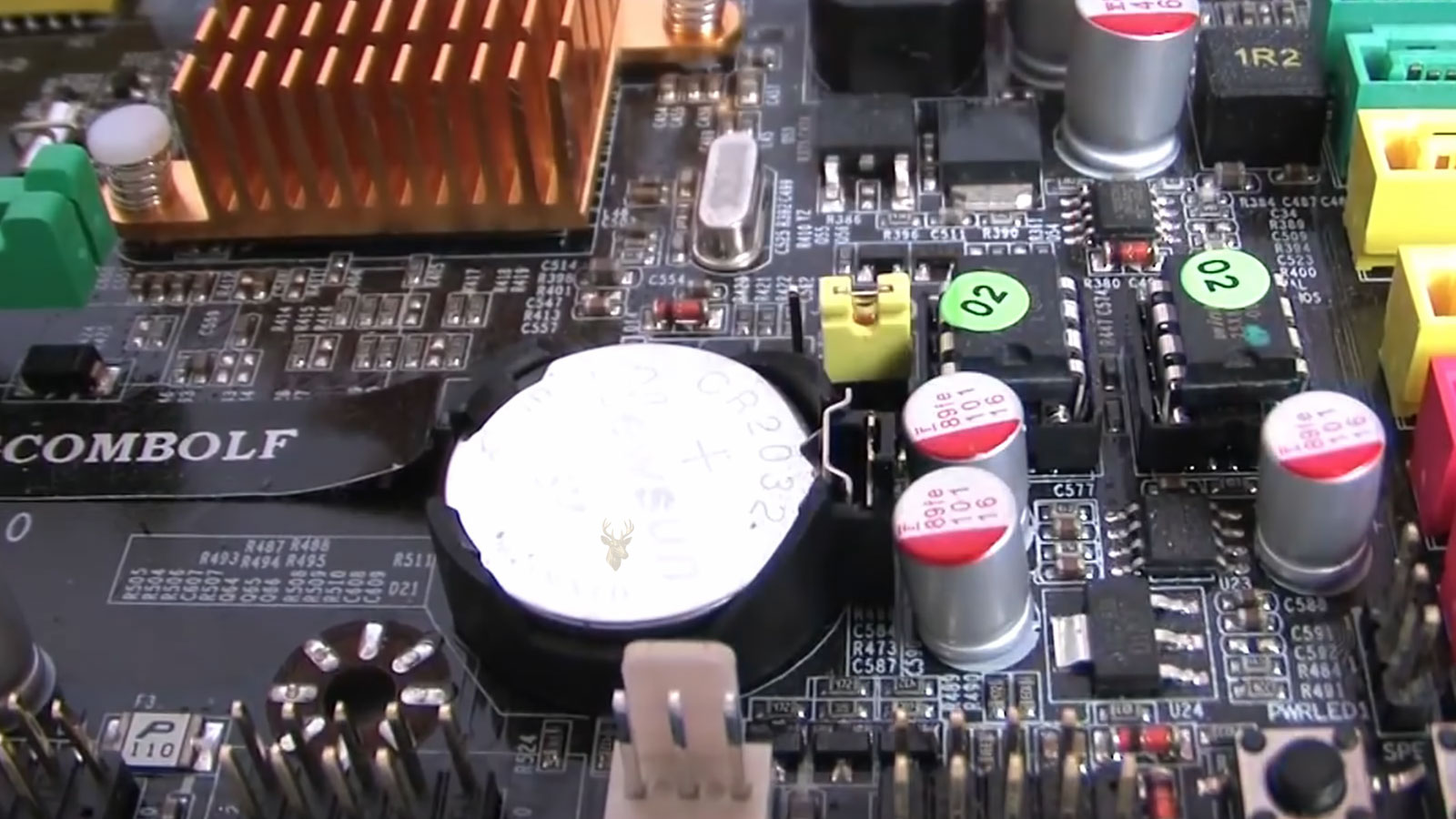
Many desktop motherboards use a coin-cell battery, commonly a CR2032, although the correct type should be confirmed before replacement. The computer should be powered down, unplugged, and handled with appropriate precautions.
- Record important firmware settings before removing the battery when possible.
- Shut down the computer and disconnect external power.
- Locate the battery and note its orientation.
- Remove the old battery without damaging the holder.
- Install the correct replacement with the proper polarity.
- Reconnect power and enter the firmware setup.
- Set the date, time, boot order, and any required hardware options.
- Save the configuration and restart the computer.
A newly installed battery will not automatically restore custom settings that were already lost.
Laptop CMOS Power Arrangements Vary
Laptops may use a separate coin-cell battery, a wrapped battery connected by a small cable, the primary internal battery, or another retention design. Access can range from simple to highly disassembled depending on the model.
Using the wrong battery, forcing a connector, or opening a tightly integrated laptop without proper service information can damage the motherboard or surrounding components.
Battery Voltage Alone Does Not Explain Every Error
A battery that appears close to its rated voltage without load may still perform poorly in the circuit. Battery contact problems, contamination, damaged holders, broken traces, or motherboard faults can also interrupt CMOS retention.
If a known-good replacement does not solve repeated errors, the battery should not continue to be treated as the only possible cause.
Battery Contact and Polarity Matter
A replacement battery installed upside down, seated loosely, or placed beneath a bent retaining clip may fail to supply power correctly. Corrosion or residue around the holder can also create an unreliable connection.
The battery and holder should be inspected without bending the contacts unnecessarily.
Motherboard Jumpers Should Be Checked
Some motherboards include a jumper used to clear CMOS settings. If the jumper is left in the reset position, installed incorrectly, or shorted by debris, the configuration may be erased whenever the computer is powered down.
The correct normal operating position should be confirmed using the motherboard manual.
Front-Panel Buttons Can Occasionally Cause Unintended Resets
Certain systems include a dedicated Clear CMOS button on the rear panel or motherboard. A damaged switch, incorrect connection, or object pressing against the button can trigger repeated configuration resets.
This possibility is uncommon, but it should be considered when the battery and firmware appear normal.
Firmware Defaults Should Be Loaded Deliberately During Troubleshooting
When repeated checksum errors occur, loading optimized or factory defaults from within the firmware setup can create a clean configuration. The settings should then be reviewed and saved without applying unnecessary performance changes.
If the system retains this basic configuration correctly, custom options can be restored one at a time.
Changing One Setting at a Time Helps Identify Instability
Reapplying several memory, processor, storage, and security settings at once makes it difficult to identify which change causes the error to return. A controlled approach provides clearer results.
- Begin with factory or optimized defaults.
- Confirm that the system starts and shuts down normally.
- Restore only required boot and storage settings.
- Test again before enabling memory profiles or overclocking.
- Document each change and the resulting behavior.
Firmware Updates Should Be Performed Only When Appropriate
A firmware update may correct known compatibility problems or configuration bugs, but it also carries risk if interrupted or performed with the wrong file. A checksum error alone is not always a reason to update the motherboard firmware.
The exact motherboard or computer model, current firmware version, update instructions, and release notes should be verified before proceeding.
Stable Power Is Important During Firmware Maintenance
The computer should not lose power while firmware is being written. An interrupted update can leave the motherboard unable to initialize normally and may require a built-in recovery feature, backup firmware, external programming, or motherboard replacement.
A routine checksum warning is usually less serious than the damage that can result from an unnecessary or interrupted firmware update.
Some Motherboards Provide Firmware Recovery Features
Depending on the model, a motherboard may include dual firmware chips, USB recovery, BIOS Flashback, a recovery key sequence, or an automatic restoration process. These features are intended for firmware corruption rather than ordinary loss of CMOS settings.
The manufacturer’s procedure must be followed exactly because filenames, USB formats, ports, and button sequences can be model-specific.
Incorrect Hardware Detection Can Point Beyond CMOS
If the firmware repeatedly misidentifies memory capacity, storage devices, processor information, or motherboard components, the problem may extend beyond stored configuration values. Hardware instability, damaged slots, failing devices, or motherboard faults may be involved.
A checksum message should be considered one symptom within the larger startup behavior rather than the only diagnostic clue.
A Stable Saved Configuration Is the Main Test
After the battery, firmware settings, boot mode, storage configuration, and hardware have been reviewed, the system should retain the correct values through several shutdowns and restarts.
If the date, time, boot order, and other settings remain correct after the computer has been disconnected from power, the CMOS retention problem is likely resolved.
The Error Message Should Be Documented Before Changes Are Made
Checksum warnings can disappear after the next restart, so the exact wording should be recorded before entering the firmware setup or changing any settings. A photograph of the screen can preserve the message, key prompts, firmware version, and other details that may help with later diagnosis.
Messages such as “CMOS checksum bad,” “defaults loaded,” “time-of-day not set,” and “configuration changed” can point toward related conditions but do not always describe the same failure.
Recent Hardware or Firmware Changes Provide Important Context
A checksum error that appears immediately after replacing memory, installing a storage device, updating firmware, clearing CMOS, or changing performance settings may be connected to that recent work. The timing of the first warning can help separate an expected configuration reset from an unrelated retention problem.
- Note whether the motherboard firmware was recently updated.
- Record any memory, processor, storage, or expansion card changes.
- Confirm whether the CMOS battery was removed or replaced.
- Check whether the computer experienced a power interruption.
- Identify any firmware settings changed shortly before the error appeared.
The Startup Pattern Can Narrow the Cause
The conditions under which the message appears are often as useful as the message itself. A computer that reports an error only after being unplugged behaves differently from one that loses its settings after every normal restart.
| Startup Pattern | Possible Direction |
|---|---|
| Error appears only after extended storage | The CMOS battery may be weak but still able to retain settings for short periods. |
| Error appears after every complete power removal | Battery power, battery contact, or the retention circuit should be checked. |
| Error appears after enabling a memory profile | The selected memory frequency or timings may be unstable. |
| Error appears immediately after a firmware update | Stored settings may be incompatible with the new firmware structure. |
| Error appears randomly while settings remain correct | Firmware, motherboard, or intermittent electrical instability may require further diagnosis. |
A Normal Restart and a Complete Power Loss Are Different Tests
During a normal restart, the motherboard continues receiving power and may retain configuration information even when the CMOS battery is weak. Disconnecting the power cable or switching off the power supply removes standby power and places greater dependence on the battery-backed retention circuit.
If the settings survive restarts but disappear after external power is removed, the test result strongly supports a retention-related problem.
A Replaced Battery Should Be Verified Under Real Conditions
After installing a new battery and saving the correct settings, the computer should be shut down and disconnected from power long enough to confirm that the configuration remains stored. Immediately restarting the system does not fully test whether the battery-backed circuit is working.
The date, time, boot order, and any required custom settings should be checked again after power is restored.
Repeated Battery Replacement Without Testing Can Miss the Real Problem
Installing several batteries without checking the holder, polarity, voltage path, reset jumper, or motherboard circuitry can delay the correct diagnosis. A new battery cannot compensate for a broken contact or damaged trace between the battery and the CMOS retention circuit.
When a known-good battery does not change the behavior, further replacement should stop until the surrounding circuit is examined.
Corrosion and Contamination Can Interrupt Retention Power
Liquid residue, dust mixed with moisture, battery leakage, and corrosion around the holder can create resistance or prevent stable electrical contact. Even minor contamination may interfere with the very small amount of current used to preserve CMOS information.
Cleaning should be performed carefully with the system disconnected from power and without bending delicate battery contacts.
Motherboard Damage Can Prevent Settings From Being Stored
If the battery, contacts, firmware, and reset controls are functioning correctly, the motherboard may have a damaged retention circuit or chipset-related fault. In this situation, configuration information may be lost even though the rest of the computer continues to operate.
Board-level diagnosis may be required to determine whether repair is practical or whether motherboard replacement is the more reliable solution.
A Firmware Chip Problem May Produce Additional Symptoms
True firmware corruption often causes more than an isolated checksum warning. The system may freeze during POST, restart repeatedly, fail to detect hardware consistently, display corrupted setup screens, or stop before reaching the operating system.
When these symptoms appear together, firmware recovery or reprogramming may be considered after power and hardware problems have been ruled out.
Dual-BIOS Systems Can Behave Differently After an Error
Some motherboards contain a primary and backup firmware image. If the main image fails validation, the board may switch to the backup, copy recovery data, or display a message indicating that firmware restoration is underway.
This process should not be interrupted. The exact behavior depends on the motherboard design and should be verified in the manufacturer’s documentation.
Operating System Errors Can Follow a Firmware Reset
Once firmware defaults are loaded, Windows or another operating system may encounter settings that differ from the configuration used during installation. This can cause boot failures, missing devices, security prompts, or changes in available features even though the operating system itself was not damaged.
Restoring the correct firmware settings should be considered before attempting operating system repair or reinstallation.
BitLocker Recovery Can Be Triggered by Firmware Changes
On systems protected by BitLocker or device encryption, changes to Secure Boot, TPM settings, boot mode, or firmware measurements can cause the system to request a recovery key. This is a security response to a changed startup environment rather than proof that the storage drive has failed.
The recovery key should be located before making additional firmware changes on an encrypted computer.
TPM Settings Should Not Be Cleared Casually
A checksum error does not normally require clearing the Trusted Platform Module. Removing TPM information can affect encryption keys, authentication features, and security credentials.
Restoring firmware defaults and clearing security data are not the same action and should not be treated as interchangeable troubleshooting steps.
Secure Boot Changes Can Affect Startup Utilities
When defaults are restored, Secure Boot may be enabled or disabled depending on the system. A change can prevent certain operating systems, recovery tools, older expansion card firmware, or unsigned boot utilities from loading.
The correct setting depends on how the computer was originally configured and what software it is expected to run.
RAID and Storage Arrays Require Extra Caution
Computers using firmware-managed RAID may lose access to an array if the storage mode returns to a default setting. The individual drives may still contain the array data even though the configuration is no longer presented correctly to the operating system.
Initialization, reconfiguration, or formatting should be avoided until the previous RAID mode and array condition have been confirmed.
Workstations and Servers May Store Complex Configuration Data
Business systems can depend on customized storage controllers, network boot options, virtualization settings, remote management features, and hardware security configurations. Loading defaults without documentation may affect more than the local operating system.
Firmware settings on production systems should be recorded before batteries, firmware, or motherboard components are serviced whenever possible.
Custom-Built Computers Often Have More Settings to Restore
A custom desktop may use manual fan curves, memory profiles, resizable BAR, processor tuning, specialized storage modes, or disabled onboard devices. After a CMOS reset, the computer may operate differently even though it still starts normally.
Only necessary settings should be restored initially. Performance tuning can be added later after basic stability is confirmed.
Prebuilt Computers May Use Manufacturer-Specific Defaults
Business desktops, all-in-one computers, and branded workstations may contain firmware settings customized by the manufacturer. Their recovery procedures, diagnostic menus, battery arrangements, and update methods may differ from standard retail motherboards.
The exact model and service documentation should be used rather than assuming that generic motherboard instructions apply.
Laptop Symptoms Can Be Less Obvious
Some laptops automatically synchronize their clocks after the operating system connects to the internet, which can hide a CMOS retention problem. Other settings may continue resetting even though the displayed time appears correct later.
Boot order, firmware passwords, virtualization, charging options, and device settings should also be checked when diagnosing a laptop checksum warning.
A Firmware Password Can Complicate Recovery
If a firmware password is configured, restoring defaults or replacing the CMOS battery may not remove it. Many modern systems store security credentials separately specifically to prevent bypass through battery removal.
Manufacturer-approved recovery or ownership verification may be required when the password is unknown.
Diagnostic Logs May Record Configuration Changes
Some business computers and server-class systems maintain hardware event logs that record battery warnings, firmware resets, configuration changes, or failed startup attempts. Reviewing these logs can provide a timeline that is not visible from the current checksum message alone.
The logs should be saved before clearing them during troubleshooting.
The System Should Be Tested With Conservative Settings
After the configuration is restored, the computer should be tested using standard processor, memory, and voltage settings. This helps determine whether the checksum issue is resolved without introducing instability from optional performance adjustments.
- Load factory or optimized defaults.
- Set the correct date and time.
- Restore the required boot and storage configuration.
- Confirm that all expected hardware is detected.
- Save the settings and restart the computer.
- Shut down and remove external power.
- Reconnect power and verify that the settings remain correct.
- Reintroduce optional settings one at a time.
Stress Testing Should Follow Successful Startup Testing
A computer that retains its settings but becomes unstable under load may have an additional hardware or configuration problem. Memory testing, processor testing, storage checks, and temperature monitoring can help identify conditions that are separate from the original checksum warning.
Startup reliability should be established before extended stress testing begins.
When Professional Diagnosis Becomes Appropriate
Further service may be needed when checksum errors continue after a correct battery replacement, factory-default reset, firmware review, and controlled power-loss test. Persistent errors can involve damaged battery circuitry, firmware corruption, motherboard defects, or unstable hardware.
- The error returns after every shutdown.
- The date and time continue resetting with a new battery.
- The computer cannot retain boot or storage settings.
- The system freezes or restarts during POST.
- Hardware detection changes between startups.
- Firmware updates fail or cannot complete.
- Corrosion or liquid damage is visible near the motherboard.
Frequently Asked Questions About CMOS Checksum Errors
Can a computer still start with a CMOS checksum error?
Yes. Many systems load default settings and allow startup to continue after the user confirms the warning. However, boot order, storage mode, security options, and other settings may need to be corrected first.
Does a checksum error always mean the CMOS battery is dead?
No. A weak battery is common, but firmware updates, CMOS resets, unstable settings, damaged contacts, motherboard faults, and firmware corruption can produce similar messages.
Will replacing the battery erase personal files?
Replacing the CMOS battery does not normally erase files stored on the SSD or hard drive. It can reset firmware settings that affect how the computer locates and starts the operating system.
Why does the computer ask for F1 at every startup?
The firmware may be waiting for acknowledgement because it detects invalid settings, an incorrect clock, missing hardware, a fan warning, or another configuration condition. The message displayed near the F1 prompt should be reviewed.
Can loading firmware defaults damage Windows?
Loading defaults does not directly damage Windows, but changes to boot mode, storage controller mode, Secure Boot, TPM, or RAID settings can prevent it from starting until the previous configuration is restored.
Should the firmware be updated whenever a checksum error appears?
No. A firmware update should be considered only when it addresses a known problem or when firmware corruption is supported by additional evidence. Battery and configuration issues should be checked first.
Why does the error return only when the computer is unplugged?
While connected to power, the motherboard may receive standby voltage that helps preserve its configuration. Once unplugged, the system depends more heavily on the CMOS battery and its supporting circuit.
Can a bad power supply cause CMOS checksum errors?
It is possible, although less common than a weak battery or configuration reset. Unstable standby power, electrical disturbances, or interruptions during firmware operations can contribute to abnormal firmware behavior.
A Valid Checksum Confirms That Firmware Settings Remain Consistent
A CMOS checksum allows motherboard firmware to determine whether its stored configuration remains internally consistent from one startup to the next. When the values do not match, the system may load defaults, pause for confirmation, or require the user to review important settings.
Many checksum errors are resolved by correcting the configuration or replacing a weak battery, but repeated warnings can point to contact problems, firmware instability, or motherboard damage. Careful documentation, conservative settings, and controlled power-loss testing can distinguish a one-time reset from an ongoing hardware problem.











