
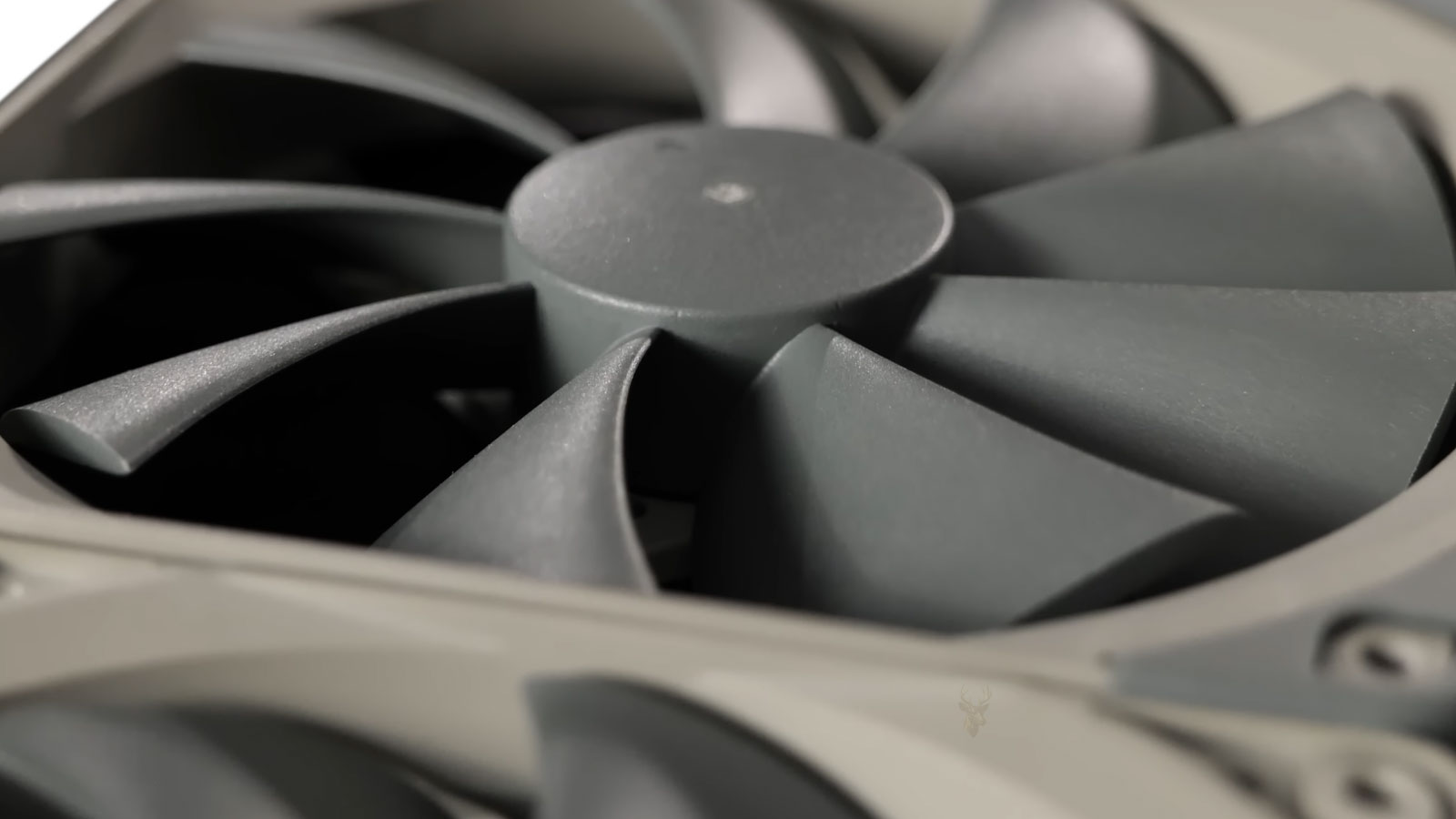
Air Pressure Changes How Cooling Air Moves Through a Computer
Desktop computer cooling depends on more than the number of fans installed inside the case. The direction, speed, size, and location of those fans determine how much air enters the computer, how much leaves, and where that air travels before reaching the exhaust.
The relationship between intake and exhaust airflow creates positive, negative, or approximately balanced air pressure inside the case. Each arrangement can affect component temperatures, dust accumulation, fan noise, and long-term maintenance.
Intake Fans Bring Cooler Air Into the Case
Intake fans pull air from outside the computer and direct it toward internal components. They are commonly mounted at the front, bottom, or side of a desktop case.
The incoming air can help cool the graphics card, processor cooler, memory, storage devices, motherboard components, and power delivery circuits before it becomes warmer and exits the system.
Exhaust Fans Remove Heated Air
Exhaust fans move warm air out of the computer. They are often installed at the rear or top of the case because heated air naturally tends to collect around the upper portions of the enclosure.
A properly positioned exhaust fan helps prevent warm air from remaining around the processor cooler, voltage regulation components, and graphics card.
Positive Air Pressure Means More Air Enters Than Leaves
Positive air pressure occurs when the intake fans move more air into the case than the exhaust fans remove. The excess air looks for additional paths out through vents, panel openings, expansion slot gaps, and other small spaces.
This arrangement is often used to reduce uncontrolled dust entry because most incoming air can be directed through filtered intake locations.
Negative Air Pressure Means More Air Leaves Than Enters
Negative air pressure occurs when exhaust airflow is greater than intake airflow. As exhaust fans remove air, replacement air is pulled into the case through available openings.
Some of that replacement air may enter through unfiltered gaps around side panels, rear vents, cable openings, and unused expansion slots.
Balanced Airflow Is an Approximate Condition
Balanced pressure describes a system where intake and exhaust airflow are relatively close. Perfect balance is difficult to measure because filters, fan speed, internal resistance, and changing temperatures constantly influence actual airflow.
In practical terms, many well-cooled computers operate with slightly positive pressure rather than an exact balance.
Fan Count Alone Does Not Determine Air Pressure
A computer with three intake fans and two exhaust fans does not automatically have positive pressure. Fan size, blade design, rotational speed, airflow rating, radiator resistance, and dust filters can all change how much air each fan actually moves.
Two powerful exhaust fans may move more air than three slower intake fans, especially when the intake fans must pull air through restrictive front panels or dirty filters.
Fan Size Influences Airflow and Noise
Larger fans can often move a useful amount of air at lower rotational speeds than smaller fans. This can reduce noise while maintaining steady airflow through the case.
Common desktop fan sizes include 80 mm, 92 mm, 120 mm, and 140 mm, although the sizes supported depend on the case design.
Fan Speed Changes the Pressure Balance
Air pressure is not fixed simply because the fans remain in the same locations. Automatic fan controls may increase or decrease intake and exhaust speeds as component temperatures change.
A computer may have slightly positive pressure while idle and become neutral or negative when exhaust fans accelerate under a heavy workload.
Dust Filters Reduce Actual Intake Airflow
Dust filters help keep debris away from internal components, but they also create resistance. A clean filter may cause only a moderate reduction in airflow, while a clogged filter can significantly restrict the amount of air entering the case.
As filters collect dust, a system that originally operated with positive pressure may gradually shift toward balanced or negative pressure.
Case Panels Can Restrict Otherwise Capable Fans
A fan cannot move its rated airflow when the surrounding openings are too small or heavily obstructed. Solid front panels with narrow side vents can limit intake airflow even when several fans are installed behind them.
Mesh panels generally allow easier airflow, but their performance still depends on filter density, fan placement, and the amount of open surface area.
Internal Components Create Airflow Resistance
Air moving through a desktop computer must pass around cables, drive cages, graphics cards, cooling towers, radiators, and other hardware. These obstacles can divide or redirect the airflow before it reaches the hottest components.
- Large graphics cards can block air traveling from front intake fans.
- Loose cables can interrupt airflow near the motherboard.
- Drive cages can reduce the amount of air reaching the lower half of the case.
- Radiators add resistance to the fans mounted against them.
- Solid interior covers can create isolated warm areas.
Airflow Should Follow a Clear Path
A common airflow arrangement brings cooler air through the front and bottom of the case and removes warmer air through the rear and top. This creates a general path across the motherboard and major heat-producing components.
The exact arrangement may differ in compact systems, inverted cases, dual-chamber enclosures, and computers using large liquid-cooling radiators.
More Fans Do Not Always Produce Better Cooling
Adding fans without considering direction and airflow balance can create turbulence, noise, and competing air currents. One fan may pull air away from another before that air reaches the component it was intended to cool.
Effective cooling depends on coordinated airflow rather than filling every available fan location.
Slightly Positive Pressure Often Helps Control Dust
When intake airflow is slightly greater than exhaust airflow, excess air tends to leave through unfiltered openings instead of being pulled inward through them. This can reduce the amount of dust entering around side panels, expansion slots, and cable openings.
Positive pressure is most effective when the intake fans draw air through clean filters and the case does not contain unusually large gaps.
Positive Pressure Does Not Eliminate Dust
Dust still enters through the filtered intake areas, especially when the filters are coarse or the surrounding room contains large amounts of airborne debris. Positive pressure mainly helps control where the dust enters.
Regular filter cleaning remains necessary even in a carefully configured positive-pressure system.
Excessive Positive Pressure Can Reduce Heat Removal
Adding strong intake airflow without enough exhaust capacity can cause warm air to circulate inside the case before finding a path out. This may create areas where heated air remains around the processor, graphics card, or upper motherboard components.
The goal is usually mild positive pressure, not maximum intake with minimal exhaust.
Negative Pressure Can Remove Warm Air Quickly
A negative-pressure arrangement can produce strong air movement through the case because the exhaust fans continually pull replacement air inward. In some cases, this can improve temperatures around components located near the exhaust path.
The cooling benefit depends on whether enough replacement air reaches the correct areas without being blocked by restrictive panels or internal hardware.
Negative Pressure Often Increases Dust Entry
When more air leaves the case than enters through the designated intake fans, the remaining replacement air is drawn through every available opening. Many of these openings do not contain filters.
Dust may collect around rear vents, side-panel seams, unused expansion slots, and other small gaps that were not intended to serve as primary air intakes.
Dust Patterns Can Reveal the Pressure Direction
The location of dust buildup can provide clues about how air is moving through the computer. Dust concentrated around unfiltered gaps often suggests negative pressure, while dust focused mainly on the front or bottom filters may indicate positive pressure.
These patterns are not a precise measurement, but they can help identify airflow problems during maintenance.
Smoke Testing Can Show the Airflow Path
Technicians sometimes use a safe visible airflow source near external openings to observe whether air is being pulled into or pushed out of the case. This can help reveal unexpected intake points and weak exhaust areas.
Any testing material should be kept away from the interior of the computer and should not leave residue on the hardware.
Paper Testing Provides a Simple Indication
A small lightweight piece of paper held near an unfiltered case opening can provide a basic indication of pressure direction. If the paper is pulled toward the opening, the case may be operating with negative pressure in that area. If it is pushed away, internal pressure may be positive.
This method does not measure airflow volume, but it can help identify the direction of air movement.
Graphics Cards Can Create Their Own Airflow Zones
Modern graphics cards often use multiple fans that draw air from the lower section of the case and exhaust heated air around the card. Large cards can divide the interior into separate upper and lower airflow regions.
Bottom intake fans may help supply cooler air directly to the graphics card, while rear and top exhaust fans remove heat from the upper portion of the case.
Open-Air and Blower-Style Graphics Cards Behave Differently
Open-air graphics card coolers release much of their heat back into the case, increasing the workload on the case exhaust fans. Blower-style cards direct a larger portion of their heated air through the rear expansion slots.
The best fan arrangement can therefore depend on the cooling design of the installed graphics card.
Processor Coolers Should Align With Case Airflow
A tower-style processor cooler usually performs best when its fan directs air toward the rear exhaust fan. If the cooler faces the opposite direction, the fans may compete with each other or circulate warm air around the motherboard.
Low-profile coolers spread air across nearby motherboard components and may respond differently to the surrounding case pressure.
Radiator Placement Changes Intake and Exhaust Balance
Liquid-cooling radiators create resistance because air must pass through closely spaced fins. Fans mounted on a radiator may move less air than identical fans operating in an unobstructed case position.
A front radiator used as an intake can bring cooler air through the radiator but may raise the temperature of air entering the rest of the case. A top radiator used as an exhaust removes heat directly but may operate with warmer internal air.
Push and Pull Radiator Fans Affect Total Airflow
Some radiators use fans on one side, while others use fans on both sides in a push-pull arrangement. This can improve airflow through a restrictive radiator, but it also changes the total intake or exhaust capacity of the case.
Radiator fans should be included when evaluating the overall pressure balance.
Top Fans Can Help or Disrupt Cooling
Top-mounted exhaust fans can remove warm air that collects above the processor and motherboard. However, a top fan positioned too close to the front intake may remove cool air before it reaches the processor cooler.
Not every available top fan location must be filled. The best arrangement depends on the case layout and the location of the major heat sources.
Bottom Intake Fans Require Clearance
Bottom intake fans can supply cool air to the graphics card, but they require enough space beneath the case to draw air freely. Thick carpet, clutter, or a blocked filter can sharply reduce their effectiveness.
Cases with bottom intakes should be placed on a firm surface with unobstructed ventilation openings.
Fan Curves Can Maintain Better Pressure Balance
Automatic fan curves can be configured so intake and exhaust speeds increase together as temperatures rise. This helps prevent the pressure balance from changing too dramatically between idle and heavy workloads.
A properly tuned curve can also reduce unnecessary noise while maintaining sufficient airflow during demanding tasks.
Temperature Sensors Help Guide Fan Control
Some motherboards adjust case fans according to processor temperature, while others can use motherboard, graphics card, or external sensor readings. The chosen temperature source affects when the fans respond.
Case fans tied only to processor temperature may react slowly when the graphics card becomes the main source of heat.
Noise Can Reveal Airflow Restrictions
Whistling, rushing, or uneven fan noise may indicate that air is being forced through narrow vents or restrictive filters. These sounds can become more noticeable when the system operates with strong positive or negative pressure.
Reducing unnecessary fan speed or improving the available vent area can sometimes lower noise without harming temperatures.
Cleaning Helps Preserve Airflow Performance
Even a well-designed airflow system gradually loses efficiency as dust collects on filters, fan blades, heat sinks, and radiator fins. Reduced airflow can increase component temperatures and cause fans to run faster in an attempt to maintain cooling.
Routine cleaning helps maintain the airflow balance established when the computer was originally assembled.
Filters Should Be Inspected Regularly
Front, bottom, and side intake filters capture much of the dust entering the computer. As these filters become clogged, intake airflow decreases while exhaust airflow may remain unchanged, gradually altering the internal pressure.
Inspecting and cleaning filters at appropriate intervals helps maintain both cooling performance and dust control.
Cable Management Supports Better Air Movement
Loose cables can obstruct airflow between intake fans and major heat-producing components. Routing cables behind the motherboard tray or securing them along the case edges creates a clearer path for moving air.
Improved cable organization can also simplify future maintenance and hardware upgrades.
Component Upgrades Can Change Airflow Requirements
Installing a faster graphics card, a higher-performance processor, or additional storage devices may increase the amount of heat produced inside the computer. A fan arrangement that worked well with the original hardware may require adjustment after significant upgrades.
Reviewing temperatures after installing new components helps determine whether additional airflow is necessary.
Room Temperature Influences Cooling Performance
Case airflow removes heat by replacing warm internal air with cooler room air. If the surrounding environment is already warm, even an efficient airflow design has less cooling capacity available.
Improving room ventilation or reducing ambient temperature can sometimes lower computer temperatures without changing the internal fan configuration.
Computer Placement Matters
Placing a desktop inside a confined cabinet, directly against a wall, or beneath furniture can restrict the flow of intake and exhaust air. Warm air that cannot escape may be drawn back into the case, reducing cooling efficiency.
Leaving adequate clearance around ventilation openings allows fresh air to circulate more effectively.
Every Case Design Has Different Airflow Characteristics
There is no universal fan arrangement that works best for every desktop computer. Compact systems, full-tower cases, dual-chamber designs, workstation enclosures, and gaming cases all present different airflow paths and restrictions.
The most effective configuration depends on the case layout, installed hardware, cooling components, and expected workload.
Temperature Monitoring Helps Evaluate Airflow Changes
Whenever fans are added, removed, or repositioned, monitoring component temperatures under similar workloads provides a practical way to evaluate the results. Changes that reduce temperatures without creating excessive noise generally indicate improved airflow.
Testing both idle and heavy-load conditions provides a more complete picture of cooling performance.
Cooling Performance Is a Balance of Several Factors
Effective cooling is not determined by air pressure alone. Fan quality, case design, component placement, room temperature, dust buildup, radiator placement, and fan control all contribute to the overall thermal performance of a desktop computer.
Considering these factors together generally produces better long-term results than focusing on a single airflow measurement.
Frequently Asked Questions About Computer Case Air Pressure
Is positive air pressure always better than negative pressure?
No. Each configuration has advantages and trade-offs. Many desktop computers operate well with slight positive pressure because it helps direct incoming air through filtered intake locations.
Can too many fans reduce cooling performance?
Yes. Poorly positioned fans can create competing airflow patterns, unnecessary turbulence, and additional noise without improving temperatures.
Should every available fan mounting location be used?
Not necessarily. The best airflow depends on the computer case, installed hardware, and cooling objectives rather than filling every fan position.
How often should dust filters be cleaned?
The cleaning interval depends on the operating environment. Computers used in dusty areas generally require more frequent inspection and filter maintenance than those operating in cleaner environments.
Does removing the side panel improve cooling?
Not always. Removing the panel can disrupt the intended airflow path, reducing the effectiveness of the intake and exhaust fans that were designed to work within the enclosed case.
Balanced Airflow Supports Reliable Cooling
Positive and negative air pressure each influence how air moves through a desktop computer, affecting cooling performance, dust accumulation, and overall system maintenance. Neither approach is universally correct for every computer, but understanding how intake and exhaust airflow interact makes it easier to build an efficient cooling system.
By selecting an appropriate fan arrangement, maintaining clean filters, organizing internal cables, and monitoring operating temperatures, desktop computers can maintain stable airflow that helps protect internal components throughout years of regular use.











