
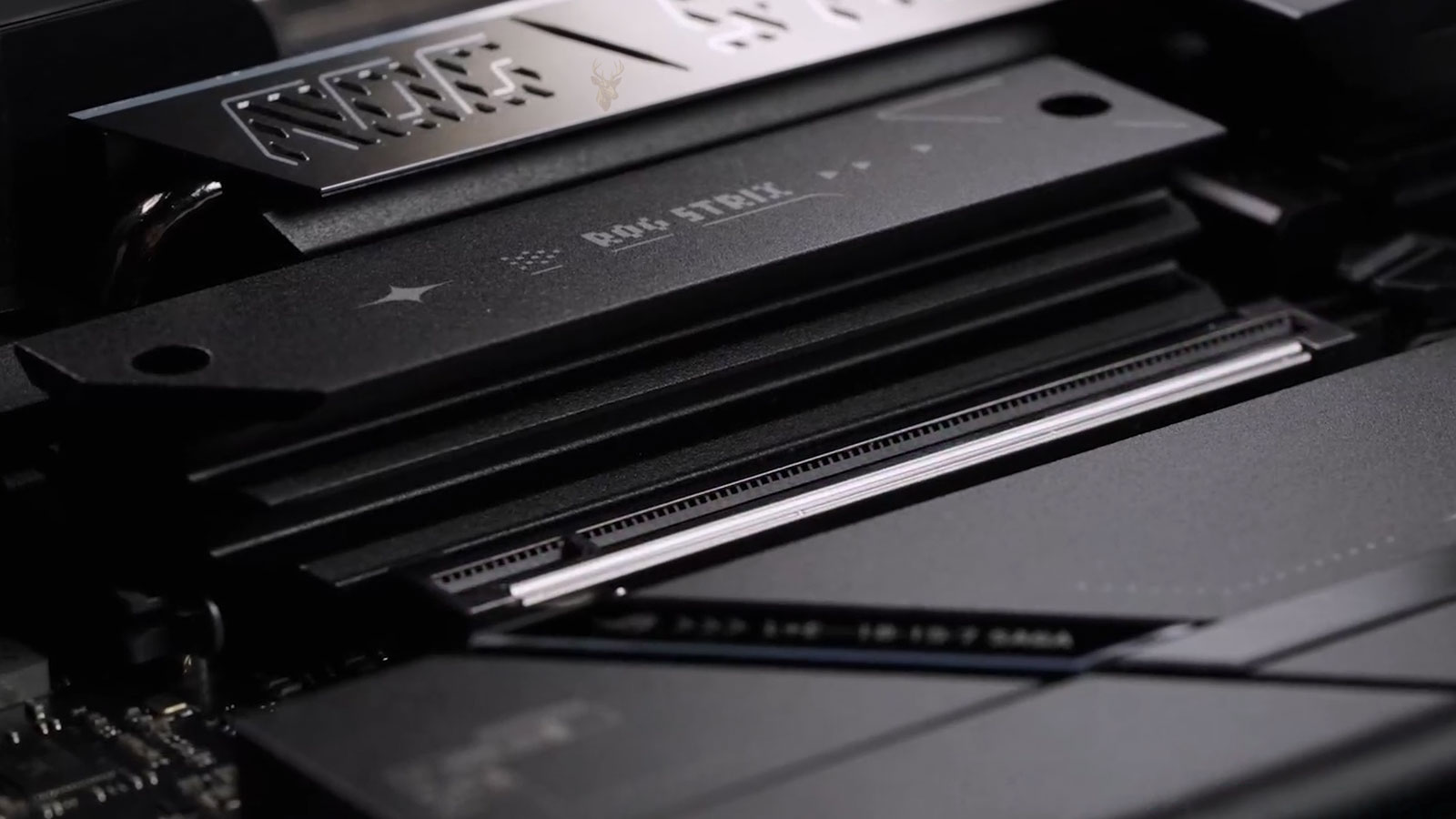
How Expansion Slots Allow Desktop Computers to Grow
One of the greatest advantages of a desktop computer is its ability to accept additional hardware after it leaves the factory. Instead of replacing an entire system whenever new capabilities are needed, many desktop computers allow individual components to be added through expansion slots located on the motherboard.
Expansion slots provide a standardized connection between the motherboard and specialized circuit boards known as expansion cards. These cards allow a computer to perform tasks that may not have been included in its original design or improve the performance of existing features.
What Is an Expansion Slot?
An expansion slot is a connector built directly into the motherboard that accepts compatible add-in cards. Once installed, the card communicates with the processor, memory, storage devices, and other hardware through the motherboard’s internal communication pathways.
Each expansion slot is designed for specific electrical and physical standards. A card must match both the connector type and the supported technology before it can operate correctly.
Why Expansion Slots Exist
Computer manufacturers cannot predict every feature that every user will eventually need. Expansion slots make it possible to customize a system for gaming, business, creative work, scientific computing, networking, storage, and countless other applications without redesigning the entire computer.
- Add new hardware after purchasing the computer.
- Replace older components with newer technology.
- Increase specialized capabilities.
- Extend the useful life of a desktop system.
Desktop Computers Benefit the Most
Although some workstations and specialized laptops support limited expansion, desktop computers provide the greatest flexibility. Their larger cases, accessible motherboards, and replaceable components make expansion cards practical for both home and business environments.
Many compact laptops instead rely on integrated hardware, making upgrades significantly more limited than those available in desktop systems.
Expansion Cards Add New Functions
An expansion slot by itself performs no computing task. Its purpose is to provide a secure electrical connection for an expansion card, which contains the circuitry responsible for a particular function.
| Expansion Card | Primary Function |
|---|---|
| Graphics card | Processes video output and graphics workloads |
| Network adapter | Adds wired or wireless network connectivity |
| Storage controller | Supports additional storage devices |
| Sound card | Provides audio processing and connections |
| Capture card | Records or captures external video sources |
Modern Computers Primarily Use PCI Express
Today’s desktop motherboards almost exclusively use PCI Express (PCIe) expansion slots. PCI Express replaced several older expansion standards by providing higher speeds, improved scalability, and greater flexibility for modern hardware.
Although older technologies such as PCI and AGP played important roles in previous generations of computers, they have largely disappeared from current desktop systems.
Expansion Slots Come in Different Sizes
PCI Express slots are manufactured in several physical lengths. The size generally reflects the maximum number of communication lanes available to the installed expansion card.
- PCIe x1
- PCIe x4
- PCIe x8
- PCIe x16
Larger connectors provide support for devices that require greater bandwidth, while smaller connectors are commonly used for hardware with lower communication demands.
Physical Size Does Not Always Indicate Performance
Although larger slots can support more communication lanes, the actual performance depends on both the motherboard and the installed device. Some motherboards use full-length connectors that operate with fewer active lanes because of chipset limitations or hardware sharing.
For this reason, a full-length connector should not automatically be assumed to provide the maximum possible performance without reviewing the motherboard specifications.
Many Expansion Cards Do Not Need Maximum Bandwidth
While graphics cards often benefit from higher-bandwidth connections, many other expansion cards perform their intended functions perfectly with fewer communication lanes. Network adapters, USB expansion cards, sound cards, and certain storage controllers generally require much less bandwidth than high-performance graphics hardware.
Selecting the appropriate slot helps the motherboard distribute available resources efficiently while leaving larger slots available for hardware that truly benefits from them.
PCIe Generations Affect Available Speed
PCI Express has developed through several generations, with each generation increasing the amount of data that can move through each lane. A newer card can often work in an older slot, but its performance may be limited by the slower generation.
Compatibility is usually maintained across generations, but the final operating speed is determined by the slowest part of the connection.
A Smaller Card Can Often Use a Larger Slot
PCI Express was designed with flexible physical compatibility. A smaller card, such as a PCIe x1 card, can often be installed in a longer x4, x8, or x16 slot.
The card will still operate with the number of lanes it supports. Using a larger slot does not automatically increase the card’s performance beyond its own design.
A Larger Card May Not Fit a Smaller Slot
A physically longer card normally cannot be installed in a shorter closed-ended slot. Some specialized motherboards use open-ended connectors that allow a longer card to fit while operating with fewer lanes, but this is not common in ordinary consumer systems.
Forcing a card into an incompatible slot can damage the card, connector, or motherboard.
Slot Placement Can Affect Cooling
Expansion cards occupy physical space inside the case and can influence airflow around nearby components. Large graphics cards may cover adjacent slots or restrict air entering another card.
When several expansion cards are installed, their position should be planned so fans and heat sinks have enough clearance to operate correctly.
Some Cards Use More Than One Case Opening
The metal bracket on an expansion card lines up with an opening on the back of the computer case. Small cards may use one opening, while large graphics and accelerator cards can occupy two, three, or more.
A card can use only one motherboard slot electrically while still blocking several neighboring openings because of its cooler, heat sink, or external connectors.
Low-Profile Cases Need Matching Brackets
Compact desktop cases often use low-profile expansion openings that are shorter than standard full-height openings. A card may be electrically compatible with the motherboard but still fail to fit the case unless it includes the correct low-profile bracket.
Card height, bracket size, and overall length should all be checked before purchasing hardware for a compact computer.
Card Length Can Create Additional Limits
Long expansion cards can interfere with drive cages, front-mounted fans, radiators, or internal wiring. The available space inside the case may be smaller than the case dimensions suggest.
Measuring the distance from the rear expansion opening to the nearest internal obstruction helps prevent installation problems.
Some Expansion Cards Need Additional Power
The motherboard slot supplies a limited amount of electrical power. Low-demand cards may operate entirely from the slot, while higher-performance hardware can require separate power cables from the power supply.
- Many sound and network cards use slot power only.
- High-performance graphics cards often need additional connectors.
- Some storage controllers require extra power for attached devices.
- Specialized accelerator cards may have significant power demands.
Power Supply Capacity Must Be Considered
Adding an expansion card increases the total electrical load on the system. The power supply must provide enough wattage and the correct connectors for the new hardware.
A card may fit and be recognized by the motherboard while still causing instability if the power supply cannot support it under load.
The Motherboard May Share Resources Between Slots
Some expansion slots share communication lanes with M.2 storage sockets, SATA ports, or other PCIe connectors. Installing one device can reduce the speed of another slot or disable a different connection entirely.
These limitations vary by motherboard and should be checked in the manual before several expansion devices are installed.
Firmware Must Recognize the Installed Hardware
When the computer starts, the motherboard firmware detects connected expansion cards and assigns the resources they need. Most devices are recognized automatically, but older firmware or unusual hardware combinations can create detection problems.
A firmware update may improve compatibility, but it should be performed carefully and only when there is a clear reason to do so.
Operating Systems Usually Need Device Drivers
After the hardware is detected, the operating system may need a driver before the card can provide its full function. Some common devices use built-in drivers, while specialized cards require software from the manufacturer.
An expansion card can appear in the system but remain partially functional if the correct driver is missing or incompatible.
Secure Installation Prevents Intermittent Contact
An expansion card must be pressed evenly into the slot until its edge connector is fully seated. The rear bracket should then be secured to the case so the card cannot shift when cables are connected or the computer is moved.
A card that is only partially inserted may work intermittently, fail to appear, or prevent the computer from starting normally.
Retention Clips Help Hold Larger Cards
Many full-length PCIe slots include a small retention clip near the end of the connector. This clip locks into a notch on the card and helps prevent it from lifting out of the slot.
The clip must be released before removing the card. Pulling forcefully without releasing it can damage the slot or motherboard.
Dust and Debris Can Affect Slot Contact
Expansion slots are exposed whenever a card is removed, allowing dust or debris to collect inside the connector. Contamination can interfere with the electrical contact between the slot and the card.
Before installing hardware, the slot should be inspected under good lighting. Compressed air may be used carefully, but objects should not be inserted into the connector because the internal contacts are delicate.
Oxidation Can Cause Intermittent Detection
The metal contacts on an expansion card can develop oxidation or contamination over time, especially in humid environments or systems that have remained unused for long periods.
A card with poor contact may appear only after the computer is restarted, disappear under vibration, or function differently after being removed and reinstalled.
A Damaged Slot May Still Look Normal
Not every slot failure produces visible damage. Internal contacts can weaken, solder joints can crack, or motherboard traces can become damaged while the connector itself still appears intact.
Testing the same card in another compatible slot can help determine whether the problem follows the card or remains with the original motherboard connection.
Cards Can Fail Independently of the Slot
An expansion card may stop working because of failed components, damaged firmware, overheating, or electrical problems within the card itself. Moving a defective card to another slot will not correct an internal failure.
Diagnosis should compare the card, slot, drivers, power connections, and motherboard resources rather than assuming that one component is automatically responsible.
Large Cards Can Place Stress on the Motherboard
Heavy graphics and accelerator cards can place downward pressure on the PCIe slot, particularly when the computer is moved or transported. Over time, this weight may contribute to poor seating or mechanical stress.
Support brackets can help stabilize large cards, but they must be positioned without lifting the card out of alignment.
Transporting a Computer Requires Extra Care
A computer containing large expansion cards should be handled carefully during transportation. Sudden movement can place considerable force on the card, slot, and motherboard.
For long-distance transport, removing especially heavy cards and packing them separately may reduce the risk of physical damage.
Case Brackets Must Align Correctly
The rear bracket of an expansion card should line up naturally with the case opening. If the bracket must be forced into position, the motherboard, case, or card may be misaligned.
Tightening the retaining screw while the card is uneven can pull one side partially out of the slot and create an unreliable connection.
Unused Openings Should Remain Covered
When an expansion card is removed, the empty case opening should be covered with a suitable slot plate. Leaving the opening exposed can allow additional dust to enter and may disrupt the intended airflow through the case.
Proper covers also help reduce accidental contact with internal components.
Older Expansion Standards Limit Upgrade Options
Older computers may contain PCI, AGP, or other discontinued expansion slots instead of modern PCI Express connectors. New cards designed for PCIe cannot be installed directly into those older standards.
Even when used hardware can be found, driver support and operating system compatibility may make upgrading an older platform impractical.
Compact Systems May Use Riser Cards
Some small desktop computers use a riser card to reposition an expansion slot horizontally. This allows the system to accept a card without requiring the full vertical height of a standard tower case.
Riser cards introduce another connector between the motherboard and the expansion device. A loose or damaged riser can cause detection problems even when the expansion card itself is working correctly.
External Devices Sometimes Replace Internal Cards
Some functions once provided mainly by internal expansion cards are now available through USB, Thunderbolt, or network-connected devices. External sound interfaces, capture devices, storage adapters, and network hardware can reduce the need to open the computer.
Internal cards may still provide better performance, lower latency, or more secure installation depending on the application.
Choosing a Card Requires a Complete Compatibility Check
A compatible connector is only one requirement. Before purchasing an expansion card, the motherboard, case, power supply, operating system, and available internal space should all be considered.
- Confirm the PCIe slot type and generation.
- Check the number of available lanes.
- Measure card length, height, and thickness.
- Verify power supply capacity and connectors.
- Review operating system and driver support.
- Check for shared motherboard resources.
Frequently Asked Questions About Expansion Slots
Can a PCIe x1 card work in a PCIe x16 slot?
In most cases, yes. The smaller card uses only the lanes it requires and does not gain additional performance simply because it is installed in a longer slot.
Does every PCIe x16 slot run at x16 speed?
No. A full-length slot may operate with fewer active lanes depending on the motherboard design and installed hardware.
Can an expansion card work without a driver?
Some basic functions may work through a built-in operating system driver, but full performance and features often require the correct manufacturer driver.
Can a damaged expansion slot be repaired?
Repair may be possible in some cases, but it can require motherboard-level work if the connector, solder joints, or circuit traces are damaged.
Why does installing one card disable another device?
The motherboard may share PCIe lanes or other resources between slots, M.2 sockets, and storage ports. Installing one device can change how those resources are distributed.
Expansion Slots Keep Desktop Computers Flexible
Expansion slots allow desktop computers to gain new capabilities without replacing the entire system. Graphics cards, network adapters, storage controllers, sound cards, and specialized hardware can all be added through compatible motherboard connections.
Successful expansion depends on more than matching the card to the slot. Physical space, lane availability, power requirements, cooling, drivers, and motherboard resource sharing must all be considered. When these factors are checked carefully, expansion cards can extend the usefulness and adaptability of a desktop computer for many years.











