
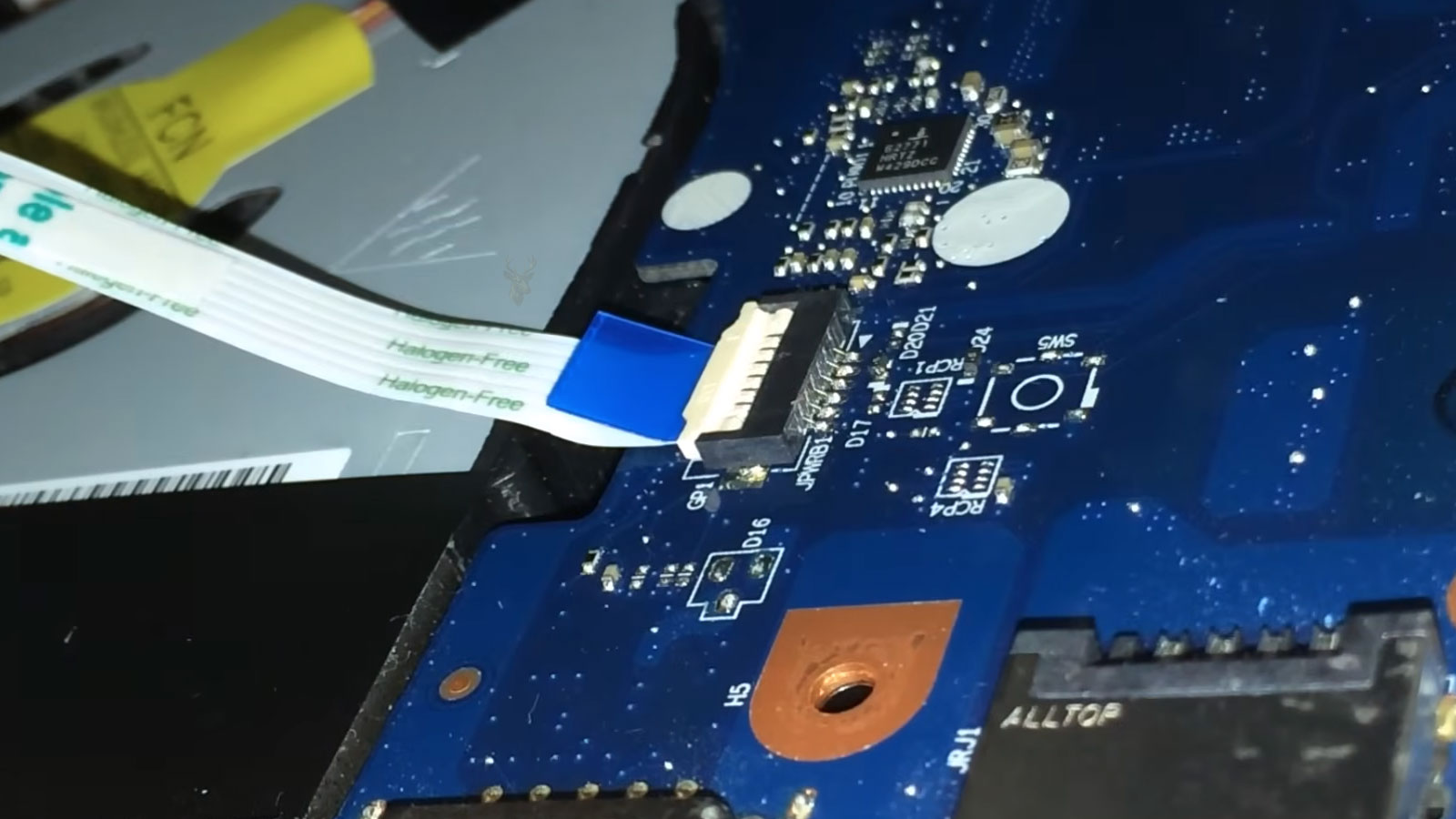
Understanding Flexible Ribbon Cables Inside Modern Laptops
Modern laptops depend on numerous flexible ribbon cables to connect internal components that cannot be linked with rigid circuit boards alone. These thin cables allow the display, keyboard, touchpad, speakers, webcam, power button, fingerprint reader, storage devices, and other hardware to communicate with the motherboard while accommodating the limited space inside a portable computer.
Although ribbon cables appear simple, they perform an important role in the reliability of nearly every laptop. Even a tiny tear, worn conductor, damaged connector, or partially released locking tab can interrupt communication and create symptoms that seem far more serious than the actual cause.
What a Flex Cable Is
A flex cable, sometimes called a flexible printed cable (FPC) or ribbon cable, is a thin strip of insulating material containing multiple conductive traces arranged side by side. Instead of individual wires bundled together, the electrical pathways are formed directly onto the flexible substrate.
This construction allows the cable to bend repeatedly while occupying very little space. Manufacturers can route these cables through hinges, beneath keyboards, around batteries, and between tightly packed components where traditional wiring would be impractical.
Flex cables are designed to carry electrical signals while bending, not to withstand repeated pulling, twisting, or excessive folding.
Why Laptops Depend on Flexible Cables
Desktop computers have considerably more internal space, allowing components to be connected with larger cables and fixed circuit boards. Laptops must fit numerous devices into a much smaller enclosure while remaining lightweight and portable.
Flexible ribbon cables solve this engineering challenge by allowing signals to travel through extremely thin conductors that can follow complex paths inside the chassis without interfering with moving parts.
- Very thin construction
- Minimal weight
- High conductor density
- Excellent routing flexibility
- Low manufacturing cost
- Suitable for compact assemblies
Common Laptop Components Connected by Flex Cables
Many laptop components communicate with the motherboard through dedicated ribbon cables. Some carry high-speed digital data, while others transport low-speed control signals, power, audio, or combinations of several functions.
| Component | Typical Purpose of the Flex Cable |
|---|---|
| Display panel | Video data, backlight control, and display communication |
| Keyboard | Key matrix signals |
| Touchpad | Cursor movement and gesture communication |
| Power button board | Power control signals |
| Fingerprint reader | Biometric communication |
| Webcam module | Video and control signals |
| Speaker assemblies | Audio connections on certain designs |
| Storage daughterboards | Drive communication and power |
Not Every Ribbon Cable Is the Same
Ribbon cables vary greatly depending on their purpose. A keyboard cable may contain dozens of relatively slow signal lines, while a display cable carries extremely high-speed video signals that require precise electrical characteristics.
Different widths, thicknesses, shielding methods, connector styles, and conductor counts allow manufacturers to optimize each cable for its intended application.
How Flexible Conductors Carry Signals
Inside the cable, extremely thin conductive traces run from one connector to the other. Each trace performs a specific function, carrying power, data, ground references, clock signals, control information, or combinations of these depending on the connected device.
If even one conductor develops excessive resistance or breaks completely, the affected device may stop functioning correctly while every other component in the laptop continues operating normally.
Tiny Damage Can Interrupt an Entire Device
Because ribbon cable conductors are extremely narrow, damage that is almost invisible can interrupt electrical continuity. A tear only a few millimeters long may affect one or several conductors while leaving the remainder of the cable intact.
The resulting symptom depends entirely on which conductors were damaged. A single broken line may disable one function, while damage affecting multiple traces can prevent an entire component from communicating with the motherboard.
Repeated Movement Is One of the Greatest Sources of Wear
Not every flex cable experiences the same amount of movement. Some remain nearly stationary throughout the life of the laptop, while others bend every time the lid is opened or closed.
Display cables are among the most heavily stressed because they repeatedly flex within the hinge area. After thousands of opening and closing cycles, fatigue can eventually affect one or more conductors.
The hinge area is one of the most demanding environments for a laptop ribbon cable because normal daily use constantly bends the same section.
Internal Fatigue Develops Gradually
Mechanical fatigue rarely appears suddenly. Conductors may begin developing microscopic cracks that continue growing as the cable bends during everyday use.
Initially, the laptop may function normally except when the display reaches a certain angle or slight pressure is applied to a particular area. As additional conductors weaken, intermittent symptoms often become permanent failures.
Many Problems Begin as Intermittent Failures
Ribbon cable damage frequently produces inconsistent behavior. The laptop may appear completely normal for hours before suddenly losing communication with one component.
These intermittent symptoms often make diagnosis more difficult because the problem cannot always be reproduced during a brief inspection.
- The display works only at certain lid positions.
- The keyboard occasionally misses keystrokes.
- The touchpad disconnects intermittently.
- The webcam appears and disappears.
- The fingerprint reader functions unpredictably.
- The power button occasionally fails to respond.
Small Tears Can Produce Large Symptoms
Because laptop systems rely on communication between many interconnected devices, failure of a single ribbon cable can prevent an important subsystem from operating correctly.
For example, a damaged keyboard ribbon may prevent login, a defective display cable may leave the screen black despite a functioning graphics processor, or a failed power-button cable may prevent startup altogether.
Ribbon Cables Carry More Than Data
Many people assume ribbon cables transport only digital information. In reality, they often carry multiple types of electrical signals simultaneously.
| Signal Type | Example |
|---|---|
| Power | Supplying voltage to internal devices |
| Ground | Electrical reference connections |
| Digital data | Keyboard, webcam, fingerprint communication |
| Clock signals | Synchronization between devices |
| Control lines | Power management and device enable signals |
| Display signals | Video communication to the LCD panel |
Connector Quality Is Just as Important as the Cable
Even when the ribbon cable itself remains undamaged, communication depends on secure connector contact. Most laptop ribbon cables terminate in zero insertion force (ZIF) connectors or similar low-profile designs that rely on locking tabs to hold the cable in position.
If the connector becomes partially unlatched or the cable shifts even slightly, one or more conductors may lose contact despite appearing properly connected during a quick visual inspection.
Locking Tabs Prevent Cable Movement
ZIF connectors use small locking mechanisms that clamp the ribbon cable after insertion. These locks provide consistent contact pressure without requiring excessive insertion force.
Because these locking tabs are extremely small, they can be damaged if opened incorrectly or forced beyond their intended travel.
A Loose Connector Can Resemble Cable Failure
A cable that has shifted only slightly may produce the same symptoms as one with broken conductors. Missing video, intermittent keyboard operation, or an unresponsive touchpad can all result from incomplete connector engagement.
For this reason, technicians often verify connector seating before assuming that the ribbon cable itself requires replacement.
Cable Routing Is Carefully Engineered
Manufacturers design precise routing paths that keep ribbon cables away from cooling fans, sharp edges, screw posts, batteries, and hinge mechanisms. Adhesive guides and retaining clips help maintain these paths throughout the life of the laptop.
Improper routing during reassembly can allow a cable to become pinched, stretched, or repeatedly rubbed against moving components, eventually leading to premature failure.
Pinched Cables Can Fail Slowly
A ribbon cable trapped beneath a battery, motherboard, palm rest, or bracket may continue working immediately after reassembly. Over time, continuous pressure can damage the conductors or wear through the insulating layers.
Because this damage develops gradually, the connection may appear reliable initially before becoming increasingly intermittent weeks or months later.
Sharp Folds Concentrate Mechanical Stress
Ribbon cables are designed to bend gradually rather than crease sharply. A tight fold concentrates stress into a very small area where conductors are more likely to fracture after repeated movement.
Maintaining smooth curves during installation helps distribute mechanical forces across a larger section of the cable and reduces long-term fatigue.
Adhesive Supports Serve an Important Purpose
Small adhesive strips attached to ribbon cables are not included simply to keep the interior neat. They help prevent vibration, reduce movement, protect against abrasion, and maintain proper routing throughout daily use.
Removing or relocating these supports without restoring them during reassembly can increase stress on the cable over time and shorten its service life.
Keyboard Ribbon Cables Carry a Large Number of Signals
Laptop keyboards commonly connect to the motherboard through a wide ribbon cable containing many conductive traces. These traces form part of a key matrix that allows the system to identify which key has been pressed.
Damage affecting only one or two conductors may disable a group of keys rather than the entire keyboard. Because several keys can share portions of the same matrix, failures sometimes appear in patterns that seem unrelated to physical location.
A Keyboard Can Fail in Sections
When a keyboard ribbon cable develops partial damage, certain letters, number keys, function keys, or modifier keys may stop responding while the remainder continue working normally.
This behavior can also result from contamination beneath the keyboard, internal keyboard membrane damage, or a failed controller. Cable inspection is therefore one part of the diagnosis rather than automatic proof of the cause.
- Several keys stop working at the same time.
- Keys respond only when the palm rest is pressed.
- The keyboard disconnects after the laptop is moved.
- Typing produces incorrect or repeated characters.
- The keyboard works after reseating the ribbon cable.
Keyboard Backlighting May Use a Separate Cable
Some backlit laptop keyboards use one ribbon cable for key input and another smaller cable for illumination. The keys may function normally while the backlight remains completely off because only the lighting connection has failed.
These smaller cables and connectors are particularly easy to overlook during disassembly. A cable can remain folded beneath the keyboard or palm rest without being reconnected.
Touchpad Cables Can Affect More Than Cursor Movement
A touchpad assembly may include cursor tracking, physical button signals, gesture recognition, indicator lighting, and fingerprint-reader communication. Depending on the laptop design, these functions may share one cable or use several separate connections.
A damaged touchpad ribbon can therefore produce symptoms beyond a stationary pointer. Click functions may fail, gestures may disappear, or the entire device may repeatedly connect and disconnect.
Battery Swelling Can Press Against Touchpad Cables
In many laptops, the battery sits directly beneath the palm rest and touchpad. A swelling battery can lift the touchpad, distort the chassis, and press nearby ribbon cables against brackets or sharp internal surfaces.
Replacing only the cable or touchpad without addressing the swollen battery can allow the damage to continue. Any raised palm rest, stiff clicking action, or separated case should be inspected before the laptop remains in regular use.
Power Button Cables Can Prevent the Laptop From Starting
Some laptop power buttons are integrated into the keyboard, while others are mounted on a small daughterboard connected through a narrow flex cable. Pressing the button sends a low-voltage control signal to the motherboard rather than directly switching the main power.
If the cable is torn, disconnected, or inserted incorrectly, the laptop may show charging lights and other standby activity but fail to respond when the power button is pressed.
A laptop that does not react to its power button may have a control-path problem rather than a complete loss of electrical power.
Separate Power Boards Add More Connection Points
Manufacturers sometimes place the power button, USB ports, audio jacks, or indicator lights on separate circuit boards. Flex cables connect these daughterboards to the main motherboard.
This modular design simplifies manufacturing and replacement, but it also creates additional connectors that can loosen, corrode, or become damaged during service.
Display Cables Carry High-Speed Video Information
Laptop display cables carry video data from the graphics system to the LCD panel. Modern designs commonly use embedded DisplayPort signaling, which operates at high speed and depends on carefully controlled conductors and shielding.
A cable can maintain basic electrical continuity while still failing to transmit high-speed data reliably. This is one reason a simple resistance check may not reveal every display-cable problem.
Display Cables Often Include Several Functions
The display connection may carry more than image data. Depending on the model, the same cable assembly can support backlight control, panel identification, webcam communication, microphone signals, touch input, and power for devices mounted in the lid.
| Display Assembly Function | Possible Cable Role |
|---|---|
| LCD image | Transfers digital video data to the panel |
| Backlight control | Controls brightness and illumination behavior |
| Panel identification | Allows the motherboard to read display information |
| Webcam | Carries camera data on some cable assemblies |
| Microphones | Connects microphones installed in the display bezel |
| Touchscreen | Transfers touch input on compatible systems |
One Damaged Display Conductor Can Change the Symptom
Display-cable symptoms vary according to the affected signal. A damaged power or backlight conductor may leave the panel dark, while damaged data conductors may produce flickering, colored lines, image corruption, or a display that works only at certain lid angles.
If panel identification communication fails, the laptop may select an incorrect resolution, lose brightness control, or fail to recognize the internal display consistently.
A Black Screen Does Not Always Mean the Panel Has Failed
An internal display can remain black because of a failed LCD panel, damaged backlight circuit, defective graphics hardware, loose display connector, or broken cable conductor.
Testing with an external monitor can help confirm that the laptop is completing startup, but it does not by itself separate an internal cable problem from a failed panel.
Movement-Related Flickering Strongly Suggests a Mechanical Connection
When the display flickers, changes color, or turns off as the lid moves, attention often turns toward the cable path through the hinge. The motion may temporarily reconnect a cracked conductor or shift a loose terminal inside the connector.
The same symptom can also result from a damaged panel connector or pressure on the LCD itself, so the movement pattern must be evaluated carefully.
Hinges Can Crush or Abrade Display Cables
Display cables are routed through narrow spaces beside or around the hinges. If a hinge becomes stiff, shifts out of position, or separates from its mounting points, the cable may be compressed against metal or plastic parts.
A cable that was originally routed safely can begin rubbing against the hinge after structural damage changes the geometry of the display assembly.
Broken Hinge Mounts Can Create Secondary Electrical Damage
When hinge screws pull away from the display cover or palm rest, opening the laptop can place abnormal tension on nearby cables. The user may first notice a loose or separating case before display, webcam, or wireless problems begin.
Repairing only the electrical symptom without correcting the hinge structure can expose the replacement cable to the same mechanical stress.
Webcam Cables May Share the Display Route
The webcam is normally installed near the top of the screen, so its connection must pass through the hinge area to reach the motherboard. In some laptops, the webcam wiring is integrated into the display cable assembly; in others, it uses a separate thin cable.
A webcam that appears and disappears when the lid moves may therefore be affected by the same mechanical wear that damages display connections.
Microphone Problems Can Originate in the Display Assembly
Built-in microphones are often positioned near the webcam. Their signals may travel through the display cable or a nearby harness routed through the hinge.
A cable problem can cause low volume, intermittent audio, static, or complete loss of microphone input while external microphones continue working normally.
Touchscreen Cables Add Another Layer of Communication
Touchscreen laptops may use separate connections for video and touch input. The image can remain perfectly visible while the touch function stops responding because only the digitizer cable has failed or become disconnected.
Some display assemblies combine these functions into fewer cable assemblies, so correct part identification is important before replacement.
Fingerprint Readers Use Delicate Low-Profile Connections
Fingerprint readers are often installed in the palm rest, touchpad, or power button. Their small size requires narrow ribbon cables and compact connectors that can be damaged easily during disassembly.
If the reader disappears from the operating system after a repair, the cable should be checked before assuming that software or security configuration is responsible.
Internal Card Readers May Depend on Daughterboard Cables
SD card readers and other side-mounted ports are frequently placed on separate boards because of their location along the edge of the chassis. A flex cable links the board to the motherboard.
If the cable is loose, the card reader may disappear entirely or disconnect when the laptop is moved. Other ports on the same daughterboard may fail at the same time.
USB and Audio Boards Can Fail Together
A single side board may contain several USB ports, an audio jack, indicator lights, and a card reader. When all of these functions stop working together, the common flex connection becomes an important diagnostic point.
Replacing individual ports would not correct a communication failure between the daughterboard and motherboard.
Storage Connections Sometimes Use Flexible Cables
Thin laptops may connect a 2.5-inch SATA drive to the motherboard through a short flex cable rather than a fixed connector. This cable carries both storage communication and power.
A torn or loose storage cable can cause the drive to disappear, generate read errors, interrupt startup, or appear only when pressure is applied near the connector.
A storage drive may be healthy even when the laptop cannot detect it because the connection between the drive and motherboard has failed.
Drive Cable Damage Can Resemble File System Failure
An unstable storage connection can interrupt data transfers and produce errors that resemble logical corruption. The operating system may freeze, report missing files, or fail to boot even though the data remains intact on the drive.
Continued use with an intermittent connection can still lead to incomplete writes, so the cable should be addressed before extensive software repair is attempted.
Small Audio Cables May Be Mistaken for Ribbon Cables
Not every internal laptop connection uses a flat printed cable. Speakers, microphones, fans, and batteries may use small bundles of individual wires with compact plug connectors.
Although their construction differs, these connections can produce similar symptoms when pinched, partially disconnected, or damaged during repair.
Cable Ends Require Precise Alignment
The exposed conductive contacts at the end of a flex cable must align exactly with the terminals inside the connector. A cable inserted at a slight angle may make contact on one side while leaving other traces disconnected.
Alignment markings printed on the cable or motherboard can help confirm that the cable is fully and evenly seated before the locking tab is closed.
Reinforcement Tabs Protect the Contact Area
Many ribbon cables include a thicker reinforcement layer near the connector end. This stiffener helps maintain shape, supports insertion, and prevents the exposed traces from folding.
If the reinforcement separates from the cable, the contact end may become difficult to insert evenly and can shift after the connector is locked.
Exposed Contacts Can Become Contaminated
Finger oils, dust, adhesive residue, corrosion, and liquid contamination can interfere with low-pressure connector contacts. A cable may look seated while contamination creates resistance on one or more signal lines.
Cleaning requires appropriate materials and gentle handling because aggressive rubbing can remove or damage the thin conductive surface.
Liquid Exposure Can Damage Cables and Connectors
Liquid entering through the keyboard or palm rest can collect around ribbon connectors. Even after the visible liquid dries, conductive residue and corrosion may continue changing the electrical connection.
The cable contacts, locking mechanism, and motherboard connector should all be inspected because replacing only the visible cable may leave corrosion inside the connector.
Corrosion Can Progress Beneath the Cable Surface
Moisture can enter damaged insulation or travel between laminated layers of a flex cable. Corrosion may then affect conductors that are not visible from the outside.
This hidden deterioration can cause a connection to become less reliable over time even after the laptop initially appears to recover from liquid exposure.
Heat Can Deform Thin Cable Materials
Ribbon cables routed too close to hot voltage regulators, heat pipes, or exhaust areas can become brittle or distorted. Excessive heat may weaken adhesive layers and alter the shape of the insulating material.
Correct cable placement and thermal component installation are therefore connected. A displaced heat shield or incorrectly routed cable can create damage that was not present before service.
Screws Can Puncture Incorrectly Routed Cables
A ribbon cable crossing beneath a screw hole can be cut or crushed when the laptop is reassembled. The damage may affect only one conductor initially and remain hidden beneath the bracket or motherboard.
Using a screw that is longer than the original can create the same problem even when the cable follows its intended path.
Cable Damage Can Occur During Battery Replacement
Batteries often cover or overlap keyboard, touchpad, speaker, and daughterboard cables. Pulling the battery upward before nearby cables are released can tear them or damage their connectors.
Adhesive-backed batteries create additional risk because significant force may be required for removal. Tools used to separate the battery can slip beneath a flex cable that is difficult to see.
Motherboard Removal Places Several Cables at Risk
A laptop motherboard may have ribbon cables connected from several directions. Some are visible from above, while others remain attached beneath the board.
Lifting the motherboard before every connection is released can tear a cable, break a connector, or pull a socket away from the circuit board.
- Keyboard and backlight cables
- Touchpad and fingerprint-reader cables
- Display and webcam connections
- Power-button daughterboard cables
- Storage and port-board cables
- Speaker and battery connections
Some Connectors Open in Different Directions
Not all ZIF connector locks operate the same way. Some tabs flip upward, some slide outward, and others use side latches or removable retaining pieces.
Assuming that every connector opens in the same direction can break the locking mechanism or separate the connector from the motherboard.
Connector Damage Can Be More Serious Than Cable Damage
A damaged flex cable can often be replaced as a separate part. A broken motherboard connector may require board-level repair, replacement of the socket, or reconstruction of damaged solder pads.
The connector should never be forced simply because the cable does not slide into place easily. Resistance may indicate that the lock is still closed, the cable is misaligned, or the wrong cable is being installed.
Broken Locks Can Cause Intermittent Contact
If the retaining tab breaks, the ribbon cable may no longer be held firmly against the connector terminals. The component can work temporarily when pressure is applied and fail again after the laptop is moved.
Tape may appear to hold the cable in place, but it does not always reproduce the even contact pressure created by the original locking mechanism.
Connector Repairs Require Precise Board Work
Replacing a damaged ZIF connector involves working with small solder joints and closely spaced circuit-board pads. Excessive heat or force can lift the pads and damage nearby components.
The replacement connector must match the original pin count, spacing, orientation, height, and locking design. A connector that looks similar may not accept the cable correctly.
Cable Part Numbers Matter
Two cables may appear nearly identical while using different pin assignments, lengths, contact orientations, or shielding. Installing the wrong cable can prevent operation and may place voltage on an incorrect terminal.
Printed part numbers, laptop model information, motherboard revision, display type, and connector details should all be compared before ordering a replacement.
Visual Similarity Does Not Guarantee Compatibility
A replacement cable can have the correct width and connector count but still differ electrically. Contact surfaces may face the opposite direction, conductors may cross internally, or one model may include signals that another does not use.
Compatibility should be confirmed through an exact part reference or reliable model-specific documentation rather than appearance alone.
Used Cables May Already Contain Hidden Fatigue
A used cable removed from another laptop may look undamaged but have thousands of previous flexing cycles. This is especially important for display cables routed through hinges.
A new or verified replacement generally provides greater confidence when repairing a movement-related intermittent failure.
Temporary Improvement After Reseating Is Useful Evidence
If a component begins working after its cable is disconnected and reinstalled, the original problem may have involved poor seating, contamination, oxidation, or movement at the contact surface.
However, reseating can also temporarily reposition a fractured conductor. The improvement should be tested through normal movement and repeated operation before the repair is considered complete.
Careful Diagnosis Helps Separate Cable Failure From Component Failure
Flex cable problems can resemble failures in the device connected at either end. A black internal display may involve the panel, cable, motherboard connector, graphics circuitry, or backlight system. An unresponsive keyboard may involve the keyboard assembly, ribbon cable, connector, embedded controller, or software configuration.
Accurate diagnosis compares symptoms, movement patterns, connector condition, electrical continuity, and component behavior rather than replacing the first part associated with the failure.
The Failure Pattern Often Provides the First Clue
Symptoms that change when the laptop is moved, opened, closed, pressed, or twisted often point toward a mechanical connection. The movement may alter contact pressure, reposition a fractured conductor, or change stress on a damaged connector.
A component that fails consistently under every condition may still have a cable problem, but movement-related changes make the cable path and its connectors especially important to inspect.
- The display flickers when the lid angle changes.
- The keyboard begins working when the palm rest is pressed.
- A USB daughterboard disconnects when the case is lifted.
- The touchpad stops responding after the laptop warms up.
- A storage drive disappears after the computer is moved.
- The webcam reconnects when the screen is adjusted.
Visual Inspection Should Include the Entire Cable Path
Damage is not always located near the exposed connector ends. A cable may be worn beneath adhesive, folded under a bracket, pinched beside a battery, or damaged inside the hinge where it cannot be seen without further disassembly.
Inspection should follow the cable from one end to the other while checking for creases, discoloration, torn insulation, exposed conductors, pressure marks, corrosion, and areas where the cable has rubbed against the chassis.
Good Lighting and Magnification Reveal Small Defects
Many flex cable defects are difficult to see under normal room lighting. Magnification and angled light can reveal hairline cracks, lifted traces, uneven contacts, and damage near reinforced connector ends.
Changing the viewing angle is useful because a broken conductor or surface crease may reflect light differently from the surrounding material.
Discoloration Can Indicate Heat or Electrical Damage
Darkened contacts, melted insulation, or browned cable material can indicate overheating. Excess resistance at a damaged contact may generate heat even when the connected device continues working intermittently.
Heat damage should lead to inspection of both the cable and connector because replacing only one side may leave the underlying poor connection unresolved.
Continuity Testing Can Identify Broken Conductors
A multimeter can sometimes be used to verify continuity between corresponding contacts at opposite ends of a disconnected flex cable. An open reading may indicate that a conductor has broken somewhere along the cable.
This test requires access to the correct contacts and careful probe placement. The conductors are small, and slipping probes can scratch the contact surfaces or bridge adjacent traces.
Continuity Alone Does Not Prove High-Speed Signal Integrity
A conductor may pass a basic continuity test while still performing poorly with high-speed display, storage, or data signals. Partial fractures, shielding damage, altered impedance, and intermittent contact may not appear during a stationary low-current measurement.
For this reason, continuity testing is more useful for identifying definite open circuits than for proving that every cable is fully reliable under operating conditions.
A cable that passes a simple continuity test can still fail when it bends, heats up, or carries high-speed signals.
Flexing During Testing Must Be Done Carefully
When a cable is suspected of an intermittent break, technicians may monitor continuity while gently moving the cable through its normal range. A reading that changes during slight movement can reveal an internal fracture.
The cable should not be sharply folded or repeatedly stressed during testing because excessive movement can worsen existing damage or create a new break.
Known-Good Substitution Can Provide Strong Evidence
Installing a verified compatible replacement cable is often one of the most practical ways to confirm a suspected failure. If the symptom disappears and remains absent during repeated movement and operation, the original cable becomes the likely cause.
The replacement must be confirmed as compatible before testing. An incorrect cable can introduce new symptoms or damage connected circuitry.
Testing the Connected Device Separately Can Narrow the Cause
Some devices can be tested through an alternate connection. An external monitor can help confirm that a laptop is completing startup, while an external keyboard or mouse can determine whether the computer remains usable when an internal input device fails.
These tests do not directly prove cable failure, but they help separate the affected internal subsystem from broader motherboard or operating-system problems.
External Displays Help Evaluate Internal Screen Failures
If an external display works normally while the internal screen remains black, the graphics system may still be functioning. The remaining possibilities include the internal panel, display cable, connector, backlight circuit, and related power controls.
If both internal and external displays fail, the problem may be broader, although some laptops do not activate external video until later in the startup process.
Operating-System Detection Can Reveal Intermittent Connections
Device Manager, system information tools, and hardware logs can show whether a webcam, fingerprint reader, touchpad, card reader, or daughterboard repeatedly connects and disconnects.
Repeated detection events can support the possibility of an unstable physical connection, especially when they occur as the laptop is moved or the display angle changes.
Software Reinstallation Cannot Repair a Broken Conductor
Driver updates and operating-system repairs may help when a device is detected but configured incorrectly. They cannot restore electrical continuity through a torn cable or repair a damaged connector contact.
Repeated software changes can delay the correct diagnosis when the symptom clearly reacts to movement or physical pressure.
Intermittent Storage Cables Require Immediate Attention
A storage cable that repeatedly disconnects can interrupt file writes and damage file system structures. The computer may freeze, display disk errors, restart unexpectedly, or fail to locate the operating system.
Important data should be backed up before extended testing when the drive remains accessible. Continued operation with an unstable connection can create logical damage even if the storage device itself is healthy.
Repeated Display Cable Shorting Can Damage Other Hardware
A display cable with exposed conductors can contact the hinge, chassis, or nearby metal shielding. This may interrupt backlight power, damage a motherboard fuse, affect the display panel, or create a complete no-display condition.
A flickering screen should not be repeatedly forced through different angles if grinding hinges, exposed wiring, or visible cable damage is present.
Disconnecting the Battery Reduces Service Risk
Many internal laptop connectors remain electrically active while the battery is connected, even when the computer appears to be turned off. Removing or inserting a ribbon cable under power can short adjacent contacts or damage a controller.
The internal battery should normally be disconnected before flex cables are removed or installed. Some systems also retain residual charge, so service procedures may include holding the power button after disconnection.
Display Connections Are Especially Sensitive to Live Handling
Connecting or disconnecting an internal display cable while power is present can damage backlight circuitry, panel electronics, motherboard fuses, or display signal components.
The laptop should be fully de-energized before the display connector is touched, and the connector should be aligned correctly before power is restored.
Static Electricity Can Affect Connected Electronics
Flex cables connect directly to sensitive motherboard controllers and peripheral circuits. Static discharge through exposed contacts can damage devices even when no visible spark is noticed.
Appropriate antistatic precautions and careful handling of contact surfaces help reduce this risk during inspection and replacement.
Pull Tabs Should Be Used When Provided
Some ribbon cables include reinforced pull tabs designed to help remove them evenly. Pulling on the thin flexible section instead can separate the reinforcement, tear the cable, or bend the exposed contacts.
The locking mechanism must be released before any pulling force is applied. Even a reinforced tab can be damaged if the connector remains locked.
Metal Tools Can Damage Contacts and Nearby Components
Sharp metal tools can scratch conductive traces, puncture insulation, bridge energized contacts, and break small connector locks. Plastic opening tools are often safer for releasing adhesive and guiding cables.
Fine tools may still be necessary for certain connectors, but they should be used with controlled pressure and only after power has been removed.
Adhesive Should Be Released Without Stretching the Cable
Ribbon cables are frequently secured to the chassis or battery with adhesive. Pulling the cable upward suddenly can stretch the conductors or tear the insulating film.
Adhesive should be separated gradually while supporting the cable close to the area being lifted. Replacement adhesive may be needed to restore the original routing during reassembly.
Repeatedly Reseating a Cable Can Wear Its Contacts
Disconnecting and reconnecting a ribbon cable several times may help during diagnosis, but repeated handling can scratch the contacts, loosen the reinforcement, and wear the connector lock.
Each connection attempt should have a specific diagnostic purpose rather than being repeated without observing whether the symptom changes.
Improvised Repairs Often Provide Only Temporary Results
Tape, folded paper, foam, or other materials are sometimes used to press a loose ribbon cable against a damaged connector. These methods may temporarily restore contact but can shift, compress nearby parts, or place uneven pressure on the socket.
A temporary pressure-based improvement is useful diagnostic evidence, but it should not be confused with a durable connector repair.
Conductive Paint and Hand-Drawn Traces Have Serious Limitations
Visible breaks in simple low-speed flex cables may appear repairable with conductive materials. However, trace spacing, resistance, flexibility, insulation, and long-term adhesion are difficult to reproduce accurately.
High-speed display and data cables are especially unsuitable for improvised trace repair because their electrical characteristics must remain controlled. Replacement is normally more reliable.
Soldering Directly to a Flex Cable Requires Specialized Skill
The thin plastic substrate can deform rapidly under soldering heat. Conductors may lift, melt, or separate before a secure connection is formed.
Where repair is technically possible, it requires precise temperature control, magnification, suitable reinforcement, and protection against future movement. Most replaceable laptop flex cables should be replaced rather than reconstructed.
Motherboard Connector Repair May Be Necessary
If the cable tests correctly but contact remains unstable, the motherboard connector may have bent terminals, broken locks, cracked solder joints, corrosion, or lifted pads.
Connector replacement requires board-level soldering and exact alignment. The surrounding circuit should also be inspected because pulling a connector from the board can damage traces beneath it.
Missing Connector Pads Can Require Circuit Reconstruction
When a connector is torn away from the motherboard, one or more copper pads may remain attached to the broken socket. Installing a new connector alone will not restore those missing electrical paths.
Board-level repair may require locating alternate connection points, rebuilding traces, and mechanically reinforcing the replacement connector.
Replacement Quality Affects Long-Term Reliability
Poorly manufactured replacement cables may use thinner conductors, inaccurate contact spacing, weak reinforcement, or unsuitable insulating material. They may function initially but fail after limited movement or heat exposure.
An exact original part or a verified high-quality replacement is especially important for display, storage, and frequently flexed hinge cables.
The New Cable Must Follow the Original Routing
Replacing a cable without duplicating its original bends, adhesive points, shielding, and retaining clips can create a new failure. Extra slack may enter a fan or hinge, while insufficient slack can place constant tension on the connectors.
Photographs taken before disassembly can help restore the intended routing and identify which surfaces originally held adhesive or protective tape.
Protective Tape and Shielding Should Be Reinstalled
Manufacturers may cover flex connectors with insulating film, fabric tape, conductive foil, or shielding plates. These materials can prevent movement, reduce interference, protect against contact with metal surfaces, and maintain electrical grounding.
Leaving them out may allow a cable to loosen or expose sensitive signals to electrical noise and mechanical wear.
Post-Repair Testing Should Include Normal Movement
A repaired laptop should be tested while the display is opened and closed gradually, the palm rest is handled normally, and the affected device is used repeatedly. The goal is to confirm that the repair remains stable under the same movements that previously triggered the failure.
Testing should remain controlled. A damaged hinge or weak case should not be forced through its full range until structural repairs are complete.
Repeated Cold Starts and Restarts Can Reveal Remaining Problems
Some flex cable failures appear only during startup when connected devices are first initialized. Repeated cold starts, restarts, sleep cycles, and wake tests can reveal a connection that works only after warming or being repositioned.
Storage, power-button, display, keyboard, and touchpad connections should all remain reliable through these operating changes.
Common Misconceptions About Laptop Flex Cables
Because ribbon cables are thin and inexpensive compared with major laptop components, their importance is often underestimated. Several common assumptions can lead to incomplete diagnosis or accidental damage.
| Misconception | More Accurate Explanation |
|---|---|
| A cable is good if it has no visible tear. | Conductors can fracture beneath intact insulation. |
| A cable is connected if it is inside the socket. | It may be misaligned, partially inserted, or unlocked. |
| Continuity proves the cable is fully reliable. | High-speed or movement-related faults may remain undetected. |
| Tape can permanently replace a broken lock. | It may not provide stable and even contact pressure. |
| Any visually similar cable will work. | Pin assignments, contact direction, and signal design may differ. |
| A failed device must be replaced. | The cable or connector may be the actual cause. |
Frequently Asked Questions About Laptop Flex Cables
Can a flex cable fail without being completely torn?
Yes. One or more conductors can develop microscopic cracks while the outer insulating layer remains intact. The cable may work intermittently or fail only when bent.
Can reseating a ribbon cable permanently fix the problem?
It can permanently correct a cable that was simply loose or misaligned. If the cable has damaged conductors, worn contacts, or a broken connector lock, the improvement may be temporary.
Can a damaged display cable damage the screen?
It is possible. Shorted or incorrectly connected conductors can affect panel power, backlight circuits, and motherboard components. Power should be disconnected before display cables are serviced.
Why does a laptop screen work at only one angle?
A conductor may reconnect temporarily when the cable bends into a certain position. A loose panel connector, damaged hinge area, or pressure-sensitive LCD fault can produce similar behavior.
Can a keyboard ribbon cable cause only a few keys to fail?
Yes. Damage to individual traces can interrupt parts of the keyboard matrix while other keys continue working.
Why does a replacement cable need the exact part number?
Similar-looking cables can have different pin assignments, lengths, shielding, conductor layouts, and contact orientations. Exact compatibility reduces the risk of malfunction or electrical damage.
Can a broken ZIF connector be replaced?
Often it can, but the repair may require microsoldering. Damage to solder pads or circuit traces can make the work more complex than replacing the connector alone.
Should tape be used to hold a loose ribbon cable?
Tape may help confirm that contact pressure affects the symptom, but it is not always a reliable permanent substitute for an intact locking mechanism.
Small Connections Deserve Careful Attention
Flexible ribbon cables allow modern laptops to connect many components within an extremely compact enclosure. Their thin construction makes lightweight designs possible, but it also leaves them vulnerable to tearing, fatigue, misalignment, contamination, heat, and damage during disassembly.
A cable problem can disable a keyboard, touchpad, display, webcam, storage drive, fingerprint reader, power button, or an entire daughterboard. Because these symptoms often resemble failures in more expensive hardware, diagnosis should include the cable, both connectors, and the complete routing path.
Careful handling, correct part identification, proper battery disconnection, and accurate reassembly can prevent many flex cable failures. When damage is already present, replacing the correct cable and correcting any hinge, connector, corrosion, or routing problem helps restore reliable laptop operation.











