
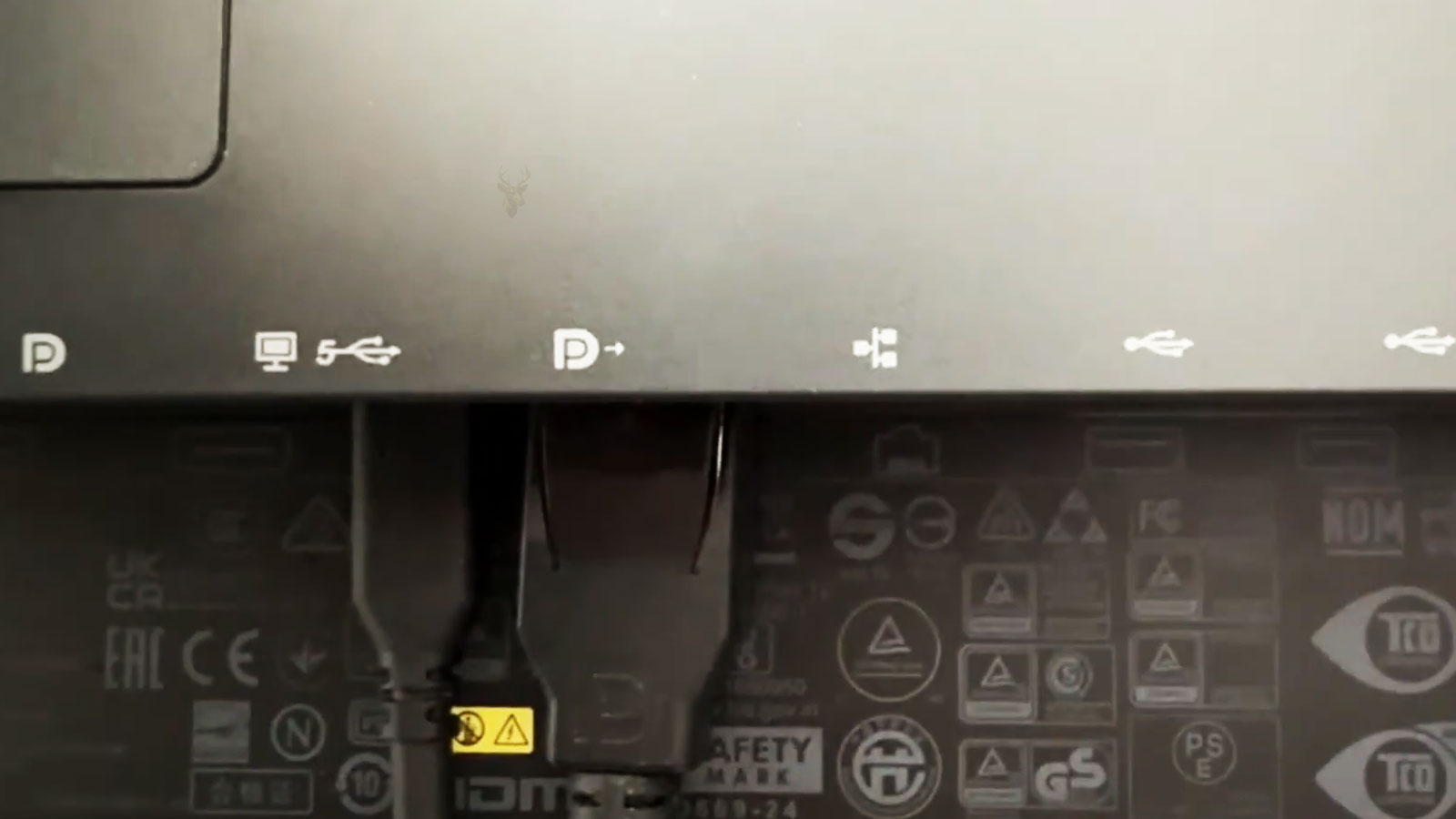
How One DisplayPort Connection Can Support Multiple Screens
Many computer users assume that every additional monitor requires another video output on the computer. While that is often true for HDMI connections, certain DisplayPort configurations allow multiple compatible monitors to be connected through a single DisplayPort output using a feature known as daisy chaining.
DisplayPort daisy chaining relies on a technology called Multi-Stream Transport (MST), which enables a single DisplayPort connection to carry multiple independent video streams. Instead of connecting every monitor directly to the computer, the monitors are linked together in sequence, with each compatible display passing the remaining video signal to the next one.
What DisplayPort Daisy Chaining Actually Does
Daisy chaining allows one monitor to receive a DisplayPort signal from the computer while simultaneously forwarding another video stream to a second compatible monitor. Additional displays can continue the chain as long as the hardware supports the required version of DisplayPort and sufficient bandwidth remains available.
Each monitor still operates as an independent display. Windows, macOS, or Linux detects multiple monitors separately, allowing different resolutions, desktop arrangements, and application placement just as if each display were connected directly.
DisplayPort daisy chaining sends multiple independent video streams through one physical DisplayPort connection.
Multi-Stream Transport Makes Daisy Chaining Possible
Multi-Stream Transport, commonly abbreviated as MST, was introduced as part of the DisplayPort standard to allow multiple displays to share a single video output. Rather than transmitting only one video signal, MST divides the available bandwidth into separate display streams.
Each monitor receives the information intended for it while passing the remaining streams farther down the chain. This process occurs automatically once compatible hardware has been connected and recognized.
Not Every DisplayPort Connection Supports Daisy Chaining
Although many computers include DisplayPort connectors, not every system supports Multi-Stream Transport. Likewise, not every monitor includes the necessary DisplayPort output required to continue the chain.
Successful daisy chaining depends on compatibility between the graphics hardware, the operating system, the DisplayPort version, and the monitors themselves. A single incompatible device can prevent the entire chain from functioning as expected.
- A graphics adapter that supports DisplayPort MST.
- A DisplayPort output on the computer.
- Monitors that support Multi-Stream Transport.
- DisplayPort cables rated for the required bandwidth.
- Proper monitor configuration settings.
The First Monitor Plays a Special Role
The first monitor in the chain receives the complete DisplayPort signal directly from the computer. After processing the information intended for its own screen, it forwards the remaining video data through its DisplayPort output to the next monitor.
This forwarding capability requires a DisplayPort output specifically designed for MST. A monitor that has only a DisplayPort input cannot continue the chain because it has no method of passing the signal onward.
| Connection | Purpose |
|---|---|
| DisplayPort Output on Computer | Sends the original video streams |
| DisplayPort Input on First Monitor | Receives the complete DisplayPort signal |
| DisplayPort Output on First Monitor | Passes remaining streams to the next monitor |
| DisplayPort Input on Second Monitor | Receives its assigned display stream |
| Additional MST Outputs | Continue the chain when supported |
DisplayPort Input and Output Are Different Connections
Many monitors include only a DisplayPort input. While they can receive video from the computer, they cannot transmit another video stream to a second display. Monitors designed for daisy chaining typically provide both a DisplayPort input and a DisplayPort output.
It is important to distinguish these connectors because they may appear nearly identical. Reading the labels beside the ports or consulting the monitor documentation is often necessary before attempting a daisy-chain configuration.
Bandwidth Determines How Many Monitors Can Be Connected
Every DisplayPort connection has a maximum data capacity. Each monitor consumes part of that available bandwidth according to its resolution, refresh rate, color depth, and other display characteristics.
Higher resolutions and faster refresh rates require substantially more bandwidth than lower-resolution displays. As additional monitors are added, the available bandwidth is divided among them until the connection reaches its practical limit.
The number of monitors supported depends on total bandwidth rather than simply the number of available connectors.
Resolution Has a Significant Effect on Capacity
Driving several Full HD monitors generally requires less bandwidth than operating multiple high-resolution 4K or ultrawide displays. As resolution increases, more video data must be transmitted each second.
Even when the graphics card supports multiple displays, bandwidth limitations may require lowering the refresh rate, reducing the number of monitors, or selecting a lower display resolution to maintain stable operation.
Refresh Rate Also Affects Available Bandwidth
A monitor refreshing at 144 Hz transfers considerably more image data than one operating at 60 Hz. This additional demand reduces the remaining bandwidth available for other displays in the chain.
Users planning multiple high-refresh-rate monitors should verify both the DisplayPort version and the graphics hardware specifications before purchasing additional displays.
DisplayPort Versions Offer Different Performance Levels
Each generation of DisplayPort increases the maximum available bandwidth and expands support for higher resolutions and refresh rates. Newer versions generally provide greater flexibility when connecting multiple monitors through MST.
However, the entire connection operates according to the capabilities of the connected devices. Older graphics hardware, monitors, or cables may reduce the maximum performance even if one component supports a newer specification.
| DisplayPort Factor | Influence on Daisy Chaining |
|---|---|
| DisplayPort Version | Determines maximum available bandwidth |
| Monitor Resolution | Higher resolutions consume more bandwidth |
| Refresh Rate | Higher refresh rates reduce remaining capacity |
| Color Depth | Greater color precision increases data usage |
| Cable Quality | Poor cables may reduce signal reliability |
Cable Quality Becomes More Important With Multiple Displays
Because the DisplayPort connection carries several video streams simultaneously, signal quality becomes increasingly important. Damaged, low-quality, or incorrectly rated cables may cause intermittent monitor detection, display flickering, blank screens, or synchronization problems.
Using certified DisplayPort cables that meet the required specifications helps reduce compatibility problems, particularly when operating higher resolutions or faster refresh rates.
Operating Systems Usually Detect Each Monitor Independently
After a successful MST connection has been established, the operating system normally identifies every display as an individual monitor. Users can arrange the desktop layout, choose primary and secondary displays, and configure resolutions independently.
This makes the experience nearly identical to using several direct video connections, even though only one DisplayPort output is being used on the computer itself.
Business Workstations Frequently Benefit From Daisy Chaining
Many office environments rely on multiple monitors for spreadsheets, document editing, accounting software, design applications, customer service platforms, and communication tools. Daisy chaining can simplify installation by reducing cable clutter and minimizing the number of video outputs required on the workstation.
The configuration can also make future monitor additions easier when the existing hardware already supports Multi-Stream Transport.
Daisy Chaining Can Reduce Cable Clutter Around a Workstation
A traditional multi-monitor setup may require a separate video cable from every display to the computer. This can create a crowded collection of cables behind a desk, especially when power cords, USB devices, network cables, speakers, and docking equipment are already present.
With DisplayPort daisy chaining, only the first monitor connects directly to the computer. The remaining displays connect to one another, which can simplify routing and make the workstation easier to organize.
Fewer Computer Video Outputs May Be Needed
Some compact computers, business laptops, and docking stations provide only one DisplayPort connection. Daisy chaining allows that single output to support several displays when the graphics hardware, monitors, and available bandwidth are compatible.
This can be useful when the computer has limited physical space for additional ports or when its remaining connections are needed for other devices.
Daisy chaining expands one DisplayPort output, but it does not increase the graphics hardware’s total display capacity.
The Graphics Adapter Still Limits the Number of Displays
A graphics adapter can support only a certain number of active displays at the same time. Daisy chaining does not remove this restriction because every monitor still requires an independent video stream generated by the graphics hardware.
A computer may have enough DisplayPort bandwidth for several monitors while the graphics adapter itself supports fewer active displays. Both limitations must be considered before building the chain.
| Limiting Factor | What It Restricts |
|---|---|
| Graphics Adapter Display Limit | The total number of monitors the computer can activate |
| DisplayPort Bandwidth | The combined resolution, refresh rate, and color data |
| Monitor MST Support | Whether the signal can continue to another screen |
| Operating System Support | Whether multiple DisplayPort streams are handled correctly |
| Cable Capability | Whether the required signal can travel reliably |
The Final Monitor Does Not Always Need a DisplayPort Output
Every monitor that passes the signal forward must include a compatible DisplayPort output. The last monitor in the chain only needs to receive its own video stream, so it may require only a DisplayPort input.
This distinction can make monitor selection more flexible. The first and intermediate displays must support MST forwarding, while the final display may be a standard DisplayPort monitor.
Monitor Settings May Need to Be Changed Before the Chain Works
Many MST-compatible monitors include an on-screen setting that enables or disables DisplayPort daisy chaining. This option may be labeled MST, DisplayPort 1.2, DisplayPort 1.4, DP Out, or something similar.
If this feature is disabled, the first monitor may display an image normally while the next monitor remains blank. Enabling the correct setting allows the monitor to separate and forward the additional video streams.
- Open the first monitor’s on-screen display menu.
- Locate the DisplayPort or input configuration section.
- Enable MST or the appropriate DisplayPort version.
- Save the setting and restart the display connection if necessary.
- Check the operating system’s display settings for the additional monitor.
Incorrect DisplayPort Mode Can Prevent the Second Monitor From Appearing
Some monitors allow the DisplayPort input to operate in different compatibility modes. An older mode may improve support for legacy devices but disable Multi-Stream Transport or reduce the available bandwidth.
Selecting a newer DisplayPort mode may be necessary for daisy chaining, although the exact option depends on the monitor and graphics hardware. Changing this setting can temporarily interrupt the picture while the connection is renegotiated.
The Connection Order Matters
A daisy chain must follow the correct signal direction. The computer’s DisplayPort output connects to the first monitor’s DisplayPort input. The first monitor’s DisplayPort output then connects to the next monitor’s input.
Reversing an input and output connection prevents the signal from moving through the chain. The connectors may look similar, so the labels beside each port should be checked carefully.
| Step | Connection |
|---|---|
| 1 | Computer DisplayPort output to first monitor DisplayPort input |
| 2 | First monitor DisplayPort output to second monitor DisplayPort input |
| 3 | Second monitor DisplayPort output to third monitor input, when supported |
| 4 | Configure the displays in the operating system |
USB-C Can Carry a DisplayPort MST Signal
Some laptops and compact computers transmit DisplayPort video through a USB-C or Thunderbolt-style connector. When the port supports DisplayPort Alt Mode and the system supports MST, it may be possible to begin a monitor chain using a compatible USB-C-to-DisplayPort cable or adapter.
The physical presence of a USB-C port does not confirm video support. The port must provide the required DisplayPort signal, and the adapter must preserve MST functionality.
Not Every USB-C Adapter Supports Multiple Display Streams
Some USB-C adapters support only one display output even when they include several video connectors. Others may rely on different technologies that do not pass a native DisplayPort MST signal to the monitor.
When a chain begins through USB-C, the computer port, adapter, cable, graphics hardware, and operating system must all support the intended configuration.
Docking Stations Can Add Another Layer of Compatibility
A docking station may provide DisplayPort outputs that support MST, but this depends on the dock’s internal design and the connection used to attach it to the computer. Some docks divide one video stream among several outputs, while others use additional display technology or separate graphics hardware.
The dock’s total video bandwidth, maximum resolution, supported monitor count, and computer connection should be reviewed before adding a daisy chain.
A compatible monitor chain can still fail when the docking station becomes the limiting device.
macOS Support for DisplayPort MST Is More Limited
DisplayPort MST behavior can differ between operating systems. Many Windows computers support independent extended displays through a compatible daisy chain, while Mac systems may have restrictions depending on the model, processor, dock, and connection method.
A Mac may mirror the same image across multiple MST-connected displays instead of treating them as separate extended desktops. Compatibility should therefore be confirmed for the exact Mac model and display arrangement before relying on daisy chaining.
Mirroring and Extending Are Different Display Modes
Mirroring sends the same desktop image to more than one monitor. Extending creates separate desktop space on each display, allowing different windows and applications to appear on different screens.
A successful MST chain is usually intended to provide extended displays. If all monitors show the same image, the cause may be an operating system limitation, a graphics setting, an adapter restriction, or an incorrectly configured monitor.
- Extended mode creates independent desktop areas.
- Mirror mode repeats the same image on multiple monitors.
- MST hardware does not guarantee extended mode on every operating system.
- Display settings should be checked after the chain is connected.
Laptop Graphics May Change According to the Connected Port
Some laptops contain both integrated and dedicated graphics hardware. Different video ports may be connected internally to different graphics processors, which can affect supported display count, performance, and available features.
A daisy chain that works through one laptop port may not work through another. Manufacturer documentation can help identify which graphics system controls each output.
Display Detection May Occur in a Different Order After Restart
When the computer starts, the monitors and graphics adapter exchange identification and capability information. The operating system then assigns each screen a position and display number.
In some configurations, monitor numbering can change after cables are disconnected, displays are powered off, or firmware and driver updates occur. The desktop arrangement may need to be reviewed if windows begin opening on the wrong screen.
Powering Off the First Monitor Can Interrupt the Entire Chain
Because the first monitor forwards the signal to the remaining displays, turning it off may disconnect every monitor farther down the chain. Whether this happens depends on how the monitor handles its DisplayPort output during standby.
Some monitors continue passing the signal while asleep, while others disable the output completely. This behavior can cause windows to rearrange when the computer believes the later monitors have been removed.
Monitor Sleep Behavior Can Affect Desktop Arrangement
When a monitor enters deep sleep, it may stop communicating with the computer. In a daisy chain, this can affect both that display and any monitors connected after it.
Disabling deep sleep, adjusting energy-saving settings, or changing the order of the monitors may improve stability when displays repeatedly disappear after inactivity.
| Observed Problem | Possible Cause |
|---|---|
| Second monitor disappears when first monitor sleeps | First monitor stops forwarding the MST signal |
| Desktop icons move after waking | The operating system temporarily detected fewer displays |
| Chain works only after reconnecting a cable | DisplayPort link negotiation may have failed |
| All monitors show the same image | Mirror mode or operating system limitation |
| Only lower resolutions are available | Available bandwidth may be insufficient |
DisplayPort Link Negotiation Happens Each Time the Connection Changes
When a monitor is connected, powered on, or awakened, the devices negotiate the signal settings they can support. This process determines link speed, bandwidth, resolution, and other display characteristics.
A weak cable, slow monitor response, outdated firmware, or incompatible adapter can interfere with this negotiation and leave one or more displays blank until the chain is restarted.
Graphics Drivers Influence MST Detection and Stability
The graphics driver manages the multiple video streams presented to the operating system. An outdated, damaged, or incompatible driver can cause missing monitors, unstable resolutions, flickering, or repeated detection sounds.
When the hardware is compatible but the daisy chain behaves unpredictably, the graphics driver and any relevant dock or monitor firmware should be included in the troubleshooting process.
Firmware Updates May Correct Monitor Chaining Problems
Some monitors and docking stations contain firmware that controls DisplayPort negotiation, MST forwarding, sleep behavior, and compatibility with graphics hardware. Manufacturers may release updates to correct display detection or stability problems.
Firmware updates should be performed carefully and only when the update applies to the exact model and problem. Interrupting the process can leave the device unusable.
Troubleshooting Should Begin With the Simplest Possible Chain
When a daisy-chain setup fails, adding more adapters, monitors, and cables can make the problem harder to isolate. A better approach is to begin with the computer connected directly to one monitor and confirm that the basic DisplayPort signal works correctly.
Once the first monitor is stable, the second display can be added through the DisplayPort output. Additional monitors should be introduced one at a time so that the point of failure becomes easier to identify.
- Connect the computer directly to the first monitor.
- Confirm the correct input and DisplayPort mode.
- Enable MST on the first monitor.
- Connect the second monitor to the first monitor’s DisplayPort output.
- Add additional displays only after the current chain is stable.
Testing Each Cable Separately Can Reveal Signal Problems
A cable may work at a lower resolution while becoming unstable when asked to carry more bandwidth. For this reason, each cable should be tested directly between the computer and a monitor whenever possible.
If a monitor works with one cable but not another, the problem may be related to cable quality, connector wear, length, or specification rather than the monitor or graphics adapter.
Swapping Monitor Positions Can Help Identify the Limiting Device
When one display repeatedly disappears, moving it to another position in the chain can provide useful information. If the problem follows the monitor, its input, firmware, or internal MST behavior may be involved.
If the failure remains at the same position regardless of which monitor is connected, the cable, available bandwidth, or output of the preceding monitor may be responsible.
| Test Result | What It May Indicate |
|---|---|
| Problem follows the monitor | The monitor or its settings may be involved |
| Problem follows the cable | The cable may be damaged or insufficient |
| Problem remains at the same chain position | The preceding output or bandwidth may be limiting the signal |
| All monitors work individually | The issue may be related to MST configuration or total capacity |
| Only the first monitor works | MST may be disabled or unsupported |
Lowering Resolution Can Confirm a Bandwidth Limitation
If all displays appear only after the resolution or refresh rate is reduced, the chain may be exceeding the available DisplayPort bandwidth. This does not necessarily mean that any hardware is defective.
The final configuration may require fewer displays, lower refresh rates, reduced color depth, a newer DisplayPort connection, or a different arrangement that divides the monitors across more than one video output.
A chain that works only at lower display settings is often limited by bandwidth rather than by monitor count alone.
High Dynamic Range Can Increase Bandwidth Requirements
High Dynamic Range can require greater color depth and additional display data. Enabling HDR on one or more monitors may reduce the remaining bandwidth available for other screens in the chain.
A configuration that works normally in standard color mode may lose a monitor, reduce refresh rates, or become unstable after HDR is enabled. The combined requirements of every display should be considered.
Adaptive Sync and Gaming Features May Add Compatibility Limits
Variable refresh rate technologies and other gaming-focused features may not function consistently across every monitor in an MST chain. Support depends on the graphics adapter, monitor firmware, DisplayPort version, and driver behavior.
Users building a high-refresh-rate gaming setup may obtain more predictable results by connecting critical displays directly to separate graphics outputs instead of sharing one MST connection.
Professional Color Work May Require Direct Connections
Daisy chaining is convenient for office productivity, but some professional workflows depend on specific color depth, refresh behavior, calibration equipment, or uninterrupted signal paths.
Photography, video production, medical imaging, and design work may benefit from direct monitor connections when consistent display behavior is more important than reducing cable count.
Daisy Chaining Is Not the Same as Using an MST Hub
An MST hub separates one DisplayPort signal into several independent outputs without requiring monitors that include DisplayPort output ports. The hub performs the signal distribution externally.
Both methods rely on Multi-Stream Transport and share the same graphics and bandwidth limitations. The main difference is whether the signal is forwarded by the monitors themselves or divided by a separate device.
| Method | Primary Requirement |
|---|---|
| Monitor Daisy Chain | Intermediate monitors must include MST-compatible DisplayPort outputs |
| MST Hub | The hub provides several display outputs from one DisplayPort connection |
| Direct Connections | The computer must provide a separate compatible output for each monitor |
| Docking Station | The dock and host connection must support the intended number of displays |
An MST Hub Can Be Useful With Standard Monitors
When the available monitors have only DisplayPort inputs, an MST hub may provide a more practical solution than replacing them with daisy-chain models. The hub connects to the computer and supplies separate outputs for each screen.
The same bandwidth calculations still apply, and the hub must support the required resolutions and refresh rates. Low-quality hubs can also introduce detection or sleep-related problems.
DisplayPort Splitters May Only Duplicate the Image
Not every device advertised as a splitter creates independent extended displays. Some splitters simply duplicate one video signal across several monitors, causing each screen to show the same image.
A device intended for an extended desktop should specifically support MST or another technology capable of generating multiple independent displays.
Window Placement Can Change When a Monitor Disconnects
If a monitor farther down the chain temporarily disappears, the operating system may move open windows onto the remaining screens. When the monitor reconnects, those windows may not return to their original positions.
This behavior can be disruptive in workstations that depend on a fixed application layout. Stable cables, appropriate sleep settings, and reliable monitor firmware help reduce repeated rearrangement.
Monitor Identification Numbers Do Not Always Match Physical Order
The operating system may label the first physical monitor as display two or three. These numbers are assigned according to detection history and do not necessarily follow the order of the chain.
The identify function in display settings can show a large number on each screen, allowing the desktop arrangement to be matched to the physical monitor positions.
Audio May Follow a Different Monitor Than Expected
DisplayPort can carry audio as well as video. When several monitors are connected, each display with speakers or an audio output may appear as a separate playback device.
The operating system may select a different monitor after a restart or reconnection. If sound disappears, the default audio output should be checked before assuming there is a speaker or driver failure.
- Confirm which monitor is selected as the audio output.
- Check whether the monitor volume is muted.
- Verify that the DisplayPort connection carries audio.
- Review playback devices after reconnecting the chain.
KVM Features Inside Monitors Can Affect the Setup
Some business monitors combine DisplayPort daisy chaining with USB hubs and built-in KVM features. These systems can share a keyboard and mouse while also forwarding video to another display.
Although convenient, this adds more configuration requirements. USB upstream connections, input selection, monitor firmware, and computer compatibility must all be correct for the complete setup to work reliably.
Monitor Power Delivery Is Separate From DisplayPort Daisy Chaining
A USB-C monitor may provide power to a laptop while also receiving DisplayPort video. This feature is separate from MST, even though both may operate through the same physical USB-C cable.
A laptop can receive charging and video from the first monitor while additional displays are connected through DisplayPort outputs. The available charging wattage, video bandwidth, and USB data capacity should all be reviewed independently.
Disconnecting One Monitor Can Affect Every Display After It
Because the monitors are connected in sequence, removing an intermediate display interrupts the path to all later screens. This is an important difference from direct connections, where one disconnected monitor normally does not affect the others.
Workstations that require every display to remain independent may be better served by direct connections or an MST hub with separate output paths.
Daisy Chaining Is Often Best for Stable, Permanent Workstations
DisplayPort daisy chaining works especially well when the same computer and monitors remain connected at a desk. Once the chain is configured and tested, it can provide a clean and efficient multi-monitor arrangement.
Frequently changing laptops, adapters, monitor order, and display settings can create more opportunities for detection and compatibility problems. Portable users may prefer a tested docking station or direct monitor connections.
Planning the Chain Before Purchasing Equipment Prevents Compatibility Problems
Monitor appearance and connector shape do not confirm MST support. Before purchasing equipment, the specifications for the computer, graphics adapter, monitors, cables, dock, and operating system should be compared.
The intended resolution, refresh rate, color depth, and number of displays should be included in the plan. A configuration that technically supports daisy chaining may still be unable to provide the desired performance.
DisplayPort Daisy Chaining Can Simplify a Multi-Monitor Setup
DisplayPort daisy chaining allows several compatible monitors to operate through one computer video output by using Multi-Stream Transport. Each screen can function as an independent display while the monitors pass the remaining video streams through the chain.
The convenience of fewer computer connections depends on careful compatibility planning. Graphics display limits, bandwidth, monitor inputs and outputs, cables, operating system support, sleep behavior, adapters, and firmware can all affect the result. When these factors are matched correctly, daisy chaining provides an organized and practical way to expand desktop space without running a separate video cable from every monitor to the computer.











