
How One Keyboard, Monitor, and Mouse Can Control Multiple Computers
Many people regularly work with more than one computer. A desktop may be used for business tasks, a laptop for travel, a second computer for testing software, or a dedicated workstation for specialized applications. Managing multiple keyboards, monitors, and mice can quickly create a crowded workspace and make it inconvenient to move between systems throughout the day.
A Keyboard, Video, and Mouse switch, commonly called a KVM switch, is designed to simplify this arrangement. By allowing multiple computers to share a single set of input devices and one or more monitors, a KVM switch reduces desktop clutter while making it possible to change between computers with a button press, keyboard shortcut, or remote control.
What a KVM Switch Actually Does
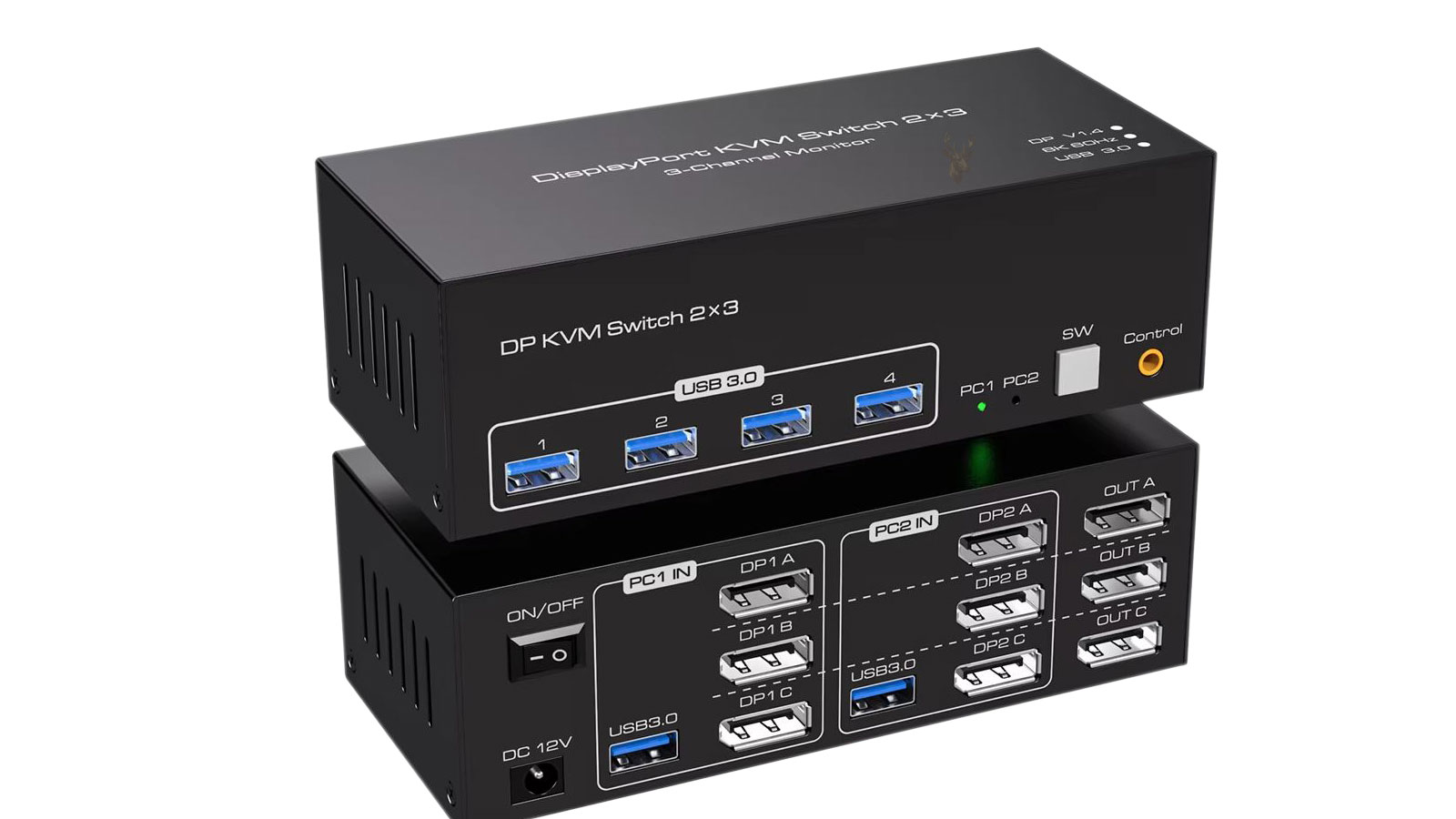
A KVM switch serves as a central connection point between computers and shared peripherals. Instead of connecting a separate keyboard, monitor, and mouse to every computer, those devices connect to the KVM switch. Each computer then connects to its own dedicated ports on the switch.
When the selected computer changes, the keyboard, monitor, and mouse are redirected to that system while the remaining computers continue running normally in the background.
A KVM switch changes which computer controls the shared peripherals without shutting down or restarting the connected systems.
Why KVM Switches Are Commonly Used
KVM switches are found in many different environments, including home offices, business workspaces, repair benches, server rooms, software development laboratories, and multimedia production setups. They allow users to manage several computers efficiently without constantly reconnecting cables.
Because each connected computer continues operating independently, files can be transferred, updates can install, and background processes can continue even while another computer is actively being used.
The Basic Components of a KVM System
Although models vary considerably, most KVM systems contain several common connections that allow communication between the computers and shared peripherals.
| Component | Purpose |
|---|---|
| Computer ports | Connect each individual computer to the switch |
| Console ports | Connect the shared keyboard, monitor, and mouse |
| Selection controls | Allow switching between connected computers |
| Status indicators | Show which computer is currently active |
Different Types of KVM Switches
KVM switches range from simple two-computer models to enterprise devices capable of managing dozens of systems. Some are designed for desktop use, while others mount inside equipment racks used in business and data center environments.
Modern models may also support multiple monitors, high-resolution displays, audio devices, USB peripherals, and specialized input equipment depending on their intended purpose.
- Compact desktop KVM switches for two or four computers.
- Dual-monitor KVM switches for expanded workstations.
- Rack-mounted KVM systems for server environments.
- USB-C KVM switches designed for modern laptops.
- Network-accessible KVM systems for remote administration.
Switching Between Computers
Most KVM switches provide several methods for selecting the active computer. Physical buttons on the unit offer a straightforward option, while many models also support programmable keyboard shortcuts that allow users to change systems without reaching for the switch itself.
Some advanced models include wired remote buttons, infrared controls, or on-screen menus that simplify switching when the device is mounted behind a desk or inside an equipment cabinet.
Video Compatibility Is an Important Consideration
The KVM switch must support the monitor connection used by every attached computer. Depending on the model, video interfaces may include HDMI, DisplayPort, DVI, VGA, or USB-C video output. A mismatch between the computer, monitor, and KVM switch can prevent the display from operating correctly.
Maximum supported resolution and refresh rate also vary between products. A switch intended for office productivity may not support the higher refresh rates or resolutions expected in gaming, graphic design, or video editing environments.
Keyboard and Mouse Connections Have Changed Over Time
Older KVM switches commonly supported PS/2 keyboards and mice, while nearly all current desktop models use USB connections. Some enterprise equipment continues to support both standards to accommodate older hardware alongside modern computers.
Before selecting a KVM switch, the available peripheral connections should be compared with the ports provided by each computer to ensure all devices can be connected without unnecessary adapters.
USB Support Can Extend Beyond the Keyboard and Mouse
Many KVM switches include additional USB ports that allow other peripherals to be shared between connected computers. Flash drives, printers, webcams, external storage devices, and other USB equipment may be supported depending on the design of the switch.
Not every USB device behaves the same way when switched between computers. Devices that require uninterrupted communication or specialized drivers may have different compatibility requirements than standard keyboards and mice.
Sharing USB devices through a KVM switch depends on both the capabilities of the switch and the communication requirements of the connected peripheral.
Audio Switching Is Available on Many Models
Some KVM switches also route speakers, headphones, and microphones between computers. This allows users to move from one system to another without reconnecting audio cables, making the workstation more convenient for conferencing, multimedia work, and everyday office use.
Whether audio follows the selected computer or remains connected to one system depends on the features provided by the specific KVM switch.
Display Detection Can Change When Switching Systems
Computers and monitors exchange identification information that helps determine supported resolutions, refresh rates, color formats, and audio capabilities. A KVM switch sits between those devices and must pass that information correctly to each connected computer.
When the switch handles display identification poorly, a computer may temporarily lose the monitor, rearrange open windows, return at the wrong resolution, or fail to detect audio through HDMI or DisplayPort after switching.
EDID Emulation Helps Maintain a Stable Display Configuration
Some KVM switches include Extended Display Identification Data emulation, often called EDID emulation. This feature allows the switch to continue presenting monitor information to inactive computers even when the display is currently assigned to another system.
Without this feature, an inactive computer may behave as though the monitor has been disconnected. Applications can move to another screen, desktop layouts may change, and remote sessions may open at a lower resolution.
EDID emulation helps each computer continue recognizing the monitor even while another system is selected.
High Resolution and High Refresh Rate Support Must Be Verified Together
A KVM switch may support a high display resolution but only at a limited refresh rate. For example, a model may handle a 4K image at a standard office refresh rate while being unable to support the higher refresh rates expected by gaming or professional visual applications.
The video standard, cable quality, monitor capability, graphics hardware, and KVM switch must all support the same combination of resolution and refresh rate. The lowest capability in the connection path becomes the practical limit.
| Video Factor | Possible Limitation |
|---|---|
| Maximum resolution | The switch may not pass the monitor’s full pixel count |
| Maximum refresh rate | Motion may be limited to a lower update frequency |
| Color depth | Professional color modes may not be supported |
| HDR support | High dynamic range may fail or operate inconsistently |
| Variable refresh rate | Gaming synchronization features may not pass through |
Cable Quality Becomes More Important in a KVM Setup
A direct monitor connection uses one video cable between the computer and display. A KVM arrangement adds another device and usually additional cables, increasing the total length and number of connection points in the signal path.
Low-quality, damaged, or overly long cables can lead to flickering, brief signal loss, incorrect resolution detection, or a completely blank screen. Problems may appear only at higher resolutions or refresh rates because those modes require greater signal integrity.
- Use cables rated for the required video standard.
- Avoid unnecessary adapters when possible.
- Keep cable lengths within the switch manufacturer’s recommendations.
- Test each computer directly with the monitor before blaming the KVM.
- Replace one cable at a time when tracing intermittent display problems.
Adapters Can Introduce Additional Compatibility Problems
Computers in the same workspace may use different video outputs. One may provide HDMI, another DisplayPort, and a laptop may rely on USB-C. Adapters can bridge some of these differences, but they may not preserve every feature supported by the original connection.
An adapter may limit refresh rate, fail to carry audio, interfere with display identification, or require active signal conversion. A KVM setup is generally more reliable when all connected computers use the same native video standard.
USB Keyboard Emulation Can Improve Basic Compatibility
Some KVM switches emulate a standard keyboard and mouse so each computer continues recognizing basic input devices even when it is not selected. This helps maintain startup access, keyboard shortcuts, and consistent device detection.
However, emulation may not support every advanced feature found on gaming keyboards, programmable mice, biometric devices, or specialty control surfaces. These devices may need to connect through a dedicated USB pass-through port instead.
Advanced Keyboards and Mice May Lose Special Features
Modern keyboards and mice can include onboard lighting, macro controls, high polling rates, displays, multiple USB interfaces, and manufacturer-specific software. A basic KVM switch may recognize them only as standard input devices.
The keyboard may still type and the mouse may still move, but lighting controls, programmable buttons, device memory, or software detection may stop working through the emulated console ports.
| Peripheral Feature | Possible KVM Behavior |
|---|---|
| Basic typing and pointer movement | Usually supported through standard console ports |
| Programmable macro keys | May not be recognized correctly |
| High mouse polling rates | May be reduced or unstable |
| RGB lighting control | Manufacturer software may not detect the device |
| Built-in USB hub | May require a dedicated USB pass-through connection |
Wireless Keyboards and Mice Can Work Through a Receiver
A wireless keyboard or mouse that uses a USB receiver may function through a KVM switch, but compatibility depends on how the switch handles the receiver. Basic devices often work normally, while unified receivers and gaming receivers may require full USB pass-through instead of keyboard and mouse emulation.
Bluetooth keyboards and mice usually do not connect directly to a standard KVM switch because they pair with the individual computer rather than the switch. Each system may need its own Bluetooth connection unless the KVM includes specialized wireless support.
USB Hubs and KVM Peripheral Ports Are Not Always Equivalent
Some KVM switches include shared USB hub ports in addition to the dedicated keyboard and mouse connections. These ports allow a broader range of devices to move between computers, including storage drives, printers, card readers, and webcams.
The available transfer speed may be limited by the KVM’s USB generation. A high-speed external drive connected through an older USB interface can operate far below its normal performance even though the device is detected correctly.
External Storage Should Be Switched Carefully
When an external storage device is shared through a KVM switch, it is effectively disconnected from one computer and connected to another each time the USB channel changes. Switching while files are being written can interrupt data transfer and damage the file system.
- Finish all active file transfers.
- Close programs using files on the external device.
- Use the operating system’s safe removal process when appropriate.
- Wait for write activity to stop before switching computers.
- Confirm that the device appears correctly on the newly selected system.
A shared USB drive should be treated as though it is being unplugged and reconnected whenever the KVM changes computers.
Webcams and Audio Interfaces May Reconnect Slowly
Webcams, microphones, headsets, and audio interfaces can require several seconds to initialize after being switched. Conferencing software may not automatically select the device again, especially if the application was already open when the connection changed.
Some professional audio devices depend on uninterrupted communication and are not well suited to frequent switching. Connecting those devices directly to one computer may provide better reliability.
Power Delivery Matters in USB-C KVM Switches
USB-C KVM switches may combine video, keyboard and mouse control, USB data, and laptop charging through a single cable. However, the amount of power delivered varies between models and may not be sufficient for every laptop.
A laptop may connect to the display and peripherals correctly while charging slowly, reporting an underpowered adapter, or losing battery capacity during heavy use. The KVM’s power-delivery rating should be compared with the requirements of each connected computer.
Not Every USB-C Port Supports Video Output
A USB-C connector does not guarantee support for monitor output. The laptop port must support an appropriate video mode, such as DisplayPort Alt Mode or another compatible display technology, before a USB-C KVM can carry video from that system.
A computer may still recognize the KVM’s USB devices while producing no image if its USB-C port supports data only. Port specifications should be verified before the KVM is selected.
Dual-Monitor KVM Switches Require Multiple Video Paths
A dual-monitor KVM switch must receive enough video connections from each computer to support both displays. In many designs, every computer requires two separate video cables in addition to its USB connection.
Laptops may need a docking station or compatible multi-display connection before they can provide both video signals. A KVM switch cannot create an additional display output when the computer itself supports only one external monitor.
Switching Delays Vary by Device and Connection Type
Some KVM switches change computers almost immediately, while others require several seconds for the monitor and USB devices to reconnect. Display handshaking, resolution detection, USB initialization, and security checks all contribute to the delay.
A brief pause is normal, but repeated black screens, missing peripherals, or the need to disconnect cables manually can indicate a compatibility problem or an underpowered switch.
KVM Switches Can Introduce Audio Detection Problems
When audio is carried through HDMI, DisplayPort, or USB-C, the monitor or KVM switch may appear to the computer as an audio output device. Changing computers can cause the operating system to select a different speaker, headset, or microphone automatically.
A system may display video correctly while producing no sound because the audio output remained assigned to another device. Reviewing the selected input and output devices is an important step before concluding that the KVM’s audio hardware has failed.
Hotkey Commands Can Conflict With Normal Keyboard Use
Many KVM switches use keyboard shortcuts to change computers, activate scanning modes, or control audio and USB routing. These shortcuts usually begin with a repeated key combination that the switch monitors before passing keystrokes to the computer.
In some applications, the same key sequence may be used for normal work. Programming tools, remote access software, games, and accessibility utilities can all conflict with KVM hotkeys. Models that allow custom shortcut configuration provide greater flexibility in these environments.
Automatic Scanning Is Useful for Monitoring Several Systems
Some KVM switches include an automatic scanning mode that cycles through connected computers at regular intervals. This can be useful when checking servers, monitoring test systems, or watching several computers that require only occasional interaction.
Automatic scanning is less useful for active desktop work because the display and peripherals continue switching until the feature is stopped. The scanning interval and cancellation method should be understood before the feature is enabled.
Powered and Unpowered KVM Switches Behave Differently
Some compact KVM switches draw power from the connected computers, while others use a dedicated power adapter. Bus-powered designs can be convenient, but they may have limited ability to support multiple USB devices, high-resolution video circuitry, or power-demanding peripherals.
A powered switch generally provides more consistent operation when sharing webcams, external storage, illuminated keyboards, audio equipment, or several USB accessories. Insufficient power can cause devices to disconnect, reconnect repeatedly, or fail only when several peripherals are active at the same time.
| KVM Power Design | Typical Characteristic |
|---|---|
| Bus-powered | Simple installation with limited peripheral power |
| Externally powered | More stable support for multiple connected devices |
| USB-C power delivery | May also charge compatible laptops |
| Enterprise redundant power | Designed to remain available in critical environments |
Gaming Systems Place Greater Demands on a KVM
Gaming computers often use high refresh rates, variable refresh synchronization, high mouse polling rates, HDR, surround audio, and specialized USB devices. A KVM switch designed for routine office use may reduce or disable some of these features even when the basic display and input functions continue working.
For a gaming workstation, the switch should be evaluated for the exact resolution, refresh rate, color format, synchronization technology, and peripheral requirements in use. Marketing descriptions that state only a maximum resolution may not provide enough information.
- Confirm the required resolution and refresh rate together.
- Check support for variable refresh technologies.
- Verify mouse and keyboard pass-through behavior.
- Review HDR and color-depth limitations.
- Test for added input delay under normal gaming conditions.
Input Delay Is Usually Small but Can Still Matter
A well-designed KVM switch introduces little noticeable delay during ordinary office work. However, additional processing, USB emulation, wireless receivers, or lower-quality internal electronics can affect responsiveness in specialized applications.
Competitive gaming, audio production, industrial control, and precision design work may be more sensitive to small timing differences than general document editing or web browsing. Direct connections may remain preferable when consistent low-latency input is critical.
Business Environments May Require User Access Controls
In offices, laboratories, and server rooms, a KVM system may provide access to computers that contain confidential information or critical services. Enterprise models can include password controls, user permissions, logging, and restrictions that determine which systems each person may access.
These features are especially important when one centralized console is shared by several technicians or administrators. A simple desktop KVM generally provides no user authentication and should not be treated as a security control.
KVM Over IP Allows Remote Hardware-Level Access
KVM over IP systems transmit keyboard, video, and mouse control across a network. Unlike ordinary remote desktop software, they can provide access before the operating system starts and may remain usable when the installed software is frozen, damaged, or unavailable.
This makes network-based KVM equipment valuable for server administration, remote facilities, and systems that must be managed without a technician physically present at the keyboard.
KVM over IP can provide access to firmware screens and startup errors that ordinary remote support software cannot reach.
Remote KVM Access Must Be Secured Carefully
A network-accessible KVM can provide extensive control over connected systems, including the ability to view startup screens, enter firmware settings, and interact with recovery environments. Weak passwords, outdated firmware, or unnecessary internet exposure can create serious security risks.
- Change all default administrator credentials.
- Install supported firmware updates.
- Restrict access to trusted networks or secure remote connections.
- Disable unused services and accounts.
- Review access logs when the system provides them.
Some KVM Problems Are Actually Docking Station Problems
Laptops are often connected to a KVM through a docking station or USB-C hub. This adds another device between the computer and switch, creating additional opportunities for video, USB, audio, and power-delivery compatibility problems.
A missing monitor or unstable peripheral may be caused by the dock, its firmware, the USB-C cable, or the laptop’s port rather than the KVM itself. Testing the dock directly with the monitor and peripherals helps isolate the source of the problem.
Troubleshooting Should Begin With the Simplest Configuration
When a KVM setup behaves inconsistently, reducing the system to its most basic connections can help identify the failing component. One computer, one monitor, one keyboard, and one mouse should be tested before additional devices, adapters, docks, and audio equipment are reintroduced.
| Diagnostic Step | What It Helps Confirm |
|---|---|
| Connect the computer directly to the monitor | Whether the computer and display work without the KVM |
| Replace the video cable | Whether signal loss is cable-related |
| Use basic wired input devices | Whether advanced peripherals are causing USB problems |
| Test one computer at a time | Whether the issue follows a specific system or KVM port |
| Remove adapters and docking stations | Whether an intermediate device is creating incompatibility |
Power Cycling Can Restore Failed Device Detection
KVM switches, monitors, docking stations, and computers all maintain connection information while powered. A failed video handshake or USB initialization may remain until the affected devices are fully restarted.
Turning off the connected systems, disconnecting power from the KVM when applicable, and then reconnecting devices in a controlled order can restore normal detection. Repeatedly unplugging cables while everything remains active may make the original cause more difficult to identify.
Firmware Updates May Resolve Switching Problems
Some advanced KVM switches, docking stations, and monitors contain updateable firmware. Manufacturers may release revisions that improve display compatibility, USB detection, power delivery, or switching behavior with newer computers.
Firmware updates should be performed only with the correct model-specific files and instructions. Interrupting the process or installing incompatible firmware can leave the device unusable.
The Best KVM Depends on the Entire Workstation
Selecting a KVM switch requires more than counting the number of computers. The monitor arrangement, resolution, refresh rate, video connections, USB devices, audio requirements, laptop charging needs, and remote-access expectations all influence which model is appropriate.
A simple two-computer office workstation may need only basic HDMI and USB support, while a multi-monitor gaming or professional environment may require substantially greater video bandwidth and peripheral compatibility.
A Properly Matched KVM Can Simplify a Multi-Computer Workspace
KVM switches provide a practical way to control several computers from one keyboard, monitor, and mouse. They can reduce clutter, improve workflow, and make it easier to manage office systems, repair benches, servers, and specialized workstations.
Reliable operation depends on matching the switch to the full requirements of the setup. Video bandwidth, display identification, USB behavior, power delivery, audio support, peripheral compatibility, and security features should all be considered before installation. When these factors are verified carefully, a KVM switch can provide convenient and consistent control without the need to repeatedly move cables between computers.











