
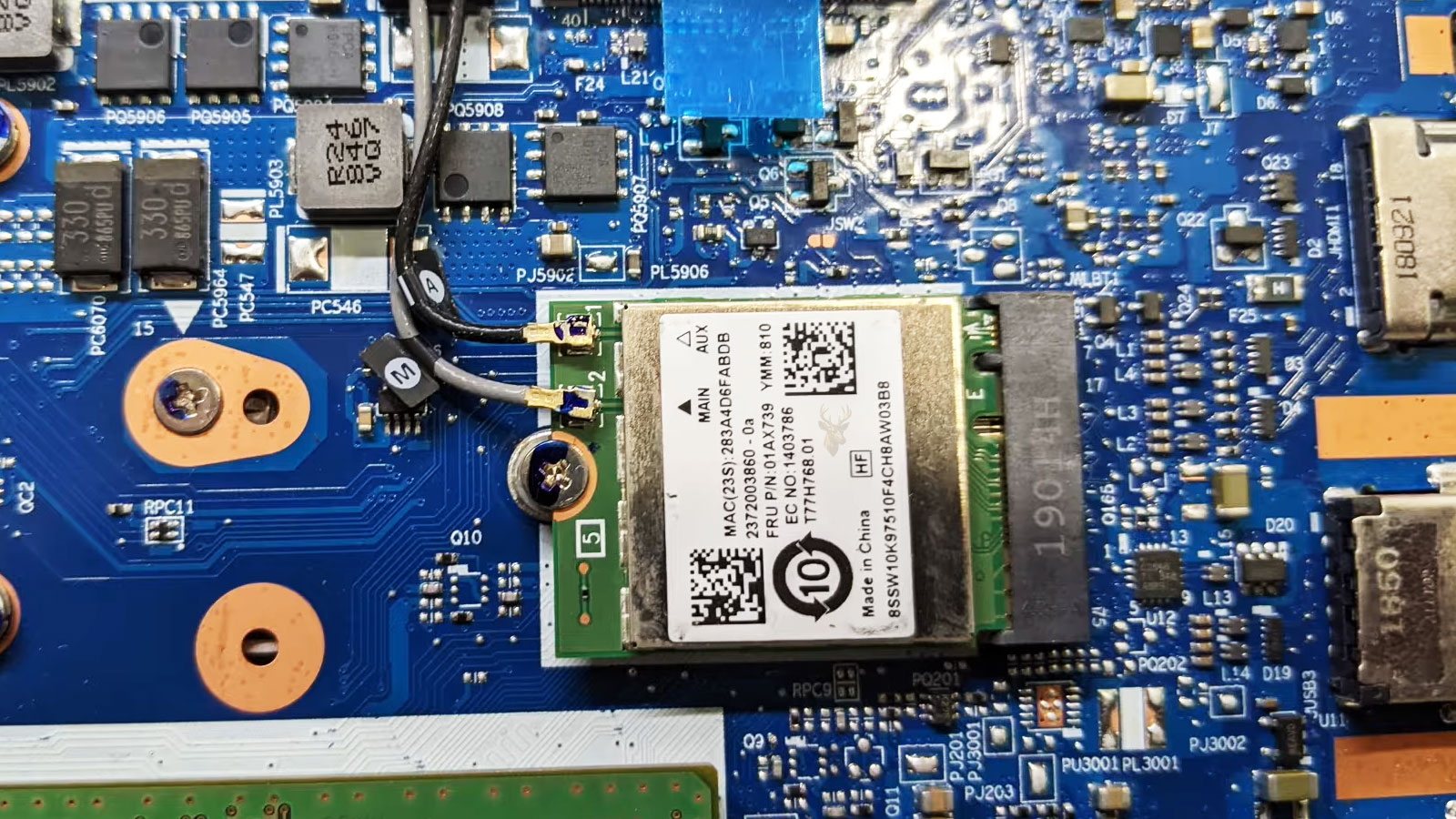
Understanding What Determines Whether a Laptop Wi-Fi Upgrade Will Work
Replacing a laptop’s wireless networking card is one of the hardware upgrades that can improve wireless performance, add support for newer Wi-Fi standards, or replace a failed adapter. While the replacement itself may appear straightforward, successful upgrades depend on much more than matching the physical size of the wireless card.
Wireless adapters communicate with the motherboard, firmware, antennas, Bluetooth components, and operating system. A replacement card that fits physically may still fail to operate correctly if one of these compatibility requirements is not satisfied. Understanding these factors helps explain why some upgrades work immediately while others require additional hardware or are not supported at all.
The Wireless Card Is Only One Part of the System
A laptop’s wireless connection depends on several components working together. The adapter provides the radio hardware, but the antennas carry the wireless signals, the motherboard supplies communication with the processor, and firmware helps initialize the device during startup.
Bluetooth functionality is also commonly integrated into the same module, allowing one small expansion card to support both wireless networking and Bluetooth communication.
Replacing the Wi-Fi card does not automatically upgrade every part of the laptop’s wireless system. The surrounding hardware must also support the new adapter.
Several Connector Types Have Been Used Over the Years
Laptop wireless adapters have been manufactured using several physical interfaces throughout the years. Older systems commonly used Mini PCI Express cards, while newer laptops generally use M.2 modules designed specifically for wireless networking.
Although two adapters may appear similar, their electrical interfaces can be completely different. A newer M.2 wireless card cannot simply replace an older Mini PCI Express device without hardware specifically designed for that purpose.
| Wireless Card Interface | Common Usage |
|---|---|
| Mini PCI Express | Older notebook computers |
| M.2 2230 | Most modern laptops |
| Soldered wireless module | Thin and highly integrated laptop designs |
| Proprietary connector | Certain manufacturer-specific models |
Physical Size Does Not Guarantee Compatibility
Many wireless cards share similar dimensions, especially M.2 2230 modules. Even when a replacement card fits the mounting location correctly, differences in firmware support, interface generation, antenna requirements, or manufacturer restrictions can prevent normal operation.
Successful upgrades require both mechanical compatibility and electronic compatibility. Evaluating only the shape of the replacement module may lead to unexpected installation problems.
Some Manufacturers Restrict Approved Wireless Cards
Certain laptop manufacturers program firmware to recognize only specific wireless adapters that were approved for a particular model. If an unsupported card is installed, the computer may stop during startup or refuse to initialize the adapter.
These firmware restrictions are sometimes referred to as wireless card whitelists. Whether a laptop includes such limitations depends on the manufacturer, model, and firmware version.
- Some laptops accept many compatible adapters.
- Others recognize only manufacturer-approved models.
- Firmware updates may affect compatibility.
- Business and consumer models may behave differently.
- Support varies significantly between manufacturers.
The Antennas Are Just as Important as the Adapter
Wireless performance depends heavily on the antennas installed inside the display assembly. These antennas determine how efficiently signals are transmitted and received, and they are carefully routed through the laptop’s hinges to minimize interference and maximize reception.
A newer wireless adapter cannot compensate for damaged antenna cables, disconnected connectors, or antennas that were designed for older wireless standards. Poor reception after an upgrade is not always caused by the replacement card itself.
Multiple Antenna Connectors Support Modern Wireless Technologies
Many wireless adapters include two or more antenna connectors to support multiple-input multiple-output (MIMO) communication. Using multiple antennas improves reliability, increases throughput, and allows the adapter to take advantage of newer wireless standards.
If a laptop was originally designed with fewer antennas than the replacement adapter expects, some advanced wireless capabilities may not operate at their full potential even though the card itself functions normally.
Bluetooth Shares the Same Hardware Module
Modern laptop wireless cards commonly provide both Wi-Fi and Bluetooth through a single module. Although these functions share the same hardware, they communicate differently with the operating system and may use separate internal connections for certain features.
When Bluetooth works but Wi-Fi does not, or vice versa, the cause may involve drivers, firmware initialization, internal connections, or hardware faults rather than complete failure of the wireless card itself.
Antenna Connector Labels Can Differ Between Wireless Cards
Wireless cards often identify antenna connections with labels such as Main and Auxiliary, while other models use numbered or color-coded markings. These labels help indicate how the antenna leads should be attached, but the exact arrangement can vary between manufacturers.
Reversing the antenna leads does not always prevent the adapter from working, but it can reduce signal strength, affect connection stability, or interfere with the card’s ability to use multiple antennas efficiently. The original cable positions should be documented before the old adapter is removed.
The Antenna Connectors Are Small and Easily Damaged
The miniature coaxial connectors used on laptop wireless cards require careful handling. They must be aligned directly above the socket and pressed into place without excessive force. Attempting to attach a connector at an angle can bend the socket, deform the cable end, or separate the connector from the card.
- Disconnect the battery before removing the wireless card.
- Lift antenna connectors vertically instead of pulling on the cables.
- Avoid twisting or sharply bending the antenna leads.
- Align each connector carefully before pressing it into place.
- Confirm that the cables cannot interfere with the cooling fan or bottom cover.
M.2 Keying Helps Identify the Intended Interface
M.2 modules use notches, known as keys, to help distinguish different electrical interfaces. Laptop wireless cards commonly use an A-key, E-key, or combined A-plus-E-key arrangement. Storage drives commonly use different keying and are not interchangeable with wireless adapters.
The connector key prevents many incompatible devices from being inserted, but it does not guarantee that every card with the correct notch will operate in a particular laptop. Firmware support and the communication method used by the adapter still matter.
| Physical Detail | What It Helps Determine |
|---|---|
| M.2 key position | The type of socket the module can physically enter |
| Card length | Whether the mounting screw aligns correctly |
| Antenna connector count | How many antenna leads the adapter can use |
| Module identification label | The exact model, revision, and regulatory information |
Not Every M.2 Wireless Card Uses the Same Communication Method
Some wireless adapters communicate through standard PCI Express and USB connections provided by the M.2 socket. Other adapters depend on a platform-specific connection that requires direct support from the processor and motherboard chipset.
A card using a platform-dependent interface may fit into the socket but remain completely undetected when installed in an unsupported laptop. This is one of the most common reasons a physically compatible wireless module fails to appear after installation.
Matching the connector is only the first step. The laptop must also support the electrical interface used by the replacement adapter.
Processor and Chipset Support Can Affect Compatibility
Certain wireless technologies move part of the adapter’s operation into the computer’s processor or chipset. These designs can reduce the amount of hardware located on the wireless card, but they also make compatibility more dependent on the laptop’s internal platform.
Two laptops with identical-looking M.2 sockets may therefore support different wireless modules. The processor generation, chipset design, firmware, and motherboard wiring all influence whether a particular adapter can operate.
Newer Wi-Fi Standards Do Not Guarantee Faster Internet
Installing a newer wireless card may increase the maximum connection capability of the laptop, but actual speed still depends on the wireless router, internet service, distance, interference, antenna design, and network configuration.
A laptop upgraded to a newer Wi-Fi standard may continue connecting at an older rate when the router does not support the same technology. The upgrade can still improve efficiency or reliability, but the advertised maximum speed should not be treated as a guaranteed result.
| Limiting Factor | Possible Effect |
|---|---|
| Older wireless router | The adapter connects using an earlier Wi-Fi standard |
| Weak antenna system | Reduced range and lower connection quality |
| Heavy wireless interference | Unstable speeds and repeated retransmissions |
| Slow internet service | Local wireless capability exceeds the available internet speed |
| Network congestion | Multiple devices compete for available airtime |
Wi-Fi 6E and Wi-Fi 7 Depend on Compatible Frequency Support
Some newer adapters support communication on the 6 GHz band in addition to the traditional 2.4 GHz and 5 GHz bands. Access to this additional frequency range requires a compatible router, supported software, and regulatory approval for the region where the laptop is being used.
An adapter may work normally on 2.4 GHz and 5 GHz while its 6 GHz capability remains unavailable. This does not necessarily indicate a defective card. The router, software environment, geographic settings, or antenna design may not support the additional band.
The Laptop Antennas May Not Be Optimized for Newer Frequencies
Wireless antennas are designed to operate across particular frequency ranges. Antennas installed in an older laptop may provide acceptable performance with a newer card but may not be optimized for every band that the replacement supports.
This can result in a situation where the card detects nearby networks but performs poorly at longer distances or on specific frequencies. Replacing the adapter alone cannot change the physical characteristics of the antenna system built into the display assembly.
Driver Availability Should Be Confirmed Before Installation
A replacement wireless card requires software that allows the operating system to communicate with its Wi-Fi and Bluetooth functions. Newer adapters may not have suitable drivers for older operating systems, and manufacturer-provided recovery images may not include support for hardware that was not originally offered with the laptop.
Downloading the correct drivers before removing the original adapter can prevent the laptop from being left without a working network connection. Both the wireless and Bluetooth drivers may need to be installed separately.
- Identify the exact replacement card model and hardware revision.
- Confirm that suitable Wi-Fi and Bluetooth drivers are available.
- Save the installers locally before changing the hardware.
- Record the original adapter model in case reinstallation is necessary.
- Keep another method of network access available during testing.
Generic and Laptop-Manufacturer Drivers May Behave Differently
The wireless chipset manufacturer may provide a general driver, while the laptop manufacturer may distribute a customized version for the original hardware configuration. Either driver may function, but differences can affect power management, Bluetooth integration, sleep behavior, or special wireless controls.
When a replacement adapter works inconsistently, comparing available driver versions can help determine whether the problem is caused by hardware incompatibility or software intended for a different configuration.
Bluetooth May Require a Separate Troubleshooting Process
Wi-Fi and Bluetooth can fail independently even though they are located on the same card. The Wi-Fi portion commonly communicates through PCI Express, while Bluetooth may use an internal USB connection provided through the M.2 socket.
If the laptop supports the Wi-Fi interface but does not provide the expected Bluetooth connection, wireless networking may function while Bluetooth remains missing. Driver installation alone cannot correct a motherboard connection that is absent or incompatible.
Airplane Mode and Hardware Controls Can Affect a New Adapter
Some laptops include keyboard shortcuts, physical wireless switches, or manufacturer control software that can disable radio communication. These controls may have been designed around the original adapter and may not interact normally with every replacement card.
A newly installed adapter that appears in the system but cannot detect networks should be checked for radio-disable settings before it is assumed to be defective.
Power Management Can Cause Intermittent Wireless Behavior
Laptops reduce power consumption by placing unused hardware into lower-power states. A replacement wireless adapter may respond differently to these controls, especially when the driver, firmware, and motherboard were not designed as one original configuration.
Symptoms can include slow reconnection after sleep, missing Bluetooth devices, unstable wireless performance, or an adapter that disappears until the computer is restarted. These problems do not always indicate that the card is physically loose or damaged.
A Successful Upgrade Requires Testing More Than Connection Speed
Testing should confirm that the laptop can detect the adapter consistently, reconnect after sleep, maintain a stable connection, use Bluetooth devices, and operate across the expected wireless bands. A single speed test does not reveal whether the replacement is fully compatible.
Longer testing can expose problems that appear only after power-state changes, movement of the display hinges, heavy network use, or switching between access points.
Wireless Card Upgrades Do Not Improve Every Network Problem
A newer wireless adapter can expand compatibility with modern Wi-Fi standards and improve the laptop’s networking capabilities, but it cannot solve every wireless issue. Poor router placement, interference from nearby devices, damaged antennas, weak internet service, and network congestion can all limit performance regardless of the adapter that is installed.
Before replacing hardware, it is helpful to determine whether the limitation originates inside the laptop or elsewhere on the network. Upgrading the adapter alone may not produce noticeable improvements if another component is creating the bottleneck.
Internal Wireless Cards and USB Adapters Serve Different Purposes
Some users choose an external USB wireless adapter instead of replacing the internal card. This approach can restore wireless connectivity on a computer with a failed internal adapter or provide support for newer Wi-Fi standards without opening the laptop.
However, an internal wireless card generally provides a cleaner installation, uses the factory-installed antennas, and avoids occupying a USB port. External adapters remain useful when internal upgrades are restricted by firmware or when replacement parts are unavailable.
| Upgrade Option | Typical Advantage | Typical Limitation |
|---|---|---|
| Internal Wi-Fi card | Uses built-in antennas and remains fully integrated | Compatibility depends on laptop hardware and firmware |
| USB wireless adapter | Simple installation without opening the laptop | Occupies a USB port and may have smaller antennas |
Thin Laptops May Not Have Replaceable Wireless Hardware
Many modern ultraportable laptops are designed to reduce thickness and weight by integrating more components directly onto the motherboard. In some models, the wireless adapter is soldered instead of installed as a removable module.
When this design is used, upgrading the Wi-Fi hardware is generally not practical without replacing the entire motherboard. Verifying whether the wireless card is removable before purchasing replacement parts can prevent unnecessary expense.
Opening the Laptop Requires Care Around Nearby Components
The wireless adapter is often located near other sensitive hardware, including memory modules, storage devices, cooling components, and battery connections. Careless handling during disassembly can create new problems unrelated to the wireless upgrade itself.
- Disconnect internal power before servicing the laptop.
- Handle the wireless card only by its edges.
- Avoid pulling on antenna cables.
- Keep mounting screws organized during disassembly.
- Verify that all internal cables are routed correctly before closing the case.
Firmware and Driver Updates Can Improve Wireless Stability
Compatibility problems are not always caused by the replacement hardware itself. Laptop firmware updates and revised wireless drivers may improve stability, resolve connection issues, or expand support for newer wireless technologies introduced after the computer was originally released.
Checking for available firmware and driver updates after installing a replacement adapter can improve long-term reliability and ensure that both the hardware and software are working together as intended.
A successful wireless upgrade depends on compatible hardware, appropriate firmware support, correct drivers, and properly functioning antennas.
Wireless Performance Should Be Evaluated Under Normal Conditions
After an upgrade, the laptop should be tested in the same locations and under the same conditions in which it is normally used. Connection stability, roaming between access points, Bluetooth operation, sleep recovery, and sustained file transfers provide a more complete picture of performance than a single speed measurement.
Consistent operation over time is often a better indicator of a successful upgrade than the highest speed achieved during a short benchmark.
Choosing the Correct Replacement Before Installation Saves Time
Researching the laptop model, supported wireless interfaces, antenna configuration, firmware limitations, and available drivers before purchasing replacement hardware reduces the likelihood of compatibility issues. A card selected solely because it supports the latest Wi-Fi standard may not be the most suitable choice for a particular laptop.
Matching the replacement adapter to the computer’s design usually produces better long-term reliability than selecting the newest hardware without considering platform support.
Wireless Upgrades Are Most Successful When Compatibility Is Verified First
Replacing a laptop’s Wi-Fi card can extend the useful life of the computer, restore failed wireless networking, or add support for newer communication standards. However, successful upgrades depend on more than installing a physically compatible module. Firmware support, motherboard interfaces, antennas, drivers, Bluetooth integration, and the laptop’s overall design all influence the final result.
Understanding these compatibility factors before replacing the wireless adapter helps avoid unnecessary purchases, reduces installation problems, and improves the likelihood that the upgraded laptop will provide stable and reliable wireless performance for everyday use.











