
How Modern and Legacy Firmware Start a Computer
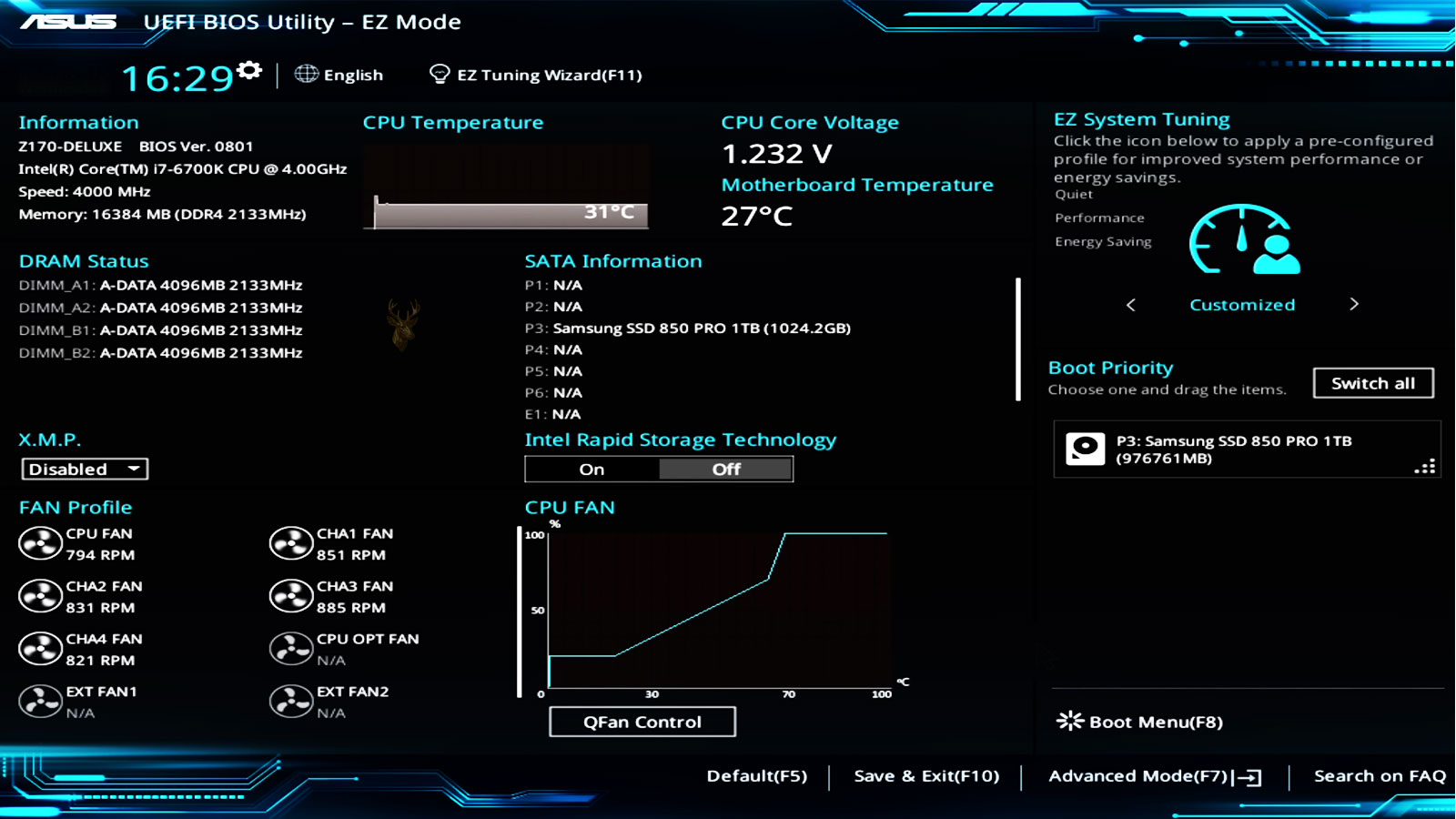
Every computer follows a series of steps before an operating system begins to load. One of the earliest components involved in this process is the system firmware, which initializes hardware, performs basic checks, and determines where the operating system is stored. For many years this role was handled by the Basic Input/Output System, commonly known as BIOS. Modern computers now primarily use the Unified Extensible Firmware Interface, or UEFI, which expands upon many of the limitations of traditional BIOS firmware.
Although both systems perform the same fundamental task of preparing a computer to start, they do so in different ways. Understanding these differences helps explain why some storage devices refuse to boot, why certain operating systems require specific firmware settings, and why compatibility problems sometimes appear after replacing hardware or reinstalling an operating system.
The Original Purpose of BIOS
Traditional BIOS firmware was developed when computers were far simpler than modern systems. Its responsibilities included testing essential hardware during startup, initializing basic devices such as the keyboard and display, and locating a bootable storage device that contained an operating system.
After completing its startup checks, BIOS transfers control to boot code located on the selected storage device. That boot code then continues loading the operating system into memory.
BIOS itself does not load Windows, macOS, or Linux directly. It prepares the hardware and then passes control to the storage device’s boot loader.
Why UEFI Was Developed
As storage capacities increased and computer hardware became more sophisticated, BIOS began showing limitations. Larger drives, improved security features, faster startup methods, and more advanced hardware required a firmware platform that could support capabilities beyond those originally envisioned for BIOS.
UEFI was introduced to provide a more flexible firmware environment. Rather than relying on many of the restrictions built into traditional BIOS, UEFI supports larger storage devices, graphical firmware interfaces, expanded hardware initialization, improved security features, and more standardized communication between firmware and operating systems.
BIOS and UEFI Perform Similar Jobs Differently
Both firmware systems prepare hardware for startup, but the internal methods differ considerably. BIOS executes relatively small pieces of startup code in sequence, while UEFI operates in a more modular environment that supports additional services before the operating system begins loading.
| Feature | Legacy BIOS | UEFI |
|---|---|---|
| Startup method | Traditional boot code | EFI boot applications |
| Partition support | Typically MBR | Typically GPT |
| Drive capacity support | More limited | Supports much larger storage devices |
| Firmware interface | Usually text-based | Often graphical with mouse support |
| Security features | Limited | Supports Secure Boot and additional protections |
Power-On Self-Test Still Exists
Regardless of whether a computer uses BIOS or UEFI, hardware is still checked before the operating system starts. Memory, processors, storage controllers, graphics hardware, and other essential components must initialize successfully before startup can continue.
Modern UEFI systems often complete these checks more efficiently, reducing startup time while still verifying that critical hardware is functioning correctly.
How the Firmware Finds the Operating System
Legacy BIOS normally searches for boot information stored within the Master Boot Record (MBR) of a storage device. UEFI instead looks for boot files stored inside a dedicated EFI System Partition, commonly called the ESP. This partition contains boot managers that tell the firmware how to continue loading the installed operating system.
Because these methods differ, changing firmware modes after installing an operating system may prevent the computer from booting until the firmware configuration matches the way the operating system was originally installed.
GPT and MBR Are Closely Related to Firmware Mode
Although partition style and firmware type are separate technologies, they are closely connected in practice. Modern UEFI installations commonly use GUID Partition Table (GPT), while older BIOS systems generally rely on the Master Boot Record (MBR). This relationship explains why storage devices sometimes fail to boot after being moved between different computers or after firmware settings have been changed.
- Legacy BIOS commonly boots from MBR-partitioned drives.
- UEFI commonly boots from GPT-partitioned drives.
- Some systems provide compatibility modes that support both methods.
- Changing firmware modes after installation can prevent startup.
- Partition style and firmware configuration should remain compatible.
Compatibility Support Module (CSM)
Many motherboards include a Compatibility Support Module, often called CSM, that allows UEFI firmware to emulate certain BIOS startup behavior. This feature helps older operating systems and expansion hardware continue functioning on newer computers when native UEFI support is unavailable.
While CSM improves compatibility, it can also introduce confusion when installing operating systems or replacing storage devices because the firmware may allow both startup methods under different circumstances.
Why Startup Problems Sometimes Follow Firmware Changes
Changing firmware settings without understanding how the operating system was installed can prevent a computer from starting normally. Switching between Legacy BIOS mode and UEFI mode, enabling or disabling compatibility features, or changing Secure Boot settings may leave the firmware searching for boot files that no longer match the storage device’s configuration.
When this occurs, the operating system itself may still be intact. The problem often lies in the relationship between the firmware configuration, the partition style, and the boot information stored on the drive.
Secure Boot Adds Another Layer to UEFI Startup
Secure Boot is a UEFI feature designed to verify that approved boot software is being used during startup. The firmware checks digital signatures associated with boot managers, drivers, and other early startup components before allowing them to run.
This process helps protect the computer from certain forms of malicious software that attempt to load before the operating system. However, Secure Boot can also prevent older operating systems, unsigned utilities, or unsupported expansion hardware from starting correctly.
Disabling Secure Boot Does Not Automatically Enable Legacy BIOS
Secure Boot and Legacy BIOS compatibility are related to startup configuration, but they are not the same setting. A computer can operate in UEFI mode with Secure Boot disabled, and some systems can use compatibility features without fully switching to a traditional BIOS-style startup method.
This distinction is important because changing only the Secure Boot setting may not resolve a boot problem caused by an incompatible partition style or missing EFI boot files.
Firmware mode, partition style, Secure Boot, and boot file location must be evaluated as separate parts of the startup process.
Firmware Boot Entries Store More Than a Drive Order
Legacy BIOS usually relies on a simple boot order that identifies which storage device should be checked first. UEFI systems can store more detailed boot entries that point to specific boot applications inside an EFI System Partition.
These entries may identify an operating system by name rather than by the physical drive alone. A firmware menu may therefore show selections such as an operating system boot manager, a network boot option, a removable device, or a particular EFI application.
| Boot Entry Type | What It Usually Identifies |
|---|---|
| Operating system boot manager | A specific EFI startup file on a storage device |
| UEFI USB device | Removable media prepared for UEFI startup |
| Legacy storage device | A drive using traditional boot code |
| Network boot | A server or deployment environment reached through the network |
| Firmware shell or utility | An EFI application stored in firmware or on a device |
Duplicate Boot Entries Can Appear After Hardware Changes
Replacing a drive, cloning an operating system, reinstalling software, or moving storage between computers can leave multiple firmware boot entries behind. Some entries may point to devices that are no longer installed, while others may reference older boot files.
A computer may still start normally despite these duplicates, but incorrect entries can cause delays, repeated boot failures, or confusion when selecting a startup device manually.
Cloned Drives May Not Boot Under a Different Firmware Mode
Cloning copies the contents of one storage device to another, but it does not automatically correct every compatibility difference between systems. A drive cloned from a Legacy BIOS installation may not start in a computer configured only for UEFI operation.
The opposite problem can also occur when a GPT-based UEFI installation is moved to an older computer that expects MBR boot code. Even when all personal files and operating system data are present, startup can fail because the firmware cannot locate compatible boot information.
- The source and destination computers may use different firmware modes.
- The cloned drive may use an incompatible partition style.
- EFI boot files may not be registered in the new firmware.
- Secure Boot may reject an older or modified boot loader.
- Storage controller settings may differ between the two systems.
Installation Media Can Start in More Than One Mode
A bootable USB installer may appear twice in a firmware startup menu. One entry can identify the device as a UEFI boot source, while another may start it through Legacy BIOS compatibility.
The mode used to start the installer often determines how the operating system configures the destination drive. Starting the installer in UEFI mode commonly produces a GPT layout with an EFI System Partition, while starting through compatibility mode may produce an MBR-based installation.
The same USB installer can create different startup configurations depending on which firmware entry is selected.
A Fresh Installation Can Fail Before It Begins
Installation programs may refuse to use a selected drive when the partition style does not match the current firmware mode. A UEFI-started installer may reject an MBR drive, while a Legacy-started installer may be unable to install correctly on a GPT layout under certain conditions.
These messages do not always indicate a failed storage device. They often mean the installer, firmware mode, and existing partition structure are not aligned.
Converting a Drive Requires Careful Planning
A storage device can sometimes be converted between MBR and GPT without reinstalling the operating system, but the process should not be treated as a simple firmware setting change. Boot files, partitions, and firmware entries may all need to be adjusted.
Other conversion methods erase the partition structure completely. Important files should be backed up before any partition-style conversion is attempted because an incorrect command or interrupted process can make the existing data inaccessible.
Older Expansion Cards May Depend on Legacy Support
Some older graphics cards, storage controllers, and network adapters contain firmware designed for traditional BIOS initialization. A modern UEFI system may require Compatibility Support Module features before it can initialize that hardware during startup.
When compatibility support is unavailable, the computer may show no display, ignore the device, or fail to boot correctly even though the expansion card works in an older system.
| Compatibility Concern | Possible Startup Result |
|---|---|
| Older graphics card firmware | No display before the operating system loads |
| Legacy storage controller | Boot drive may not be detected correctly |
| Unsigned expansion firmware | Secure Boot may block initialization |
| Unsupported network adapter firmware | Network startup options may be unavailable |
Firmware Updates Can Change Compatibility Behavior
Motherboard manufacturers sometimes modify Secure Boot settings, compatibility options, hardware initialization, and boot-device handling through firmware updates. An update can improve support for newer processors or storage devices while changing the behavior of older hardware.
Firmware settings may also return to their defaults after an update. A computer that previously used Legacy compatibility, a customized storage mode, or disabled Secure Boot may fail to start until those settings are restored.
Resetting Firmware Settings Can Alter the Startup Method
Loading firmware defaults, clearing configuration memory, or replacing a failed motherboard battery can change startup-related settings. The firmware may return to UEFI-only operation, enable Secure Boot, change storage controller behavior, or select a different boot entry.
If the operating system was installed under a different configuration, the computer may suddenly report that no boot device is available even though the storage drive is still detected and the data remains intact.
Storage Controller Mode Can Be Mistaken for a Firmware Problem
Firmware menus also contain settings for storage controller operation. Common options can include AHCI, RAID, or manufacturer-specific storage modes. Changing these settings after an operating system has been installed may prevent startup because the required storage driver is no longer being used.
This type of failure can appear similar to a UEFI or Legacy BIOS mismatch. A complete diagnosis should therefore check both the boot method and the storage controller configuration rather than assuming the partition style is the only cause.
Network Startup Also Differs Between Firmware Modes
Business computers may use network startup to install operating systems, run diagnostics, or connect to centralized deployment systems. UEFI and Legacy BIOS can use different network boot components, which means a server prepared for one method may not respond correctly to the other.
A device may reach the network but fail to load the expected deployment environment when the firmware mode does not match the boot files offered by the server.
Firmware Settings Should Be Documented Before Changes Are Made
UEFI menus can contain many settings that affect startup, storage, security, processor behavior, and connected hardware. Before changing any option, it is useful to record the original configuration so the system can be returned to a known working state if startup problems appear.
Photographs of important firmware pages can be especially helpful when troubleshooting a computer that has been customized for RAID storage, Legacy compatibility, specialized expansion hardware, or a nonstandard boot order.
- Record the current firmware mode.
- Note whether Secure Boot is enabled.
- Document the storage controller setting.
- Save the existing boot order and named boot entries.
- Identify whether Compatibility Support Module features are active.
Firmware Passwords Can Limit Access to Startup Configuration
Some computers use firmware passwords to prevent unauthorized changes to startup settings. These passwords may block access to the UEFI interface, restrict changes to Secure Boot, or prevent selection of alternate boot devices.
When a password is forgotten, recovery options depend on the manufacturer and system design. Some desktop motherboards can be reset physically, while many laptops and business systems store security information in ways that are not cleared by removing the main battery.
Firmware passwords are different from operating system passwords and may require manufacturer-specific recovery procedures.
Modern Systems May Remove Legacy Support Entirely
Some newer computers no longer include a Compatibility Support Module. These systems are designed to operate only in native UEFI mode and may not start older operating systems, outdated expansion cards, or storage devices prepared exclusively for Legacy BIOS startup.
This limitation can become important during hardware replacement. A storage drive that worked in an older computer may remain readable as a secondary device but may not function as a boot drive in a UEFI-only replacement system.
Moving a Boot Drive Between Computers Is Not Always Straightforward
A boot drive contains more than personal files and application data. Its startup structure is closely tied to the firmware mode, partition style, storage controller, installed drivers, and security configuration of the original computer.
Moving the drive to another system can fail even when the storage device is healthy. The new computer may use a different boot method, require different drivers, reject the existing boot loader, or fail to recognize the original firmware entry.
| Difference Between Systems | Possible Effect |
|---|---|
| UEFI versus Legacy BIOS | The installed operating system may not appear as bootable |
| GPT versus MBR expectations | The firmware may not locate compatible startup information |
| Different storage controller mode | The operating system may fail during loading |
| Secure Boot requirements | The existing boot loader may be rejected |
| Different hardware platform | Drivers and activation may need attention |
Removable Media Must Match the Intended Startup Method
Bootable USB drives, diagnostic utilities, recovery environments, and operating system installers must be prepared in a format the firmware can recognize. A removable device created only for Legacy BIOS may not appear on a UEFI-only system, while some UEFI media may not start on older hardware.
The file system used on the removable device can also matter. Some firmware implementations recognize only certain formats during startup, even though the operating system would be able to read additional formats after loading.
UEFI Interfaces Vary Widely Between Manufacturers
There is no single universal layout for firmware settings. One manufacturer may place Secure Boot under a security menu, while another may place it under startup or operating system configuration. Compatibility settings can also appear under names such as CSM, Legacy Support, Legacy Boot, or UEFI and Legacy Mode.
This variation can make instructions difficult to follow exactly. The same technical setting may be described differently depending on the motherboard, laptop model, firmware version, and manufacturer terminology.
A Missing Boot Device Does Not Always Mean the Drive Has Failed
When a computer reports that no boot device is available, the storage drive may still be functioning normally. The firmware may be using the wrong startup mode, the expected boot entry may be missing, or the EFI System Partition may no longer be registered correctly.
A complete evaluation should confirm whether the drive is detected, whether its partitions remain present, and whether the firmware configuration matches the installed operating system before concluding that the storage device has failed.
- Confirm that the storage device is detected by the firmware.
- Check whether the correct firmware mode is enabled.
- Review the boot order and named boot entries.
- Verify the partition style and startup files.
- Examine storage health only after configuration issues are ruled out.
Boot Repair Must Match the Existing Firmware Configuration
Repairing startup files requires knowing whether the operating system was installed for UEFI or Legacy BIOS. Rebuilding the wrong type of boot information can leave the computer unchanged or create additional confusion.
UEFI systems generally require valid EFI boot files and a properly configured EFI System Partition. Legacy systems rely on traditional boot code and an active partition structure. The correct repair method depends on which startup model the installation originally used.
Startup repair is most effective when the firmware mode, partition style, and boot files are treated as one connected system.
Firmware Changes Can Affect Encryption and Security Features
Some encryption systems measure or record parts of the startup environment. Changing Secure Boot, resetting firmware settings, modifying boot entries, or replacing the motherboard can trigger recovery prompts even when the encrypted data itself is intact.
Recovery keys should be available before significant firmware changes are made on encrypted computers. Without the required key, a successful hardware repair can still leave the operating system inaccessible.
Virtualization and Other Advanced Features Also Reside in UEFI
Modern firmware controls more than startup compatibility. Processor virtualization, memory security, integrated device settings, trusted platform features, and other advanced capabilities are commonly enabled or disabled through the UEFI interface.
These settings may not prevent the computer from starting, but they can affect specialized software, virtual machines, security tools, and hardware-dependent applications after the operating system loads.
Legacy Compatibility Should Be Used Only When Necessary
Compatibility features can help older hardware and operating systems function on newer computers, but they may disable or limit modern capabilities. Secure Boot may become unavailable, startup behavior may become less predictable, and future hardware changes may be more difficult to manage.
For current operating systems and supported hardware, native UEFI operation with GPT partitioning is generally the more appropriate configuration. Legacy compatibility remains useful primarily when specific older equipment or software requires it.
Firmware Compatibility Depends on the Entire Startup Configuration
UEFI and Legacy BIOS both prepare a computer to start, but they use different boot structures, partition expectations, security features, and hardware initialization methods. A working configuration depends on the firmware mode, boot files, partition style, storage controller, and connected hardware remaining compatible with one another.
Problems often appear after firmware settings are reset, a boot drive is moved, an operating system is reinstalled, or older hardware is added to a newer system. Careful documentation and a complete review of the startup configuration can distinguish a firmware mismatch from an actual storage or hardware failure.











