
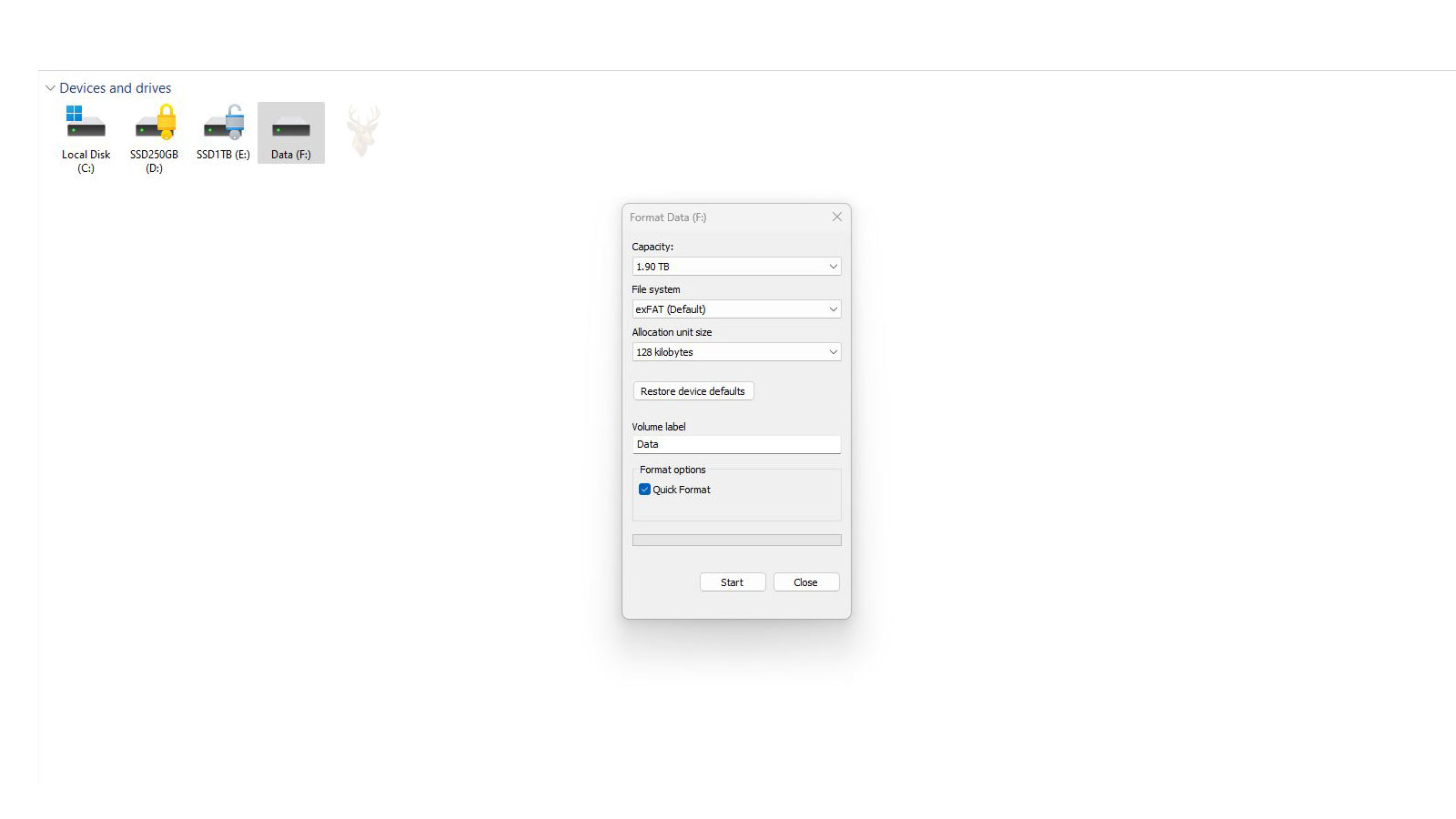
What Changes When a Storage Device Is Quickly Formatted
Formatting a storage device prepares it to use a particular file system and creates the structures a computer needs to organize files and folders. When a drive, memory card, or USB device is formatted accidentally, the files that were previously visible may disappear immediately even though portions of their underlying data may still remain on the storage media.
The possibility of recovering that information depends on the type of format performed, the storage technology involved, what happened after the format, and whether new information has already replaced the original data. A quickly formatted drive should therefore be handled carefully because continued use can reduce the amount of recoverable information.
What Formatting Actually Does
A storage device requires organizational structures that describe where files are located, how much space they occupy, and which areas of the device are available for future use. Formatting creates or replaces these structures so the operating system can store and locate information according to the selected file system.
The process does not always erase every data block in the same way. A quick format generally rebuilds essential file system information and marks storage space as available. The previous files may no longer appear in normal folder listings, but some of their content can remain until new data is written over those areas.
A file becoming invisible after a quick format does not necessarily mean that every part of the file was immediately removed from the storage media.
Quick Format and Full Format Are Different Processes
A quick format is intended to prepare a volume for use without performing the more time-consuming operations associated with a full format. It replaces important file system records and allows the operating system to begin using the space again.
A full format can perform additional work, including checking the storage surface and writing across areas of the device. The exact behavior can vary by operating system, device type, and formatting utility, but a full format generally creates more serious recovery limitations than a quick format.
| Formatting Method | What Commonly Happens | General Recovery Outlook |
|---|---|---|
| Quick format | File system structures are recreated and space is marked as available | Some previous data may remain until overwritten |
| Full format | Additional checking or writing may occur across the volume | Recovery may be substantially reduced or impossible |
| Secure erase or sanitization | Data is intentionally removed using device-specific erase operations | Recovery is generally not expected |
Why the Files Disappear Immediately
A computer normally finds files by reading the file system records that identify their names, folders, locations, sizes, and other details. When formatting replaces those records, the operating system loses the normal map that pointed to the previous information.
The disappearance of the folder structure can make the drive look empty even when older data remains in individual storage areas. Recovery software may attempt to reconstruct file system records or scan the device directly for recognizable file content.
Formatting Can Remove More Than File Names
Although file content may remain after a quick format, the information that gave those files their original organization can be damaged or replaced. This means recovery results may not preserve everything exactly as it appeared before the format.
- Original folder structures may be missing or incomplete.
- File names may be replaced with generated names.
- Creation and modification dates may no longer be accurate.
- Some files may be divided into fragments that are difficult to reconstruct.
- New file system records may overwrite portions of older information.
Continued Use Is One of the Greatest Risks
After a quick format, the operating system treats much of the device as available space. Saving files, installing programs, copying folders, or allowing applications to create temporary data can overwrite areas that still contain recoverable information.
Even small amounts of activity can matter. Connecting the device and allowing backup software, indexing services, synchronization programs, or automatic repair utilities to access it may create new writes without the user realizing it.
The safest response after an accidental format is to stop using the device and avoid writing anything new to it.
Hard Drives and Solid-State Drives Behave Differently
Traditional hard drives store information magnetically on rotating platters. When a hard drive is quickly formatted, previous data may remain in its original sectors until those sectors are reused. This can leave an opportunity for recovery when the drive is healthy and has not received significant new data.
Solid-state drives manage deleted and unused space differently. Commands used to prepare storage blocks for future writes can cause the drive to clear data internally. As a result, recovery after formatting an SSD may be much less predictable than recovery from a traditional hard drive.
Memory Cards and USB Flash Drives Add Other Variables
Memory cards and USB flash drives also use flash storage, but their internal controllers and cleanup behavior vary widely. Some devices retain recoverable data after a quick format, while others may begin reorganizing or clearing storage blocks soon afterward.
The condition of the device also matters. A memory card that was formatted because a camera reported an error may have file system corruption, failing flash memory, or controller problems in addition to the formatting event.
Changing the File System Can Complicate Recovery
A device may be reformatted using the same file system it had previously, or it may be changed to a different one. For example, a storage device previously using NTFS might be reformatted as exFAT, or a camera card might be changed from FAT32 to another supported format.
The new file system places its own structures on the device. These structures can overwrite parts of the previous file system and make it more difficult to recover original file names, folder relationships, and metadata even when portions of the file content remain.
A Formatted Drive Should Not Be Repaired in Place
Utilities that attempt to repair file system errors are designed to make a volume usable, not to preserve deleted information. Running repair commands on a recently formatted device can modify records, create new folders, discard damaged entries, or overwrite information that could have helped with recovery.
The original storage device should normally remain unchanged while recovery work is performed from a separate destination. Recovered files should never be saved back onto the same formatted device because doing so can overwrite additional data during the recovery process.
How Recovery Software Finds Files After Formatting
Recovery software can examine a formatted storage device in more than one way. Some tools search for remnants of the previous file system, while others scan the device directly for patterns associated with known file types.
The quality of the result depends on how much original information remains. When file system records survive, recovery may preserve names, folders, dates, and relationships between files. When those records have been replaced, the software may recover only the raw file content.
File System Reconstruction and File Carving
File system reconstruction attempts to locate and interpret older records that once described the contents of the device. This method can provide more complete results because it may recover the original organization of the data.
File carving works differently. It searches for recognizable signatures at the beginning and end of files, such as patterns associated with photographs, documents, videos, and archives. This can recover files even when the original directory structure is gone, but the results may lose their names and folder locations.
| Recovery Method | What It Uses | Typical Result |
|---|---|---|
| File system reconstruction | Remaining metadata and directory records | May preserve names, folders, and dates |
| File carving | Recognizable file signatures and content patterns | May recover content without original organization |
| Partition reconstruction | Remaining volume and partition information | May restore access to an earlier storage structure |
Why Some Recovered Files Will Not Open
A recovery program may identify a file and produce a result even when part of the file has already been overwritten. The recovered item may have the expected name or file extension but still be incomplete internally.
Some formats tolerate minor damage better than others. A photograph may display only part of the image, while a compressed archive or database may fail completely if a critical section is missing.
- A document may open with missing pages or damaged formatting.
- A photograph may contain gray sections, distortion, or incomplete areas.
- A video may stop playing before the end.
- An archive may report corruption and refuse extraction.
- A database may be unusable if internal records are incomplete.
Fragmentation Can Reduce Recovery Quality
Some files are stored in several separate areas instead of one continuous sequence. This is known as fragmentation. When the original file system records are lost, recovery software may have difficulty determining which fragments belong together and in what order.
Large files are often more vulnerable to this problem because they may occupy many storage locations. Videos, disk images, virtual machines, databases, and large archives can be especially difficult to reconstruct after formatting when their allocation information is missing.
Recovering the beginning of a file does not guarantee that every remaining fragment can be identified and reassembled correctly.
The Amount of New Data Matters
The more a formatted device is used, the greater the chance that older content will be overwritten. Copying one large folder can replace many previous files, but even normal background activity can gradually damage recovery prospects.
The pattern of overwriting is not always predictable. A small new file may replace part of an important older file, while a much larger section of the device remains untouched. This is why recovery results can vary widely even when two devices were formatted in similar ways.
Installing Recovery Software on the Same Drive Is Risky
Installing a recovery program onto the formatted device creates new files, folders, logs, and temporary data. These writes can overwrite the very information the program is supposed to recover.
The recovery application should run from another computer or another storage device whenever possible. Recovered files should also be written to a separate destination with enough free space to hold the results.
- Stop using the formatted device.
- Connect it as a secondary storage source when appropriate.
- Run recovery software from a different drive or computer.
- Save recovered files to a separate destination.
- Review the recovered copies before making changes to the original device.
Creating an Image Before Recovery
A sector-by-sector image creates a separate copy of the storage device that can be examined without repeatedly accessing the original media. This is especially important when the device may also have physical problems, unstable connections, or failing memory.
Recovery attempts can then be performed against the image while the original device remains unchanged. If one method produces poor results, another approach can be tested without adding further stress to the source.
A Healthy Device and a Failing Device Require Different Handling
An accidental format on a mechanically healthy hard drive is different from a format performed after the drive began clicking, disconnecting, freezing, or reporting read errors. In the second situation, the device may have both logical damage and physical failure.
Repeated scanning of an unstable drive can cause additional read failures or complete loss of access. Imaging tools designed to work around damaged sectors may be safer than repeatedly running ordinary recovery programs directly against the original device.
| Device Condition | Safer General Approach |
|---|---|
| Healthy drive, accidental quick format | Limit writes and recover to another device |
| Drive disconnects during use | Create an image before extensive scanning |
| Hard drive clicks or struggles to spin | Avoid repeated power cycles and seek professional evaluation |
| Flash device becomes extremely hot | Disconnect it and avoid continued testing |
| Storage device reports many read errors | Prioritize controlled imaging over direct recovery attempts |
Partition Changes Can Resemble Formatting
A storage device may appear formatted after its partition table is changed, replaced, or damaged. The original volume may still exist on the device, but the computer no longer knows where it begins or how large it is.
In some cases, reconstructing the previous partition information can restore access without recovering every file individually. In other cases, the new partition structure has overwritten enough metadata that direct file recovery becomes necessary.
Reformatting Again Usually Makes Recovery Harder
When the first format appears incorrect, users sometimes format the device again using another file system or allocation size. Each additional format writes new structures to the storage media and may replace more of the original information.
Repeated formatting does not restore missing files. It changes the device again and can reduce the amount of metadata available for reconstruction.
After an accidental format, additional formatting should be avoided until the importance of the previous data has been evaluated.
Encrypted Drives Present Additional Limits
When a formatted device previously used encryption, recovering raw data may not be enough. The original encryption metadata, recovery key, password, or volume header may also be required to interpret the stored content.
If critical encryption information was overwritten during formatting, recovered data blocks may remain unreadable even when they are physically present. Preserving recovery keys and avoiding further writes is especially important when encrypted storage is involved.
Recovery Results Should Be Verified Before the Original Drive Is Reused
A successful scan may produce hundreds or thousands of files, but the presence of those files in a recovery list does not prove that they are complete. Important documents, photographs, videos, archives, databases, and project files should be opened and reviewed from the recovery destination before the original device is erased or returned to service.
Verification is especially important when recovery software reports damaged files, missing metadata, or reconstructed folders. A file may appear to have the correct name and size while still containing internal corruption caused by overwriting or fragmentation.
- Open representative files from each important folder.
- Check long videos beyond the first few seconds.
- Extract compressed archives and confirm their contents.
- Review spreadsheets and databases for missing records.
- Compare recovered file counts with known backups or inventories.
Preview Features Can Help Estimate Recovery Quality
Many recovery programs include preview functions that display photographs, documents, or other supported files before they are copied. A working preview can provide evidence that at least part of the file remains readable.
Preview results are useful, but they are not a complete guarantee. Some programs preview only the beginning of a file or a reduced version of its content. Large files and complex formats should still be tested after recovery to another device.
A recovery scan identifies possibilities, but opening and testing the recovered copies determines whether the information is actually usable.
Original Names and Folders May Not Be Recoverable
When the previous file system records have been overwritten, recovery software may find file content without finding the information that described its original name or folder. The result can be a large collection of files with generated names such as numbered photographs, documents, or videos.
Sorting these results may require examining file contents, creation details embedded inside the files, camera information, document properties, or other remaining metadata. The recovery itself may be successful while the organizational work remains extensive.
File Dates May Change During Recovery
Recovered files can display dates that do not match when they were originally created or modified. If the old file system metadata is missing, the recovery program may assign the date of recovery, use another available timestamp, or leave the field blank.
Some file formats contain their own internal timestamps. Photographs may include camera capture dates, and certain documents may store authoring details. These internal records can help reorganize recovered data when normal file system dates are no longer available.
| Recovered Detail | Possible Condition |
|---|---|
| Original file name | May survive if directory metadata remains |
| Original folder path | May be incomplete or entirely missing |
| Creation date | May be replaced or reconstructed from internal metadata |
| Modification date | May not reflect the original file history |
| File extension | May be inferred from the file signature |
Recovered Files Should Be Saved to Reliable Storage
The destination used for recovered files should have enough free space and should be tested for normal operation. Saving valuable results to another unstable drive, damaged memory card, or nearly full storage device can introduce a second failure during the recovery process.
For large recoveries, the destination may need more capacity than the amount of visible data that existed before formatting. Recovery tools can produce duplicates, partial files, reconstructed folders, and multiple versions of the same content.
Do Not Use the Recovered Destination as the Only Copy
Once important files have been recovered and verified, they should be copied to at least one additional storage location. Recovery work does not replace a backup strategy, and the first destination should not become the only remaining copy of valuable information.
- Recover files to a separate healthy device.
- Open and verify the most important items.
- Create another copy on independent storage.
- Confirm that both copies are readable.
- Only then consider reusing or erasing the original device.
When Professional Recovery Is the Safer Choice
Professional recovery may be appropriate when the formatted device contains irreplaceable information, shows signs of physical failure, disconnects repeatedly, produces unusual noises, or cannot be imaged reliably. The value of the data should be considered before repeated do-it-yourself attempts are made.
A laboratory or experienced recovery technician may use controlled imaging equipment, specialized software, hardware access methods, or component-level procedures that are not available through ordinary consumer tools. These methods cannot guarantee success, but they may reduce unnecessary stress on an unstable device.
When the files are irreplaceable, preserving the current condition of the device can be more important than attempting an immediate scan.
Formatting Caused by a Device Error Requires Extra Caution
Sometimes a computer, camera, phone, or other device asks to format storage because it can no longer read the existing file system. Accepting that prompt may replace important structures, but the original problem may still be present afterward.
The device may have bad sectors, unstable flash memory, controller faults, interrupted writes, or damaged partition information. A format can make the storage appear usable temporarily without correcting the hardware condition that caused the error.
A Recovered Device Should Be Tested Before Continued Use
After the data has been secured, the original storage device can be evaluated to determine whether it is suitable for future use. A healthy device that was formatted accidentally may continue working normally after testing and reinitialization.
A device that produced read errors, disconnections, slow access, or repeated corruption should not be trusted simply because it can be formatted again. Storage health testing and replacement may be more appropriate than returning questionable media to regular service.
Preventing Accidental Formatting
Accidental formatting often occurs when several storage devices are connected and the wrong drive is selected. Similar device names, drive capacities, and removable media labels can make identification difficult.
- Disconnect storage devices that are not needed during setup.
- Confirm the drive capacity and model before formatting.
- Assign clear volume labels to external drives.
- Review the selected disk more than once before approving changes.
- Maintain current backups of important files.
Backups Reduce the Consequences of Formatting Mistakes
A current backup changes an accidental format from a potential data emergency into a restoration task. Important information should exist in more than one location, and at least one copy should remain separate from the primary computer or storage device.
Backup systems should also be checked periodically. A backup that has not completed, cannot be opened, or has been stored on the same device as the original files may provide little protection when formatting or hardware failure occurs.
Quick Formatting Does Not Produce the Same Recovery Outcome Every Time
A quick format can remove normal access to files without immediately replacing every part of their stored content. Recovery may still be possible, particularly when the device is healthy, little or no new data has been written, and the original file system information remains partially intact.
The outcome becomes less predictable when the device uses solid-state storage, has been reformatted repeatedly, contains overwritten sectors, previously used encryption, or shows signs of physical failure. Stopping use, preserving the original media, recovering to another device, and verifying the results provide the best foundation for protecting whatever information remains.











