
Video Output Through a USB-C Connection
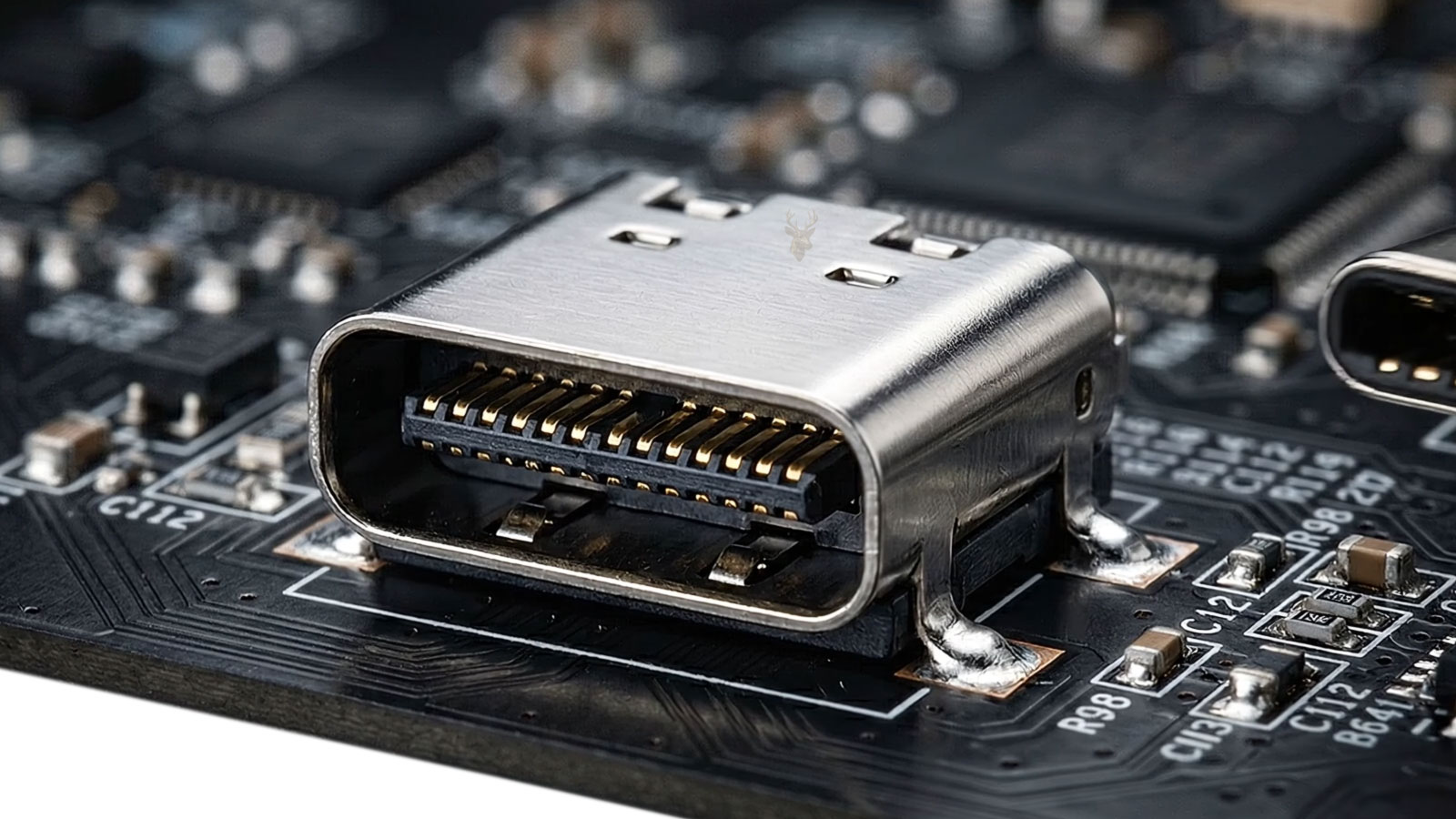
A USB-C connector can support several different functions even though every port has the same physical shape. Depending on the laptop, cable, and connected device, a USB-C port may carry ordinary USB data, provide electrical power, charge the computer, connect to a network adapter, or transmit video to an external display.
Video output through USB-C is commonly made possible by a feature known as Alternate Mode, often shortened to Alt Mode. Instead of using every internal connection for normal USB communication, Alt Mode allows selected high-speed signal paths inside the port to carry another type of data.
DisplayPort Alt Mode is one of the most widely used examples. It allows compatible laptops to send DisplayPort video through a USB-C connector without requiring a full-size DisplayPort socket on the computer.
The Connector Shape Does Not Identify Its Capabilities
One of the most confusing aspects of USB-C is that the connector alone does not reveal what the port can do. Two laptops may have ports that look identical while supporting completely different combinations of data speed, charging, video output, and accessory compatibility.
A USB-C port may support only basic USB data. Another may support data and charging but no display output. A more capable port may provide high-speed data, laptop charging, DisplayPort Alt Mode, and Thunderbolt communication through the same connector.
| Possible USB-C function | Available on every USB-C port? |
|---|---|
| Basic USB data | Usually, but supported speed can vary |
| Device charging | Not always at the same power level |
| Laptop charging | No |
| External monitor output | No |
| Thunderbolt communication | No |
Because these capabilities are optional, successful video output depends on more than finding a cable that physically fits the port.
Alternate Mode Reassigns High-Speed Signal Paths
Inside a USB-C connection are several electrical paths used for power, basic USB communication, device orientation, and high-speed data transmission. Alt Mode allows some of the high-speed paths to be reassigned temporarily for another supported protocol.
When DisplayPort Alt Mode is active, the laptop sends native DisplayPort information through the USB-C connection. A compatible monitor, dock, or adapter then receives that video information and delivers it to the display.
USB-C describes the physical connector, while Alt Mode describes one of the optional functions that may travel through it.
The Devices Negotiate Before Video Begins
A laptop does not begin sending video through every USB-C connection automatically. The computer and connected accessory first communicate to determine their capabilities and the type of connection being requested.
This negotiation helps confirm whether the attached device supports DisplayPort Alt Mode and how the internal signal paths should be configured. Once both sides agree on the connection, the laptop can begin transmitting video.
- The laptop detects that a device has been connected.
- The connector orientation is identified.
- The devices exchange capability information.
- A supported Alternate Mode is selected.
- The required signal paths are assigned to video.
- The display connection is established.
If the connected adapter or monitor cannot complete this negotiation, the USB-C port may continue functioning for other purposes while producing no video output.
DisplayPort Alt Mode Does Not Convert Video Inside the Laptop
In a typical DisplayPort Alt Mode connection, the laptop’s graphics hardware already produces a DisplayPort-compatible video signal. The USB-C port provides a different physical route for that signal rather than creating an entirely separate video format.
This is why a simple USB-C-to-DisplayPort cable can often connect a compatible laptop directly to a DisplayPort monitor. The cable primarily routes the existing DisplayPort signal between two different connector types.
Connections to HDMI can be more complex because the adapter may need to process or convert the DisplayPort signal into a form accepted by the HDMI input.
USB-C Video Adapters Can Be Passive or Active
Not every USB-C video adapter performs the same type of work. Some primarily redirect compatible signals, while others contain electronic components that convert, manage, or repeat the video connection.
| Adapter type | General role |
|---|---|
| USB-C to DisplayPort cable | Carries DisplayPort Alt Mode directly to a DisplayPort display |
| USB-C to HDMI adapter | May convert the DisplayPort signal for an HDMI input |
| USB-C docking station | Distributes video, data, charging, and other connections |
| Multiport video adapter | Manages one or more display outputs through internal electronics |
The quality and design of the adapter can influence supported resolution, refresh rate, color depth, and overall connection reliability.
The Cable Must Support More Than Physical Connection
A cable that fits both devices is not automatically suitable for video. USB-C cables are manufactured with different internal wiring and electronic capabilities. Some are intended mainly for charging, while others support high-speed data and display communication.
A cable with limited internal connections may charge a device successfully but fail to carry DisplayPort Alt Mode. This can create the impression that the laptop port or monitor is defective even though the cable is the only incompatible part.
- Charging-only cables may not provide the required high-speed signal paths.
- Basic data cables may support limited USB communication but no video.
- Full-featured USB-C cables can support additional data and display functions.
- Cable length and construction can affect high-resolution video stability.
Available USB Data Bandwidth May Change During Alt Mode
The same high-speed signal paths used for USB data may also be needed for DisplayPort video. Depending on how the connection is configured, the port may divide those paths between video and USB communication.
Some adapters use part of the connection for display output while preserving high-speed USB data. Other configurations assign more signal paths to video, leaving only slower USB communication available through the dock or adapter.
This tradeoff can explain why an external monitor works correctly while storage devices connected through the same adapter operate below their expected speed.
Resolution and Refresh Rate Depend on the Complete Connection
The presence of DisplayPort Alt Mode does not guarantee that every monitor resolution and refresh rate will be supported. The final capability depends on the laptop’s graphics hardware, USB-C port design, adapter, cable, and display.
A laptop may support a high-resolution monitor at a standard refresh rate but require more display bandwidth for higher refresh rates, multiple monitors, high color depth, or advanced display formats.
The weakest component in the connection can limit the entire display path.
Power Delivery and Video Can Share the Same Port
One major advantage of USB-C is the ability to combine several functions through one connection. A compatible dock or monitor may receive video from the laptop while also providing electrical power back to the computer.
This allows a single cable to connect the laptop to an external display, keyboard, mouse, network connection, storage devices, and charger. However, each function depends on separate capabilities being supported by the laptop and accessory.
A monitor may accept USB-C video but provide too little power to charge the laptop effectively. Another display may support charging and USB data but lack the video mode required by a particular computer.
Port Markings Can Help but Are Not Always Complete
Manufacturers sometimes place symbols beside USB-C ports to indicate charging, DisplayPort, or Thunderbolt support. A DisplayPort logo may suggest that the port can provide video through Alt Mode, while a lightning-bolt symbol is commonly associated with Thunderbolt.
Not every laptop uses clear or consistent markings. Some ports have no visible symbol even when they support video, and similar symbols may be difficult to distinguish without checking the computer’s specifications.
USB-C video connections may fail because of incompatible ports, limited cable capabilities, adapter behavior, docking station design, insufficient display bandwidth, or power requirements. The resulting symptoms can help identify which part of the connection is preventing the display from working correctly.
Not Every USB-C Port Can Output Video
One of the most common misconceptions about USB-C is that every port automatically supports external displays. Although the connector is physically identical across many devices, video output remains an optional feature that manufacturers may or may not include.
A laptop may include several USB-C ports while only one supports DisplayPort Alt Mode or Thunderbolt video. Another computer may use USB-C solely for charging and USB data, making it impossible to connect an external monitor through that port regardless of the cable or adapter being used.
Understanding this distinction is often the first step in diagnosing a USB-C display problem.
The Connected Display Must Also Support the Intended Connection
Successful video output depends on compatibility at both ends of the connection. While the laptop must support DisplayPort Alt Mode or another compatible video technology, the monitor, docking station, or adapter must also understand the incoming signal.
A monitor designed only for HDMI input cannot directly accept DisplayPort Alt Mode without appropriate conversion. Likewise, an adapter built for a different connection method may not function even though every connector fits properly.
| Component | Role in the video connection |
|---|---|
| Laptop USB-C port | Must support video output |
| USB-C cable | Must carry the required signals |
| Adapter or dock | Must support the selected display interface |
| Monitor | Must accept the incoming video format |
USB-C Charging Does Not Confirm Video Support
A USB-C cable may charge a laptop perfectly while still being unable to transmit video. Charging and video use different portions of the USB-C specification, allowing one function to operate normally while another remains unavailable.
This often causes confusion because users naturally assume that a working cable proves the entire connection is functioning correctly. In reality, successful charging confirms only that electrical power is being exchanged.
A USB-C connection that charges correctly is not necessarily capable of carrying display signals.
Docking Stations Introduce Additional Hardware
USB-C docking stations provide a convenient way to connect monitors, storage devices, network adapters, keyboards, and charging through a single cable. However, every additional feature inside the dock introduces more electronics that participate in the overall connection.
The dock must negotiate with the laptop, manage available bandwidth, distribute power, communicate with connected peripherals, and route video to one or more external displays. If any portion of this process encounters a compatibility issue, display problems may occur even though the laptop and monitor function correctly when connected directly.
Multiple Displays Share Available Resources
Many docking stations support two or more external monitors through a single USB-C connection. Although modern hardware can manage multiple displays effectively, each monitor consumes part of the available display bandwidth.
Higher resolutions, increased refresh rates, and greater color depth all require additional bandwidth. As more displays are connected, the available resources must be divided among every active monitor.
- Higher resolutions require more display bandwidth.
- Higher refresh rates increase transmission requirements.
- Multiple monitors divide available resources.
- Color depth can also affect bandwidth usage.
The result may be lower available resolutions or refresh rates when several displays are connected simultaneously.
Video Problems Can Appear Intermittently
Not every USB-C video issue produces a permanent failure. Some connections operate normally for long periods before unexpectedly disconnecting, flickering, or failing after the computer wakes from sleep.
Intermittent problems may involve cable movement, connector wear, docking station firmware, signal quality, or temporary communication interruptions between connected devices.
Because these symptoms may disappear temporarily after reconnecting the cable, identifying their true cause often requires observing the conditions under which the failures occur.
Cable Quality Becomes More Important at Higher Performance Levels
As display resolutions and refresh rates increase, maintaining reliable signal integrity becomes increasingly important. A cable that functions properly with a standard office monitor may not provide stable operation when used with a higher-resolution display or multiple-monitor setup.
Manufacturing quality, internal shielding, conductor design, and cable length all influence how reliably high-speed signals travel through the connection.
This does not mean that expensive cables are always necessary, but it does illustrate why cables designed for different purposes may not perform equally under demanding conditions.
Firmware Influences USB-C Compatibility
Laptops, docking stations, monitors, and certain adapters all contain firmware that manages hardware communication. Updates released by manufacturers may improve compatibility with newer devices, correct communication problems, or address known reliability issues.
Firmware does not change the physical capabilities of the hardware, but it can improve how compatible devices recognize one another and negotiate supported operating modes.
Power Delivery and Video Must Operate Together
Many USB-C docks and monitors simultaneously provide electrical power while receiving video from the connected laptop. These functions operate independently yet must coexist over the same connection.
A dock may successfully charge the laptop while failing to establish a video connection, or it may display video correctly while supplying insufficient charging power for demanding workloads. Observing which functions continue operating helps narrow the possible causes of a problem.
| Observed behavior | Possible interpretation |
|---|---|
| Charging works but no monitor appears | Video negotiation may have failed |
| Monitor works but USB devices disconnect | Dock communication may require investigation |
| Video appears briefly before disconnecting | Signal quality or compatibility may be affected |
| Everything functions except one monitor | Display configuration or bandwidth may be involved |
Understanding Which Function Has Failed Simplifies Troubleshooting
USB-C combines several technologies into a single connector, making it important to identify exactly which function is experiencing difficulty. Charging, USB data, video output, networking, and accessory communication all operate independently despite sharing the same physical port.
Recognizing whether only the display has stopped working, whether charging continues normally, or whether multiple functions have failed simultaneously provides valuable clues during diagnosis.
Practical troubleshooting methods can help isolate failures within USB-C video connections, while professional environments often rely on Alt Mode to manage multiple displays through docks and adapters. Understanding the complete communication path makes it easier to determine where a display problem begins.
Testing the Complete USB-C Video Path
Because several independent technologies operate through a single USB-C connector, diagnosing display problems is most effective when each part of the connection is evaluated separately. Rather than assuming the laptop, monitor, or cable is responsible, examining the complete communication path helps identify where the process is interrupted.
A successful external display connection depends on compatible hardware, proper negotiation, reliable signal transmission, and correct monitor detection. If any stage fails, the monitor may never display an image or may operate with reduced capabilities.
Changing One Variable at a Time Produces Better Results
Replacing multiple components simultaneously can make troubleshooting far more difficult. If the cable, adapter, docking station, and monitor are all changed together, it becomes impossible to determine which component actually resolved the problem.
Testing one item at a time provides a much clearer understanding of how the connection behaves under controlled conditions.
- Try a different USB-C cable.
- Connect directly without a docking station.
- Use another compatible monitor.
- Test another USB-C video port if available.
- Compare the results using another compatible computer.
This method helps isolate whether the issue follows the laptop, the accessory, or another part of the display path.
Direct Connections Eliminate Intermediate Hardware
Docking stations and multiport adapters provide tremendous convenience, but they also introduce additional hardware that participates in video communication. Connecting a monitor directly to the laptop removes those intermediate devices from the connection.
If the display operates normally when connected directly but develops problems only through the dock, attention can shift toward the docking station, adapter compatibility, firmware, or bandwidth limitations rather than the monitor itself.
Removing unnecessary components from the connection often simplifies diagnosis by reducing the number of possible failure points.
Sleep and Wake Can Trigger New Display Negotiations
When a laptop enters sleep mode, communication with connected devices is temporarily suspended. After waking, the operating system must restore communication with the monitor, docking station, and any attached peripherals.
Most systems complete this process automatically, but occasional communication failures may cause an external monitor to remain blank until the cable is reconnected or the dock is restarted.
Problems that appear only after waking from sleep often indicate that the display negotiation process is not completing successfully rather than suggesting permanent hardware failure.
Professional Workstations Often Depend on USB-C Video
Many business environments now use USB-C as the primary connection for laptops at individual workstations. A single cable may simultaneously provide charging, external displays, networking, USB accessories, and audio connections.
This simplified workspace reduces cable clutter while allowing employees to disconnect and reconnect their computers quickly throughout the workday.
Because several essential functions depend on one connection, reliable USB-C communication becomes increasingly important in office environments.
Video Capability Depends on Every Component Working Together
USB-C video support should be viewed as a complete system rather than a single feature. Each component contributes to the overall connection, and the final result reflects the capabilities of every device involved.
| Connection component | Contribution to successful video output |
|---|---|
| Laptop | Provides DisplayPort Alt Mode support and graphics output |
| USB-C cable | Carries power, communication, and high-speed video signals |
| Dock or adapter | Routes or converts compatible display signals |
| Monitor | Receives and displays the incoming video signal |
| Firmware | Coordinates communication between connected devices |
Modern USB-C Connections Continue to Evolve
The USB-C ecosystem continues to expand as newer versions of USB, DisplayPort, and Thunderbolt introduce additional capabilities. While the connector itself remains familiar, the technologies operating through it continue to improve display performance, charging capacity, and peripheral support.
This ongoing development makes it increasingly important to understand that identical-looking ports may support different combinations of features depending on the computer’s design and hardware generation.
Recognizing Common Connection Symptoms
Observing exactly how a USB-C connection behaves often provides valuable clues during troubleshooting. Different symptoms can indicate different stages of the communication process.
- The laptop charges but detects no external display.
- The monitor appears briefly before disconnecting.
- The external display is limited to lower resolutions.
- Only one monitor functions when multiple displays are connected.
- The monitor works directly but not through a docking station.
- Video returns after reconnecting the cable.
These observations help determine whether the problem involves negotiation, bandwidth, compatibility, signal quality, or another portion of the connection.
Understanding USB-C Video Makes Troubleshooting Easier
Although USB-C appears to simplify computer connections by combining many functions into one small connector, its flexibility also means that several technologies must operate together successfully. Video output depends not only on the physical port but also on DisplayPort Alt Mode support, compatible hardware, suitable cables, reliable adapters, and proper communication between every connected device.
Recognizing that the connector shape alone does not determine a port’s capabilities helps explain why visually identical USB-C ports may behave very differently. Understanding how Alt Mode works, how video is negotiated, and how each component contributes to the connection makes it much easier to identify compatibility issues and distinguish normal hardware limitations from actual display problems.











