
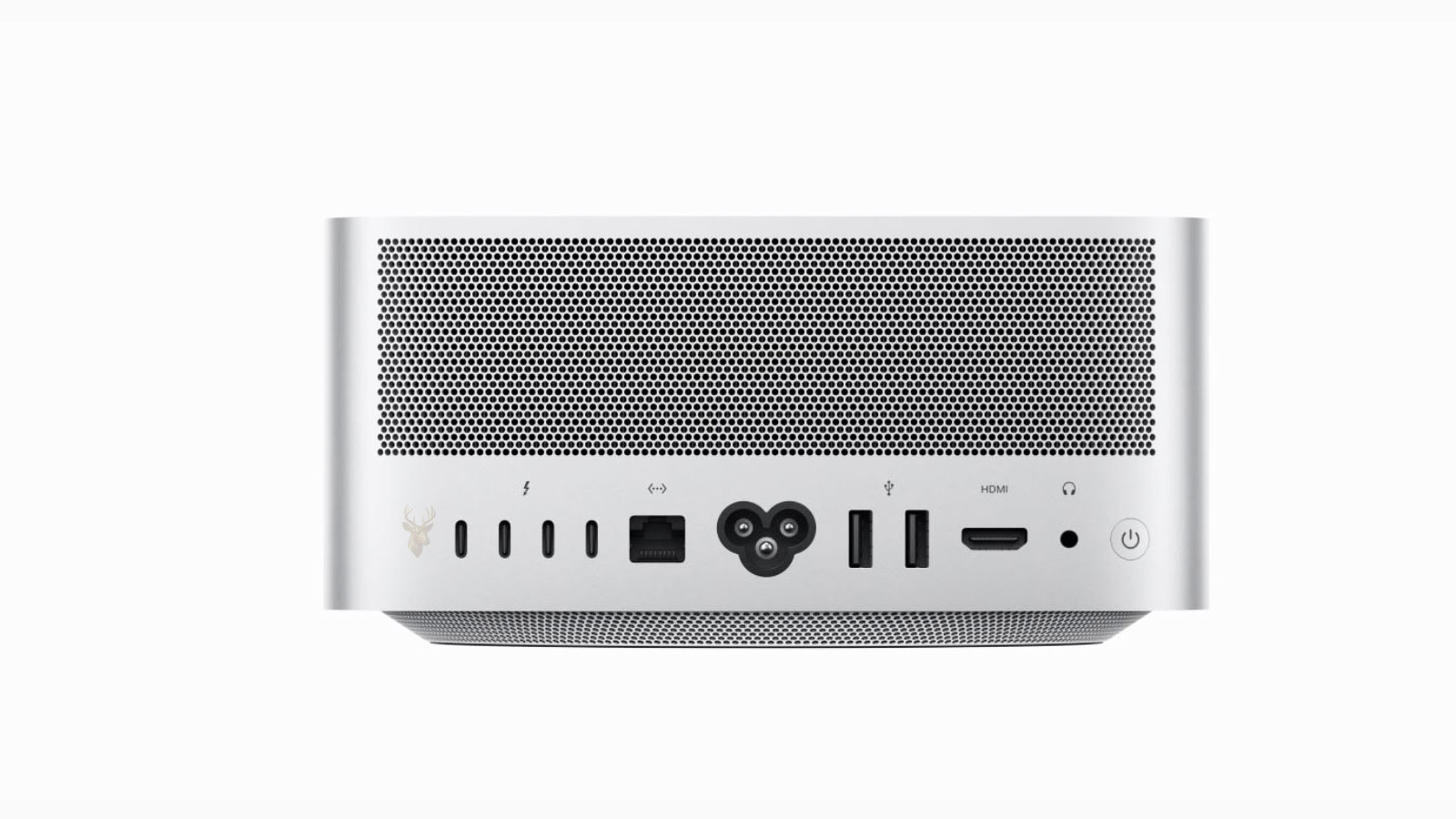
Thunderbolt Connections Depend on More Than the Shape of the Port
Thunderbolt allows a Mac to communicate with high-speed storage devices, docking stations, external displays, audio equipment, network adapters, and other peripherals through a single connection. Although many Thunderbolt ports use the same physical USB-C connector, the appearance of the port does not reveal every capability supported by the Mac, cable, or connected device.
A device may fit correctly into the port and still remain undetected because the connection does not support the required data protocol, the cable lacks the necessary capability, the accessory is not receiving enough power, or macOS has not authorized the device.
Reliable detection requires communication between several components. The Mac must recognize the port connection, establish a compatible Thunderbolt link, identify the connected hardware, provide or receive power when required, and allow macOS to load the appropriate software support.
USB-C Describes the Connector, Not the Entire Connection
USB-C refers primarily to the small reversible connector used by many modern devices. The same connector can carry several different technologies, including standard USB data, DisplayPort video, charging power, and Thunderbolt communication.
This shared connector design can create confusion because two cables or ports may look identical while supporting very different speeds and features.
| Connection type | Possible function |
|---|---|
| USB-C charging connection | May provide power with limited or no data capability |
| Standard USB-C data connection | Supports USB devices but may not support Thunderbolt equipment |
| USB-C with video output | Can carry compatible display signals |
| Thunderbolt connection | Supports high-speed data, displays, docks, and other compatible devices |
For this reason, successfully inserting a cable does not confirm that the Mac and accessory can communicate using the same protocol.
Thunderbolt Devices Must Complete a Connection Sequence
When a Thunderbolt accessory is connected, the Mac does not immediately begin using it as a simple passive device. The hardware performs a sequence of checks to determine what has been attached and which features are available.
- The port detects that a cable has been connected.
- The Mac and accessory determine the supported connection mode.
- Thunderbolt controllers establish a communication link.
- The connected device identifies its functions to macOS.
- macOS authorizes and activates the available hardware.
A failure at any stage can leave the device absent from the desktop, Disk Utility, System Information, display settings, or the application that normally controls it.
The Cable Can Determine Whether Detection Succeeds
Thunderbolt cables contain more than simple wires. Depending on the cable type and supported speed, internal electronics may help manage the high-speed signal passing between the Mac and the connected device.
A cable intended only for charging may provide power but carry little or no usable data. A standard USB-C cable may support USB accessories while failing to establish a Thunderbolt connection. Damaged or low-quality cables may connect intermittently, operate at reduced speed, or prevent detection entirely.
- The connector can fit even when the cable lacks Thunderbolt support.
- Longer cables may support lower speeds unless they contain active electronics.
- Internal damage can affect data while charging continues normally.
- A cable that works with one USB device may still fail with a Thunderbolt dock.
Testing with a known-compatible Thunderbolt cable is often more useful than relying on the cable’s appearance alone.
Port Capabilities Can Vary Between Mac Models
Different Mac models support different Thunderbolt generations, display limits, charging behavior, and accessory configurations. Even ports that appear identical may not provide the same performance as those on another computer.
Some Macs support multiple external displays through Thunderbolt, while others limit the number or type of displays that can operate at the same time. Available bandwidth may also be shared between ports or internal controllers.
A matching connector does not guarantee matching bandwidth, display support, charging capacity, or device compatibility.
Understanding the capabilities of the specific Mac model helps separate a true detection failure from a configuration that the hardware was never designed to support.
Power Requirements Affect Docks and External Storage
Some Thunderbolt accessories receive all required power directly from the Mac. Others depend on their own power adapter, especially docking stations, multi-drive storage enclosures, professional audio equipment, and devices containing several connected peripherals.
A dock may illuminate an indicator light but still lack enough power to activate every internal controller or attached device. An external drive enclosure may also appear inactive if its power supply is disconnected, underpowered, or failing.
| Device condition | Possible result |
|---|---|
| No external power connected | The accessory may remain completely undetected |
| Insufficient power delivery | Some ports or attached devices may not activate |
| Unstable power adapter | The device may repeatedly connect and disconnect |
| Bus-powered accessory exceeds available power | The Mac may refuse the connection or disable the device |
Power and data should therefore be evaluated separately. A device receiving power is not necessarily exchanging data, and a valid data connection may still fail if the accessory cannot power its internal components.
Thunderbolt Docks Contain Several Internal Devices
A Thunderbolt dock is not recognized as one simple accessory. It may contain separate controllers for USB ports, Ethernet, audio, storage, card readers, displays, and power delivery.
The main Thunderbolt connection may be active even when one section of the dock is not working. For example, the Mac may detect the dock’s Ethernet adapter while failing to recognize an attached display or external drive.
This partial operation can make diagnosis more complicated because the dock appears connected, but not every internal function has completed detection successfully.
macOS May Require Permission Before Using a New Accessory
Security controls in macOS can limit communication with newly connected accessories, particularly when the Mac is locked or when a device is being attached for the first time.
The Mac may display a request asking whether the accessory should be allowed to connect. If the request is dismissed, overlooked, or blocked by security settings, the device may receive power without becoming available to the operating system.
Corporate security policies and device-management settings can impose additional restrictions, especially on Macs used in offices, schools, or other managed environments.
System Information Can Reveal Devices That Are Not Visible Elsewhere
A connected device may not appear on the desktop even though the Mac has detected part of the Thunderbolt connection. System Information provides a detailed view of hardware recognized by macOS and can show Thunderbolt controllers, connected devices, USB components inside a dock, and other hardware details.
If the device appears in System Information but not in its usual application, the physical connection may be functioning and the problem may involve software, formatting, permissions, or device configuration.
If nothing appears under the relevant hardware section, attention should shift toward the cable, port, accessory power, connection sequence, or the device itself.
External Storage May Be Detected Without Mounting
Thunderbolt storage devices can be recognized electrically while remaining absent from the desktop or Finder. In that situation, the enclosure may be communicating correctly, but macOS may be unable to mount the volume stored on the drive.
Formatting problems, file-system damage, unsupported encryption, missing drive partitions, or a failing storage device can prevent normal access even when the Thunderbolt enclosure itself is detected.
- The Thunderbolt enclosure may appear in System Information.
- The physical drive may appear in Disk Utility.
- The volume may remain unmounted or unavailable in Finder.
- The problem may exist on the storage device rather than the Thunderbolt connection.
Separating enclosure detection from volume access prevents a storage problem from being mistaken for a failed Mac port.
Display Detection Uses Additional Communication
External displays connected through Thunderbolt require more than a basic data link. The Mac must identify the display, read its supported resolutions and refresh rates, negotiate a video signal, and assign available graphics resources.
A dock can therefore appear in macOS while its connected monitor remains blank. The cause may involve the display cable, adapter, dock firmware, monitor input selection, supported resolution, or the Mac’s external-display limits.
In the next part, we’ll examine intermittent Thunderbolt connections, daisy-chained devices, startup detection problems, dock firmware, sleep-related failures, and the differences between a device that is completely absent and one that is only partially recognized.
Intermittent Detection Can Point to Communication Problems
Some Thunderbolt devices are detected immediately every time they are connected, while others appear only occasionally or disconnect unexpectedly during normal use. Intermittent detection usually indicates that communication is being established but cannot remain stable long enough for reliable operation.
The interruption may occur because of a damaged cable, worn connector, unstable power source, excessive movement of the connector, firmware behavior, or hardware problems within the Mac or the accessory itself.
Because the connection is partially successful, intermittent problems often require more careful observation than devices that never appear at all.
Connection Order Can Influence Device Recognition
Some professional peripherals initialize differently depending on when they are connected. Certain devices expect to complete their startup sequence before the Mac begins communicating, while others are designed to be connected after macOS has fully loaded.
This behavior is more common with specialized storage systems, docking stations, audio interfaces, and expansion hardware that contains multiple internal controllers.
| Connection sequence | Possible result |
|---|---|
| Accessory powered before the Mac | Device may be detected during startup |
| Accessory connected after login | macOS performs a new hardware scan |
| Dock connected after peripherals | Some devices may initialize before others |
| Rapid disconnect and reconnect | Hardware may require time before another detection attempt |
Although modern Macs usually handle hot-plugging effectively, individual devices may still behave differently depending on their own initialization process.
Sleep and Wake Cycles Can Interrupt Thunderbolt Communication
During sleep, macOS reduces power usage and temporarily suspends communication with many connected devices. After waking, Thunderbolt controllers must restore communication and reconnect every supported accessory.
Most devices resume automatically, but some peripherals may fail to re-establish communication correctly after waking from sleep. A storage enclosure, dock, display, or network adapter may therefore disappear until it is disconnected and connected again.
When a device operates normally after a fresh startup but repeatedly fails after sleep, the wake process itself becomes an important part of the diagnosis.
A device that works after every restart but disappears after waking from sleep may be experiencing a communication recovery problem rather than a hardware failure.
Daisy-Chained Devices Depend on Every Link Remaining Active
Thunderbolt supports connecting multiple compatible devices in sequence through a feature commonly called daisy chaining. Instead of connecting every accessory directly to the Mac, one device passes the connection to the next.
Each device in the chain depends on every previous connection functioning correctly. If one accessory loses power or stops communicating, devices farther down the chain may disappear even though they remain fully functional.
- A disconnected first device can interrupt every downstream device.
- A faulty Thunderbolt cable can affect multiple accessories.
- Power failure in one dock may prevent later devices from appearing.
- Removing one device may temporarily interrupt the remaining chain.
Testing each accessory individually can help determine whether the problem originates from the Mac, the first device in the chain, or a later connection.
Dock Firmware Helps Coordinate Internal Hardware
Many Thunderbolt docks contain firmware that manages communication between the Mac and the dock’s internal controllers. This firmware determines how USB ports, Ethernet adapters, displays, storage devices, and charging functions operate together.
If the firmware contains a defect or becomes outdated, certain functions may stop working while others continue operating normally. One USB port may function correctly while an attached monitor or storage device remains unavailable.
Firmware updates released by the dock manufacturer may improve compatibility with newer versions of macOS or newer Mac hardware.
External Displays May Fail Even When the Dock Is Detected
A Thunderbolt dock can be recognized successfully while an attached monitor remains blank. This situation demonstrates that device detection and video output are related but separate processes.
Once the dock has been detected, the Mac must still establish communication with the monitor, identify supported display modes, and assign graphics resources before an image appears.
| Observed condition | Possible interpretation |
|---|---|
| Dock appears but monitor remains black | Video negotiation may have failed |
| Monitor detected with incorrect resolution | Display communication completed only partially |
| Display repeatedly reconnects | Cable or signal stability may be affected |
| External monitor never appears | Connection, compatibility, or hardware should be evaluated |
Separating dock detection from monitor detection helps narrow the source of the problem more efficiently.
Storage Devices May Respond More Slowly Than Other Accessories
Large external storage systems often require additional time before they become available. Multi-drive RAID enclosures, encrypted volumes, and drives containing large file systems may complete their own startup process before responding fully to the Mac.
During this period, the enclosure may already be recognized while the storage volume itself is still preparing for use. Disconnecting the device too quickly may interrupt this process before mounting has finished.
Allowing several moments for initialization can prevent a normally functioning storage device from being mistaken for one that has failed.
Security Features Can Limit Automatic Device Access
Recent versions of macOS include additional security protections designed to prevent unauthorized accessories from communicating automatically with the computer. Depending on the Mac model and system configuration, newly connected hardware may require approval before becoming fully operational.
These protections are intended to improve physical security without preventing legitimate Thunderbolt devices from being used. However, they can occasionally be mistaken for hardware failures when the authorization request is overlooked.
Understanding the distinction between blocked communication and failed hardware helps avoid unnecessary replacement of functioning equipment.
Partial Detection Often Reveals Which Stage Has Succeeded
Thunderbolt problems rarely affect every function equally. A dock may provide charging while USB devices remain unavailable. An external SSD enclosure may appear in System Information but not mount in Finder. A display may be detected but operate only at a lower resolution.
Each successful function indicates that part of the communication sequence has already completed correctly.
- Power delivery confirms electrical contact.
- System Information confirms hardware recognition.
- Disk Utility confirms storage detection.
- Finder confirms successful volume mounting.
- Display Settings confirms monitor communication.
Observing exactly which stage succeeds can significantly narrow the remaining possibilities.
Adapters Introduce Additional Compatibility Variables
Many users connect older devices through adapters that convert Thunderbolt, USB, HDMI, DisplayPort, Ethernet, or other interfaces. Each adapter introduces another layer of hardware that must communicate correctly with both the Mac and the connected accessory.
Although adapters are often reliable, compatibility depends on the protocols supported by every device involved. An adapter designed for one connection type may not support every feature expected by another.
When troubleshooting, testing without intermediate adapters can help determine whether the adapter itself contributes to the detection problem.
Physical Port Wear Can Affect High-Speed Communication
Thunderbolt operates at extremely high data rates that require stable electrical contact across multiple internal connector pins. Even minor contamination, mechanical wear, or physical damage inside the port can interfere with reliable communication.
A connector that feels loose, requires unusual pressure, or changes behavior when gently moved may indicate physical wear rather than a software-related problem.
Because charging uses different electrical paths than some data functions, a worn port may continue charging devices while high-speed Thunderbolt communication becomes unreliable.
Thunderbolt Controllers Coordinate Every Connected Device
Inside the Mac, dedicated Thunderbolt controllers manage communication between the processor, connected peripherals, displays, storage devices, and expansion hardware. These controllers continuously negotiate bandwidth, identify connected equipment, and maintain stable communication as devices are added or removed.
Because every connected accessory depends on this coordination, behavior affecting several unrelated Thunderbolt devices simultaneously may indicate that the problem extends beyond a single cable or peripheral.
In the final part, we’ll examine practical methods for distinguishing between cable failures, port problems, dock issues, software configuration, and hardware faults while explaining why observing detection behavior often provides more useful information than replacing parts immediately.
Testing One Component at a Time Simplifies Diagnosis
When a Thunderbolt device is not detected, replacing several components simultaneously can make it difficult to determine which change actually resolved the problem. A structured approach that changes only one variable at a time provides more reliable results.
Testing a different cable, another Thunderbolt port, an alternate compatible Mac, or another accessory individually helps isolate whether the problem follows the computer, the cable, or the connected device.
This method reduces unnecessary hardware replacement and often reveals whether the failure is consistent or dependent on a specific combination of equipment.
Comparing Multiple Ports Can Reveal Localized Problems
Many Macs include more than one Thunderbolt port. Although some ports may share internal hardware resources, comparing their behavior can provide useful information.
If one port consistently recognizes the same accessory while another does not, the issue may involve the individual connector, internal circuitry, or localized physical damage rather than the attached device itself.
| Observed behavior | Possible interpretation |
|---|---|
| Device works on every port | The Mac ports are likely functioning normally |
| Only one port fails | A localized hardware issue may exist |
| No ports recognize the device | Cable, accessory, software, or broader hardware should be evaluated |
| Different devices fail differently | Compatibility or individual accessory behavior may be involved |
Repeating the same test with the same cable and device helps eliminate variables that could otherwise complicate the diagnosis.
System Information Helps Confirm Hardware Recognition
System Information provides one of the clearest views of the hardware that macOS currently recognizes. Even when a storage device has not mounted or a display has not become active, portions of the Thunderbolt connection may already appear within the hardware listings.
Observing whether the Thunderbolt controller, dock, enclosure, or attached peripheral appears within System Information helps determine whether communication has begun successfully.
If the hardware never appears anywhere within the operating system, attention generally shifts toward the physical connection rather than application-level configuration.
Disk Utility Separates Detection From File Access
External Thunderbolt storage devices can be detected long before files become accessible. Disk Utility displays physical storage devices independently from whether their volumes are currently mounted in Finder.
An enclosure may appear correctly while the stored volume remains unavailable because of formatting problems, encryption, partition damage, or file-system issues.
A storage device that appears in Disk Utility but not in Finder has already completed part of the hardware detection process.
This distinction prevents storage-related issues from being mistaken for failed Thunderbolt communication.
Bandwidth Is Shared Between Connected Devices
Thunderbolt provides very high data throughput, but connected devices still share available bandwidth. Multiple displays, high-speed storage arrays, network adapters, and capture devices can all compete for communication resources when connected through the same controller or dock.
Although bandwidth limitations do not usually prevent initial device detection, they can influence performance after the connection has been established.
- High-speed storage transfers consume significant bandwidth.
- Multiple external displays increase graphics traffic.
- Professional video capture equipment generates continuous data.
- Several demanding devices operating together may share available resources.
Understanding this distinction helps separate performance limitations from hardware recognition problems.
Peripheral Firmware Can Influence Compatibility
Many Thunderbolt accessories contain their own firmware, including storage enclosures, docks, displays, audio interfaces, and networking equipment. This firmware controls how the accessory communicates with the Mac and manages its internal hardware.
Compatibility improvements released by manufacturers may resolve communication issues with newer versions of macOS or newer Mac hardware. Conversely, older firmware may continue operating normally with previous computers while exhibiting unexpected behavior on newer systems.
Firmware updates should always follow the manufacturer’s instructions because they modify the internal operating software of the accessory itself.
Software Updates Can Improve Device Compatibility
macOS updates often include improvements to hardware support, device compatibility, security, and communication with connected peripherals. These updates may improve recognition for newly released Thunderbolt accessories or resolve previously identified compatibility issues.
Changes introduced by software updates can also affect existing equipment. A device that operated normally before an operating system upgrade may require updated firmware or manufacturer software to maintain full compatibility.
Evaluating recent software changes can therefore provide useful context when a detection problem appears unexpectedly.
Mechanical Stress Can Affect Port Reliability
Repeated insertion, heavy adapters, accidental cable pulls, or equipment supported by the connector alone can gradually place mechanical stress on both the Thunderbolt cable and the Mac’s port.
Even if the connector still appears intact externally, movement during normal use may interrupt the high-speed electrical contacts required for reliable communication.
Supporting heavy cables and docking equipment independently helps reduce unnecessary strain on the connector over time.
Different Accessories May Reveal Different Symptoms
Not every Thunderbolt accessory responds the same way when communication problems occur. Storage devices, displays, network adapters, and audio interfaces each rely on different operating-system services after the initial hardware connection has been established.
| Accessory type | Common symptom when detection is incomplete |
|---|---|
| External storage | Drive enclosure appears but files remain unavailable |
| Display | Black screen or unsupported resolution |
| Ethernet adapter | Network interface never appears |
| Audio interface | Device missing from audio settings |
| Dock | Only some ports function correctly |
Recognizing these different symptoms helps identify which stage of communication has succeeded and which has not.
Completely Missing Devices Differ From Partially Functional Ones
A Thunderbolt accessory that never appears anywhere within macOS usually points toward a problem occurring very early in the connection sequence. By contrast, a partially functional device indicates that communication has already progressed beyond the initial hardware detection stage.
For example, an external drive that appears in Disk Utility but cannot mount has already established hardware communication. Likewise, a dock whose Ethernet adapter functions while USB ports remain inactive demonstrates that some internal controllers have completed initialization successfully.
Understanding these distinctions allows troubleshooting to focus on the stage where communication actually stops.
Environmental Factors Can Influence Reliable Operation
Although Thunderbolt connections are designed for dependable operation, surrounding conditions can occasionally contribute to intermittent behavior. Excessive heat, unstable electrical power, connector contamination, or physical vibration may affect long-term reliability in certain environments.
Keeping ports clean, avoiding excessive cable strain, maintaining adequate ventilation, and using stable power sources help reduce conditions that may interfere with consistent operation.
These environmental factors are usually secondary considerations but can become significant when no obvious hardware fault is present.
Successful Detection Depends on the Entire Communication Path
Thunderbolt device detection involves far more than inserting a cable into a USB-C-shaped connector. The Mac, cable, Thunderbolt controllers, accessory firmware, operating system, power delivery, and connected hardware must all complete a coordinated sequence before the device becomes fully available.
Interruptions at any point along this path may produce symptoms ranging from complete device absence to partially functioning docks, storage devices that refuse to mount, displays that remain black, or accessories that disconnect after sleep.
Recognizing which portions of the communication sequence have already succeeded provides valuable information during troubleshooting. By distinguishing between physical connection, hardware detection, operating-system recognition, and application-level functionality, it becomes much easier to identify where the process has stopped and why a Thunderbolt device may not be operating as expected.











