
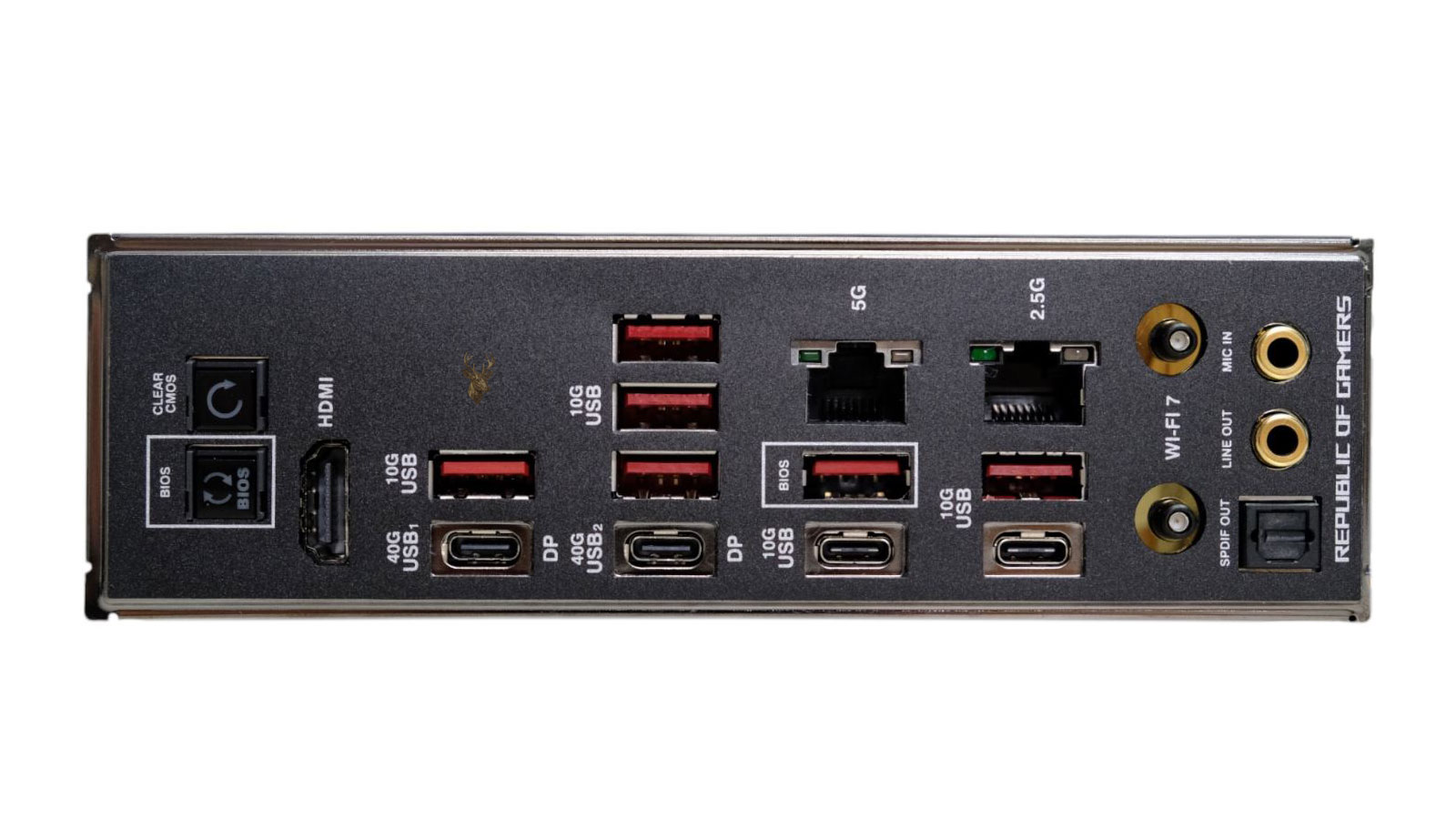
USB Enumeration Allows Computers to Recognize New Devices
Every time a USB device is connected to a computer, a structured communication process begins before the device becomes available for use. This process is known as USB enumeration. During enumeration, the operating system and the USB controller identify the device, assign it an address, determine its capabilities, and load the appropriate software needed for communication.
Enumeration occurs whether the device is connected after the computer has already started or is present when the system powers on. Without successful enumeration, the operating system cannot reliably communicate with the hardware, even if power is reaching the USB port.
Because the process happens in only a fraction of a second for most devices, users rarely notice the many individual steps involved before a keyboard begins typing, a flash drive appears in File Explorer, or a webcam becomes available to an application.
Enumeration Begins as Soon as a Device Is Detected
A USB port continuously monitors for electrical changes that indicate a device has been connected. When a connection is detected, the USB host controller begins communicating with the newly attached hardware.
The controller briefly resets the device to place it into a known operating state. This reset does not erase data or modify settings. Instead, it prepares both the computer and the device to begin exchanging standardized information.
Only after this initial communication succeeds does the operating system proceed with identifying the hardware and determining how it should function.
Every USB Device Describes Itself to the Computer
One of the earliest steps during enumeration is the transfer of information known as device descriptors. These descriptors contain standardized details that tell the operating system what type of hardware has been connected.
Among the information provided are the manufacturer identification, product identification, supported USB version, device class, power requirements, communication capabilities, and other characteristics that allow the operating system to determine how the device should be handled.
| Descriptor information | Purpose |
|---|---|
| Vendor ID (VID) | Identifies the hardware manufacturer |
| Product ID (PID) | Identifies the specific device model |
| Device class | Indicates the general hardware category |
| USB version | Specifies supported communication standards |
| Power information | Reports expected power requirements |
This standardized identification system allows operating systems from different manufacturers to recognize millions of compatible USB devices using common communication rules.
The Computer Assigns a Unique USB Address
Immediately after receiving the basic device information, the USB host assigns a unique address to the newly connected device. Every USB device connected to the same controller must have its own address so communication remains organized.
Before receiving its assigned address, the device temporarily communicates using a default address reserved during the initial stages of enumeration. Once the permanent address has been assigned, all further communication uses that new identifier.
This addressing process allows multiple keyboards, storage devices, printers, cameras, and other peripherals to operate simultaneously without confusing their data transmissions.
Device Classes Help Windows and Other Operating Systems Select Drivers
USB devices are grouped into standardized classes that describe their general purpose. These classes allow operating systems to recognize many types of hardware without requiring manufacturer-specific software for every device.
- Human Interface Devices (HID) such as keyboards and mice.
- Mass Storage devices including flash drives and external storage.
- Audio devices such as microphones and speakers.
- Video devices including webcams.
- Communication devices such as certain network adapters and modems.
If the operating system already includes support for the reported device class, communication can often begin immediately after enumeration completes.
Drivers Complete the Communication Process
Enumeration identifies the hardware, but a driver allows the operating system to communicate with it in a meaningful way. Some drivers are built directly into the operating system, while others are supplied by the device manufacturer.
If a suitable driver is available, the device becomes operational shortly after enumeration finishes. If no compatible driver exists, the operating system may recognize that a device is connected but still be unable to use its full functionality.
This distinction explains why Device Manager may list unknown hardware even though the USB port itself is functioning normally.
USB Hubs Participate in the Enumeration Process
USB hubs allow multiple devices to share a single USB connection, but they also participate in the enumeration process. Before the devices connected to the hub can be identified, the hub itself must first be recognized and configured.
Once the hub has been successfully enumerated, each downstream port is checked individually. Any attached devices are then processed one at a time using the same standardized sequence of identification, addressing, and driver selection.
Large docking stations and monitors with integrated USB hubs follow this same general process, although they may contain several internal hubs operating together.
Boot Firmware Can Enumerate USB Devices Before the Operating System Starts
Enumeration is not limited to Windows, macOS, or Linux. Modern BIOS and UEFI firmware can also enumerate certain USB devices before the operating system loads. This allows USB keyboards to function inside firmware setup menus and enables booting from supported USB storage devices.
Firmware generally supports a smaller range of USB device classes than a full operating system. As a result, a specialized USB device may function normally after Windows starts even though it is unavailable inside the BIOS or during early startup.
Successful USB enumeration depends on cooperation between the USB controller, the connected device, firmware, the operating system, and the appropriate drivers.
Power Negotiation Occurs Before Some Devices Become Fully Operational
Many USB devices require very little electrical power, while others consume substantially more. During enumeration, the device reports its power requirements so the host can determine whether sufficient power is available through the connected port.
If a device requests more power than the port or hub can safely provide, the operating system may prevent the device from starting correctly or report that additional power is required. This is more common with high-performance external storage, certain docking stations, and other power-intensive peripherals.
In the next part, we’ll examine what can interrupt USB enumeration, why devices sometimes appear and disappear repeatedly, and how firmware settings, drivers, cables, hubs, and power management influence successful device detection.
Enumeration Can Fail Even When a USB Device Receives Power
A USB device may light up, spin, charge, or produce another sign of power without completing enumeration successfully. Electrical power and data communication travel through the same connection, but they are separate functions. A device can therefore receive enough power to appear active while the computer remains unable to identify or configure it.
When enumeration fails, the operating system may display an unknown device, report a descriptor request failure, repeatedly play connection sounds, or show no visible response at all. The exact symptom depends on how far the communication process progressed before it stopped.
The failure may originate from the device, the cable, the port, a hub, the USB controller, firmware, a driver, or power-management behavior.
Damaged Cables Can Carry Power but Interrupt Data
USB cables contain separate conductors for power and communication. If the data conductors are damaged while the power conductors remain intact, the connected device may turn on or charge without being detected by the computer.
This condition is especially common with cables that have been bent sharply, pulled near the connector, crushed, twisted repeatedly, or manufactured only for charging. Some inexpensive cables intentionally omit data connections because they are designed solely to deliver power.
- The device receives power but never appears in the operating system.
- Detection changes when the cable is moved.
- The device repeatedly connects and disconnects.
- A replacement cable restores normal operation.
- The same cable fails with multiple data-capable devices.
Testing with a known-good data cable is therefore one of the simplest ways to separate a communication problem from a device or port failure.
Loose or Worn Ports Can Break the Initial Handshake
USB enumeration depends on stable electrical contact during the first moments after connection. A worn, loose, contaminated, or physically damaged port can interrupt the handshake before the device has finished reporting its identity.
A device may enumerate correctly only when held at a certain angle, pressed inward, or connected without movement. These symptoms suggest that the physical connection is unstable rather than that the driver is missing.
Repeatedly forcing a connector into a damaged port can worsen internal contact damage or place stress on the motherboard. A port that moves inside the case or has bent internal contacts should be treated as a hardware problem.
USB Hubs Add More Points Where Detection Can Fail
Every hub between the computer and the device adds another controller, cable, power path, and set of ports to the connection. If the hub itself does not enumerate correctly, none of the devices connected through it may become available.
Even when the hub is detected, individual downstream ports can fail or become unstable. Large docking stations may also contain several internal hubs, network controllers, audio devices, storage interfaces, and display-related components that enumerate separately.
| Connection method | Possible enumeration issue |
|---|---|
| Direct computer port | Port damage, controller failure, or insufficient power |
| Passive hub | Shared power and limited current for multiple devices |
| Powered hub | Failed power adapter, unstable hub controller, or bad upstream cable |
| Docking station | Multiple internal devices failing at different stages |
Connecting the device directly to the computer can help determine whether the hub or docking station is interfering with enumeration.
Insufficient Power Can Stop Configuration Before Completion
Some USB devices need more power after their initial connection than a weak port or unpowered hub can provide. External hard drives, optical drives, webcams, audio interfaces, and multifunction docking stations may draw more current than simple keyboards or mice.
If voltage drops during startup, the device may reset and begin enumeration again. This can create a repeated connect-disconnect cycle because the hardware never remains powered long enough to finish configuration.
A repeated USB connection sound can indicate that the device is restarting electrically, not merely that Windows is repeatedly loading its driver.
Using a powered hub, the correct external adapter, or a higher-capacity USB port may resolve the problem when the device itself is functioning normally.
Descriptor Request Failures Occur Early in Enumeration
Before Windows can select a driver, it must successfully read the device descriptors. If the device does not respond correctly, the operating system may report an unknown USB device or a device descriptor request failure.
This message indicates that communication failed before Windows obtained enough information to identify the hardware fully. The problem may be caused by damaged firmware inside the device, unstable power, a defective cable, a poor port connection, or a failing USB controller.
Because the failure occurs before normal driver selection, installing a manufacturer driver may not help until the underlying communication problem is corrected.
Repeated Connection Sounds Show That Enumeration Is Restarting
When a device repeatedly appears and disappears, the operating system may play connection and disconnection sounds in a continuous cycle. Each new connection attempt causes enumeration to begin again from the start.
This behavior can result from unstable power, an intermittent cable, a loose connector, overheating electronics, controller resets, or a device that crashes during configuration.
- The port detects an electrical connection.
- The host begins reading the device information.
- Communication or power becomes unstable.
- The device resets or disconnects.
- The host detects it again and restarts enumeration.
The repeated cycle may continue until the device is removed, the port is disabled, or the unstable condition is corrected.
Driver Problems Usually Appear After Identification Succeeds
If Windows can read the vendor ID, product ID, and device class, enumeration has progressed far enough for driver selection to begin. At that point, the device may appear in Device Manager with a warning symbol if no compatible driver can be loaded.
A corrupted, outdated, incompatible, or incorrectly matched driver can prevent the hardware from functioning even though the computer has identified it correctly.
This is different from a device that cannot provide descriptors at all. The distinction helps determine whether troubleshooting should focus on software or on the physical connection and hardware.
Windows Stores Information About Previously Enumerated Devices
When a USB device is connected successfully, Windows stores information about the hardware and the driver selected for it. The next time the same device is connected, Windows can often reuse that information instead of treating the hardware as entirely new.
Devices with unique serial numbers can be recognized individually. Devices without unique identifiers may be treated differently when moved between ports because Windows can associate part of the installation with the physical connection path.
This is one reason a printer, adapter, or specialized peripheral may appear to reinstall when connected to another port even though it has been used on the same computer before.
Different Ports May Connect to Different USB Controllers
Not every USB port on a computer is connected through the same internal controller. Front-panel ports, rear motherboard ports, USB-C connectors, docking ports, and expansion cards may use separate controllers or internal hubs.
A device that fails on one group of ports but works on another may reveal a controller, header, hub, or power-delivery problem rather than a failure of the device itself.
Testing more than one port is useful, but the results should be interpreted carefully. Two ports located next to each other may share the same internal connection and therefore exhibit the same problem.
Firmware Settings Can Change USB Availability During Startup
BIOS and UEFI settings can influence whether USB devices are available before the operating system loads. Options related to legacy USB support, USB booting, fast startup behavior, controller modes, and port security can change which devices are enumerated during early startup.
Disabling certain firmware features may prevent a keyboard from working in setup menus or stop a USB storage device from appearing as a boot option. However, the same hardware may still begin working later when the operating system initializes its own USB drivers.
Firmware updates can also alter USB compatibility, particularly with newer controllers, docking stations, and specialized devices.
Fast Startup Can Preserve an Unstable USB State
Some shutdown methods do not perform a completely fresh hardware initialization during the next startup. Windows Fast Startup preserves part of the system state, which can occasionally allow a USB controller problem to continue across what appears to be a normal shutdown.
A full restart forces Windows to reload the kernel and reinitialize hardware more completely. Disconnecting power from a desktop or performing the manufacturer-approved reset procedure on a laptop may also clear a controller that remains stuck after an ordinary shutdown.
This does not mean every USB problem is caused by Fast Startup, but the difference between restarting and shutting down can be useful during diagnosis.
Power Management Can Remove a Device After Enumeration
A device may enumerate correctly and work for a period before power management places the port, hub, or device into a reduced-power state. If communication does not resume correctly, the hardware may disappear or stop responding.
USB selective suspend, hub power-saving options, sleep transitions, and device-specific driver settings can all influence this behavior. In these cases, the initial enumeration succeeds, but the later wake or resume process fails.
| Timing of failure | More likely area to examine |
|---|---|
| Device is never identified | Cable, port, power, descriptors, or device hardware |
| Device is identified but unusable | Driver, permissions, or software configuration |
| Device disconnects under load | Power delivery, heat, cable quality, or controller stability |
| Device fails after sleep | Power management, firmware, or driver resume behavior |
Observing exactly when the problem occurs helps narrow the stage at which communication is being lost.
Operating-System Updates Can Change Driver Matching
After a system update, Windows may load a newer class driver, replace a manufacturer driver, revise power-management behavior, or change how certain USB controllers are handled.
The device may still enumerate successfully while failing to provide the same features or stability it had before the update. Device Manager, driver history, and update timing can help distinguish a software change from a newly developed hardware fault.
Rolling back a driver may be appropriate when the failure began immediately after a confirmed driver change, but it will not correct damaged cables, unstable power, or defective device electronics.
A Successful Test on Another Computer Provides Useful Evidence
Testing the USB device on another computer can help determine whether the problem follows the device or remains with the original system. A device that fails in the same way on multiple computers is more likely to have an internal hardware, firmware, cable, or power problem.
If it works normally elsewhere, attention can shift toward the original computer’s ports, controllers, drivers, firmware, operating-system configuration, or power management.
The comparison is most useful when the same cable, power adapter, and accessories are tested together. Changing several components at once can make the result difficult to interpret.
Troubleshooting Should Follow the Enumeration Sequence
USB problems become easier to diagnose when troubleshooting follows the same general order used during enumeration. The first questions concern physical connection and power, followed by device identification, address assignment, driver loading, and long-term stability.
In the final part, we’ll examine how Device Manager records enumeration failures, what hardware IDs and error codes reveal, how stale device entries affect troubleshooting, and how to distinguish a port problem from a controller, driver, or peripheral failure.
Device Manager Shows How Far Enumeration Progressed
Windows Device Manager provides one of the clearest views of how the operating system currently understands a USB device. A fully enumerated device usually appears under its expected hardware category, while an incomplete or failed enumeration may place it under Universal Serial Bus controllers, Other devices, or an unknown-device entry.
The location and description of the entry can help determine whether Windows successfully identified the device, found a suitable driver, or lost communication before receiving enough information to classify the hardware.
A missing entry does not always mean that nothing happened. Devices that connect and disconnect quickly may appear only briefly, and some failures occur before Device Manager can display a stable record.
Unknown USB Device Entries Indicate Incomplete Identification
An unknown USB device entry usually means Windows detected electrical activity on the port but could not complete the identification process. The computer knows that something is attached, yet it has not received enough valid information to determine exactly what the hardware is.
The device description may include wording related to a descriptor request failure, port reset failure, address assignment failure, or another early-stage communication problem.
| Device Manager result | What it generally suggests |
|---|---|
| Correct device name | Identification completed and a matching driver was found |
| Generic device class | Enumeration completed using a standard class driver |
| Unknown device | Windows detected hardware but could not identify it fully |
| Warning symbol | The device was identified but could not start correctly |
| No visible entry | No stable connection reached Device Manager |
These descriptions provide direction, but they do not identify the failed component with certainty. A descriptor failure can still originate from the device, cable, port, power source, hub, or controller.
Hardware IDs Reveal What Windows Was Able to Read
When Windows successfully reads the vendor and product information, Device Manager can display hardware identification strings containing the vendor ID and product ID. These values help distinguish one device model from another and guide driver matching.
A typical USB hardware ID may contain entries representing the manufacturer, product, revision, interface, or device class. The exact format varies according to the hardware and the amount of descriptor information supplied.
- The vendor ID identifies the registered manufacturer.
- The product ID distinguishes a model or product family.
- The revision value may identify a hardware or firmware version.
- Interface information can describe separate functions within one device.
If these values are missing, incomplete, or replaced by a generic failure entry, enumeration may have stopped before the device provided its normal identity.
Composite USB Devices Contain Several Functions
Some USB products contain multiple functions within a single physical device. A webcam may include video, microphone, speaker, control, and firmware interfaces. A docking station may contain network, audio, storage, hub, and card-reader components.
Windows can enumerate the physical device first and then create separate entries for each internal function. This arrangement is known as a composite USB device.
One internal function may work normally while another fails to load. For example, a webcam may provide video while its microphone remains unavailable, or a docking station may supply USB ports while its Ethernet adapter is missing.
A single physical USB product can create several Device Manager entries because each internal function may require its own driver and configuration.
Error Codes Describe the Current Device State
Device Manager may assign an error code when Windows identifies a USB device but cannot start or maintain it correctly. The code appears in the device properties and summarizes the condition reported by Windows.
Some codes relate to missing or damaged drivers, while others indicate that the device could not start, stopped responding, or failed during a hardware request. The same code can sometimes result from different underlying causes, so it should be considered alongside the physical symptoms and timing of the failure.
| General error type | Possible area involved |
|---|---|
| Driver unavailable | Missing, incompatible, or incorrectly installed software |
| Device cannot start | Driver, firmware, power, communication, or hardware failure |
| Device stopped responding | Controller reset, unstable connection, or internal device failure |
| Descriptor request failed | Early communication, cable, port, power, or device electronics |
An error code narrows the stage of failure, but testing is still needed to determine whether the cause is inside the computer or inside the peripheral.
Stale Device Entries Can Complicate Troubleshooting
Windows retains records for many USB devices that were connected previously. These entries may remain hidden after the hardware is removed, especially when the same device has been used through several ports, hubs, or docking stations.
Old entries do not normally cause a problem, but damaged driver associations or repeated partial installations can occasionally interfere with future detection. Removing an appropriate stale entry allows Windows to rebuild the device configuration the next time the hardware is connected.
This should be done carefully. Removing unrelated USB controller entries can temporarily disable keyboards, mice, storage devices, or other essential hardware until Windows redetects them.
Uninstalling a Device Forces Windows to Enumerate It Again
Uninstalling a USB device from Device Manager removes its current software configuration from Windows. When the device is reconnected or the computer restarts, Windows begins detection again and attempts to recreate the device entry.
This can correct a damaged driver association or incomplete installation, but it cannot repair a broken cable, defective port, unstable power source, or failed peripheral controller.
- Windows removes the selected device entry.
- The hardware is disconnected or the system is restarted.
- The USB controller detects the device again.
- Enumeration restarts from the initial identification stage.
- Windows selects and loads a compatible driver.
If the same failure returns immediately after re-enumeration, the problem is less likely to be limited to a temporary Windows record.
Testing the Port Separately Helps Isolate the Computer
A known-good USB device can be used to evaluate whether a specific port is able to provide stable power and communication. Simple devices such as a basic keyboard, mouse, or flash drive are often useful because they require little power and generally use standard drivers.
If several known-good devices fail on one port but work on others, the port or its internal connection becomes a stronger suspect. If every port connected to the same controller fails, the problem may involve the controller, motherboard, firmware, or operating-system driver.
A successful test with one low-power device does not prove that the port can support every peripheral. High-power devices can still expose weak power delivery that a keyboard or mouse does not reveal.
Testing the Device Separately Helps Isolate the Peripheral
The original USB device should also be tested on another known-working computer when practical. If it fails to enumerate on multiple systems using the correct cable and power source, the evidence increasingly points toward the device itself.
Internal causes may include a damaged connector, failed USB interface chip, corrupt firmware, unstable voltage regulation, liquid damage, overheating, or another electronic fault.
Some devices may still power on because their internal power circuit remains functional even though the communication controller has failed.
A Port Problem Can Exist Beyond the Visible Connector
The external connector is only one part of a USB port. Desktop front-panel ports connect through internal cables and motherboard headers. Laptop ports may be soldered directly to the motherboard or mounted on a separate input-output board.
A port can look normal from the outside while an internal cable is loose, a solder joint is cracked, a protective component is damaged, or a controller signal is missing.
- One front port may fail while rear ports remain functional.
- An entire front-panel group may stop working after internal service.
- A laptop port may disconnect when pressure is applied near the connector.
- Several ports may fail together if they share one controller or power circuit.
The pattern of affected ports often provides more useful information than the appearance of the connector alone.
Controller Problems Can Affect Several Devices at Once
A USB host controller manages communication for one or more ports. If the controller driver becomes unstable or the controller hardware fails, several unrelated devices may disappear, stop responding, or fail to enumerate simultaneously.
The affected ports may be grouped by physical location, USB generation, motherboard chipset, expansion card, or docking connection. Recognizing that pattern can separate a shared controller problem from several independent peripheral failures.
Restarting the computer may temporarily restore a controller that has entered an unstable state, but repeated failures usually require closer examination of drivers, firmware, power, and hardware.
USB Speed Negotiation Can Reveal Cable or Signal Problems
During enumeration, the device and host determine the communication speed they can use. A device designed for a faster USB standard may fall back to a slower speed when connected through an older port, hub, or cable.
A normal fallback is not necessarily a fault. However, repeated warnings that a device can perform faster, unusually slow transfer rates, or unstable operation only at higher speeds may indicate poor signal quality or an incompatible connection.
Long cables, damaged shielding, low-quality adapters, crowded hubs, and worn connectors can all affect the reliability of high-speed USB communication.
Storage Devices May Enumerate Even When Their Volumes Do Not Appear
A USB storage device can complete enumeration and appear correctly in Device Manager while remaining absent from File Explorer. In that situation, the USB connection itself may be functioning normally.
The remaining problem may involve the partition table, file system, drive letter, storage permissions, encryption, media condition, or the internal storage mechanism rather than USB detection.
| Observed result | Likely stage |
|---|---|
| Nothing appears in Device Manager | Physical connection, power, port, or early enumeration |
| USB device appears but has an error | Identification, driver loading, or startup failure |
| Storage device appears in Device Manager only | Partition, file system, drive letter, or media issue |
| Volume appears but files cannot be opened | File-system damage, permissions, encryption, or failing storage |
Separating USB enumeration from storage-volume recognition prevents the wrong part of the system from being investigated.
Specialized Devices May Depend on Manufacturer Software
Standard keyboards, mice, and storage devices often use drivers included with the operating system. Specialized equipment may require a manufacturer driver, background service, firmware utility, or application before all features become available.
The hardware may enumerate and appear in Device Manager even though the related application cannot communicate with it. In such cases, the USB connection has succeeded, but the manufacturer software or device-specific service may still be missing, outdated, or incorrectly configured.
Troubleshooting should distinguish between a device that Windows cannot identify and one that a particular application cannot use.
Enumeration Results Create a Logical Diagnostic Path
The most effective USB diagnosis follows the order in which the connection is established. First, the computer must detect electrical attachment. The device must then respond to a reset, provide valid descriptors, accept an address, report its configuration, receive sufficient power, and load an appropriate driver.
Observing where this sequence stops helps identify the most relevant area to test. A device that never provides descriptors requires a different approach from one that is identified correctly but fails after sleep or cannot be opened by an application.
USB Enumeration Happens Every Time Communication Is Reestablished
Enumeration is not limited to the first time a device is installed. It can occur after reconnection, restart, wake from certain power states, controller reset, hub replacement, port change, or driver reinstallation.
Most of the time, the process completes so quickly that the user sees only the final result. When detection fails, however, understanding the individual stages explains why a powered device can remain unknown, why changing ports can alter the outcome, and why reinstalling a driver does not solve every USB problem.
USB enumeration provides the foundation for communication between the computer and its peripherals. Stable power, intact data connections, responsive device firmware, functioning controllers, and compatible drivers must all work together before the connected hardware can perform its intended role.











