
Comparing a Safe Startup With a Normal Startup on a Mac
When a Mac becomes slow during startup, repeatedly freezes after logging in, unexpectedly restarts, or behaves differently each time it is powered on, Safe Mode can provide valuable diagnostic information. Rather than repairing every possible problem automatically, Safe Mode starts macOS with only the essential components needed to operate the computer while temporarily disabling many optional processes.
By comparing how the Mac behaves in Safe Mode versus a normal startup, it becomes easier to determine whether the problem is likely related to third-party software, login items, system extensions, storage issues, or the operating system itself. This comparison often narrows the list of possible causes before more advanced troubleshooting begins.
Safe Mode should be viewed as a diagnostic environment rather than a permanent operating mode. Many normal features are intentionally limited while the computer performs startup verification and loads only the components required for basic operation.
What Safe Mode Actually Does During Startup
Starting in Safe Mode changes several parts of the normal boot process. Before the desktop appears, macOS performs additional checks and temporarily prevents certain software from loading automatically. These changes create a simplified operating environment that helps isolate software-related problems.
Although the exact startup sequence varies between Intel-based Macs and Apple silicon models, the overall purpose remains the same: load the operating system with as few unnecessary variables as possible.
During a Safe Mode startup, macOS commonly performs actions such as:
- Verifying portions of the startup disk
- Loading only essential system extensions
- Disabling many third-party startup components
- Preventing certain login items from launching automatically
- Rebuilding selected system caches when necessary
- Reducing hardware acceleration for some graphics functions
These temporary changes allow the operating system to start with fewer software interactions, making it easier to observe whether the original problem continues under simplified conditions.
Safe Mode Does Not Repair Every Startup Problem
It is common to assume that a successful Safe Mode startup means the Mac has repaired itself. In reality, Safe Mode primarily changes the startup environment. While certain maintenance tasks may improve minor issues, many underlying problems remain unchanged.
For example, a damaged storage device, failing memory, liquid damage, or unstable logic board will not usually be corrected simply by starting in Safe Mode. Likewise, software corruption may continue to exist even if it temporarily becomes less noticeable because conflicting components are not loaded.
This distinction is important because the difference between Safe Mode and normal startup often provides diagnostic clues rather than confirming that the computer has been repaired.
Problems That May Behave Differently in Safe Mode
Some startup problems become less severe or disappear completely while the Mac operates in Safe Mode. This does not identify a single failed component, but it often indicates that software loaded during a normal startup is influencing the behavior.
Examples include:
- The desktop loads successfully only in Safe Mode.
- The Mac stops freezing after login.
- Cooling fans operate more quietly because background software is inactive.
- Applications that normally launch automatically remain closed.
- Unexpected restarts no longer occur during basic operation.
- System responsiveness improves despite unchanged hardware.
These observations suggest that startup software, login items, extensions, or cached system data deserve closer examination before hardware replacement is considered.
Safe Mode May Operate More Slowly Than Normal
Users are sometimes surprised when the Mac feels slower after entering Safe Mode. This behavior is expected in many situations. Because certain hardware acceleration features and background optimizations are intentionally limited, graphics performance, animations, and application responsiveness may not match a normal startup.
The purpose of Safe Mode is stability and troubleshooting rather than maximum performance. Reduced speed should therefore not be interpreted as evidence that the Mac has developed an additional hardware problem.
Once the computer is restarted normally, full performance should return if no underlying issue remains.
Login Items Often Influence Startup Behavior
Many applications automatically start when a user signs in. Cloud storage clients, communication software, printer utilities, backup programs, security tools, and synchronization services may all begin running within moments of reaching the desktop.
If one of these programs has become corrupted or incompatible with the current version of macOS, the computer may appear unstable immediately after login even though the operating system itself started successfully.
| Behavior | Possible observation |
|---|---|
| Problem appears before login | Startup process or system-level issue |
| Problem begins immediately after login | Login item or user-specific software may be involved |
| Mac works normally only in Safe Mode | Additional startup software may deserve investigation |
| Issue appears for only one user account | User profile or account-specific configuration may contribute |
| Issue affects every startup mode equally | Hardware or core operating system issue becomes more likely |
Comparing these behaviors provides more useful information than focusing on the startup symptom alone.
System Extensions Can Affect Startup Stability
Some applications install system-level components that operate outside the main application itself. Security software, virtualization tools, hardware utilities, and certain enterprise management programs may rely on these extensions to interact closely with macOS.
If one of these components becomes incompatible after an operating system update or develops corruption, startup stability may change significantly. Because Safe Mode limits many nonessential extensions, the difference between the two startup methods can help indicate whether one of these components deserves further investigation.
The observation alone does not identify which extension is responsible, but it helps narrow the troubleshooting process by separating software that loads during a normal startup from software that remains inactive in Safe Mode.
Startup Disk Verification Is Only One Part of Safe Mode
One commonly misunderstood feature of Safe Mode is its ability to verify portions of the startup disk during boot. While this verification can detect certain inconsistencies, it should not be viewed as a complete storage health examination.
Storage devices can still develop physical wear, controller failures, or file system damage that requires additional testing. A successful Safe Mode startup therefore does not guarantee that the storage device is free of defects. It simply indicates that the computer completed the Safe Mode startup process successfully under its current conditions.
A Successful Safe Mode Startup Changes the Direction of Troubleshooting
If a Mac repeatedly fails during a normal startup but reaches the desktop in Safe Mode, the difference provides an important clue. The storage device, operating system, and essential hardware were able to complete a simplified startup, which suggests that an additional component loaded during normal operation may be contributing to the failure.
This does not prove that every core component is healthy. A developing hardware problem may still behave differently under reduced load, and damaged system files may remain present. The result simply makes third-party software, login items, extensions, and cached data more relevant to the investigation.
Troubleshooting should continue by examining the differences between the two startup environments rather than assuming that Safe Mode permanently corrected the problem.
A Mac That Fails in Safe Mode May Have a Broader Problem
When the same freezing, restarting, or startup failure occurs in both Safe Mode and normal mode, the cause may extend beyond ordinary login items or third-party startup software. Core operating system corruption, storage failure, memory instability, overheating, or logic board trouble may still be involved.
The point at which the Mac stops can provide additional context. A machine that shuts down before the login screen presents a different pattern from one that reaches the desktop and freezes only after several minutes.
- Failure before the startup progress bar completes may involve the startup disk, system files, or hardware.
- Failure at the login screen may involve account access, graphics initialization, or system services.
- Failure immediately after login may involve user-specific settings or software.
- Failure after the Mac warms up may involve temperature-sensitive hardware.
- Repeated shutdowns under any startup mode may require deeper hardware testing.
Safe Mode is most useful when its behavior is compared carefully with the normal startup process. The comparison may narrow the possibilities even when neither mode works perfectly.
Intel-Based Macs and Apple Silicon Macs Enter Safe Mode Differently
The method used to enter Safe Mode depends on the processor architecture. Intel-based Macs use a keyboard command during startup, while Apple silicon models first open the startup options screen.
On an Intel-based Mac, the computer is powered on or restarted while the Shift key is held until the login window appears. On an Apple silicon Mac, the power button is held until startup options become available. The startup disk is then selected, and Safe Mode is requested while holding the Shift key.
The exact screens and wording may vary by macOS version, but the distinction between Intel and Apple silicon is important. Using the wrong procedure can make it appear that Safe Mode is unavailable when the startup command simply does not match the hardware.
The Login Process May Look Different
A Mac may request login credentials more than once during a Safe Mode startup, particularly when disk encryption is enabled. One login may unlock the startup disk, while another signs the user into the account.
The startup may also take longer than usual because the system is performing checks and limiting certain cached components. A longer progress bar does not necessarily mean that the Mac has frozen.
Once the desktop appears, the words Safe Boot may be visible in system information or near the login screen, depending on the macOS version. Confirming the startup mode prevents confusion when evaluating the computer’s behavior.
Login Items Should Be Reviewed Rather Than Removed at Random
When a Mac works correctly in Safe Mode, login items are often one of the first areas examined. However, removing every item at once can make it difficult to determine which program caused the problem.
A more useful approach is to document the existing items and disable them gradually. The Mac can then be restarted normally after each change. If the problem disappears after one specific item is removed, that application or its background components deserve closer attention.
Programs may also install background services that do not appear in the ordinary login item list. Removing the visible application icon from startup may therefore leave related services active.
| Software type | Possible startup effect |
|---|---|
| Cloud synchronization client | High disk or network activity after login |
| Security application | System extension conflicts or startup delays |
| Printer or scanner utility | Background service errors after macOS updates |
| Legacy hardware utility | Incompatibility with newer system components |
| Backup software | Heavy storage activity or repeated background failures |
| Menu bar application | Freezing or instability limited to one user account |
The table describes possible patterns rather than confirming causes. Any application can become unstable if its files are damaged or it is no longer compatible with the installed version of macOS.
User-Specific Problems May Not Affect Every Account
Some startup problems are tied to one user account rather than the entire Mac. Preferences, login items, application support files, and account-specific caches are stored separately for each user.
If the Mac works normally in another account, the operating system and hardware may be capable of stable operation while the original account contains a damaged or conflicting component. Safe Mode can help reveal this pattern because many account-specific startup processes remain inactive.
A second account does not automatically repair the original one, but it provides a comparison. If both accounts fail in the same way, a system-wide or hardware-related cause becomes more likely.
Caches Can Influence Startup and Application Behavior
macOS and installed applications store temporary data in caches to improve performance. These files can include previews, indexes, application resources, and information used to speed up repeated operations.
If cached data becomes damaged or outdated, it may contribute to slow startup, application crashes, visual problems, or repeated background errors. Safe Mode limits or rebuilds selected caches, which can temporarily change the computer’s behavior.
A Mac that works normally after leaving Safe Mode may have benefited from this maintenance. However, if the problem returns later, the cache may be only a symptom of a deeper software or storage issue.
Storage Problems Can Become More Noticeable During Safe Mode
Because Safe Mode performs additional disk-related checks, startup may take significantly longer on a Mac with storage or file system problems. The progress bar may pause, advance slowly, or fail to complete.
A mechanical hard drive with weak sectors, a worn solid-state drive, or a damaged file system may struggle while macOS verifies required information. Safe Mode does not provide a complete measurement of physical storage health, but repeated difficulty during this process can justify further examination.
Important files should be backed up before repeated testing continues when the Mac shows storage warnings, unusual delays, missing files, read errors, or frequent startup failures.
Limited Graphics Behavior Is Expected
Safe Mode may disable or reduce certain graphics acceleration features. As a result, screen movement can appear less smooth, windows may redraw slowly, and visual effects may be simplified.
These changes can also affect external displays, screen resolution options, and graphics-intensive applications. A program that depends on full acceleration may refuse to open or may perform poorly even when the graphics hardware is healthy.
Graphics behavior should therefore be evaluated again after the Mac returns to a normal startup. Performance limitations that occur only in Safe Mode are generally part of the diagnostic environment rather than evidence of a new failure.
Networking and Other Features May Be Restricted
Some services and connected devices may not operate normally in Safe Mode because their drivers, extensions, or support software are not loaded. Audio features, wireless accessories, specialized input devices, and third-party networking tools can behave differently.
This limitation matters when the original complaint involves one of those features. A device failing in Safe Mode does not automatically mean the hardware is damaged if its required software has been intentionally disabled.
The most useful Safe Mode observations usually involve startup completion, general stability, login behavior, and whether the original freezing or restarting continues under the simplified environment.
One Normal Startup After Safe Mode Is Not Always Conclusive
A Mac may restart normally once after leaving Safe Mode and then develop the same problem later. Temporary cache rebuilding, lower temperatures, or inactive background tasks may create a brief improvement without resolving the underlying cause.
Several normal restarts and a period of ordinary use provide stronger evidence than a single successful boot. The same applications, accessories, and workloads that previously triggered the problem should be observed again.
If the failure returns only after a particular program is opened or a peripheral is connected, that relationship may be more informative than the earlier Safe Mode result alone.
Safe Mode Results Should Be Recorded Before More Changes Are Made
Safe Mode is most useful when the observations are recorded clearly. Details such as whether the Mac reached the desktop, how long startup required, which symptoms disappeared, and which symptoms remained can guide the next stage of troubleshooting.
Without a record, it is easy to forget whether the computer behaved differently because of Safe Mode or because several settings, applications, and accessories were changed at the same time. Testing one condition at a time produces more reliable conclusions.
Useful notes may include:
- Whether the Mac completed startup successfully
- The point where a normal startup usually fails
- Whether freezing or restarting continued in Safe Mode
- Which login items or background applications remained inactive
- Whether external devices were connected during the test
- Whether the problem returned after restarting normally
- Any storage warnings, unusual delays, or error messages
These details help separate a temporary improvement from a repeatable diagnostic pattern.
External Devices Can Influence the Startup Process
A Mac may experience startup problems because of a connected storage device, docking station, display adapter, audio interface, printer, or other peripheral. Some accessories load supporting software or request system resources as macOS starts.
Safe Mode may prevent some of that supporting software from loading, which can make the Mac appear stable even though the connected device remains attached. For a clearer comparison, unnecessary accessories can be disconnected before testing.
If the Mac starts normally after one device is removed, the accessory, cable, port, driver, or related software may deserve further examination. Reconnecting devices one at a time can reveal which connection changes the startup behavior.
Security Software Can Create Difficult Startup Conflicts
Security applications often operate deeply within macOS. They may monitor files, network traffic, application behavior, and external devices. This level of access can make them particularly sensitive to operating system updates.
If a security program is outdated or partially removed, its background components may continue loading even when the main application appears to be gone. The result can include slow startup, repeated prompts, freezing, or unexpected restarts.
A Mac that becomes stable in Safe Mode may be avoiding one of these components temporarily. Proper removal may require the application’s own uninstaller rather than dragging the visible program to the Trash.
Startup Problems After a macOS Update Require Careful Comparison
A major or minor macOS update can expose incompatibilities in applications, extensions, printer software, backup tools, and hardware utilities. The Mac may have worked normally before the update but begin freezing or restarting once older components attempt to load under the new system version.
If Safe Mode works after an update, attention should be directed toward software that loads during a normal startup. Recently updated or older applications are especially relevant, but the timing alone does not prove which program is responsible.
Removing system files manually is risky because similarly named components may belong to macOS or another application. Software should be identified carefully before any related files are deleted.
Safe Mode Can Help Protect Access to Important Files
A Mac that cannot remain stable during a normal startup may still provide enough access in Safe Mode to copy important documents, photographs, and project files. This can be valuable when the cause has not yet been identified and continued instability creates a risk of further data loss.
Safe Mode should not be treated as a substitute for a complete backup. If the storage device is failing, repeatedly starting the computer and copying large amounts of data may place additional load on damaged hardware.
The most important and irreplaceable files should be prioritized first. When the Mac shows severe storage errors, unusual noises, repeated disconnections, or extremely slow reads, professional data recovery may be safer than continued experimentation.
Safe Mode and Recovery Are Different Environments
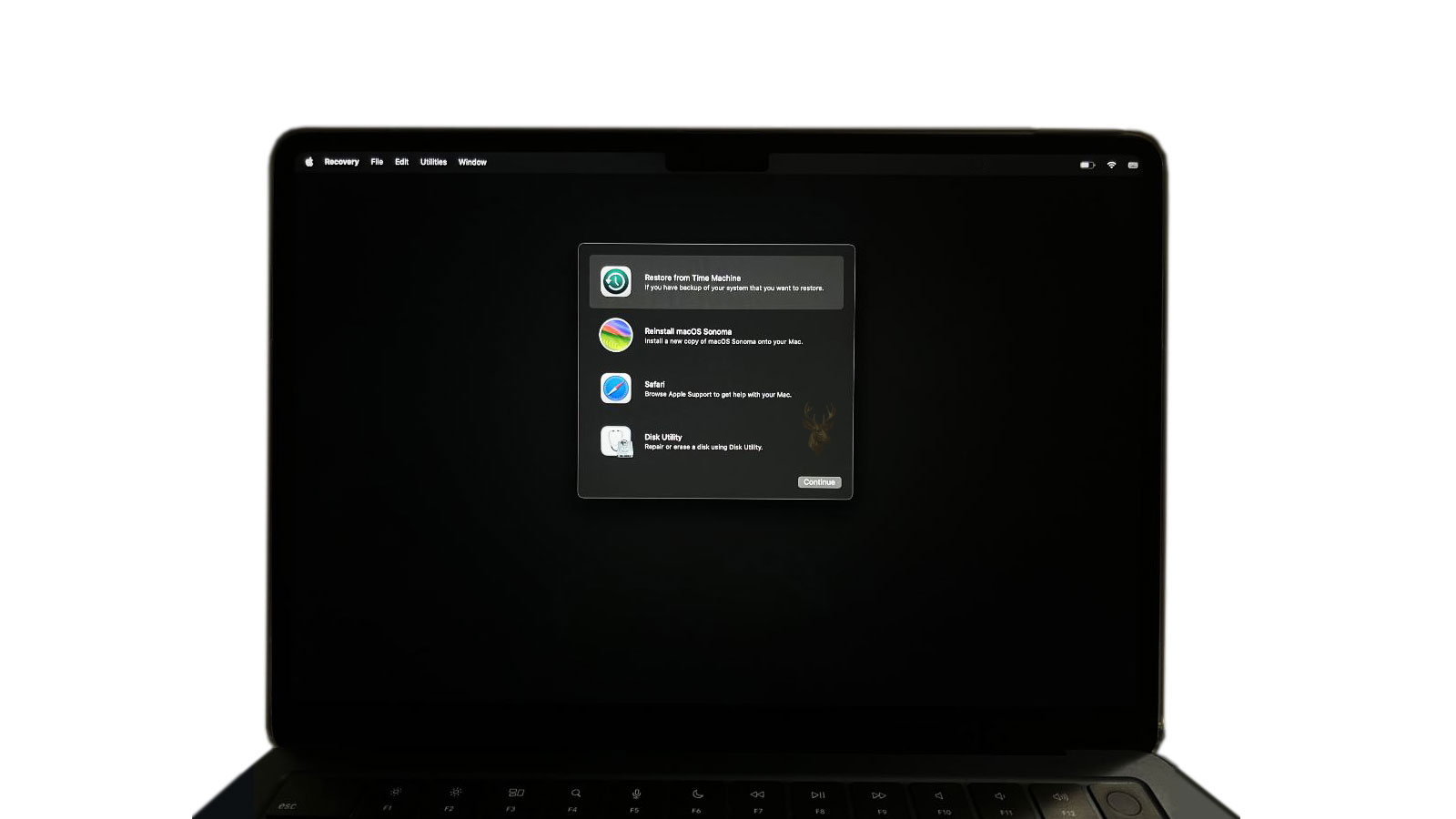
Safe Mode starts the installed copy of macOS with limited software. Recovery provides a separate set of tools used for disk examination, operating system installation, startup security, and other maintenance tasks.
A Mac may enter Safe Mode but fail to enter Recovery, or it may enter Recovery while the installed operating system cannot complete startup. These results provide different information and should not be treated as interchangeable.
| Startup environment | Primary purpose | What it may reveal |
|---|---|---|
| Normal startup | Full everyday operation | Behavior with all usual software and services active |
| Safe Mode | Simplified diagnostic startup | Whether optional software contributes to instability |
| Recovery | Repair and installation tools | Whether maintenance tools can operate outside the installed system |
| External startup disk | Independent operating environment | Whether the internal installation or storage device may be involved |
Using the appropriate environment prevents conclusions from being based on the wrong type of test.
Reinstalling macOS Should Not Be the First Assumption
When Safe Mode works but normal startup fails, reinstalling macOS may seem like the fastest solution. However, a reinstall may leave user applications, login items, extensions, and account-specific settings in place.
If one of those components is responsible, the problem can remain after the operating system is reinstalled. A reinstall also does not correct failing storage, unstable memory, overheating, or logic board faults.
Reinstallation is more useful after the available evidence points toward damaged system files and important data has been protected. It should be one part of a diagnosis rather than an automatic response to every startup problem.
Hardware Problems Can Still Appear Less Severe in Safe Mode
A Mac that behaves better in Safe Mode does not eliminate every hardware possibility. The simplified environment may use fewer graphics features, less background processing, and lower storage activity than a normal startup.
A temperature-sensitive logic board, unstable memory component, or worn storage device may therefore remain functional under the lighter workload. The problem can return when normal services and applications increase activity.
Hardware testing becomes more important when the Mac also shows symptoms such as graphical corruption, unexplained shutdowns, charging irregularities, storage errors, or instability across multiple startup environments.
Safe Mode Should Be Exited With a Normal Restart
Leaving Safe Mode usually requires only a normal restart without holding any startup keys or selecting the Safe Mode option again. The Mac should then load its usual services, extensions, login items, and hardware acceleration features.
If the computer repeatedly returns to Safe Mode without being requested, a stuck keyboard key, startup input problem, or unresolved boot condition may be involved. The startup method should be checked before assuming that macOS is selecting Safe Mode automatically.
After restarting normally, the original symptom should be tested under the same conditions that produced it before. This confirms whether the behavior changed temporarily or remains corrected.
Safe Mode Provides Evidence, Not a Final Diagnosis
The most important value of Safe Mode is the comparison it creates. A Mac that works only in Safe Mode may be affected by software, startup components, extensions, or account-specific data that does not load in the simplified environment.
A Mac that fails in both startup modes may have a broader operating system, storage, or hardware problem. Even then, the timing and behavior of each failure can help narrow the investigation.
No single Safe Mode result identifies every cause. Accurate troubleshooting combines the startup comparison with storage checks, application history, connected devices, user-account testing, and hardware symptoms.
Using Safe Mode as a Controlled Troubleshooting Step
Safe Mode gives a Mac a simplified path into macOS while limiting many of the components that normally load in the background. This controlled startup can reveal whether instability is tied to optional software or remains present at a deeper level.
The strongest conclusions come from observing the computer carefully, changing one condition at a time, and confirming the result through several normal restarts. When used this way, Safe Mode becomes a practical diagnostic tool rather than a temporary workaround that hides the original problem.











