
When Wireless Performance Changes After a Laptop Screen Repair
A laptop may connect to Wi-Fi normally before a screen repair and then develop a weak signal, slower speeds, or repeated disconnections afterward. The wireless adapter may still appear in the operating system, and the computer may continue detecting nearby networks, but the connection no longer performs as reliably as it did before the display assembly was opened.
This type of problem can occur because many laptops place their Wi-Fi antennas around the upper display panel. Thin antenna cables travel from the wireless card in the lower chassis, pass through or beside the display hinges, and continue into the screen enclosure. Replacing the LCD panel, hinges, display cable, back cover, or bezel can disturb this routing even when the wireless card itself is never removed.
A weak connection after display work does not automatically mean the screen repair was performed incorrectly. Antenna cables may already be worn, partially detached, pinched, or damaged inside the hinge area before the laptop is opened. Movement during repair can expose a condition that had not yet produced noticeable symptoms.
The Wi-Fi Card Is Only One Part of the Wireless System
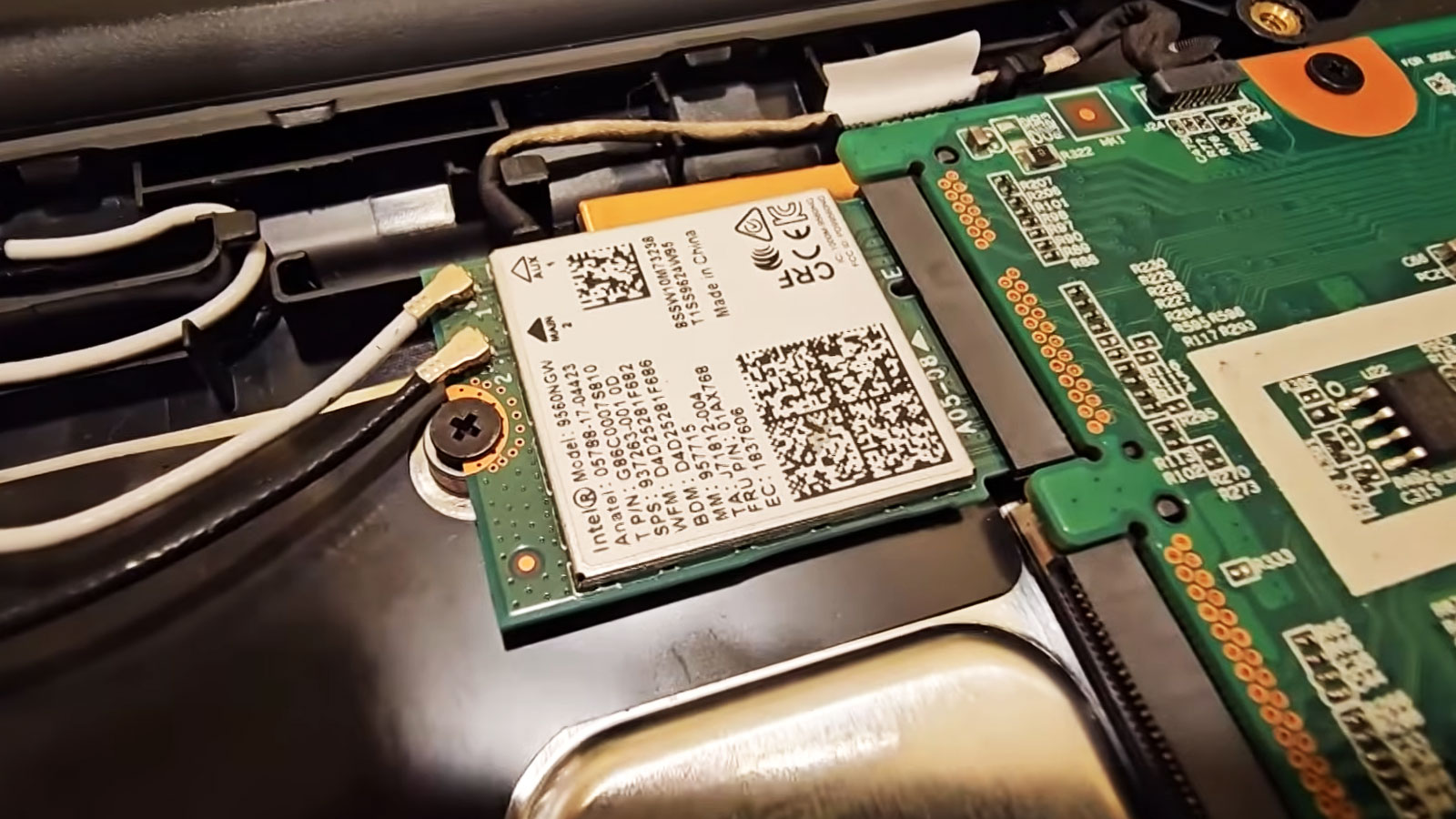
The internal wireless card handles Wi-Fi and, in many laptops, Bluetooth communication. It is commonly installed in a small motherboard slot and connected to one or more thin coaxial antenna cables. The card generates and receives radio signals, but the antennas determine how effectively those signals enter and leave the computer.
A functioning wireless card can therefore produce poor results when its antenna connections are loose or damaged. The laptop may still connect when it is close to the router, yet lose most of its signal when moved into another room. This can make the problem seem like a router, internet service, or software issue even though the weakness is inside the laptop.
The wireless system generally depends on several components working together:
- The Wi-Fi and Bluetooth adapter
- The main and auxiliary antenna connectors
- The thin coaxial cables routed through the chassis
- The antenna elements positioned inside the display enclosure
- The hinge channels or cable guides that protect the wiring
- The wireless driver and operating system settings
A fault in any one of these areas can affect connection range, transfer speed, Bluetooth reliability, or the ability to maintain a stable link.
Antenna Placement Inside the Display Assembly
Laptop manufacturers often place wireless antennas near the upper corners or outer edges of the screen enclosure. This position raises the antennas above the motherboard, battery, storage drive, and other components that can interfere with radio performance. It also gives the antennas a clearer path for receiving signals from different directions.
The visible antenna is usually not a traditional metal rod. It may be a thin adhesive-backed element, a small printed circuit, or a shaped conductive strip attached behind the display panel or back cover. From this element, a narrow coaxial cable runs toward the hinge and down into the lower section of the laptop.
Because the antenna is hidden, damage may not be obvious during an ordinary screen replacement. A technician can install a new LCD panel successfully while an antenna cable remains trapped beneath the panel edge, routed outside its intended channel, or pulled tightly around a hinge.
Main and Auxiliary Antenna Connections
Many wireless cards use two antenna leads, often identified as main and auxiliary. Some cards and laptops use labels such as Main, Aux, 1, 2, or color-coded cable markings. These connections allow the wireless system to use multiple signal paths, which can improve speed, range, and stability.
If one cable becomes disconnected, the laptop may not lose Wi-Fi completely. It may continue connecting through the remaining antenna but perform poorly at longer distances. Transfer speeds may fluctuate, signal bars may drop, or the connection may become unstable when the laptop changes position.
| Antenna condition | Possible behavior |
|---|---|
| Both leads connected correctly | Normal range, speed, and connection stability |
| One lead disconnected | Reduced range, inconsistent speed, or unstable performance |
| Lead loosely attached | Intermittent signal changes when the laptop is moved |
| Cable connected to the wrong terminal | Wireless service may remain available but perform differently |
| Both leads disconnected | Very weak reception or inability to find distant networks |
The exact result varies by wireless card design. Some adapters tolerate the loss of one antenna better than others, and certain frequency bands may be affected more noticeably than others.
The Antenna Connectors Are Small and Easy to Misalign
The connectors used on internal Wi-Fi cards are extremely small. They are designed to press straight down onto matching terminals on the card. When aligned correctly, they snap into position with light pressure. When misaligned, they can sit at an angle, fail to lock, or become damaged.
A connector may appear attached while making poor electrical contact. This can happen if the socket is only partially seated or if the cable pulls sideways after installation. Repeated attempts to force a misaligned connector into place can bend or separate the terminal from the wireless card.
The cable should also have enough slack to remain relaxed after the laptop is reassembled. Excess tension can cause a connector to lift gradually from the card or place stress on the cable where it enters the terminal.
Hinge Movement Places Repeated Stress on Antenna Cables
Antenna cables passing through the hinge area bend slightly each time the screen is opened or closed. The laptop is designed to accommodate this movement, but the cables must remain inside the intended channels and protective guides.
If a cable is routed across a moving hinge surface, trapped under a bracket, or pressed against a sharp edge, normal screen movement can gradually wear through its outer insulation. The damage may begin as an intermittent weakness and later develop into a complete break.
Signs of hinge-related antenna trouble may include:
- Signal strength changing as the screen angle changes
- Wi-Fi disconnecting when the lid is opened farther
- Bluetooth devices dropping when the screen is moved
- Wireless range becoming worse after hinge or display work
- A connection returning temporarily when pressure is applied near the hinge
These symptoms do not prove that the cable is broken, but they suggest that physical movement is influencing the wireless connection.
Pinched Cables May Still Work Intermittently
A cable does not need to be cut completely to create wireless problems. Compression can deform the internal conductor or shielding while leaving the outer covering mostly intact. The cable may continue carrying a signal, but with greater loss or increased sensitivity to movement.
Pinching commonly occurs when the cable is placed under the LCD panel, caught between the bezel and back cover, or pressed beneath a hinge bracket. Adhesive strips and replacement panels with slightly different dimensions can also change the available space inside the display assembly.
A damaged coaxial cable is not usually repaired by wrapping the outside with tape. The internal conductor and shielding geometry are important to radio performance. When that structure is crushed or broken, replacing the affected antenna assembly is often more reliable than attempting a surface repair.
Weak Wi-Fi and Weak Bluetooth May Share the Same Cause
Many laptops use a combined Wi-Fi and Bluetooth card, and the same internal antenna system may support both types of communication. A cable problem can therefore affect more than internet access.
A laptop may begin losing connection to a wireless mouse, headset, keyboard, or phone at the same time that Wi-Fi range becomes weaker. When both services change after the screen or hinge area has been opened, the shared antenna path deserves closer inspection.
Bluetooth usually operates over shorter distances than Wi-Fi, so its symptoms may appear different. A device may work normally when placed beside the laptop but disconnect when moved only a few feet away. This limited range can be an important clue that the wireless card is active but the antenna system is not performing normally.
Antenna Routing Can Change the Result of a Screen Replacement
Replacement LCD panels are not always identical in thickness, bracket position, or cable clearance, even when they are electrically compatible with the laptop. A slightly different panel design can reduce the space available for antenna wiring around the edges of the display assembly.
If the original cable path is not followed closely, the antenna lead may cross a mounting point, sit beneath adhesive, or press against the rear of the panel. The screen can still display normally while the wireless system becomes less effective.
Careful routing matters because antenna cables are designed to remain in specific channels. These paths help protect them from pressure, hinge movement, sharp metal edges, and interference from other internal wiring.
Adhesive and Metal Surfaces Can Affect Antenna Performance
The antenna elements inside a laptop display are positioned intentionally. Moving an antenna away from its original location or placing it against a different material can alter the way it receives and transmits radio signals.
Some antenna assemblies are secured with adhesive. During a back-cover or display replacement, the antenna may need to be transferred to a new enclosure. If it is folded, partially detached, covered with conductive material, or placed too close to a metal bracket, wireless performance may change even though the cable remains connected.
The surrounding display housing also matters. Plastic and metal covers interact differently with radio signals. A replacement cover that does not match the original design may require the antenna to be installed in a very specific position to maintain acceptable range.
A Loose Connector May Produce Normal Results at Close Range
A laptop with a partially connected antenna may work well enough when it is tested beside the wireless router. This can allow the problem to go unnoticed immediately after repair. The weakness becomes clearer only when the laptop is returned to its normal location.
At short distance, the router signal may be strong enough to overcome the poor antenna connection. In another room, behind walls, or on a different floor, the same laptop may lose speed or disconnect repeatedly.
Testing only at maximum signal strength therefore provides an incomplete picture. Wireless performance should be observed at realistic distances and compared with another device using the same network.
Comparing the Laptop With Other Devices
Before the laptop is reopened, it helps to determine whether the weakness follows the computer or the network. A phone, tablet, or another laptop can be tested in the same location and on the same Wi-Fi band.
If every device has poor signal, the router placement, network congestion, or internet equipment may be responsible. If only the repaired laptop performs poorly, an internal antenna, adapter, or driver problem becomes more likely.
| Test result | Possible direction |
|---|---|
| All devices have weak signal | Router location, interference, or network coverage |
| Only the repaired laptop is weak | Antenna, connector, adapter, or driver issue |
| Wi-Fi changes when the lid moves | Cable routing or hinge-area damage |
| Wi-Fi is weak but Ethernet is normal | Wireless system rather than internet service |
| Both Wi-Fi and Bluetooth range are reduced | Shared antenna path or wireless card connection |
These comparisons do not identify the exact failed component, but they help separate a laptop-specific problem from a broader network issue.
Signal Bars Do Not Tell the Entire Story
The number of wireless signal bars shown by the operating system is only a simplified estimate. A laptop may display several bars while still experiencing retransmissions, unstable speed, or brief connection losses.
Wireless performance depends on signal strength, interference, frequency band, channel conditions, antenna orientation, and the ability of both the laptop and router to communicate clearly. A damaged antenna may receive enough signal to show a connection but still struggle to maintain reliable data transfer.
Useful observations include download speed, upload speed, latency, connection stability, and whether performance changes as the laptop is moved or the lid angle is adjusted.
The 2.4 GHz and 5 GHz Bands May Behave Differently
A laptop with antenna trouble may perform differently depending on the Wi-Fi band in use. The 2.4 GHz band generally travels farther and passes through walls more effectively, while 5 GHz often provides greater speed at shorter distances.
A weakened antenna system may remain usable on 2.4 GHz but lose 5 GHz connectivity quickly as the laptop moves away from the router. In other cases, one antenna path may affect specific wireless features more than others.
Testing both bands can provide useful evidence. A major difference after screen work may suggest reduced antenna efficiency rather than a complete failure of the wireless adapter.
Driver and Power Settings Can Create Similar Symptoms
Weak or unstable Wi-Fi after a repair is not always caused by physical damage. A driver update, power-management change, or operating system setting may occur around the same time and produce similar behavior.
The wireless adapter may enter a reduced-power state, disconnect during sleep transitions, or behave differently after an operating system update. Driver corruption can also cause repeated reconnection, missing network bands, or inconsistent speed.
Software should be considered when the signal does not change with screen movement, the antenna connections appear secure, and the problem began after a system update rather than immediately after physical work.
A Damaged Wireless Card Can Be Mistaken for an Antenna Problem
The wireless adapter itself may fail or develop an unstable connection in its motherboard slot. A card that is not fully seated can produce intermittent Wi-Fi, missing Bluetooth, or reduced performance.
This type of problem may appear after repair if the lower chassis was opened and the card or nearby wiring was disturbed. It may also be unrelated and simply become noticeable at the same time.
A failing adapter may show symptoms beyond weak range, including disappearing from the operating system, generating driver errors, or failing to detect any networks. Antenna damage is more likely when the adapter remains consistently recognized but receives signals poorly.
The Hinge Area Deserves Careful Inspection
When wireless performance changes after display work, the hinge area is one of the most important locations to inspect. The antenna cables may share a narrow passage with the display cable, camera cable, microphone wiring, or other components.
A cable routed on the wrong side of a hinge bracket can be compressed each time the lid moves. A missing guide, displaced tape strip, or incorrectly installed cover can allow the cable to slide into a moving part.
Inspection should look for several conditions:
- Flattened or sharply bent antenna cables
- Damaged outer insulation near the hinge
- Cables trapped beneath screws or brackets
- Missing protective tape or cable guides
- Excess tension when the display is fully opened
- Loose connectors at the wireless card
- Antenna elements that shifted inside the display cover
The laptop should not be repeatedly opened and closed while a cable is visibly trapped. Continued movement can turn partial damage into a complete break.
Reopening the Display Assembly Carries Additional Risk
Correcting an antenna problem may require removing the bezel, LCD panel, back cover, or hinge components again. These parts can be fragile, especially when adhesive is used instead of screws.
Repeated disassembly can damage clips, crack a thin bezel, mark the display surface, or stress the video cable. The battery should be disconnected before internal antenna connectors are handled, and the original cable path should be documented before anything is moved.
When the antenna is integrated into the display cover, replacing the complete antenna assembly may require substantial disassembly. Attempting to pull a new cable through the hinge without opening the display correctly can damage both the cable and nearby wiring.
Temporary Improvements Can Hide the Underlying Fault
A weak laptop may appear improved after reconnecting to the network, restarting the router, or moving closer to the access point. These changes can restore usable service without correcting a loose antenna or damaged cable.
Similarly, a USB Wi-Fi adapter may provide an immediate workaround because it uses its own antenna. This can confirm that the laptop’s internal wireless system is underperforming, but it does not identify whether the internal card, connector, cable, or antenna element is responsible.
A temporary solution may be acceptable when the laptop must remain in service, but the original problem should still be documented. Continued hinge movement can worsen internal cable damage over time.
Diagnosis Should Confirm the Problem Before Parts Are Replaced
Weak wireless performance after a screen repair can involve the antenna leads, the wireless card, the hinge routing, the display enclosure, or software settings. Replacing the Wi-Fi card immediately may not solve the problem if the actual fault is a damaged cable or displaced antenna element.
A careful diagnosis compares the laptop’s behavior at different distances, on different wireless bands, and with another device using the same network. The result should also be checked while the lid is moved slowly through several normal positions.
If the signal changes sharply when the display angle changes, physical routing becomes more likely. If the weakness remains identical at every angle but improves with an external wireless adapter, the internal antenna system or card still deserves attention.
Antenna Connections Must Be Pressed Straight Into Place
When the lower cover is removed for inspection, the antenna terminals should be checked without twisting or pulling them sideways. These connectors are small enough to be damaged by uneven pressure.
The matching socket should sit directly above the wireless card terminal before light downward pressure is applied. A connector that does not align easily should not be forced. Continued pressure in the wrong position can deform the socket or separate the terminal from the card.
After the connector is seated, the cable should follow its original path without sharp bends or tension. Tape and cable guides should hold it in place without crushing the coaxial line.
Replacing the Antenna Assembly May Be More Reliable Than Repairing the Cable
An antenna cable can fail internally even when only a small section looks damaged. Because the center conductor and shielding must maintain a precise relationship, surface repairs may not restore normal radio performance.
If the cable has been pinched, cut, sharply folded, or worn through near the hinge, replacing the complete antenna assembly is often the more dependable option. The replacement should match the laptop model or the original antenna design as closely as possible.
Generic antennas may function, but placement, connector type, cable length, and supported frequency range can affect the result. An antenna that physically fits is not necessarily identical in performance.
Display Back Covers Can Include Model-Specific Antenna Features
Some laptops integrate antenna elements, brackets, or adhesive locations into the display back cover. Replacing the cover with a visually similar part may create problems if the internal layout is different.
A metal-backed display assembly may require antennas to remain in narrow plastic areas where radio signals can pass more effectively. Installing them directly against metal or moving them away from their intended positions can reduce range.
When wireless performance changes after a back-cover replacement, the replacement part and antenna placement should both be reviewed. The screen may fit and operate correctly while the radio design no longer matches the original arrangement.
Testing After Reassembly Should Reflect Normal Use
A laptop should not be judged only while sitting beside the router. Final testing should include the places where it is normally used, such as another room, a desk farther from the access point, or an area separated by walls.
The screen should be opened and closed through its ordinary range while the wireless connection is observed. Wi-Fi and Bluetooth devices should remain stable without sudden drops caused by hinge movement.
A complete check may include:
- Connecting to both available Wi-Fi bands
- Comparing signal strength at close and moderate distances
- Running a sustained download or file transfer
- Testing Bluetooth range when the card supports it
- Moving the display slowly while monitoring the connection
- Restarting the laptop and confirming that the adapter reconnects normally
- Comparing the result with another device in the same location
Stable performance throughout these checks provides stronger evidence than a brief connection test immediately after reassembly.
Wireless Problems Can Continue Even After the Signal Appears Improved
Reseating a connector or changing the cable position may improve signal strength temporarily. If the cable has internal damage, however, the problem can return as the lid moves or the laptop is transported.
Intermittent improvement should therefore be treated carefully. A connection that works during one test but changes after several lid movements may still require antenna replacement or further hinge-area inspection.
The repair is more reliable when the cables remain secure, the connectors stay seated, and performance remains consistent through repeated use rather than only during a single test.
Preventing Antenna Damage During Future Display Work
Before removing a display panel or back cover, the original antenna path should be photographed or documented. This makes it easier to reproduce the factory routing during reassembly.
Cables should be released from adhesive and guides gradually rather than pulled from one end. Sharp tools should be kept away from the thin coaxial lines, and hinge brackets should not be tightened until the cables are confirmed to be outside all pressure points.
Several precautions reduce the risk of damage:
- Disconnect the battery before handling internal wireless connections
- Record the original cable route before removing the display
- Keep antenna leads away from screw holes and hinge surfaces
- Avoid folding cables sharply around panel edges
- Use the original protective tape and guides when possible
- Confirm that replacement parts provide the same cable clearance
- Test Wi-Fi and Bluetooth before the final covers are fully secured
Early testing is especially useful because a routing mistake is easier to correct before adhesive bezels and final covers are completely installed.
Weak Signal After a Screen Repair Is Often a Physical Clue
When wireless range changes immediately after work on the screen, hinges, bezel, or display cover, the timing provides an important clue. The Wi-Fi card may still be fully recognized, but the antenna path may no longer be operating as intended.
Loose terminals, pinched cables, displaced antenna elements, and incorrect hinge routing can all reduce performance without causing a complete wireless failure. This is the reason a laptop may connect normally near the router while becoming unreliable elsewhere.
Comparing devices, testing both frequency bands, observing lid movement, and inspecting the original cable path can separate an antenna problem from a router or software issue. The diagnosis should be based on repeatable changes rather than signal bars alone.
Restoring Reliable Wireless Performance
A laptop’s wireless system depends on small components that are easy to overlook during display repair. The card, connectors, cables, hinge guides, and antenna elements must all remain correctly positioned for the laptop to maintain its intended range.
When those parts are inspected carefully and tested under normal conditions, weak Wi-Fi after a screen repair can often be traced to a specific physical or electrical cause. Correcting the routing or replacing a damaged antenna assembly can restore stable Wi-Fi and Bluetooth service without unnecessary replacement of unrelated components.











