
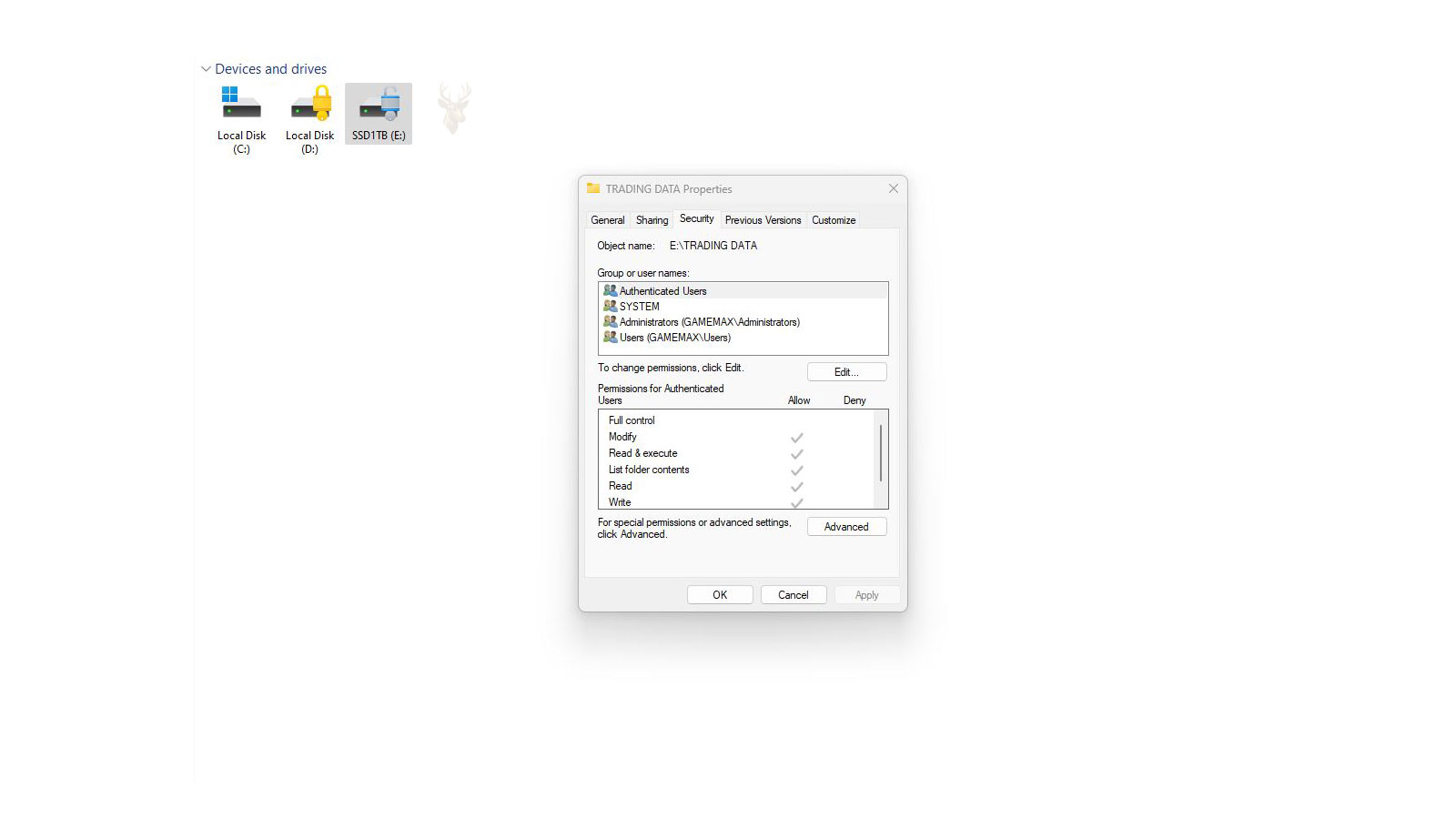
Understanding Two Separate Permission Systems
Windows controls access to shared folders by combining two different permission systems. One controls access through the network, while the other controls access directly on the storage drive. Because both systems apply at the same time, users may receive unexpected “Access Denied” messages even when one set of permissions appears to allow access.
Understanding the difference between Share Permissions and NTFS Permissions makes it much easier to troubleshoot file access problems in homes, small offices, and business networks.
Windows evaluates both permission systems together rather than choosing only one.
What Share Permissions Control
Share Permissions apply only when someone connects to a folder across the network. They determine whether another computer can read, change, or fully control the contents of the shared folder.
If a person is sitting directly at the computer that stores the files, Share Permissions are not involved because the files are being accessed locally.
What NTFS Permissions Control
NTFS Permissions are stored with the files and folders on NTFS-formatted drives. They determine what individual users and security groups can do regardless of whether the files are opened locally or through a network share.
These permissions can control actions such as reading files, modifying data, creating folders, deleting content, and changing security settings.
| Permission Type | Applies When | Main Purpose |
|---|---|---|
| Share Permissions | Network access only | Controls access through shared folders |
| NTFS Permissions | Local and network access | Controls access to files and folders stored on the drive |
Why Both Permission Systems Exist
Using two permission systems allows administrators to control network access separately from local file security. A folder may be shared with many users while the files inside remain restricted to only specific employees or departments.
This layered approach provides additional flexibility when organizing shared business data.
The Most Restrictive Permission Wins
When Share Permissions and NTFS Permissions disagree, Windows effectively applies the most restrictive result. A user must be allowed by both permission systems before access is granted.
This often explains why someone who appears to have permission still cannot open, modify, or delete files.
Access requires approval from both permission systems.
If either Share Permissions or NTFS Permissions deny the requested action, the user may be prevented from completing it.
A Simple Example
Imagine a shared folder that allows every employee to modify files through its Share Permissions. However, the NTFS Permissions grant one employee only read access.
Although the network share allows modification, the NTFS Permissions do not. As a result, that employee can open and read the files but cannot save changes.
Share Permissions open the network door. NTFS Permissions determine what happens after the user enters.
Common Share Permission Levels
Traditional Windows Share Permissions generally use three basic permission levels that simplify network administration.
- Read: View files and folders without changing them.
- Change: Read, create, modify, and delete files.
- Full Control: Complete access, including changing Share Permissions.
NTFS Permissions Offer More Detail
NTFS Permissions provide much finer control than Share Permissions. Administrators can assign combinations of individual rights to match specific security requirements.
This flexibility allows different users or groups to perform different tasks within the same folder structure.
| NTFS Permission | Typical Ability |
|---|---|
| Read | Open and view files |
| Write | Create new files and folders |
| Modify | Edit and delete existing files |
| Full Control | Complete access including permission changes |
Permission Inheritance Simplifies Administration
Most folders inherit NTFS Permissions from their parent folder. This allows an entire directory structure to follow consistent security rules without manually configuring every individual folder.
Inheritance can also become the source of unexpected permission behavior when folders are moved, copied, or manually reconfigured.
Local Access Ignores Share Permissions
If someone logs directly into the computer that stores the files, Share Permissions are not evaluated. Only NTFS Permissions determine what the user can do with the files.
This difference explains why a user may have different results when working locally versus connecting from another computer across the network.
Network Access Evaluates Both Layers
When a user opens a shared folder from another computer, Windows first evaluates the permissions assigned to the network share. It then evaluates the NTFS Permissions attached to the folder and its contents.
The final result is based on what both layers allow. A permission granted at one layer cannot override a more restrictive permission at the other.
| Share Permission | NTFS Permission | Effective Network Access |
|---|---|---|
| Read | Modify | Read only |
| Full Control | Read | Read only |
| Change | Modify | Modify |
| Full Control | Full Control | Full Control |
Allow Permissions Can Accumulate
A user may receive permissions through several security groups. Windows combines the allowed permissions from those memberships when calculating access.
For example, one group may allow reading while another allows modifying. The user may receive both abilities unless a separate restriction changes the result.
Deny Permissions Require Special Care
An explicit Deny permission normally overrides an Allow permission for the same action. This can cause unexpected access failures when a user belongs to several groups.
Deny entries should be used carefully because they can make troubleshooting more complicated. In many environments, removing an unnecessary Allow permission is easier to manage than creating a broad Deny rule.
A single Deny entry can block access that appears to be granted through another user or group assignment.
Group Membership Often Explains Conflicting Results
Users rarely receive every permission directly through their individual account. Business networks commonly assign access through groups such as Accounting, Management, Sales, or General Staff.
A person may belong to several groups at the same time. Each membership can contribute permissions or restrictions that affect the final result.
- A departmental group may allow access to shared files.
- A general group may provide read-only access.
- A restricted group may include an explicit Deny entry.
- An old group membership may remain after the employee changes roles.
Changes May Not Appear Until the User Signs In Again
Windows creates an access token when the user signs in. This token contains the user’s current security group memberships.
If group membership changes while the user remains signed in, the current session may continue using the older information. Signing out and signing back in can refresh the token.
Restarting the computer may also refresh the session, but signing out is often sufficient when only group membership has changed.
Connecting With Different Credentials Changes the Result
A computer may already have an active connection to the shared server using one username and password. Attempting to open another share on the same server with different credentials can produce confusing results.
Windows may continue using the first authenticated connection rather than the credentials the user expects. Disconnecting the existing session or removing saved credentials may be necessary before testing another account.
The account shown at the local Windows sign-in screen is not always the same account being used to access a network share.
Saved Credentials Can Preserve an Old Permission Problem
Windows Credential Manager can store usernames and passwords used for file servers, network-attached storage devices, and other computers.
If an old account remains saved, Windows may reconnect with that account automatically. The user may then receive different access than expected even after entering new credentials elsewhere.
Moving a Folder Can Change Its NTFS Permissions
When a folder is moved within the same NTFS volume, it usually keeps its existing permissions. When it is copied or moved to another volume, it often inherits permissions from the destination folder.
This behavior can cause a previously working shared folder to become unavailable after files are reorganized or migrated to another drive.
| File Operation | Typical Permission Result |
|---|---|
| Move within the same NTFS drive | Existing permissions are usually retained |
| Copy within the same NTFS drive | Destination permissions are usually inherited |
| Move to another NTFS drive | Destination permissions are usually inherited |
| Copy from another computer | Permissions are based on the destination |
Broken Inheritance Creates Independent Permission Rules
An administrator can disable inheritance on a folder and convert inherited entries into explicit permissions. The folder then stops receiving future permission changes from its parent.
This can be useful for special security requirements, but it also creates folders that behave differently from the surrounding directory structure.
When troubleshooting, it is important to identify whether a permission entry is inherited or assigned directly.
Ownership Does Not Automatically Provide Access
The owner of a file or folder has authority to change its permissions, but ownership does not always mean the person can immediately open or modify the content.
An administrator may take ownership of a folder and then assign appropriate NTFS Permissions. Taking ownership alone may not resolve every access problem.
Ownership provides control over permission management, not automatic unrestricted access to every file.
Administrative Rights Do Not Bypass Every Restriction
Local administrators have extensive control over a computer, but they may still encounter access restrictions on protected folders or network resources.
Administrative privileges can often be used to take ownership or change permissions, but Windows does not simply ignore the existing security configuration during normal access.
The Everyone Group Does Not Mean Anonymous Access
The Everyone group is often used in Share Permissions, but it does not automatically mean that any unknown person can open the files without authentication.
Windows still identifies the connecting user and applies NTFS Permissions. Password-protected sharing, account configuration, and network security settings also affect the connection.
A Common Business Configuration
Many administrators keep Share Permissions broad and use NTFS Permissions for detailed control. For example, the share may allow authenticated users Full Control while NTFS Permissions determine which departments can read or modify specific folders.
This approach places most access management in one permission system and can make the folder structure easier to maintain.
| Folder | NTFS Group | Assigned Access |
|---|---|---|
| Accounting | Accounting Staff | Modify |
| Accounting | Management | Read |
| Human Resources | HR Staff | Modify |
| Public Documents | All Employees | Read |
Read Access Does Not Permit Saving Changes
A user with Read permission can usually open files and copy information to another permitted location. The user cannot normally overwrite the original file or create new content in the same folder.
Applications may display a read-only warning or ask the user to save the document under a different name elsewhere.
Modify Access Usually Includes Deletion
Modify permission allows users to read, write, change, and delete files. This is often appropriate for employees who must manage ordinary working documents.
Because deletion is included, Modify access should not be assigned more broadly than necessary. Important shared folders should also have reliable backups or version history.
Full Control Includes Permission Management
Full Control provides all standard file operations and allows the user to change permissions and take ownership.
Most employees do not need this level of authority. Modify permission is usually sufficient for normal document creation and editing.
Full Control should be reserved for administrators or users who genuinely need to manage security settings.
Delete Permission Can Depend on the Parent Folder
NTFS includes separate rights for deleting a file and deleting child objects from a folder. This can create situations where a user cannot delete a file directly but can still remove it because of permissions inherited from the parent folder.
Advanced Permissions may need to be reviewed when deletion behavior does not match the standard permission labels shown in Windows.
New Files May Inherit Different Permissions
Files created inside a shared folder normally inherit permissions from that folder. However, copied files, application-created temporary files, or content moved from another location can sometimes produce different results.
This explains why one document may be accessible while another file in the same folder produces an error.
Access-Based Enumeration Can Hide Restricted Folders
Some Windows file servers can hide shared folders and files that a user does not have permission to access. Instead of displaying an Access Denied message, the restricted item may not appear at all.
This feature reduces confusion and limits unnecessary visibility, but it can make troubleshooting harder when different employees see different folder lists.
A missing folder may still exist on the server even when the current user cannot see it.
Share Names and Folder Names Can Be Different
The name used to connect across the network does not have to match the folder’s local name. A folder named CompanyData could be shared under a simpler name such as OfficeFiles.
Changing or removing the share does not automatically delete the original folder or change its NTFS Permissions.
Multiple Shares Can Point to the Same Folder
Windows can create more than one network share for the same local folder. Each share may have different Share Permissions even though the underlying NTFS Permissions remain the same.
A user’s effective access can therefore change depending on which share path is used to reach the folder.
| Network Path | Share Permission | Same NTFS Folder |
|---|---|---|
| \\Server\Public | Read | Yes |
| \\Server\Department | Change | Yes |
Mapped Drives Do Not Create New Permissions
A mapped drive assigns a drive letter to an existing network path. It does not change the Share Permissions or NTFS Permissions controlling that location.
If a user cannot open the original network path, mapping it to a drive letter will not bypass the restriction.
Offline Files Can Temporarily Hide Permission Changes
Windows Offline Files can store local copies of network content for use when the server is unavailable. A user may continue seeing cached files even after permissions change on the server.
Synchronization errors may appear when Windows attempts to update the cached copy and discovers that the user no longer has the required access.
Open Files Can Prevent Changes and Deletion
A permission problem is not the only reason a shared file cannot be modified or deleted. Another user or application may have the file open and locked.
Windows may report that the file is in use rather than displaying Access Denied. The open session may need to be closed before the requested action can continue.
File locks and permission restrictions are separate problems that can produce similar symptoms.
Troubleshooting Should Start With the Exact Symptom
The first step is identifying what the user can and cannot do. Opening a folder, reading a file, saving changes, creating a new file, renaming content, and deleting items are controlled by different rights.
A clear description of the failed action helps narrow the permission that needs to be reviewed.
- Can the user see the shared folder?
- Can the user open existing files?
- Can the user create a new file?
- Can the user modify and save an existing document?
- Can the user rename or delete files?
Testing With Another Account Can Isolate the Problem
If another authorized account can use the folder correctly from the same computer, the network connection and server are probably functioning. The issue is more likely related to the original account, its group memberships, or saved credentials.
If every user fails from the same computer, the problem may involve the network path, cached connection, firewall, or computer configuration instead.
Effective Access Tools Help Explain the Result
Windows includes an Effective Access section in Advanced Security Settings. An administrator can select a user or group and review the permissions Windows calculates for that account.
This tool can help identify whether group membership, inheritance, or an explicit Deny entry is affecting NTFS access.
Share Permissions must still be reviewed separately when the problem occurs only across the network.
A Reliable Troubleshooting Order
Permission problems are easier to diagnose when Share Permissions and NTFS Permissions are reviewed separately. Changing several settings at once can make the final cause difficult to identify.
A structured review should confirm the network path, the account being used, the Share Permissions, the NTFS Permissions, group memberships, and any inherited or denied entries.
- Confirm the exact shared-folder path.
- Verify which account is connecting.
- Review the Share Permissions.
- Review the NTFS Permissions.
- Check group memberships and Deny entries.
- Test the exact action that previously failed.
Confirm the User Is Reaching the Correct Share
Similar share names, mapped drives, shortcuts, and old saved paths can lead users to a different folder than expected. Before changing permissions, the full network path should be confirmed.
A mapped drive may also point to an older server or another share that uses different network permissions.
Review Share Permissions First for Network-Only Problems
If the folder works correctly when accessed directly on the server but fails from another computer, the Share Permissions should be reviewed early in the troubleshooting process.
The user or one of the user’s groups must have enough Share Permission for the requested action. Read permission is not sufficient when the user needs to create, edit, rename, or delete files.
| User Action | Typical Share Permission Needed |
|---|---|
| Open and view files | Read |
| Create or edit files | Change |
| Delete files | Change |
| Change Share Permissions | Full Control |
Then Review the NTFS Security Entries
After the Share Permissions are confirmed, the Security tab should be examined for the affected folder. The review should include both direct assignments and inherited entries.
The user may receive access through an individual entry, a department group, a general employee group, or several groups combined.
The visible permission entry for the user may not show every group that contributes to the final result.
Check Whether the Problem Affects One File or the Entire Folder
If every file in the shared folder produces the same error, the problem may involve the folder’s main permission structure. If only one or two files are affected, those items may have different NTFS Permissions.
Individual files can stop inheriting permissions or retain unusual entries after being copied from another location.
Compare a Working File With a Failing File
Comparing the Advanced Security Settings of a working file and a failing file can reveal differences in inheritance, ownership, or explicit permission entries.
This comparison is often more useful than resetting the permissions of the entire shared folder without first identifying the difference.
A single inaccessible file does not always indicate that the entire network share is configured incorrectly.
Avoid Granting Full Control as a Temporary Fix
Granting Full Control to everyone may appear to resolve an access problem quickly, but it can create unnecessary security risks and hide the original configuration error.
Users should receive only the permissions required for their work. Modify access is normally more appropriate than Full Control for employees who create and edit ordinary files.
Broad Permission Changes Can Expose Sensitive Data
A permission change applied at a high-level folder may be inherited by many subfolders. This can unintentionally expose payroll records, customer documents, financial files, or other restricted information.
The inheritance scope should be reviewed before applying a change to a parent folder.
| Permission Change | Possible Risk |
|---|---|
| Grant Everyone Full Control | Users may alter permissions or take ownership |
| Apply permissions to all child objects | Restricted subfolders may become accessible |
| Remove inherited entries | Legitimate users may lose access |
| Add a broad Deny entry | Several groups may be blocked unexpectedly |
Use Security Groups Instead of Individual Accounts
Assigning permissions to groups makes access easier to maintain as employees join, leave, or change positions. The user’s group membership can be updated without editing every shared folder individually.
Group-based permissions also make it easier to understand why a department has access to a particular location.
- Create groups based on departments or job responsibilities.
- Assign permissions to the group rather than each employee.
- Add and remove users as their responsibilities change.
- Document special exceptions that require direct assignments.
Document Shared-Folder Permissions
Small offices often accumulate shared folders over many years. Without documentation, it becomes difficult to determine why a group was granted access or whether an old permission remains necessary.
A basic record can include the share name, local folder path, authorized groups, permission levels, and the business purpose of the folder.
Review Access When Employees Change Roles
An employee who moves to another department may retain access through old group memberships. These permissions can remain unnoticed because the person still uses the same Windows account.
Periodic reviews help remove access that is no longer required while preserving access related to the employee’s new responsibilities.
Permission management includes removing outdated access as well as granting new access.
Backups Remain Necessary Despite Permission Controls
Permissions can reduce accidental or unauthorized changes, but authorized users with Modify access can still delete or overwrite files.
Shared business data should be protected by backups, version history, or another recovery system that is separate from the normal working folder.
Permission Changes Should Be Tested Carefully
After adjusting permissions, the affected user should sign out and back in before testing. Existing mapped drives or server connections may also need to be disconnected and reopened.
The test should repeat the original action rather than only confirming that the folder opens.
- Open an existing file.
- Create a new test file.
- Edit and save the test file.
- Rename the test file.
- Delete the test file if deletion is required.
When Professional Review Becomes Appropriate
Professional assistance may be useful when several users receive different results, inherited permissions no longer follow a clear structure, ownership has changed unexpectedly, or broad permission changes could affect important business data.
A careful review can identify the effective permissions before unnecessary changes create additional access problems.
Frequently Asked Questions
Do Share Permissions apply when files are opened directly on the server?
Which permissions win when Share and NTFS Permissions are different?
Why can a user open a file but not save changes?
Does being an administrator automatically provide access to every shared file?
Why does one file behave differently from other files in the same folder?
Should employees receive Full Control over shared folders?
Managing Both Permission Layers
Share Permissions and NTFS Permissions serve different purposes, but they work together whenever files are accessed across a Windows network. Share Permissions control entry through the network share, while NTFS Permissions control what the authenticated user can do with the stored files and folders.
Clear group assignments, limited use of Deny entries, consistent inheritance, and careful testing make shared-folder access easier to manage. When permission problems occur, reviewing each layer separately provides a safer and more reliable solution than granting broad access without identifying the cause.











