
What a Laptop Cooling Pad Can and Cannot Do
Laptop cooling pads are commonly used when a computer feels hot, its fans become loud, or performance slows during demanding work. These accessories place one or more fans beneath the laptop and attempt to increase airflow around the bottom of the case.
A cooling pad may reduce temperatures under the right conditions, but it does not replace the laptop’s internal cooling system. Its effectiveness depends on the location of the air vents, the shape of the case, the condition of the internal fan, and the type of heat problem affecting the computer.
Understanding these limits helps users decide whether a cooling pad is a useful accessory or whether the laptop requires cleaning, repair, or a change in how it is being used.
A cooling pad can improve the air available to a laptop, but it cannot repair a cooling system that is no longer transferring heat correctly.
Laptop Cooling Depends on an Internal Airflow Path
Most laptops use an internal fan to draw cooler air through one or more intake openings. The air moves across a heatsink or another cooling assembly and exits through an exhaust vent.
Heat from the processor, graphics chip, and other components is transferred into metal plates and heat pipes before reaching the heatsink fins. The fan then moves air through those fins to carry the heat away from the computer.
A cooling pad works outside this system. It can provide additional air near an intake, but the laptop’s internal components must still move heat efficiently from the chips to the exhaust.
The Location of the Intake Vents Matters
Cooling pads are most useful when the laptop draws air through openings on the bottom of the case. Fans positioned beneath those openings may increase the amount of cooler air available to the internal fan.
Some laptops use narrow intake slots, openings near the hinges, or vents along the sides instead. A pad blowing against a solid bottom panel may have less influence because the added air does not enter the internal cooling path directly.
The number and size of the pad’s fans matter less than whether their airflow aligns with the laptop’s actual intake locations.
| Laptop Vent Design | Possible Cooling Pad Effect |
|---|---|
| Large bottom intake openings | Additional airflow may enter the internal cooling system |
| Small bottom vents | Improvement may be limited by the restricted opening |
| Side or rear intake | Fans underneath may provide little direct benefit |
| Mostly sealed bottom panel | The pad may cool the outer case more than the internal components |
Elevation Alone Can Improve Airflow
Some of the benefit attributed to a cooling pad comes from raising the laptop above the desk. The increased space beneath the computer allows intake vents to draw air more freely.
A laptop placed directly on a soft surface can sink into the material and partially block its vents. Raising it onto a firm stand may improve airflow even when no external fan is running.
This is why a basic laptop stand can sometimes produce results similar to a low-powered cooling pad.
Improved clearance beneath the laptop can be as important as the cooling pad’s fans.
The internal fan needs an open path to draw air into the case.
Soft Surfaces Restrict Bottom Vents
Beds, couches, blankets, pillows, and carpet can restrict airflow around a laptop. Soft material may press against the bottom panel and cover intake openings that appear unobstructed when the computer is held in the air.
The material can also trap warm exhaust air near the computer, allowing some of it to return toward the intake. This raises the temperature of the air entering the cooling system.
A cooling pad provides a firmer platform, but its fans cannot work effectively when the pad itself is placed on a surface that blocks its own intake openings.
Cooling Pads Do Not Repair Dust Blockages
Dust can accumulate between the internal fan and the heatsink fins. Over time, the buildup may form a dense layer that blocks the path used by exhaust air.
An external fan may push more air toward the laptop, but that air still cannot pass efficiently through a blocked heatsink. The internal fan may continue running at high speed while only a small amount of warm air leaves the exhaust.
A cooling pad may slightly reduce the surrounding temperature without correcting the restriction inside the computer.
More air beneath the laptop cannot overcome a heatsink that has become physically blocked inside the case.
A Weak Internal Fan Remains a Limitation
The laptop’s internal fan must move air through a narrow and carefully designed cooling path. If the fan turns slowly, stops intermittently, or cannot maintain the required speed, heat may remain trapped around the heatsink.
A cooling pad can place air near the intake but usually cannot force enough air through the entire internal assembly to replace a failing fan.
Grinding noises, repeated fan speed changes, startup fan errors, or little airflow from the exhaust may indicate that the internal fan needs attention.
| Cooling Problem | Can a Cooling Pad Correct It? |
|---|---|
| Restricted space beneath the laptop | It may help by increasing clearance |
| Warm room air around the intake | It may circulate the air more effectively |
| Dust blocking the heatsink | No, internal cleaning may be required |
| Internal fan not spinning correctly | No, the fan may need repair or replacement |
| Poor contact between the chip and heatsink | No, the internal cooling assembly must be inspected |
Thermal Interface Problems Cannot Be Solved Externally
Thermal compound and thermal pads help transfer heat from electronic components into the heatsink assembly. If this contact becomes uneven, damaged, or improperly assembled, heat may not move efficiently away from the component.
The laptop can become hot internally even when the fan and vents appear clean. External airflow may cool the bottom panel, but it cannot restore the missing heat transfer between the chip and the heatsink.
This type of problem usually requires the cooling assembly to be removed, inspected, and installed correctly.
Surface Temperature Does Not Tell the Entire Story
A cooling pad can make the keyboard, palm rest, or bottom cover feel cooler. This may improve comfort without producing the same degree of change at the processor or graphics chip.
Some laptop cases are designed to transfer part of the internal heat into the outer structure. A warm metal surface can therefore indicate that heat is being spread away from a concentrated source.
Touch alone cannot determine whether an internal component is operating within its intended temperature range.
Temperature Sensors Provide More Useful Information
Modern laptops contain sensors that monitor the processor, graphics hardware, storage devices, battery, and other internal areas. These readings can provide more useful information than the temperature of the outer case.
Monitoring software can show whether temperatures decrease when the cooling pad is turned on. Comparisons should be made under the same workload, room temperature, power mode, and fan conditions.
A brief temperature difference during one test does not necessarily represent how the laptop behaves during longer use.
Cooling results should be compared under consistent conditions.
Changes in workload, room temperature, or power settings can influence the reading as much as the cooling pad itself.
Processor Temperature Can Change Rapidly
Modern processors can move from a low-power state to a demanding workload within a fraction of a second. Their temperature may rise quickly and then fall again when the work is complete.
These short temperature changes are not always evidence of a cooling failure. The computer adjusts processor speed, voltage, and fan operation continuously.
A cooling pad is more likely to influence sustained temperatures during longer workloads than a brief spike caused by a momentary task.
Sustained Workloads Reveal Cooling Limits More Clearly
Gaming, video rendering, large software updates, data processing, and other extended tasks generate heat for longer periods. The internal cooling system must continue removing that heat without allowing temperatures to climb indefinitely.
A cooling pad may improve sustained airflow and delay the point at which the laptop reduces performance. The amount of improvement varies greatly between models.
If temperatures continue rising until the computer slows down or shuts off, the underlying cooling system should be evaluated rather than relying only on an external accessory.
Thermal Throttling Is a Protective Response
Thermal throttling occurs when the computer reduces processor or graphics performance to control heat. Clock speeds and power use may drop until the temperature returns to a safer range.
A cooling pad can sometimes delay throttling or reduce how often it occurs by improving the surrounding airflow. It cannot prevent throttling when the internal cooling system is unable to transfer heat effectively.
Performance that falls repeatedly during heavy work may indicate that the laptop has reached its cooling limit.
| Observed Behavior | Possible Explanation |
|---|---|
| Temperatures improve slightly with the pad | Additional external airflow is helping |
| Outer case feels cooler but internal readings barely change | The pad is cooling the surface more than the internal chips |
| Performance still drops during long workloads | The internal cooling system may remain at its limit |
| Fan stays loud while little air exits | The heatsink or exhaust path may be restricted |
| Computer shuts down despite the cooling pad | A serious cooling, power, or hardware problem may be present |
Cooling Pads Cannot Lower Temperatures Below the Room Air
A standard cooling pad uses the surrounding room air. It does not refrigerate or actively chill the air before directing it toward the laptop.
When the room is very warm, the cooling system begins with warmer intake air and has less ability to carry heat away from internal components.
Improving room ventilation or lowering the ambient temperature may have a greater effect than adding more fans beneath the computer.
Fan Direction Should Match the Laptop Design
Most cooling pads blow air upward toward the bottom of the laptop. This arrangement generally supports computers that draw air inward through bottom vents.
If the laptop uses an unusual airflow design, external air moving in the wrong direction can create turbulence or interfere with the natural path around the vents.
The pad should not cover exhaust openings or direct hot discharged air back toward an intake.
More airflow is useful only when it moves in a direction that supports the laptop’s existing cooling path.
Large Fans and Small Fans Behave Differently
A pad with one large fan may move air across a broad area at a relatively low speed. A design with several smaller fans may concentrate airflow into selected regions.
Neither arrangement is automatically better. The useful design is the one that places sufficient airflow near the laptop’s actual intake openings without creating excessive noise.
Adjustable fan locations can be helpful when different laptops use vents in different parts of the bottom panel.
Higher Fan Speed Can Create More Noise Than Cooling
Increasing the cooling pad fan speed may move more air, but the improvement is not always proportional to the added noise. Once the laptop intake receives enough unrestricted air, additional external airflow may produce only a small temperature change.
Small fans operating at high speed can generate a noticeable whine. Vibration from the fan or frame may also transfer into the desk.
A moderate setting may provide a better balance between temperature, noise, and comfort.
USB Power Limits Cooling Pad Performance
Many cooling pads receive power from a laptop USB port. The available electrical power limits the size, speed, and number of fans that can operate.
A cooling pad is not expected to consume large amounts of power, but it still adds another device to the laptop’s battery and USB power load.
When the computer is running on battery, the pad can slightly reduce operating time while attempting to improve airflow.
| Cooling Pad Feature | Practical Consideration |
|---|---|
| One large fan | Broad airflow with potentially lower fan noise |
| Several small fans | More targeted airflow but possibly higher-pitched noise |
| Adjustable fan speed | Allows a balance between cooling and sound |
| USB-powered operation | Adds a small load to the laptop’s power system |
| Built-in USB hub | May share bandwidth or power among connected devices |
A Pass-Through USB Port Does Not Always Replace the One Used
Some cooling pads include one or more USB ports to compensate for the port used to power the fans. These ports may operate through a simple internal hub.
The available power and data bandwidth can be shared between the cooling pad and any connected devices. High-power storage drives, charging devices, and other demanding accessories may not operate reliably through every pad.
Important USB devices are usually more reliable when connected directly to the laptop or to a properly powered hub.
Cooling Pad Size Must Support the Laptop Properly
A pad that is too small may leave part of the laptop unsupported or position the fans away from the intake vents. A pad that is much larger may be difficult to carry and take up unnecessary desk space.
The support surface should remain stable when the keyboard is used. Flexible frames, weak hinges, and uneven feet can allow the laptop to rock or slide.
The laptop’s own rubber feet should rest securely without allowing the case to contact moving fan blades or raised plastic edges.
An Inclined Position Can Change Typing Comfort
Many cooling pads raise the rear of the laptop and angle the keyboard toward the user. This can improve screen height and create more air space beneath the case.
The same angle may increase wrist extension during long typing sessions. A position that feels comfortable for occasional gaming may not be ideal for extended office work.
Adjustable height settings allow the user to balance ventilation, screen position, and keyboard comfort.
The practical value of a cooling pad becomes clearer when its effects are separated from the other factors that control laptop temperature. Airflow beneath the case can help, but processor power, graphics activity, fan control, dust buildup, and room conditions continue to determine how much heat the computer produces and removes.
A useful comparison should therefore consider more than a single temperature reading. Fan noise, sustained performance, surface comfort, and the stability of the laptop during longer workloads all help show whether the pad is providing a meaningful benefit.
Cooling Pads Often Help Gaming Laptops More Than Thin Office Models
Gaming laptops commonly contain higher-power processors and dedicated graphics hardware. They also tend to use larger bottom intake areas and more aggressive internal fans.
Because these systems move more air and produce more heat, additional clearance and airflow beneath the case may provide a measurable benefit during long gaming sessions.
Thin office laptops may use smaller vents, lower-power components, and more compact cooling assemblies. An external fan can still improve comfort, but the internal temperature change may be smaller.
| Laptop Type | Possible Cooling Pad Benefit |
|---|---|
| Gaming laptop with large bottom intakes | May improve sustained airflow during heavy graphics use |
| Thin business laptop | May provide modest surface cooling and additional clearance |
| Fanless laptop | May cool the outer case but cannot create internal fan circulation |
| Workstation laptop | May help during long processor or graphics workloads |
| Older laptop with blocked vents | Internal cleaning is likely more important |
Fanless Laptops Respond Differently
Some laptops use passive cooling and contain no internal fan. Heat moves through the chassis and other metal structures before reaching the surrounding air.
A cooling pad can increase airflow across the outer surface and may help the case release heat more quickly. The effect depends on whether the laptop is designed to use its bottom panel as part of the cooling system.
Because there is no internal fan drawing air through a heatsink, the benefit comes from cooling the chassis rather than increasing an internal airflow path.
Metal and Plastic Cases Transfer Heat Differently
Metal laptop cases can spread heat across a wider area. This may make more of the surface feel warm even when the internal temperature is controlled.
Plastic cases transfer less heat through the outer shell, so the surface may feel cooler while the internal components remain at similar temperatures.
A cooling pad blowing across a metal base may reduce surface temperature more noticeably than it does on a thick plastic panel.
A cooler outer case does not always mean the processor or graphics chip experienced the same temperature reduction.
Processor Power Settings Can Change Heat Output More Than the Pad
Windows power modes and manufacturer performance settings can allow the processor to use different amounts of electrical power. Higher performance modes often increase clock speed, voltage, and heat output.
A cooling pad may remove some additional heat, but changing from a high-performance mode to a balanced setting can reduce the amount of heat being generated in the first place.
The best choice depends on whether maximum performance or lower temperature and noise are more important for the current task.
Graphics Settings Influence Gaming Temperature
Higher graphics settings can increase the workload on the graphics processor. Resolution, frame-rate targets, texture quality, ray tracing, and other options can all affect power use and temperature.
A cooling pad may help the laptop maintain performance under this load, but reducing an unnecessary graphics setting can lower heat more directly.
Limiting the frame rate can be especially effective when the laptop is producing more frames than the display can use.
External airflow helps remove heat, while software settings determine how much heat the computer creates.
Both sides of the temperature problem should be considered.
Battery Charging Adds Its Own Heat
The battery can become warmer while charging, particularly when the laptop is also performing demanding work. Heat from the charging process combines with heat from the processor, graphics hardware, and voltage regulation components.
A cooling pad may move air across the bottom panel near the battery, but it cannot correct an aging, swollen, or electrically damaged battery.
Unexpected battery heat, case swelling, chemical odor, or separation around the palm rest requires immediate attention rather than additional external cooling.
Charging and Gaming Can Create the Highest Combined Load
Many gaming laptops provide their highest performance only while connected to the power adapter. The processor and graphics hardware may use substantially more power than they do on battery.
At the same time, the battery may be charging and the power-conversion circuitry may be handling a heavier electrical load.
This combination can make the laptop feel much hotter during plugged-in gaming than during ordinary battery use.
| Operating Condition | Typical Heat Effect |
|---|---|
| Light work on battery | Lower power use and less heat |
| Heavy work on battery | Performance may be limited to control power use |
| Light work while charging | Battery and charging circuitry add some heat |
| Gaming while plugged in | Processor, graphics, and charging heat may occur together |
| High-performance power mode | The system may allow higher sustained temperatures |
A Cooling Pad Can Change Internal Fan Behavior
If the pad lowers intake temperature, the laptop’s internal fans may not need to run as quickly. This can reduce fan noise even when the measured temperature difference is small.
In other cases, the laptop may use the additional cooling to maintain a higher performance level while keeping a similar temperature. The internal fans may remain active because the system is allowing the processor or graphics chip to consume more power.
For this reason, unchanged temperature readings do not always mean the cooling pad had no effect.
Lower Temperature Can Allow Higher Boost Speeds
Modern processors and graphics chips adjust their operating speed according to temperature, power limits, workload, and manufacturer settings.
When additional airflow creates more thermal headroom, the hardware may increase its clock speed instead of remaining cooler. Performance can improve while the temperature stays near the same limit.
A complete test should therefore compare performance and clock behavior in addition to temperature.
The computer may use improved cooling to run faster rather than to display a much lower temperature.
Temperature Differences of Only a Few Degrees May Still Be Useful
A cooling pad does not need to produce a dramatic temperature drop to provide value. A small reduction may lower fan noise, reduce surface heat, or delay performance throttling during longer workloads.
The importance of the change depends on the laptop’s starting condition. A few degrees may matter when the system is operating near a thermal limit but may make little practical difference during light use.
Consistency across repeated tests is more meaningful than one unusually low reading.
Idle Temperatures Are Not the Best Measurement
At idle, the processor and graphics hardware may consume very little power. The laptop can already remain cool without needing much airflow.
A cooling pad may therefore show little change when the computer is sitting at the desktop. Its effect may become more noticeable only after the system has been under load for several minutes.
Idle readings are useful for identifying unusual background activity, but they do not fully reveal the cooling system’s capacity.
Short Tests Can Produce Misleading Results
The laptop chassis, heatsink, and internal components absorb heat over time. A test that lasts only a minute may end before the system reaches a stable operating condition.
Longer testing allows the internal fan curve, processor power limits, and chassis temperature to settle.
The same workload should be repeated with and without the cooling pad after allowing the laptop to return to a similar starting temperature.
| Testing Mistake | Why It Can Mislead |
|---|---|
| Comparing different applications | The workloads may generate different amounts of heat |
| Using different power modes | Processor and graphics limits may change |
| Testing for only a few seconds | The cooling system may not reach a stable condition |
| Starting one test with a warm laptop | The initial temperatures are not equal |
| Changing fan settings between tests | The result cannot be attributed only to the pad |
Background Processes Can Distort the Comparison
Windows updates, antivirus scans, file synchronization, browser activity, and software installation can increase processor or storage use without being obvious.
If one test includes heavy background activity and the other does not, the temperature difference may be attributed incorrectly to the cooling pad.
Task Manager and monitoring software can help confirm that the workload remains similar during each comparison.
Sensor Software Can Report Different Values
Monitoring programs may label sensors differently or calculate averages over different time periods. One application may display the hottest processor core, while another shows a package temperature or recent average.
Comparisons should use the same software, sensor, and reporting method. Mixing values from different applications can create the appearance of a change that is not real.
Some manufacturer utilities also apply their own performance and fan-control settings while they are open.
Use one monitoring method throughout the test.
The highest, average, and current readings describe different parts of the laptop’s behavior.
Maximum Temperature and Average Temperature Tell Different Stories
A maximum reading records the hottest moment during the test. A brief temperature spike can raise this number even when the laptop remained cooler for most of the workload.
An average temperature provides a broader view of sustained behavior but can hide short periods of severe heat.
Reviewing both values helps determine whether the cooling pad reduces only brief spikes or improves the overall thermal condition.
Clock Speed Should Be Observed With Temperature
A lower temperature is useful, but the laptop’s performance should also be considered. The processor may run cooler because it reduced its clock speed or because the workload changed.
If the cooling pad allows a higher sustained clock speed at the same temperature, it may be improving performance even without producing a large thermal difference.
Stable clock speed, temperature, and fan noise together provide a more complete picture than one sensor value alone.
Internal Fan Speed May Not Be Reported Accurately
Some laptops expose fan speed to monitoring software, while others do not. The reported value may also represent only one fan even when the computer contains several.
A reduction in audible fan noise can still suggest that the pad is helping, but sound is affected by room conditions and the noise produced by the cooling pad itself.
The external fan can sometimes mask the sound of an internal fan that continues running at high speed.
Dust Can Accumulate Inside the Cooling Pad
Cooling pad fans draw air from beneath the unit and move it toward the laptop. Dust, hair, and lint can collect on the fan blades, guards, and intake openings.
As buildup increases, airflow may decrease and the fans may become louder or unbalanced.
The pad should be cleaned according to its design without allowing debris to be blown directly into the laptop vents.
A cooling accessory also requires maintenance when its own fans and vents begin collecting dust.
Blowing Dust Toward the Laptop Can Increase Internal Buildup
An external fan moves more room air toward the bottom of the computer. If the environment contains significant dust, pet hair, smoke residue, or fabric fibers, more debris may reach the laptop’s intake.
The internal fan and heatsink can collect this material over time. A cooling pad does not filter the air unless it includes a filter designed for that purpose.
Using the laptop in a cleaner area and periodically inspecting its vents can reduce long-term accumulation.
| Environmental Condition | Possible Effect |
|---|---|
| Pet hair near the desk | Hair may collect on fan guards and laptop intakes |
| Smoking or cooking residue | Sticky deposits can hold dust on cooling surfaces |
| Fabric surface beneath the pad | Fibers may restrict the pad’s own intake |
| Dusty room | Additional airflow can carry more particles toward the laptop |
| Clean hard desk | Provides a more open and predictable airflow path |
Fan Guards Must Remain Unobstructed
Cooling pad fans need open space beneath their intake guards. Paper, cables, fabric, or the edge of a desk can reduce airflow.
Some pads use feet that create only a narrow gap. Placing them on a soft surface can close this gap almost completely.
The pad should rest on a flat, firm surface with clearance around every intake and exhaust opening.
Loose Cables Can Interfere With the Fans
The USB power cable, headset wire, mouse cable, or another accessory can move beneath the cooling pad and contact a fan blade.
This may create clicking, vibration, reduced fan speed, or damage to the cable and fan.
Cables should be routed away from moving parts and checked whenever a new noise begins.
Worn Cooling Pad Fans Can Vibrate
Small fan bearings can wear after extended use. The fan may begin rattling, wobbling, or producing a repeating hum.
Vibration can transfer into the laptop, desk, and external storage devices. It may also reduce the fan’s ability to move air efficiently.
A noisy or unstable cooling pad should be inspected rather than operated continuously beneath the computer.
A cooling pad should not introduce new vibration, electrical instability, or noise severe enough to interfere with normal use.
An accessory that has begun failing may provide less benefit than a simple elevated stand.
USB Connectors Can Wear From Repeated Movement
A cooling pad that remains attached while the laptop is moved can place sideways pressure on the USB connector. Repeated pulling or bending may loosen the port or damage the cable.
The power cable should have enough slack to avoid tension but should not hang where it can be caught accidentally.
Disconnecting the pad before moving the laptop reduces stress on both the cable and the computer’s USB port.
Low-Quality USB Power Can Cause Unstable Operation
Poorly made cooling pads may use low-quality cables, connectors, or internal wiring. Fans may stop and start, change speed unexpectedly, or disconnect other devices sharing the same USB controller.
The pad should not cause repeated USB connection sounds, port resets, or loss of nearby accessories.
Persistent USB instability indicates that the cooling pad, cable, hub, or laptop port should be checked.
| Accessory Symptom | Possible Cause |
|---|---|
| Fan speed changes without adjustment | Loose cable or unstable USB power |
| Repeated USB disconnect sounds | Faulty connector, hub, or port |
| Cooling pad lights flicker | Intermittent power connection |
| Other USB devices stop working | Shared power or controller problem |
| Connector becomes unusually warm | Electrical resistance or internal damage may be present |
Decorative Lighting Adds Power Use Without Cooling
Some cooling pads include LED lighting, displays, or other decorative features. These additions may improve appearance but do not necessarily increase airflow.
The lighting consumes part of the available USB power and may remain active even when the fans are set to a low speed.
Users focused on portability and battery life may prefer a simpler design without unnecessary powered features.
The Pad Can Raise the Screen to a Better Viewing Height
Elevating the laptop can bring the screen closer to eye level. This may reduce the need to bend the neck downward during extended use.
The benefit depends on the height of the desk, chair, and user. A steep angle may improve screen position while making the built-in keyboard less comfortable.
An external keyboard and mouse can make a raised setup more practical for long work sessions.
Portability Can Be Reduced
Large cooling pads add weight and require additional space in a carrying bag. Their plastic frames and fan guards may also be less durable than the laptop itself.
A user who frequently moves between locations may find a compact stand more practical than a powered cooling pad.
The expected temperature benefit should be weighed against the added size, cable, and setup time.
The most effective accessory is not always the most convenient one to carry and use every day.
Cooling Pads Are Less Useful When the Laptop Is Docked Vertically
Some users operate a laptop in a vertical stand while connected to external monitors, a keyboard, and a mouse. A conventional cooling pad cannot support this position.
Vertical placement may improve airflow around some surfaces but can also position vents differently than the manufacturer intended.
The exhaust and intake openings should remain unobstructed regardless of the laptop’s orientation.
Closed-Lid Operation Can Change Heat Distribution
When a laptop is used with the lid closed, heat that normally escapes through the keyboard area may remain closer to the internal components.
Some models are designed for closed-lid operation, while others run warmer because part of their ventilation or heat dissipation depends on the open position.
A cooling pad beneath the computer may help the bottom intake, but it cannot correct blocked ventilation around the keyboard or hinge area.
| Usage Arrangement | Cooling Consideration |
|---|---|
| Laptop open on a cooling pad | Bottom clearance and normal upper ventilation are preserved |
| Laptop closed on a cooling pad | Some upper heat paths may be restricted |
| Laptop in a vertical stand | Vent orientation should be checked carefully |
| Laptop on a soft surface | Both laptop and pad intakes may be blocked |
| Laptop on a hard elevated stand | Passive clearance may provide sufficient improvement |
Manufacturer Cooling Modes May Provide Similar Results
Many laptops include software that adjusts fan speed, processor power, and graphics performance. Modes may be labeled quiet, balanced, performance, turbo, or cooling.
A more aggressive internal fan mode can sometimes reduce temperature more effectively than an external pad, though it may create additional noise.
Cooling pad tests should keep the manufacturer mode unchanged so the result is not affected by a different internal fan strategy.
Manual Fan Control Is Not Available on Every Laptop
Some systems allow users to select fan profiles, while others control fan speed entirely through firmware.
Third-party fan-control programs may not support every model and can interfere with manufacturer thermal management.
An unsupported setting can create excessive noise, unstable fan behavior, or insufficient cooling. Manufacturer-approved controls are generally the safer choice.
Undervolting and Power Limiting Are Separate Approaches
Some advanced users reduce processor voltage or power limits to lower heat output. These changes affect how much energy the hardware consumes rather than how much external air reaches the case.
Not every processor or laptop supports these adjustments, and incorrect values can cause crashes, data loss, or startup problems.
A cooling pad is a simpler external accessory, while power tuning changes the internal operating behavior of the computer.
Cooling pads increase available airflow, while power limits reduce the heat that must be removed.
They address different parts of the same thermal problem.
A Cooling Pad Should Not Be Used to Ignore Shutdowns
A laptop that repeatedly shuts down, restarts, or displays temperature warnings may have a serious internal problem. Continuing to use it under heavy load can place additional stress on the processor, motherboard, battery, and power circuits.
An external fan may delay the symptom without identifying the cause. Dust blockage, fan failure, damaged heat pipes, poor heatsink contact, firmware problems, or electrical faults may still be present.
Repeated thermal shutdowns require diagnosis rather than reliance on a cooling accessory.
Unusual Odors Require Immediate Attention
A hot electrical smell, burning odor, or chemical scent should not be treated as a normal overheating symptom. It can indicate damaged insulation, overheated components, a failing battery, or debris contacting a hot surface.
The laptop should be shut down and disconnected from power if an unusual odor appears.
A cooling pad cannot make an electrically unsafe computer suitable for continued use.
Fan Errors at Startup Point to an Internal Problem
Some laptops display a fan warning before Windows begins loading. This message may indicate that the internal fan is not spinning at the expected speed or is not being detected correctly.
An external cooling pad does not satisfy the firmware check because the computer monitors its own internal fan connection.
The laptop should be inspected before it is used for demanding work.
| Warning Sign | Recommended Response |
|---|---|
| Repeated thermal shutdowns | Stop heavy use and inspect the internal cooling system |
| Fan error during startup | Check the internal fan and connection |
| Burning or chemical odor | Shut down and disconnect power |
| Swollen case or lifting palm rest | Stop using the laptop and inspect the battery |
| Little exhaust airflow with loud fan noise | Check for internal blockage or fan failure |
A Cooling Pad Can Be Useful After Internal Maintenance
Once the internal cooling system is clean and functioning correctly, a cooling pad may provide additional airflow during demanding workloads.
This is different from using the pad to compensate for unresolved dust buildup, poor heatsink contact, or a weak fan.
The accessory works best as a supplement to a healthy cooling system rather than as a substitute for maintenance.
Older Laptops May Benefit From Simple Elevation
Rubber feet can wear down or fall off over time, reducing the space beneath the laptop. The bottom panel may sit closer to the desk than the manufacturer intended.
A stand or cooling pad can restore clearance and allow the intake vents to draw air more freely.
Missing feet should still be replaced when possible because they also help stabilize the case and protect the bottom surface.
The final decision about using a cooling pad should be based on the laptop’s actual behavior rather than the assumption that every warm computer needs more fans. A pad can improve clearance, airflow, comfort, and sustained performance, but the amount of benefit varies widely between systems.
Testing the laptop carefully, checking for internal warning signs, and comparing simple elevation with powered airflow can help determine whether the accessory is solving a real problem or only changing how the computer feels from the outside.
A Simple Stand Should Be Tested First
Before purchasing or relying on a powered cooling pad, the laptop can be raised on a stable stand to improve the space beneath its intake vents.
If elevation alone produces nearly the same temperature, noise, or performance improvement, the external fans may not be contributing much additional value.
A passive stand also avoids USB power use, fan noise, vibration, and moving parts that can wear over time.
| Support Option | Primary Benefit | Possible Limitation |
|---|---|---|
| Flat hard surface | Keeps vents away from fabric | May provide limited clearance |
| Passive laptop stand | Improves elevation without added noise | Does not move air actively |
| Powered cooling pad | Adds airflow beneath the computer | Requires power and creates noise |
| Vertical stand | Saves desk space | May not suit every vent arrangement |
Fan Alignment Should Be Checked Before Purchase
The position of the cooling pad fans should be compared with the laptop’s bottom intake openings. A fan centered beneath a solid panel may have less effect than a smaller fan positioned directly beneath an intake.
Adjustable or movable fans can provide better alignment when the laptop uses several intake areas or an unusual internal layout.
Product size alone does not guarantee useful airflow if the fan placement does not match the computer.
The Bottom Panel Should Not Be Covered
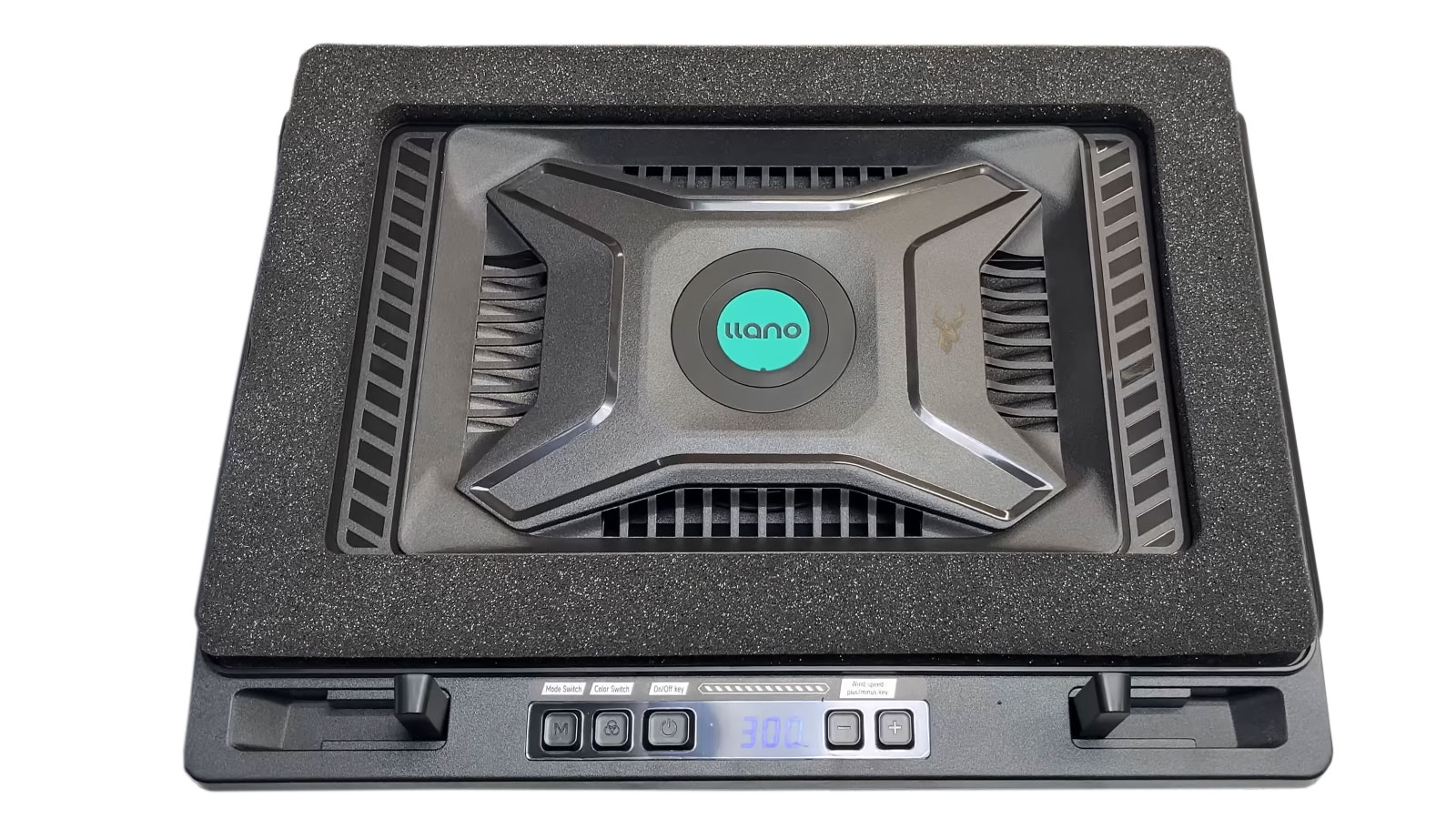
Some cooling pads include raised supports, foam seals, or adjustable frames. These parts should not block vents, speakers, access panels, or rubber feet.
A pad that seals too tightly around the wrong part of the case can reduce natural airflow instead of improving it.
The laptop should sit evenly with every intake and exhaust opening unobstructed.
A cooling pad should support the laptop’s airflow design rather than force the case into a position that blocks it.
Sealed Cooling Pads Require a Compatible Intake
Some high-pressure cooling pads use foam or another sealing material around the bottom of the laptop. Their fans attempt to force air into the available intake openings.
This design may improve airflow on laptops with large bottom intakes, but it may be ineffective when the computer draws air from the keyboard, hinge, sides, or another area outside the seal.
A poor seal can also leak air or place pressure against the bottom panel. Compatibility should be considered carefully before using this type of pad.
Air Pressure Is Not the Same as Airflow Volume
A fan can move a large amount of air in open space but lose effectiveness when air must pass through small vents and narrow internal channels.
Higher static pressure can help push air through restrictive openings, while high airflow volume is more useful across broad, open surfaces.
Cooling pad specifications do not always explain how the fan performs once a laptop is placed above it.
| Fan Characteristic | What It Describes |
|---|---|
| Airflow volume | The amount of air moved in a given period |
| Static pressure | The fan’s ability to move air against resistance |
| Fan speed | How quickly the blades rotate |
| Noise level | The amount of sound produced during operation |
| Fan size | The blade area and physical space required |
More Fans Do Not Automatically Produce Better Cooling
A cooling pad with several fans may distribute air across a larger area, but some of those fans may blow against sections of the laptop that contain no intake openings.
Multiple fans also create more potential sources of noise, vibration, dust buildup, and mechanical wear.
Effective placement and sufficient airflow are more important than the total number of fans listed in the product description.
Fan Speed Controls Should Be Easy to Reach
A cooling pad may include a wheel, button, or digital control for changing fan speed. The control should remain accessible after the laptop is positioned.
Users may prefer lower speed during light work and higher speed during gaming or rendering. A control hidden beneath the laptop can make these adjustments inconvenient.
The speed setting should remain stable and should not reset unexpectedly whenever USB power is disconnected.
Noise Should Be Evaluated at the Normal Sitting Position
A fan may sound quiet when tested briefly in a store but become more noticeable in a quiet room or during long work sessions.
High-frequency fan noise can be more distracting than a lower-pitched airflow sound even when both measure similarly.
The pad should be evaluated from the user’s normal distance rather than only with an ear close to the fan.
The best fan setting is not always the highest setting.
A lower speed may provide most of the available cooling with substantially less noise.
Vibration Can Affect Desk Comfort
Even when a fan is functioning normally, its movement can produce a slight vibration. A lightweight desk or hollow surface may amplify the sensation and sound.
Rubber feet and a rigid frame can reduce vibration transfer. Missing or uneven feet may cause the pad to buzz against the desk.
The laptop should remain stable while typing and should not shift as the fans change speed.
External Hard Drives Should Not Rest on a Vibrating Pad
Portable hard drives contain moving mechanical parts and can be sensitive to vibration and impact while operating.
An external drive should not be placed directly on a cooling pad, especially near a fan that rattles or produces noticeable movement.
Solid-state drives do not contain spinning disks, but their cables and connectors can still be disturbed by repeated vibration or movement.
Airflow Can Move Loose Debris Across the Desk
A strong cooling pad may stir dust, paper fragments, pet hair, or other loose material around the work area.
Some of this debris may enter the pad or be directed toward the laptop’s intake vents.
Keeping the desk clean reduces the amount of material available to collect inside both devices.
| Maintenance Task | Purpose |
|---|---|
| Clean the desk surface | Reduces debris drawn into the fans |
| Inspect fan guards | Identifies dust, hair, and obstructions |
| Check rubber feet | Prevents rocking and vibration |
| Inspect the USB cable | Finds loose connections or damaged insulation |
| Listen for bearing noise | Reveals fan wear before complete failure |
Cleaning Should Not Force Debris Into the Laptop
Dust removed from the cooling pad should be directed away from the laptop. Blowing through the pad while the computer remains above it can send accumulated debris into the intake vents.
The pad should be disconnected from USB power before cleaning. Fan blades should not be forced to spin at excessive speed with compressed air.
Cleaning methods should follow the construction of the pad because some fan guards and frames are not designed to be removed.
Damaged Fan Blades Can Become Unbalanced
A cracked or bent fan blade may continue spinning while producing less airflow and more vibration.
The imbalance can place additional stress on the fan bearing and cause the damage to worsen.
A cooling pad with a damaged fan should be disconnected rather than operated beneath the laptop.
A fan that still turns is not necessarily operating safely or effectively.
USB Ports Should Not Become Hot
A slight amount of warmth around a USB connector can occur, but unusual heat may indicate resistance, a loose connection, damaged wiring, or excessive current draw.
The cooling pad should be disconnected if the plug, cable, or laptop port becomes noticeably hot, discolored, or unstable.
Continuing to use a damaged power connection can affect the USB port and motherboard.
A Separate Power Source May Reduce Laptop Battery Use
Some cooling pads can receive power from an external USB adapter instead of the laptop. This can prevent the fans from drawing energy from the computer’s battery.
The adapter must provide the voltage and current required by the pad. An unsuitable power source can cause unstable fan speed or electrical damage.
The cooling pad manufacturer’s power requirements should be followed rather than assuming that every USB adapter is interchangeable.
USB Hubs Can Introduce Additional Variables
Connecting a cooling pad through an unpowered USB hub may reduce the available power when several devices share the same connection.
Fans may run slowly, lights may flicker, or the pad may disconnect when another device begins drawing more current.
Direct connection to the laptop or a suitable powered hub can provide more stable operation.
| Power Arrangement | Possible Result |
|---|---|
| Direct laptop USB connection | Simple setup but uses laptop power |
| Unpowered USB hub | Available power may be shared among devices |
| Powered USB hub | Can provide more stable power when properly rated |
| External USB adapter | Reduces laptop battery use but must be compatible |
| Damaged USB cable | May cause flickering, disconnects, or heat |
Battery Runtime Should Be Compared Separately
A cooling pad may reduce temperature while also shortening battery runtime because its fans require power.
The effect may be small, but it can matter during travel or long periods away from an outlet.
Battery testing should use the same screen brightness, workload, wireless activity, and power mode with and without the pad.
A Cooler Laptop Does Not Guarantee Longer Battery Life
Lower temperature can reduce some electrical and chemical stress, but battery aging depends on many factors, including charge level, charging cycles, voltage, storage conditions, and battery quality.
A cooling pad may help keep the underside of the computer cooler during charging, but it cannot reverse normal battery wear.
Battery care should include appropriate charging habits and attention to swelling or unusual heat.
Reduced Surface Heat Can Improve Comfort
Even when internal temperatures change only slightly, a cooling pad can reduce heat felt through the bottom panel or keyboard area.
This can make the laptop more comfortable to use at a desk, particularly during long video calls, gaming sessions, or processor-intensive work.
The laptop should still be kept off the user’s lap when vents or hot surfaces could be blocked.
Comfort is a valid benefit even when the internal temperature change is modest.
The value of the accessory is not limited only to the lowest sensor reading.
Keyboard Angle Can Affect Long-Term Use
A steep cooling pad angle may raise the rear of the keyboard significantly. Some users find this position comfortable, while others experience wrist strain.
Lower angle settings are often more suitable when the built-in keyboard is used for extended typing.
An external keyboard can separate the preferred screen height from the preferred hand position.
Screen Hinge Position Should Remain Stable
Raising the laptop changes the angle and center of gravity of the display. A loose hinge may allow the screen to move or fall backward more easily.
The pad should provide enough support that opening, closing, or adjusting the screen does not cause the laptop to slide.
A cooling accessory cannot correct worn hinges or damaged mounting points inside the case.
Non-Slip Supports Can Wear Out
Rubber pads and retaining tabs help keep the laptop from sliding on an inclined surface. These parts can harden, detach, or wear smooth over time.
A laptop that begins moving while being typed on may fall from the stand or place stress on connected cables.
Worn supports should be replaced or the cooling pad should be retired if the laptop can no longer remain secure.
| Physical Problem | Possible Risk |
|---|---|
| Loose retaining tab | The laptop may slide forward |
| Uneven rubber feet | The pad may rock during typing |
| Weak adjustment hinge | The selected angle may collapse |
| Cracked frame | The laptop may lose support |
| Exposed fan opening | Cables or fingers may contact the blades |
The Cooling Pad Should Match the Laptop Weight
Large gaming and workstation laptops can be significantly heavier than thin portable models. A lightweight pad may flex or collapse under the additional load.
The frame, angle mechanism, and retaining supports should be rated for the size and weight of the computer.
A stable support surface is more important than decorative features or fan lighting.
Portable Pads May Trade Stability for Size
Compact cooling pads are easier to carry, but they may use smaller fans, narrower frames, and fewer support points.
A pad intended for travel should still support the laptop securely and leave the intake vents open.
For frequent movement, a folding stand without fans may provide a more durable and convenient solution.
Built-In Temperature Displays May Not Measure the Laptop
Some cooling pads include a small digital display. The number shown may represent fan speed, a control level, or a temperature measured by the pad itself.
It does not necessarily come from the laptop’s processor, graphics chip, or internal sensors.
Internal monitoring software is more appropriate when evaluating the temperature of specific computer components.
A number displayed on the cooling pad should not be assumed to represent the temperature inside the laptop.
One Temperature Sensor Cannot Describe the Entire Laptop
The processor, graphics chip, battery, storage drive, memory, and voltage regulators may operate at different temperatures.
A cooling pad may improve one area more than another depending on fan placement and case design.
Several relevant sensors should be reviewed when investigating a specific thermal problem.
Storage Temperature May Respond Differently
An M.2 solid-state drive can become warm during large transfers, game loading, or extended write activity. Its location inside the laptop may be separate from the main processor cooling path.
A cooling pad may reduce the temperature of the surrounding bottom panel, but the effect depends on whether air can reach the storage area.
A drive that overheats repeatedly may require inspection of its thermal pad, shield, firmware, workload, or internal placement.
Battery Temperature May Not Follow Processor Temperature
The battery is often located beneath the palm rest or along the front of the laptop, while the processor and graphics hardware are closer to the rear cooling fans.
A pad centered beneath the rear intake may help the processor more than the battery.
Unusual battery heat should be evaluated separately from normal processor temperature under load.
| Component | Cooling Pad Influence |
|---|---|
| Processor | May improve if the intake aligns with the fan |
| Graphics chip | May improve during sustained graphics use |
| Storage drive | Depends on location and internal heat spreading |
| Battery | May receive limited surface cooling |
| Voltage regulation components | Effect depends on internal airflow design |
Gaming Performance Should Be Compared Over Time
A cooling pad may appear effective during the first few minutes of a game while the laptop is still absorbing heat.
Longer sessions reveal whether the system can maintain processor and graphics performance once the chassis reaches a stable temperature.
Frame rate, clock speed, fan noise, and temperature should be compared during the same game scene or repeatable benchmark.
Frame Rate Limits Can Reduce Heat More Directly
When a game runs at an unnecessarily high frame rate, the graphics processor may remain near full load even though the display cannot show every additional frame.
Setting a reasonable frame-rate limit can lower power use, temperature, and fan noise without a major change in visual experience.
The cooling pad can then support the remaining heat load rather than attempting to compensate for avoidable power consumption.
Video Rendering and Compiling Create Different Loads
Some workloads rely mainly on the processor, while others use the graphics chip, storage drive, or several components at once.
A cooling pad that helps during gaming may produce a different result during video encoding, software compiling, or file compression.
Testing should use the type of workload that normally causes the laptop to become hot.
Cooling performance should be evaluated during the work the laptop actually performs.
One benchmark cannot represent every combination of processor, graphics, storage, and battery load.
Normal High Temperature Is Not Always a Repair Problem
Modern laptops are designed to operate across a wide temperature range and may run hot during demanding tasks.
A warm case, active fans, or a high sensor reading under load does not automatically indicate failure if the computer remains stable and performs as designed.
The pattern of the temperature, fan behavior, performance, and any warning signs should be considered together.
Repeated Throttling May Still Require Inspection
Some throttling is normal when a laptop reaches its designed power or thermal limit. Severe or unexpected performance loss can indicate that the cooling system is no longer working as intended.
If a laptop that previously maintained stable performance now slows down quickly, the internal fan, heatsink, thermal material, vents, and firmware settings should be checked.
A cooling pad may reduce the symptom without identifying the cause of the change.
Sudden Temperature Changes Can Point to Internal Problems
A laptop that begins running substantially hotter after a repair, impact, liquid spill, firmware update, or internal modification may have a specific problem that external airflow cannot correct.
The cooling assembly may be loose, a fan connector may be disturbed, or a setting may have changed.
The timing of the temperature change can provide important diagnostic information.
| Change in Behavior | Possible Concern |
|---|---|
| Higher temperature after internal repair | Cooling assembly may not be installed correctly |
| Fan became loud after impact | Fan, heatsink, or case may be damaged |
| Heat increased after firmware update | Fan or power-management behavior may have changed |
| Temperature rose after adding software | Background processor or graphics use may be higher |
| Shutdown began after liquid exposure | Corrosion or electrical damage may be present |
Professional Cleaning Should Address the Entire Cooling Path
Effective internal cleaning involves more than blowing air into the outside vents. Dust can collect behind the fan, between the heatsink fins, and around narrow exhaust passages.
The fan may need to be held safely while debris is removed. The condition of the bearing, heat pipes, thermal material, and mounting pressure may also need evaluation.
A cooling pad should not be used as a reason to postpone cleaning when the internal airflow path is visibly restricted.
Thermal Compound Replacement Is Not Routine for Every Laptop
Thermal compound can degrade, spread unevenly, or be installed incorrectly, but replacing it is not automatically necessary whenever a laptop feels warm.
Opening the cooling assembly introduces risks, including damaged screws, torn thermal pads, bent heat pipes, and incorrect mounting pressure.
The decision should be based on diagnosis rather than temperature alone.
Internal cooling work should correct a confirmed problem, not be performed only because the case feels hot.
A Cooling Pad Cannot Repair a Damaged Heat Pipe
Heat pipes contain a working fluid that transfers heat between the processor plate and heatsink fins. A pipe that is punctured, flattened, or internally damaged may no longer move heat efficiently.
The fan can continue spinning and the vents can remain clean while the processor overheats because the heat never reaches the exhaust fins properly.
External airflow cannot restore a failed heat pipe.
Uneven Heatsink Pressure Can Cause Localized Overheating
The heatsink must contact the processor and graphics chip evenly. Loose screws, incorrect tightening order, damaged mounting points, or the wrong thermal pad thickness can reduce contact.
One component may overheat while another remains within a normal range.
A cooling pad may lower surrounding air temperature slightly but cannot correct the mechanical contact problem.
Firmware Controls the Internal Fan Response
The laptop firmware and embedded controller determine when the internal fan starts, how quickly it accelerates, and how it responds to different sensors.
A cooling pad does not directly control this fan curve. It may influence the temperatures that the firmware observes, but the internal control logic remains unchanged.
Incorrect firmware behavior or a failed sensor may require manufacturer diagnostics or repair.
| Internal Problem | Cooling Pad Limitation |
|---|---|
| Blocked heatsink fins | Cannot remove the physical obstruction |
| Failing internal fan | Cannot replace airflow through the heatsink |
| Damaged heat pipe | Cannot restore internal heat transfer |
| Poor heatsink contact | Cannot correct mounting pressure |
| Faulty temperature sensor | Cannot repair fan-control logic |
A Controlled Comparison Shows Whether the Pad Helps
- Place the laptop on a hard, stable surface.
- Choose one repeatable workload that normally causes heat.
- Select one power mode and keep it unchanged.
- Use the same monitoring program and sensors for every test.
- Allow the laptop to begin each test at a similar temperature.
- Run the workload long enough for temperatures and fan behavior to stabilize.
- Record temperature, clock speed, fan noise, and performance without the pad.
- Repeat the test with the laptop elevated on the pad but with the external fans turned off.
- Repeat again with the cooling pad fans operating.
- Compare whether the powered fans provide more benefit than elevation alone.
This sequence separates the effect of raising the laptop from the effect of active external airflow.
Several Measurements Should Be Compared
Temperature is important, but it should not be the only measurement. A cooling pad may allow higher performance, reduce internal fan speed, improve surface comfort, or delay throttling.
The pad may also create more total noise or reduce battery runtime, which can offset part of the benefit.
The best result depends on the user’s priorities and the type of work being performed.
| Measurement | What It Reveals |
|---|---|
| Maximum temperature | The hottest point reached during the test |
| Average temperature | The sustained thermal condition |
| Clock speed | Whether performance remains stable |
| Internal fan noise | Whether the laptop works less aggressively |
| Total system noise | Whether the pad creates more sound overall |
| Battery runtime | The power cost of operating the accessory |
A Small Improvement May Be Enough
A cooling pad does not need to transform the laptop’s temperature to be useful. A consistent reduction of a few degrees, quieter internal fans, or more stable performance may justify its use.
The same improvement may not be meaningful for a laptop that already operates comfortably during light work.
The value should be judged according to the actual problem the user is trying to solve.
No Measurable Improvement Is Also Useful Information
If temperatures, performance, and fan behavior remain unchanged, the laptop may not benefit from additional bottom airflow.
The computer may use different intake locations, already receive sufficient air, or have an internal limitation that the pad cannot influence.
In that situation, continued use of the pad may add noise and power consumption without providing a practical advantage.
A cooling pad should produce a repeatable benefit that can be observed during normal use.
Appearance, fan count, and lighting do not prove that the laptop is cooling more effectively.
Signs That the Pad Is Providing Useful Support
- The laptop maintains performance for a longer period under load.
- Internal fan noise decreases during the same workload.
- Processor or graphics temperatures remain consistently lower.
- The keyboard or bottom panel becomes more comfortable to touch.
- Throttling begins later or occurs less often.
- The computer remains stable during long tasks that previously caused heat-related slowdown.
Signs That Internal Service May Be Needed
- The internal fan grinds, rattles, stops, or changes speed erratically.
- Very little air exits the exhaust even when the fan is loud.
- The laptop shuts down or restarts during ordinary use.
- A startup message reports a fan problem.
- The case is swollen, separating, or unusually hot near the battery.
- Temperature increased suddenly after impact, repair, or liquid exposure.
- Performance remains severely reduced even with improved external airflow.
Choosing a Cooling Pad for the Actual Laptop
- Identify the location of the laptop’s intake and exhaust vents.
- Measure the laptop and confirm that the pad supports its full size and weight.
- Choose fan placement that aligns with the intake openings.
- Confirm that the pad will not cover speakers, vents, or rubber feet.
- Consider whether adjustable height is needed for typing comfort.
- Check whether fan speed can be controlled easily.
- Consider noise, portability, USB power use, and cable placement.
- Avoid relying on decorative lighting as an indication of cooling performance.
- Verify that the return policy allows practical testing with the laptop.
- Compare the powered pad with a simple elevated stand before deciding that the fans are necessary.
Cooling Pads Work Best as Supporting Accessories
A healthy laptop cooling system should remain capable of controlling temperature without depending entirely on an external pad.
The pad can improve the air available to the computer, reduce surface heat, or provide extra thermal headroom during demanding work.
It should supplement proper internal airflow, clean vents, a functioning fan, correct heatsink contact, and appropriate software settings.
Laptop cooling pads can provide a practical improvement when their fans align with bottom intake vents and the computer already has a functioning internal cooling system. Elevation alone may account for part of the benefit by giving the laptop more room to draw air.
The accessory cannot remove internal dust blockages, repair a failing fan, restore damaged thermal contact, correct a heat-pipe problem, or make an unsafe battery suitable for continued use. Repeated shutdowns, fan errors, swelling, unusual odors, and severe performance loss require diagnosis rather than additional external airflow.
A controlled comparison of temperature, performance, fan noise, and comfort can show whether a cooling pad provides meaningful support for a particular laptop. When the benefit is consistent and the device remains stable, a pad can be useful. When the result is negligible or serious symptoms remain, internal maintenance or repair is the more appropriate solution.











