
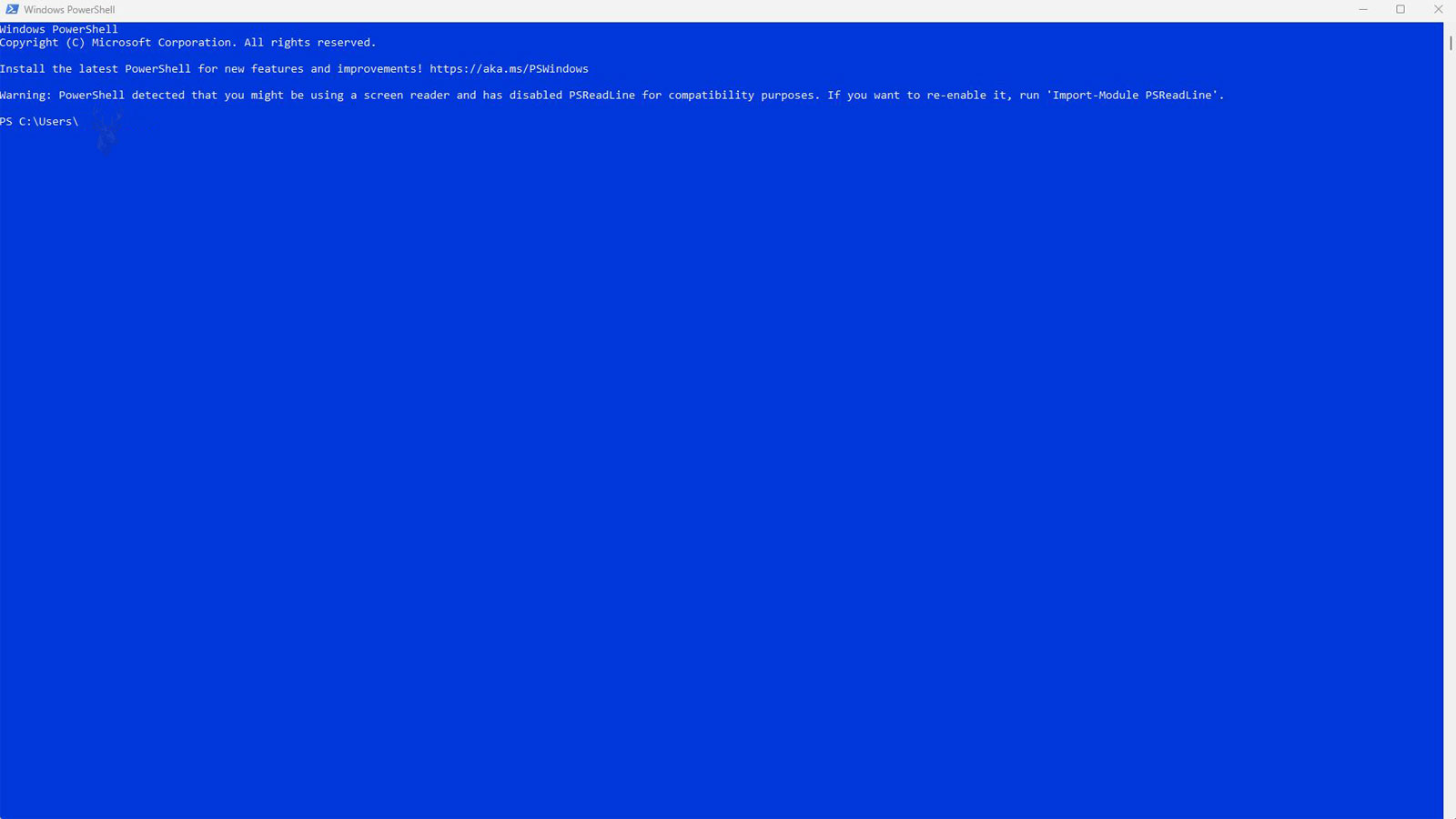
Two Command-Line Environments Found in Windows
Windows includes more than one command-line environment, and two of the most commonly encountered are Command Prompt and Windows PowerShell. Although both allow users to type commands instead of using graphical menus, they were designed for different purposes and provide different capabilities.
Because they often appear together in Windows menus and administrative tools, many users assume they are simply different versions of the same program. In reality, they use different command processors, support different scripting languages, and handle information in different ways.
Understanding these differences makes it easier to follow troubleshooting instructions, recognize which environment a command requires, and avoid confusion when working with Windows administration tools.
Command Prompt and PowerShell both accept typed commands, but they were built with different goals and different capabilities.
Command Prompt Has Been Part of Windows for Many Years
Command Prompt, commonly identified by cmd.exe, has long served as the traditional command-line interface for Windows. It provides a text-based environment where users can execute operating system commands, launch programs, navigate folders, and perform many maintenance tasks without using the graphical desktop.
Many troubleshooting guides still reference Command Prompt because numerous Windows commands remain available through this environment. System administrators, technicians, and advanced users continue to rely on it for compatibility with existing scripts and utilities.
Although its appearance has changed very little over the years, Command Prompt remains an important part of modern Windows.
PowerShell Was Designed for More Advanced Administration
Windows PowerShell was introduced to provide a more capable administrative environment. Instead of focusing primarily on traditional command-line utilities, it was designed to automate system management, simplify administration, and process structured information more effectively.
PowerShell includes its own scripting language, extensive administrative tools, and thousands of specialized commands known as cmdlets. These features allow administrators to perform tasks that would require much longer or more complicated scripts in older command environments.
As Windows evolved, PowerShell became an important management platform for desktop systems, servers, cloud services, and enterprise environments.
Command Prompt emphasizes traditional command execution, while PowerShell emphasizes administration and automation.
Both environments remain useful, but they were created to solve different types of problems.
The Two Environments Use Different Command Languages
Although many familiar commands appear to work in both environments, Command Prompt and PowerShell do not use the same command language internally. Each interprets user input according to its own rules and supports different scripting features.
PowerShell can recognize numerous traditional Command Prompt commands for compatibility, but it also introduces its own syntax, operators, variables, functions, and administrative tools.
This explains why a command copied from one environment may not always behave identically when pasted into the other.
PowerShell Works With Objects Instead of Plain Text
One of the most significant differences between the two environments is how they process information. Command Prompt primarily works with text output, while PowerShell works with structured objects that contain multiple properties and values.
Because PowerShell understands the information it receives, it can sort, filter, search, group, and manipulate data more efficiently without requiring extensive text processing.
This object-oriented design is one of the reasons PowerShell has become widely used for Windows administration.
| Feature | Command Prompt | PowerShell |
|---|---|---|
| Primary Design | Traditional command execution | System administration and automation |
| Output | Primarily text | Structured objects |
| Scripting | Batch files | PowerShell scripts |
| Automation | Basic | Extensive |
Cmdlets Are Different From Traditional Commands
PowerShell introduces cmdlets, which are specialized commands built around a consistent naming convention. Most cmdlets follow a Verb-Noun format, making their purpose easier to recognize.
Instead of memorizing many unrelated command names, administrators often work with similarly structured cmdlets that behave consistently across different Windows components.
This standardized approach makes large administrative scripts easier to read and maintain.
PowerShell cmdlets are designed to behave consistently, making complex administrative tasks easier to organize.
Many Traditional Commands Continue to Work
PowerShell includes compatibility features that allow many familiar Command Prompt commands to continue functioning. This helps users transition gradually without immediately learning an entirely new set of administrative tools.
However, compatibility does not mean the environments are identical. Some commands produce different results, some aliases refer to PowerShell cmdlets instead of traditional utilities, and certain scripting techniques apply only to one environment.
When documentation specifically requires either Command Prompt or PowerShell, using the requested environment generally produces the most predictable results.
Administrative Permissions Still Matter
Neither Command Prompt nor PowerShell automatically receives administrative privileges simply because it is opened. Many maintenance tasks require the session to be started with elevated permissions.
If administrative rights are not available, certain commands may fail, return access errors, or perform only limited functions. The same command can therefore behave differently depending on how the environment was launched.
Understanding permission levels is just as important as selecting the correct command-line environment.
The differences between Command Prompt and PowerShell become more noticeable when users begin combining commands, working with files, or automating repeated tasks. Both environments can perform many everyday operations, but the syntax and available tools may differ considerably.
A command that appears simple in one environment may require different punctuation, variables, or operators in the other. For this reason, instructions should be followed in the command-line environment for which they were written.
Command Prompt Uses Batch File Scripting
Command Prompt automation is commonly stored in batch files using extensions such as .bat or .cmd. These files contain a sequence of commands that run in order when the script is opened.
Batch files can launch programs, copy files, create folders, map network drives, and perform many routine tasks. They remain widely used because they are simple, compatible with older Windows systems, and easy to distribute.
However, complex batch scripts can become difficult to read and maintain because their language provides fewer structured programming features than PowerShell.
PowerShell Scripts Support More Advanced Logic
PowerShell scripts normally use the .ps1 extension. They can include variables, functions, loops, conditions, error handling, modules, and other features commonly found in programming languages.
This allows a PowerShell script to make decisions, process large groups of computers, collect system information, modify settings, and produce detailed reports.
PowerShell scripting is more capable, but it also requires greater attention to syntax, security settings, and testing.
| Script Type | Common Extension | Typical Use |
|---|---|---|
| Batch File | .bat or .cmd | Simple command sequences and compatibility tasks |
| PowerShell Script | .ps1 | Advanced administration, automation, and reporting |
PowerShell Uses a Pipeline of Objects
Both environments support pipelines, which allow the output from one command to be passed into another. The important difference is the type of information being passed.
In Command Prompt, the pipeline usually transfers text. The next command must interpret that text and search for the characters it needs.
In PowerShell, the pipeline transfers structured objects. The receiving command can work directly with named properties such as a process name, service status, file size, or creation date.
PowerShell pipelines preserve the meaning of the information instead of passing only its visible text.
Filtering Information Is More Structured in PowerShell
Command Prompt can search and filter text using utilities such as find and findstr. These tools are useful when the desired information appears in predictable text output.
PowerShell can filter according to the actual properties contained inside an object. Instead of searching a line for a word, it can compare values such as status, date, size, name, or type.
This approach becomes especially useful when working with long lists of processes, services, files, user accounts, or system events.
Variables Are Handled Differently
Both environments support variables, but they use different syntax and capabilities. Command Prompt variables are commonly referenced with percent signs, while PowerShell variables begin with a dollar sign.
Command Prompt variables usually store text values. PowerShell variables can store text, numbers, dates, collections, objects, and many other data types.
This allows PowerShell scripts to preserve more information and perform more complex operations without converting everything into plain text first.
| Feature | Command Prompt | PowerShell |
|---|---|---|
| Variable Style | Often uses percent signs | Uses a dollar sign |
| Common Data | Primarily text | Many structured data types |
| Collections | Limited handling | Built-in support |
| Property Access | Not object-based | Direct access to object properties |
The Same Command Name May Not Mean the Same Thing
PowerShell includes aliases that resemble familiar commands from Command Prompt or other operating systems. An alias provides a shorter name for a PowerShell cmdlet or function.
This can make PowerShell feel familiar, but it can also create confusion. A command name may appear identical while its options, output, or internal behavior differ from the traditional utility a user expects.
When exact behavior matters, using the complete cmdlet name or the full executable name reduces ambiguity.
An alias is a convenient alternate name, not proof that two commands are identical.
Scripts are generally easier to understand when they use complete command names instead of relying heavily on aliases.
External Programs Can Run From Either Environment
Many Windows utilities are separate executable programs rather than built-in commands. These programs can often be launched from both Command Prompt and PowerShell.
Examples include diagnostic tools, network utilities, disk-management commands, and system repair programs. The executable performs the underlying task, while the command-line environment passes the requested options to it.
Differences can still appear when special characters, quotation marks, file paths, or command parameters are interpreted by the surrounding environment.
Quotation Marks and Special Characters Require Care
Spaces inside file and folder paths often require quotation marks. Both environments support quoted paths, but they do not interpret every quotation mark, variable, or escape character in the same way.
A command copied from a website may also contain curved quotation marks introduced by document formatting. Command-line tools normally require straight quotation marks, and the wrong characters can cause a command to fail.
PowerShell also assigns special meaning to characters such as dollar signs, braces, parentheses, and backticks. Command Prompt uses its own special characters for redirection, variables, and conditional processing.
File Paths Can Behave Differently
Command Prompt and PowerShell can both navigate drives and folders, but they use different internal commands and path-processing rules.
PowerShell treats the file system as one of several providers. The same navigation concepts can also be applied to areas such as the registry, certificate stores, and environment variables.
This broader design allows administrators to browse and manage different Windows resources using commands similar to those used for ordinary folders.
| Location Type | Command Prompt | PowerShell |
|---|---|---|
| Files and Folders | Supported | Supported |
| Registry Locations | Managed through separate utilities | Can be accessed through a provider |
| Certificate Stores | Uses specialized tools | Can be browsed through a provider |
| Environment Variables | Available through command syntax | Accessible through a provider and variables |
PowerShell Includes Built-In Help
PowerShell includes a help system that can describe cmdlets, parameters, examples, and related commands. This makes it possible to learn about a command without leaving the command-line environment.
The available help information may vary depending on the installed PowerShell version and whether updated help content has been downloaded.
Command Prompt commands often provide basic usage information through built-in help switches or the traditional help command, but the documentation is generally less structured.
PowerShell Can Discover Commands by Name and Purpose
PowerShell provides tools for locating commands according to their verb, noun, module, or partial name. This makes it easier to explore available administrative capabilities.
The consistent Verb-Noun naming pattern also helps users predict related commands. After identifying one cmdlet for viewing information, a similarly named cmdlet may exist for creating, changing, starting, stopping, or removing that resource.
Command Prompt contains many useful utilities, but their names developed over time and do not follow one uniform naming system.
PowerShell was designed so that commands can be discovered and understood through consistent naming and built-in help.
PowerShell Modules Extend Its Capabilities
A PowerShell module is a collection of related cmdlets, functions, variables, and other resources. Modules can add management tools for Windows features, server roles, cloud services, software products, and administrative platforms.
Some modules are included with Windows, while others are installed with specific applications or downloaded separately.
A command may therefore be unavailable because its required module is missing, not loaded, or incompatible with the installed PowerShell version.
Execution Policies Affect PowerShell Scripts
PowerShell uses execution policies to control the conditions under which scripts can run. These policies are intended to reduce accidental execution of untrusted scripts, but they are not a complete security boundary.
A script may fail even when the user has permission to open PowerShell because the current execution policy blocks that type of file.
Changing an execution policy without understanding the reason for the restriction can expose the computer to unnecessary risk. The origin and contents of the script should be verified before allowing it to run.
A blocked PowerShell script is not automatically damaged or incompatible.
The execution policy, file origin, digital signature, and system configuration may all affect whether it is permitted to run.
Downloaded Scripts May Carry Additional Security Information
Windows can mark files obtained from the internet or another computer as originating from an external source. PowerShell may consider this information when evaluating whether a script is trusted.
A script copied from an unknown website should not be unblocked or executed simply because troubleshooting instructions request it. The commands should be reviewed to determine what they change, remove, download, or transmit.
Administrative scripts can alter important parts of Windows quickly, making source verification especially important.
Copying Commands From the Internet Can Be Risky
Command-line instructions can perform legitimate repairs, but they can also erase data, change security settings, create accounts, disable protections, or download additional software.
Long PowerShell commands can hide their purpose through abbreviations, encoded content, variables, or commands that retrieve instructions from an external location.
Users should understand the purpose of a command and trust its source before running it, especially when administrative privileges are required.
| Warning Sign | Reason for Caution |
|---|---|
| The command requires administrator rights without explanation | It may modify protected system areas |
| The command downloads and immediately runs a file | The content may not be reviewed before execution |
| The command is encoded or heavily shortened | Its actual purpose may be difficult to recognize |
| The source requests security features to be disabled | The computer may be left less protected |
| The instructions promise to fix every problem | The command may not be appropriate for the specific system |
Command History Can Reveal Earlier Entries
Both environments provide ways to review previously entered commands during a session. This can save time when repeating or correcting an earlier command.
PowerShell can also maintain more extensive command history depending on the host, version, and configuration being used.
Command history may contain file paths, server names, account names, or other sensitive information. Shared computers and support sessions should therefore be handled carefully.
Redirection Sends Output to Files or Other Destinations
Command Prompt and PowerShell both allow output to be redirected into a file instead of displayed only on the screen. This is useful for saving diagnostic information, creating reports, and reviewing long results later.
The environments do not handle every output stream in the same way. PowerShell distinguishes between several types of output, including normal results, errors, warnings, verbose messages, and debugging information.
Understanding which stream is being redirected becomes important when a script must capture both successful results and error details.
Error Handling Is More Advanced in PowerShell
Batch scripts can check error codes and respond to success or failure, but the available methods are relatively basic.
PowerShell provides structured error records and can use try, catch, and finally blocks to manage failures. A script can record the error, attempt another action, stop safely, or continue with the next item.
This becomes important when automating tasks across many files, users, or computers because one failure should not necessarily interrupt the entire process.
PowerShell can respond to errors as structured events rather than relying only on displayed text or a numeric exit code.
PowerShell Can Work With Remote Computers
PowerShell includes remote-management capabilities that allow authorized administrators to run commands on other computers. This can support maintenance, configuration, reporting, and troubleshooting without visiting each system individually.
Remote PowerShell requires compatible configuration, network access, authentication, permissions, and security controls. It does not provide unrestricted access simply because PowerShell is installed.
Improper remote-management settings can create security risks, so these features should be configured according to the needs of the organization.
Command Prompt Can Also Run Remote Utilities
Command Prompt can launch separate tools that communicate with remote systems, but remote administration is not integrated into its language as extensively as it is in PowerShell.
Traditional utilities may still be appropriate for a specific task, particularly in environments that depend on older scripts or specialized programs.
The choice depends on the required command, system compatibility, security configuration, and complexity of the operation.
| Administrative Need | Often Better Suited Environment |
|---|---|
| Running a familiar legacy utility | Command Prompt or either environment |
| Processing structured system information | PowerShell |
| Using an existing batch file | Command Prompt |
| Managing many computers remotely | PowerShell |
| Creating detailed automated reports | PowerShell |
PowerShell Versions Can Affect Command Availability
Not every computer has the same PowerShell version. Commands, modules, parameters, and scripting features can vary according to the installed release.
A script written for a newer version may fail on an older system because a required cmdlet or language feature is unavailable.
Compatibility should be checked before distributing the same script across several computers.
Windows PowerShell and Newer PowerShell Releases Are Related but Different
Windows PowerShell is the version traditionally included with Windows and is closely connected to Windows-specific management technologies.
Newer releases use the name PowerShell and can operate on multiple operating systems. They include updated features and different compatibility characteristics.
Both versions may exist on the same computer. A script or module that works in one may not function identically in the other.
The word PowerShell can refer to more than one installed environment.
The version and executable being used should be confirmed when compatibility matters.
The Window Title Can Help Identify the Current Environment
The title bar, prompt style, startup message, and application icon can provide clues about which command-line environment is open.
Command Prompt often displays a path followed by a greater-than symbol. PowerShell commonly begins its prompt with the letters PS before the current location.
These visual differences are helpful, but customized profiles and terminal applications can change the appearance. Checking the actual process or shell remains more reliable.
Windows Terminal Is a Host Rather Than a Command Language
Windows Terminal provides a modern window for opening several command-line environments in separate tabs. It can host Command Prompt, Windows PowerShell, newer PowerShell versions, and other installed shells.
Opening a tab inside Windows Terminal does not determine which command language is being used. The selected profile controls the shell running inside that tab.
This distinction explains why two tabs inside the same application can accept different commands and display different prompts.
Command Prompt and PowerShell can both be useful during troubleshooting, but selecting the correct environment is only part of the process. The command must also be appropriate for the Windows version, permission level, installed tools, and specific problem being investigated.
Many command-line mistakes occur because instructions are copied without confirming the shell, punctuation, file path, or administrative requirements. A careful approach helps prevent a simple diagnostic task from creating additional problems.
The Prompt Usually Reveals Which Shell Is Open
Command Prompt commonly displays the current drive and folder followed by a greater-than symbol. PowerShell often adds PS before the current location.
This visual difference can help users confirm the environment before entering a command. However, customized prompts, profiles, and terminal applications may change the appearance.
When the distinction matters, the shell should be identified directly rather than relying only on the window color or icon.
| Visible Clue | Possible Environment |
|---|---|
| Path followed by a greater-than symbol | Often Command Prompt |
| PS appears before the path | Often PowerShell |
| Multiple tabs in one window | Windows Terminal hosting one or more shells |
| Administrator appears in the title | The current shell may be elevated |
Windows Terminal Can Open Several Shells
Windows Terminal can open Command Prompt, Windows PowerShell, newer PowerShell releases, and other command-line environments within the same application.
Each tab can use a different profile. A command that works in one tab may fail in another even though both appear inside the same Terminal window.
The tab title, profile name, and prompt should be checked before following instructions written for a specific shell.
Windows Terminal is the window that hosts the session, not the command language running inside it.
Opening as Administrator Changes the Permission Level
Many commands can be viewed or tested with standard user permissions. Others modify protected system files, services, network settings, registry locations, or installed components and require an elevated session.
Opening Command Prompt or PowerShell as administrator gives the process greater authority. It does not make every command safe or appropriate.
Administrative sessions should be used only when the task requires them because mistakes can affect the entire computer rather than only the current user account.
Administrative access increases what a command can change.
It does not confirm that the command is correct, trusted, or suitable for the computer.
Access Denied Does Not Always Mean the Command Is Wrong
An access error may appear because the shell was opened without sufficient permissions. It can also result from file ownership, active security software, protected folders, locked files, or organizational policies.
Running the same command as administrator may solve a genuine permission limitation, but elevation should not be used automatically to bypass every error.
The reason for the denial should be understood before broader permissions are applied.
Current Folder Location Can Change the Result
Some commands operate on the current folder unless a complete path is provided. Running them from the wrong location can cause files to be created, copied, renamed, or removed somewhere unexpected.
The prompt normally displays the current location, and both environments provide commands for viewing or changing it.
Before running a file-related command, the location should be confirmed carefully, especially when the operation affects several files at once.
| Path Situation | Possible Problem |
|---|---|
| Wrong current folder | The command may affect unintended files |
| Path contains spaces | Quotation marks may be required |
| Network path is unavailable | The command may report that the location cannot be found |
| Drive letter changed | A saved script may point to the wrong storage device |
| Relative path is used | The result depends on where the shell was opened |
Complete Paths Reduce Ambiguity
A complete path identifies the drive and full folder location. This can make scripts more predictable because they do not depend as heavily on the shell’s current directory.
However, complete paths can also reduce portability. A script written for one username, drive letter, or folder layout may fail on another computer.
Environment variables and PowerShell path tools can help scripts locate standard Windows folders without hard-coding every location.
Quotation Marks Must Match the Shell
Paths containing spaces normally require quotation marks. Command Prompt and PowerShell both support quoted text, but PowerShell distinguishes more clearly between single and double quotation marks.
Double quotation marks in PowerShell can expand variables and certain expressions. Single quotation marks generally preserve the text more literally.
Command Prompt follows different expansion rules. A command copied between the two shells may therefore produce a different result even when the visible text looks nearly identical.
Curved Quotation Marks Can Break a Command
Text editors, websites, and document applications may replace straight quotation marks with curved typographic marks. These characters can look correct visually but may not be recognized by the shell.
Other copied characters, such as long dashes or invisible formatting spaces, can also cause errors.
When a copied command fails unexpectedly, retyping the quotation marks, dashes, and spaces manually can eliminate formatting introduced by the source.
A command can be logically correct and still fail because one copied punctuation mark is not the expected character.
Tab Completion Can Reduce Typing Errors
Both Command Prompt and PowerShell can complete portions of file and folder names when the Tab key is pressed. This helps reduce spelling mistakes and automatically handles some path formatting.
PowerShell also supports completion for many cmdlet names, parameters, variables, and available values.
Completion is useful when working with long paths or unfamiliar commands, but the completed value should still be reviewed before the command is executed.
Built-In Help Should Be Checked Before Guessing
Many traditional Windows utilities provide usage information through a help option. PowerShell cmdlets include structured help that can explain syntax, parameters, examples, and accepted input.
Reviewing help is safer than repeatedly testing unknown parameters on important files or system settings.
Examples should still be interpreted carefully because they may use placeholder paths, account names, or values that must be changed for the current computer.
| Before Running a Command | Reason |
|---|---|
| Confirm the shell | Syntax and behavior may differ |
| Review the help information | Parameters may have specific requirements |
| Check the current folder | Relative paths depend on location |
| Verify permission requirements | Some operations need elevation |
| Understand the expected result | Unexpected changes can be identified quickly |
Commands Can Return Different Types of Errors
An error may indicate incorrect syntax, an unavailable command, a missing file, insufficient permission, an unsupported parameter, or a failure inside the program being launched.
Command Prompt often reports a short text message and an exit code. PowerShell may return a more detailed error record containing the command, category, location, and underlying exception.
The complete error should be reviewed rather than focusing only on the first visible line.
Command Not Found Can Have Several Causes
A shell may report that a command is not recognized because the name is misspelled, the program is not installed, the required module is unavailable, or its location is missing from the system path.
The command may also belong to a different PowerShell version or require a Windows feature that is not enabled.
Changing shells may help only when the command actually belongs to the other environment. It will not install a missing program or module.
A missing command is not always a syntax problem.
The required executable, module, feature, or version may not be present on the computer.
The System Path Helps Windows Locate Programs
When a program name is entered without a complete location, Windows searches folders listed in the system path. If the executable is stored elsewhere, the shell may not find it.
Typing the full executable path can confirm whether the program exists and can be launched.
Changing the system path affects how programs are located throughout Windows and should be done carefully to avoid conflicts or security problems.
Commands Can Change the Computer Immediately
Many graphical tools display confirmation messages before deleting files, changing settings, or removing software. Command-line utilities may perform the requested action immediately once the command is entered.
Wildcards, recursive options, and force parameters can expand a small command into a much broader operation.
Commands that remove, overwrite, format, reset, or disable should be reviewed especially carefully before execution.
The command line is efficient because it can make large changes quickly, which is also why mistakes can have wide effects.
Wildcards Can Affect More Files Than Expected
Wildcards represent groups of characters and allow one command to match many files or folders. They are useful for repeated operations but can also select items that were not intended.
The matching rules and available wildcard features differ between Command Prompt utilities and PowerShell.
A list or preview operation should be used first when possible so the affected items can be confirmed before a destructive action is performed.
| Risky Element | Possible Effect |
|---|---|
| Wildcard | Matches multiple files or folders |
| Recursive option | Extends the operation into subfolders |
| Force parameter | Bypasses certain warnings or restrictions |
| Overwrite option | Replaces existing data |
| Administrative session | Expands access to protected locations |
A Backup Does Not Replace Careful Command Review
Important files should be backed up before performing repairs that modify storage, permissions, profiles, or operating system components.
A backup can reduce the consequences of a mistake, but it does not prevent downtime, damaged settings, or the loss of recently changed information.
The intended command, target location, and expected result should still be confirmed before proceeding.
PowerShell Profiles Can Customize Every Session
A PowerShell profile is a script that can run automatically when a PowerShell session starts. It may define aliases, functions, variables, formatting, modules, or startup commands.
Profiles can improve productivity, but they may also change how a command behaves compared with a standard PowerShell installation.
When troubleshooting unexpected behavior, opening a session without the normal profile can help determine whether customization is involved.
Command Prompt Can Also Be Customized
Command Prompt can use startup settings, environment variables, registry options, and batch files that change its appearance or initial behavior.
Aliases and functions are not built into Command Prompt in the same way as PowerShell, but external tools and macros can provide similar conveniences.
Customized environments should be considered when a command behaves differently on two otherwise similar computers.
Output Formatting Can Hide Available Information
PowerShell objects may contain more properties than the screen displays by default. The formatted table or list shown in the window is only one presentation of the underlying data.
A property can exist even when it is not visible in the default output. Selecting specific properties or changing the format can reveal additional details.
Command Prompt output is generally closer to the text produced directly by the utility, although that text may still be shortened or arranged for readability.
PowerShell output on the screen may represent only part of the information stored in the object.
Formatting changes how the information appears without necessarily changing the underlying result.
Exported Data Can Be Easier to Review
Long command results can be redirected or exported to a file for later review. Command Prompt can save text output, while PowerShell can export structured information into formats intended for further processing.
Saving results can help document system conditions before and after a repair. It can also make error messages easier to compare.
The exported file may contain computer names, usernames, paths, network details, or other private information and should be stored and shared appropriately.
PowerShell Is Useful for Repeated Administrative Tasks
PowerShell becomes especially valuable when the same task must be performed across many files, users, services, or computers.
A tested script can apply consistent rules, collect results, and record failures more efficiently than repeating manual steps.
Automation should begin with a limited test because a mistake repeated automatically can affect every item in the group.
Command Prompt Remains Useful for Direct Utilities
Command Prompt remains practical when a task relies on a familiar built-in utility, an existing batch file, or instructions written specifically for the traditional Windows shell.
Its simpler text-based behavior can also be convenient for quick diagnostics and older administrative tools.
Using PowerShell for every task is not necessary when Command Prompt already provides the required function clearly and reliably.
| Situation | Practical Choice |
|---|---|
| Following instructions for a legacy utility | Command Prompt may be simpler |
| Running an existing batch file | Command Prompt |
| Filtering structured system data | PowerShell |
| Managing many computers or accounts | PowerShell |
| Opening several shells in tabs | Windows Terminal as the host |
| Using a command specified by documentation | Use the environment named in the instructions |
One Environment Is Not a Complete Replacement for the Other
PowerShell provides more advanced automation and administration features, but Command Prompt remains useful for compatibility and direct access to traditional utilities.
Some older scripts and tools expect Command Prompt behavior. Other administrative tasks depend on PowerShell cmdlets, modules, objects, and remote-management features.
Windows continues to include both because they serve overlapping but distinct purposes.
A Practical Selection Process
- Identify whether the instructions require Command Prompt, Windows PowerShell, or another PowerShell version.
- Confirm whether administrative permissions are required.
- Review the command’s purpose and expected result.
- Check the current folder and every file path.
- Replace curved quotation marks or other copied formatting characters.
- Verify that the required executable, module, or Windows feature is available.
- Test non-destructive commands before making changes.
- Use a limited sample before applying an operation to many items.
- Save important output and error details for review.
- Stop if the result differs substantially from what the instructions describe.
This process helps reduce problems caused by selecting the wrong shell, using incorrect syntax, or running a command with broader effects than intended.
The Best Environment Depends on the Task
Command Prompt is well suited to many traditional Windows utilities, simple command sequences, and older batch scripts. PowerShell is better suited to structured data, advanced scripting, automation, reporting, and modern administration.
Windows Terminal can provide convenient access to both, but it does not remove the differences between their command languages.
The correct choice depends on the command being used, the level of automation required, and the environment for which the instructions were written.
Command Prompt and PowerShell may look similar because both use typed commands in a text window. Their internal design, scripting capabilities, output handling, and administrative features are substantially different.
Command Prompt primarily works with traditional commands and text, while PowerShell uses cmdlets, objects, modules, and a more advanced scripting language. Many familiar utilities can run in either environment, but syntax and behavior can still change.
Confirming the shell, permissions, paths, command source, and expected result makes command-line troubleshooting safer and more predictable. Neither environment is always the correct choice, and understanding their differences helps users select the one that matches the task.











