
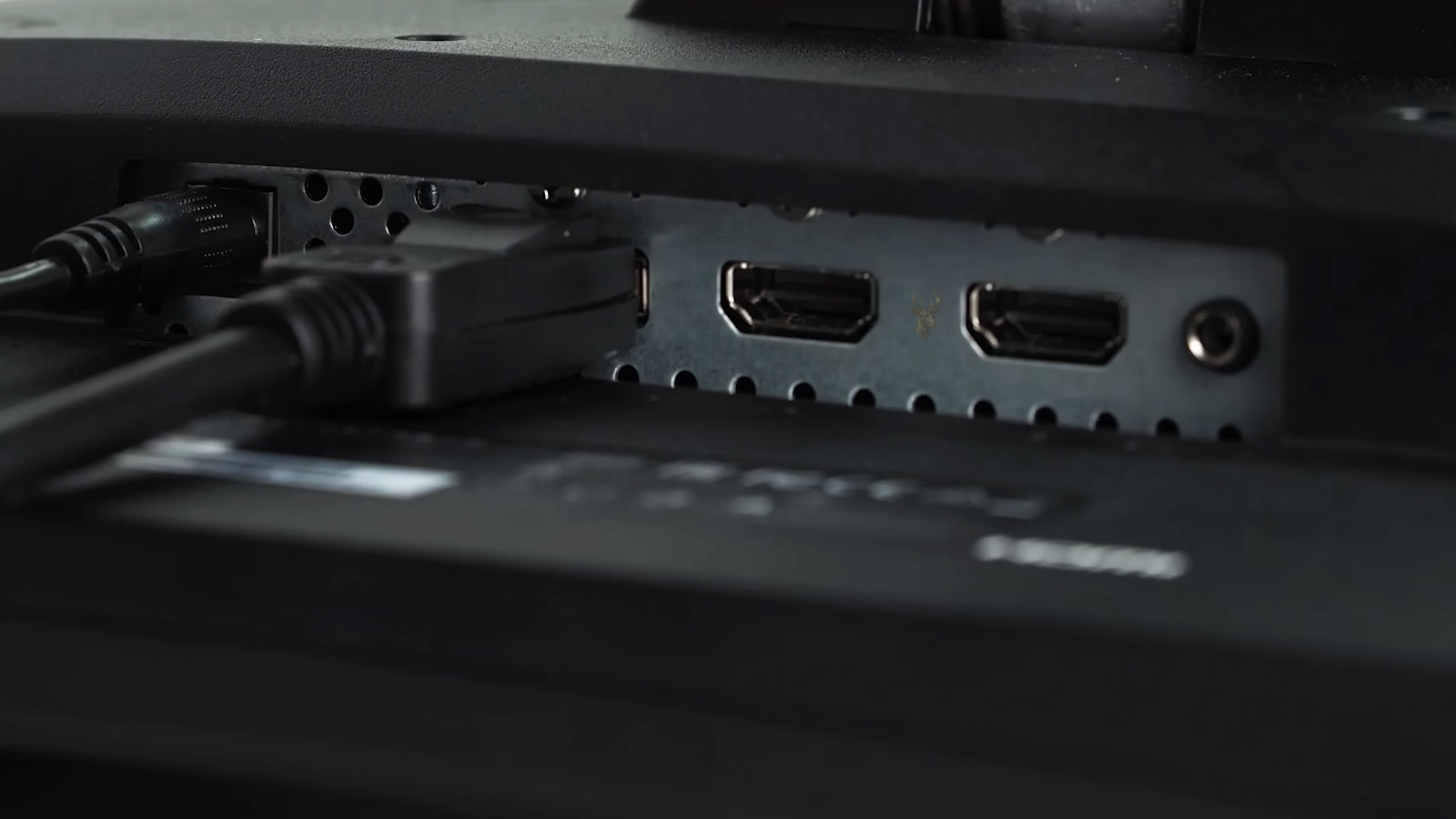
Understanding DisplayPort and HDMI Connections
Modern computer monitors typically connect through either DisplayPort or HDMI. Both digital interfaces are capable of carrying high-quality video, and both can transmit audio when the connected hardware supports it. Because they often produce an image that appears nearly identical during everyday use, many users assume the two connections are interchangeable in every situation.
Although they perform similar functions, DisplayPort and HDMI were developed with different goals. DisplayPort was designed primarily for computer systems, while HDMI was created to simplify connections between televisions, media players, gaming consoles, and home entertainment equipment. Over time, both standards have continued to evolve and now support increasingly higher resolutions, refresh rates, and additional features.
Choosing between them is not simply a matter of picture quality. The available ports on the computer, monitor capabilities, cable quality, supported standards, and intended workload all influence which connection is most appropriate for a particular setup.
DisplayPort and HDMI both transmit digital signals, but they are optimized for somewhat different types of devices and usage scenarios.
Both Connections Carry Digital Video
Unlike older analog display standards, both DisplayPort and HDMI transmit digital video directly from the graphics hardware to the display. As long as the signal remains intact, the monitor receives the same digital information regardless of cable length within supported specifications.
This means that under normal operating conditions, one cable does not automatically produce a sharper picture than the other. Image quality is instead determined by factors such as monitor resolution, panel technology, graphics hardware, supported standards, refresh rate, and display settings.
Connection problems are therefore more likely to appear as signal loss, flickering, intermittent black screens, or unsupported display modes rather than gradual reductions in image sharpness.
The Physical Connectors Are Different
DisplayPort and HDMI use different connector designs, making it impossible to connect one directly into the other without an adapter or an active conversion device when required. Full-size DisplayPort connectors include a locking mechanism on many cables, while standard HDMI connectors rely primarily on friction to remain connected.
Compact devices may also use Mini DisplayPort, USB-C DisplayPort Alt Mode, Mini HDMI, or Micro HDMI depending on their size and intended application. Even though these smaller connectors carry similar digital information, they require compatible ports or appropriate adapters.
The connector shape alone does not determine the display capabilities.
The supported DisplayPort or HDMI version implemented by the computer and monitor ultimately determines the available resolutions, refresh rates, and optional features.
Version Numbers Matter
Both DisplayPort and HDMI have evolved through multiple versions. Each new revision generally increases the amount of data that can be transmitted while introducing support for newer display technologies and higher performance capabilities.
Two computers may both include HDMI ports, yet support different maximum resolutions or refresh rates because they implement different HDMI versions. The same principle applies to DisplayPort, where newer revisions can support substantially greater bandwidth than earlier generations.
For this reason, identifying the connector type alone is not enough when determining compatibility. The supported version on both the graphics hardware and the monitor must also be considered.
The Cable Is Only One Part of the Connection
A display connection depends on three primary components working together: the graphics hardware, the cable, and the monitor. Replacing only the cable will not increase the maximum resolution or refresh rate if either connected device has lower hardware limitations.
Similarly, purchasing an advanced cable does not automatically enable newer display features when the computer or monitor supports only an earlier standard. The connection always operates according to the capabilities shared by every component involved.
| Component | Role in the Display Connection |
|---|---|
| Graphics Hardware | Generates the video signal |
| Display Cable | Transfers the digital signal between devices |
| Monitor | Receives and displays the signal |
| Connection Standard | Determines supported features and bandwidth |
Understanding how these components work together provides a foundation for comparing DisplayPort and HDMI more closely, including their strengths, limitations, and the situations in which one connection may offer practical advantages over the other.
Although DisplayPort and HDMI often perform similarly during everyday office work, their capabilities begin to differ as display resolutions, refresh rates, and monitor configurations become more demanding. The most suitable connection depends on the features supported by both the computer and the monitor rather than the connector alone.
Modern versions of both standards continue to increase their available bandwidth, allowing support for higher resolutions, smoother motion, improved color depth, and additional display technologies. Older versions, however, may not support the same combinations of features.
Resolution and Refresh Rate Work Together
A monitor’s resolution determines how many pixels are displayed, while the refresh rate determines how frequently the image is updated each second. Higher resolutions combined with higher refresh rates require substantially more data to be transmitted through the display connection.
For example, running a monitor at 4K resolution with a high refresh rate requires considerably more bandwidth than operating the same display at Full HD with a standard refresh rate. Both DisplayPort and HDMI support these combinations only when the graphics hardware, monitor, cable, and implemented standard all provide sufficient bandwidth.
When one component becomes the limiting factor, the operating system may automatically reduce the available refresh rates or resolutions that can be selected.
The display connection operates according to the capabilities shared by every device in the signal path.
DisplayPort Is Common on Computer Monitors
DisplayPort has become a common connection on desktop monitors because it was designed with computer graphics hardware in mind. Many business monitors, professional displays, and gaming monitors include DisplayPort alongside one or more HDMI inputs.
DisplayPort is frequently used for workstations that operate multiple monitors, require high refresh rates, or support advanced desktop display configurations. Many graphics cards also provide several DisplayPort outputs specifically for these environments.
This does not necessarily make DisplayPort superior in every situation. Rather, it reflects its widespread adoption within the computer industry.
DisplayPort is commonly associated with computer monitors, while HDMI remains widely used across both computers and consumer entertainment devices.
HDMI Offers Broad Device Compatibility
HDMI is found on televisions, projectors, streaming devices, gaming consoles, audio receivers, laptops, and desktop computers. Its widespread adoption makes it one of the most universally recognized display connections available.
Because so many consumer devices use HDMI, users often connect computers directly to televisions without requiring adapters. This flexibility makes HDMI especially convenient for conference rooms, classrooms, presentations, and home entertainment systems.
Many monitors include both HDMI and DisplayPort, allowing either interface to be used depending on the available ports and desired features.
Audio Can Travel Through Either Connection
Both DisplayPort and HDMI are capable of transmitting digital audio together with the video signal. If the monitor includes built-in speakers or provides an audio output, Windows may recognize it as a playback device once the display connection is established.
When no sound is heard after connecting a monitor, the issue is often related to the selected playback device rather than the display cable itself. Windows may continue sending audio to the computer’s internal speakers or another connected device until the preferred output is changed.
Some monitors support video only, while others include speakers, headphone outputs, or connections for external audio equipment. These capabilities depend on the monitor rather than the cable type alone.
Multiple Monitors May Use Different Connections
Desktop computers often connect several monitors simultaneously. One display may use DisplayPort while another uses HDMI, depending on the available ports provided by the graphics hardware.
Windows treats both displays as part of the same desktop environment, allowing each monitor to operate at its own supported resolution and refresh rate. Mixing connection types is generally normal and does not automatically reduce image quality.
However, the available display modes for each monitor still depend on the capabilities of its individual connection.
| Feature | DisplayPort | HDMI |
|---|---|---|
| Primary Design Focus | Computer displays | Consumer audio/video equipment |
| Common on Desktop Monitors | Yes | Yes |
| Common on Televisions | Less common | Very common |
| Digital Audio Support | Yes | Yes |
| Multiple Monitor Environments | Frequently used | Also supported |
Understanding these differences helps explain why both standards continue to coexist. Each provides reliable digital video transmission, but their widespread use in different types of equipment makes one connection more convenient than the other depending on the computer and display being connected.
The practical differences between DisplayPort and HDMI become more noticeable when adapters, docking stations, long cables, high-refresh-rate monitors, and advanced display features are added to the connection. A setup that works reliably at a basic resolution may become unstable when the required bandwidth increases.
For this reason, display troubleshooting should consider the complete signal path rather than focusing only on the connector visible at each end of the cable.
Adapters Can Change the Available Capabilities
Adapters are commonly used when the computer and monitor do not share the same connector type. A DisplayPort output may be converted to HDMI, or a USB-C port may provide video through DisplayPort Alt Mode before an adapter changes the signal into another format.
Some conversions are relatively simple, while others require active electronics inside the adapter. The adapter may also support a lower resolution, refresh rate, or feature set than the ports connected to it.
A monitor may therefore work correctly when connected directly but lose certain display modes when an adapter, dock, or converter is added.
An adapter can make two connectors physically compatible without preserving every capability of the original connection.
Passive and Active Adapters Work Differently
A passive adapter relies on the source device to provide a compatible signal that can be carried through the new connector. An active adapter contains circuitry that converts one signal format into another.
Passive adapters are often smaller and less expensive, but they work only when the graphics hardware supports the required output mode. Active adapters are useful when direct signal compatibility is unavailable or when a more demanding conversion is required.
Using the wrong adapter type can result in no picture, limited resolution, intermittent detection, or a refresh rate that remains below the monitor’s advertised capability.
The presence of matching connector shapes does not guarantee that the signal conversion will work.
The source device, adapter design, supported standard, and monitor input must all be compatible.
USB-C Video Connections Add Another Layer
USB-C is a connector shape rather than a guarantee of video capability. Some USB-C ports support DisplayPort Alt Mode, Thunderbolt, or another video-capable standard, while others provide only charging and data transfer.
When video is supported, a USB-C cable or dock may carry the DisplayPort signal before converting it to HDMI or presenting it through a full-size DisplayPort connector. The final monitor capability then depends on the computer port, cable, dock, adapter, and display input.
A USB-C port that successfully charges a laptop does not necessarily support an external monitor, and a USB-C cable designed mainly for charging may not carry the required video data.
Docks Can Divide Available Display Bandwidth
Docking stations often provide several monitor outputs from a single connection to the computer. Depending on the dock design, those outputs may share a limited amount of bandwidth.
One monitor may operate at its full resolution and refresh rate, while adding a second display causes both monitors to use reduced settings. Other docks rely on compression, specialized drivers, or internal graphics technology to support additional displays.
These limitations can occur even when the dock includes multiple HDMI or DisplayPort connectors. The number of physical ports does not reveal how much display bandwidth is available behind them.
| Connection Component | Possible Limitation |
|---|---|
| Passive Adapter | Requires compatible signal output from the source |
| Active Adapter | May impose its own resolution or refresh-rate limit |
| USB-C Cable | May support charging and data without video |
| Docking Station | May divide bandwidth among several displays |
| Conversion Cable | May operate in only one signal direction |
Some Conversion Cables Work in Only One Direction
A cable labeled DisplayPort to HDMI may be designed specifically for a DisplayPort source connected to an HDMI monitor. It may not work in reverse when the computer provides HDMI and the monitor accepts only DisplayPort.
Converting an HDMI source into a DisplayPort input often requires an active adapter with external power because the signal conversion is more involved. Connecting an ordinary cable in the wrong direction commonly results in a no-signal message.
The intended source and destination should therefore be confirmed before purchasing a conversion cable.
Adaptive Refresh Features Require Compatible Hardware
Gaming monitors may support variable refresh technologies that allow the display to adjust its refresh timing according to the graphics card’s frame output. These features can reduce visible tearing and uneven motion.
Support depends on the monitor, graphics hardware, connection standard, driver, and selected display mode. A feature may work through DisplayPort but remain unavailable through an older HDMI implementation, or it may be supported through both connections on newer equipment.
If an adaptive refresh option is missing, the cable should not be assumed defective immediately. The active port, monitor menu, graphics-driver settings, and supported connection versions should also be checked.
Color Depth Can Increase Bandwidth Requirements
Displays can represent color using different bit depths. Higher color depth allows more shades to be represented and may reduce visible banding in gradients, but it also increases the amount of information carried through the connection.
A setup that supports a particular resolution and refresh rate at standard color depth may require reduced settings when a higher color depth is selected. HDR operation can add further bandwidth demands.
When the connection lacks sufficient capacity, the graphics system may reduce the refresh rate, change the color format, apply compression, or make certain options unavailable.
Resolution, refresh rate, color depth, and HDR all compete for the bandwidth available through the display connection.
Cable Quality Matters More at Higher Data Rates
A cable that works at a basic display setting may become unreliable when the resolution or refresh rate is increased. Higher data rates leave less tolerance for poor construction, damaged conductors, weak shielding, or excessive cable length.
Symptoms may include brief black screens, flickering, colored artifacts, loss of audio, monitor detection failures, or a display that works only at reduced settings.
Replacing the cable with a properly rated and reasonably short alternative is often a useful diagnostic step, especially when the computer and monitor support the desired mode but cannot maintain a stable signal.
Long Cable Runs Can Reduce Reliability
Digital display signals weaken as cable length increases. The maximum dependable distance varies according to the cable design, signal rate, surrounding electrical interference, and required resolution.
A long HDMI or DisplayPort cable may work at a lower resolution but fail when a higher refresh rate is selected. In larger rooms, active cables, optical cables, repeaters, or specialized extension systems may be required.
Using several adapters and extension cables in sequence can further reduce reliability by adding more connectors and conversion points to the signal path.
DisplayPort Can Support Monitor Chaining
Some DisplayPort monitors support Multi-Stream Transport, which allows one monitor to pass a signal to another compatible display. This arrangement is often called daisy-chaining.
The computer, graphics hardware, first monitor, and connection standard must all support the feature. The available bandwidth is shared among the connected displays, so resolution and refresh-rate limits may apply as additional monitors are added.
Not every DisplayPort monitor includes an output for another display, and an HDMI connector on the monitor does not normally provide the same chaining capability.
HDMI Includes Features Intended for Entertainment Equipment
HDMI supports features developed for televisions and home entertainment systems, including control functions between compatible devices and specialized audio return capabilities. These features are useful when a computer is connected through televisions, receivers, sound systems, or other consumer equipment.
Many computer monitor connections do not require these entertainment-focused features, but HDMI remains convenient because it is widely available on laptops, projectors, conference-room displays, and televisions.
DisplayPort generally emphasizes computer display flexibility, while HDMI provides broader integration with consumer audio and video equipment.
| Usage Situation | Often Practical Connection |
|---|---|
| Desktop gaming monitor | DisplayPort or a sufficiently capable HDMI version |
| Computer connected to a television | HDMI |
| Multiple workstation monitors | DisplayPort is frequently used |
| Conference-room projector | HDMI is commonly available |
| Monitor connected through a USB-C dock | Depends on the dock and computer capabilities |
No-Signal Problems Can Have Several Causes
A monitor that displays no signal may be using the wrong input, receiving an unsupported display mode, or failing to complete the digital connection with the graphics hardware. The cable may also be loose, damaged, incorrectly directed, or connected to the wrong video output.
Desktop computers with a dedicated graphics card sometimes include additional monitor ports on the motherboard. When the system is configured to use the graphics card, connecting the monitor to the motherboard port may produce no picture.
- Confirm that the monitor is set to the correct input
- Reconnect the cable at both ends
- Test another port on the computer or monitor
- Remove adapters or docks temporarily
- Try a lower resolution or refresh rate
- Test with a known working cable
- Verify that the cable conversion direction is correct
These steps help determine whether the problem originates with the display setting, signal path, monitor, or graphics hardware.
Intermittent Black Screens Often Point to Signal Instability
A monitor that briefly turns black and then restores the image may be losing synchronization with the graphics signal. This can occur when the connection is operating near its bandwidth limit or when the cable cannot maintain reliable transmission.
Reducing the refresh rate temporarily can help determine whether the problem is related to signal demand. If stability returns at a lower setting, the cable, adapter, dock, or connection version may be limiting the original display mode.
Graphics-driver problems, monitor firmware, power interruptions, and defective hardware can produce similar symptoms, so the connection should be tested systematically rather than assuming one cause.
The Best Connection Is the One That Supports the Required Features
For ordinary office applications at standard resolutions and refresh rates, either DisplayPort or HDMI may provide an equally satisfactory result. The choice becomes more important when using high-refresh-rate gaming monitors, several displays, HDR, higher color depth, adapters, docks, or entertainment equipment.
DisplayPort is frequently convenient for desktop monitor environments, while HDMI offers widespread compatibility with televisions, projectors, laptops, and consumer audio equipment. Neither connection is universally better in every situation.
The most reliable choice is the connection that directly supports the monitor’s intended resolution, refresh rate, audio requirements, and additional features with the fewest unnecessary conversions.
DisplayPort and HDMI both carry digital video and audio, but their practical capabilities depend on the versions implemented by the computer and monitor. The cable, adapter, dock, and graphics hardware must also support the requested display mode.
Problems such as no signal, limited refresh rates, flickering, intermittent black screens, or missing features often result from a restriction somewhere in the signal path rather than from the connector type alone.
Reviewing the complete connection provides a clearer way to choose between DisplayPort and HDMI and to diagnose situations where a monitor does not operate as expected.











