
Understanding How Refresh Rates Affect Laptop Displays
When comparing laptop specifications, one number that often receives attention is the display refresh rate. Modern laptops may advertise screens operating at 60 Hz, 90 Hz, 120 Hz, 144 Hz, 165 Hz, or even higher. While these values are easy to compare, understanding what they actually represent provides a better picture of how the display behaves during everyday use.
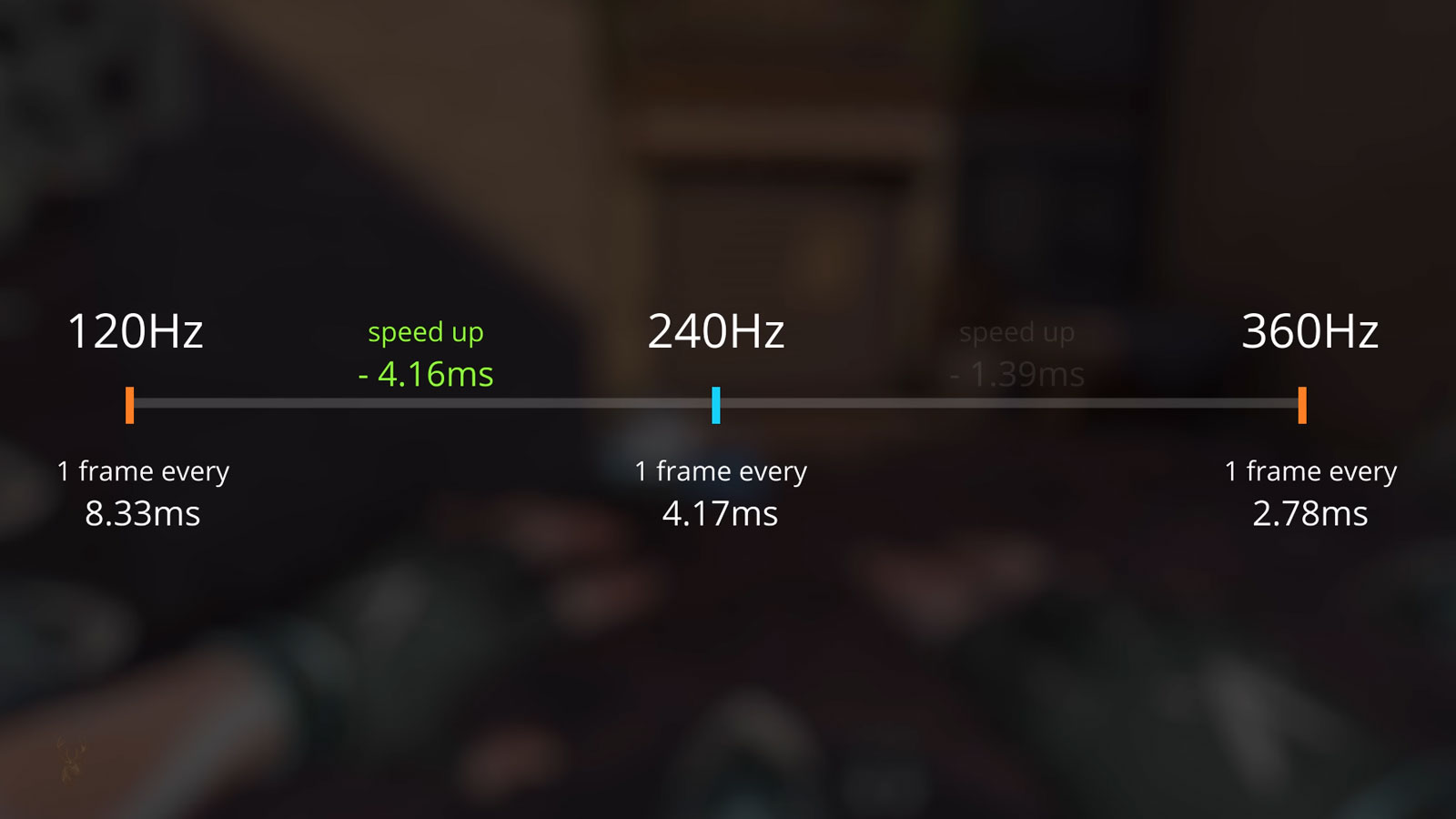
A refresh rate describes how many times the display updates its image every second. It is measured in hertz (Hz), with one hertz representing one complete screen refresh each second. A 60 Hz display refreshes the image sixty times per second, while a 120 Hz display refreshes it one hundred twenty times during the same period.
Higher refresh rates can make motion appear smoother, particularly while moving windows, scrolling through long documents, navigating websites, or playing fast-moving games. However, the refresh rate is only one factor influencing the overall viewing experience.
A higher refresh rate changes how frequently the screen updates the image, not how much detail the display can show.
Resolution, panel technology, brightness, color accuracy, response time, and graphics performance all contribute to how a laptop display ultimately appears. For that reason, comparing refresh rates alone rarely provides a complete evaluation of screen quality.
Refresh Rate Is Different From Resolution
Refresh rate and screen resolution are often confused because both are listed among a laptop’s display specifications. They measure entirely different characteristics.
Resolution describes the number of pixels displayed on the screen, such as 1920 × 1080 or 2560 × 1440. Refresh rate describes how frequently those pixels are updated. A display can have a very high resolution while operating at 60 Hz, or it can have a lower resolution with a much higher refresh rate.
Because these specifications measure different aspects of the display, improving one does not automatically improve the other. A sharper image and smoother motion are separate characteristics that work together to influence the viewing experience.
Everyday Tasks Often Benefit From Smoother Motion
Although higher refresh rates are commonly associated with gaming laptops, they can also improve the appearance of everyday computer use. Scrolling through documents, dragging application windows, navigating large spreadsheets, and moving the mouse pointer may all appear more fluid when the display refreshes more frequently.
The difference is often most noticeable during continuous movement. Static images, photographs, and documents that remain unchanged on the screen generally show little visible difference between refresh rates because the display is presenting the same information without motion.
Smoother motion does not necessarily mean faster computer performance.
A higher refresh rate affects how often the display updates the image, while the computer’s processor, memory, storage, and graphics hardware determine how quickly new information can be generated.
Understanding this distinction helps explain why upgrading to a higher-refresh display may improve visual smoothness without changing how quickly applications open, files load, or calculations are completed.
While refresh rate determines how often a display updates, it does not guarantee that new images are available for every refresh. The graphics processor must also generate frames quickly enough to take advantage of the display’s capabilities. As a result, display refresh rate and graphics performance work together rather than independently.
This relationship explains why installing a high-refresh-rate display does not automatically improve every workload. The benefit depends on both the screen and the computer’s ability to produce new visual information at a similar pace.
Frame Rate and Refresh Rate Are Different Measurements
Although they are often mentioned together, frame rate and refresh rate measure different parts of the display process. Refresh rate describes how frequently the display updates, while frame rate describes how many complete images the graphics hardware generates each second.
If the graphics processor produces fewer frames than the display can refresh, some refresh cycles simply repeat the previous image. Conversely, if the graphics processor generates more frames than the display can present, some of those frames may never be fully shown.
The display shows images, but the graphics processor creates them.
Understanding this distinction helps explain why display specifications and graphics hardware should be considered together rather than evaluated separately.
Response Time Influences Motion Clarity
Refresh rate is only one factor affecting how smooth moving objects appear. Pixel response time also plays an important role because it measures how quickly individual pixels change from one color or brightness level to another.
If the response time is relatively slow, moving objects may appear less sharp even on a display with a high refresh rate. Faster pixel transitions reduce visible smearing and help maintain clearer motion during scrolling, video playback, and gaming.
For this reason, two displays operating at the same refresh rate may still produce noticeably different visual results.
Refresh rate controls how often the image updates, while response time affects how cleanly each update appears.
Both characteristics contribute to overall motion quality, but they measure different aspects of display performance.
Adaptive Refresh Technologies Help Synchronize Motion
Many modern laptops support adaptive refresh technologies that allow the display to adjust its refresh rate to better match the frame rate produced by the graphics processor. Instead of refreshing at a fixed frequency, the display can vary its timing within a supported operating range.
This synchronization reduces visual artifacts that may occur when the display and graphics processor operate at different speeds. The result is often smoother motion during changing workloads, particularly when frame rates fluctuate.
The availability and operating range of adaptive refresh features depend on the laptop model, graphics hardware, display panel, and software support.
Battery Life Can Be Affected by Refresh Rate
Updating the display more frequently generally requires additional power. Although the exact difference varies among laptop designs, operating continuously at a higher refresh rate may reduce battery runtime compared to using a lower refresh setting.
To balance smooth motion with energy efficiency, many laptops automatically reduce the refresh rate during light workloads or while operating on battery power. Others allow users to switch manually between refresh settings depending on how the computer is being used.
This flexibility helps extend battery life during tasks such as document editing, web browsing, and email while still allowing higher refresh rates when smoother motion is desirable.
| Display Characteristic | What It Describes |
|---|---|
| Refresh Rate | How many times the display updates each second |
| Frame Rate | How many complete images the graphics processor generates each second |
| Response Time | How quickly display pixels change between image states |
| Resolution | The total number of pixels displayed on the screen |
| Adaptive Refresh | Allows the display to synchronize with changing frame rates |
Looking at these specifications together provides a more complete understanding of how a laptop display performs than considering the refresh rate alone. Each characteristic contributes to the overall viewing experience in a different way.
A higher refresh rate can improve the visual smoothness of a laptop display, but the most appropriate setting depends on how the computer is used. Office work, video playback, creative applications, and gaming place different demands on the screen and graphics hardware.
For many everyday tasks, a standard refresh rate remains sufficient. Higher settings become more noticeable when the screen contains frequent movement, but they may provide little visible advantage while reading static documents, viewing photographs, or working with applications that change slowly.
Video Content Usually Has a Lower Frame Rate
Movies, television programs, and online videos are commonly recorded at frame rates below the maximum refresh rate of many modern laptop displays. A video may play at 24, 30, or 60 frames per second even when the screen is capable of refreshing at 120 Hz or more.
The display can still present this content correctly by repeating frames across multiple refresh cycles. A higher refresh rate does not create additional original frames that were not included in the video.
Some software may use motion processing or frame-generation techniques, but these methods produce calculated intermediate frames rather than revealing additional information from the original recording.
A display can refresh faster than the video frame rate without changing the amount of original motion information in the recording.
Gaming Benefits Depend on Graphics Performance
Gaming is one of the situations in which a higher refresh rate can provide a clear visual benefit. Fast camera movement, rapidly changing scenes, and quick input responses may appear smoother when the graphics processor produces enough frames to match the display more closely.
However, a laptop that cannot generate high frame rates may not use the full capability of a high-refresh display. A game running at 40 frames per second will not suddenly appear as though it is producing 144 unique frames simply because the panel is set to 144 Hz.
Graphics settings, resolution, processor performance, thermal limits, and the capabilities of the graphics hardware all influence the frame rate available during gameplay.
A high-refresh display is most effective when the laptop can generate frames at a comparable rate.
Reducing graphics quality or resolution may improve frame rate, but the visual tradeoff should be considered before changing settings.
Incorrect Settings Can Limit the Display
A laptop may include a high-refresh panel while operating at a lower setting within the operating system. This can occur after a graphics driver change, system reset, display replacement, or connection to an external monitor.
If the selected refresh rate is lower than expected, movement may appear less smooth even though the hardware supports a higher value. Reviewing the display settings can confirm which refresh rate is currently active.
Only refresh rates officially supported by the panel and graphics system should be selected. Forcing unsupported timing can cause flickering, image loss, instability, or a blank screen.
External Monitors May Use Different Refresh Rates
When a laptop is connected to an external monitor, each display may operate at a different refresh rate. The built-in screen may run at 120 Hz while the external monitor operates at 60 Hz, 75 Hz, 144 Hz, or another supported setting.
The available refresh rate can depend on the monitor, cable, adapter, docking station, graphics hardware, connection type, and selected resolution. A monitor may support a high refresh rate through DisplayPort but only a lower setting through an older HDMI connection.
Adapters and docking stations can also limit bandwidth. A display that works at its full refresh rate when connected directly may fall back to a lower rate when routed through an accessory that does not support the required data capacity.
| Possible Limitation | Effect on Refresh Rate |
|---|---|
| Older HDMI standard | May limit the maximum refresh rate at higher resolutions |
| Low-bandwidth adapter | May reduce the available display modes |
| Docking station limitation | May restrict refresh rate when multiple monitors are connected |
| Unsupported cable | May cause lower settings, instability, or signal loss |
| Graphics hardware limitation | May prevent the selected resolution and refresh rate combination |
Display Replacements Must Match More Than Screen Size
Replacing a damaged laptop display requires more than matching the physical dimensions and resolution. The replacement panel must also be compatible with the laptop’s connector, signal type, mounting design, power requirements, and supported refresh rate.
A screen may fit inside the lid and use the same resolution while still being incompatible with the original display system. Differences in connector pin configuration, embedded display signaling, cable bandwidth, or firmware support can prevent the panel from operating correctly.
Installing a lower-refresh replacement may cause the laptop to lose the smoother display capability it originally provided. Attempting to install a higher-refresh panel does not guarantee that the motherboard, display cable, and firmware can support the upgrade.
Two laptop panels with the same size and resolution are not necessarily interchangeable.
Refresh Rate Problems Can Resemble Display Failure
An incorrect or unstable refresh setting can produce symptoms that resemble a defective screen. The display may flicker, lose its image, show intermittent distortion, or remain blank after the operating system begins loading.
If the image appears normally during startup but fails after the graphics driver loads, the selected display mode or driver configuration may be involved. A physical panel failure remains possible, but the timing of the problem provides an important diagnostic clue.
- Flickering after a refresh-rate change
- A blank screen after the graphics driver loads
- An external monitor working while the internal display does not
- The display returning after entering a lower-resolution mode
- Instability that appears only at the highest available refresh setting
These symptoms should be evaluated alongside the display cable, graphics driver, panel condition, and motherboard video circuitry rather than assuming that the refresh rate is the only cause.
Power and Heat Can Influence Sustained Performance
Operating a high-refresh display and generating high frame rates can increase power consumption and heat production. The graphics processor may work harder during demanding applications, while the display electronics update the image more frequently.
On a laptop with limited cooling capacity, high temperatures may cause the processor or graphics hardware to reduce performance. When this happens, the frame rate may fall even though the display continues operating at its selected refresh rate.
This can create a situation in which the screen remains capable of high-speed updates while the computer is no longer producing enough frames to take full advantage of them.
Refresh rate describes display capability, not guaranteed sustained graphics performance.
Cooling condition, power mode, battery operation, and application workload can all influence how many frames the laptop produces over time.
The Best Setting Depends on the Workload
There is no single refresh rate that is ideal for every laptop user. A person who primarily writes documents and sends email may be satisfied with a standard 60 Hz display, while someone who plays fast-paced games or performs motion-intensive creative work may appreciate a higher rate.
Battery life may also influence the choice. Lowering the refresh rate while traveling can conserve power, while restoring the higher setting when connected to an adapter can provide smoother motion without the same concern about runtime.
| Type of Use | Refresh-Rate Consideration |
|---|---|
| Document and office work | Standard refresh rates are often sufficient |
| Web browsing and scrolling | Higher rates can make movement appear smoother |
| Video playback | The original video frame rate remains an important limit |
| Competitive gaming | Higher rates can help when the system produces enough frames |
| Battery-powered use | A lower setting may extend operating time |
Refresh Rate Is One Part of Display Quality
A laptop display should be evaluated as a complete system rather than by one specification. Refresh rate affects motion smoothness, but brightness, contrast, color reproduction, viewing angles, resolution, response time, and panel uniformity remain equally important for many users.
A well-balanced 60 Hz display may provide better color accuracy and brightness than a poorly designed high-refresh panel. Similarly, a very fast screen may not be the best choice for photography or design work if its color reproduction is limited.
The value of a higher refresh rate therefore depends on the tasks being performed and the quality of the rest of the display system.
Laptop display refresh rates determine how many times the screen updates each second. Higher rates can make scrolling, window movement, games, and other motion appear smoother, but they do not increase resolution or guarantee that the graphics processor can generate frames at the same speed.
Frame rate, response time, adaptive synchronization, battery consumption, cable bandwidth, display compatibility, and graphics performance all influence the final result. A high-refresh screen works best when the rest of the laptop can support it properly.
Choosing the right refresh setting requires balancing visual smoothness, power consumption, hardware capability, and the type of work being performed. Understanding those relationships makes it easier to evaluate laptop specifications and recognize when a display problem may involve configuration rather than a failed screen.











