
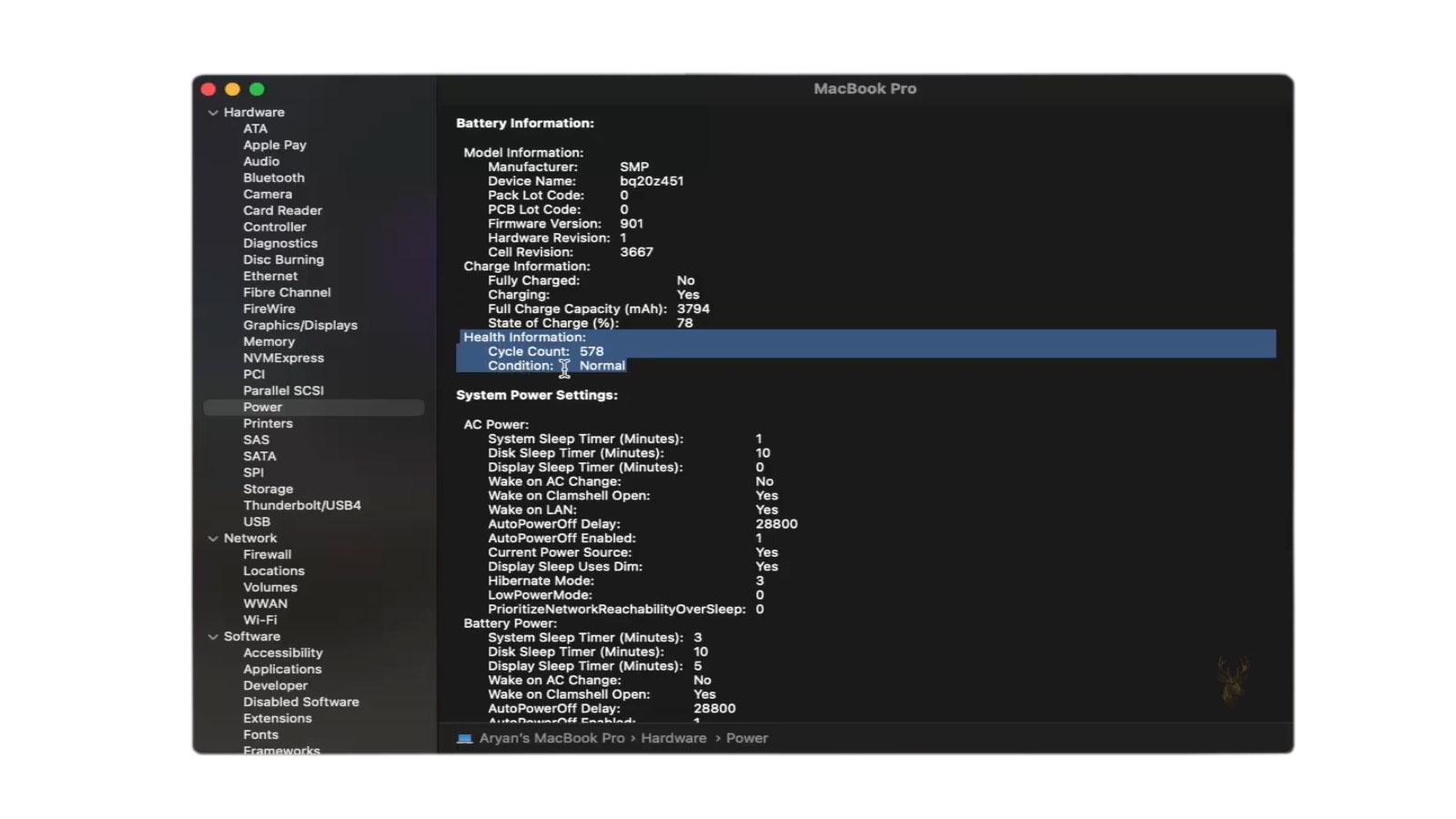
Battery Health Does Not Always Match Battery Runtime
Many Mac users become confused when the Battery Health section reports that the battery is in normal condition even though the computer no longer operates as long as it once did. At first glance, these two observations seem contradictory. If the battery is healthy, why does it need charging much sooner?
The answer is that battery health and battery runtime measure different characteristics. Battery health primarily estimates the overall condition of the battery relative to its expected service life, while runtime depends on many additional factors such as workload, screen brightness, background activity, wireless communication, processor demand, and the battery’s remaining capacity.
A Mac battery may therefore continue reporting a normal health status even though everyday operating time has gradually become shorter. This situation often develops slowly, making it difficult to notice until the difference becomes significant.
Battery health describes the condition of the battery, while runtime reflects how long the computer can actually operate under current conditions.
Understanding this distinction helps explain why replacing a battery is not always the immediate solution when runtime decreases. In some cases, the battery is performing normally while other factors increase the amount of energy the Mac consumes during regular use.
Battery Capacity Changes Gradually Over Time
Every rechargeable lithium-ion battery experiences gradual capacity loss as it ages. Each complete or partial charging cycle contributes a small amount of chemical wear inside the battery cells. This process is expected and occurs regardless of how carefully the computer is used.
As capacity decreases, the battery simply stores less energy than it did when new. Even if the battery remains stable and operates normally, a reduced energy reserve naturally shortens the amount of time the Mac can remain unplugged.
This gradual reduction is often difficult to detect from one week to the next because the changes are small. After many months or years, however, the accumulated loss becomes much easier to notice during everyday work.
Battery management systems continuously monitor charging behavior, temperature, voltage, and other operating characteristics. These measurements help estimate battery condition, but they do not directly predict how long the computer will operate during every possible workload.
Workload Has a Major Effect on Runtime
Two identical MacBooks with identical batteries can produce very different operating times depending on how they are being used. Simple tasks such as reading documents or browsing lightweight websites consume considerably less power than video editing, software development, virtual machines, large photo libraries, or professional creative applications.
Background activity also contributes to overall energy consumption. File synchronization, cloud services, indexing, media processing, software updates, and other scheduled tasks may continue running even when the user is performing only light work.
Battery runtime reflects current power demand.
Higher processor activity, increased graphics usage, brighter displays, and continuous wireless communication can all shorten operating time without indicating that the battery itself has developed a fault.
For this reason, comparing today’s runtime with memories of how long the battery lasted years earlier may not provide an accurate assessment. The software installed, the operating system, and the user’s workload often change significantly over the life of the computer, affecting overall power consumption alongside the natural aging of the battery.
Although battery capacity naturally decreases with age, runtime can change much more quickly when the Mac begins performing additional work in the background. A battery that appears healthy may still discharge faster simply because the computer is consuming more energy than it did previously.
This distinction is important because replacing the battery alone will not resolve every case of reduced operating time. Understanding how macOS manages power, hardware activity, and battery reporting helps explain why a noticeable decrease in runtime does not always indicate battery failure.
Power Consumption Changes Throughout the Day
A Mac rarely consumes the same amount of power continuously. Processor usage, graphics activity, wireless communication, storage access, and display brightness all fluctuate depending on what the computer is doing at any given moment.
Opening a web browser with numerous active tabs, participating in video conferences, editing high-resolution media, or connecting multiple external displays increases energy consumption considerably compared to reading documents or performing light office work.
Because battery runtime reflects current power demand, identical batteries can produce very different operating times under different workloads even though both continue reporting normal battery health.
Battery health remains relatively stable, while power consumption constantly changes according to the work the Mac is performing.
Background Processes May Shorten Operating Time
Not every task running on a Mac is visible to the user. Many background processes continue operating automatically to maintain the system, synchronize information, or prepare files for future use.
Examples include Spotlight indexing, iCloud synchronization, photo analysis, Time Machine preparation, software updates, antivirus scans, cloud storage synchronization, and application maintenance. While each task serves a legitimate purpose, several running together can noticeably increase battery usage.
These activities often occur after installing software, updating macOS, restoring data, or connecting new storage devices. During these periods, battery runtime may temporarily decrease even though the battery itself remains in good condition.
Temporary background activity can noticeably reduce runtime.
Shorter battery life immediately after major updates or large file transfers does not necessarily indicate permanent battery deterioration.
Display Settings Have a Significant Effect
The display is one of the largest consumers of battery power in most portable Macs. Higher brightness settings require additional energy regardless of the overall condition of the battery.
Modern MacBooks automatically adjust screen brightness based on ambient lighting when this feature is enabled. Bright environments naturally require a brighter display, while darker rooms often allow lower brightness levels and longer battery runtime.
External displays also increase power consumption. Driving one or more high-resolution monitors requires additional graphics processing that may shorten operating time compared to using only the built-in display.
Temperature Influences Battery Performance
Battery chemistry operates most efficiently within a moderate temperature range. Very high or very low temperatures can temporarily reduce the amount of usable energy available, even though the battery itself remains healthy.
If the Mac becomes unusually warm while performing demanding work, cooling fans may operate more frequently and processor performance may be adjusted to protect internal components. These normal thermal management processes can influence overall battery runtime.
Cold environments can also reduce available battery performance until the battery temperature returns to a more suitable operating range. This temporary reduction should not be confused with permanent capacity loss.
Cycle Count and Health Status Measure Different Things
Battery health, remaining capacity, and cycle count are related measurements, but they describe different aspects of battery aging. A battery may have accumulated numerous charge cycles while still remaining within the manufacturer’s expected operating condition.
| Battery Measurement | What It Indicates |
|---|---|
| Battery Health | Estimated overall condition of the battery |
| Maximum Capacity | Amount of charge the battery can currently store compared to when it was new |
| Cycle Count | Accumulated charging usage over the battery’s lifetime |
| Current Power Consumption | How quickly the Mac is using available energy |
| Estimated Runtime | Approximate operating time based on present workload |
Looking at only one of these values rarely provides the complete picture. Evaluating them together offers a better understanding of why battery runtime may have changed over time.
Battery measurements become most useful when they are compared with actual behavior over time. A single health status or capacity percentage may not explain a sudden change in runtime, especially when software activity, connected devices, and everyday usage have also changed.
For a more accurate assessment, the Mac should be observed under familiar conditions. Similar applications, display brightness, wireless settings, and workloads make it easier to determine whether the battery is gradually aging or whether another process is consuming more power than expected.
Activity Monitor Can Reveal Unexpected Energy Use
Activity Monitor provides information about applications and processes that are using processor resources and energy. A program that remains active in the background may consume power even when its windows are closed or minimized.
The Energy section can help identify applications with high recent energy use, but the results should be interpreted in context. A video-editing program, virtual machine, or video conference application may legitimately use substantial power while active.
Unexpected energy consumption is more significant when a process remains active after the associated task has finished. Cloud synchronization utilities, browser extensions, menu-bar applications, and stalled background services can sometimes continue using processor time without an obvious visible indication.
An application does not need to appear busy on the screen to consume battery power in the background.
Closing the affected application and observing whether battery discharge slows can provide a useful comparison. Repeated high energy use from the same process may indicate a software problem, incomplete synchronization, or a task that requires further investigation.
Browsers Can Produce Large Differences in Runtime
Web browsing is often considered a light task, but modern websites can include video, animation, advertising, live messaging, location services, and continuously refreshed content. Several active browser tabs can create a much heavier workload than a simple document or static webpage.
Extensions may also affect power consumption. Password managers, content filters, shopping tools, communication services, and other browser additions can remain active across numerous pages.
A browser tab that plays media or repeatedly refreshes in the background may continue using processor and network resources long after the user has switched to another application. Closing unused tabs and comparing discharge behavior can help determine whether browsing activity contributes to the shorter runtime.
Light-looking tasks are not always low-power tasks.
A webpage with active scripts, video, or continuous updates can use more energy than its appearance suggests.
Connected Devices Can Draw Power From the Mac
USB accessories, external storage drives, hubs, adapters, and portable devices may receive electrical power directly from the Mac. Each connected device reduces the amount of battery energy available to operate the computer itself.
External hard drives can consume additional power while spinning, reading, writing, or waiting for activity. Bus-powered hubs may also distribute power to several connected accessories at the same time.
A phone or tablet connected for synchronization may begin charging from the Mac, causing a noticeable decrease in battery runtime. This can happen automatically even when charging the connected device was not the user’s primary intention.
- External hard drives and optical drives
- USB hubs and docking adapters
- Phones, tablets, and portable accessories
- Audio interfaces and capture devices
- External keyboards with lighting or additional ports
Testing the Mac without unnecessary accessories can help separate internal battery performance from energy being supplied to external hardware.
A Sudden Runtime Drop Deserves Closer Attention
Gradual runtime reduction is expected as a battery ages, but a sudden and substantial change may indicate something more specific. Newly installed software, a recent macOS update, continuous synchronization, a failed background process, or an inaccurate battery estimate can all contribute.
Unexpected shutdowns while the battery still reports a significant charge level are more concerning than ordinary gradual discharge. This behavior may indicate that the battery can no longer maintain stable voltage under load, even if the displayed health status has not yet changed.
The percentage may also fall unevenly, remain unchanged for an extended period, or decrease rapidly near the lower end of the charge. These patterns suggest that the reported estimate may no longer correspond closely with the battery’s actual usable energy.
| Observed Behavior | Possible Area to Examine |
|---|---|
| Gradual loss of runtime over several years | Normal capacity reduction from battery aging |
| Sudden runtime loss after an update | Indexing, synchronization, or software activity |
| Battery percentage drops rapidly under load | Reduced usable capacity or voltage instability |
| Mac shuts down before reaching a low percentage | Battery reporting or cell-performance problem |
| Runtime improves when accessories are disconnected | External devices drawing power |
Battery Estimates Need Time to Adjust
The remaining battery percentage and estimated operating time are calculations rather than direct measurements of minutes left. The system adjusts these estimates according to recent power consumption, battery voltage, temperature, and workload.
If the Mac suddenly begins performing a demanding task, the estimated runtime may decrease sharply. When the workload becomes lighter, the estimate may rise again because the computer is consuming energy more slowly.
This changing estimate does not mean the battery is gaining or losing capacity from one moment to the next. It reflects how long the current charge may last if the present level of activity continues.
Software Changes Can Alter Everyday Battery Life
Operating-system updates and newer application versions may change how a Mac uses its hardware. New features, additional background services, security scanning, graphics effects, and cloud integration can increase or redistribute power consumption.
An older Mac may therefore provide less runtime with modern software than it did when originally purchased, even before battery aging is considered. The same hardware may be performing more complex tasks or supporting applications designed for newer systems.
This does not automatically mean the software is defective. It does mean that historical runtime expectations may no longer match the current workload and operating environment.
Replacement Decisions Should Consider Actual Use
A normal health status does not prevent a battery from having noticeably reduced capacity. The decision to replace it should consider whether the remaining runtime is sufficient for the user’s needs, whether discharge is predictable, and whether the Mac operates safely and reliably.
A battery that provides shorter but stable runtime may still be usable for someone who keeps the Mac near a power source. The same battery may be impractical for a person who depends on several hours of uninterrupted portable use.
Replacement becomes more urgent when the battery causes unexpected shutdowns, develops swelling, becomes unusually hot, fails to charge correctly, or produces erratic percentage readings. These symptoms go beyond ordinary capacity loss.
Usability is an important part of battery condition.
A battery can remain technically functional while no longer providing enough runtime for the way the Mac is used.
Consistent Testing Produces Better Comparisons
Battery runtime should be compared under similar conditions whenever possible. Testing with dramatically different applications, brightness levels, accessories, or wireless activity can produce misleading conclusions.
A useful comparison may involve charging the battery fully, disconnecting unnecessary accessories, using a familiar set of applications, and observing how quickly the percentage decreases during a normal work session.
Repeating the observation on more than one occasion helps distinguish a consistent pattern from temporary background activity. A single short session immediately after an update or large synchronization task may not represent normal battery performance.
A Mac battery can report normal health while delivering less operating time because health status is only one part of battery performance. Remaining capacity, system workload, screen brightness, temperature, background processes, connected devices, and software changes all influence how quickly the stored energy is used.
Gradual runtime reduction is a normal part of battery aging, but sudden changes, unexpected shutdowns, irregular percentage readings, excessive heat, or swelling deserve closer inspection. These behaviors may indicate a problem that is not fully represented by the basic health message.
Evaluating actual runtime alongside capacity, cycle count, energy use, and everyday operating conditions provides a more complete picture. A normal status should be treated as useful information, not as a guarantee that the battery will continue delivering the same portable operating time it provided when new.











