
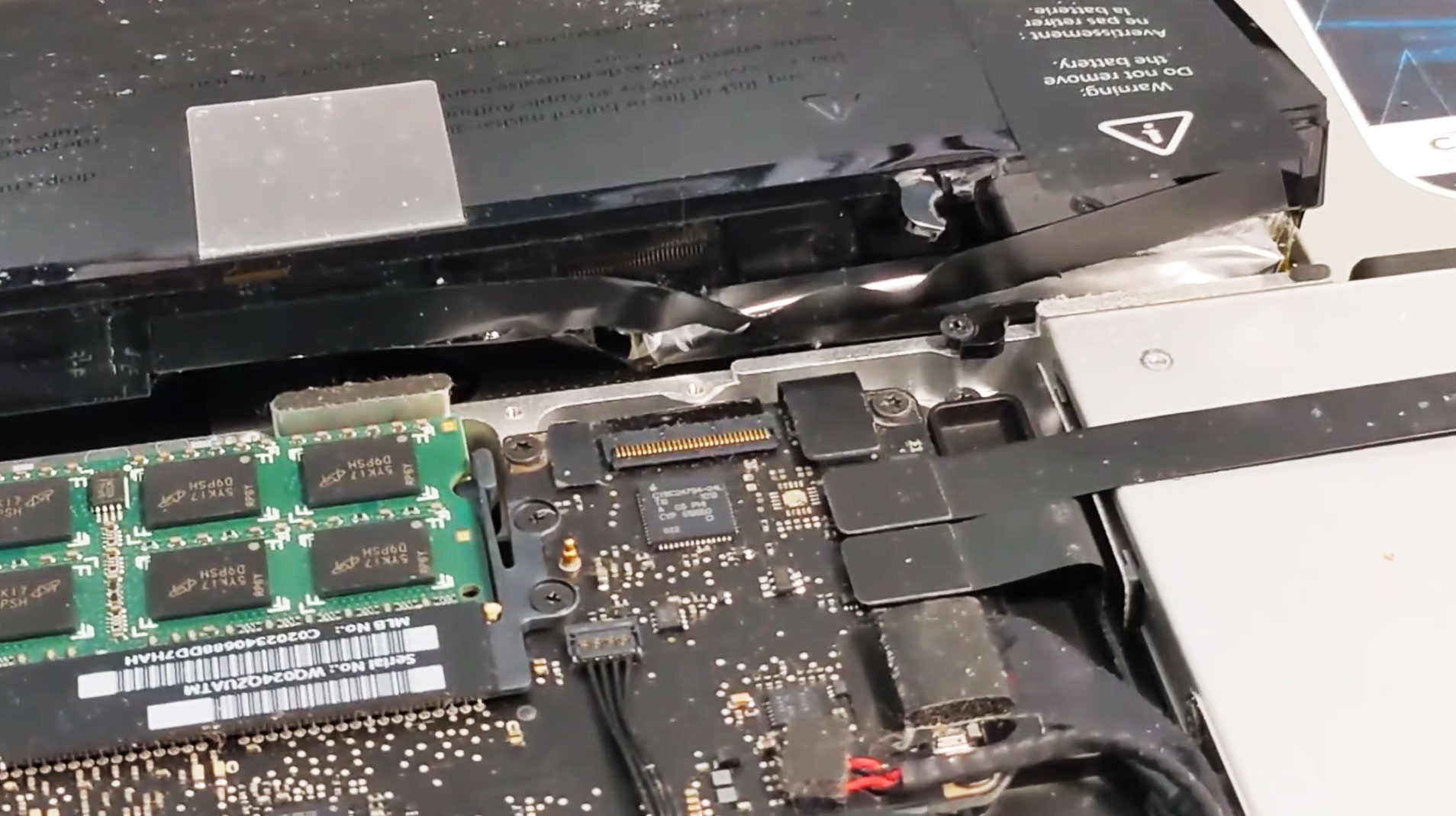
A Swollen Battery Can Affect Much More Than Battery Life
Most laptop battery problems are associated with reduced runtime or difficulty holding a charge. While those symptoms are common, they are not always the most serious. In some cases, the battery begins expanding internally, placing pressure on nearby components long before it completely fails electrically.
Battery swelling occurs inside the sealed battery pack and is usually caused by chemical changes within one or more lithium-ion cells. Instead of remaining flat, the affected cells gradually increase in thickness. Because the battery is confined inside the laptop chassis, that expansion pushes against whatever surrounds it, including the bottom cover, keyboard, touchpad, display, and internal frame.
The process is often gradual. Many users continue operating the laptop because the computer still powers on and charges normally. They may not realize that mechanical damage is developing inside the computer even though the battery appears to be functioning.
A swollen battery is primarily a mechanical hazard before it becomes a complete electrical failure.
Unlike a battery that simply loses capacity, a swollen battery can physically deform the laptop. Components that were designed to fit together with precise spacing may begin separating as pressure increases. By the time the swelling becomes obvious from the outside, several internal parts may already be under continuous stress.
Why Lithium-Ion Batteries Expand
Lithium-ion batteries store energy through controlled chemical reactions. As the battery ages, experiences repeated charging cycles, operates at elevated temperatures, or develops internal damage, those reactions may become less stable. In some situations, gases are produced inside the sealed cells, causing them to expand.
Because the battery pack is sealed, those gases cannot normally escape. Instead, the individual cells slowly increase in size. The expansion may begin in a single cell or affect several cells within the battery pack at different rates.
Normal battery aging does not guarantee swelling, and not every old battery becomes enlarged. Likewise, a relatively new battery can swell if it has experienced excessive heat, manufacturing defects, physical damage, or unfavorable charging conditions. The appearance of swelling depends on several factors rather than age alone.
The exact chemical processes vary between battery designs, but the visible result is similar. The battery occupies more space than the laptop was designed to accommodate, creating pressure throughout the surrounding structure.
Early Warning Signs Are Often Mechanical
Many of the first symptoms are unrelated to charging performance. The user may notice that the touchpad becomes difficult to click, the keyboard develops a slight bulge, or the bottom cover no longer sits perfectly flat against the chassis. These changes occur because the expanding battery is pressing upward or outward against nearby parts.
Some laptops begin rocking slightly on a flat surface because the bottom panel has bowed outward. Others develop small gaps where the palm rest, bottom cover, or display hinges meet the rest of the enclosure. Since these changes often develop gradually, they can be mistaken for ordinary wear.
The battery itself is frequently hidden from view.
A user may never see the swollen cells directly because the battery is installed beneath the keyboard or lower cover. Instead, the surrounding parts provide the first visible clues that internal pressure is increasing.
Electrical symptoms may eventually appear as well. Reduced battery life, charging inconsistencies, unexpected shutdowns, or warning messages can accompany swelling, but they are not required. A battery can continue charging while simultaneously placing harmful pressure on the rest of the laptop.
As swelling continues, the expanding battery applies constant pressure to parts that were never designed to support it. Unlike a sudden impact, this force remains present every time the laptop is used, transported, or closed. Even small amounts of expansion can gradually alter the alignment of nearby components.
The location of the battery determines which areas are affected first. In many modern laptops, the battery occupies a large portion of the lower chassis beneath the palm rest and touchpad. Expansion in this area can influence several unrelated components even though they remain electrically functional.
Pressure Can Damage Internal Components
The battery does not need to leak or overheat to create problems. Simply expanding beyond its normal dimensions is enough to place mechanical stress on the surrounding structure. Plastic mounting points, metal brackets, ribbon cables, and circuit boards may all experience forces that were never part of the original design.
The touchpad is one of the first components commonly affected because it often sits directly above the battery. As the battery pushes upward, the touchpad may become difficult to press, remain partially clicked, or stop responding consistently. These symptoms can appear even though the touchpad electronics remain undamaged.
The keyboard can also develop visible changes. Keys may begin feeling uneven, the center of the keyboard may rise slightly, or the palm rest may no longer sit perfectly level. In some laptops, the deformation is subtle enough that it is noticed only when compared with a flat surface.
A swollen battery often damages surrounding parts by pushing against them rather than by failing electrically.
Internal ribbon cables deserve particular attention. Display cables, touchpad cables, keyboard connectors, and other flexible wiring may become pinched or stretched as the chassis changes shape. While these cables are designed to tolerate normal movement, continuous pressure from an expanding battery can shorten their service life.
The Laptop Chassis May Begin Changing Shape
Many laptop housings are manufactured with tight tolerances. Small alignment changes become noticeable because the different sections of the chassis are designed to fit closely together. As the battery expands, gaps may appear around the bottom cover, palm rest, or display hinges.
Users sometimes notice that the screws no longer seem to fit properly or that one corner of the bottom cover refuses to close completely. Tightening the screws further does not solve the problem because the battery, not the fasteners, is forcing the enclosure apart.
In aluminum laptops, the metal housing may resist deformation longer than plastic designs, but the pressure is simply transferred elsewhere. Instead of flexing immediately, the force may concentrate around mounting points or adhesive joints inside the display assembly or palm rest.
A bent chassis should never be forced back into shape.
If swelling is causing the deformation, pressing the cover closed or tightening additional screws only increases the pressure acting on the battery and surrounding components.
Heat Can Accelerate Battery Deterioration
Heat does not automatically cause a battery to swell, but prolonged exposure to elevated temperatures can accelerate the chemical aging that contributes to battery deterioration. Laptops used continuously under heavy workloads, operated in warm environments, or frequently exposed to restricted airflow may experience faster battery aging than identical systems operating under cooler conditions.
High internal temperatures also affect the surrounding components. When the cooling system must remove heat from the processor, graphics hardware, storage devices, and battery simultaneously, overall thermal management becomes more demanding. A deteriorating battery may therefore become part of a larger pattern of age-related changes inside the laptop.
Charging habits alone do not determine whether swelling will occur. Modern charging circuits carefully manage battery voltage and current under normal conditions. While long-term usage patterns influence battery lifespan, swelling is generally associated with a combination of chemical aging, operating conditions, manufacturing variation, and accumulated charge cycles rather than one isolated cause.
Inspection Should Focus on Both Mechanical and Electrical Symptoms
Because swelling often begins gradually, diagnosis should include more than checking battery health software or remaining capacity. The physical condition of the laptop provides equally important information. Bulging surfaces, uneven panel gaps, stiff touchpads, distorted keyboards, and separated covers may reveal problems before electrical testing identifies a fault.
| Observed Symptom | Possible Indication |
|---|---|
| Touchpad becomes difficult to click | Battery pressing upward beneath the touchpad |
| Bottom cover no longer sits flat | Expansion of one or more battery cells |
| Keyboard develops a raised center | Pressure from below the keyboard assembly |
| Small gaps appear around the chassis | Internal components being forced apart |
| Laptop rocks on a flat surface | Bottom panel deformation caused by battery expansion |
Considering both the physical condition of the laptop and the battery’s electrical performance provides a more complete picture than evaluating either one alone. In many cases, the earliest warning signs of battery swelling are visible long before the battery completely loses its ability to power the computer.
Once battery swelling is suspected, continued pressure on the chassis becomes an important concern. The computer may still appear usable, but normal activities such as typing, closing the lid, carrying the laptop, or placing it inside a tight bag can increase stress on the expanded battery and the surrounding structure.
The amount of swelling visible from the outside does not always reflect the full condition of the battery. A small gap in the bottom cover may be caused by a larger internal expansion that is being restricted by the frame. Conversely, a flexible plastic cover may bow outward early, making the problem easier to recognize before other components are damaged.
A Swollen Battery Should Not Be Compressed
Pressing down on a raised keyboard, forcing a touchpad back into position, or tightening the bottom cover against an expanded battery does not reverse the swelling. These actions increase pressure on cells that have already changed shape and may also damage nearby components.
A swollen battery should not be punctured, folded, bent, or squeezed. The outer pouch or casing is part of the battery’s containment system. Damaging it can expose internal materials, create a short circuit, or allow heat to build rapidly.
Swelling cannot be repaired by flattening the battery or forcing the laptop enclosure closed.
Trying to release pressure by making a hole in the battery is especially dangerous. The gas and internal materials are contained within a chemically active device, and opening the pack does not return it to a safe or usable condition.
Removal Requires Careful Handling
Battery removal procedures differ considerably between laptop models. Some batteries are secured with screws and disconnect from the motherboard through a removable cable. Others are attached with strong adhesive and occupy most of the lower chassis.
Adhesive-mounted batteries can be more difficult to remove after swelling because the expanded cells may press tightly against the palm rest or bottom cover. Metal tools used carelessly can puncture the battery, while excessive bending can damage the cell pouch.
Before removal begins, the laptop should be disconnected from external power. The internal battery connector must then be separated without pulling on nearby wires or damaging the motherboard socket. In tightly packed systems, other components may need to be removed first to create a safe working area.
A battery that is difficult to remove should not be forced.
Hidden screws, adhesive strips, brackets, or cables may still be securing it. Identifying the attachment method is safer than applying increasing pressure to an already expanded cell.
The Surrounding Hardware Should Be Inspected
Replacing the battery addresses the source of the pressure, but it does not automatically correct damage that has already occurred. The touchpad, keyboard, bottom cover, palm rest, mounting posts, cables, and motherboard connectors should be inspected before the laptop is reassembled.
A touchpad that remains difficult to click after the battery is removed may have been bent or displaced. A bowed bottom cover may not return fully to its original shape, and plastic screw mounts may have cracked while resisting the expanding battery.
Internal cables should be checked for pinching, creasing, or displaced routing. Even when a cable continues working, visible damage can indicate that it was trapped between the battery and another part of the chassis.
| Area to Inspect | Possible Swelling-Related Damage |
|---|---|
| Touchpad assembly | Bending, restricted movement, or damaged click mechanism |
| Keyboard and palm rest | Raised surfaces, distortion, or separated clips |
| Bottom cover | Warping, broken tabs, or damaged screw mounts |
| Ribbon cables | Pinching, stretching, or sharp creases |
| Internal frame | Bent brackets or stressed mounting points |
The laptop should sit evenly on a flat surface after repair. Panel gaps should be consistent, the touchpad should move normally, and the bottom cover should close without being forced into position.
Battery Identification Matters During Replacement
Replacement batteries must match the electrical and physical requirements of the laptop. Similar-looking packs may use different voltages, capacities, connector locations, mounting points, or communication circuits.
The laptop model alone may not always identify the correct part because manufacturers sometimes use several battery versions within the same product family. The original battery part number, connector design, screw pattern, and physical dimensions provide more reliable comparison points.
A battery that is slightly too thick or shaped differently can create pressure even when it is not defective. The replacement should fit naturally inside the designated compartment without bending, forcing the cover, or interfering with cables.
Testing After Replacement
After a replacement battery is installed, the laptop should be tested on both battery power and external power. Charging behavior, reported capacity, temperature, and discharge stability should be observed rather than assuming that successful startup confirms a complete repair.
The keyboard and touchpad should be checked across their full surfaces. Any area that remains raised, difficult to press, or misaligned may indicate damage that was not resolved by removing the swollen battery.
The enclosure should also be examined while the laptop is warm and under normal operating load. A properly installed replacement battery should remain stable without causing new gaps, movement, or pressure against the chassis.
Safe Disposal Is Part of the Repair
A swollen lithium-ion battery should not be placed in ordinary household trash. It remains an energy-storage device even when it no longer powers the laptop reliably, and physical damage can increase the risk associated with transport and disposal.
The removed battery should be kept away from metal objects, excessive heat, moisture, and areas where it could be crushed or punctured. Disposal should follow the requirements of an appropriate battery recycling or hazardous electronic waste facility.
Shipping a swollen battery may also be restricted. A battery that has expanded or suffered physical damage should not be mailed or transported through ordinary shipping methods without confirming the applicable safety rules.
Battery swelling is different from ordinary capacity loss because it creates both electrical and mechanical concerns. The battery may continue charging and powering the laptop while gradually pushing the touchpad, keyboard, covers, cables, and mounting points out of alignment.
Raised surfaces, difficult touchpad movement, separated chassis panels, and a laptop that no longer sits flat should not be ignored. These symptoms may be the first visible evidence that the battery has expanded inside the enclosure.
Careful removal, correct replacement-part identification, inspection of surrounding hardware, and proper disposal are all part of resolving the problem. Addressing the swelling before the chassis becomes severely distorted can reduce the likelihood of additional damage and help restore the laptop to safe, dependable operation.











