
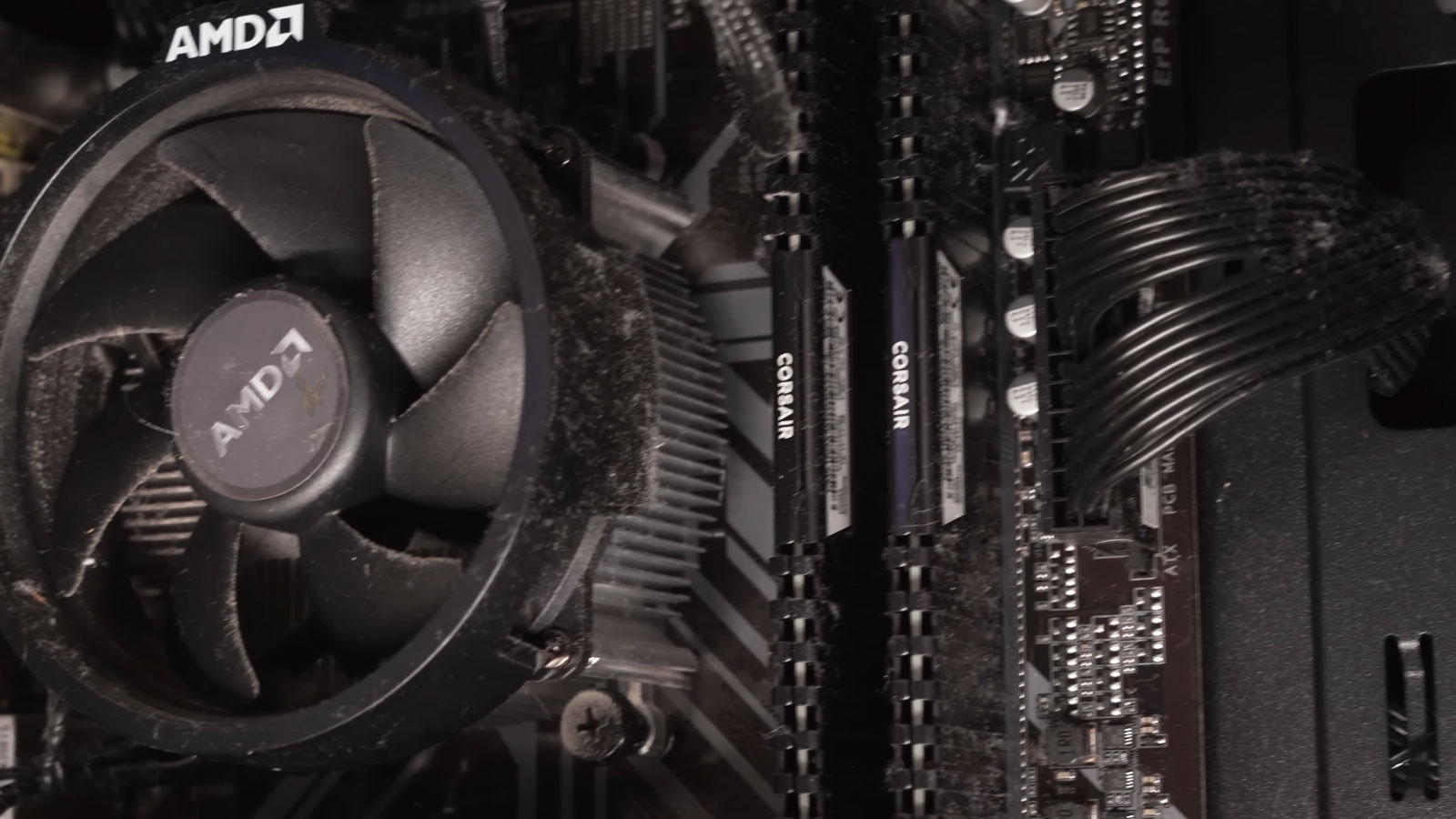
Cooling Fans Often Give Warning Before They Stop Working
A computer cooling fan does not always fail suddenly. In many cases, it begins changing its behavior long before it stops spinning completely. The sound may become rougher, the fan may hesitate during startup, or the computer may begin running hotter even though the cooling system still appears to be operating.
These early changes are easy to ignore because the computer may continue working normally. A noisy fan can spin for months, and an intermittently slow fan may recover after the computer warms up. However, continued operation does not mean the fan is healthy. It may simply mean that the cooling system has not yet lost enough performance to trigger an obvious failure.
Cooling fans are mechanical components. Their blades rotate around a bearing or sleeve, and that moving assembly experiences friction throughout the life of the computer. Dust, heat, vibration, age, and long operating hours gradually affect how smoothly the fan turns. Once wear begins, the fan may no longer maintain the speed or stability it had when new.
A fan can still be spinning and no longer be cooling the computer effectively.
This is an important distinction during diagnosis. Seeing movement through a vent or hearing airflow does not confirm that the fan is reaching the correct speed. A worn fan may rotate slowly, surge between speeds, or stop briefly before starting again. The system may compensate by increasing other fan speeds, reducing processor performance, or allowing temperatures to rise until a protective shutdown occurs.
The Sound Usually Changes First
A healthy computer fan normally produces a steady airflow sound. The volume may rise and fall as the system temperature changes, but the tone should remain relatively smooth. Mechanical wear often introduces a new sound that is separate from normal airflow.
A failing bearing may produce grinding, scraping, rattling, buzzing, or a low growling noise. Some fans make a brief rough sound only when the computer is first turned on. Once the bearing warms and begins moving more freely, the noise may fade. That temporary improvement can make the problem seem minor, even though the startup noise is often an early sign of wear.
Other fans become louder at particular speeds. The sound may appear only during gaming, video rendering, large file processing, or another task that causes the computer to increase cooling. At lower speed, the fan may sound normal. As it accelerates, looseness inside the bearing can allow the rotating assembly to vibrate.
Not every unusual sound comes from the fan itself. A cable touching the blades can create a rapid clicking noise, and a loose panel or dust filter may vibrate as airflow increases. Dust buildup can also disturb airflow and make the cooling system sound harsher than usual. The source should be identified before the fan is replaced.
A common pattern begins with a short rattle during startup.
Over time, the rattle lasts longer. The fan may then begin making noise whenever its speed changes, followed by periods when it spins slowly or fails to start without assistance. What began as a brief sound can eventually become a cooling failure.
Noise should therefore be considered together with temperature and fan behavior. A fan that suddenly sounds different deserves attention even when the computer has not yet begun overheating.
Slow Starts and Uneven Rotation
Some worn fans do not begin spinning immediately when power is applied. They may twitch, rotate a few times, stop, and then start after several seconds. Others remain still until the system becomes warm enough to request a higher fan speed. By that point, the stronger electrical signal may be enough to overcome the resistance inside the worn bearing.
This behavior is especially concerning because it can be inconsistent. The fan may start normally ten times and fail on the next attempt. A technician may inspect the computer while it is working and miss the fault entirely unless the system is tested through multiple cold starts.
Uneven rotation can also be visible. The fan may appear to wobble, change speed without a corresponding change in workload, or repeatedly accelerate and slow down. In severe cases, the blades may stop briefly and then resume. These symptoms suggest that the fan is struggling mechanically or is no longer receiving stable control from its circuit.
The distinction between a worn fan and an electrical control problem matters. A healthy fan connected to a damaged motherboard header may behave unpredictably even though the fan itself is not defective. Likewise, a worn fan may continue acting abnormally when connected to a known-good power source. Proper testing separates the component from the circuit controlling it.
When the fan is difficult to reach, as in many laptops and all-in-one computers, the first visible symptom may be rising temperature rather than obvious fan movement. Reduced airflow can develop gradually, and the user may notice only that the system feels hotter or becomes louder during ordinary tasks.
By the time a cooling fan stops completely, earlier warning signs may have been present for weeks or months. Recognizing those signs makes it possible to replace the fan before the computer begins shutting down, reducing performance, or exposing nearby components to prolonged heat.
A fan that is wearing out does not always produce a dramatic failure. Sometimes the change is more subtle. The computer may begin getting warm during tasks that previously caused little heat, or the fan may remain at a higher speed long after the workload has ended. These changes can develop because the fan is moving less air even though it is still receiving the same speed command.
Airflow depends on more than whether the blades are turning. The fan must reach the expected speed, maintain that speed, and move air through the intended path. A worn bearing can reduce rotation, while damaged blades or accumulated debris can disturb the airflow. The result may be a cooling system that looks active but performs poorly.
Higher Temperatures During Normal Work
One of the most useful warning signs is a change in temperature under the same type of workload. A computer that once remained cool during web browsing, office work, or streaming may begin feeling noticeably warmer around the exhaust area or palm rest. The fan may also start running more often during light use.
This does not automatically mean the fan is failing. Dust buildup, blocked vents, dried thermal compound, a loose heatsink, background activity, or a change in room temperature can produce similar symptoms. However, when rising temperatures appear together with fan noise, hesitation, or irregular speed, mechanical wear becomes more likely.
The pattern matters. A processor that becomes hotter only during demanding work may still be operating normally. A system that reaches unusually high temperatures while nearly idle deserves closer attention. If the fan cannot maintain enough airflow at lower speeds, heat may accumulate even before the computer is placed under a heavy load.
Modern computers often respond by reducing processor or graphics performance. The user may notice slower application response, lower gaming performance, or brief pauses during demanding tasks. These symptoms can appear before the system becomes hot enough to shut down.
Thermal throttling can hide a weak cooling fan by lowering performance before the computer reaches a dangerous temperature.
This protective behavior is useful, but it can make the problem less obvious. Instead of seeing an immediate warning, the user may simply believe the computer has become slower with age.
Fans That Run at Full Speed More Often
A worn fan may cause the cooling system to compensate by requesting higher speed for longer periods. The computer may sound loud during ordinary activity and remain loud even after programs are closed. In a system with several fans, the healthy fans may increase their speed because another fan is no longer moving enough air.
This behavior can be confusing in desktop computers. The loudest fan is not always the failed one. A case fan, graphics card fan, or power supply fan may be reacting to excess heat created elsewhere. Replacing the loudest component without identifying the airflow problem can leave the original fault unresolved.
Laptops can show a similar pattern. A single small fan may run near maximum speed because dust or bearing wear has reduced its efficiency. The sound becomes louder, but the volume does not necessarily mean the fan is moving more air. A worn fan can produce more noise while delivering less cooling.
Noise and airflow should be judged separately.
A fan can sound aggressive because of vibration while producing weak airflow at the exhaust. A quiet fan can also be defective if it is turning too slowly or failing to start.
Feeling the exhaust can provide a basic clue, but it is not a complete test. Airflow strength varies between computer designs, and some systems direct heat through narrow vents that naturally feel weak. Temperature readings and fan-speed information provide better context when they are available.
Intermittent Fan Errors During Startup
Some computers check fan operation when they start. If the expected speed is not detected, the system may display a fan error, produce a warning sound, or pause before continuing. The warning may disappear after a restart if the fan begins spinning normally on the second attempt.
An intermittent startup warning should not be dismissed simply because the computer eventually boots. It may indicate that the fan is taking too long to reach its minimum speed. Cold bearings can be more resistant after the computer has been off for several hours, making the first startup of the day more likely to reveal the problem.
Dust can also cause a delayed start when it collects around the fan hub or blades. Cleaning may improve the behavior if contamination is the main cause. If the fan continues hesitating after the cooling system has been properly cleaned, replacement is usually more appropriate than relying on repeated restarts.
Some systems do not monitor every fan. A case fan may fail without producing a warning, while the processor fan is closely monitored. Graphics card and power supply fans may also use separate control systems. The absence of an error message therefore does not prove that every fan is functioning correctly.
Physical Inspection Can Reveal Mechanical Wear
When the computer can be opened safely, a visual inspection may reveal wobbling, blade damage, dust packed around the hub, or a cable interfering with rotation. A fan should remain centered while spinning. Side-to-side movement can indicate wear in the bearing or shaft.
The fan should never be forced to spin at excessive speed with compressed air. High rotation can damage the bearing or generate electrical voltage through the motor. The blades should be held in place during cleaning, and the correct cleaning method should be used for the design of the computer.
Manually turning an unplugged fan can provide a limited comparison. A healthy fan generally rotates smoothly without grinding or catching. A worn fan may feel rough, resist movement, or stop almost immediately. This check is not conclusive by itself, but it can support other symptoms.
| Observed Behavior | Possible Meaning |
|---|---|
| Brief rattle during a cold startup | Early bearing wear or looseness |
| Fan hesitates before spinning | Mechanical resistance or weak motor startup |
| High temperature with weak exhaust airflow | Reduced fan speed, blockage, or poor heatsink contact |
| Fan repeatedly speeds up and slows down | Unstable control, temperature fluctuation, or mechanical wear |
| Visible wobble while rotating | Bearing, shaft, or blade damage |
Individual symptoms can have several causes, which is why a fan should not be condemned based on sound alone. A careful diagnosis compares noise, airflow, temperature, fan speed, startup behavior, and the condition of the surrounding cooling system.
When several warning signs appear together, continued operation becomes less predictable. The fan may work during one session and fail during the next, especially after a cold start or during a demanding workload. Replacing it before complete failure is usually safer than waiting for the computer to overheat.
Once a cooling fan begins showing several signs of wear, the question becomes whether the computer can continue operating safely. The answer depends on which fan is affected, how much heat the system produces, and whether another fan can temporarily compensate for the lost airflow.
A lightly used desktop may continue running for some time with a weak case fan, especially when other fans are still moving air through the enclosure. A laptop with only one cooling fan has far less margin. If that fan slows down or stops, heat can build rapidly around the processor, graphics hardware, voltage-regulation components, and storage devices.
Temporary improvement should not be mistaken for recovery. A worn fan may begin spinning normally after the computer warms up, after the case is moved, or after the system is restarted. Those changes may reduce friction for a while, but they do not repair the bearing or motor.
Cleaning Helps Only When Contamination Is the Main Cause
Dust can create many of the same symptoms as fan wear. It can restrict airflow, add imbalance to the blades, collect around the hub, and force the cooling system to run at higher speed. Proper cleaning may restore normal temperatures and reduce noise when the fan itself is still mechanically sound.
Cleaning does not repair a rough bearing, a loose shaft, damaged blades, or a motor that struggles to start. If the fan continues rattling, wobbling, hesitating, or changing speed unpredictably after the dust has been removed, replacement is usually the more dependable solution.
Lubricating a fan is sometimes discussed as a temporary repair. Some older fan designs can be opened and serviced, but many modern computer fans are sealed. Even when lubrication reduces the noise, it may not correct internal wear or restore the original airflow. The result can be temporary silence without reliable long-term cooling.
A quieter fan is not necessarily a healthy fan if its speed and airflow remain unstable.
Replacement becomes more urgent when the fan is part of a processor heatsink, graphics card, power supply, or compact laptop cooling assembly. These components operate within a limited thermal range, and a small reduction in airflow can have a greater effect than it would in a large, well-ventilated desktop case.
The Correct Replacement Must Match More Than Its Physical Size
Computer fans are often described by their dimensions, but size alone does not determine compatibility. Two fans may fit the same opening and still differ in voltage, connector type, wiring order, speed range, airflow direction, mounting thickness, and control method.
Desktop case fans commonly use three-pin or four-pin connectors. A three-pin fan normally reports its speed and is controlled by voltage, while a four-pin design can use pulse-width modulation for more precise speed control. Some systems can operate either type, but the available control behavior may be different.
Laptop fans are often more specialized. The housing, cable length, connector, mounting points, and airflow duct may be designed for one particular model or motherboard revision. A fan that appears almost identical may not align correctly or may use a different wiring arrangement.
Airflow direction also matters. A replacement installed backward can disrupt the designed cooling path, recirculate hot air, or work against nearby fans. The direction is often marked by arrows on the fan frame, but those markings may be difficult to see once the fan is installed.
The label on the original fan can provide useful information.
Part numbers, voltage ratings, current ratings, connector details, and manufacturer codes can help identify a suitable replacement. The computer model alone may not be enough when the same system was produced with more than one cooling assembly.
A fan with significantly lower airflow may fit and spin but still leave the computer running too hot. A much faster fan may create unnecessary noise, draw more current, or operate poorly with the original speed-control circuit. Matching the original specifications is safer than choosing a replacement based only on appearance.
Testing After Replacement Confirms the Full Cooling System
Installing a new fan does not complete the diagnosis by itself. The computer should be tested from a cold start, allowed to idle, and then placed under a controlled workload. This confirms that the fan starts reliably, changes speed correctly, and keeps temperatures within an appropriate range.
The exhaust path should also be checked. A new fan cannot perform properly if the heatsink is packed with dust, the vent is blocked, or the thermal interface between the processor and heatsink has failed. In laptops, debris can form a dense layer between the fan and the cooling fins, leaving the blades clean while the airflow path remains almost completely obstructed.
Mounting matters as well. Loose screws, missing vibration pads, warped fan housings, or cables resting against the frame can create noise that resembles another defective fan. A replacement should sit securely without twisting the housing or interfering with nearby components.
| Check After Replacement | What It Confirms |
|---|---|
| Cold-start operation | The fan begins spinning without hesitation. |
| Idle temperature | The cooling system is removing normal background heat. |
| Temperature under load | The fan and heatsink can handle sustained demand. |
| Speed changes | The control circuit can regulate the replacement properly. |
| Noise and vibration | The fan is mounted correctly and rotating smoothly. |
If temperatures remain high after the fan has been replaced, the original fan may not have been the only problem. Poor heatsink contact, dried thermal compound, blocked cooling fins, incorrect fan control, or excessive heat from another component may still need attention.
This is why fan replacement should be treated as part of a cooling-system repair rather than as an isolated component swap. The fan creates airflow, but the heatsink, vents, thermal materials, and control circuitry all determine whether that airflow can remove heat effectively.
Early Replacement Reduces the Risk of Heat-Related Problems
Waiting for a fan to stop completely may seem practical when the computer still works, but the period before total failure can expose the system to repeated thermal stress. Higher temperatures can shorten component life, reduce performance, and cause unexpected shutdowns during demanding work.
Heat-related problems are not always immediately visible. A computer may continue starting and running while nearby components spend long periods above their normal operating temperature. The user may notice only increased noise or slower performance until the cooling problem becomes severe.
Replacing a fan after the first brief rattle may be unnecessary if the cause is only a loose cable or dust buildup. Replacing a fan that repeatedly hesitates, wobbles, produces bearing noise, or fails to maintain airflow is different. Those symptoms indicate that the mechanical component is becoming unreliable.
Computer fans usually provide some warning before complete failure. Changes in sound, slow starts, uneven rotation, weak airflow, rising temperatures, and intermittent startup errors can all indicate that the fan is approaching the end of its service life.
No single symptom proves that the fan is defective. Dust, blocked vents, loose cables, control-circuit problems, and poor heatsink contact can create similar behavior. A reliable diagnosis considers the entire cooling system rather than replacing the loudest component automatically.
When mechanical wear is confirmed, replacement before total failure is usually the safest approach. A correctly matched fan, a clean airflow path, and proper temperature testing can restore dependable cooling and prevent a small mechanical problem from becoming a larger hardware issue.











