
Finding Files More Efficiently with Windows Search Filters
As computers store more documents, photographs, spreadsheets, presentations, and other files, simply remembering the folder where something was saved becomes increasingly difficult. Even users who organize their files carefully may struggle to locate a document created months earlier or an image downloaded several weeks ago. Windows includes search filters that help narrow results without requiring every folder to be opened individually.
Many people use File Explorer’s search box by typing part of a filename and hoping the correct result appears. While that approach often works, it becomes much less effective when hundreds or thousands of files share similar names. Search filters provide another way to locate information by describing characteristics of the file instead of relying solely on its name.
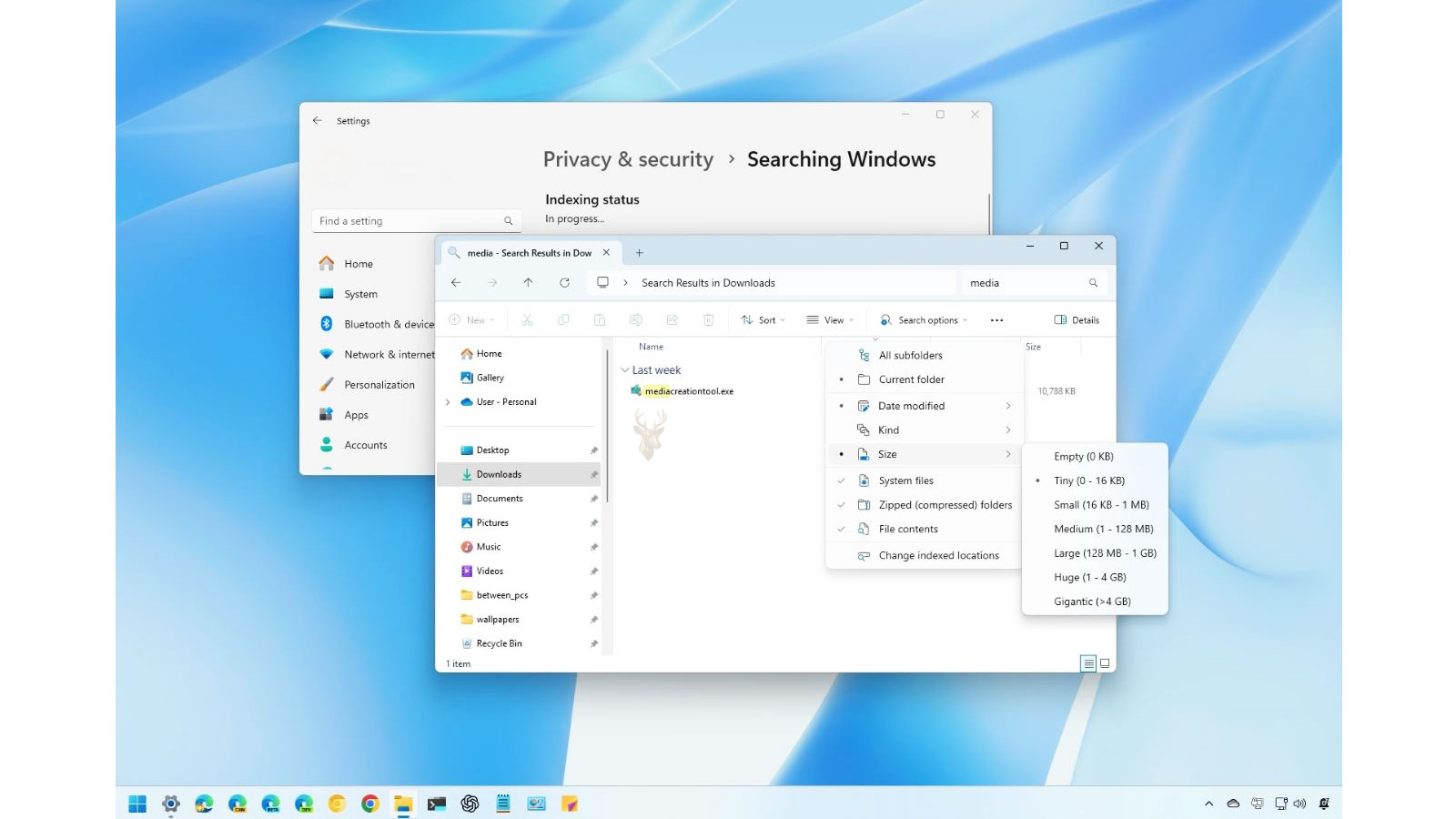
These filters can identify documents by their file type, the date they were modified, their approximate size, or other stored properties. Instead of asking Windows to search for a single word, users can progressively reduce the number of matching results until only a handful remain.
A good search filter does not make Windows search faster it makes the results far more precise.
That distinction is important because modern computers often search thousands of files in only a few seconds. The challenge is usually not how quickly Windows searches, but how efficiently it separates the correct file from dozens of similar matches.
Searching by More Than Just the File Name
Every file stored on a Windows computer contains information beyond its visible name. Windows tracks numerous properties that describe the file, allowing searches to focus on characteristics that may be easier to remember than the filename itself.
For example, someone might remember creating a spreadsheet sometime last month but have no recollection of what it was called. Another person may know that a photograph was taken during a vacation but cannot remember which folder it was eventually copied into. In these situations, filtering by dates, file types, or other properties can dramatically reduce the search results.
Windows evaluates these properties while building the list of matching files, allowing multiple conditions to work together. Rather than displaying every document containing a certain word, the search can be limited to files that also meet additional criteria.
Common File Properties Used During Searches
Although Windows supports many searchable properties, a relatively small group is used most often during everyday file searches.
- File type identifies whether the item is a document, spreadsheet, image, PDF, video, or another format.
- Date modified indicates when the file was last saved or changed.
- File size helps separate small documents from large media files.
- Author or creator may be available for many Office documents.
- Tags and metadata can further narrow searches when those properties have been assigned.
Using one property may reduce the results slightly, but combining several often produces a much smaller and more manageable list. Someone searching for a presentation modified within the past week, for example, is asking Windows a much more specific question than simply searching for the word “presentation.”
Consider a home office with years of accumulated files.
A search for “invoice” might return hundreds of documents created over several years. Restricting that search to PDF files modified during the current year immediately removes many unrelated results, making the correct document much easier to identify without manually opening numerous folders.
As the amount of stored information grows, search filters become less of a convenience and more of an everyday productivity tool. They allow Windows to focus on files that match specific characteristics, helping users locate information with considerably less trial and error.
Search filters become especially useful when the user remembers only part of the situation surrounding a file. The exact name may be forgotten, but the person may remember that it was a PDF, that it was changed during a certain week, or that it was much larger than a typical document. Windows can use those details together.
This is different from browsing through folders by memory. Folder browsing depends on knowing where the file was saved. Filtering depends on knowing something about the file itself. When the storage location is uncertain, those properties often provide a more reliable path to the result.
Date Filters Help When the Timeframe Is Easier to Remember
Dates are among the most useful search conditions because people often remember when they worked on something even when they cannot remember what they named it. A document may be associated with a meeting, a project deadline, a holiday, or a recent repair visit. That memory can be translated into a narrower Windows search.
The date shown for a file is not always the date it was originally created. A file copied from another computer may retain one date while receiving a new date for another property. A document that was opened and saved later may also appear under its most recent modification date rather than the date when the first version was made.
For that reason, the most useful date condition depends on the situation. When looking for something that was recently edited, the modified date is usually more helpful. When searching for photographs or files imported from another device, other date properties may better reflect when the content was produced.
A search can be narrowed to broad periods such as today, this week, last month, or a specific range. Broad periods are often a better starting point because an overly strict date can exclude the correct file when the user remembers the timing only approximately.
A practical example:
An office employee remembers updating a customer proposal near the end of the previous month. Searching the entire Documents folder for the customer name produces dozens of older drafts. Limiting the results to files modified during that period removes most of the unrelated versions and makes the recent proposal easier to identify.
Date filtering is also useful when a folder contains automatically generated files. Scanned documents, exported reports, downloaded statements, and backup copies may all use repetitive names. Their dates may be the clearest difference between one file and another.
File Type Filters Separate Similar Names
A single project may produce several files with nearly identical names. There may be a Word document, a PDF copy, a spreadsheet, several images, and a compressed archive, all beginning with the same project name. A normal keyword search may display them together even though only one format is needed.
Filtering by file type removes that ambiguity. Someone looking for the final PDF does not need to inspect editable drafts, image previews, or related spreadsheets. Windows can restrict the results to the relevant format before the files are opened.
This can be done with broad categories or with specific file extensions. A broad image search may include JPEG, PNG, GIF, TIFF, and other formats. A more precise search can focus on only one extension when the required format is known.
| What the User Remembers | Useful Search Direction |
|---|---|
| It was a document saved as a PDF. | Filter the results to PDF files. |
| It was a large video copied recently. | Combine video type, file size, and date. |
| It was an Excel file with an uncertain name. | Search by spreadsheet type and a partial keyword. |
| It was a photograph downloaded last week. | Use an image filter with a recent date range. |
Specific file extensions are particularly useful in folders that contain technical files. A software project, for example, may include configuration files, logs, scripts, images, archives, and documentation. Searching by extension can isolate one category without rearranging the folder or changing its structure.
The more details a search includes, the less time is spent opening results that were never likely to be correct.
There is still value in starting broadly. Choosing the wrong file type can hide the needed item just as easily as it can remove irrelevant results. A document believed to be a PDF may actually have been saved as a Word file, or an image may have been placed inside a compressed archive. When the first filtered search produces nothing, relaxing one condition is often more useful than immediately assuming the file is gone.
File Size Can Reveal Large or Unusual Items
Size filters are less useful for ordinary text documents because many of them occupy similar amounts of space. They become much more effective when searching for videos, disk images, installation packages, backups, high-resolution photographs, or other files that are noticeably larger than everyday office content.
A person may remember copying a large video but not its name or destination folder. Restricting the results to files above a certain size can quickly remove small documents, shortcuts, and thumbnails. The remaining list may contain only a few items.
Size can also help identify unexpected storage use. If a folder appears to contain mostly small files but consumes many gigabytes, a filtered search may reveal an oversized archive, database, log file, or temporary export that was overlooked during normal browsing.
The size shown in File Explorer represents the amount of data assigned to the file, but the amount of physical storage it occupies can differ slightly because of compression, allocation units, cloud placeholders, and other storage behavior. For routine searching, however, the displayed size is usually accurate enough to separate very small files from very large ones.
Combining size with another property produces more useful results than size alone. A search for all large files may return applications, system components, videos, backups, and archives from across the selected location. Limiting that search to a particular file type or date range makes the result far easier to interpret.
This gradual narrowing is usually the most effective approach. Begin with the detail that is remembered most confidently, review the results, and then add another condition only when the list remains too broad. Search filters are most helpful when they reduce uncertainty without accidentally excluding the file being sought.
Search filters are most effective when they are used as a sequence rather than as a single complicated command. A broad search can establish whether the file is present in the selected location, and each additional filter can then remove results that do not fit what the user remembers.
This approach also makes mistakes easier to identify. When a search suddenly returns no results after a new condition is added, that condition may be too restrictive or may be based on an incorrect assumption. Removing the most recent filter restores the broader result set and allows the search to continue in another direction.
Multiple Filters Can Work Together
A useful search often combines several file properties. Someone looking for a recently edited spreadsheet may use a partial filename, a spreadsheet type, and a date range. Another person searching for a large downloaded video may combine file type, size, and modification date.
Each condition narrows the same group of results. Windows does not perform several unrelated searches and combine them afterward. It evaluates the selected location and returns only the files that satisfy the active conditions.
That behavior makes the order of the filters less important than their accuracy. A search for a PDF modified last week should return the same matching files whether the date condition or the file type is entered first. What matters is whether both details correctly describe the file.
Problems begin when one remembered detail is wrong. A document believed to be a PDF may still exist only as a Word file. A file thought to have been modified last week may actually have been copied last week but last edited months earlier. The more conditions a search contains, the easier it becomes for one incorrect detail to eliminate the correct result.
A missing result does not always mean a missing file.
It may mean that the file does not match one of the selected filters. Removing conditions one at a time can reveal which assumption prevented it from appearing.
This is why experienced searches often begin with the most reliable detail. If the file type is certain but the date is only an estimate, the type should be used first. The date can be added later and kept broad enough to allow for uncertainty.
The Search Location Changes the Results
Filters describe what Windows should look for, but the selected folder determines where it looks. Searching inside Documents does not normally include files stored in Pictures, Downloads, another drive, or a disconnected external device. A perfectly constructed filter can still produce no result when the wrong location has been selected.
Searching from a high-level location such as This PC provides broader coverage, but it can also produce more results and may take longer to complete. Searching from a specific project folder is faster and more precise when the general location is already known.
Network folders introduce another limitation. A mapped drive or shared folder must be connected and accessible before Windows can search its contents. Files stored only in a cloud service may also behave differently depending on whether they are downloaded locally or represented by online-only placeholders.
External drives must be connected, recognized, and assigned a usable drive letter. If a device is disconnected or appears under a different location, the search cannot include its files even when the filter itself is correct.
Search filters narrow the contents of a location; they do not automatically search every place where the file could exist.
When a search produces no useful results, checking the location should come before creating increasingly complicated filters. The file may have been stored in another user account, moved to an external drive, synchronized into a different folder, or saved on a network share that is not currently available.
Indexing Affects How Quickly Results Appear
Windows Search relies heavily on an index that records file names, locations, and selected properties. Indexed locations can usually be searched very quickly because Windows does not need to inspect every file from the beginning each time a search is performed.
Locations outside the index may still be searchable, but the process can be slower. Large external drives, network locations, and folders containing thousands of files may take more time to evaluate, especially when the search includes file contents or detailed metadata.
An incomplete or damaged index can also cause unexpected behavior. Recently created files may not appear immediately, results may seem inconsistent, or searches may work in one folder but not another. This does not necessarily mean the files are missing.
Before rebuilding the index, it is useful to confirm that the correct folder is included in the indexed locations and that Windows has had enough time to process recent changes. Rebuilding can help when the index is genuinely corrupted, but it also requires Windows to catalog the selected locations again.
| Search Problem | Possible Explanation |
|---|---|
| A recently saved file does not appear. | The index may not have processed it yet, or the search location may be wrong. |
| Results appear quickly in Documents but slowly on another drive. | The second location may not be indexed. |
| A filter returns nothing after another condition is added. | One of the selected properties may not match the file. |
| A network file cannot be found. | The shared location may be disconnected or unavailable. |
Search speed should therefore be interpreted carefully. A slow search does not automatically indicate a failing computer, and a fast search does not guarantee that every possible storage location is being checked. The result depends on the selected folder, indexing status, storage device, and type of filter being used.
A Better Search Starts With What Is Known
The most reliable searches begin with facts rather than guesses. The user may know that the file was a spreadsheet, that it was unusually large, or that it was edited near a particular deadline. Those details can be added gradually while uncertain details remain broad.
It is also useful to watch how the result count changes. If thousands of items become a few dozen after adding a file type, that filter is helping. If the results disappear after adding a date, the timeframe may be wrong or the file may use a different date property than expected.
When the correct file appears, its actual location, extension, and dates can explain why earlier searches failed. The file may have been saved in an unexpected folder, renamed automatically, or stored in a format different from the one the user remembered.
Windows Search filters provide a practical way to locate files when the exact name or folder is unknown. Dates, file types, sizes, and other properties allow the results to be narrowed without opening directories one by one.
The strongest searches are not necessarily the most complicated. They begin with the most certain detail, use the correct location, and add conditions only as needed. When a search becomes too restrictive, removing one filter can be more effective than adding another.
Used carefully, search filters turn incomplete memories into useful search conditions. They do not replace file organization, but they make large collections of documents and media far easier to navigate when the needed item is no longer where someone expected it to be.











