
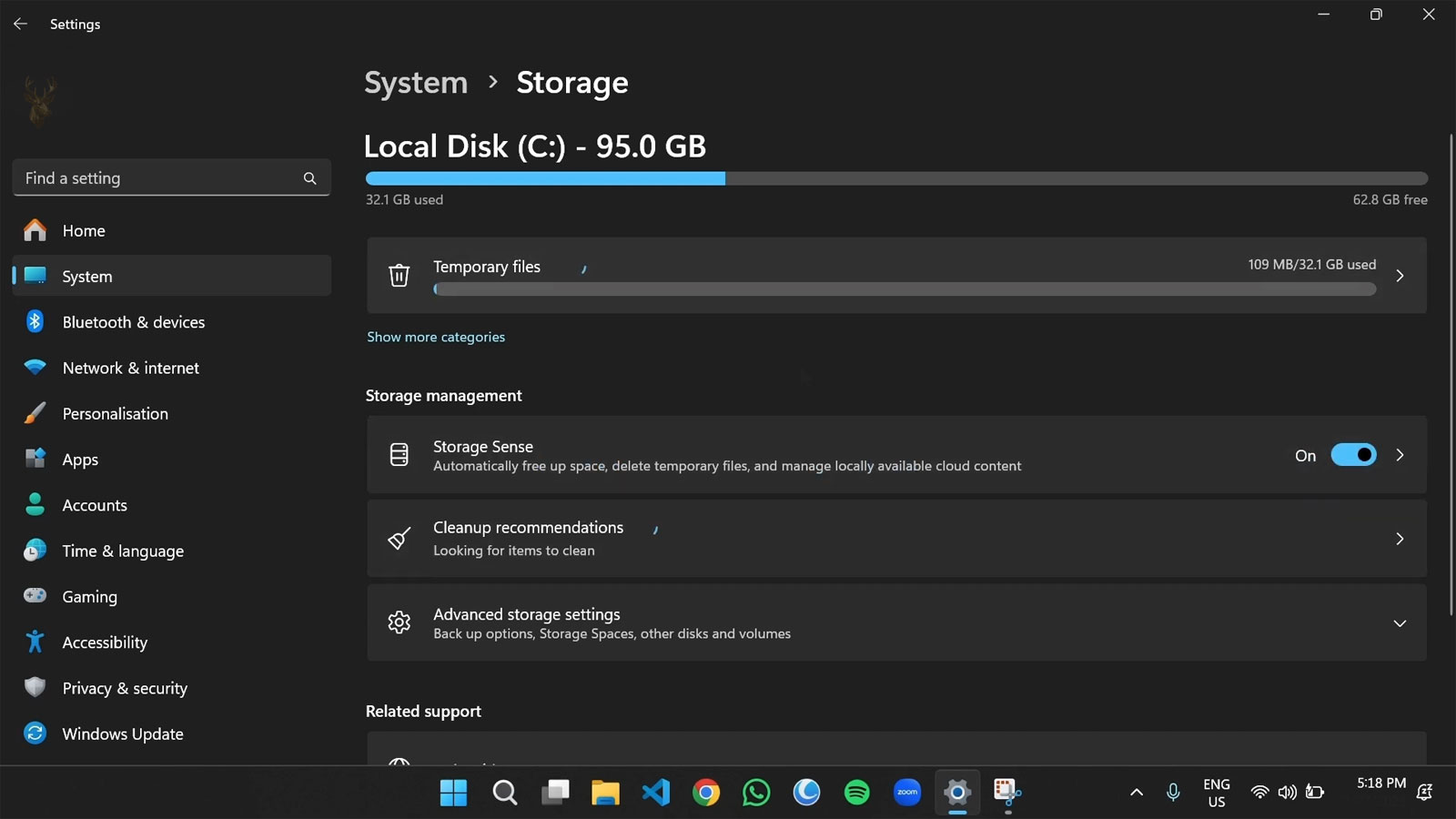
How Storage Sense Helps Manage Disk Space Without Constant Manual Cleanup
Running out of storage space rarely happens all at once. More often, it develops gradually as Windows, applications, web browsers, and everyday work create temporary files that accumulate over weeks or months. A computer that once had hundreds of gigabytes available can eventually begin displaying low-storage warnings even though very few large personal files have been added.
To reduce the need for frequent manual cleanup, Windows includes a feature called Storage Sense. Instead of waiting for users to remember to remove temporary files, it can automatically reclaim space by deleting items that Windows considers safe to remove based on its configured rules.
Many people first notice Storage Sense only after receiving a notification that disk space has been freed automatically. Others discover it while investigating why available storage has changed overnight. In either case, the feature often raises an important question: exactly what is Windows deleting?
Storage Sense is designed to remove unnecessary files, not personal documents that Windows believes are still being actively used.
That distinction is important because the feature is intended to maintain storage efficiency rather than perform general file management. Understanding where Storage Sense operates helps users recognize both its advantages and its limits.
Temporary Files Accumulate Faster Than Many People Realize
Everyday computing creates countless temporary files. Web browsers cache images and videos, software installers leave behind working files, applications generate temporary documents while saving data, and Windows itself creates files during updates and routine maintenance. Most of these items serve a useful purpose for a limited time before becoming unnecessary.
Individually, these files are often very small. Together, they can occupy several gigabytes of storage without the user intentionally saving anything new. Systems with smaller solid-state drives may reach storage limits much sooner because even modest temporary growth represents a significant percentage of the available capacity.
This gradual accumulation explains why a computer may seem to lose free space despite no obvious increase in documents, photographs, or installed programs. Much of the change can come from supporting files that exist only to help Windows and applications perform their normal work.
Storage Sense focuses primarily on these types of files, allowing Windows to recover space that is no longer providing meaningful value while leaving normal user data untouched under its default behavior.
Although Storage Sense operates automatically, it is not constantly scanning the drive and deleting files every few minutes. Windows evaluates storage conditions, follows the configured schedule, and applies the cleanup rules that have been enabled. This allows the feature to reduce unnecessary storage growth without interrupting normal work.
Because the process happens in the background, many users never realize it has been active until they compare the amount of available disk space before and after a cleanup cycle. The recovered space may be modest on one computer and much more significant on another, depending on how the system is used.
Not Every Temporary File Is Removed Immediately
The word temporary can be misleading. Some temporary files are needed for only a few minutes, while others remain useful for days or even weeks. Windows therefore avoids deleting every temporary file the moment it appears.
For example, an application may create working files while editing a document or processing a video. Removing those files too early could interrupt the task or force the application to recreate them repeatedly. Instead, Windows waits until they are no longer considered necessary before allowing Storage Sense to remove them.
This explains why manually browsing the Temporary folder often reveals files that have not yet been deleted. Their presence does not necessarily indicate a problem or a failed cleanup. Some are still serving a legitimate purpose.
Temporary does not always mean disposable. Many temporary files exist because Windows or an application still expects to use them.
Once those files are no longer required, they become candidates for automatic removal during a future Storage Sense cleanup.
Different Types of Files Can Be Evaluated Separately
Storage Sense does not treat every location on the drive the same way. Windows evaluates several categories independently, allowing administrators and users to decide which areas can participate in automatic cleanup.
- Temporary operating system files.
- Application temporary data.
- Items remaining in the Recycle Bin for a configured period.
- Files stored in the Downloads folder, if that option has been enabled.
- Certain Windows Update cleanup files after they are no longer required.
These categories are handled separately because they represent different levels of importance. Temporary system files are generally safer to remove automatically than personal downloads, which may still contain valuable documents or installation packages.
For that reason, many users choose to allow Storage Sense to clean temporary operating system files while leaving the Downloads folder entirely under manual control. The feature provides flexibility rather than forcing a single cleanup policy on every computer.
Consider a computer used for photography.
The owner frequently downloads large image collections before sorting and organizing them. Those files may remain in the Downloads folder for several weeks while projects are being completed. Automatically removing them simply because they have not been opened recently could create unnecessary confusion.
On another computer used primarily for web browsing and office work, the Downloads folder may contain only old installers and PDF files that have already been moved elsewhere. In that environment, automatic cleanup may be much more practical.
Automatic Cleanup Does Not Replace Good Storage Habits
Recovering temporary storage is helpful, but it cannot compensate for a drive that is nearly full because of permanent files. Large video collections, virtual machines, game libraries, backups, and archived projects continue occupying space until they are intentionally moved or removed.
Likewise, Storage Sense does not replace regular file organization. Documents stored in multiple locations, duplicate media libraries, and forgotten project folders can consume far more storage than temporary files ever will.
| Situation | How Storage Sense Helps |
|---|---|
| Temporary operating system files accumulate over time. | Automatically removes files that Windows no longer needs. |
| The Recycle Bin has not been emptied for weeks. | Can remove older discarded items according to its settings. |
| A drive is filled with personal videos and photographs. | Automatic cleanup has limited effect because those are intentional user files. |
| Several large applications occupy most of the SSD. | Applications generally need to be uninstalled or moved manually. |
Storage Sense should therefore be viewed as one component of routine computer maintenance. It helps prevent unnecessary storage waste, but it works best alongside sensible file management and periodic reviews of what is permanently stored on the computer.
The safest automatic cleanup settings depend on how the computer is used. A shared office workstation, a family computer, and a system used for large creative projects may all need different rules. Storage Sense is most effective when its behavior matches the way files actually move through the computer.
A computer with a small system drive may benefit from frequent temporary-file cleanup, while a system with several terabytes of available storage may not need the feature to run as often. The amount of free space matters, but so does the type of data being created. Video editing, software development, gaming, and large file transfers can produce substantial temporary data in a short period.
In those situations, a cleanup that recovers several gigabytes may be completely normal. On a lightly used office computer, the same amount of temporary growth could justify a closer look at browser caches, failed updates, installation files, or applications that are not cleaning up after themselves properly.
Downloads and Recycle Bin Rules Require the Most Attention
Temporary system data is usually the least controversial category because Windows created it for short-term use. The Downloads folder and Recycle Bin are different. Both can contain personal files, and both may be included in automatic cleanup depending on the selected settings.
The Recycle Bin is often treated as a safety net rather than permanent storage. A deleted file remains available there until the bin is emptied or Windows removes it under an automatic rule. This can be useful after an accidental deletion, but it can also create a false sense of security when people assume discarded files will remain recoverable indefinitely.
If Storage Sense is configured to remove Recycle Bin items after a certain number of days, the recovery window becomes limited. A file deleted several weeks earlier may disappear automatically even though the user never manually emptied the bin.
The Downloads folder deserves even more caution because many people use it as an informal filing cabinet. Installation packages, tax forms, photographs, invoices, exported reports, and email attachments may remain there long after they were downloaded. Windows cannot determine whether an unopened file is unimportant simply from its age.
Automatic cleanup is safest when personal storage locations are reviewed intentionally rather than included by habit.
Before enabling automatic removal from Downloads, it is worth checking whether important files are routinely moved elsewhere. If the folder contains unfinished work or records that have no second copy, manual review is the safer approach.
The same principle applies in a business environment. Employees may download customer documents, purchase records, installation files, or exported data and leave them in place because the files are still part of an active task. A cleanup rule created without considering that workflow could remove material that was never meant to be temporary.
A simple folder habit can make automatic cleanup more reliable.
Files that need to be kept can be moved into an appropriate Documents, Pictures, project, or shared folder shortly after they are downloaded. The Downloads folder then remains a genuine temporary holding area, making age-based cleanup far less risky.
This does not require every file to be organized immediately. It only requires a clear distinction between material that is waiting to be reviewed and material that has already become part of permanent storage.
Low Disk Space Can Affect More Than File Storage
Storage Sense becomes especially valuable when the system drive begins running low. Windows needs free space for updates, temporary operations, paging, application caches, browser data, and many background tasks. A drive does not have to reach zero bytes before the computer begins behaving poorly.
Updates may fail because Windows cannot create working files. Applications may stop saving correctly. Large downloads can end abruptly, and temporary operations may become slower as the system repeatedly tries to find usable space. Some programs produce vague errors that do not clearly mention storage at all.
Automatic cleanup can reduce this pressure by recovering space before the drive reaches a critical condition. It is particularly useful on laptops and compact computers equipped with smaller solid-state drives, where several gigabytes can represent a meaningful portion of the remaining capacity.
There is still a limit to what automatic cleanup can accomplish. If the drive fills again shortly after every cleanup, temporary files may not be the main cause. The computer may contain a growing mail archive, synchronized cloud files, large application data, repeated backups, virtual machine files, or a program generating unusually large logs.
In that case, the amount of space reclaimed by Storage Sense becomes useful diagnostic information. Recovering a small amount and immediately returning to a low-storage warning suggests that more permanent data is occupying the drive. Recovering a large amount repeatedly may indicate that a particular application or Windows process is producing excessive temporary data.
Automatic Cleanup Should Still Be Reviewed Occasionally
A background maintenance feature can easily be forgotten once it is enabled. However, computer use changes over time. A laptop that once handled basic office work may later be used for video projects. A shared workstation may begin receiving large downloads. A new backup or synchronization application may change where files are stored.
Reviewing the Storage Sense settings periodically confirms that the cleanup rules still fit the current workflow. It also provides an opportunity to check whether the feature is recovering a reasonable amount of space or merely masking a larger storage problem.
- Confirm that the system drive is using its recommended cleanup schedule.
- Check whether Downloads is included in automatic deletion.
- Review the retention period for Recycle Bin items.
- Look for unusually large temporary-file categories.
- Verify that important files are stored outside temporary locations.
These checks do not need to become a frequent maintenance routine. They are most useful after a significant change, such as installing a large application, replacing the storage drive, enabling cloud synchronization, or noticing that free space is disappearing more quickly than expected.
Storage Sense works best when it quietly removes files that have genuinely outlived their purpose. It becomes less reliable when temporary folders are also being used for permanent storage or when a nearly full drive is caused by data the feature is not designed to manage.
Automatic disk cleanup can prevent small amounts of unnecessary data from becoming a larger storage problem. Windows can remove expired temporary files, clear older Recycle Bin contents, and manage other selected locations without requiring the user to perform the same cleanup repeatedly.
The feature is not intended to decide which personal documents are worth keeping. Its usefulness depends on clear settings and sensible file habits, especially when Downloads or other personal locations are involved.
When free space continues disappearing despite regular cleanup, the next step is to identify what is actually growing. Storage Sense can reclaim what Windows no longer needs, but lasting storage management still depends on understanding what the computer is keeping and why.











