
Why Some Windows Applications Look Blurry While Others Stay Sharp
Modern monitors provide much higher resolutions than displays from just a few years ago. While this produces sharper text and clearer images, it also creates a challenge for software that was originally designed for much lower pixel densities. Windows attempts to bridge this gap through display scaling, allowing menus, icons, and text to remain comfortable to read without requiring everything to appear extremely small.
Most of the time this process works so well that users never think about it. Occasionally, however, one application appears noticeably blurrier than every other program on the screen. The desktop remains crisp, web browsers look normal, yet a specific business application or utility suddenly looks soft, stretched, or slightly out of focus.
This difference often leads people to suspect a failing monitor, damaged graphics hardware, or an incorrect display cable. In reality, the monitor may be working perfectly. The issue can instead result from how Windows and the application negotiate display scaling.
A blurry application does not automatically indicate a blurry display. Sometimes only one program is being scaled differently from everything else.
Understanding this distinction helps narrow the investigation. If every application appears blurry, the display itself, its resolution, or graphics settings become stronger suspects. If only one or two applications look different, scaling compatibility becomes much more likely.
How Windows Uses Display Scaling
Display scaling adjusts the apparent size of interface elements without requiring the monitor to operate below its native resolution. Instead of lowering image quality, Windows instructs compatible applications how large their menus, buttons, icons, and text should appear based on the selected scaling percentage.
On a large high-resolution monitor, running at 100% scaling can make text uncomfortably small. Increasing scaling to 125%, 150%, or higher enlarges the interface while preserving the monitor’s full resolution. Compatible software redraws its interface using the additional pixels, producing text that remains sharp instead of simply magnified.
The experience changes when an application was designed before modern high-DPI displays became common. Rather than redrawing every element, older software may allow Windows to enlarge the entire program like a photograph. Although everything becomes larger, the edges of text and graphics can lose some of their sharpness during the enlargement process.
Because different applications support display scaling in different ways, two programs displayed side by side can produce noticeably different results even though they are running on the same monitor with the same graphics hardware.
The difference becomes more noticeable when a computer uses more than one monitor. A laptop screen may use 150% scaling while an external monitor uses 100%. When an application moves between those displays, Windows may need to resize it while it is already running. Programs that understand per-monitor scaling can redraw themselves correctly. Others may remain based on the scaling level of the screen where they first opened.
This can produce an odd pattern. The application looks sharp on one monitor, becomes blurry after being dragged to another, and returns to normal only after it is closed and reopened. Nothing has changed inside the document or program. The application simply did not adapt cleanly to the new pixel density.
The Problem Often Appears After the Display Environment Changes
A program may look normal for months and then become blurry after a seemingly unrelated change. The user may have connected a docking station, replaced a monitor, changed the primary display, installed a graphics driver, or adjusted the scaling percentage to make text easier to read.
These changes do not necessarily damage anything. They alter the display environment in which Windows launches and positions applications. A program that previously opened on a 100% display may now start on a 150% display, or Windows may move it to another monitor after the original screen is disconnected.
A typical example involves a laptop that moves between two work locations.
At the office, the laptop connects to two large monitors running at 100% scaling. At home, the same computer is used mainly through its smaller built-in high-resolution screen at 150%. A legacy accounting program opens sharply at the office but looks blurry when the user resumes it at home.
Closing and reopening the program may correct the appearance because the application starts again using the current display conditions. Leaving it open while disconnecting from the office monitors can preserve the earlier scaling state and produce the blurry result.
This is why restarting the affected application is often more useful than restarting the entire computer. It gives the program another opportunity to detect the current monitor and scaling level from the beginning.
The same behavior can occur after waking from sleep. A dock or external monitor may reconnect a few seconds after the laptop display becomes active. Applications restored before the full monitor arrangement is available may initially size themselves for the wrong screen.
Blurry Text Is Not the Only Scaling Symptom
Scaling problems are often described as blur because that is the easiest symptom to recognize, but the visual effects can take several forms. Some programs remain sharp while their buttons become unusually small. Others display oversized menus, clipped dialog boxes, overlapping labels, or text that no longer fits inside its assigned space.
- A program window appears much smaller than the rest of the desktop.
- Menus or icons become disproportionately large.
- Text is sharp, but parts of a dialog box are cut off.
- Buttons overlap or disappear below the visible edge.
- The pointer does not align precisely with controls inside the application.
- The program changes size abruptly when moved between monitors.
These symptoms occur because scaling affects more than font size. Applications must calculate the dimensions and positions of every visual element. If the program assumes that one logical unit always equals one physical pixel, changing the scale can disturb the entire layout.
Older applications may also use fixed-size windows that cannot expand enough to accommodate larger interface elements. Windows can enlarge the program, but the internal layout may still be based on measurements created for a smaller scale.
A scaling problem can make software look damaged even when the program itself is functioning normally.
This distinction matters with specialized business software. A user may assume that a recent update corrupted the application because its forms suddenly look misaligned. The actual change may have been a new monitor or an adjusted scaling percentage rather than a change to the software.
Native Resolution and Scaling Should Not Be Confused
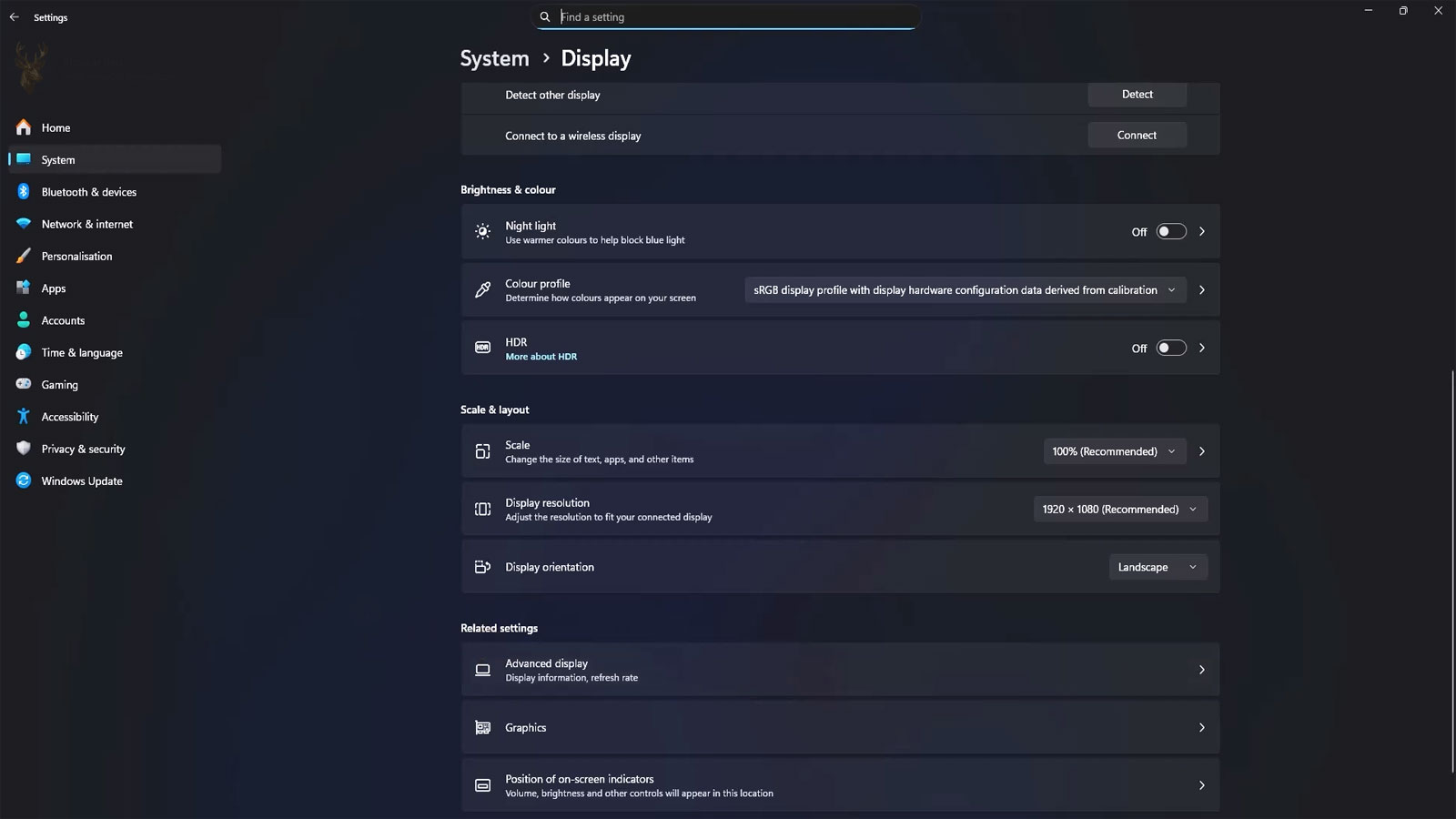
One common response to small text is to lower the monitor resolution. This makes everything appear larger, but it is not the same as increasing display scaling. An LCD monitor produces its clearest image at its native resolution. When Windows sends a lower resolution, the monitor must stretch that image across a fixed number of physical pixels.
The result can make the entire desktop look soft, including programs that previously appeared sharp. In that situation, the blur is no longer limited to one incompatible application. Text in Windows Settings, browser pages, desktop icons, and other interface elements may all lose clarity.
Keeping the display at its recommended native resolution and adjusting the scaling percentage usually provides a better result. Compatible applications can then draw larger interface elements while still using the full detail available from the screen.
| Display Change | Likely Visual Result |
|---|---|
| Native resolution with appropriate scaling | Text and interface elements can appear larger while remaining sharp. |
| Resolution lowered below the recommended setting | The entire desktop may look stretched or soft. |
| Different scaling levels across multiple monitors | Some applications may change size or become blurry when moved. |
| Scaling changed while an older program remains open | The program may not redraw correctly until it is restarted. |
The recommended resolution shown by Windows normally corresponds to the physical pixel layout of the monitor. Unless there is a specific compatibility requirement, changing the scaling percentage is generally preferable to reducing that resolution merely to enlarge text.
Even then, the best scaling level is not always the percentage Windows recommends automatically. A user may prefer larger text, especially on a compact high-resolution laptop screen. The goal is not to force every display to 100%, but to find a readable setting while recognizing that some older applications may need additional handling.
Windows includes several ways to improve how an application handles scaling, but the most useful approach depends on whether the problem affects one program, one monitor, or the entire desktop. Changing several settings at once can make the result harder to interpret, especially on a computer that moves regularly between different displays.
A good starting point is to leave the monitor at its recommended resolution, confirm the intended scaling percentage, and then restart only the affected application. If the program becomes sharp after reopening, the issue may have been limited to the way it responded when the display arrangement changed.
When the blur returns every time the application moves between monitors, it helps to determine whether the two screens use different scaling values. A laptop display at 150% and an external monitor at 100% is a common and perfectly valid configuration, but older programs may not transition between them smoothly.
Compatibility Adjustments Should Be Applied Carefully
Windows can override how an individual program handles high-DPI scaling. These options are available through the application’s compatibility properties and can change whether scaling is managed by the application, by Windows, or through another compatibility method.
An override can improve one program while making another look worse, so it should not be treated as a universal repair. The correct choice depends on how the software was designed. Some applications become sharper when allowed to manage their own scaling. Others need Windows to enlarge the interface because they have no useful high-DPI support.
Before changing compatibility settings, it is useful to note the original configuration. That makes it easier to reverse the adjustment if buttons become too small, menus are clipped, or text no longer fits correctly.
- Close the affected application.
- Open its file location or locate the application shortcut.
- Open the program’s properties and review the compatibility options.
- Change only one scaling-related setting at a time.
- Reopen the application on the monitor where the problem normally appears.
- Move it between displays and check both sharpness and interface size.
The application should be tested beyond its opening screen. A setting that sharpens the main window may still create clipped text inside secondary dialogs, printing windows, or configuration panels.
This is especially important with older accounting, medical, inventory, engineering, and industry-specific software. These programs may continue to perform their main functions correctly even though parts of the interface were never designed for modern scaling behavior.
The best scaling result is not simply the sharpest image. The entire program must remain readable and usable.
A perfectly sharp application is not an improvement if its controls become too small to operate. Likewise, a larger interface is not useful when text overlaps or important buttons disappear outside the window.
Sometimes the most practical solution is to keep a legacy application on one specific monitor. If it consistently opens and displays correctly at 100% scaling, using it on that screen may provide a more stable experience than repeatedly changing system-wide settings that affect every other program.
Updates Can Improve Scaling, but They Can Also Change It
Application developers can improve high-DPI support through software updates. A newer version may redraw text properly, adapt to different monitors, or stop relying on fixed pixel measurements. For this reason, checking whether an updated release is available can be worthwhile when an older program remains blurry under every reasonable Windows setting.
Graphics driver and Windows updates may also influence scaling behavior. They can improve monitor detection and display handling, but they may reset a saved configuration or change how an application is rendered. When the problem begins immediately after an update, the timing should be recorded rather than ignored.
That does not mean the update should automatically be removed. The visible change may reveal an older compatibility limitation that had previously been hidden. It may also be corrected by restarting the program, signing out of Windows, reinstalling the application, or updating the software itself.
The pattern of the blur often identifies where to look next.
If every program looks soft, the display resolution should be checked first. If only one application is affected, compatibility becomes more likely. If the application changes appearance only after moving between monitors, the difference in scaling levels becomes important. If the problem appears after docking or waking from sleep, monitor detection timing may be involved.
These distinctions prevent unnecessary hardware replacement. A monitor does not need to be replaced simply because one older application looks blurry, and a graphics card is unlikely to be failing when the rest of the desktop remains clear and stable.
There are also cases where the application itself offers internal display settings. Some programs include options for interface size, font size, rendering mode, hardware acceleration, or high-DPI support. These should be reviewed before forcing a Windows compatibility override because the software’s own setting may provide a cleaner result.
Windows scaling is designed to make high-resolution displays practical, not to reduce image quality. The difficulty appears when software and displays do not interpret size in the same way. Modern applications can redraw themselves for each screen, while older programs may simply be enlarged after they have already been rendered.
When one application looks blurry, the most useful investigation begins with comparison. Check whether the rest of the desktop is sharp, whether the monitor is using its native resolution, whether the application changes after being moved, and whether closing and reopening it corrects the problem.
Once those details are clear, the solution may be as simple as restarting the program on the correct monitor. In other cases, the most stable result may require an application update, a carefully selected compatibility setting, or keeping older software on a display with a scaling level it can handle reliably.











