
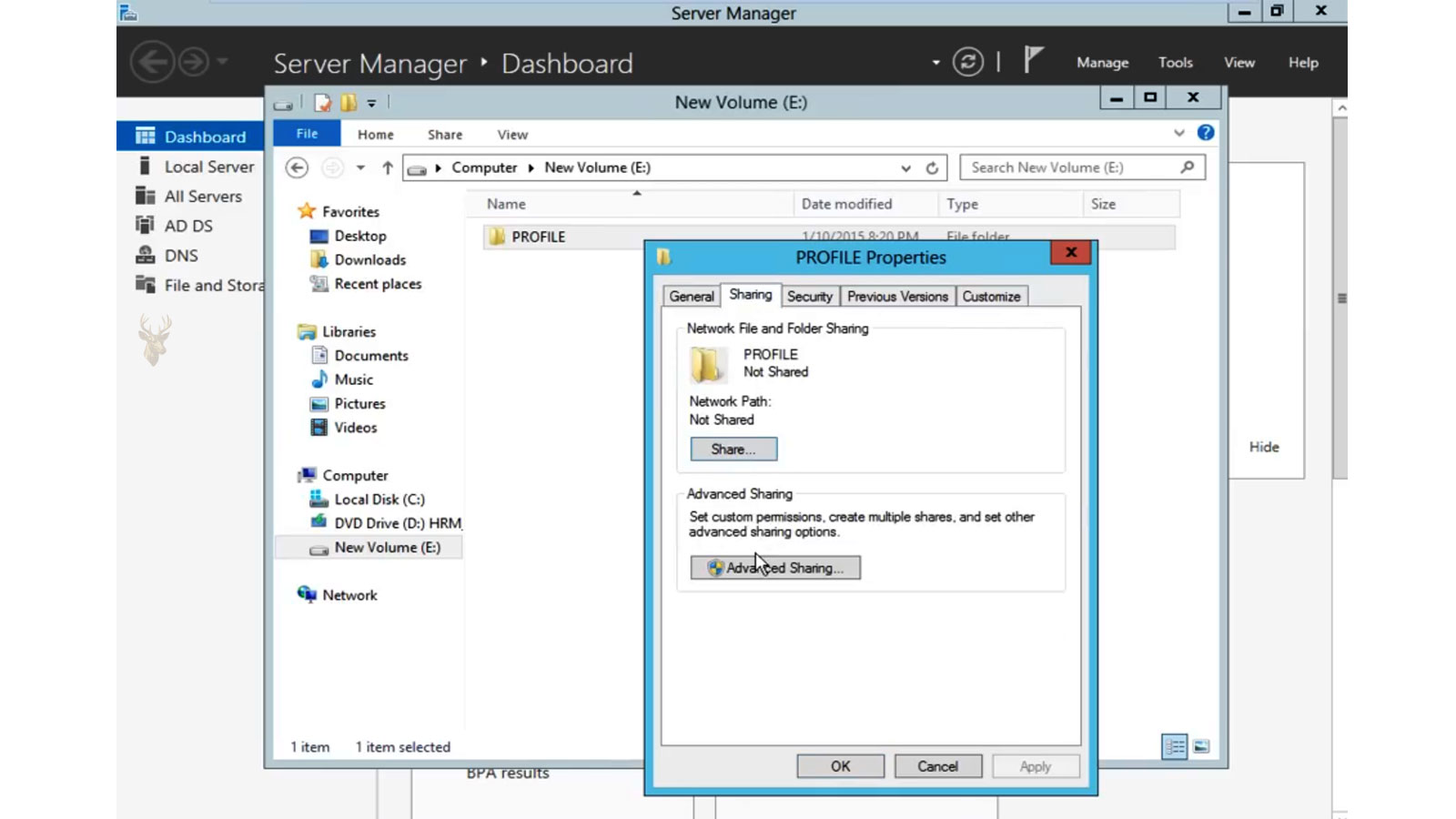
Providing the Same Windows Environment for Every User Session
Some organizations require every employee to work with an identical Windows environment regardless of who signs in or which workstation they use. Schools, healthcare facilities, libraries, manufacturing floors, reception areas, training rooms, and public-access computers often benefit from maintaining a consistent desktop that users cannot permanently modify.
Mandatory User Profiles are a Windows feature designed for these situations. Instead of allowing users to permanently save profile changes, Windows loads a predefined profile each time the user signs in. When the session ends, any changes made during that session are discarded, allowing the next sign-in to begin with the same standardized configuration.
This approach helps administrators maintain consistent workstation configurations while reducing the long-term effects of unwanted profile customization.
Each Sign-In Starts With the Same Profile
Unlike standard or roaming profiles, a Mandatory User Profile is intended to remain unchanged. Desktop layouts, Start menu organization, application preferences, and other profile settings return to their predefined state every time the user signs in.
Employees can still use applications during their session, but profile customizations are generally not preserved after signing out.
- Consistent desktop layout.
- Standard application settings.
- Predictable Start menu organization.
- Uniform user experience.
- Reduced profile customization.
Shared Workstations Often Benefit the Most
Computers used by many different employees can gradually become inconsistent as users modify settings, rearrange shortcuts, or install unsupported software. Mandatory User Profiles help maintain a uniform working environment by restoring the original profile after each session.
This makes troubleshooting easier because administrators know each session begins from the same baseline configuration.
| Standard User Profile | Mandatory User Profile |
|---|---|
| User changes are normally saved. | User changes are discarded after sign-out. |
| Desktop evolves over time. | Desktop remains standardized. |
| Individual customization is expected. | Consistent configuration is prioritized. |
| Each profile may become different. | Every session starts from the same profile. |
Business Data Should Be Stored Outside the Mandatory Profile
Because profile changes are not retained, important business documents should not be stored inside locations that depend on the mandatory profile itself. Organizations commonly combine Mandatory User Profiles with centralized storage methods so that business files remain available after the session ends.
This allows users to work with a standardized desktop while ensuring important documents remain safely stored outside the temporary session.
Mandatory User Profiles are intended to preserve workstation consistency, not to permanently store user-created information.
Administrative Maintenance Becomes More Predictable
Since every session begins with the same profile, administrators spend less time correcting accumulated user customizations or investigating differences between workstations. Software deployments, documentation, and support procedures also become more consistent because users begin with an identical configuration.
This consistency can simplify long-term workstation management in organizations that operate many shared Windows computers.
- Reduced profile troubleshooting.
- Consistent workstation configuration.
- Simplified user support.
- Predictable desktop environment.
- Easier deployment of standard settings.
Profile Changes Last Only During the Current Session
Users working with a Mandatory User Profile can often adjust certain Windows settings while they are signed in. They may move icons, change application preferences, or personalize parts of the desktop for convenience during that session. However, once they sign out, those changes are discarded and the original profile is restored.
This predictable behavior allows employees to complete their work while ensuring the workstation always returns to the approved business configuration.
- Desktop icon positions reset.
- Wallpaper changes are removed.
- Personal preference changes are discarded.
- Application settings may return to their defaults.
- The original profile is restored at the next sign-in.
Applications Must Be Designed for Shared Environments
Some business applications expect to save user-specific settings inside the Windows profile. When a Mandatory User Profile is used, these settings may not persist after sign-out unless the software stores them elsewhere, such as on a server or within a business database.
Organizations should test important software before deploying Mandatory User Profiles across shared workstations.
| Application Behavior | Possible Result |
|---|---|
| Stores settings locally | Preferences may reset after sign-out. |
| Stores settings on a server | User preferences may remain available. |
| Uses cloud synchronization | Settings may follow the user independently. |
| Requires profile customization | Additional testing may be necessary. |
Temporary Files Should Be Saved Appropriately
Because profile changes are temporary, users should understand where business documents are intended to be stored. Saving important work only within temporary profile locations may lead to confusion when those files are no longer available after signing out.
Many organizations provide network folders, redirected folders, or cloud-based storage locations where business documents can be saved independently of the mandatory profile.
A standardized profile should never be relied upon as the permanent storage location for important business documents.
Administrative Updates Are Made to the Master Profile
When administrators need to change the desktop layout, update shortcuts, or modify application settings for all users, the changes are typically made to the master mandatory profile rather than individually on every workstation.
After the updated profile is deployed, every future sign-in reflects the revised configuration without requiring employees to make manual adjustments.
- Update desktop shortcuts.
- Modify Start menu organization.
- Adjust application defaults.
- Deploy revised business branding.
- Standardize new workstation settings.
Unauthorized Configuration Changes Are Minimized
Although Mandatory User Profiles are not a security feature by themselves, they help reduce long-term configuration drift by automatically removing profile customizations after each session. This makes it less likely that shared computers will gradually develop inconsistent desktop layouts or unsupported settings.
Organizations commonly combine Mandatory User Profiles with other Windows management tools, security policies, and application controls to provide a well-managed workstation environment.
| Administrative Goal | How Mandatory Profiles Help |
|---|---|
| Consistent desktop appearance | Profile resets after each session. |
| Simplified support | Users begin from the same configuration. |
| Reduced profile clutter | Temporary changes are removed. |
| Predictable workstation behavior | Configuration remains standardized. |
| Easier documentation | All users share the same desktop layout. |
Not Every Employee Needs a Mandatory Profile
Mandatory User Profiles are most appropriate for shared or highly standardized workstations. Employees who require personalized desktops, specialized software configurations, or individually customized workflows often benefit more from standard or roaming profiles.
Selecting the appropriate profile type depends on how the computer is used, the organization’s administrative goals, and the level of user customization that must be supported.
The best profile strategy depends on the purpose of the workstation rather than applying the same solution to every employee.
Profile Updates Should Be Tested Before Deployment
A change to the master mandatory profile can affect every user who depends on it. A misplaced shortcut, incompatible application setting, or incorrect permission may therefore create problems across many workstations at the same time.
Administrators should test profile updates with a limited group of computers before replacing the existing production profile.
- Create a copy of the current master profile.
- Apply the proposed changes in a test environment.
- Sign in with representative user accounts.
- Verify applications, shortcuts, and storage locations.
- Check sign-in and sign-out behavior.
- Deploy the revised profile only after testing is complete.
Profile Permissions Must Prevent Unauthorized Changes
The master profile should be protected so ordinary users cannot modify its files directly. If users gain write access to the profile location, the standardized environment may be altered or damaged for everyone who signs in afterward.
Administrators should verify both share permissions and NTFS permissions while preserving the access Windows requires to read the profile during sign-in.
| Permission Condition | Possible Effect |
|---|---|
| Users have read access | The profile can load normally. |
| Users have write access | The master profile may be altered. |
| Administrators lack control | Profile updates may be difficult. |
| Incorrect share permissions | Users may be unable to load the profile. |
| Broken inheritance | Some profile files may behave inconsistently. |
Windows Version Changes Can Affect Compatibility
Mandatory profiles created for one version of Windows may not work correctly with another. Changes to profile structure, built-in applications, Start menu behavior, or user settings can create compatibility problems after a major operating system upgrade.
Organizations should create and test a suitable profile for the Windows version installed on the workstations rather than assuming an older profile will continue working without modification.
A standardized profile is dependable only when it matches the operating system and applications used on the workstation.
Application Updates May Require Profile Revisions
Software updates can introduce new settings, remove old shortcuts, or change where application preferences are stored. A mandatory profile created before the update may contain obsolete references or fail to include the new configuration required by the application.
Administrators should review the master profile after significant software changes to confirm that users continue receiving a functional and consistent environment.
- Remove shortcuts to discontinued applications.
- Add approved replacement programs.
- Verify application launch settings.
- Check default file associations.
- Confirm licensing and activation behavior.
Network Delays Can Slow Profile Loading
When the mandatory profile is stored on a file server, Windows must access that location during sign-in. Slow network connections, name resolution problems, server overload, or storage delays can increase the time required for the desktop to appear.
Keeping the profile reasonably small and maintaining dependable network infrastructure helps reduce unnecessary delays.
| Condition | Possible Result |
|---|---|
| Small optimized profile | Faster sign-in. |
| Large profile | Longer loading time. |
| Slow server storage | Desktop may appear gradually. |
| Name resolution failure | The profile path may not be found. |
| Server unavailable | Windows may use another profile or delay sign-in. |
User Training Prevents Accidental Data Loss
Employees should understand that changes made inside a mandatory profile may disappear after sign-out. Without clear instructions, a user may save an important document to the Desktop, assume it will remain there, and later discover that the session was reset.
Simple guidance about approved storage locations can prevent confusion and help employees work safely within the standardized environment.
- Save business files to the assigned network location.
- Use redirected folders when provided.
- Avoid relying on temporary desktop storage.
- Sign out properly after finishing work.
- Report missing storage locations promptly.
Mandatory Profiles Should Be Documented
Documentation helps administrators understand how the master profile was created, where it is stored, which Windows version it supports, and which applications were tested. Without this information, later changes may be made without understanding the original design.
Clear records also simplify troubleshooting when a replacement server, new workstation model, or updated application is introduced.
Good documentation turns a specialized workstation configuration into a repeatable support process.
A Backup Copy of the Master Profile Is Important
The mandatory profile represents the approved user environment for every connected workstation. If it becomes corrupted or is changed incorrectly, many users may be affected at once.
Maintaining a verified backup allows administrators to restore the previous profile quickly instead of rebuilding the entire configuration under pressure.
- Back up the working master profile.
- Keep earlier versions after major changes.
- Document the date of each revision.
- Test restoration procedures.
- Restrict access to backup copies.
Maintaining Standardized Windows Workstations
Mandatory User Profiles help organizations provide a consistent Windows environment on computers used by many different people. By discarding profile changes after each session, the workstation returns to the same approved configuration and avoids the gradual accumulation of user customizations.
Successful use depends on proper file storage, compatible applications, protected permissions, reliable networking, user training, testing, and regular profile maintenance. When these elements are managed carefully, Mandatory User Profiles can simplify support while keeping shared business computers predictable and organized.











