
Keeping the Same Windows Experience Across Multiple Business Computers
Many organizations have employees who regularly sign in to different computers throughout the workday. Without centralized profile management, each workstation may present different desktop settings, application preferences, shortcuts, and user configurations, creating an inconsistent experience.
Roaming Profiles are a Windows feature that stores a user’s profile on a network server instead of keeping it exclusively on one computer. When the employee signs in to another authorized workstation, Windows loads the same profile, allowing many personal settings to follow the user between computers.
This centralized approach can improve consistency in environments where employees frequently move between workstations while allowing administrators to manage user profiles more effectively.
The Windows Profile Contains More Than Documents
A Windows user profile includes much more than files stored in the Documents folder. Desktop appearance, application preferences, Start menu customization, certain registry settings, and many personal configuration choices are also stored within the profile.
Roaming Profiles help preserve these settings so users encounter a familiar working environment regardless of which business computer they use.
- Desktop settings.
- Application preferences.
- Start menu customization.
- User-specific registry settings.
- Various Windows personalization options.
Users Can Work From Different Office Computers
Organizations with shared workstations, rotating shifts, classrooms, healthcare facilities, and customer service departments often benefit from consistent user profiles. Employees can sign in to another authorized computer and continue working with many of the same settings they previously used.
This consistency reduces the amount of manual configuration required whenever a user changes workstations.
| Without Roaming Profiles | With Roaming Profiles |
|---|---|
| Settings remain on one computer. | Settings follow the user. |
| Manual customization may be repeated. | Many preferences appear automatically. |
| Different desktop experience. | More consistent Windows environment. |
| Individual workstation configuration. | Centralized profile management. |
Profiles Are Commonly Stored on a File Server
Business environments typically store roaming profiles on a centralized file server. During sign-in, Windows retrieves the user’s profile from the network, and during sign-out, profile changes are synchronized back to the server.
Keeping profiles in a central location allows administrators to protect them with existing server backup procedures while simplifying profile management across many computers.
Centralized profile storage allows Windows settings to travel with the employee instead of remaining tied to one computer.
Roaming Profiles and Folder Redirection Work Together
Although Roaming Profiles can synchronize user settings, many organizations also use Folder Redirection for Documents, Desktop, and other folders. Separating large user files from the roaming profile reduces the amount of information that must be synchronized whenever employees sign in or out.
Using both technologies together often provides a better balance between consistent user settings and efficient file management.
- Roaming Profiles synchronize user settings.
- Folder Redirection stores business files centrally.
- Large documents remain outside the roaming profile.
- Profile synchronization becomes more efficient.
- Administration remains easier as organizations grow.
Profile Size Directly Affects Sign-In Speed
Roaming Profiles must be copied between the file server and the workstation during sign-in and sign-out. As the profile becomes larger, this synchronization process can take longer and may delay access to the desktop.
Large browser caches, temporary files, application data, and unnecessary desktop content can increase profile size without providing meaningful business value. Keeping these items under control helps maintain more consistent sign-in performance.
- Browser cache files.
- Temporary application data.
- Large files stored on the Desktop.
- Unused application settings.
- Old profile information.
Network Performance Influences Profile Loading
Because profile information is stored on a server, the speed and reliability of the network affect how quickly the user environment becomes available. Slow connections, overloaded switches, name resolution problems, or temporary server delays can all increase sign-in time.
Organizations that depend on Roaming Profiles should maintain dependable network infrastructure and monitor recurring delays that affect multiple users.
| Network Condition | Possible Effect |
|---|---|
| Fast local network | Profiles generally load more quickly. |
| Slow network connection | Sign-in and sign-out may take longer. |
| File server unavailable | A cached or temporary profile may be used. |
| Name resolution problem | The profile path may not be found promptly. |
| Heavy server activity | Profile synchronization may be delayed. |
Cached Copies Allow Users to Sign In During Temporary Outages
Windows commonly keeps a local cached copy of a roaming profile on computers the user has previously accessed. If the server is temporarily unavailable, the cached profile may allow the employee to sign in and continue working with the most recently available settings.
Changes made while the server is unavailable may need to synchronize later. Extended outages or repeated synchronization failures can cause the local and server copies to become inconsistent.
Cached profiles provide temporary continuity, but they do not remove the need for reliable server access.
Simultaneous Sign-Ins Can Create Conflicting Changes
A user who signs in to several computers at the same time may change profile settings independently on each workstation. When those sessions later sign out, Windows must determine which changes should be written back to the server.
This can lead to overwritten preferences, inconsistent application settings, or unexpected desktop changes. Businesses should discourage unnecessary simultaneous sessions when users rely on a single roaming profile.
- Close unused sessions before changing computers.
- Sign out instead of leaving workstations disconnected.
- Avoid editing the same profile settings in multiple sessions.
- Review repeated synchronization warnings.
- Use session policies when shared systems require tighter control.
Profile Version Differences Can Affect Compatibility
Different versions of Windows may use different roaming profile formats. A profile created for one operating system release may not be fully compatible with another, especially when significant changes exist between Windows versions.
Organizations upgrading workstations should verify profile compatibility before allowing users to move freely between older and newer systems.
| Environment | Planning Consideration |
|---|---|
| Matching Windows versions | Profile behavior is generally more consistent. |
| Mixed operating systems | Separate profile versions may be required. |
| Major Windows upgrade | Testing should occur before broad deployment. |
| Legacy applications | Some settings may not transfer correctly. |
| Replacement computers | Profile paths and permissions should be verified. |
Some Application Data Does Not Roam Reliably
Not every program stores its settings in the same part of the Windows profile. Some applications use local-only folders, separate databases, cloud synchronization, or device-specific configuration files that are not intended to move between computers.
As a result, an employee may receive the same Windows desktop while certain application preferences remain different on another workstation.
A roaming Windows profile does not guarantee that every installed program will behave identically on every computer.
Installed Applications Must Be Available on Each Workstation
Roaming Profiles transfer user settings, not the applications themselves. If a program is installed on one computer but missing from another, the profile may still contain shortcuts or preferences even though the software cannot open.
Businesses should standardize commonly used applications across shared workstations so the roaming environment remains practical and predictable.
- Use consistent application versions.
- Maintain standard workstation configurations.
- Remove shortcuts to unavailable programs.
- Verify required licenses on each system.
- Test important applications with roaming profiles.
Profile Corruption Can Affect More Than One Computer
When a roaming profile becomes damaged, the problem may follow the user from one workstation to another because each computer retrieves the same profile information from the server. Missing settings, application errors, temporary profiles, or repeated sign-in problems can therefore appear across several systems.
Administrators should confirm whether the issue is connected to the user profile before replacing hardware or reinstalling applications on individual workstations.
- Missing desktop settings.
- Applications that no longer save preferences.
- Repeated temporary profile messages.
- Slow or incomplete sign-ins.
- Errors that follow the same user to another computer.
Temporary Profiles Can Hide the User’s Normal Environment
If Windows cannot load the roaming profile correctly, it may sign the employee in with a temporary profile. The desktop may look unfamiliar, saved preferences may be missing, and files placed in that temporary session may not remain available after sign-out.
Users should avoid storing important information in an unexpected temporary profile until the original profile path, permissions, server availability, and synchronization status have been checked.
A temporary profile allows limited access to Windows, but it should not be treated as the user’s permanent workspace.
Permissions Must Be Correct on the Profile Share
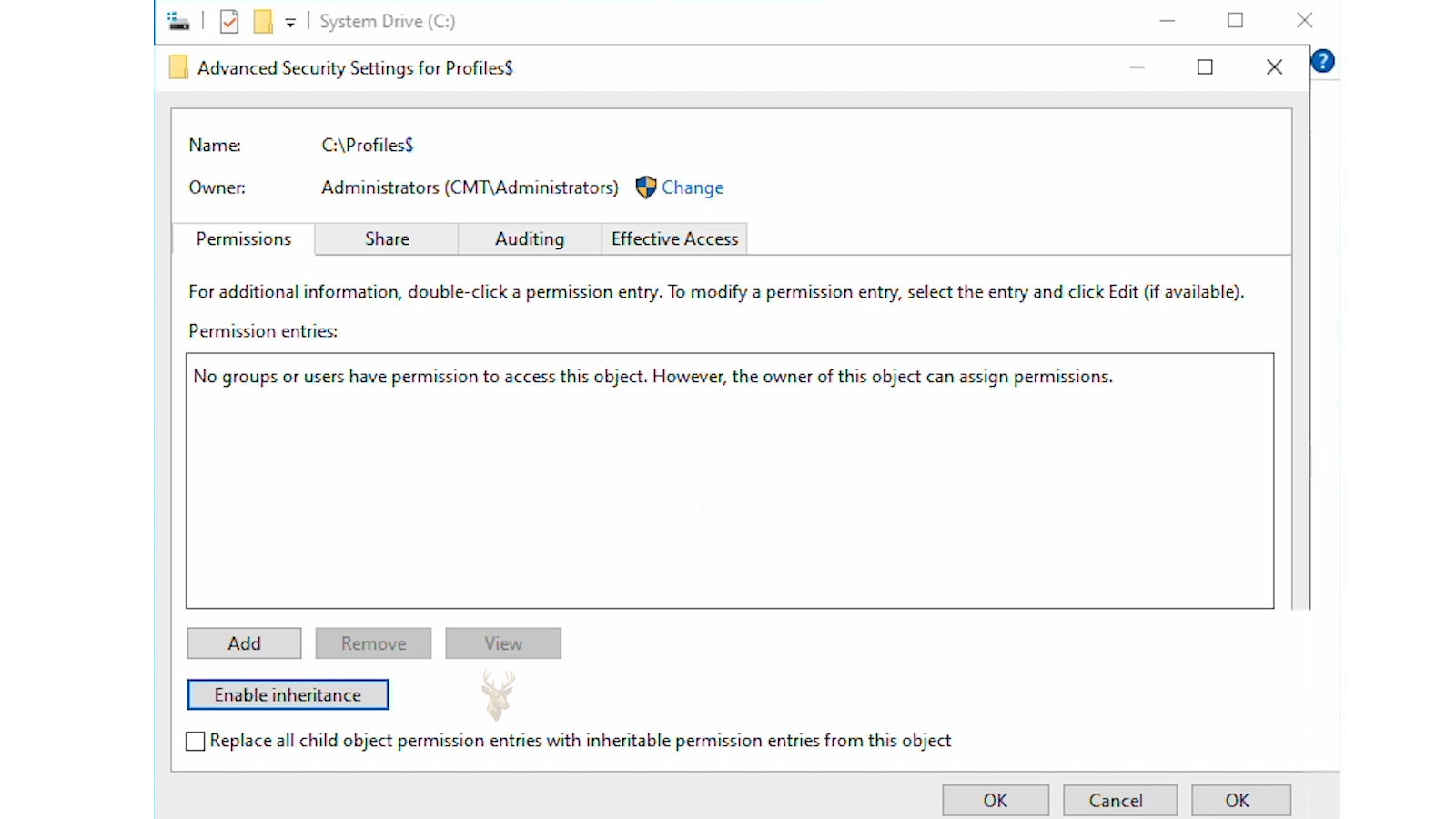
Roaming Profiles depend on both share permissions and NTFS permissions. If the user cannot create, modify, or replace profile files in the assigned server location, synchronization may fail even though the network path appears reachable.
Administrators should also prevent users from browsing or changing profiles that belong to other employees.
| Permission Problem | Possible Result |
|---|---|
| User lacks write access | Profile changes may not save. |
| Incorrect ownership | The profile may fail to load properly. |
| Excessive access | Other users may reach private profile data. |
| Broken inheritance | Some profile folders may behave differently. |
| Changed server path | Windows may no longer locate the profile. |
Antivirus and Backup Software Can Interfere With Synchronization
Security and backup programs may scan profile files while Windows is trying to copy or update them. In some environments, this can create file locks, increase sign-out time, or cause synchronization warnings.
This does not mean profile folders should be excluded from protection without review. Instead, administrators should confirm that security software, backup jobs, and profile synchronization are configured to operate together without repeatedly blocking one another.
- Review file-locking events.
- Check whether scans overlap with busy sign-in periods.
- Verify backup completion.
- Test profile updates after security changes.
- Document any approved exclusions carefully.
Profile Storage Requires Capacity Planning
A file server supporting many roaming users must have enough capacity for current profiles, future employees, profile growth, backups, and temporary working space. Small profiles can become much larger over time as applications add settings, caches, and other user-specific information.
Regular storage reviews help administrators identify unusually large profiles and prevent the profile volume from becoming critically full.
| Capacity Factor | Why It Matters |
|---|---|
| Number of users | Each employee requires individual profile space. |
| Average profile size | Determines current storage demand. |
| Application growth | Programs may add more user data over time. |
| Backup retention | Historical copies require additional capacity. |
| Free-space reserve | Allows profiles to synchronize safely. |
Old Profiles Should Be Removed Carefully
Former employees, test accounts, and abandoned profiles can continue consuming storage long after they are no longer needed. Removing these profiles may free substantial space, but deletion should follow the organization’s retention, legal, and backup requirements.
Administrators should confirm that necessary business files have been transferred or archived before removing any server-based profile data.
Profile cleanup should be controlled and documented because user settings may also contain business-related information.
Testing Is Important Before Large Deployments
Roaming Profiles should be tested with representative users, workstations, applications, and network conditions before being applied throughout an organization. A successful sign-in on one computer does not confirm that every program and profile setting will behave correctly across the entire environment.
- Create a limited test group.
- Verify profile creation and server permissions.
- Test sign-in on more than one workstation.
- Confirm application settings and redirected folders.
- Measure sign-in and sign-out performance.
- Review synchronization and event log errors.
- Expand deployment only after the results are consistent.
Roaming Profiles Require Ongoing Maintenance
Centralized profiles are not a configuration that should be deployed and then ignored. Windows upgrades, application changes, storage growth, permission modifications, and server migrations can all affect profile behavior over time.
Routine monitoring helps identify large profiles, synchronization failures, temporary profile events, and performance changes before they affect many employees.
- Monitor profile storage usage.
- Review recurring event log warnings.
- Check backup and restoration procedures.
- Test compatibility after major upgrades.
- Remove obsolete profiles according to policy.
Maintaining a Consistent Windows Environment
Roaming Profiles can provide employees with a more consistent Windows experience when they move between business computers. Centralized profile storage allows many desktop settings and application preferences to follow the user while reducing dependence on a single workstation.
Reliable performance depends on controlled profile sizes, stable networking, correct permissions, compatible applications, dependable server storage, and regular maintenance. When these elements are managed carefully, Roaming Profiles can support shared workstation environments while keeping user settings organized and accessible.











