
Keeping Business Files Separate From Individual Computers
Many businesses want employees to access their documents regardless of which office computer they use. Saving important files only inside a local user profile can make hardware replacement, computer upgrades, and backups more difficult because valuable information remains tied to a single device.
Folder Redirection is a Windows feature that stores selected user folders on a network file server instead of the local computer. Employees continue using familiar folders such as Documents or Desktop, while the actual files are stored centrally where they can be managed, backed up, and accessed more consistently.
Because the folder locations remain familiar to the user, daily work often changes very little while administrators gain better control over business data.
The User Experience Remains Familiar
One advantage of Folder Redirection is that employees usually continue opening and saving files exactly as they always have. Documents, Desktop, Pictures, and other redirected folders appear in the same locations within Windows even though the information resides on a network server.
This reduces training requirements because users generally do not need to learn a different method of saving their work.
- Documents folder.
- Desktop folder.
- Pictures folder.
- Music folder.
- Videos folder.
Central Storage Simplifies Backups
When business files remain scattered across individual computers, backup jobs become more complicated and some important information may be overlooked. Centralizing redirected folders allows administrators to protect business data from one primary storage location instead of relying on every workstation to be backed up individually.
This approach also makes it easier to verify backup completion and perform file restoration when necessary.
| Storage Location | Backup Consideration |
|---|---|
| Local computer only | Each workstation requires separate protection. |
| Redirected network folder | Centralized backup becomes easier to manage. |
| File server | Business data can be protected together. |
| Hybrid environment | May combine local and centralized backup methods. |
Computer Replacement Becomes Easier
Replacing an employee’s computer often involves transferring personal files before the old system is retired. When redirected folders already reside on a file server, much of this information is available immediately after the user signs in to the replacement computer.
This can reduce migration work, minimize downtime, and simplify hardware refresh projects across the organization.
Separating business files from individual computers makes hardware replacement considerably easier.
Folder Redirection Uses Existing Windows Features
In business environments, Folder Redirection is commonly configured through Group Policy. Administrators define which folders should be redirected and where they should be stored, allowing the settings to be applied consistently across many computers.
Once the policy is applied, Windows automatically directs supported folders to their assigned network locations without requiring employees to manually choose new save locations.
- Centralized policy management.
- Consistent folder locations.
- Automatic configuration.
- Reduced manual setup.
- Simplified administration for larger organizations.
Network Availability Affects Redirected Folders
Because redirected folders are stored on a file server, employees depend on reliable network connectivity to reach their files. In a properly managed office network this normally happens automatically, but interruptions to the network or file server can temporarily affect access to redirected data.
For this reason, businesses often combine Folder Redirection with dependable networking, reliable storage hardware, and appropriate backup systems to minimize downtime.
- Stable local network.
- Reliable file server.
- Consistent name resolution.
- Proper user permissions.
- Regular server maintenance.
Offline Files Can Improve Mobility
Employees who travel or work away from the office may not always have access to the company file server. Windows Offline Files can maintain a synchronized local copy of redirected folders, allowing users to continue working even when the network connection is temporarily unavailable.
Once the computer reconnects to the office network, Windows synchronizes the changes between the local cache and the server according to the configured synchronization process.
| Connection Status | Folder Behavior |
|---|---|
| Connected to the office network | Files are accessed from the redirected location. |
| Temporarily offline | Offline copies may remain available. |
| Network restored | Changes can synchronize with the server. |
| Synchronization conflict | User or administrator review may be required. |
Permissions Continue to Protect User Data
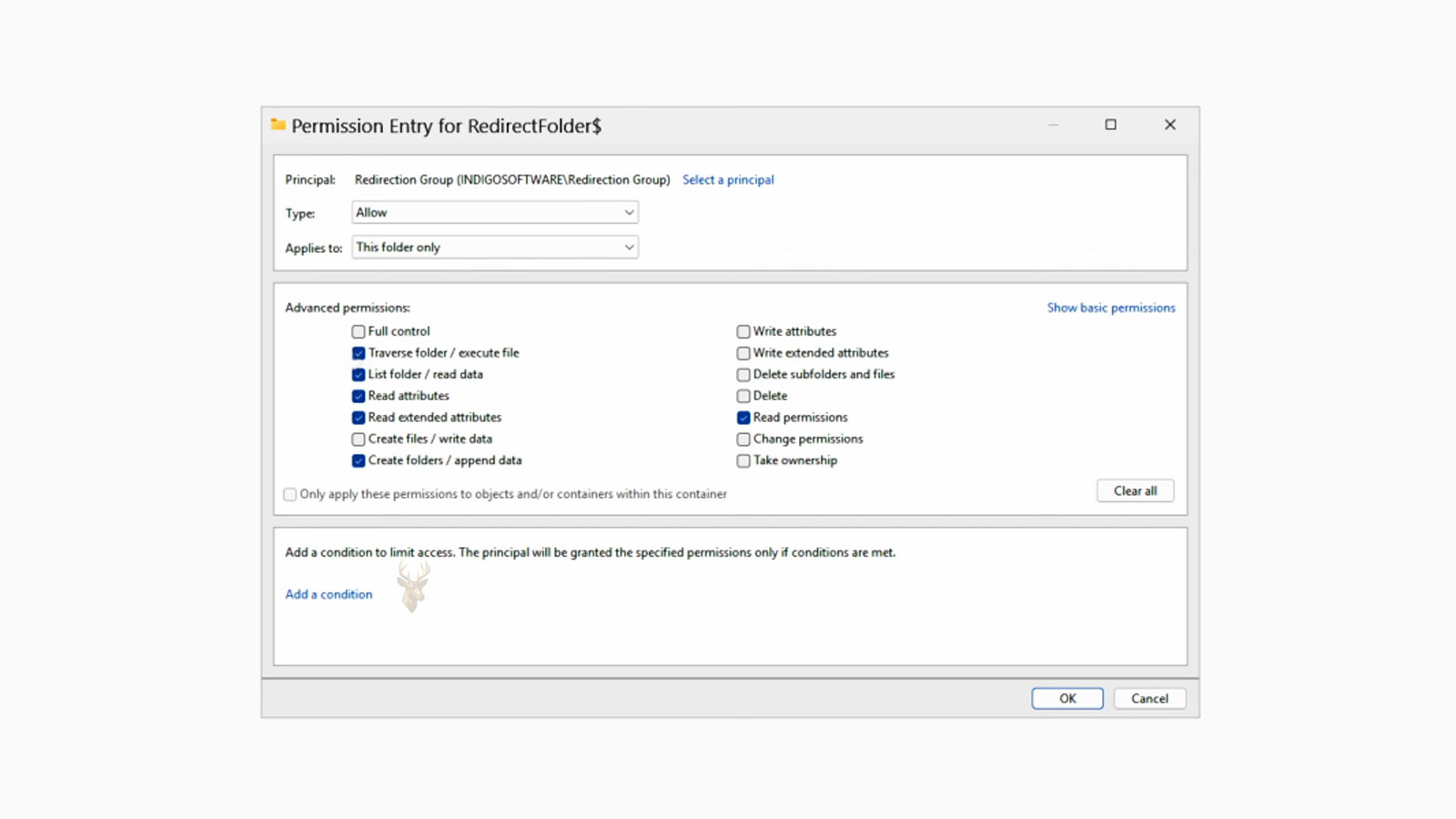
Redirecting folders to a file server does not mean every employee automatically gains access to everyone else’s files. Windows file permissions continue to determine who can view, modify, or delete the contents of each redirected folder.
Administrators should verify permission inheritance, ownership, and access rights when deploying Folder Redirection to prevent accidental exposure of business information.
Centralized storage improves management, but proper permissions remain essential for protecting business data.
Desktop Redirection Helps Preserve Everyday Work
Many employees save active documents directly on the Windows Desktop because it is convenient and always visible. Without Folder Redirection, those files may exist only on the local computer until they are manually copied elsewhere.
Redirecting the Desktop allows these frequently used files to become part of the centralized storage strategy while preserving the familiar user experience.
- Business documents.
- Project shortcuts.
- Frequently edited spreadsheets.
- Temporary working files.
- Reference materials.
Existing User Data Can Be Moved Automatically
When Folder Redirection is introduced into an existing business environment, Windows can move the current contents of supported folders to their new network locations. This helps preserve user data while transitioning from local storage to centralized file management.
Planning the migration carefully reduces user disruption and helps ensure that existing documents remain available after the policy is applied.
| Migration Step | Purpose |
|---|---|
| Review current user folders | Identify existing local files. |
| Configure redirection policy | Assign the destination location. |
| Move existing folder contents | Preserve current user data. |
| Verify successful access | Confirm that redirected folders function correctly. |
Folder Redirection and Roaming Profiles Are Different Features
Although they are often mentioned together, Folder Redirection and Roaming Profiles solve different problems. Folder Redirection primarily stores selected user folders on a file server, while Roaming Profiles synchronize a much larger portion of the user’s Windows profile between computers.
Many organizations use Folder Redirection without enabling full Roaming Profiles because it centralizes business documents while avoiding some of the larger profile synchronization requirements.
Folder Redirection focuses on user files, while Roaming Profiles manage much more of the Windows user environment.
Large Folders Can Affect Sign-In and Sign-Out Times
Folder Redirection reduces the amount of user data stored inside the local Windows profile, but administrators should still monitor the size of redirected folders. Extremely large collections of files may require additional time for synchronization, indexing, or offline caching depending on the network configuration.
Good folder organization and reasonable file management practices help maintain consistent performance while allowing users to continue accessing their business documents from multiple computers.
- Organize files into logical folders.
- Archive completed projects.
- Avoid storing unnecessary duplicates.
- Monitor synchronization activity.
- Review unusually large user folders.
Redirected Folders Should Remain Consistent
Changing the destination of redirected folders frequently can create unnecessary administrative work and increase the possibility of synchronization problems. Once a business establishes a stable folder structure, changes should be planned carefully and tested before being deployed across the organization.
Consistent folder locations simplify troubleshooting, documentation, and long-term maintenance while providing employees with a predictable working environment.
| Planning Practice | Benefit |
|---|---|
| Keep folder paths consistent | Reduces user confusion. |
| Document redirection policies | Simplifies administration. |
| Test policy changes | Reduces deployment problems. |
| Standardize folder names | Improves long-term organization. |
| Review policies periodically | Supports future business growth. |
Redirected Folders Can Support Shared Computer Environments
Some businesses use shared workstations where multiple employees sign in throughout the day. Because redirected folders remain associated with the individual user account rather than the physical computer, each employee can access their own files after signing in.
This approach allows shared computers to remain relatively free of business documents while preserving each employee’s individual workspace on the file server.
User files travel with the account instead of remaining permanently stored on a particular computer.
Server Availability Becomes More Important
Since redirected folders depend on centralized storage, the reliability of the file server becomes an important part of everyday business operations. Hardware maintenance, storage redundancy, monitoring, backups, and power protection all contribute to keeping user files continuously available.
Organizations that rely heavily on Folder Redirection should treat the file server as a critical business resource rather than simply another computer on the network.
- Reliable storage hardware.
- Regular server backups.
- Power protection.
- Storage health monitoring.
- Planned maintenance windows.
Folder Redirection Does Not Replace Backups
Although business files become centrally stored, Folder Redirection itself is not a backup solution. Accidental deletion, ransomware, corruption, or unauthorized modifications can still affect the redirected folders if no separate backup system exists.
Businesses should continue maintaining regular backups, version history when appropriate, and tested recovery procedures to ensure that important information can be restored if necessary.
| Technology | Primary Purpose |
|---|---|
| Folder Redirection | Stores user folders centrally. |
| Backups | Recover lost or damaged data. |
| Storage redundancy | Improve hardware fault tolerance. |
| Version history | Restore earlier file versions. |
| Permissions | Control file access. |
Monitoring Helps Detect Problems Early
Administrators should periodically review synchronization status, storage usage, server health, available capacity, and user permissions. Small configuration issues can often be corrected before employees notice missing files or synchronization delays.
Routine monitoring also helps verify that redirected folders continue operating as intended after Windows updates, server maintenance, or infrastructure changes.
- Check available storage capacity.
- Review synchronization errors.
- Verify user permissions.
- Monitor server performance.
- Test file restoration procedures.
Planning Folder Structure Before Deployment Simplifies Administration
A well-designed folder structure reduces future administrative work. Deciding where redirected folders will reside, how permissions will be assigned, and how storage will be organized before deployment makes future expansion much easier.
Businesses that invest time in planning their storage layout often spend less time correcting organizational problems as the company grows.
Thoughtful planning before deployment usually prevents much larger administrative challenges later.
Folder Redirection Continues to Support Centralized File Management
Folder Redirection allows organizations to keep important user folders on centrally managed storage while preserving the familiar Windows experience employees already know. Centralized backups, easier computer replacement, consistent folder locations, and simplified administration all contribute to a more manageable business environment.
When combined with reliable servers, appropriate permissions, regular backups, and careful planning, Folder Redirection helps businesses protect user data while supporting employee mobility and long-term growth across the organization.











