
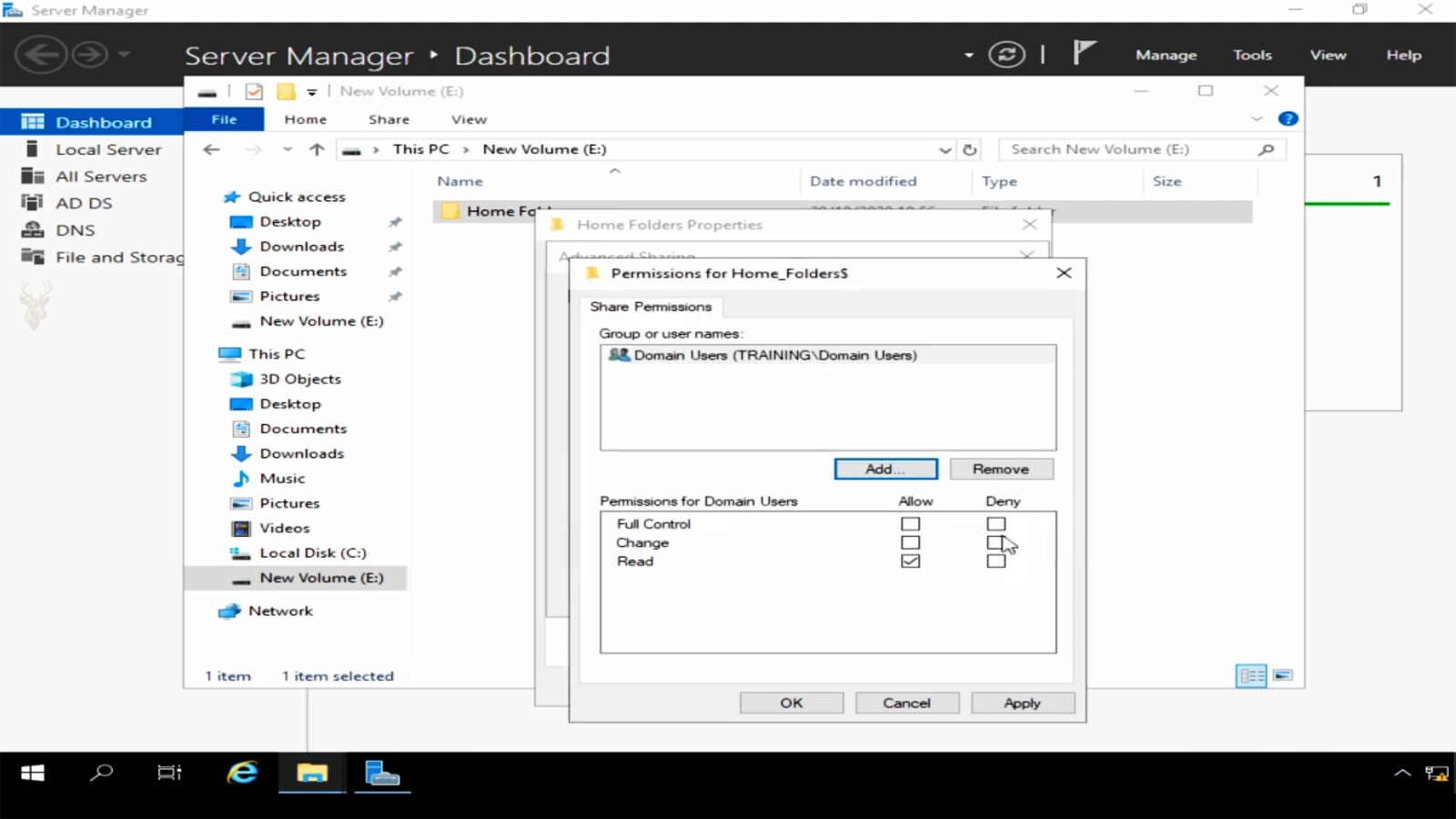
Providing Every Employee With a Personal Network Storage Location
Many organizations prefer that employees save important work documents on a central file server instead of storing everything on the local hard drive of an individual computer. Keeping files in one managed location simplifies backups, improves accessibility, and reduces the risk of losing information when a workstation fails or is replaced.
One traditional method used in Windows business environments is the Home Folder. A home folder is a personal network directory assigned to an individual user account. Each employee receives a dedicated storage location that is accessible after signing in and protected by permissions that prevent other users from viewing its contents unless access has been specifically granted.
Although cloud storage services have become common, home folders continue to be widely used in organizations that maintain centralized file servers and domain-managed Windows computers.
What a Home Folder Is Used For
A home folder provides users with a designated location for storing work-related documents and other business files. Instead of saving everything to the computer’s local drive, employees work with files stored on the organization’s network infrastructure.
- Business documents.
- Spreadsheets and reports.
- Department project files.
- Personal work templates.
- Authorized business data.
Because the information resides on the server, users can often access the same files from different authorized office computers.
How Home Folders Are Assigned
Administrators typically assign a home folder through the user’s Active Directory account or another centralized management system. During sign-in, Windows can automatically connect the assigned network location, often using a specific drive letter that appears in File Explorer alongside the computer’s local drives.
This automatic connection eliminates the need for employees to manually browse the network every time they need to access their personal work files.
| Without a Home Folder | With a Home Folder |
|---|---|
| Files remain on individual computers. | Files are stored centrally. |
| Backups depend on each workstation. | Server backups protect user files. |
| Moving to another computer is more difficult. | Files remain available after sign-in. |
Permissions Protect Individual User Data
Each home folder normally belongs to one employee. File system permissions prevent unauthorized users from opening another person’s directory while still allowing administrators to manage the storage when necessary.
Proper permission management is important because an incorrectly configured folder could unintentionally expose confidential business information or prevent the assigned user from accessing their own files.
A home folder is intended to provide centralized storage while keeping each employee’s files separated from those of other users.
Home Folders Are Different From Shared Department Folders
Organizations often use both personal home folders and shared department folders. A home folder is assigned to one individual, while a departmental share is designed for collaboration among multiple authorized employees.
Understanding the difference helps users store information in the appropriate location, depending on whether the files are intended for personal work or team collaboration.
- Home folders are assigned to individual users.
- Department folders support multiple authorized users.
- Personal files remain separated from shared projects.
- Permissions are managed independently.
- Both locations may exist on the same file server.
Automatic Drive Mapping Simplifies Daily Access
Many organizations automatically connect a user’s home folder during sign-in so it appears as a drive in File Explorer. Employees can begin working immediately without manually browsing the network or remembering long server paths.
This automatic mapping also helps maintain consistency across multiple office computers. Regardless of which workstation an employee uses, the same home folder can appear in the same location, making documents easier to find.
- Appears automatically after sign-in.
- Uses a consistent drive letter.
- Reduces manual navigation.
- Works from multiple authorized computers.
- Simplifies employee training.
Server Availability Affects File Access
Because home folders are stored on a network server, access depends on that server and the network connection remaining available. If the server is offline or communication is interrupted, employees may temporarily lose access to their files even though the local computer continues operating normally.
For this reason, organizations often build redundancy into their network infrastructure and monitor file servers carefully to minimize unexpected downtime.
| Server Status | User Experience |
|---|---|
| Operating normally | Home folder opens immediately. |
| Temporary network interruption | Folder may become unavailable. |
| File server offline | Stored files cannot be reached. |
| Slow network connection | Opening large files may take longer. |
Storage Quotas Help Control Disk Usage
Organizations frequently assign storage quotas to home folders. A quota limits how much space a user can consume on the server, helping prevent a small number of employees from filling shared storage with unnecessary files.
As users approach their assigned limit, administrators may increase the quota when justified or encourage the removal of outdated information that no longer needs to remain on the server.
Storage quotas help distribute server capacity fairly while encouraging users to manage their files responsibly.
Large Files Can Affect Network Performance
Working directly with files stored on a network server means every save, copy, and open operation travels across the network. Very large drawings, databases, videos, or archive files may require considerably more time than small office documents.
The impact becomes more noticeable when many employees simultaneously access large files over the same network connection.
- Large media files.
- Engineering drawings.
- Database files.
- Compressed archives.
- Virtual machine images.
Backups Become Easier to Manage
One advantage of centralized storage is that administrators can back up user files from one location instead of relying on every workstation to be protected individually. Scheduled server backups help reduce the risk of permanent data loss if a desktop or laptop fails.
Centralized backup strategies also simplify disaster recovery because the organization’s most important files remain stored on managed infrastructure rather than being scattered across many individual computers.
| Local Computer Storage | Home Folder Storage |
|---|---|
| Each computer requires separate backups. | Centralized server backups protect user data. |
| Hardware failure may leave files inaccessible. | Files remain on the server after workstation replacement. |
| Recovery varies by computer. | Recovery follows one organized process. |
Offline Work Requires Additional Planning
Unlike files stored entirely on a local drive, home folders normally require network connectivity. Employees who regularly travel or work away from the office may need additional technologies, such as Offline Files or other synchronization methods, if they must continue working without access to the organization’s network.
Choosing the appropriate solution depends on the organization’s security requirements, the types of files involved, and how frequently employees need offline access.
Centralized storage provides excellent accessibility within the organization, but offline work may require additional synchronization technologies.
Permissions Must Follow the Correct User Account
A home folder is useful only when the correct employee can open it and unauthorized users remain blocked. This depends on accurate permissions, ownership, and account assignments on the file server.
Problems can appear after an employee account is renamed, replaced, restored, or moved between systems. The folder may still exist, but its permissions may continue referencing an older account identifier rather than the current user.
- The user cannot open the assigned folder.
- Another account receives unintended access.
- Ownership remains tied to an old profile.
- Inherited permissions expose too much information.
- A restored folder no longer matches the active account.
Folder Paths Should Remain Consistent
Home folders are usually assigned through a network path that points to a specific server and folder structure. If that server name changes or the folders are moved without updating account settings, users may receive errors during sign-in or see a disconnected drive.
Organizations should plan server migrations carefully so the old and new paths do not conflict. Updating the folder location, permissions, login settings, and drive mappings together helps prevent broken access.
| Path Condition | Possible Result |
|---|---|
| Correct server path | Home folder connects normally. |
| Server name changed | Drive mapping may fail. |
| Folder moved without updates | User may reach an empty or missing location. |
| Old path still cached | Repeated connection errors may appear. |
| Permissions not transferred | The folder exists but cannot be opened. |
Shared Computers Need Careful Drive Assignments
When several employees use the same workstation, each person may receive a different home folder after signing in. The drive letter can remain the same while the network destination changes according to the active user account.
This design provides a familiar location without exposing the previous user’s files. Problems can occur when an older mapping remains connected after sign-out or when a script fails to replace the existing path.
The same drive letter can represent a different personal folder for each employee who signs in.
Home Folders Are Not a Complete Collaboration System
A personal network folder is intended primarily for one employee’s work files. It does not automatically provide document coauthoring, version tracking, approval workflows, or structured team collaboration.
Files that several employees need to edit should usually be stored in a properly managed shared location rather than copied between personal home folders. This reduces duplicate versions and confusion over which file is current.
- Personal drafts belong in the user’s home folder.
- Department documents belong in shared storage.
- Team projects need coordinated permissions.
- Frequently edited files need version control.
- Confidential information needs access review.
Deleted Files May Still Be Recoverable From Backups
When a user deletes a file from a home folder, the behavior may differ from deleting a file stored on the local computer. Network deletions do not always pass through the workstation’s Recycle Bin, so the file may appear to be gone immediately.
Recovery may still be possible through server backups, snapshots, previous versions, or other protection configured by the organization. Users should report accidental deletion promptly because available recovery points may change over time.
| Protection Method | Recovery Benefit |
|---|---|
| Scheduled backups | Restores files from an earlier backup set. |
| Server snapshots | Provides recent point-in-time copies. |
| Previous Versions | Allows earlier file or folder states to be opened. |
| Replication | Maintains another copy on separate infrastructure. |
| No protection | Recovery may require specialized investigation. |
Inactive Employee Folders Require a Retention Plan
When an employee leaves the organization, the home folder should not be deleted automatically without review. It may contain records, project files, correspondence, or business information that another employee must retain.
A controlled offboarding process can restrict the former user’s access, transfer ownership where appropriate, archive required files, and remove obsolete data after the organization’s retention period has ended.
- Disable the former employee’s account.
- Restrict access to the home folder.
- Review files with an authorized manager.
- Transfer required business information.
- Archive or delete data according to policy.
Cloud Storage May Replace Some Traditional Uses
Cloud-managed storage platforms can provide many of the same benefits as traditional home folders while adding remote access, synchronization, file sharing, and version history. These services may be more practical for organizations with employees who regularly work away from the office.
Traditional home folders may still be appropriate when an organization requires local control, depends on internal applications, or maintains a stable office network. The correct choice depends on security, connectivity, compliance, cost, and administrative requirements.
Managing Personal Storage Across the Office
Home folders provide employees with a consistent and protected network location for their work files. They can simplify backups, workstation replacement, centralized storage, and access from multiple authorized computers.
Reliable use depends on correct permissions, stable server paths, adequate storage capacity, dependable backups, and clear policies for shared files and former employees. When these details are managed carefully, personal network folders can remain an effective part of a small office storage system.











