
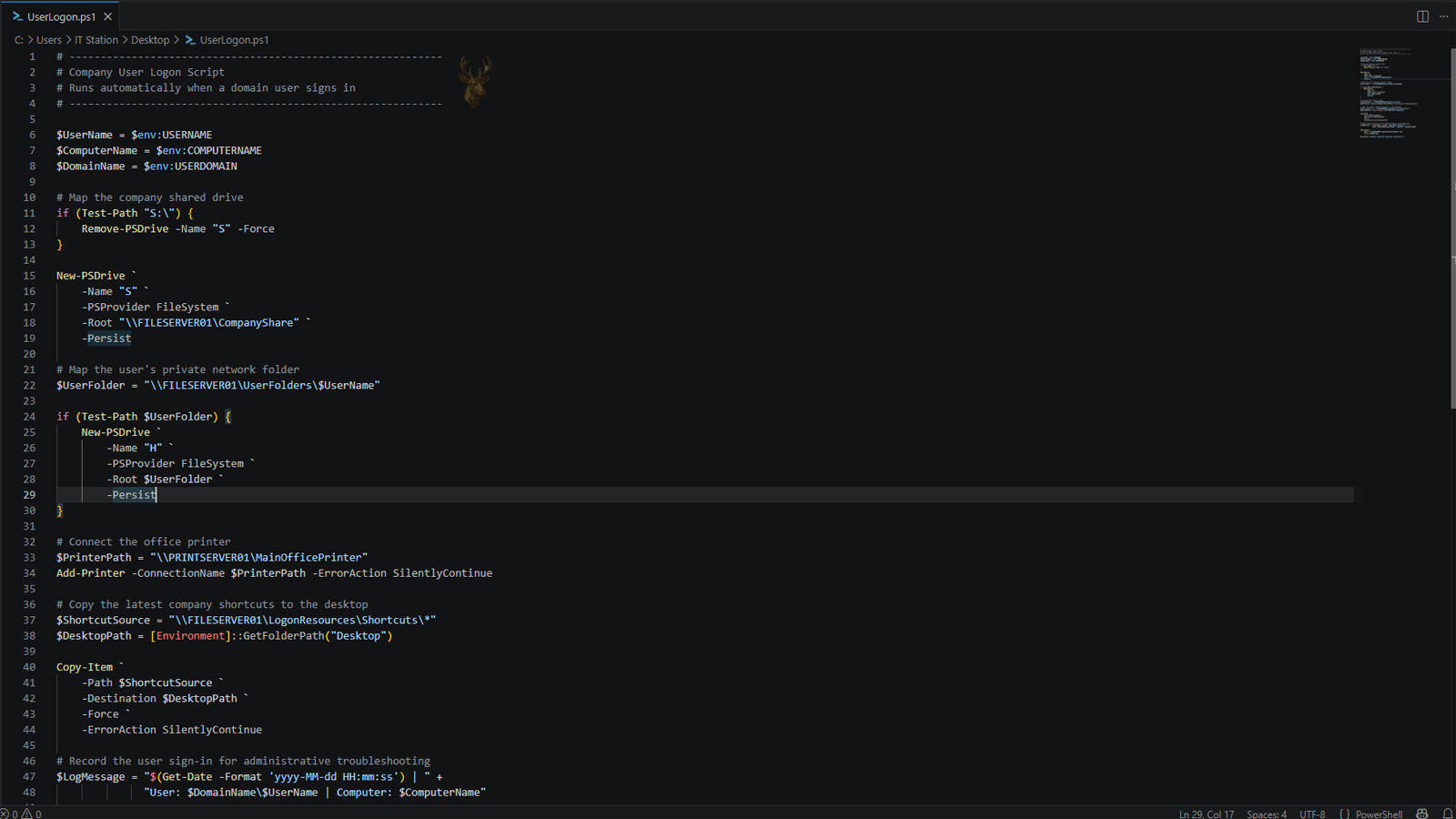
Automating Repetitive Tasks Each Time a User Signs In
In many business environments, users expect certain resources to become available automatically after signing in. Shared network drives, office printers, departmental folders, and other resources are often connected without requiring employees to configure them manually every day.
One of the traditional methods Windows uses to perform these routine tasks is the logon script. A logon script runs automatically after a user successfully signs in and can perform predefined actions based on the organization’s requirements. Instead of asking every employee to remember the same setup steps, the script performs them consistently each time a session begins.
Although modern management tools now provide additional automation options, logon scripts remain common in many Windows domain environments because they are reliable, flexible, and relatively simple to maintain.
What a Logon Script Can Do
A logon script can execute one or several administrative tasks immediately after authentication. The exact actions depend on how the organization has configured its network and what resources each employee requires.
- Map shared network drives.
- Connect shared printers.
- Launch approved applications.
- Create environment variables.
- Run maintenance or configuration commands.
- Display informational messages.
These actions occur automatically in the background or shortly after the Windows desktop appears.
Why Businesses Use Logon Scripts
Without automation, every employee would need to manually reconnect network drives, configure printers, and verify access to shared resources whenever they began using a new computer. Logon scripts eliminate these repetitive steps while helping ensure that every authorized user receives a consistent working environment.
| Without Automation | With a Logon Script |
|---|---|
| Users configure resources manually. | Resources connect automatically. |
| Settings may vary between computers. | Configuration remains consistent. |
| Support requests increase. | Routine setup is simplified. |
Where Logon Scripts Are Stored
In an Active Directory environment, logon scripts are commonly stored on a central server so they can be managed from one location. When users authenticate, Windows retrieves the assigned script and executes it according to the organization’s configuration.
Because the script resides centrally, administrators can update it without visiting every workstation individually. The next time users sign in, they automatically receive the revised instructions.
Centralized logon scripts allow many computers to receive the same configuration changes during the next user sign-in.
Different Users Can Receive Different Scripts
Not every employee requires the same network resources. Accounting, sales, engineering, and management departments often need access to different folders, printers, and applications. Windows administrators can assign different logon scripts based on user accounts, organizational units, security groups, or other administrative policies.
This flexibility allows one organization to provide customized environments while maintaining centralized management.
- Department-specific shared drives.
- Location-based printer connections.
- Role-specific application launches.
- Individual environment settings.
- Custom administrative commands.
Logon Scripts Can Perform Multiple Tasks in Sequence
A single logon script is not limited to one action. Administrators often configure scripts to complete several tasks in a specific order so that the user’s work environment is prepared before normal activity begins. The sequence can be important because some resources depend on earlier steps having completed successfully.
For example, a script may first verify network connectivity, then map shared drives, connect printers, create environment variables, and finally launch an approved application. Organizing tasks logically helps reduce errors and improves consistency across multiple computers.
- Verify required network access.
- Map shared folders.
- Connect network printers.
- Apply configuration settings.
- Launch approved applications.
Scripts Can Respond to User or Computer Information
Logon scripts do not always perform identical actions for every user. They can evaluate information such as the username, department, computer name, security group membership, or network location before deciding which tasks to execute.
This allows organizations to maintain one script that supports many employees while still providing resources appropriate for each person’s responsibilities.
| Information Checked | Possible Action |
|---|---|
| User department | Map department shared drives. |
| Security group | Connect authorized printers. |
| Computer location | Select the nearest network resources. |
| Computer name | Apply workstation-specific settings. |
Several Scripting Languages Can Be Used
Windows has supported different scripting methods over the years. Older environments often relied on batch files, while newer organizations may use PowerShell or other scripting technologies that provide additional capabilities.
Regardless of the language used, the objective remains the same: automatically prepare the user’s working environment after a successful sign-in.
The scripting language may change, but the purpose remains consistent—reducing repetitive manual setup for users.
Failed Commands May Affect Only Part of the Process
If one command inside a logon script encounters a problem, the remaining commands may still continue to run, depending on how the script was written. As a result, users may notice that some network resources appear correctly while others are missing.
For example, a shared drive might connect successfully while a network printer fails because the print server is temporarily unavailable. Understanding that individual commands can succeed or fail independently helps simplify troubleshooting.
- One shared drive connects normally.
- A printer fails to install.
- An application does not launch.
- A configuration command is skipped.
- Other script actions continue successfully.
Logon Scripts Depend on Network Availability
Most logon scripts require access to network resources while the user is signing in. If the domain controller, file server, or network connection is temporarily unavailable, some automated tasks may not complete as expected.
Users may discover that mapped drives are missing, printers do not appear, or applications cannot locate required files until network communication is restored or the user signs in again.
| Network Condition | Possible Result |
|---|---|
| Normal connectivity | Script completes successfully. |
| Slow connection | Resources appear after a delay. |
| File server unavailable | Shared drives may not connect. |
| Printer server unavailable | Printers may not be installed. |
| Authentication problems | Script execution may be incomplete. |
Logging Helps Identify Script Problems
Many administrators configure logon scripts to record their actions in a log file or write information to the Windows event logs. These records make it easier to determine where a script stopped, which commands succeeded, and what errors occurred during execution.
Without logging, troubleshooting often requires reproducing the problem manually or testing each command individually. Detailed logs significantly reduce the time needed to locate configuration issues.
Good logging transforms a difficult troubleshooting session into a step-by-step review of what the script actually performed.
Mapped Drives May Already Use the Requested Letter
A logon script may attempt to assign a specific drive letter to a shared network folder. Problems occur when that letter is already being used by another mapped drive, a removable device, or a locally configured storage location.
When a conflict exists, the new connection may fail or the user may see a different resource than expected. Scripts should check whether a drive letter is available before assigning it, especially in offices where users connect external drives or work with several network shares.
- A removable drive occupies the requested letter.
- An older network mapping remains active.
- Another script assigns the same letter first.
- A manual connection conflicts with the automated one.
- The mapping points to an outdated server location.
Old Mappings Can Persist Between Sessions
Some mapped drives remain connected after sign-out or restart, depending on how they were created. If a logon script later tries to replace one of these persistent mappings, the result may be inconsistent. The user may receive an error, see duplicate resources, or continue connecting to an obsolete server path.
Administrators often configure scripts to remove outdated mappings before creating new ones. This helps ensure that users receive the current configuration rather than a mixture of old and new connections.
| Existing Condition | Possible Result |
|---|---|
| No previous mapping | New drive connects normally. |
| Correct mapping already exists | Script may leave it unchanged. |
| Letter points to an old server | User may reach the wrong location. |
| Letter is occupied locally | Network mapping may fail. |
| Duplicate commands run | Errors or delays may appear. |
Printer Connections Can Take Longer Than Drive Mappings
Connecting a network printer may require Windows to contact the print server, verify permissions, download a driver, and create the printer connection. This process can take longer than mapping a shared folder, especially when the computer has never used that printer before.
If many employees sign in at the same time, the print server or network may become busy. Users may reach the desktop before the printer appears, leading them to assume that the script failed even though installation is still continuing.
Some automated resources appear immediately, while others may continue loading after the desktop is already available.
Security Policies Can Prevent Script Actions
Logon scripts operate within the permissions assigned to the user and the restrictions applied by Windows security policies. A command that works for an administrator may fail for a standard user if it attempts to modify protected settings, install software, or access a restricted network location.
Script failures are sometimes caused by security controls rather than an error in the command itself. Reviewing user permissions, execution policies, group memberships, and access rights can help determine why a task is being blocked.
- The user lacks permission to access the resource.
- A script execution policy blocks the file.
- Administrative rights are required.
- Security software prevents the command from running.
- Group Policy restricts the requested action.
Scripts Should Avoid Storing Exposed Passwords
A poorly designed script may contain usernames, passwords, or other sensitive information written directly into the file. Anyone who can read the script may be able to view those credentials, creating a serious security risk.
Modern authentication methods, managed service accounts, appropriate permissions, and secure credential storage should be used instead of placing readable passwords inside scripts. Automation should reduce administrative work without exposing access information.
| Unsafe Practice | Safer Approach |
|---|---|
| Password written in plain text | Use integrated authentication. |
| Shared administrator credentials | Use limited service permissions. |
| Script readable by all users | Restrict file access. |
| Permanent credentials for one task | Use temporary or managed access. |
Sign-In Delays Can Come From Script Timeouts
A script may wait for a server, printer, application, or network path that is unavailable. If the command does not fail quickly, the user can remain at the sign-in screen or experience a long delay before the desktop becomes usable.
Well-designed scripts include checks, reasonable timeout limits, and methods for skipping resources that cannot be reached. This prevents one unavailable device from delaying the entire sign-in process.
- Confirm that the network is available.
- Test whether the required server can be reached.
- Skip unavailable resources when appropriate.
- Record the failure in a log.
- Continue with the remaining sign-in tasks.
Testing Should Include Different User Accounts
A script that works correctly for one administrator account may not behave the same way for every employee. Different users can have different permissions, group memberships, folder access, printer assignments, and local computer conditions.
Before a revised script is assigned throughout an organization, it should be tested with representative user accounts and several workstation types. This helps reveal permission problems, naming conflicts, slow commands, and location-specific failures before they affect the entire office.
Successful testing requires more than confirming that the script runs once on an administrator’s computer.
Modern Policies Can Replace Some Script Tasks
Many tasks once handled exclusively through logon scripts can now be managed through Group Policy preferences, device management platforms, cloud services, and application deployment systems. These tools may provide clearer reporting, easier targeting, and more consistent control.
Logon scripts still remain useful for custom tasks and older environments, but they should not automatically be used for every configuration requirement. The simplest reliable method is usually preferable, especially when a built-in management policy can perform the same task without custom scripting.
Keeping Sign-In Automation Reliable
Logon scripts can save time by connecting shared resources and preparing office computers automatically. Their reliability depends on clear commands, correct permissions, available network services, secure credential handling, and careful testing.
Administrators should review scripts periodically to remove outdated mappings, replace obsolete server paths, improve error handling, and confirm that every command is still necessary. When sign-in automation remains organized and properly maintained, employees can begin work with the resources they need without repeating the same setup steps each day.











