
Keeping the Same Windows Environment on Different Office Computers
Many office employees do not use the same computer every day. A person may work from one workstation in the morning, another after a meeting, and a third while covering a different department. Without some method of synchronizing user settings, each computer would appear unfamiliar, requiring users to repeatedly configure their desktop, application preferences, and personal environment.
Windows addresses this challenge with Roaming Profiles. Instead of storing an employee’s profile only on one computer, Windows keeps a master copy on a network server. When the user signs in to another authorized computer within the organization, Windows downloads the profile so the desktop, many personal settings, and supported configuration data appear similar regardless of which workstation is being used.
This approach simplifies daily work in environments where employees regularly move between computers while maintaining a familiar Windows experience.
What a Roaming Profile Contains
A roaming profile stores many user-specific settings rather than the Windows operating system itself. The exact contents depend on the Windows version and organizational policies, but the goal is to preserve the user’s personal working environment.
- Desktop appearance and personalization.
- Start Menu and taskbar preferences.
- User-specific application settings.
- Documents stored within the profile.
- Personal Windows configuration information.
When the user signs in, Windows retrieves this information from the server and applies it to the local computer for that session.
How the Sign-In Process Works
During sign-in, Windows authenticates the user through the organization’s directory service and locates the roaming profile stored on the network. The profile is copied to the local computer, allowing Windows to load the user’s familiar desktop and supported settings before the session begins.
When the user signs out, Windows compares the local profile with the server copy and uploads any permitted changes. The server then becomes the updated source that will be used the next time the employee signs in to another computer.
| Sign-In | Sign-Out |
|---|---|
| Windows downloads the roaming profile. | Windows synchronizes approved profile changes. |
| User settings become available. | Server copy is updated. |
| Desktop environment is restored. | Future computers receive the updated profile. |
Roaming Profiles Are Different From Folder Redirection
Roaming Profiles and Folder Redirection are often used together, but they perform different functions. A roaming profile synchronizes user profile settings, while Folder Redirection stores selected folders directly on a server instead of copying them into the profile.
Separating these technologies helps reduce profile size and shortens the amount of time required to sign in and sign out, especially when users work with large document collections.
| Roaming Profiles | Folder Redirection |
|---|---|
| Synchronizes profile settings. | Stores selected folders directly on the server. |
| Supports a consistent Windows environment. | Centralizes user documents. |
| Copies profile information during sign-in. | Files remain primarily on the network. |
Roaming Profiles help users feel like they are returning to the same Windows workspace, even when they are using a different office computer.
Why Organizations Use Roaming Profiles
Roaming Profiles simplify administration in environments where employees frequently change workstations. Instead of manually configuring every computer for every employee, administrators maintain centralized user profiles that automatically follow authorized users throughout the organization.
- Provides a familiar desktop on multiple computers.
- Reduces repeated user configuration.
- Simplifies workstation replacement.
- Supports employees who move between departments.
- Centralizes profile management.
Although roaming profiles improve consistency, they also require reliable network connectivity, careful profile management, and appropriate storage planning to maintain good performance.
Large Profiles Can Delay Sign-In
A roaming profile must be transferred between the server and the local computer during sign-in and sign-out. When the profile contains many files, large application settings, or unnecessary cached data, this transfer can take noticeably longer.
Employees may experience a long wait before the desktop appears, especially over a congested network or when connecting through a slower office link. The same delay can occur during sign-out while Windows attempts to upload profile changes back to the server.
- Large Desktop folders.
- Extensive application caches.
- Oversized profile databases.
- Temporary files stored inside the profile.
- Slow or unstable network connections.
Folder Redirection Helps Keep Profiles Smaller
Organizations often redirect folders such as Documents and Desktop to a server so those files do not need to travel inside the roaming profile. This reduces the amount of information Windows must copy during each sign-in and sign-out.
By separating user documents from profile settings, Folder Redirection can improve performance while still allowing important files to remain available from multiple computers.
| Stored in the Roaming Profile | Commonly Redirected |
|---|---|
| User preferences | Documents |
| Application settings | Desktop files |
| Personal configuration data | Pictures |
| Supported registry settings | Other large work folders |
Profile Changes Can Create Synchronization Conflicts
Problems can occur when the same roaming profile is active on more than one computer at the same time. Each session may change profile settings independently, leaving Windows to determine which version should be kept when both computers later sign out.
Some changes may overwrite others because the most recently synchronized copy can replace earlier profile information. This is one reason employees should avoid remaining signed in to several office computers simultaneously unless the environment is designed to support that behavior.
A roaming profile is intended to follow a user between computers, not to maintain several independent active versions of the same profile.
Local Copies Remain on Previously Used Computers
When a roaming profile is downloaded, Windows usually creates a local cached copy on the computer. This allows later sign-ins to begin more quickly because Windows does not always need to download the entire profile again.
The local copy is compared with the server version, and any required changes are synchronized. If the server is temporarily unavailable, Windows may allow the user to sign in with the cached profile, although current settings and files may not be available until connectivity returns.
- Cached copies can shorten later sign-ins.
- Temporary server outages may not prevent access.
- Recent profile changes may be unavailable while offline.
- Old local copies can consume storage over time.
- Shared computers may require periodic profile cleanup.
A Cached Profile May Become Outdated
If a computer remains disconnected from the network for an extended period, its cached profile may no longer match the current server version. The user may see older desktop settings, missing shortcuts, or application preferences that were changed on another workstation.
Once the network connection is restored, Windows attempts to reconcile the local and server copies. Depending on the changes involved, some settings may synchronize normally while others may require administrative review.
| Profile Condition | Possible Result |
|---|---|
| Server copy is current | Latest settings are downloaded. |
| Cached copy is older | Outdated preferences may appear temporarily. |
| Both copies changed | Some settings may conflict. |
| Server is unavailable | Windows may load the cached profile. |
| Cache is damaged | A temporary or new local profile may appear. |
Temporary Profiles Can Appear After a Loading Failure
If Windows cannot load the roaming profile or its local cached copy, the user may be signed into a temporary profile. The desktop can appear nearly empty, personal settings may be missing, and changes made during that session may not be preserved after sign-out.
A temporary profile does not necessarily mean the user’s original information has been deleted. It usually means Windows could not access or correctly process the expected profile during that sign-in attempt.
- Network path unavailable.
- Profile permissions incorrect.
- Profile files damaged.
- Server storage full.
- Local cached copy corrupted.
Application Settings Do Not Always Roam Correctly
Not every program stores its settings in a location designed for roaming profiles. Some applications place information in local-only folders, use device-specific databases, or depend on files that should not be copied between computers.
As a result, an employee may see the same Windows desktop on different workstations while certain application preferences remain different. Software compatibility should be reviewed before assuming that every program will provide an identical experience across all computers.
Roaming Profiles can preserve many user settings, but they cannot force every application to support centralized profile synchronization.
Profile Permissions Must Remain Correct
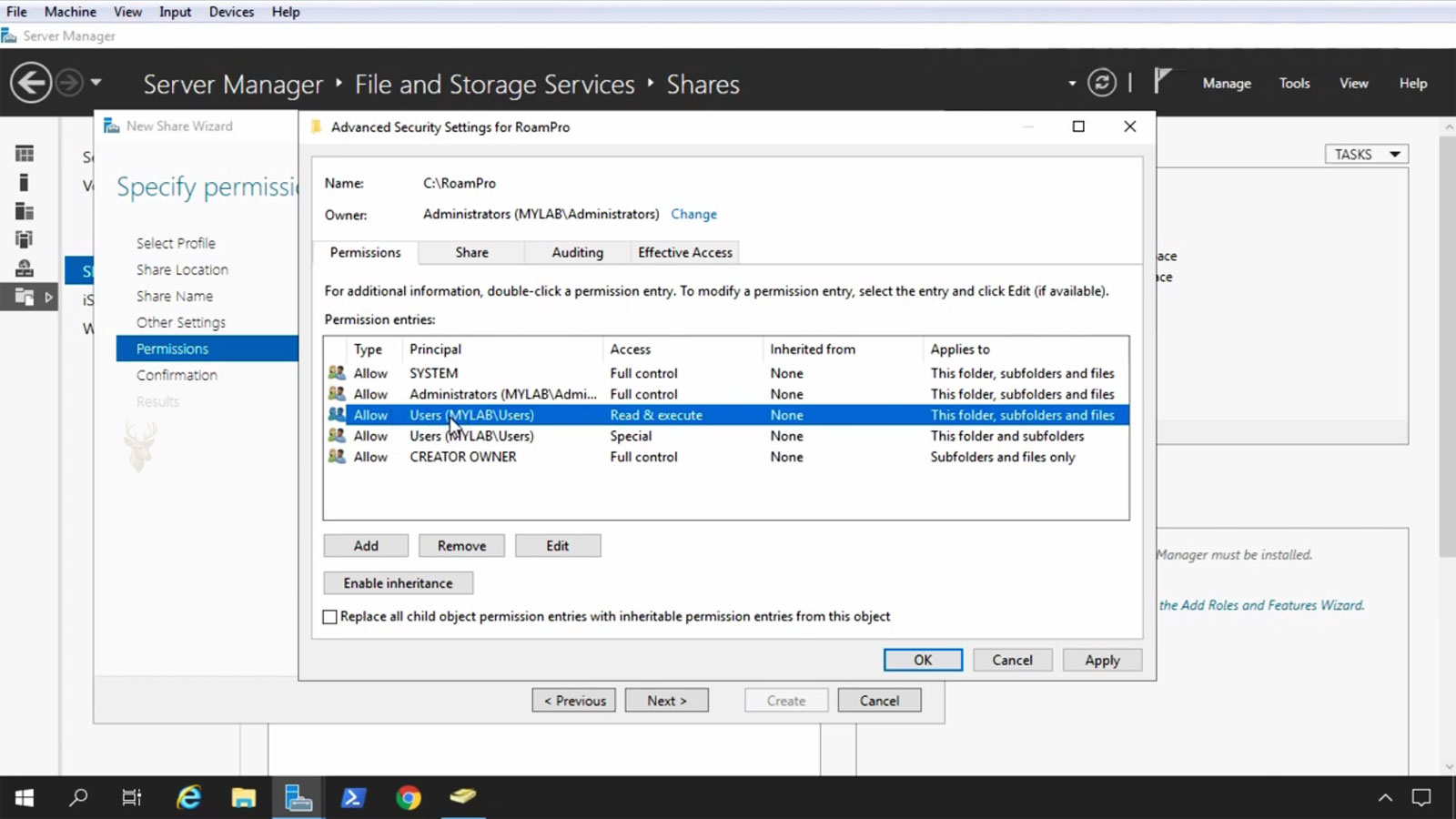
A roaming profile depends on carefully assigned permissions at the server location where the profile is stored. The user must be able to read and update the correct profile folder, while other employees should not be able to open or modify that information.
If permissions are changed incorrectly, Windows may fail to load the profile, create a temporary profile, or prevent changes from being written back during sign-out. Permission problems can also appear after a profile folder is moved, restored from backup, or copied to a replacement server.
- User lacks permission to update the profile folder.
- Ownership no longer matches the correct account.
- Inheritance introduces unintended access.
- Administrators copy the folder without preserving permissions.
- A restored profile uses outdated security information.
Profile Storage Requires Capacity Planning
Each roaming profile consumes space on the server, and the total can grow quickly as more employees are added. Application data, desktop files, cached content, and long-unused profiles can gradually increase storage requirements beyond what was expected when the system was first configured.
Administrators should monitor profile sizes, available server capacity, and the rate at which storage is increasing. A server that runs out of space may prevent profile updates from completing and can cause repeated sign-in or sign-out problems.
| Storage Condition | Possible Effect |
|---|---|
| Ample free space | Profiles can synchronize normally. |
| Low available capacity | Uploads may become slow or incomplete. |
| Server storage full | Profile changes may fail to save. |
| Many abandoned profiles | Unnecessary storage remains occupied. |
| Oversized individual profiles | Sign-in and sign-out times may increase. |
Profile Versions Can Affect Compatibility
Different versions of Windows may use different roaming profile structures. A profile created for one operating system version may not work correctly on another, especially when there are major differences in the way Windows stores settings and application data.
Organizations that use several Windows versions at the same time may need separate profile paths or other management methods to prevent one system from modifying a profile in a way that another system cannot interpret properly.
A roaming profile can follow a user between compatible computers, but it does not guarantee identical behavior across every Windows version.
Slow Networks Can Make Profiles Feel Unreliable
Because profile information travels across the network, performance depends heavily on connection speed and stability. A profile that loads quickly on a wired office network may take much longer through a distant branch connection, congested wireless network, or slow remote link.
Users may interpret these delays as a computer problem even when the workstation itself is functioning normally. Measuring network performance and reviewing profile size can help determine whether the delay comes from the computer, the server, or the connection between them.
- Slow links increase profile transfer time.
- Packet loss can interrupt synchronization.
- Congestion may delay sign-in for many users at once.
- Remote offices may experience longer waits than the main location.
- Large profiles amplify every network weakness.
Sign-Out Should Be Allowed to Finish
When a user signs out, Windows may still be uploading profile changes to the server. Turning off the computer too quickly, losing network access, or forcing the system to shut down can interrupt this process before all changes are transferred.
Repeated interruptions may leave the server profile outdated or create inconsistencies between the local and central copies. Users should allow the sign-out process to complete, especially after making substantial changes to their desktop or application settings.
- Save open documents before signing out.
- Close applications that may still be writing profile data.
- Remain connected to the office network.
- Allow Windows to complete the sign-out process.
- Avoid forcing power off unless the system is completely unresponsive.
Backups Should Include the Profile Server
Centralized profile storage makes the server an important part of the user environment. If the server fails and no backup exists, employees may lose personalized settings, application configuration, and files that were stored inside their profiles.
Regular backups should protect the profile share, its permissions, and the folder structure required for recovery. Restoring only the visible files without the correct access controls may leave the recovered profiles unusable.
| Backup Component | Reason It Matters |
|---|---|
| Profile folders | Preserves user settings and stored profile data. |
| Permissions | Maintains correct user access after restoration. |
| Folder structure | Allows Windows to locate each profile correctly. |
| Server configuration | Supports complete recovery after system failure. |
| Recent backup versions | Helps recover from corruption or accidental changes. |
Modern Alternatives May Reduce Profile Complexity
Roaming Profiles remain useful in certain traditional office environments, but newer management methods may provide a more reliable experience for some organizations. Cloud-based settings synchronization, enterprise profile containers, virtual desktops, and managed application platforms can reduce the need to transfer an entire profile during every sign-in and sign-out.
The best approach depends on the applications in use, the number of computers, network design, security requirements, and how frequently employees change workstations. A small office with a stable local network may have different needs from a business with remote employees and several locations.
Maintaining Consistent User Profiles
Roaming Profiles can provide employees with a familiar desktop and personal settings across multiple office computers. They are most effective when profile sizes remain controlled, network connections are reliable, permissions are correct, and users are not signed in to several workstations at the same time.
Careful storage planning, regular backups, compatible Windows versions, and proper sign-out procedures help reduce synchronization problems. When these requirements are managed consistently, roaming profiles can support flexible workstation use without forcing employees to rebuild their working environment on every computer.











