
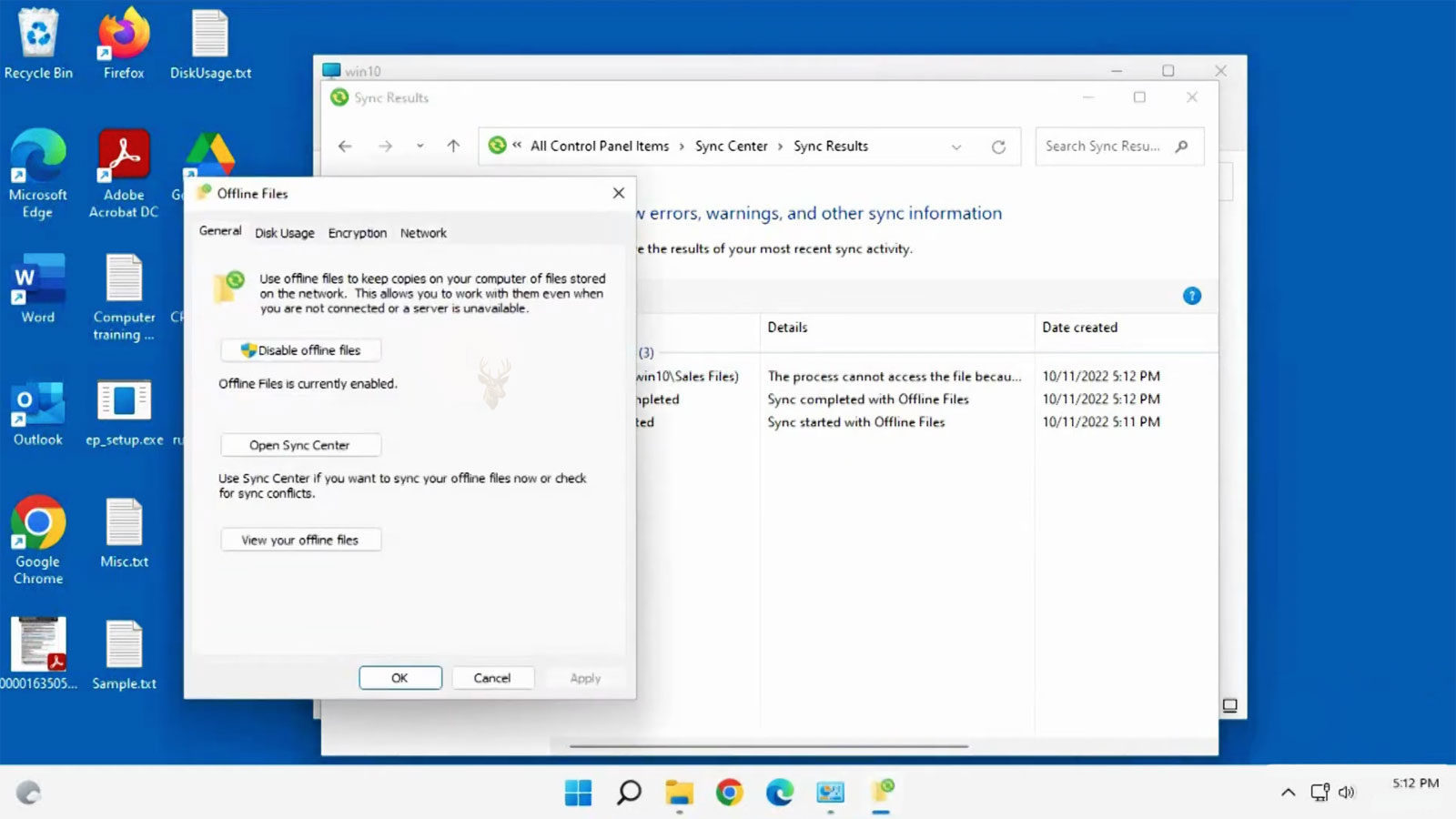
Keeping Network Files Available Away From the Office
Many employees work with documents stored on office file servers rather than saving everything directly on their computers. This central storage makes collaboration easier, but it also means those files normally become unavailable whenever the computer loses its connection to the office network. Windows addresses this limitation with a feature called Offline Files.
Offline Files allows selected network folders to remain accessible by storing synchronized copies on the local computer. When the network connection is unavailable, Windows automatically switches to the locally cached versions so users can continue working. Once the connection is restored, Windows attempts to synchronize the changes back to the original network location.
This capability is especially useful for laptops that regularly move between the office, home, customer locations, and other environments where a direct connection to the company network is not always available.
What Offline Files Actually Does
Offline Files does not move documents away from the network server. Instead, Windows creates and maintains local copies that are synchronized with the originals whenever communication with the server is available. Users continue working with familiar folder locations while Windows manages the transition between online and offline access.
- Maintains synchronized local copies of selected network folders.
- Allows access when the network is unavailable.
- Synchronizes changes after reconnection.
- Reduces interruptions during temporary network outages.
- Supports users who frequently travel with laptops.
Offline Files Is Different From Ordinary File Copies
Simply copying files from a network share onto a laptop creates two completely independent versions. If one copy changes, the other remains unchanged until someone manually copies it again. Offline Files is designed to keep both versions synchronized instead of leaving them to drift apart indefinitely.
| Manual File Copy | Offline Files |
|---|---|
| Creates separate independent copies. | Maintains synchronized local copies. |
| Updates require manual copying. | Synchronization occurs automatically when possible. |
| Easy to lose track of the newest version. | Windows attempts to keep versions consistent. |
| No automatic reconnection process. | Reconnects to the original network location. |
When Offline Files Becomes Useful
Many office workers spend part of the day disconnected from the company network. A salesperson may travel between customer locations, an employee may work from home, or a technician may need access to documentation while visiting a job site. Offline Files allows these users to continue opening supported network documents even when the original server cannot be reached.
Once connectivity returns through the office network or an approved remote connection, Windows attempts to synchronize any changes that occurred while the files were unavailable online.
Offline Files improves availability by maintaining synchronized copies. It does not eliminate the need for the original network server.
Which Files Can Be Available Offline
Not every network location is intended for Offline Files. Whether a folder can be cached depends on how the server has been configured and how Windows policies are applied within the organization. Some shared folders are appropriate for offline use, while others are intentionally excluded because they contain frequently changing information or data that should always remain on the server.
- Department document libraries.
- User home folders.
- Project documents.
- Reference materials.
- Selected business records approved for offline access.
Synchronization Occurs When Connections Return
When the computer reconnects to the network, Windows compares the locally cached files with the originals stored on the server. If changes have occurred while the computer was offline, Windows begins the synchronization process so that both locations once again contain matching information whenever possible.
Most synchronizations occur automatically with little user involvement, although conflicts can arise if both the local copy and the server copy have been modified independently before the next synchronization takes place.
How Windows Detects Offline Status
Windows continually monitors communication with the network location that contains the shared files. If the server becomes unreachable because of a disconnected network cable, wireless interruption, VPN disconnection, or temporary server outage, Windows can switch from the online copy to the locally cached version without requiring the user to manually locate another file.
When connectivity is restored, Windows automatically returns to online operation and begins checking whether any changes need to be synchronized between the local cache and the original network folder.
- Temporary network interruptions.
- Wireless signal loss.
- VPN disconnections.
- Server maintenance periods.
- Travel away from the office network.
The Local Cache Requires Disk Space
Offline Files stores synchronized copies on the computer’s internal storage. As more folders become available offline, the amount of disk space consumed by the cache also increases. Very large shared folders can occupy significant storage capacity, particularly on laptops with limited solid-state drive space.
For this reason, organizations often choose only the folders that employees truly need while away from the office instead of making every network share available offline.
| Folder Size | Effect on Local Storage |
|---|---|
| Small document folders | Minimal disk usage. |
| Large project folders | Moderate storage consumption. |
| Extensive archives | Can consume substantial disk space. |
| Multimedia libraries | Often require significant storage capacity. |
Synchronization Conflicts Can Occur
Occasionally, both the locally cached copy and the original network copy of a document are modified before synchronization occurs. When Windows detects that both versions have changed independently, it cannot always determine which version should replace the other automatically.
Instead of silently overwriting one version, Windows may report a synchronization conflict that requires user attention. The appropriate resolution depends on which copy contains the desired changes and whether both versions need to be preserved.
A synchronization conflict does not necessarily indicate file corruption. It often means that the same document was modified in more than one location before synchronization could occur.
Sync Center Helps Manage Offline Files
Windows includes Sync Center, a management interface that allows users and administrators to review synchronization activity, monitor partnership status, identify pending updates, and investigate synchronization errors involving Offline Files.
Although many synchronizations occur automatically, Sync Center provides useful information when troubleshooting repeated synchronization failures or confirming that recently modified files have been successfully synchronized.
- View synchronization status.
- Identify synchronization errors.
- Start manual synchronizations.
- Review pending updates.
- Monitor offline file partnerships.
Not Every Network Folder Should Be Cached
Some shared folders contain information that changes constantly or depends on multiple users accessing the same files simultaneously. In these situations, maintaining offline copies may increase the likelihood of synchronization conflicts or inconsistent information.
Folders containing large databases, virtual machine files, accounting systems, or rapidly changing application data are often better suited for direct server access rather than offline synchronization. Selecting appropriate folders helps balance availability with data consistency.
| Generally Appropriate | Often Less Appropriate |
|---|---|
| Office documents | Database files |
| Reference manuals | Virtual machine disks |
| Project documentation | Continuously changing application data |
| Personal work folders | Large shared transactional files |
Offline Files Does Not Replace Backups
Although Offline Files maintains synchronized copies, it should not be viewed as a substitute for a proper backup strategy. Synchronization is intended to keep multiple copies current, not to preserve historical versions or protect against accidental deletion, ransomware, or widespread file corruption.
If an unwanted change is synchronized to both the local cache and the server, both copies may reflect the same problem. Regular backups remain essential for recovering earlier versions of important business data.
Offline Access Can Be Limited by Security Policies
Organizations may restrict Offline Files through Group Policy or server settings to prevent sensitive information from being copied onto portable computers. Even when a user can open a network folder normally, the option to make that location available offline may be disabled intentionally.
These restrictions are common when laptops leave the office regularly, multiple employees share the same computer, or business records require tighter control. The absence of an offline option does not necessarily indicate a Windows problem. It may reflect an administrative decision about where company information is allowed to remain stored.
- Group Policy may disable Offline Files entirely.
- Server settings may prevent specific folders from being cached.
- Security rules may limit offline access to approved employees.
- Sensitive folders may remain available only while connected to the network.
- Portable computers may require additional encryption before files can be cached.
Encryption Helps Protect the Offline Cache
Files made available offline are stored on the local computer, which means they may remain accessible even when the office server cannot be reached. On portable systems, this creates an additional security concern because the computer may be lost, stolen, or used outside the controlled office environment.
Windows can encrypt the Offline Files cache so that locally stored network data receives additional protection. Full-drive encryption, such as BitLocker, may also help protect the computer’s storage if the device falls into unauthorized hands.
| Protection Method | Purpose |
|---|---|
| Offline Files cache encryption | Protects synchronized network files stored locally. |
| BitLocker drive encryption | Protects the computer’s entire storage device. |
| Strong Windows sign-in | Limits access to the authorized user profile. |
| Physical device security | Reduces the risk of theft or unauthorized handling. |
Making files available offline improves convenience, but it also places another copy of business data on the local computer.
Slow Connections Can Trigger Offline Behavior
Windows may switch a network folder into offline mode when the connection becomes too slow or unstable, even if the server has not completely disappeared. This behavior is intended to keep file access responsive by relying on the local cache instead of repeatedly waiting for delayed network communication.
A slow-link condition can occur over a weak wireless connection, congested network, distant VPN session, or unreliable internet service. Users may continue opening cached files normally while changes remain pending until Windows considers the network connection suitable for synchronization.
- Weak Wi-Fi signals.
- High network congestion.
- Slow VPN connections.
- Unstable internet service.
- Temporary server response delays.
Pending Changes Should Be Synchronized Before Travel
Before leaving the office, users who depend on Offline Files should confirm that important folders have completed synchronization. A file that exists only on the server may not be available later if it was never copied into the local cache.
The same concern applies after returning from travel. Changes made while offline should be allowed to synchronize before the laptop is shut down, disconnected again, or reassigned to another employee.
- Connect the computer to the office network or approved VPN.
- Open Sync Center and review the synchronization status.
- Resolve any reported conflicts or errors.
- Confirm that important files are available offline.
- Allow pending changes to finish before disconnecting.
Database Files Require Extra Caution
Offline Files works best with documents that can be synchronized as complete files. Databases and other applications that expect continuous communication with a central server may not operate reliably from cached copies.
A database may contain active locks, linked components, or information that changes every few seconds. Allowing separate offline copies can create inconsistent records or application failures when the computer reconnects. Software vendors often specify whether their data files support offline synchronization, and those requirements should be followed.
| File Type | Offline Files Suitability |
|---|---|
| Word processing documents | Generally suitable. |
| Spreadsheets | Usually suitable when only one person edits at a time. |
| PDF reference files | Generally suitable. |
| Shared databases | Often unsuitable. |
| Application data files | Depends on vendor requirements. |
Cache Problems Can Require Reinitialization
In some cases, the Offline Files cache may develop persistent synchronization errors, missing entries, or incorrect status information. Ordinary troubleshooting may include reconnecting to the server, restarting the computer, reviewing Sync Center, and confirming that the network path remains valid.
Reinitializing the cache is a more disruptive step because locally stored offline information may be removed and rebuilt from the server. Before doing so, any unsynchronized files should be identified and preserved to avoid losing changes that exist only on the computer.
Resetting the Offline Files cache should never be the first troubleshooting step when unsynchronized work may still exist locally.
Offline Files May Be Replaced by Newer Cloud-Based Workflows
Some organizations now use cloud storage platforms that provide their own synchronization systems for documents used across multiple locations. These services may offer version history, web access, collaboration tools, and selective synchronization without depending on a traditional office file server.
Offline Files can still be useful in environments built around Windows network shares, but it is not always the best choice for every modern workflow. The decision depends on existing infrastructure, security requirements, internet availability, collaboration needs, and the applications employees use.
Maintaining Reliable Access to Shared Work
Windows Offline Files helps employees continue working with selected network documents when the office server is temporarily unavailable. By keeping synchronized copies on the local computer, the feature can reduce interruptions during travel, network outages, weak connections, and remote work.
Reliable use still depends on choosing suitable folders, monitoring synchronization, protecting the local cache, resolving conflicts, and maintaining proper backups. Offline Files is most effective when it is treated as a controlled availability tool rather than a replacement for the server, a backup system, or a complete data management strategy.











