
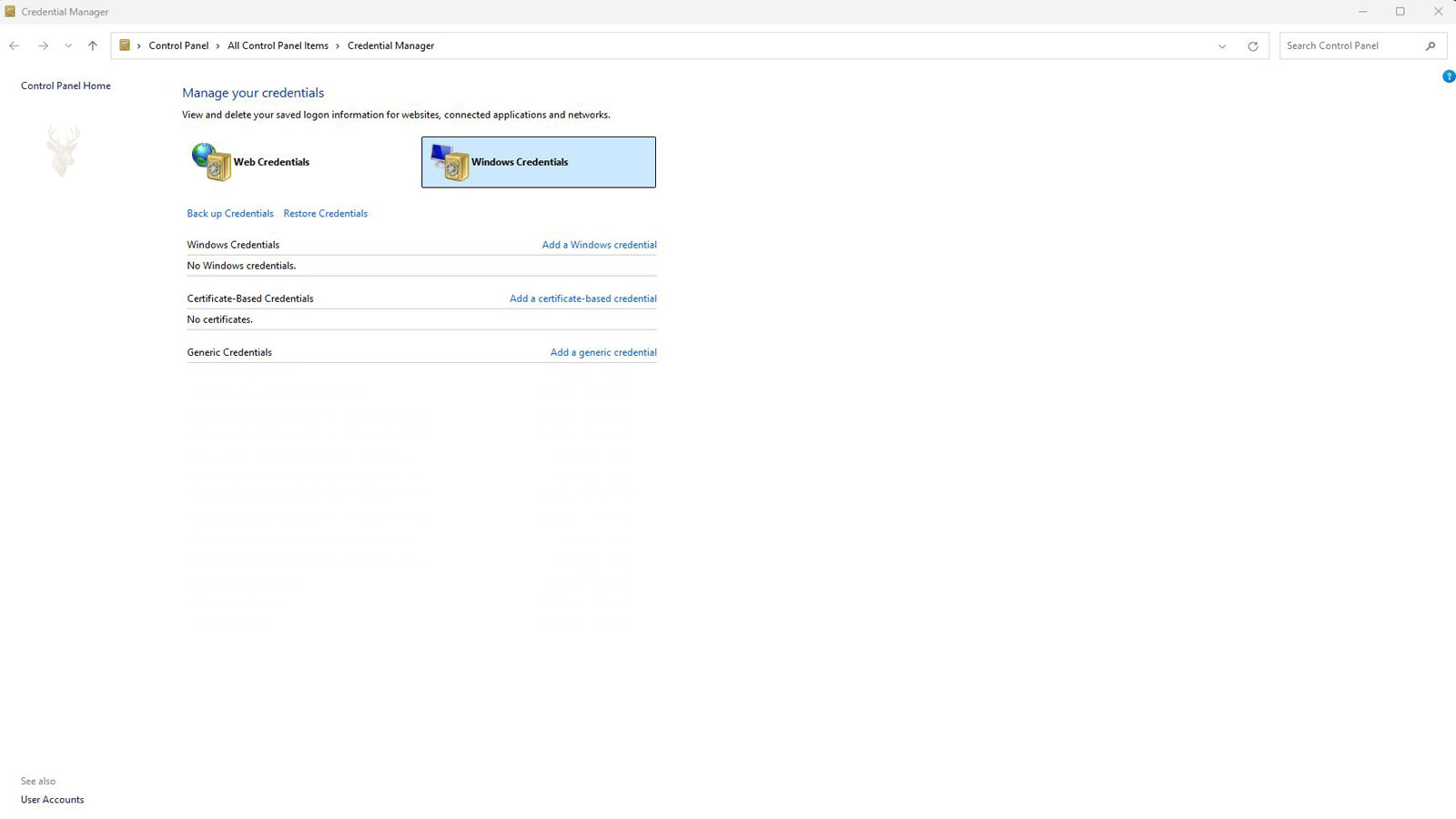
How Windows Stores Saved Credentials
Typing the same username and password every time a computer connects to a shared folder, remote system, or business application would quickly become inconvenient. To reduce repeated authentication prompts, Windows includes Credential Manager, a built-in feature that securely stores many types of saved credentials for later use.
Credential Manager allows Windows to remember approved sign-in information so users do not need to enter it repeatedly. When the computer later connects to the same resource, Windows can automatically supply the stored credentials if they remain valid.
Although the process usually happens silently in the background, Credential Manager plays an important role in everyday computing. It influences access to shared folders, Remote Desktop connections, business servers, mapped network drives, certain applications, and other resources that require authentication.
What Credential Manager Stores
Credential Manager can retain several different categories of authentication information depending on the resource being accessed. Rather than storing every password entered on the computer, it saves credentials that Windows or supported applications are designed to manage for future use.
- Network share usernames and passwords.
- Remote Desktop credentials.
- Windows-based application authentication.
- Certain web credentials managed through Windows.
- Enterprise authentication information used by supported services.
The exact types of credentials available vary depending on the Windows edition, installed software, and how the computer is configured.
Credential Manager Is Different From Browser Password Storage
Many users assume that every saved password on a Windows computer is stored in one location. In reality, browsers often maintain their own password databases that operate independently from Credential Manager. While some Microsoft services may integrate with Windows, browser password storage and Windows credential storage are not the same feature.
| Credential Manager | Browser Password Manager |
|---|---|
| Primarily stores Windows authentication information. | Primarily stores website usernames and passwords. |
| Supports network resources and Windows services. | Supports web logins entered through the browser. |
| Managed through Windows. | Managed by the individual browser. |
| Often used by Remote Desktop and network shares. | Used mainly for websites. |
How Saved Credentials Improve Everyday Use
Without stored credentials, users would need to authenticate repeatedly whenever they accessed protected office resources. Credential Manager reduces these interruptions by allowing approved credentials to be reused automatically after the initial sign-in.
This is especially helpful in business environments where employees routinely connect to shared printers, file servers, Remote Desktop sessions, network storage devices, and other authenticated resources throughout the workday.
Credential Manager is designed to simplify repeated authentication, not to eliminate security. Windows still verifies whether the stored credentials remain valid each time they are used.
Why Stored Credentials Sometimes Stop Working
A credential that worked yesterday may suddenly begin generating repeated password prompts. In many cases, the stored password itself has not become damaged. Instead, something about the account or the destination resource has changed since the credential was originally saved.
- The account password was changed.
- The server or computer name changed.
- Network permissions were modified.
- The resource was moved to another location.
- The stored credential no longer matches the account being requested.
When this occurs, Windows may continue offering the outdated credential until it is updated or removed, creating the impression that the password itself is incorrect when the real issue is that the saved information no longer matches the destination.
Windows Credentials and Generic Credentials
Credential Manager separates stored information into categories based on how the credentials are used. Windows credentials are commonly associated with Windows authentication resources, while generic credentials may be used by supported applications and services that rely on Windows to store authentication information.
This organization helps Windows identify which saved credentials should be presented for a particular connection without exposing unrelated passwords or mixing authentication records that serve different purposes.
Viewing Saved Credentials
Credential Manager provides a central location where users can review many of the authentication records stored by Windows. Each entry typically identifies the resource it belongs to, allowing users to determine whether the saved information still matches the computer, server, or service they intend to access.
Reviewing stored credentials is often one of the first troubleshooting steps when a computer repeatedly requests a password for a resource that was previously accessible without interruption.
- Open Control Panel.
- Select Credential Manager.
- Choose either Windows Credentials or Web Credentials.
- Review the saved entries associated with the affected resource.
- Update or remove outdated credentials if necessary.
Updating Stored Credentials
When an account password changes, Windows may continue presenting the previous credential until the stored information is updated. Rather than repeatedly entering the new password while Windows keeps supplying the old one automatically, updating the saved credential allows future authentication attempts to use the current account information.
In many environments, replacing an outdated credential immediately resolves repeated authentication prompts without requiring changes to the network or the user account itself.
| Situation | Typical Result |
|---|---|
| Password changed recently | Stored credential may need updating. |
| Computer renamed | Windows may treat it as a different destination. |
| Server replaced | A new credential may be required. |
| Network resource removed | The saved entry may no longer be useful. |
| User account replaced | Stored credentials should match the new account. |
Removing Outdated Credential Entries
Not every saved credential remains useful forever. Computers are replaced, servers are renamed, employees change accounts, and office resources are retired. Credentials connected to these older resources may remain stored even though Windows no longer needs them.
Removing outdated entries can simplify troubleshooting because Windows will no longer attempt to authenticate automatically using obsolete information. The next connection typically prompts for current credentials, allowing the updated information to be stored if appropriate.
Deleting a saved credential removes only the stored authentication record. It does not delete the user account or remove permissions from the destination resource.
Credentials Follow the Current Windows User
Credential Manager stores information separately for each Windows user profile. One person signed into the computer may have access to a different collection of saved credentials than another person using the same machine. This separation helps prevent users from automatically inheriting another person’s saved authentication records.
As a result, a network share may open automatically for one employee while another employee receives a password prompt, even though both individuals are using the same physical computer.
- Each Windows profile maintains its own saved credentials.
- Removing one user’s credentials does not remove another user’s entries.
- Separate profiles improve privacy and accountability.
- Authentication behavior may differ between users on the same computer.
Credential Manager Does Not Grant New Permissions
Credential Manager remembers approved authentication information, but it cannot create access that the account does not already possess. If a user lacks permission to open a shared folder or connect to a Remote Desktop session, storing the username and password will not override the security rules established on the destination computer or server.
Windows still verifies the account’s permissions every time the stored credential is presented. If access has been removed or modified, authentication may succeed while authorization to use the resource is denied.
| Credential Manager Can | Credential Manager Cannot |
|---|---|
| Remember approved credentials. | Create new user permissions. |
| Reduce repeated password prompts. | Bypass Windows security policies. |
| Store authentication for supported resources. | Restore deleted user accounts. |
| Help automate future sign-ins. | Override access restrictions on remote systems. |
Multiple Saved Credentials Can Cause Confusion
Over time, a computer may accumulate several saved credentials for similar servers, shared folders, or remote systems. Some entries may reference old server names, previous usernames, or resources that no longer exist. When Windows attempts to determine which credential to use, these older entries can complicate troubleshooting.
Reviewing stored credentials periodically helps eliminate obsolete records and reduces the likelihood that Windows will repeatedly present authentication information that is no longer valid.
Credential Manager and Remote Desktop Connections
Remote Desktop frequently relies on Credential Manager to remember authentication information for computers that users access on a regular basis. Instead of requesting a username and password every time a session begins, Windows can automatically supply the saved credentials if they still match the destination computer.
If the password changes, the remote computer is renamed, or the account is replaced, the stored credential may no longer work correctly. Updating or removing the outdated entry usually allows Windows to prompt for the current information during the next connection attempt.
- Frequently used office workstations.
- Remote support computers.
- Windows servers.
- Virtual machines.
- Other systems that require Windows authentication.
Network Shares Often Depend on Stored Credentials
Shared folders on another computer or server may also use Credential Manager to simplify authentication. Once a valid username and password have been saved, Windows can automatically present those credentials whenever the user reconnects to the same shared resource.
If multiple servers contain folders with similar names or if an office changes file servers, an older stored credential may continue being presented to the wrong destination. This can produce repeated sign-in requests even though the user is entering the correct password.
Repeated password prompts do not always indicate an incorrect password. Windows may simply be offering saved credentials that no longer match the destination resource.
Credential Manager Works Alongside Windows Security
Although Credential Manager stores authentication information, it does not replace Windows security mechanisms. Every time a credential is used, Windows still verifies the identity of the account and confirms that the destination resource accepts the authentication request.
If an account has been disabled, deleted, locked, or stripped of its permissions, the stored credential cannot restore access simply because the password remains saved on the computer.
| Credential Status | Likely Result |
|---|---|
| Password remains current | Authentication normally succeeds. |
| Password has changed | Credential should be updated. |
| Account has been disabled | Authentication will fail. |
| Permissions removed | Sign-in may succeed while access is denied. |
| Destination renamed | Windows may request new credentials. |
Protecting a Computer Also Protects Stored Credentials
Because Credential Manager contains authentication information that may provide access to office resources, protecting the Windows user account itself is extremely important. A strong Windows password, secure sign-in practices, and physical protection of the computer help reduce the risk of unauthorized access to stored credentials.
Users should also avoid saving credentials on shared or publicly accessible computers unless there is a specific business reason and appropriate security controls are in place.
- Use strong Windows account passwords.
- Lock the computer when leaving the workstation.
- Avoid saving credentials on public computers.
- Remove outdated authentication records periodically.
- Review saved credentials after password changes.
Credential Manager Simplifies Authentication, Not Administration
Credential Manager is designed to improve convenience by securely remembering approved authentication information. It reduces repetitive password entry while allowing Windows to authenticate users more efficiently when they reconnect to familiar resources.
At the same time, it remains important to understand that Credential Manager does not replace account management, permission planning, or security policies. It simply stores credentials that Windows may present when appropriate, while the destination system continues making the final access decision.
Understanding Stored Credentials in Windows
Windows Credential Manager quietly supports many everyday authentication tasks by remembering approved usernames and passwords for network resources, Remote Desktop connections, and supported applications. When the stored information matches the destination, users can reconnect without repeatedly entering the same credentials.
Knowing how Credential Manager works also makes troubleshooting easier. Password changes, renamed computers, replaced servers, and outdated authentication records can all affect automatic sign-ins. By reviewing and maintaining saved credentials as office systems evolve, users can reduce unnecessary authentication problems while preserving the security controls that protect their computers and network resources.











