
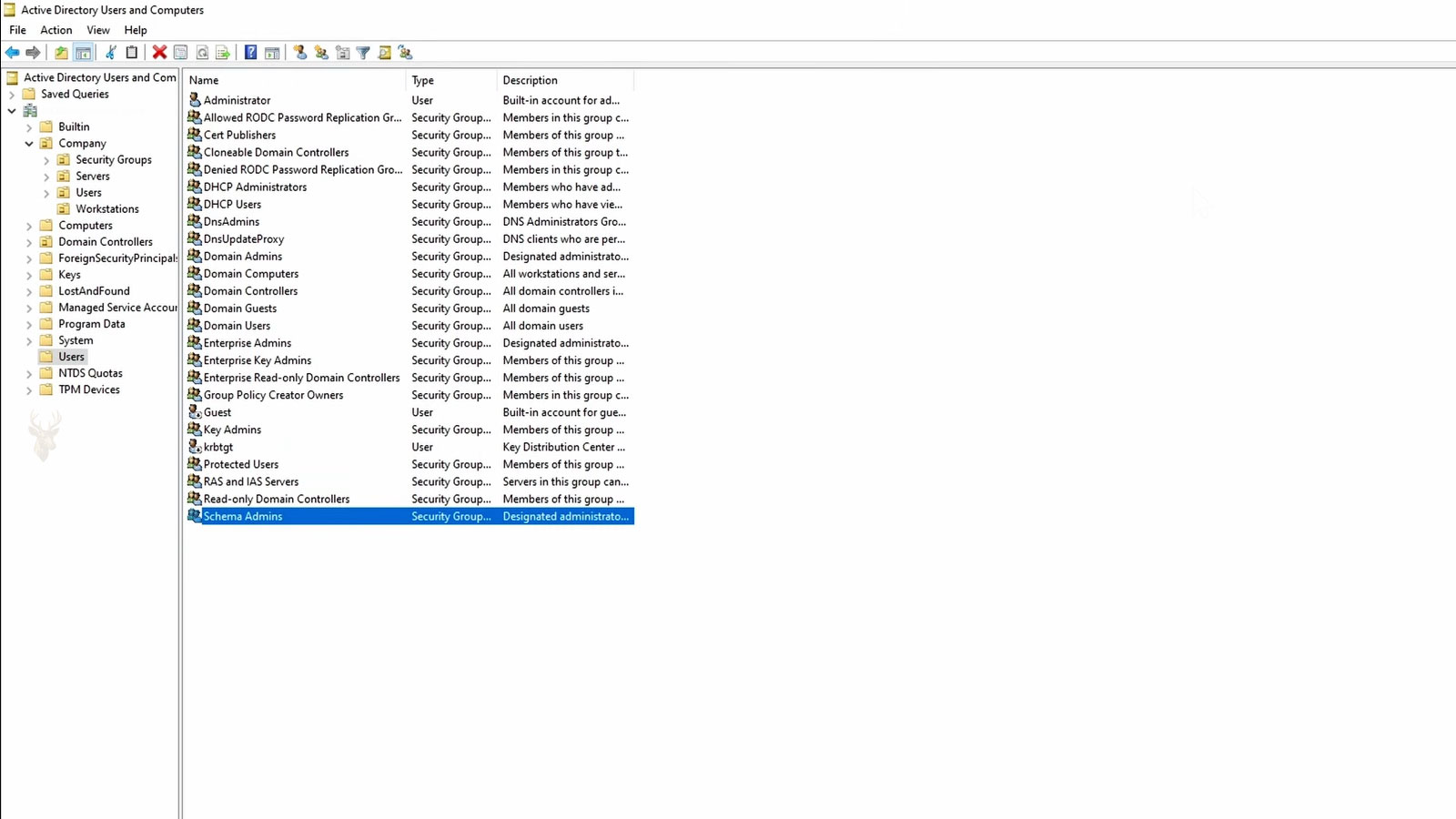
Managing Administrative Access Across Office Computers
Windows computers frequently include a local administrator account that can install software, change system settings, create users, modify security controls, and access areas that standard accounts cannot reach. In a small office, these privileges may be necessary for computer setup and maintenance, but they can also create significant security and management problems when the passwords are reused, forgotten, or shared too widely.
A local administrator account belongs to one particular computer rather than automatically applying across every machine in the office. Two computers may display the same administrator username while still maintaining separate accounts, passwords, security identifiers, and stored settings.
Understanding this distinction helps explain why one administrative password may work on a certain workstation but fail on another, even when the sign-in screens appear almost identical.
The Purpose of a Local Administrator Account
Windows separates ordinary computer use from actions that can affect the entire system. A standard user can usually open applications, work with documents, browse the internet, and adjust personal preferences. Administrative credentials are required when a change could affect other users, alter protected files, or modify the operating system.
- Installing or removing software.
- Adding certain hardware drivers.
- Creating or deleting local user accounts.
- Changing security and network settings.
- Accessing protected system locations.
- Running maintenance tools with elevated privileges.
These capabilities make administrator accounts valuable for support work, but they also make the credentials attractive to anyone attempting to gain broader control of the computer.
Local Accounts Differ From Microsoft Accounts
A local administrator account is stored directly on the computer. A Microsoft account is connected to an online identity and may synchronize certain settings across devices. Either type of account can potentially have administrator privileges, but the way the identity and password are managed is different.
| Account Type | Where It Is Managed | Typical Recovery Method |
|---|---|---|
| Local account | On the individual computer | Another administrator account, recovery options, or authorized technical service |
| Microsoft account | Through Microsoft and the computer | Microsoft account recovery |
| Domain account | Through an organization’s directory system | Authorized network administrator |
This difference becomes important during password recovery. Resetting an online Microsoft account password does not automatically recover a separate local administrator account with a similar name.
An administrator username that looks familiar does not guarantee that the account is connected to the same identity or password used on another computer.
Problems Caused by Reusing One Password Everywhere
Small offices sometimes configure every workstation with the same local administrator username and password because it simplifies setup. This arrangement may appear convenient, but it creates a broad security weakness. Anyone who learns the credentials for one computer may be able to gain administrative access to every similarly configured machine.
Repeated administrator passwords can also make it easier for malicious software or unauthorized users to move from one computer to another. A problem that begins on a single workstation may therefore affect a much larger portion of the office network.
- One exposed password may unlock multiple computers.
- Former employees may retain access after leaving the business.
- Shared credentials make individual actions difficult to trace.
- Password changes become disruptive when every computer uses the same value.
- Support staff may not know who has received the password over time.
Shared Passwords Reduce Accountability
When several people use the same administrator account, Windows records activity under that shared identity rather than identifying the individual who performed each action. This can make it difficult to determine who installed a program, changed a security setting, removed software, or altered another user’s access.
Separate administrative identities provide clearer accountability because each authorized person uses credentials assigned specifically to them. Even in a small office, this separation can make troubleshooting and security review considerably easier.
Why Everyday Users Should Not Remain Administrators
Using an administrator account for ordinary daily work increases the potential effect of mistakes and malicious software. A harmful attachment, unsafe installer, or compromised application may gain broader access when it is opened under an account that already has elevated privileges.
A safer arrangement is to use a standard account for email, web browsing, document work, and routine applications. Administrative credentials can then be entered only when a legitimate system change is required.
| Daily Standard Account | Administrative Account |
|---|---|
| Used for routine work | Used for approved system changes |
| Has limited system privileges | Can modify protected settings |
| Reduces the reach of many mistakes | Requires stronger access control |
| Appropriate for most employees | Appropriate for authorized support personnel |
This separation does not prevent every security incident, but it adds an important barrier between ordinary computer use and changes that can affect the entire system.
Unique Passwords Limit the Reach of a Compromise
Assigning a different local administrator password to each office computer reduces the number of systems that can be accessed when one credential is exposed. A password recovered from one workstation should not automatically provide administrative access to every other computer in the business.
This approach is more secure than using one shared password across the office, but it also requires an organized method for storing and retrieving the credentials. Without proper records, unique passwords can become difficult to manage during repairs, employee transitions, or emergency recovery.
- Limit each password to one computer whenever possible.
- Use long passwords that are difficult to guess.
- Avoid names, addresses, phone numbers, and predictable patterns.
- Change credentials after suspected exposure.
- Store recovery information in a controlled location.
Password Records Need Their Own Protection
A list of administrator passwords can become one of the most sensitive records in a small office. If the list is stored in an unprotected spreadsheet, printed beside the computers, or shared through ordinary email, anyone who gains access to it may obtain control over multiple systems.
Password records should be accessible only to authorized personnel and protected separately from the computers they manage. A secure password manager, restricted administrative vault, or carefully controlled offline record may provide a safer method than keeping credentials in ordinary office documents.
| Storage Method | Risk Level | Primary Concern |
|---|---|---|
| Sticky note on the computer | High | Visible to anyone near the workstation |
| Unprotected spreadsheet | High | Easy to copy, email, or open |
| Shared email message | High | May remain accessible indefinitely |
| Protected password manager | Lower | Requires careful access control and recovery planning |
| Restricted offline record | Lower | Must remain physically secure and current |
A strong administrator password provides little protection when the record containing it is stored where unauthorized people can easily find it.
Naming Accounts Clearly Prevents Confusion
Administrator accounts should have names that distinguish them from ordinary employee accounts without revealing unnecessary information. Generic names such as Admin or Administrator are easy to recognize, while vague or inconsistent names may confuse support personnel during maintenance.
The account name should also be documented with the computer’s asset record. This helps authorized technicians identify which credentials belong to each system and reduces the chance of repeatedly trying the wrong account during urgent support work.
- Assign the computer a clear asset name or identification number.
- Document the local administrator account associated with that device.
- Record when the password was last changed.
- Identify who is authorized to retrieve the credential.
- Update the record whenever the computer is replaced or reassigned.
Employee Departures Require an Access Review
When an employee, contractor, or outside technician leaves the organization, administrator access should be reviewed promptly. Any person who knew a local administrator password may still retain that information after their work relationship ends.
Changing the passwords on affected computers helps remove that lingering access. The office should also review remote support tools, saved credentials, password manager permissions, and any documentation that may have been copied or shared.
- Change passwords known to the departing person.
- Remove unused local and remote accounts.
- Review saved remote access software.
- Revoke access to password records.
- Confirm that replacement credentials are documented securely.
Emergency Access Must Be Planned Before It Is Needed
A small office can become locked out of an important computer when the only administrator password is forgotten, the person who managed it is unavailable, or the account becomes damaged. Creating a recovery plan in advance reduces the chance that routine maintenance will turn into an extended interruption.
An emergency plan may include a secondary authorized administrator account, securely stored recovery credentials, current backup information, and clear instructions identifying who can approve access during an urgent situation.
| Recovery Preparation | Purpose |
|---|---|
| Secondary administrator account | Provides another authorized path into the computer |
| Secure credential record | Prevents the password from being lost |
| Current file backups | Protects business data if account recovery fails |
| Approval procedure | Defines who may authorize emergency access |
| Computer asset records | Connects each credential to the correct workstation |
Password Changes Should Follow a Clear Reason
Changing administrator passwords too frequently without a reliable management process can create confusion, outdated records, and unnecessary lockouts. At the same time, leaving the same password unchanged for years increases the chance that former employees or unauthorized individuals still know it.
A practical policy connects password changes to meaningful events, such as suspected exposure, personnel changes, unauthorized access, or a scheduled security review. Each change should be documented immediately so the approved record remains accurate.
Password rotation is useful only when the new credential is strong, properly recorded, and distributed to fewer authorized people than the one it replaced.
Remote Support Adds Another Layer of Access Control
Remote support sessions may still require local administrator credentials when software installation, driver changes, or protected system repairs are involved. Sharing the password directly with every remote technician can weaken the office’s security and make future access difficult to control.
A safer process allows an authorized office representative to enter the administrative credentials when needed or provides temporary access that can be removed after the support session. This limits how many people permanently know the password while still allowing approved work to continue.
Removing Unused Administrator Accounts
Old administrator accounts often remain on office computers long after the employee, contractor, or technician associated with them is gone. These accounts may no longer serve a legitimate purpose, yet they can continue providing a path to elevated access if the credentials are still known or later discovered.
Periodic account reviews help identify unnecessary administrative identities before they become forgotten security risks. Any account scheduled for removal should first be checked for encrypted files, stored credentials, application ownership, or other dependencies that may be tied to that user profile.
- Identify accounts that are no longer assigned to an authorized person.
- Confirm that important files have been transferred or backed up.
- Check whether applications or scheduled tasks depend on the account.
- Disable the account before permanent removal when additional review is needed.
- Document the change in the computer’s asset record.
Built-In Administrator Accounts Require Special Care
Windows includes a built-in Administrator account that is different from an ordinary user account given administrator privileges. On many systems, this account is disabled by default and is not needed for routine work. Enabling it without a clear reason may create another highly privileged account that must be protected and monitored.
If the built-in account is used for recovery or maintenance, it should have a strong unique password and be disabled again when the task is complete. Leaving it active permanently can increase the number of credentials capable of controlling the computer.
Every active administrator account creates another path to full system control, so each one should have a documented purpose.
Administrative Prompts Should Not Be Approved Automatically
User Account Control prompts appear when software or a system process requests elevated privileges. Employees may become accustomed to clicking through these prompts, especially when they appear frequently, but approving an unfamiliar request can allow unwanted software to make broad changes to the computer.
Before entering administrator credentials, the user should verify which program is requesting access, why the change is necessary, and whether the software came from a trusted source. Unexpected prompts that appear during ordinary browsing or email use deserve particular caution.
| Prompt Situation | Recommended Response |
|---|---|
| Known software installation approved by the office | Verify the publisher and continue if authorized. |
| Expected driver or maintenance update | Confirm the source before approving. |
| Prompt appears while opening an email attachment | Cancel and investigate the file. |
| Unknown program requests administrative access | Do not approve until the request is identified. |
| Prompt repeatedly returns without explanation | Check the computer for software or security problems. |
Password Recovery Can Affect Protected Information
Resetting a local account password is not always identical to entering the original password. Certain encrypted files, saved credentials, certificates, and protected application data may depend on the original account credentials. An improper reset can restore access to Windows while leaving some protected information unavailable.
This is especially important when the account has been used with the Encrypting File System or other credential-dependent protections. Before forcing a password reset, the office should determine whether irreplaceable data may be tied to the original sign-in information.
- Confirm whether another authorized administrator account is available.
- Check for encrypted or credential-protected files.
- Verify that business data has a current backup.
- Use the least disruptive recovery method available.
- Test access to important files after recovery.
Administrator Access Should Be Reviewed Regularly
Administrative access changes as computers are replaced, employees change roles, vendors complete projects, and new support arrangements are introduced. A password plan that was appropriate when a workstation was installed may no longer reflect who should control it several years later.
A regular review can confirm which accounts remain active, who knows each password, where recovery information is stored, and whether remote access tools still have authorized users. This review does not need to be complicated, but it should be consistent and documented.
| Review Item | Question to Confirm |
|---|---|
| Active administrator accounts | Does every account still have a legitimate purpose? |
| Password ownership | Who currently knows or can retrieve each credential? |
| Former personnel | Were their accounts and access methods removed? |
| Recovery preparation | Can the office regain access if the primary administrator is unavailable? |
| Documentation | Do the records match the current computer configuration? |
Centralized Management May Become Necessary
Managing separate local administrator passwords manually may be practical for a very small number of computers. As the office grows, however, keeping unique credentials current across many workstations can become difficult and error-prone.
Centralized management tools can help generate, rotate, store, and retrieve local administrator passwords under controlled conditions. These systems can also improve accountability by recording which authorized person accessed a credential and when it was used.
The appropriate solution depends on the number of computers, the office’s security needs, the available technical support, and the consequences of losing administrative access. The goal is not to add unnecessary complexity, but to prevent convenience from becoming a long-term security weakness.
Keeping Administrative Control Organized
Local administrator accounts are necessary for installing software, maintaining Windows, changing protected settings, and recovering computers when ordinary accounts cannot complete the required work. Those privileges also make the accounts some of the most sensitive identities in a small office.
Unique passwords, protected records, limited distribution, separate daily user accounts, and regular access reviews can reduce the risk created by administrative credentials. A clear recovery plan also helps prevent a forgotten password or unavailable technician from interrupting important work. When administrative access is documented and controlled carefully, the office can maintain its computers without giving unnecessary people permanent authority over every system.











