
How CompactOS Shrinks Windows Without Changing Everyday Use
As Windows has gained new features over the years, the amount of storage required for the operating system has steadily increased. While modern computers often include large solid-state drives, many compact laptops, tablets, and entry-level systems continue to rely on relatively small storage devices. To help these computers preserve valuable disk space, Microsoft introduced a technology known as CompactOS.
CompactOS allows Windows to store many of its own operating system files in a compressed form while still making them immediately available whenever they are needed. Unlike manually compressing documents into ZIP archives, CompactOS operates automatically within Windows itself. Users continue opening programs, installing updates, and using the computer normally without extracting or managing compressed files.
The goal of CompactOS is not to compress every file on the computer. Instead, it focuses on selected Windows system files that can safely remain compressed while balancing storage savings against the additional processing required to access them.
Why CompactOS Was Developed
Earlier versions of Windows sometimes relied on separate recovery partitions that occupied several gigabytes of storage. As manufacturers began producing thinner devices with limited internal capacity, Microsoft looked for ways to reduce the amount of dedicated space required by the operating system itself.
CompactOS became one solution by allowing Windows to compress many operating system files instead of storing duplicate recovery images on the drive. The approach helps preserve storage while still allowing Windows to repair or restore many system components when necessary.
- Reduces the storage used by Windows system files.
- Helps devices with smaller SSDs or eMMC storage.
- Allows more free space for applications and personal files.
- Operates automatically after configuration.
- Requires no changes to the way users normally work.
How CompactOS Differs From NTFS Compression
Although both technologies involve compression, they serve different purposes. NTFS compression can be applied to ordinary files and folders chosen by the user, while CompactOS is specifically designed for Windows operating system components that Microsoft has determined are suitable for this type of storage optimization.
| Feature | CompactOS | NTFS Compression |
|---|---|---|
| Primary Purpose | Reduce Windows installation size. | Reduce storage used by selected user files. |
| Typical Files | Windows operating system components. | Documents, folders, and other NTFS data. |
| User Management | Managed primarily by Windows. | Enabled or disabled by the user. |
| Scope | Operating system files. | Individual files and folders. |
Because each technology targets a different type of data, they should not be viewed as competing features. Instead, they solve different storage management needs within Windows.
CompactOS compresses portions of Windows itself, while NTFS compression is intended for files and folders stored on an NTFS volume.
When Windows Uses CompactOS
Windows evaluates the hardware configuration and available storage before determining whether CompactOS is appropriate. Systems with limited internal storage are more likely to benefit because recovering several gigabytes of space may significantly improve the amount of room available for applications, updates, and user data.
On computers with abundant storage and high-performance hardware, Windows may determine that the potential storage savings provide little practical advantage. The operating system therefore considers multiple factors rather than enabling CompactOS universally on every installation.
Compressed System Files Remain Fully Usable
One of the most important characteristics of CompactOS is that compressed Windows files remain available exactly as they would if they were stored without compression. Applications continue loading normally, Windows services start automatically, and users generally have no indication that many operating system files occupy less physical storage on the drive.
Whenever Windows needs a compressed system file, the operating system transparently decompresses the required information in memory. This happens automatically and does not require users to manually expand files or manage compressed folders.
Balancing Storage Savings and System Performance
Every compression method involves a tradeoff. While CompactOS reduces the amount of disk space consumed by Windows, reading compressed files requires additional processor activity to restore the data before it can be used. Modern processors typically perform this work efficiently, making the performance difference relatively small during everyday use on supported hardware.
Microsoft designed CompactOS with this balance in mind. The technology is intended for systems where recovering storage space provides greater practical value than storing every Windows file in its uncompressed form.
CompactOS does not attempt to maximize compression at all costs. Instead, it balances storage savings with maintaining a responsive Windows experience.
CompactOS Is Different From ZIP Archives
People sometimes assume that CompactOS works like placing Windows inside one large ZIP archive. In reality, the operating system continues storing its files within the normal Windows directory structure. Applications, updates, and system components access these files through the file system just as they would on any standard Windows installation.
| CompactOS | ZIP Archive |
|---|---|
| Windows manages compression automatically. | The user creates and extracts the archive. |
| Files remain part of the operating system. | Files are packaged into a separate archive. |
| Applications continue using the files normally. | Files usually need to be extracted before use. |
| Designed specifically for Windows system components. | Designed for general file storage and transfer. |
Storage Savings Vary Between Computers
The amount of storage recovered by CompactOS depends on several factors, including the Windows version, installed components, optional language packs, and the hardware configuration. As a result, two computers running similar editions of Windows may not recover exactly the same amount of disk space.
Updates installed over time can also influence the overall storage used by the operating system. Consequently, the amount of available free space after enabling CompactOS may differ between otherwise similar computers.
How Windows Determines Whether CompactOS Is Appropriate
Rather than relying on a single storage threshold, Windows evaluates several characteristics of the computer before deciding whether CompactOS should be used. Available disk capacity, processor performance, memory resources, and the overall hardware profile all contribute to determining whether compression is likely to provide a worthwhile benefit.
- Available storage capacity.
- Overall processor performance.
- General hardware capabilities.
- The expected balance between storage savings and system responsiveness.
This evaluation allows Windows to apply the technology where it is most beneficial instead of treating every computer exactly the same.
Updates Continue to Work Normally
Windows Update remains fully compatible with CompactOS. When operating system files need to be replaced during an update, Windows handles the necessary decompression, modification, and recompression internally. Users generally do not need to disable CompactOS before installing security updates, feature updates, or cumulative updates.
Because the process is integrated into the operating system, CompactOS remains largely invisible during normal maintenance. Most users never interact with it directly, even though it may be helping conserve storage space behind the scenes.
Checking the Current CompactOS Status
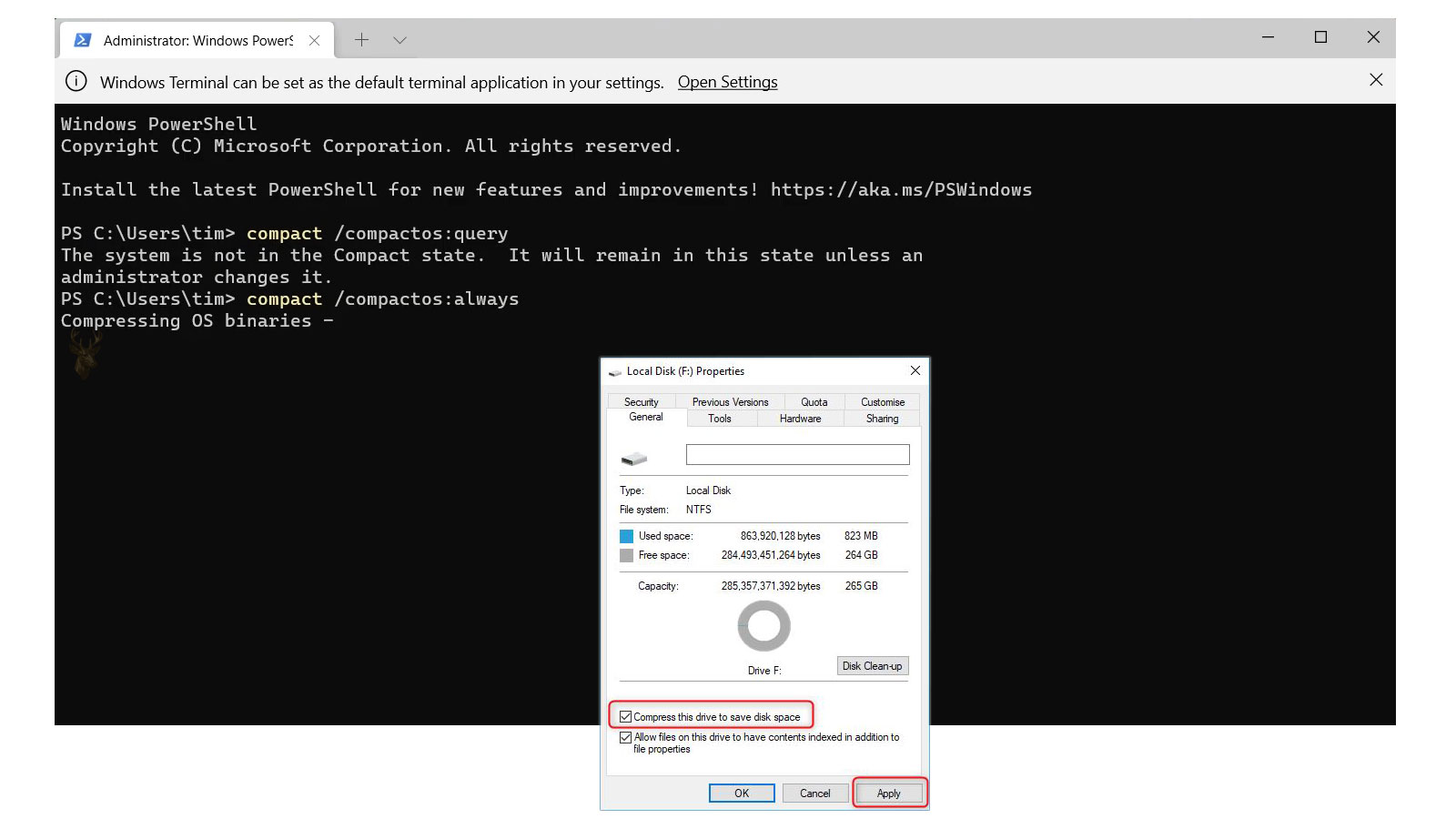
Windows does not display CompactOS prominently in the standard storage settings, but its status can be checked through an elevated Command Prompt. The built-in Compact command reports whether the operating system is currently using compression or whether Windows has determined that compression is unnecessary.
The status message may indicate that the system is already compact, that it is not compact, or that Windows will decide automatically based on the hardware configuration. This makes it possible to review the current state before making any changes.
compact.exe /compactOS:queryThis command only checks the existing configuration. It does not enable or disable CompactOS.
Enabling CompactOS Manually
CompactOS can be enabled manually when additional storage space is needed and the computer is suitable for the feature. Windows then compresses eligible operating system files while leaving the normal folder structure and system behavior intact.
compact.exe /compactOS:alwaysThe process may take time because Windows must examine and compress many system files. The computer should remain connected to reliable power, and the process should not be interrupted once it has started.
- Open Command Prompt with administrator privileges.
- Enter the CompactOS enable command.
- Allow Windows to process the eligible system files.
- Restart the computer if Windows requests it.
- Check the status again after the process finishes.
Returning Windows to an Uncompressed State
CompactOS is reversible. If storage capacity is no longer limited or the computer experiences performance concerns, Windows can expand the compressed system files and return them to their ordinary state.
compact.exe /compactOS:neverDisabling CompactOS requires enough free storage to hold the expanded files. If the drive is already nearly full, Windows may be unable to complete the process until additional space is made available.
CompactOS can be enabled or removed without reinstalling Windows, but either process requires stable power and sufficient time to complete.
CompactOS Does Not Replace Storage Maintenance
Reducing the size of Windows system files can recover useful storage, but it does not remove temporary data, duplicate downloads, old installers, application caches, or personal files that are no longer needed. A computer with very little free space may require several forms of cleanup before it can operate reliably.
| Storage Method | Primary Purpose |
|---|---|
| CompactOS | Reduces the space used by eligible Windows files. |
| Storage cleanup | Removes temporary and unnecessary data. |
| Uninstalling software | Removes applications that are no longer needed. |
| Moving personal files | Transfers large data collections to another location. |
| Drive replacement | Provides additional permanent storage capacity. |
CompactOS is therefore most useful as a targeted storage feature rather than a complete solution for a drive that remains constantly full.
Backup Protection Remains Necessary
System compression does not create a backup and does not protect Windows from drive failure, file system corruption, malware, or accidental deletion. Important personal files still need separate copies stored on another device or a reliable remote service.
Before making major storage changes, it is also wise to confirm that important documents and account information can be recovered. Although CompactOS is built into Windows, any extensive operation involving system files should be approached with the same care used during other maintenance procedures.
- Keep important personal files backed up separately.
- Confirm that the storage drive is functioning normally.
- Avoid interrupting compression or decompression.
- Maintain enough free space for updates and temporary files.
- Use CompactOS only when the storage savings provide a practical benefit.
A Practical Option for Limited Windows Storage
CompactOS gives Windows a built-in method for reducing the storage occupied by eligible operating system files. The compression remains largely invisible during everyday use because Windows automatically expands the information in memory whenever a program or service needs it.
The feature can be valuable on computers with smaller internal drives, especially when several gigabytes of recovered space make a meaningful difference. On systems with ample capacity, the benefit may be less important. Used selectively and supported by regular storage maintenance and reliable backups, CompactOS can help Windows fit more efficiently without changing the way the computer is normally used.











